



AI Summary
Do you want to learn how to add WPForms to a page in WordPress?
I’ve been working with WPForms for a while now. One of the most common questions I see from new users is how to get their form from the builder onto an actual page.
The good news? WPForms gives you 5 different ways to do it, and each one takes just a few clicks. In this guide, I’ll walk you through every method so you can pick the one that works best for your setup.
Build Your WordPress Form Now! 😉
How Do I Add WPForms to a Page in WordPress?
WPForms makes it simple to display your forms anywhere on your site.
You can use the built-in embed wizard, the WordPress block editor, a shortcode, a widget, or a page builder like Elementor or Divi.
I’ll cover all 5 methods below. If you’re not sure which one to pick, start with Method 1. It’s the quickest.
Before You Begin
Before you can add a form to a page, you’ll need two things ready.
1. Install and Activate WPForms
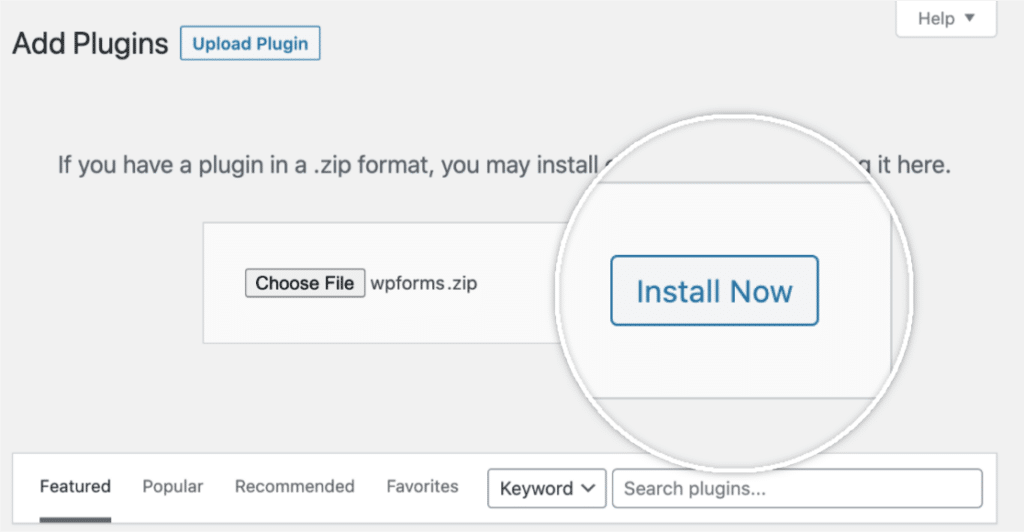
If you haven’t already, install the WPForms plugin on your WordPress site. You can download WPForms Lite for free from WordPress.org, or upload the Pro version from your account. If you need help, check out this step-by-step guide on how to install a plugin in WordPress.
2. Create Your Form
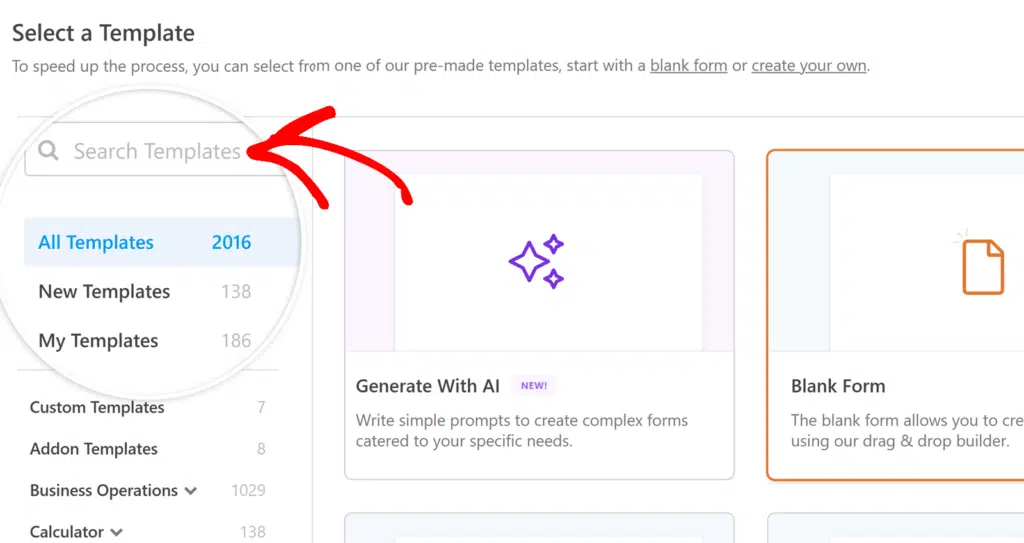
Next, head to WPForms » Add New in your WordPress dashboard. WPForms comes with a drag-and-drop form builder and 2,100+ form templates to help you get started fast. Pick a template, customize the fields you need, and click Save.
That’s all the setup you need. Now let’s get your form on a page.
Method 1: Use the Embed Wizard
This is the fastest way to add WPForms to a page. You don’t even need to leave the form builder. After you’ve created or edited your form, click the Embed button at the top right of the builder.

A popup will give you two options: create a new page or select an existing one.

Embed on a New Page
If you want a fresh page for your form, click Create New Page. Enter a name for the page and click Let’s Go.

You’ll be taken straight to the page editor with your form already embedded. All you need to do is click Publish.

Embed on an Existing Page
Already have a page where you want the form? Click Select Existing Page and pick the page from the dropdown.

Click Let’s Go and you’ll be redirected to that page’s editor. From here, you may need to add the WPForms block to the page (I’ll cover how in the next method). Hit Update to save your changes.
Method 2: Use the Block Editor
If you’re already editing a page and want to drop in a form, you can add the WPForms block directly.
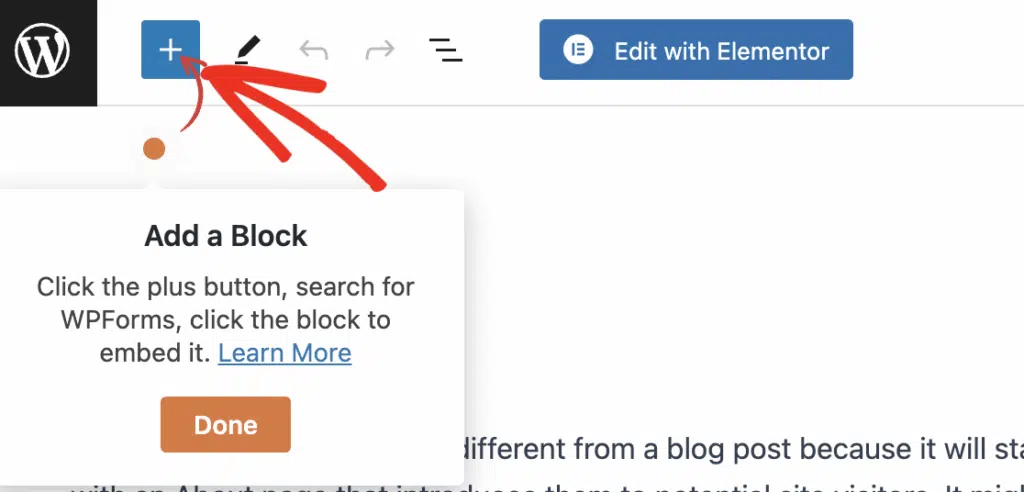
Open the page where you want your form. Click the plus (+) icon in the upper left corner to open the block library.

Search for “WPForms” or scroll to the Widgets section. Click the WPForms block to add it to your page.

Now select the form you want to display from the Select a Form dropdown.

Your form will appear right in the editor. Click Publish or Update when you’re ready.
Configure the WPForms Block Settings
Once you’ve added the form, you’ll notice additional settings in the right sidebar panel.
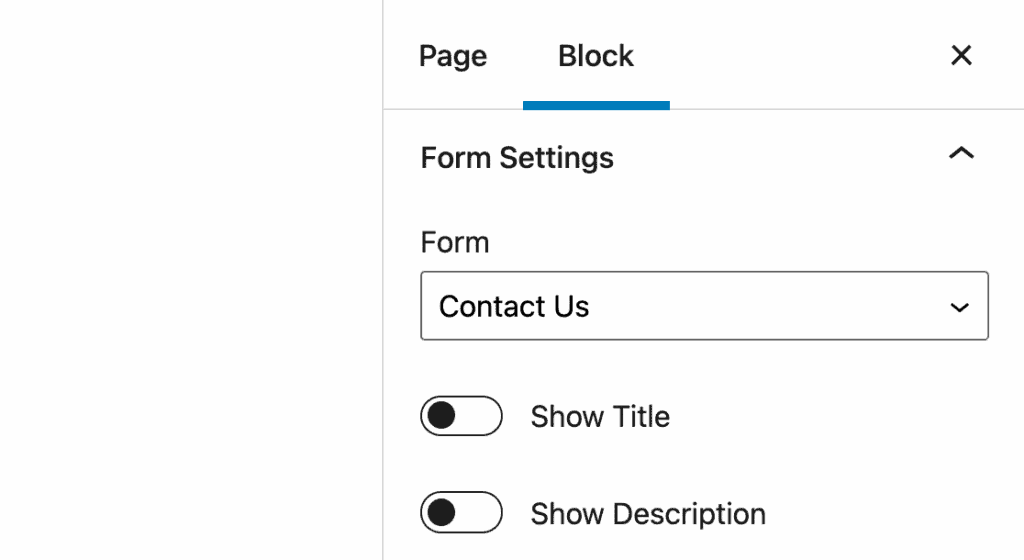
Here’s what you can adjust:
- Show Title and Show Description: Toggle these on to display the form’s name and description above the form fields.
- Form Styling: WPForms lets you style your forms right in the block editor without writing any CSS. You can change field sizes, colors, and button styles visually.
- Advanced: Add custom CSS classes if you need more control over the form’s appearance.
Method 3: Use a Shortcode
WPForms generates a unique shortcode for every form you create. This is useful if you’re working with the Classic Editor, a theme that doesn’t fully support blocks, or any other area that accepts shortcodes.
To find your form’s shortcode, go to WPForms » All Forms in your WordPress dashboard. You’ll see the shortcode listed next to each form. It looks something like this:
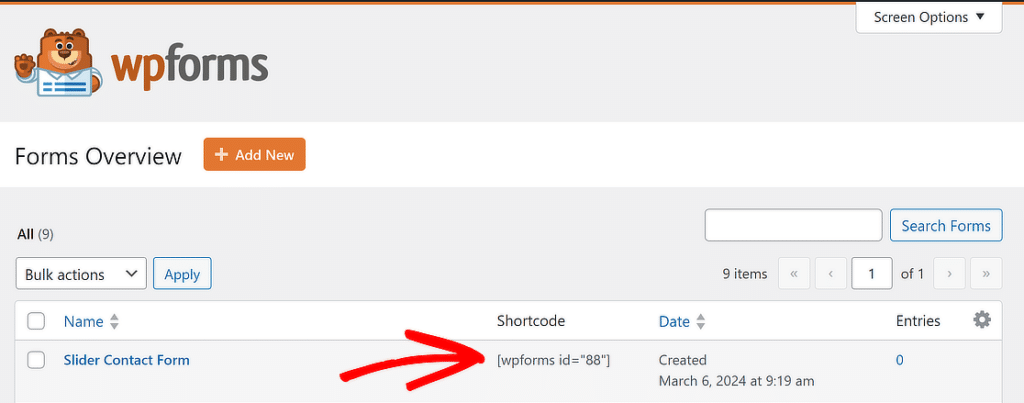
Copy the shortcode, then open the page or post where you want to add your form. Add a Shortcode block (or paste directly if you’re in the Classic Editor), enter the shortcode, and click Publish or Update.
Method 4: Use a Widget (Sidebar or Footer)
Want to display a form in your sidebar or footer? You can add it as a widget. This is great for newsletter signups, quick contact forms, or lead capture forms that should appear across your entire site.
Go to Appearance » Widgets in your WordPress dashboard.

Find the widget area where you want your form (sidebar, footer, etc.) and click on it to expand it.
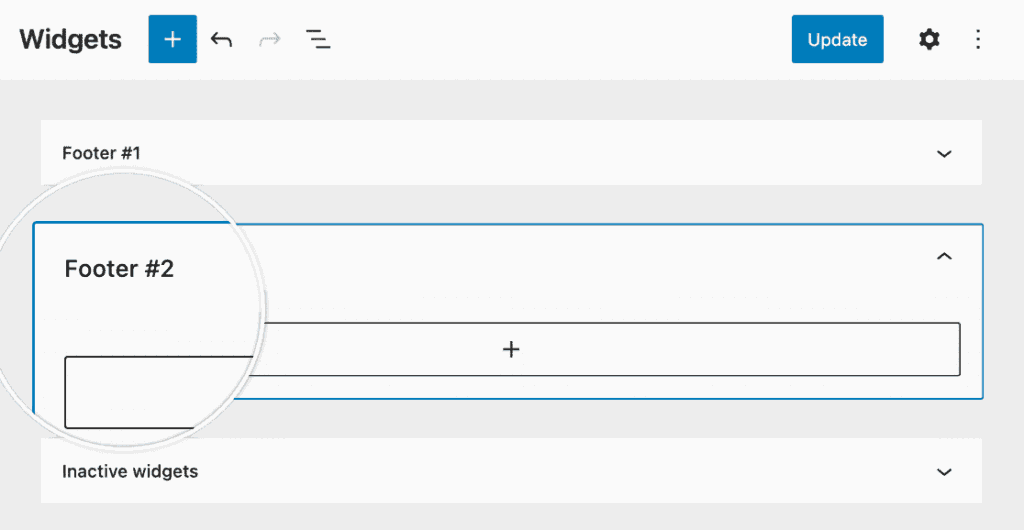
Click the plus (+) button in the top left corner of the editor and search for the WPForms block, just like you would on a regular page.

Select your form from the dropdown.

Click the Update button in the top right corner to save your widget settings.

Here’s what a form looks like in a footer widget on a live site:
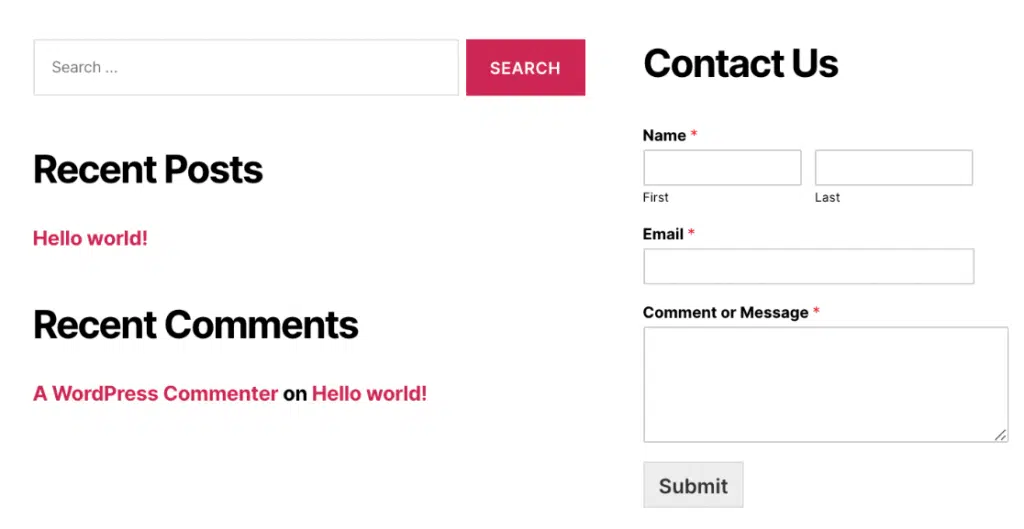
For a more detailed walkthrough, check out our guide on how to add a contact form in a WordPress sidebar widget.
Method 5: Use a Page Builder
If you build your pages with Elementor or Divi, WPForms has native integrations for both. You don’t need shortcodes or workarounds.
Add WPForms to an Elementor Page
Open your page in the Elementor builder. In the left sidebar, look for the WPForms widget under the Basic section. Go ahead and drag it onto your page where you want the form to appear.

Select your form from the dropdown in the widget settings. Elementor will show a live preview of your form right on the page.

If you need to make changes to the form itself, click the Edit the selected form link to open the form builder in a popup window.
When everything looks good, click Publish or Update at the bottom of the Elementor builder.

WPForms also supports full form styling inside Elementor, including field colors, button styles, and container backgrounds.
For the full walkthrough, check out our guide on adding WPForms to an Elementor page.
Add WPForms to a Divi Page
Open your page and click Use Divi Builder to launch the visual editor. Choose your layout and add a new row to your page.
When Divi asks you to insert a module, search for WPForms and select it.

In the module settings, select your form from the Select Form dropdown. You can also toggle on the form title and description if you want them displayed.

Click the green checkmark to save the module, then publish your page. For more details on styling and advanced options, see our guide on adding WPForms to a Divi page.
Bonus: Track Where Your Forms Are Embedded
Once you’ve added forms across your site, it can get tricky to remember where each one lives. WPForms has a built-in feature that shows you exactly where every form is embedded.
Go to WPForms » All Forms. Then open Screen Options at the top of the page and check the Locations box.

This will add a column to the table with all your forms that shows the number of places you’ve added each form. Click on it to reveal all the locations for a specific form.
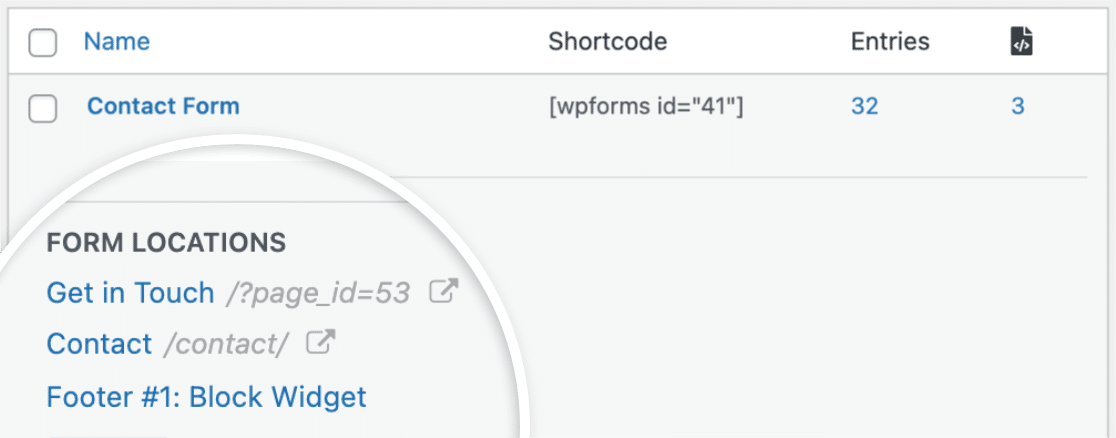
This way, you can always see which page your contact form is on without digging through your entire site.
FAQs About Adding WPForms to WordPress
Adding forms to your WordPress site is straightforward, but a few questions come up regularly. Here are the most common ones.
Why Isn’t My WPForms Form Showing on the Page?
There are a few things to check. First, make sure you actually published or updated the page after adding the form. If you used a shortcode, double-check that the form ID is correct.
A typo in the shortcode will result in nothing showing up. Some caching plugins can also serve an older version of the page, so try clearing your site cache and checking again.
Can I Add the Same Form to Multiple Pages?
Yes. You can embed the same form on as many pages, posts, or widget areas as you need. Every method in this guide works for reusing a form across your site. All submissions still get collected in one place under WPForms » Entries.
Which Embedding Method Should I Use?
It depends on your situation. Here’s a quick guide:
- Embed Wizard: Fastest option. Use it when you’re building or editing a form and want to publish it right away.
- Block Editor: Best for when you’re already working on a page. Gives you block-level styling controls.
- Shortcode: Use with the Classic Editor or anywhere that accepts shortcodes but not blocks.
- Widget: For sidebars and footers. Great for forms that should appear on every page of your site.
- Page Builder: If you use Elementor or Divi, the native WPForms integration keeps everything inside your builder’s workflow.
Next, Customize Your WordPress Forms
And that’s it! You now know 5 different ways to add WPForms to a page in WordPress. Now that your form is live, here are a few things you might want to do next:
- Customize how your form looks with colors, fonts, and layout options
- Stop contact form spam with CAPTCHA, anti-spam tokens, and allow/deny lists
- Set up multiple email notifications to route form submissions to the right people on your team
Ready to build your form? Get started today with the easiest WordPress form builder plugin. WPForms Pro includes lots of free templates and offers a 14-day money-back guarantee.
If this article helped you out, please follow us on Facebook and Twitter for more free WordPress tutorials and guides.


Is there a way to embed the form to generate a code to embed in an external page (not wordpress) ?
Hey Daniel – I apologise but this is not possible out of the box. This is because WPForms is a WordPress plugin and you will need a WordPress site to make in order to use the WPForms.
Thanks.
How do I feature the “Request Button” Popup next to my add to cart button of my product page?
Thanks
Hey Mohamamd — In order to make sure we answer your question as thoroughly as possible and avoid any confusion, could you please contact our team?
If you have a WPForms license, you have access to our email support, so please submit a support ticket. Otherwise, we provide limited complimentary support in the WPForms Lite WordPress.org support forum.
Thanks.
Does wpforms contact form send emails if it was on a local website?
Hi Hazem,
Yes, notification emails can be received and sent to the submitter if the site is hosted on local environment.
Can you embed a created WPform into a tab menu? If so how?
Hey Dave — In order to make sure we answer your question as thoroughly as possible and avoid any confusion, could you please contact our team?
If you have a WPForms license, you have access to our email support, so please submit a support ticket. Otherwise, we provide limited complimentary support in the WPForms Lite WordPress.org support forum.
Thanks.
How can I add a form to all my pages at once?
Hey Lucy, I am sorry but it is not possible to add a form to all pages at once, a closer workaround would be to add to create a short and add it to your page templates as outlined here.
I hope this helps.
Thank you for this guide, it is very clear and straightforward even for someone new to Wordpress like me. What I don’t understand is how I receive the response if someone completes and submits my form – I don’t have a clue and the tutorial is entirely silent on this essential topic. Sincerely, Mike
Hey Michael – You can take a look at our documentation here to setup form notification emails. In case you’d like to improve the email delivery, here’s a blog post that you can checkout.
Is there a way to add a conversational form to a specific page? In my case I want to insert it in my home page (or at least turning the conversational form my home page)
Hey Joao – We currently don’t have the feature to embed Conversational Forms to a specific page, though it’s on our feature request tracker. As an alternative, you can consider using the Leads Form addon that allows you to create an interactive form to capture leads on your WordPress website.
Buongiorno, pur avendo inserito correttamente le email di chi deve ricevere la notifica e essere certo che le email sono corrette separandole con una virgola …. la email vengono ricevute solo dall’admin.
Come mai ?
Hey Riccardo – Sorry that it’s not working for you as expected. We’ll be glad to help you with this. For the paid users, we recommend reaching out to our team by submitting a support ticket here. Or, if you are using our lite version, please feel free to raise a support thread here.
Thanks.
how do i download and manually install Likert scale?
Hey Sheena – If you’d like to use the Likert Scale field, you’ll need to install the Survey and Polls addon. For more details, please take a look at our documentation here.
Is there a way to embed a form into a woocommerce product page?
Hey Catamara – unfortunately we don’t have a way to embed a form into Woo product page right now. However, I’ve made a note on our feature request list so we can keep it on our radar! Thanks 🙂
Hi there,
I’ve installed the Webform and it is functional, but none of the enquiries are getting to my email address, please can you help?
Hey Tash- I am so sorry to hear that you are facing email delivery issue. To fix this, you can follow this doc.
Hope this helps. Let me know if you have any other questions. Thanks 🙂