



AI Summary
You’ve run a WordPress site for more than a year, you’ve probably lost track of at least one form. You build it, embed it somewhere, and then the site grows around it until you can’t quite remember which page it’s sitting on.
That becomes a real problem when you’re planning a redesign and need to know which pages break if you delete a form. It’s also easy for a teammate to embed your contact form on a new page without mentioning it.
WPForms already tracks all of this for you through a Locations column on your forms list, which shows every page, post, and widget holding each of your forms. I’ll walk you through switching that column on and reading what it tells you.
Create Your WordPress Form Now
Why Is It Important to Know Form Locations?
Forms collect your leads, your support requests, and your payments, so losing track of one matters more than it sounds like it should. These are the situations where I’ve found form locations actually earn their keep.
- Redesigns and cleanups: Before you delete or rebuild a form, you need to know which pages depend on it. Deleting a form that’s still embedded leaves a blank space or a dead shortcode on the frontend.
- Duplicate forms: On a site that’s grown for a few years, it’s common to find the same contact form embedded on four different pages, sometimes next to a near-identical copy somebody made instead of reusing the original.
- Team handoffs: Other people on your team may add a form to a new page without telling you. If you don’t know it’s there, you might add the same form somewhere else and split your entries across two places for no reason.
- Privacy and compliance: When you need to document every place your site collects personal data, guessing isn’t good enough. A location list gives you the actual pages.
- Routine maintenance: Auditing your WordPress site goes faster when you can see which pages have forms on them without opening each one.
All of these come down to knowing exactly where your forms are, and WPForms answers that with a single column on the forms list.
How to Find All Pages With Forms on Your WordPress Site
WPForms has a built-in feature called the Form Locator. It scans your site, works out where each of your forms is embedded, and reports the count in a column on your forms list. That column is hidden by default, so the only real work here is switching it on.
Step 1: Install the WPForms Plugin
To see where your forms live, you need a form builder that keeps track of it for you. WPForms is the most beginner-friendly form plugin for WordPress, with 2,100+ form templates and a drag-and-drop builder, and location tracking is part of the plugin rather than something you bolt on afterward.
What I like about the way WPForms handles this is that there’s nothing to configure in advance. The plugin scans your site on its own schedule and records locations as it goes, so the data is already sitting there the first time you go looking for it.
The Form Locator is a core feature, not a paid addon, so it works on every plan including the free WPForms Lite version. You won’t need a license just to find your forms, though the paid WPForms plans add entry management, conditional logic, and payments once you outgrow the basics.
If you’re starting from scratch, follow these instructions to install WPForms and then create WordPress forms for the pages that need them. The Form Locator becomes genuinely useful once you have a handful of forms spread across your site.
Start Tracking Your Form Locations Now
Step 2: Open the Forms Overview Page
From your WordPress dashboard, go to WPForms » All Forms to open the Forms Overview page. This screen lists every form you’ve built, and it’s where your location data will show up once you enable it.
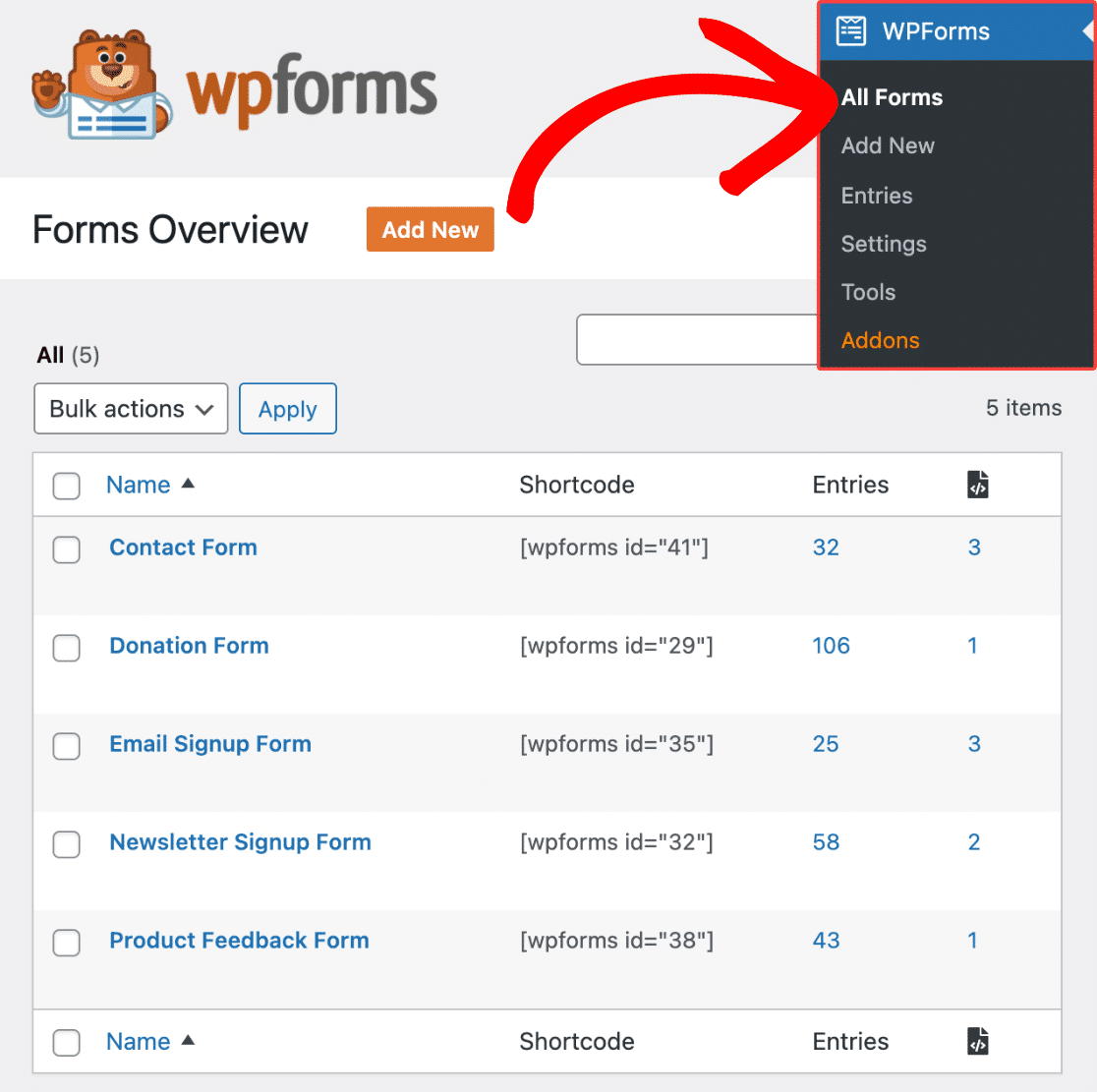
By default the table shows Name, Author, Entries, Views, Interactions, and Conversion, along with the date each form was created.
You can search by form name or form ID and filter the list by tag, which helps a lot once your forms run past a single screen. Our complete guide to form management walks through the rest of what this page does.
There’s no Locations column in that list yet, because WPForms keeps it hidden until you ask for it.
Step 3: Turn On the Locations Column
The column controls live behind a small gear icon, not in the WordPress Screen Options tab where most people go looking first. From the Forms Overview page, click the gear icon at the top right of your forms list.

A dropdown opens with a checkbox for every column WPForms can display. Check the box next to Locations to add the Form Locator column to your table.
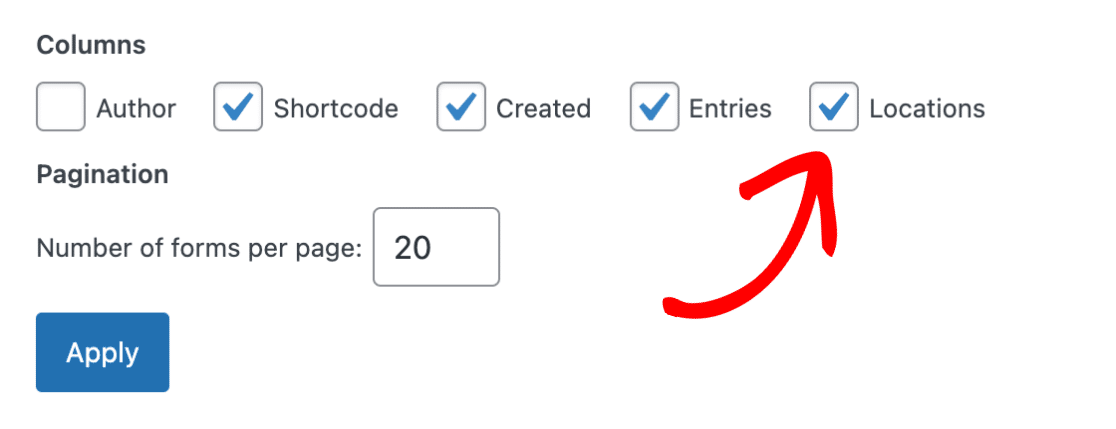
This same dropdown controls the other columns, so if you haven’t looked at the built-in form analytics yet, the Views, Interactions, and Conversion checkboxes are worth switching on while you’re here.
When your selection looks right, click the Save Changes button to apply it.
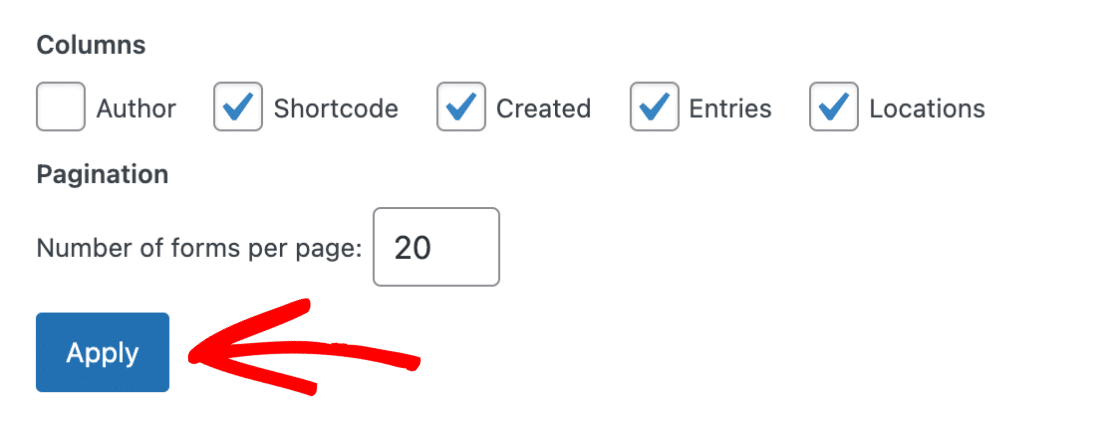
Your forms list reloads with a new Locations column showing how many places each form currently appears on your site.
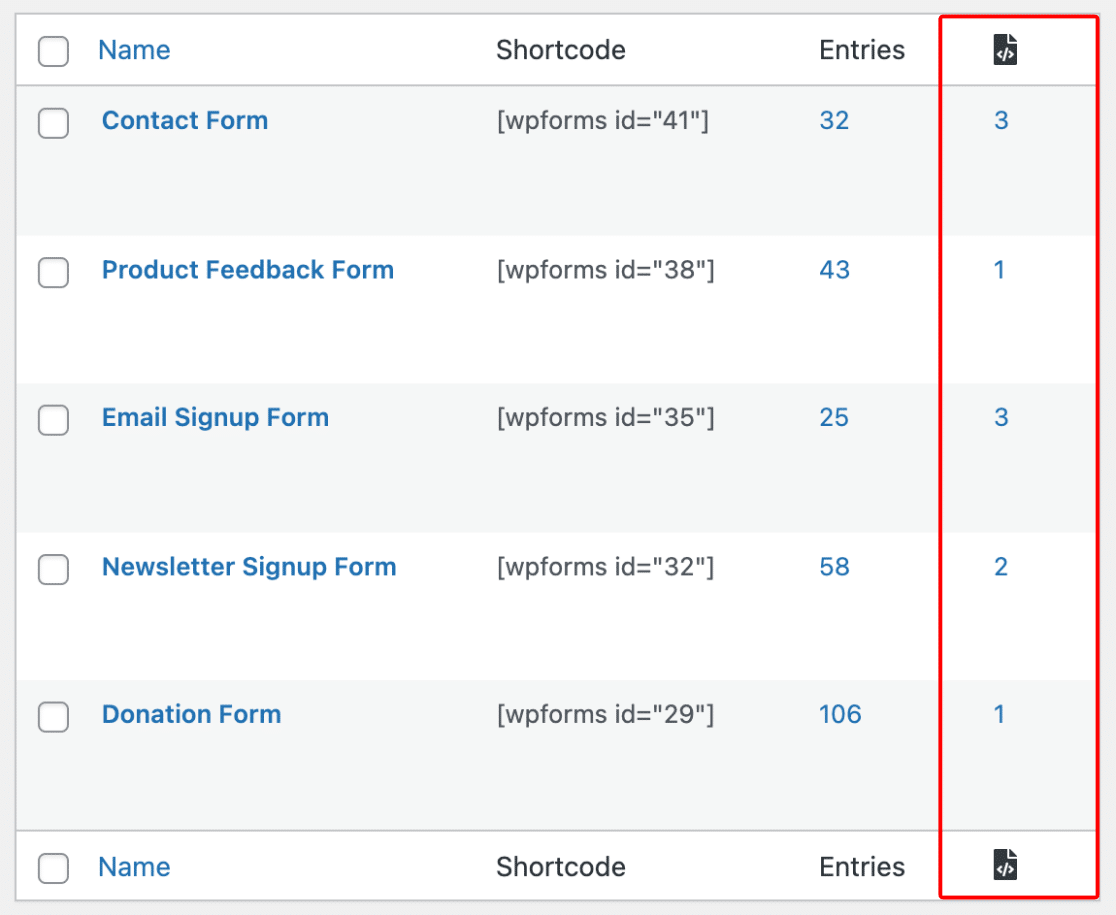
A zero means WPForms hasn’t found that form anywhere, which usually just means it isn’t embedded yet. Any number above zero is a link through to the full list, and the official Form Locator documentation has more detail if you want it.
Step 4: Open a Form’s Location List
The number in the Locations column tells you how many places a form appears, but not which ones.
There are two ways to see the actual list, and both land you on the same screen. The first is to click the number itself.
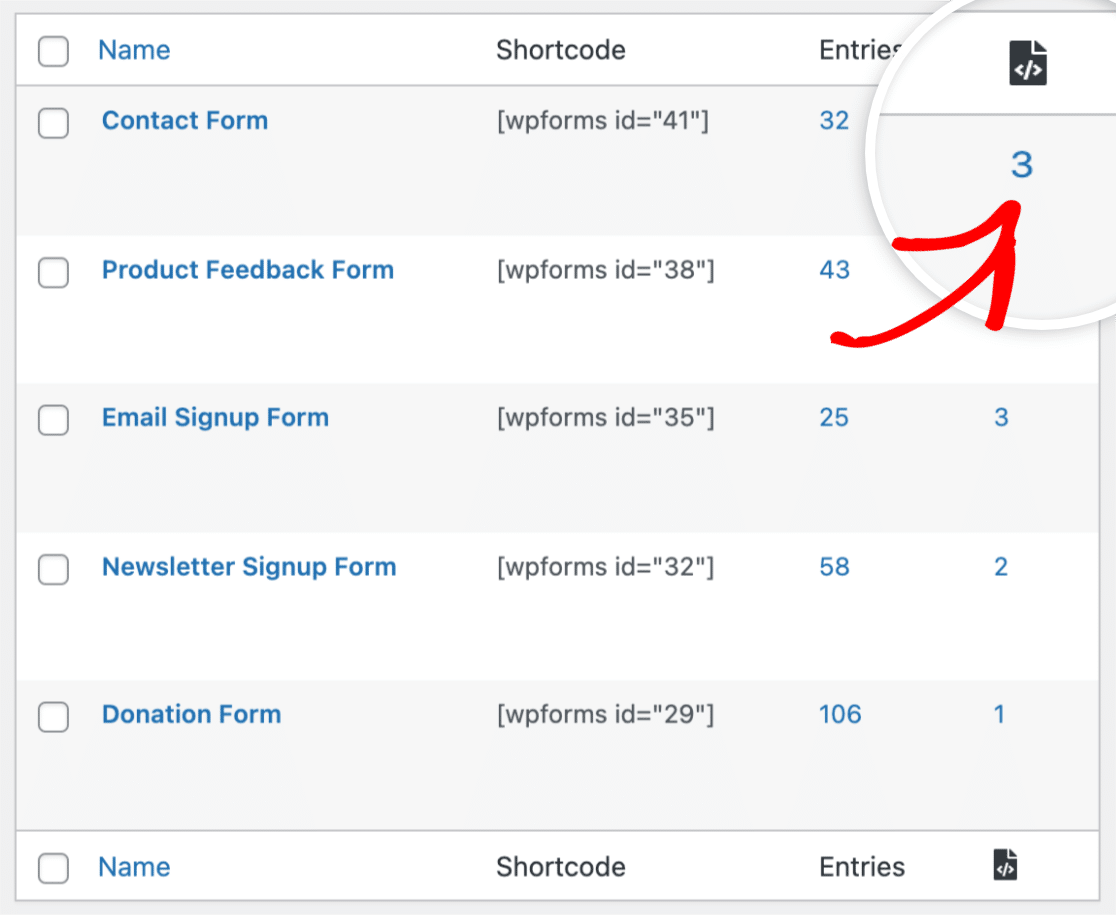
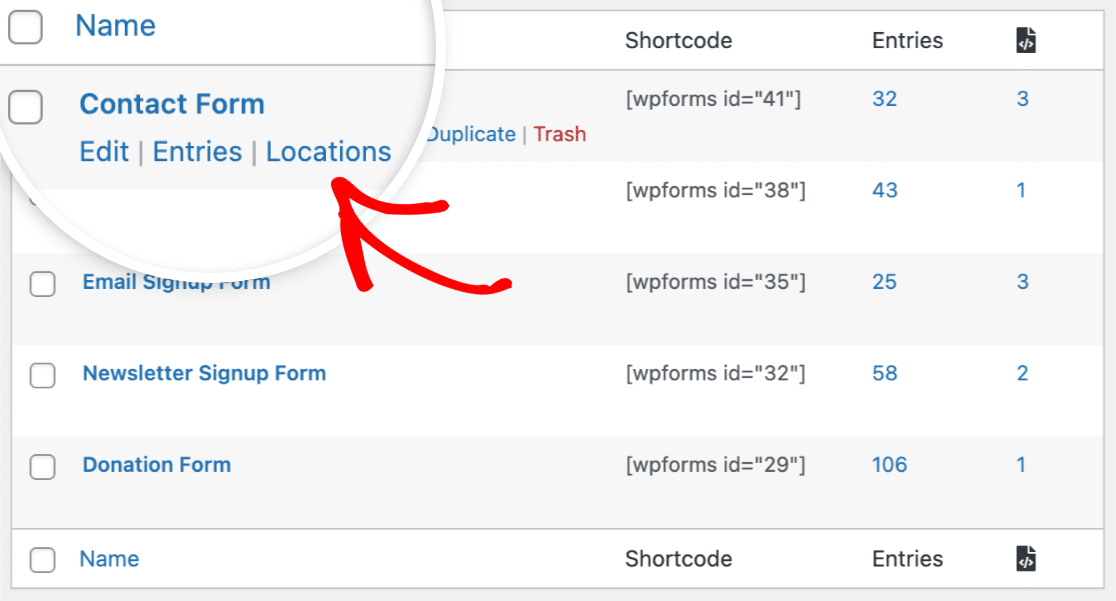
The second is to hover over a form’s name and click the Locations link in the row of actions that appears.
That link only shows up for forms WPForms has already found somewhere, so a form you haven’t embedded yet won’t offer the option.
Either route opens the FORM LOCATIONS list for that form.
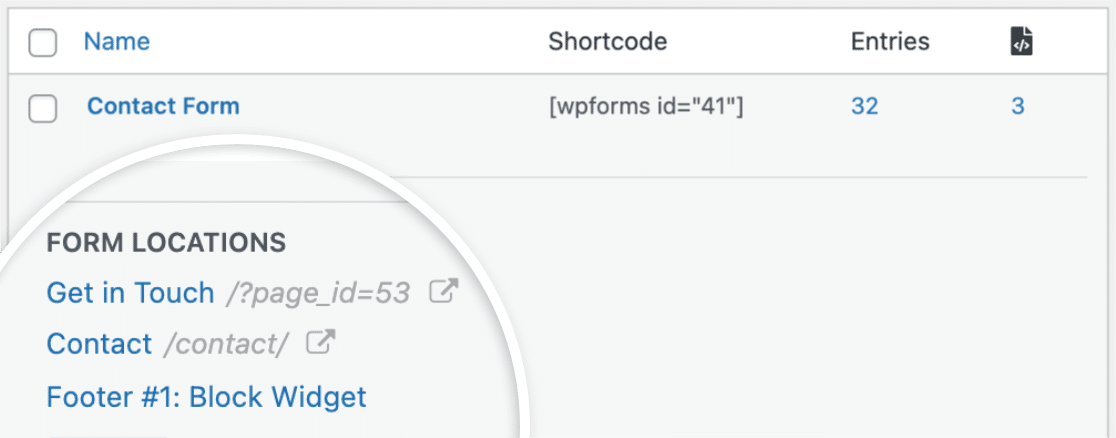
A location here covers a lot more than pages, because WPForms also picks up posts, custom post types, sidebars, footers, and block widgets.
A form you added to a sidebar or footer widget appears in this list right alongside your regular pages, and widget areas are usually where the surprises turn up, since they’re the easiest place to forget a form.
Step 5: Jump to Any Form Location
Every row in the FORM LOCATIONS list is really two links, one pointing at each side of your site.
Which one you click depends on whether you want to look at the form or edit the page it’s on.
The links on the right open the published page on the frontend, so you see the form the way your visitors do.
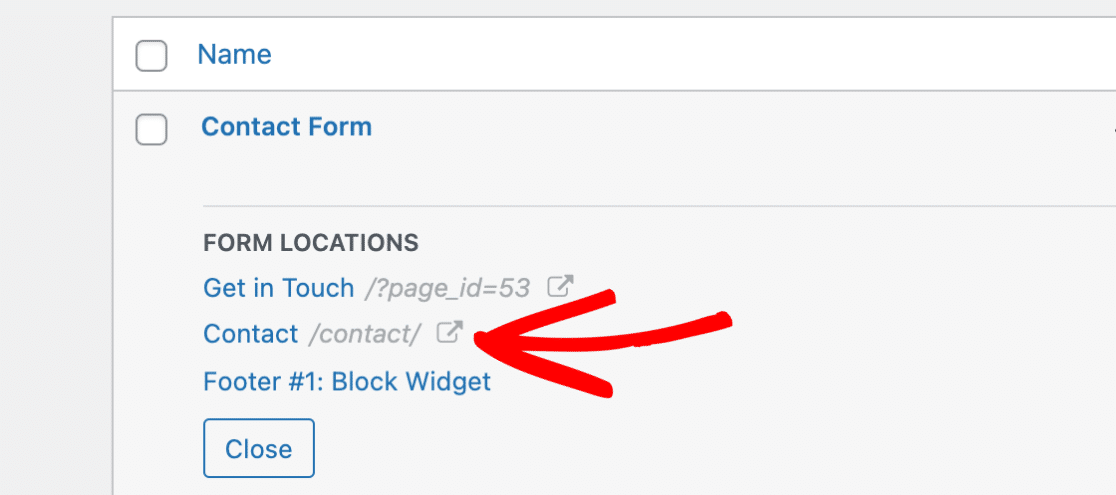
If a page hasn’t been published yet, you’ll see its page ID instead of a permalink. Clicking that opens the draft, which comes in handy when you’re still building a page out and want to check the form before it goes live.
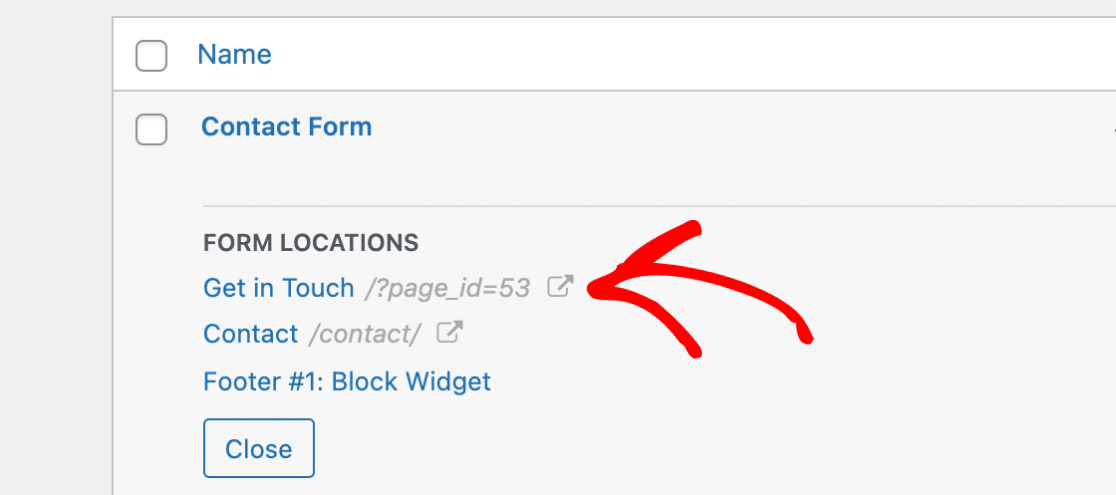
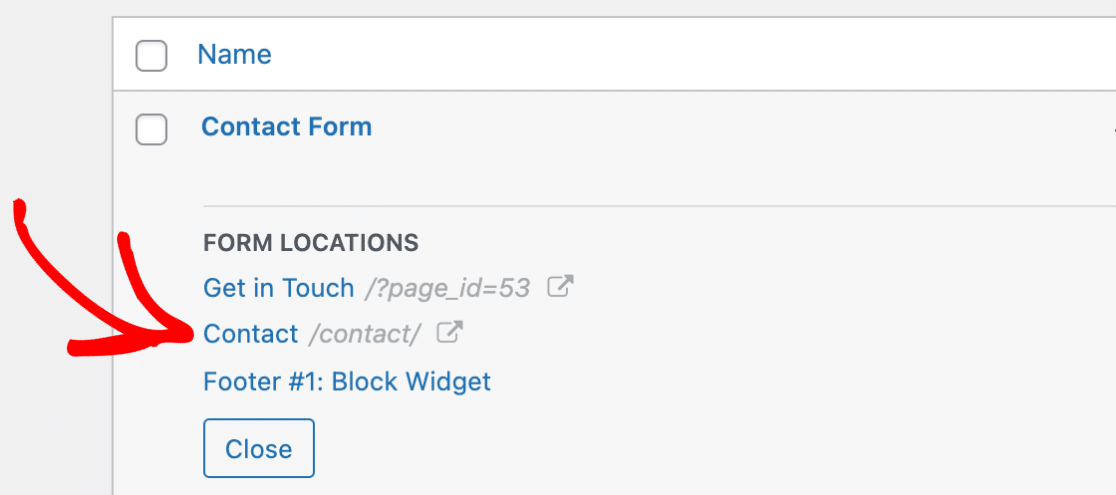
The blue links on the left go the other direction, into your WordPress admin. Clicking a page name opens that page in the block editor, ready to edit.
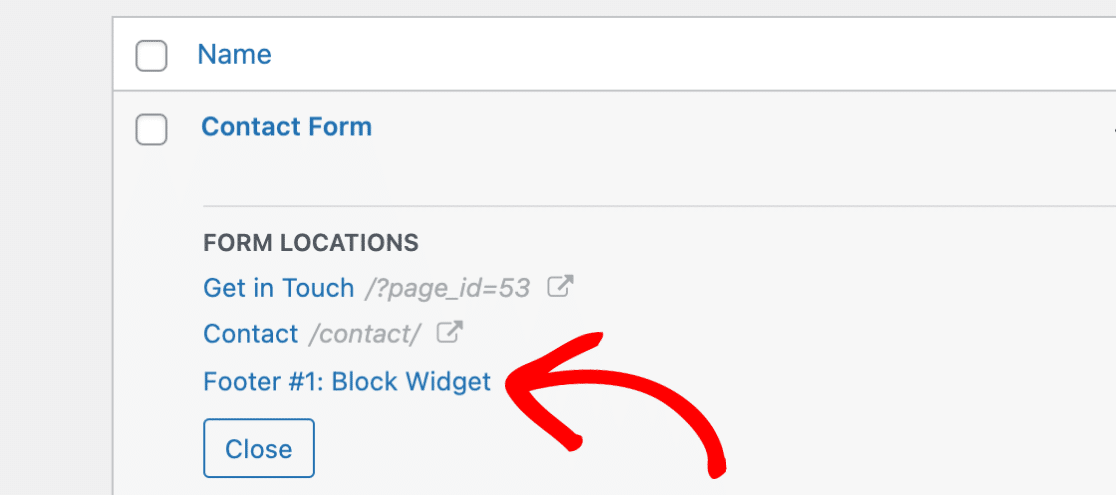
Widget locations behave the same way, so a blue link like “Footer #1” takes you straight to the Widgets screen with the right area already in front of you. That saves you hunting through footer and sidebar blocks to work out where the form was placed.
Why Your Form Locations Look Wrong (and How to Force a Rescan)
WPForms scans your site for form locations every 24 hours rather than in real time. So if you embedded a form five minutes ago and the Locations column still reads zero, the scan simply hasn’t caught up with you yet.
Refreshing the Forms Overview page is worth trying first. When that doesn’t help, you can trigger a scan yourself by adding &scan to the end of the Forms Overview URL in your browser’s address bar.
On a site at example.com, the full URL looks like this:
https://example.com/wp-admin/admin.php?page=wpforms-overview&scan
Load that and WPForms kicks off a fresh scan right away. It’s the quickest fix after you’ve moved forms around or built out several new pages in one sitting.
If a form still doesn’t register after a manual scan, and you embedded it through a page builder rather than the block editor or a shortcode, that points to a plugin conflict rather than something you’ve configured wrong.
It’s worth opening a support ticket with the page URL so the team can reproduce it.
How to Find Forms Built With Another Plugin
Not every form builder keeps track of where its forms end up. If the forms you’re hunting for were built with a different plugin, a couple of approaches will get you there without needing a locator feature.
Start with that plugin’s own forms list, since most builders have one and many show a shortcode or form ID for each form.
Copy the shortcode, then use the search box on your Pages and Posts screens to find the content it appears in. On a site with a few dozen pages, that’s usually enough.
For anything larger, a database query beats searching by hand. A SELECT against your wp_posts table using post_content LIKE '%your-shortcode%' returns every page and post containing that embed in one pass.
Take a backup before you touch the database, and if that sentence made you uneasy, the search approach above gets you most of the way there.
FAQs on Finding Pages With Forms in WordPress
Finding pages with forms in WordPress brings up a few recurring questions, mostly about what the Form Locator does and doesn’t pick up. These are the ones that come up most often.
Why aren’t my form locations updating?
WPForms scans your site every 24 hours, so recent changes won’t show up straight away. Refresh the Forms Overview page first, and if the count is still wrong, force a scan by adding &scan to the end of the Forms Overview URL. That starts a fresh scan immediately instead of waiting for the next scheduled one.
Does the Form Locator work with page builders like Elementor and Divi?
The Form Locator reads pages, posts, custom post types, and widget areas, which covers block editor embeds, shortcodes, and most page builder placements. Some builder-specific form widgets store their content differently and may not register. When a form you placed with a builder never appears even after a manual scan, treat that as a conflict worth reporting rather than a setting you’ve missed.
Is the Form Locator available in WPForms Lite?
Yes, it’s part of the core plugin rather than a paid addon, so the Locations column works on every plan including the free Lite version.
How do I find a form’s ID or shortcode?
Your form ID appears in the Forms Overview list and inside the shortcode WPForms generates for each form. Our guide on how to find your form ID covers where to look, and it walks through pulling individual field IDs too.
Can I see which page a form entry was submitted from?
Form locations and entry sources answer two different questions. Locations tell you where a form is embedded right now, while entry-level tracking records the page a specific submission came from. For the second one, a hidden field storing the page URL will capture it with every entry.
Next, Organize Your WordPress Forms With Tags
Once you can see where all your forms live, the next thing worth fixing is the list itself. WPForms lets you organize your forms with tags so you can group them by site section, client, or purpose, then filter the Forms Overview page down to the ones you’re actually working on.
Any form you rediscover during this process is worth running through our form testing checklist, because a form that’s been sitting on a forgotten page for two years may well have a notification pointing at somebody who left the company. And if you break something while cleaning up, our guide on how to undo changes in WordPress covers your options.
Find All Your WordPress Forms Now
Ready to build your form? Get started today with the easiest WordPress form builder plugin. WPForms Pro includes lots of free templates and offers a 14-day money-back guarantee.
If this article helped you out, please follow us on Facebook and X (Twitter) for more free WordPress tutorials and guides.





Is this only checking for the shortcode? I have forms using Elementor’s WPForms element and they aren’t showing in the Locations.
Hi Maggie,
This would require some troubleshooting (Probably a plugin/ theme conflict) — If you are having a paid license, you can reach out to our Support Team