


AI Summary
Are your visitors landing on your pages, scrolling around, and leaving without ever filling out your contact form or signing up for your list?
A WordPress popup form can be the fix for you. Rather than hoping visitors notice a form buried in your sidebar or at the bottom of a page, a popup puts it right in front of them at the right moment.
The top-performing popup forms convert close to 1 in 10 visitors, which is significantly better than most static forms. In this guide, I’ll walk you through the steps on how to create a popup form via two different methods!
How to Create a WordPress Popup Form
Before we jump into the tutorials, let’s quickly cover why popup forms are worth your time and what you’ll need to get started.
Why Use a WordPress Popup Form?
When a visitor is about to leave your site or has been reading your content for a while, a well-timed popup gives them a reason to stop and engage. Here are some of the most common ways I’ve seen site owners use them:
- Contact forms: Let visitors reach out without navigating away from the page they’re on.
- Email opt-in forms: Grow your newsletter list by catching visitors before they leave.
- Lead capture forms: Collect information from potential customers browsing your lead capture form pages.
- Feedback and surveys: Ask a quick question while the visitor’s experience is still fresh.
- Login and registration: Give returning users quick access without a page redirect.
- Event registration: Promote webinars, workshops, or launches with a targeted single optin or double optin signup.
What matters most is timing and relevance. A popup that fires the instant someone lands on your site feels aggressive. But one that appears after they’ve scrolled through half your article, or right as they’re about to close the tab? That feels helpful.
You can also combine popup forms with WPForms’ Lead Forms addon to create high-conversion lead capture layouts, or use Conversational Forms inside your popup for a one-question-at-a-time experience that feels less intrusive.
Getting Started: Create Your Form
Before creating a popup, you’ll want to create a form in WPForms. This tutorial will work with any version, including WPForms Lite.
Keep in mind that WPForms Lite sends entries via email, but it doesn’t store them in WordPress. I recommend WPForms Pro if you want to be able to export your form entries to other platforms later.
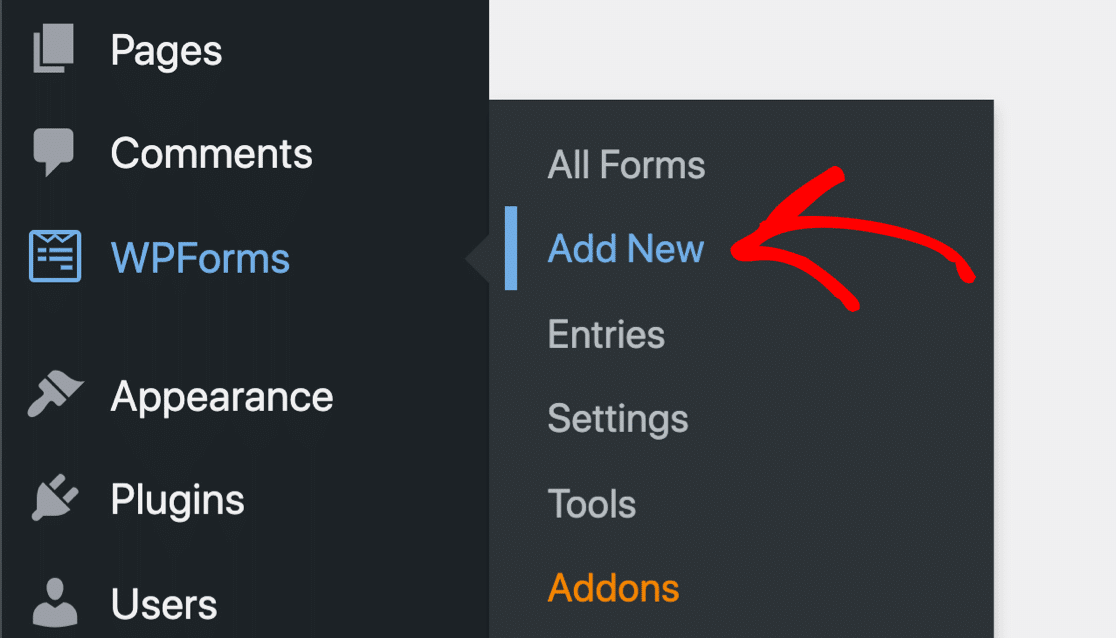
Check out this post to see the difference between WPForms Lite and WPForms Pro. Once WPForms is installed and activated, go to WPForms » Add New to create a new form.
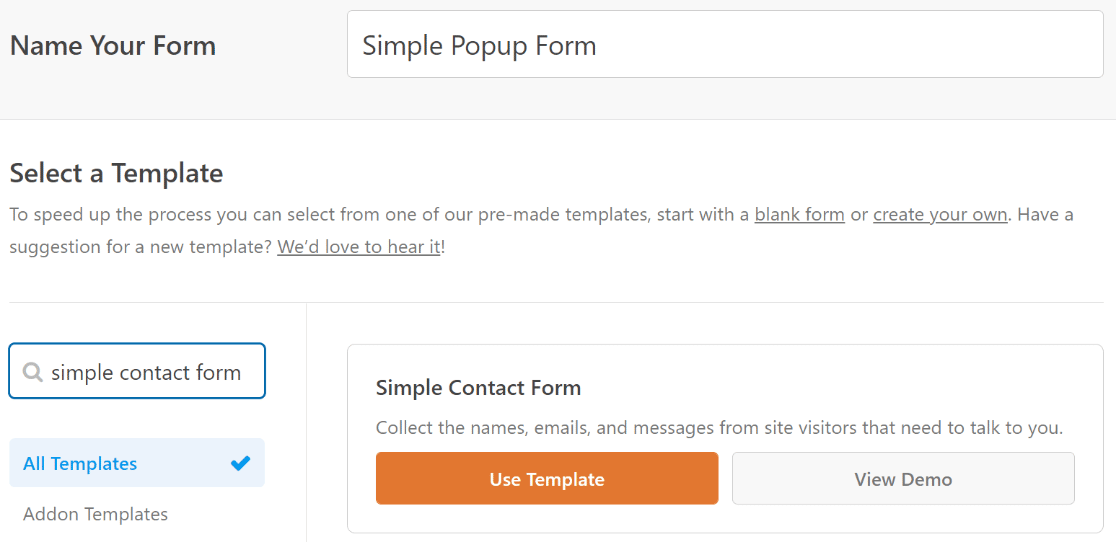
You’ll see the form setup screen with a library of 2,100+ templates. For a popup form, keep things short and compact. Fewer fields means less friction, especially on mobile screens.
I’ll use the Simple Contact Form template as a starting point, but you could just as easily choose a newsletter signup, feedback form, or any other template that matches your goal.
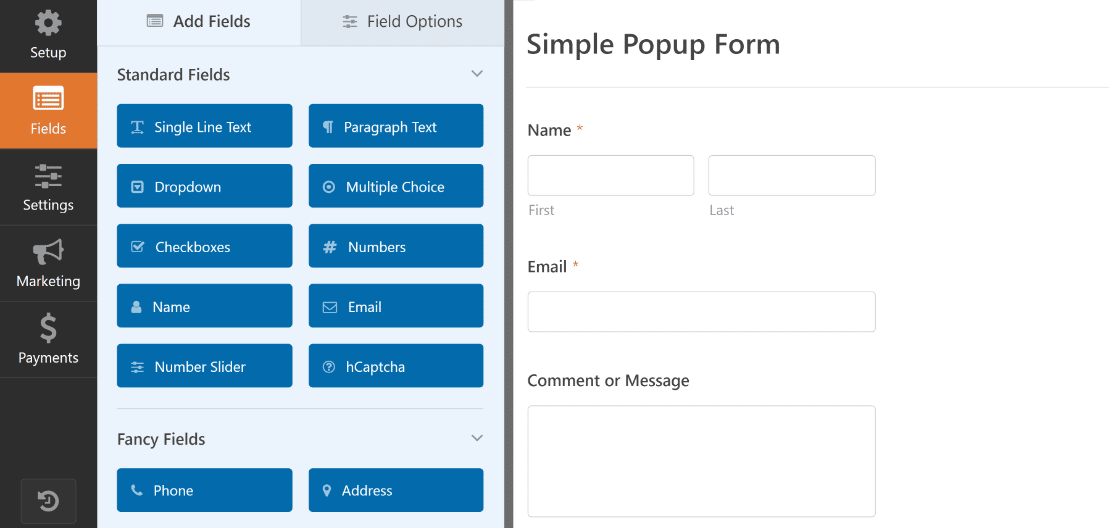
WPForms loads your template and takes you to the drag-and-drop builder. The Simple Contact Form includes Name, Email, and Paragraph Text fields, which is all we need for now.
If you’d rather embed a form on your website directly instead of using a popup, WPForms supports that too. But for this guide, we’re going the popup route.
When you’re happy with how your form looks, go ahead and press Save. Now, we’re ready to move on to the popup. Let’s start with OptinMonster.
Method 1: Make a Popup Form With OptinMonster
OptinMonster is a popular WordPress popup plugin used on over 1 million sites. It specializes in popups, floating bars, slide-ins, and other lead generation campaigns.
OptinMonster comes with a drag-and-drop campaign builder where you design your popups and set targeting rules. The WordPress plugin then handles displaying those campaigns on your site.
When you install OptinMonster, you get a free account with 3 campaigns and 500 campaign impression credits. That’s enough to set up your first popup form and test it with real traffic.
Paid plans start at $7/month (billed annually) if you need more campaigns, advanced triggers like exit-intent, or features like A/B testing.
1. Install OptinMonster
You can download the OptinMonster plugin from the WordPress plugin directory and install it on your site.
If you’re not sure how to install a WordPress plugin, follow these instructions for adding OptinMonster to your WordPress site.
2. Create a Popup Campaign
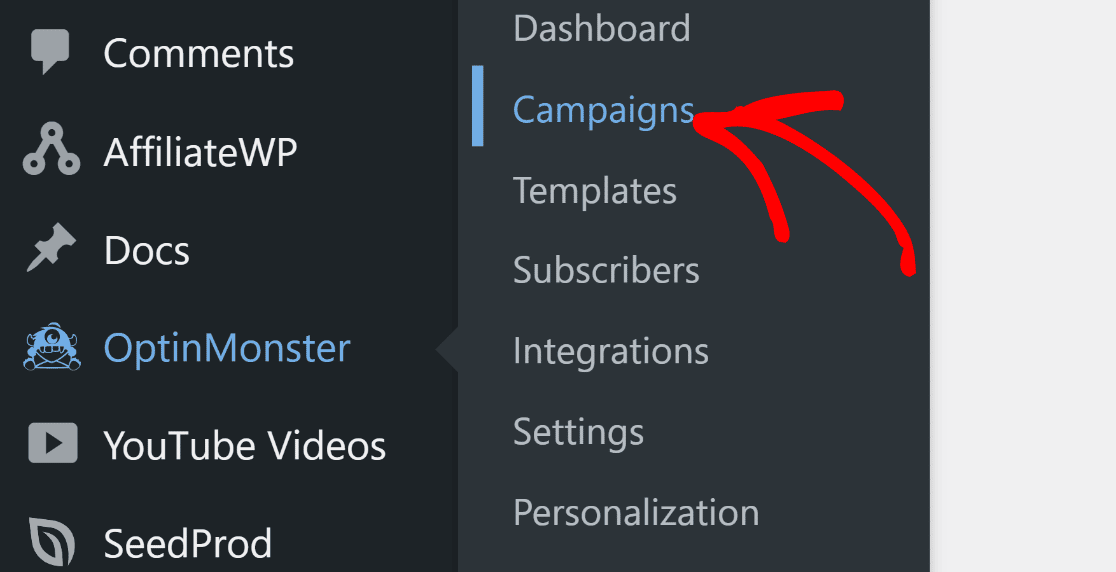
Now let’s create your popup campaign. Click on OptinMonster » Campaigns from your WordPress sidebar menu.
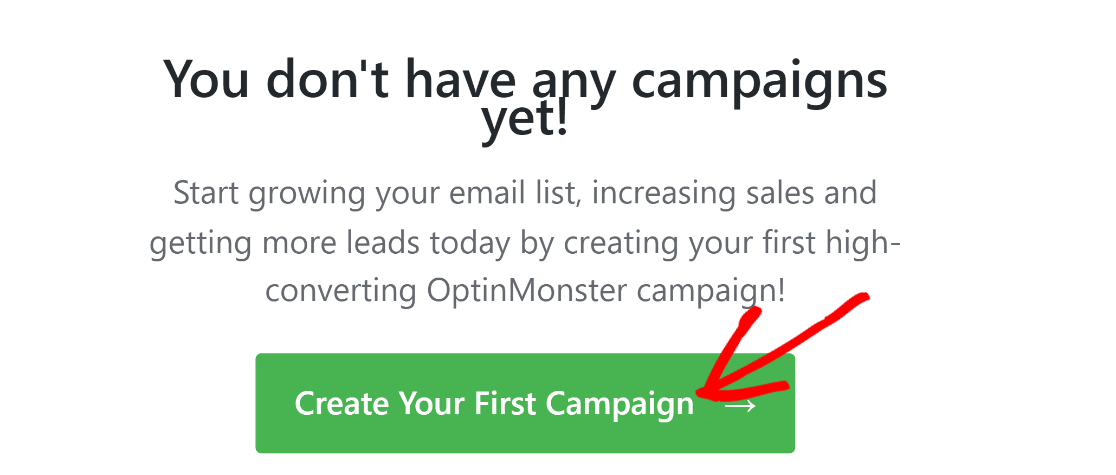
This takes you to the campaign creation page where you’ll be able to define the objectives and other aspects of your popup. Click the Create Your First Campaign button.
From the available options, select Popup as your campaign type. Scroll down and choose a template. Hover over a template and press Use Template to select it.
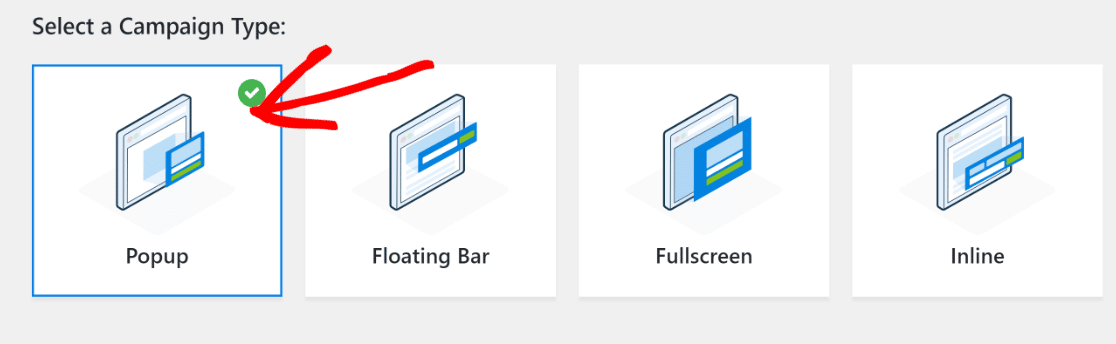
I like using the Basic campaign for popups since it’s simple to customize and works well as a starting point. It’s flexible enough to suit different form types and signup methods.
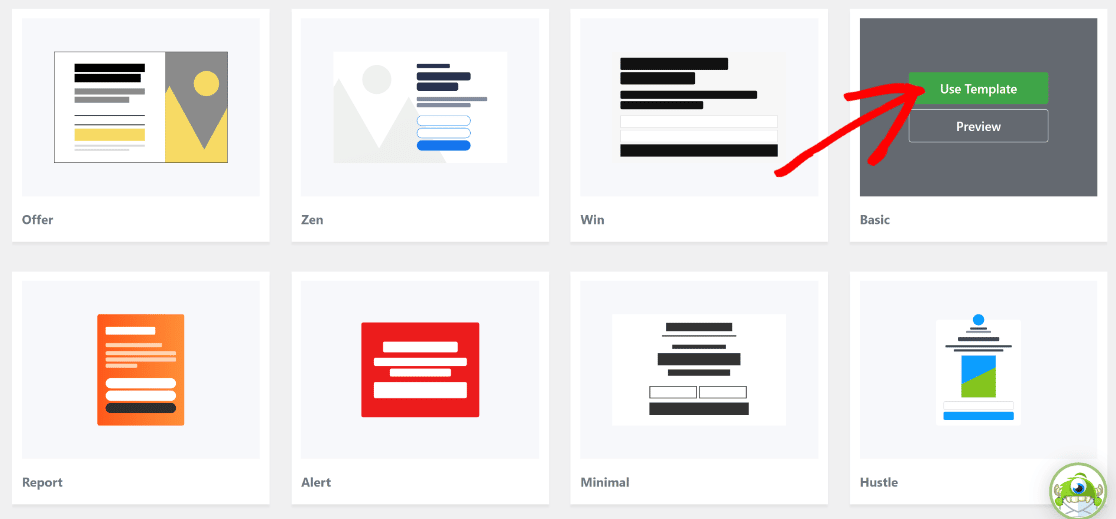
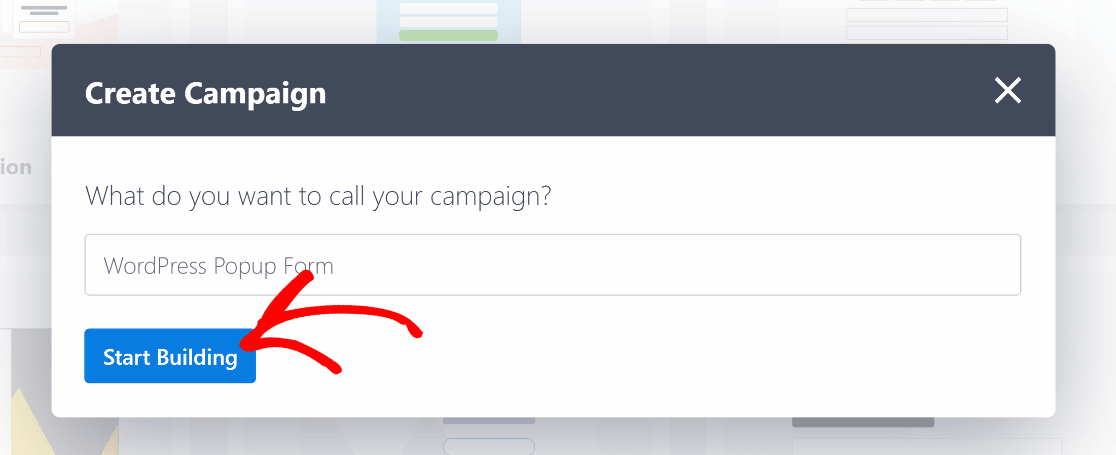
OptinMonster will prompt you to name your campaign. Enter a name and press Start Building. I just entered “WordPress popup form” for the purpose of this tutorial.
Once you’ve added a name to your campign, you’ll land on the OptinMonster campaign builder with your template loaded.
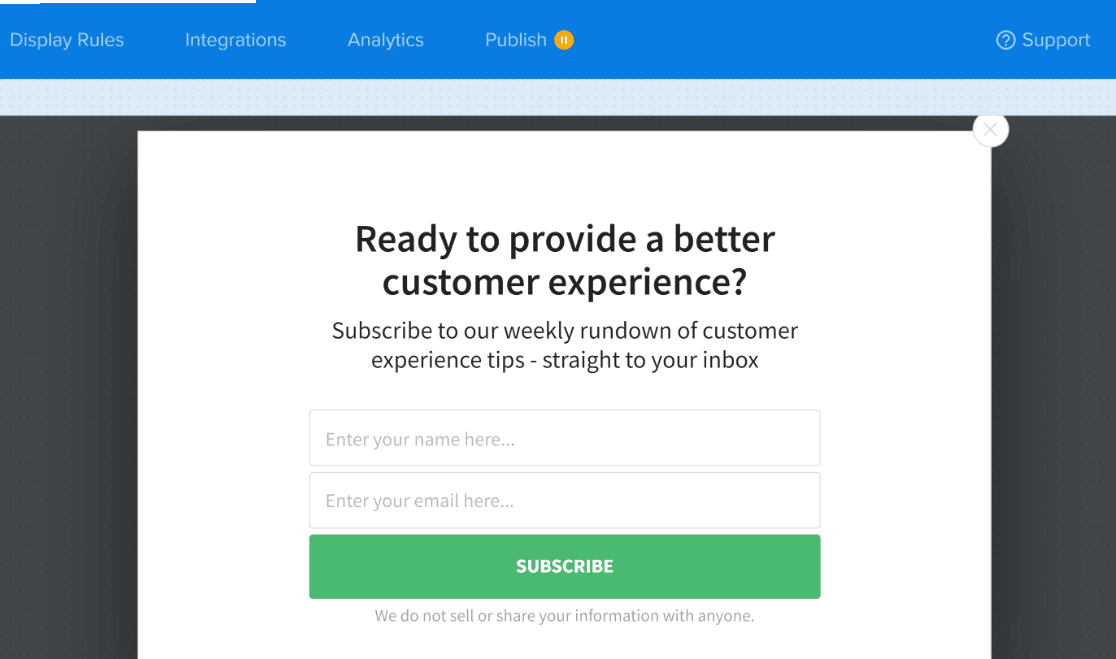
The template comes with its own opt-in fields, but we’re going to swap those out for our WPForms form so we can use WPForms’ integrations and entry management.
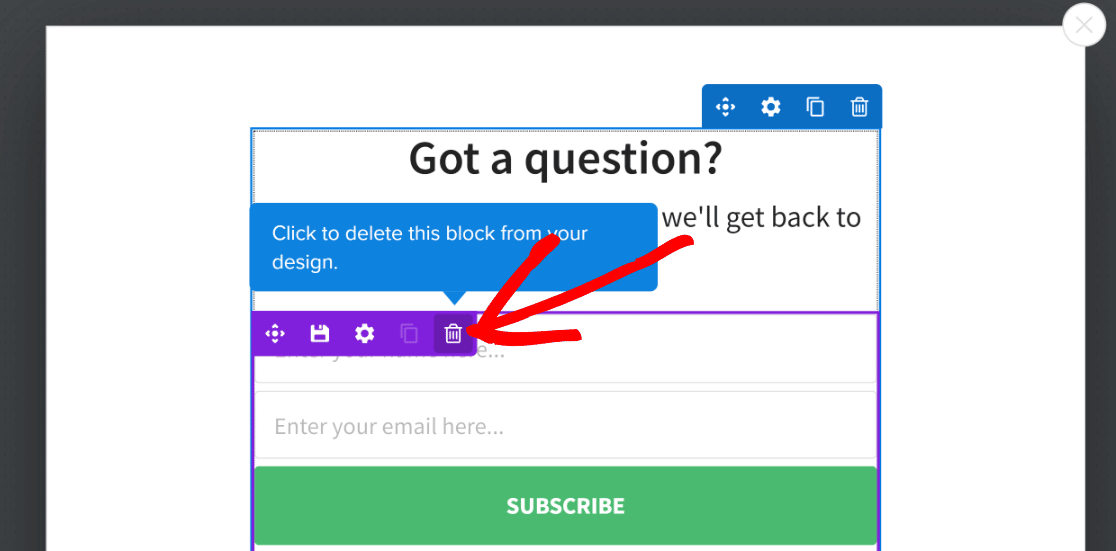
First, edit the popup header text. Click on it and type a message that tells visitors what the form is for. Next, delete the pre-existing opt-in fields from the template. Hover over each field and click the Trash icon to remove it.
Now drag and drop the WPForms block into the campaign area, right below your header text. OptinMonster has a native WPForms integration, which makes this straightforward.
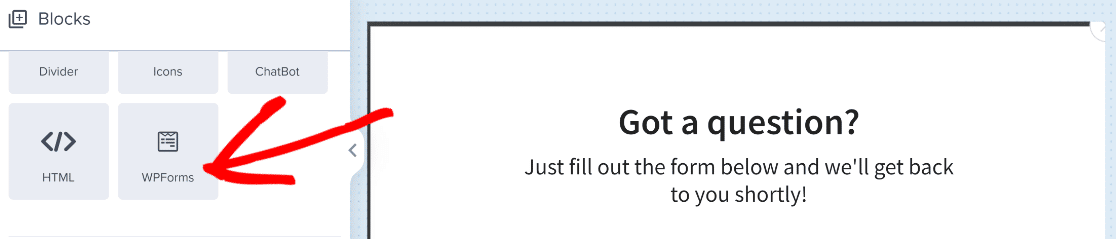
Click on the WPForms block after adding it. In the left-hand settings pane, open the Form Selection dropdown and choose the form you created earlier.
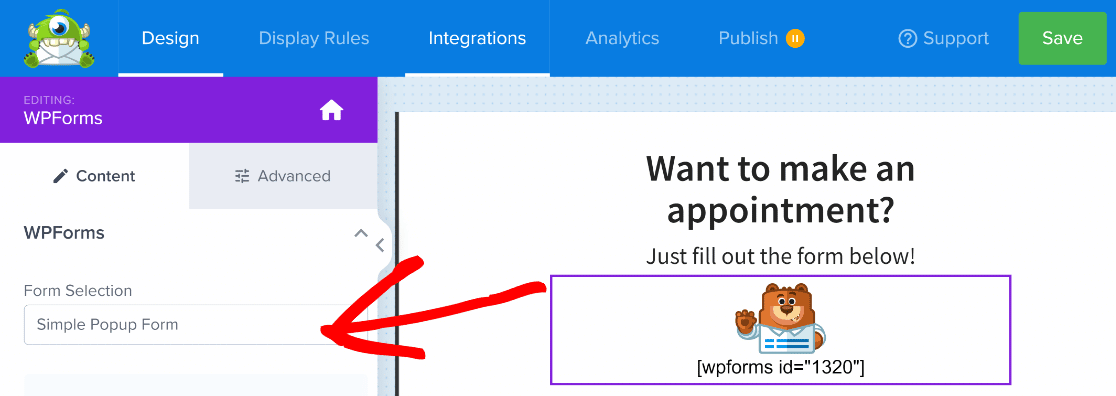
Awesome! We’re almost done creating a WordPress popup form using the first method. Now, we just need to publish it!
3. Preview and Publish Your Popup Form
Because OptinMonster uses shortcodes to embed forms made with WPForms, you can’t immediately see a live preview of your form within the popup form campaign.
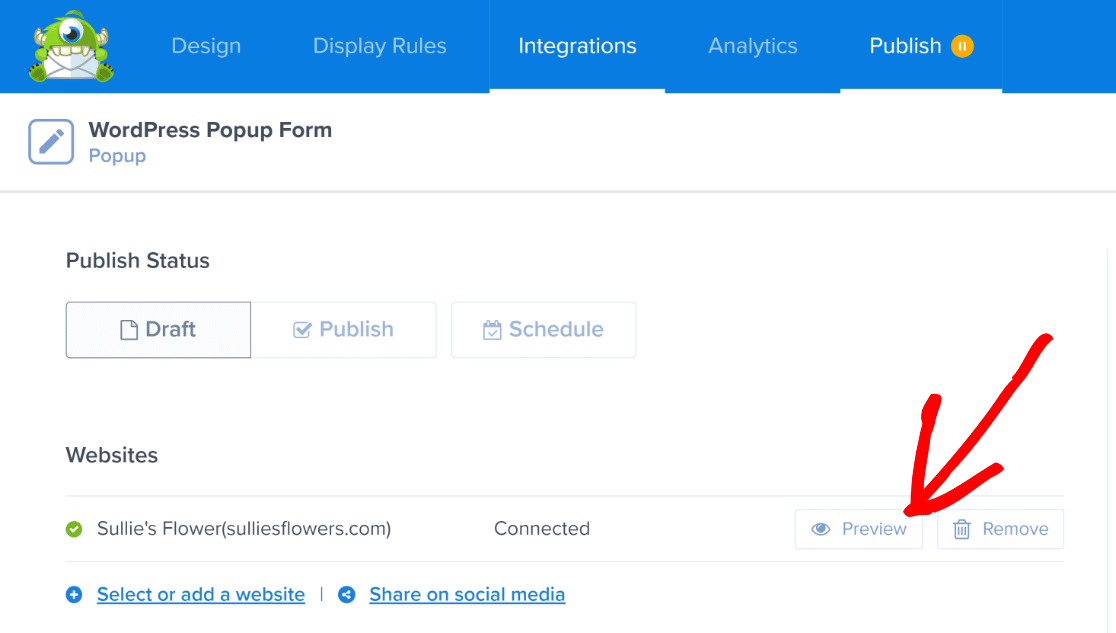
However, you can preview it right before you publish it. To do that, click on the Publish button on the navigation bar at the top.

On this screen, there’s a preview button. Clicking the Preview button will take you to your site’s frontend where the form will pop up on your screen, just like it would for your visitors.
Now, OptinMonster will trigger your WordPress popup form on page load. Here’s how it looks in our example:
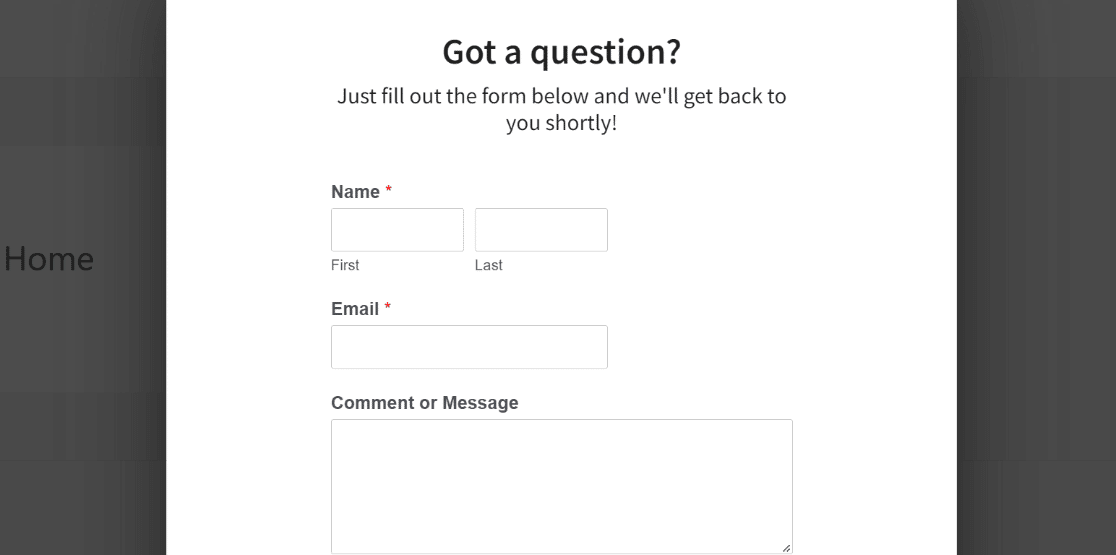
The preview allows you to double-check everything before you’re ready to publish the campaign.
Once you’re happy with how the popup form looks, go ahead and press the Publish button under Publish Status.
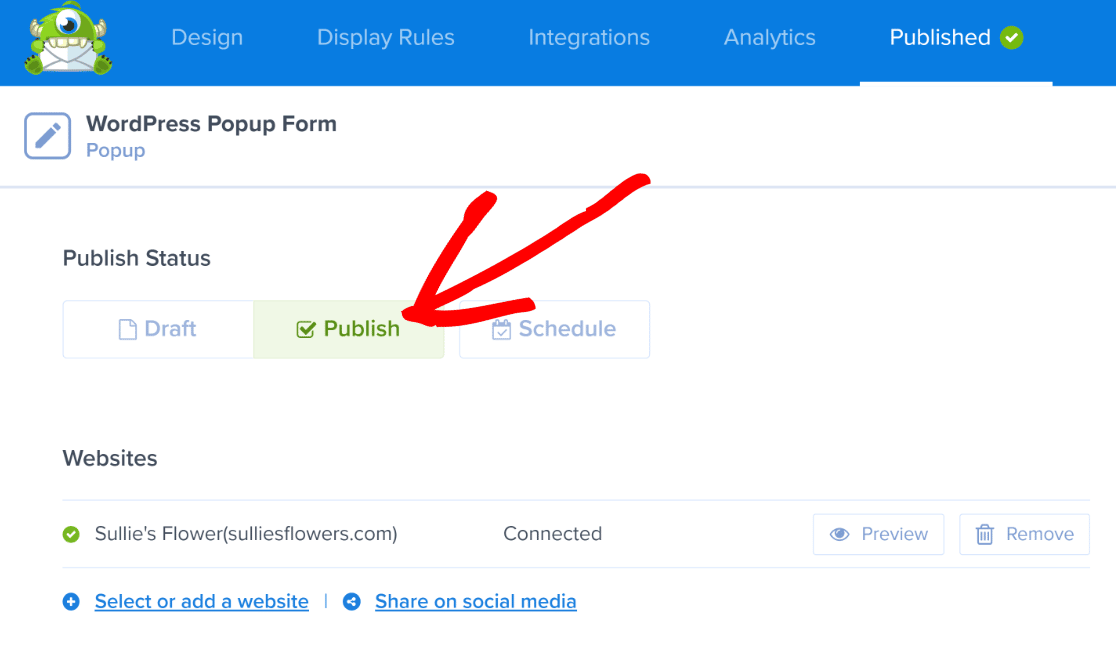
Your campaign is now live. The popup form will now appear for all users visiting your site. If you want, you can also change the display rules for your WordPress popup form.
Go back to OptinMonster » Campaigns. Find the campaign you just created and hover your cursor over it. Then, click on the Output Settings option.
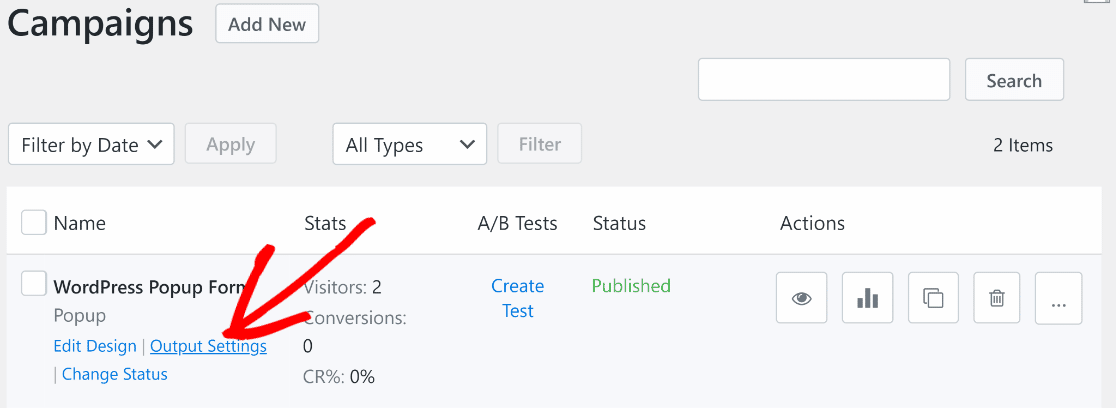
Here you can set visibility rules: show it only to logged-in users, only to visitors, or both. You can also include or exclude specific pages.
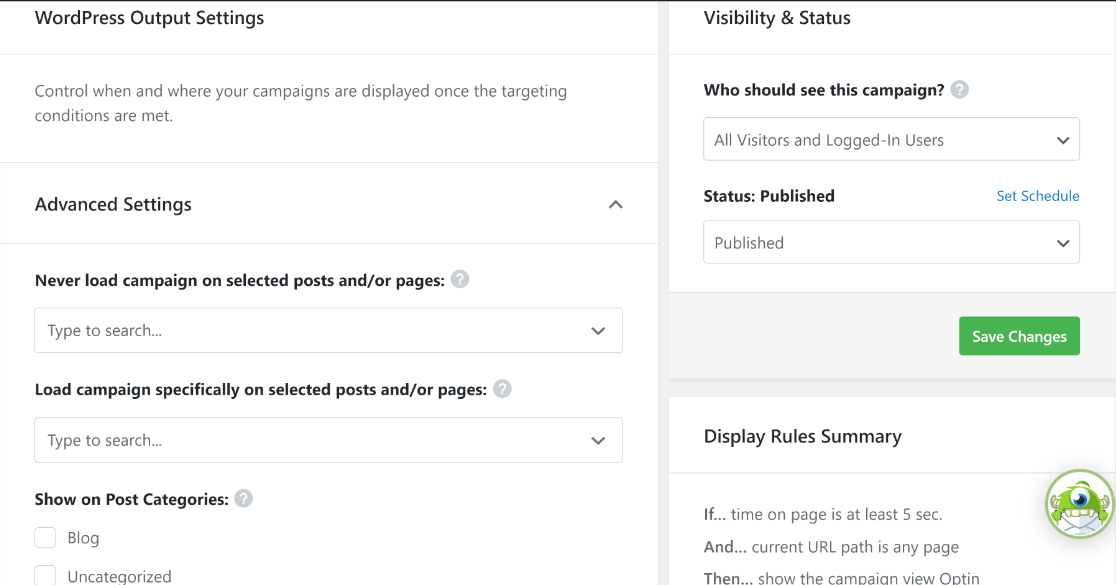
After changing display rules to your liking, make sure to press the green Save Changes button on the right. And that’s all you need to do to create a WordPress popup form campaign using OptinMonster and WPForms!
Method 2: Create a Popup Form With Popup Maker
If you’d prefer using a different solution, Popup Maker is also a good alternative to OptinMonster. It’s a WordPress popup plugin used on over 700,000 sites, with a 4.9-star rating from 4,400+ reviews.
Popup Maker has a free version and a paid Pro version. The free version gives you everything you need for basic popup forms: a visual popup editor, time-delay and click-to-open triggers, page-level targeting, and cookie controls.
Popup Maker Pro ($99/year) adds exit-intent triggers, scroll-depth triggers, conversion analytics, advanced targeting, and scheduling. There are no traffic limits or monthly fees on any plan.
If you’d prefer a solution where you can build a popup form completely from your WordPress dashboard, then the next method is for you.
1. Install Popup Maker
For this tutorial, the free version of Popup Maker will work just fine. It’s not as powerful as the OptinMonster plugin, but works just as well with WPForms.

Just like we did earlier, we’re going to use the form we created at the start with WPForms and embed it inside your popup.
2. Create a Popup in Popup Maker
Go into the Popup Maker plugin to create your popup. This free WordPress plugin lets you make popups from scratch, easily.
Head to your WordPress dashboard and go to Popup Maker » Add New Popup, and you’ll see the popup editing screen appear.

On this screen, you’ll want to enter a name for your popup. You can also enter an optional display title, as we did in this example.

Now it’s time to add your WPForms form. Click the + button in the block editor to add a new block, then search for WPForms and select it. Choose the form you created earlier from the dropdown.
If you don’t see the WPForms block, you can also add a Shortcode block and paste your WPForms shortcode (e.g., ). You’ll find the form ID in WPForms » All Forms.

Now scroll down to the Popup Settings box below the editor. This is where you configure triggers, targeting, and display options.
Under the Triggers tab, click Add New Trigger and select Time Delay / Auto Open. This fires the popup after visitors have been on the page for a set amount of time.

I typically set this to 5 seconds (5,000 milliseconds), which gives visitors a moment to start reading before the popup appears. Click Add to save the trigger.
Each trigger also gets a Cookie setting that controls how often the popup re-appears. The default “On Popup Close” cookie prevents the popup from showing again for 1 month after a visitor closes it.

Under the Targeting tab, you can control which pages the popup appears on. The default targets your homepage only. You can add rules to show the popup on all pages, specific posts, categories, or custom post types.
Under the Display tab, select a popup theme to style the look of your popup. Popup Maker ships with several built-in themes, or you can create custom themes under Popup Maker » Popup Themes.
3. Publish and Test Your Popup
Once you’re happy with your popup settings, scroll up on the page to the top and click on the Publish button to make your WordPress popup form live.
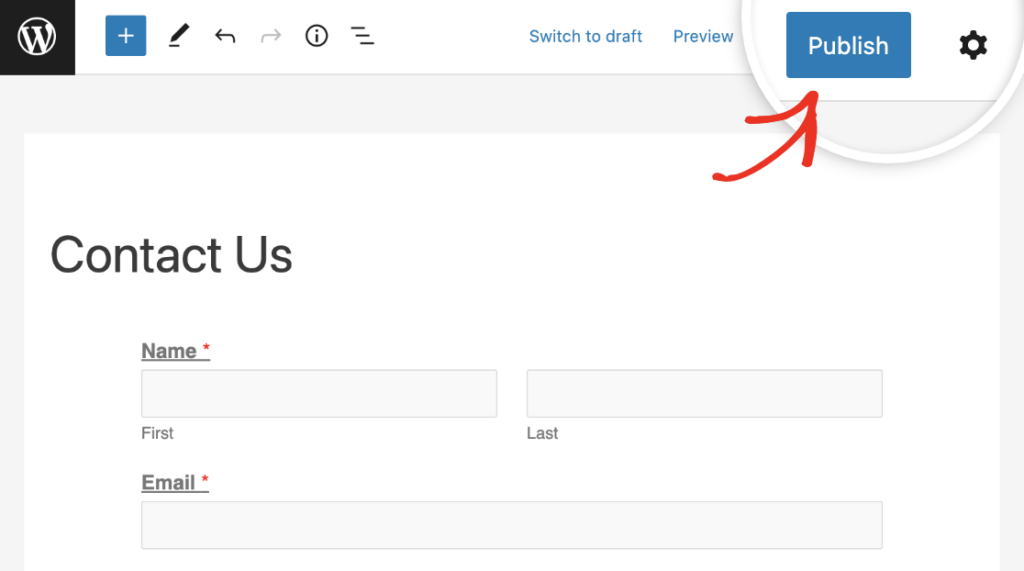
And there you have it! You can now preview your WordPress popup form to make sure it looks exactly like you want it to and adjust the settings accordingly.
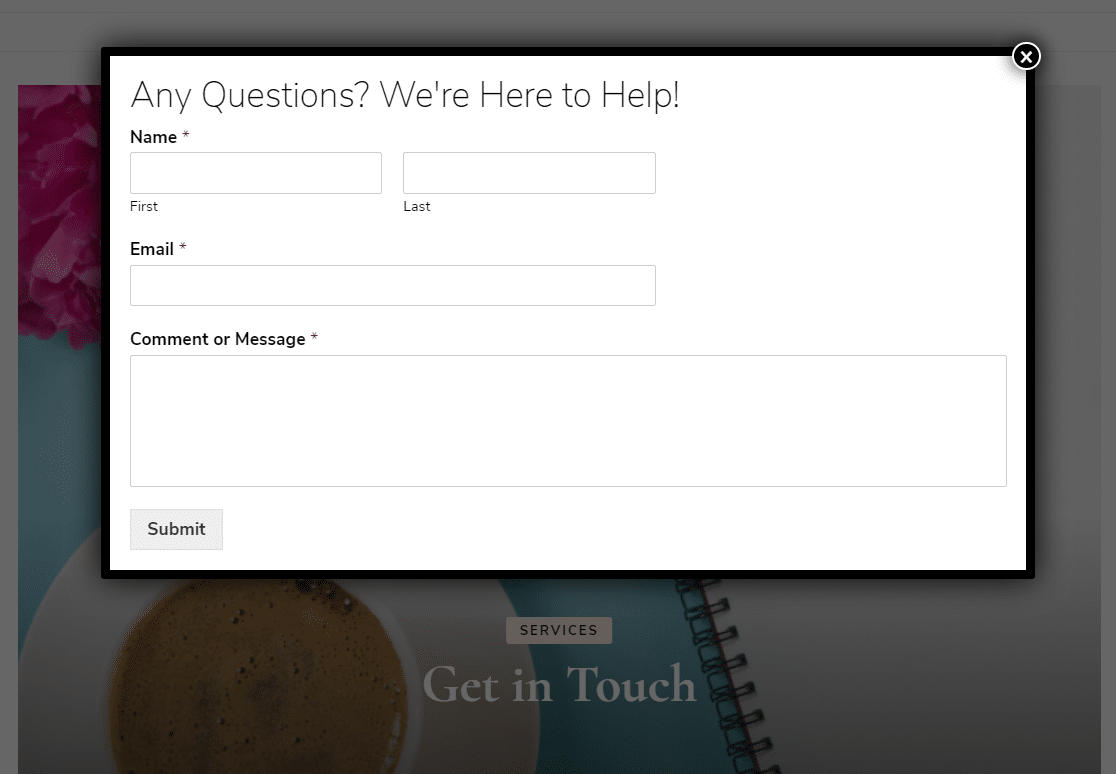
To make more contact form popups, you can repeat this process and customize the settings and display rules to appear on different posts or pages, etc. Or you can get creative and make a popup WordPress survey.
Which Plugin Should You Choose?
Both plugins get the job done, but they’re built for different situations. Here’s a side-by-side comparison to help you decide:
| Feature | OptinMonster | Popup Maker |
|---|---|---|
| Plugin type | WordPress plugin with cloud-based builder | 100% WordPress-native |
| Free version | 3 campaigns, 500 impressions | Unlimited popups, no traffic caps |
| Paid plans | From $7/month (billed annually) | Pro $99/year, Pro+ $249/year |
| Form integration | Native WPForms block | WPForms block, shortcode, plus 15+ form plugins |
| Free triggers | Time delay, scroll, click | Time delay, click, form submission |
| Exit-intent | Pro plan ($29/month) | Pro plan ($99/year) |
| A/B testing | Plus plan ($19/month) | Not available |
| Analytics | Built into all plans | Pro plan and up |
| Data storage | Cloud (OptinMonster servers) | Your WordPress database |
| Active installs | 1,000,000+ | 700,000+ |
For most WordPress site owners creating their first popup form, I’d start with Popup Maker’s free version. However, if you need exit-intent popups or A/B testing, OptinMonster is the stronger option on the advanced features side.
Best Practices for WordPress Popup Forms
- Write a clear headline: Your popup has about 2 seconds to justify its interruption. “Get Our Weekly WordPress Tips” is better than “Subscribe to Our Newsletter.” Tell visitors exactly what they’ll get.
- Time your triggers carefully: Don’t fire a popup the instant someone lands on your page. A 5-10 second delay or a scroll trigger (after 50% of the page) lets visitors start engaging with your content first. Exit-intent triggers work well because they only fire when the visitor is already leaving.
- Keep forms short on mobile: Over half of web traffic comes from phones and tablets. Stick to 2-3 fields maximum for popup forms. Name and email is often enough. You can always collect more information later through follow-up emails or a full-length form on a dedicated Form Page.
- Use cookie rules to control frequency: Nothing drives visitors away faster than seeing the same popup on every page, every visit. Both OptinMonster and Popup Maker let you set cookie rules so a popup only shows once per session, once per week, or once ever.
- Include a visible close button: Always give visitors an obvious way to dismiss the popup. A high-contrast X button or a “No thanks” link builds trust. Forcing interaction with a hidden close button hurts your brand more than it helps your conversions.
FAQs About WordPress Popup Forms
Here are answers to the most common questions about creating popup forms in WordPress.
Can I create a WordPress popup form for free?
Yes. Both methods in this guide work with free tools. WPForms Lite is free, OptinMonster gives you a free account with 3 campaigns and 500 impressions, and Popup Maker’s free version includes unlimited popups with no traffic limits. You can create a fully functional popup form without spending anything.
How do I trigger a popup form on button click in WordPress?
With Popup Maker, use the Click Open trigger (available in the free version). Add a CSS class (like popmake-123, where 123 is your popup ID) to any button or link, and clicking it will open the popup. In OptinMonster, the equivalent feature is called MonsterLinks, where you create a special link that opens a specific campaign on click.
How do I create a popup form in Elementor?
Elementor Pro includes a built-in popup builder. You can create a popup template, add any form widget (including WPForms) to it, and set display conditions and triggers directly in the Elementor editor. If you’re using the free version of Elementor, you’ll need a separate popup plugin like Popup Maker paired with your form builder.
What’s the best WordPress popup plugin?
It depends on your needs and budget. For a full breakdown, check out our guide to the best WordPress popup plugins. OptinMonster and Popup Maker are two of the most popular options and the ones I’d recommend starting with.
Next, Boost Your Form Conversions
Now that you know how to create a WordPress popup form, you might also want to explore other ways to improve your form conversions. Check out our guide on lead generation form examples for inspiration on creating forms that actually convert.
Ready to build your form? Get started today with the easiest WordPress form builder plugin. WPForms Pro includes lots of free templates and offers a 14-day money-back guarantee.
If this article helped you out, please follow us on Facebook and X (formerly Twitter) for more free WordPress tutorials and guides.


Can I create the form on left side of popup and image on right side
Hey Pratham – You should be able to use our multicolumn layout fields to create form fields on left side, and display image on the right side. For more details, I’d suggest you to take a look at our blog post here.
Do I have to buy the premium versions of Popup Maker to be able to get what I want out of it to use wpforms?
Hey Robert – no, the free version of Popup Maker will also help you to create a popup with WPForms. Really, any plugin that allows you to use a shortcode should work with the WPForms shortcode.
Thanks 🙂
doesnt work if the form requires a payment
Hey Travis – We’d be happy to help! When you get a chance, please drop us a line in support so we can assist.
If you have a WPForms license, you have access to our email support, so please submit a support ticket.
Otherwise, we provide limited complimentary support in the WPForms Lite WordPress.org support forum.
Thanks 🙂
In the free version of both pop up maker and WP forms, they both look ok on their own when editing but when I include the WP form in the Popup maker it not only looks really cheap, but it garbles everything: text is all the wrong size and the text changes to different fonts and sizes than as designed.
Hey Meg – We’d be happy to help! When you get a chance, please drop us a line in support so we can assist? As you’re using the lite version, we provide limited complimentary support in the WPForms Lite WordPress.org support forum.
Thanks 🙂
Hi I want to create an announcement pop up for my wordpress site. How do I create this?
Hey SK – Sure, to create an announcement pop up, once you’ve created the form, go to the page or post where you want the announcement pop up to appear. You can either create a new page/post or edit an existing one.
Now, you can add the popup on this page/post by following any methods described in this doc! That’s it 🙂
Thanks!
Can WP Forms be to attached to a button so trigger is when button is clicked the forms displays for entry & submission. And would I use Optin Monster or Popup Maker to make this? Thanks.
Hey Phil – I apologize, currently, there’s no built-in ability to create a button to link to the form. However, you can absolutely add the form with a button by using the link of the page where the form is embedded. Please note that the form still needs to be embedded somewhere to get the form link/URL. Then you just need to use that page’s URL in the button.
Another workaround would be using a popup. You can make use of some of the multiple popup/lightbox-type plugins available on WordPress.org as well as paid plugin options. Some of the options available are OptinMonster and Popup Maker, which we’ve had customers report back success with.
Really, any plugin that allows you to use a shortcode should work with the WPForms shortcode.
Hope this helps. Thanks 🙂
How do I change the WPforms button color in Popup Maker? I don’t see an option to use the visual editor with the shortcode.
Hey AnJie, when embedding a form using a shortcode, you can’t customize the submit button directly through the editor. However, you can absolutely customize its appearance using custom CSS and the styles will reflect in Popup Maker.
Hope this helps, thanks!