AI Summary
Ever wished you could hand your website visitors a list and just ask, “Okay, put these in order for me”?
Maybe you’re deciding which product feature to build next, which topics your newsletter should cover, or which dishes have earned a permanent spot on the menu.
A ranking question gets you a straight answer by letting your visitors arrange your options from their top choice down to their last, so you see exactly where every option stands.
In this tutorial, I’ll show you how to add a ranking question to your WordPress forms using the WPForms Ranking field. The whole setup is point and click and should take you just about 5 minutes.
Create Your Ranking Survey Now! 🙂
How to Add a Ranking Question to Your WordPress Forms
The Ranking field ships inside the Surveys and Polls addon, and it sits in the same drag and drop builder you already use for every other field. You drop it into a form, list the options you want compared, and then view the results from your WordPress dashboard.
- Step 1: Install the WPForms Pro Plugin
- Step 2: Activate the Surveys and Polls Addon
- Step 3: Add the Ranking Field to Your Form
- Step 4: Fill In the Options You Want Ranked
- Step 5: Choose a Layout and Control How Reordering Works
- Step 6: Publish Your Form and Test the Drag and Drop
- Step 7: Read Your Ranking Results in the Survey Report
- Ranking Field Accessibility for Keyboard and Screen Reader Users
Step 1: Install the WPForms Pro Plugin
Before you can ask anyone to rank anything, you need WPForms on your site. It ships with 2,100+ WordPress form templates and an AI form builder, so you rarely have to start a survey form from scratch.
What I like most about WPForms for preference research is that the question and the analysis live in the same place. You build the ranking question in the form builder, and the results shows up on your Entries screen without exporting anything to a spreadsheet.
The Ranking field is part of the Surveys and Polls addon, which makes it a Pro feature. So you will need a WPForms Pro license or higher to follow along, which will also unlock a huge list of addons, features, and integrations for you to take the forms on your site to a new level.
To get started, buy the Pro license. Then, install WPForms on your website. If you need help, follow these instructions on how to add a plugin to WordPress.
Step 2: Activate the Surveys and Polls Addon
The Ranking field does not appear in the builder until this addon is active. Go to WPForms » Addons and find the Surveys and Polls addon card, or type survey into the search box to filter the list down.
Click Install Addon on the card. WPForms downloads and switches it on in one move, then the card changes to an Activated status.

The same addon brings the rest of the survey toolkit with it, including Likert Scale, Net Promoter Score, and the reporting engine that turns raw entries into charts.
Once the card reads Activated, the Ranking field is available in every form on your site, including the ones you built before installing the addon.
Step 3: Add the Ranking Field to Your Form
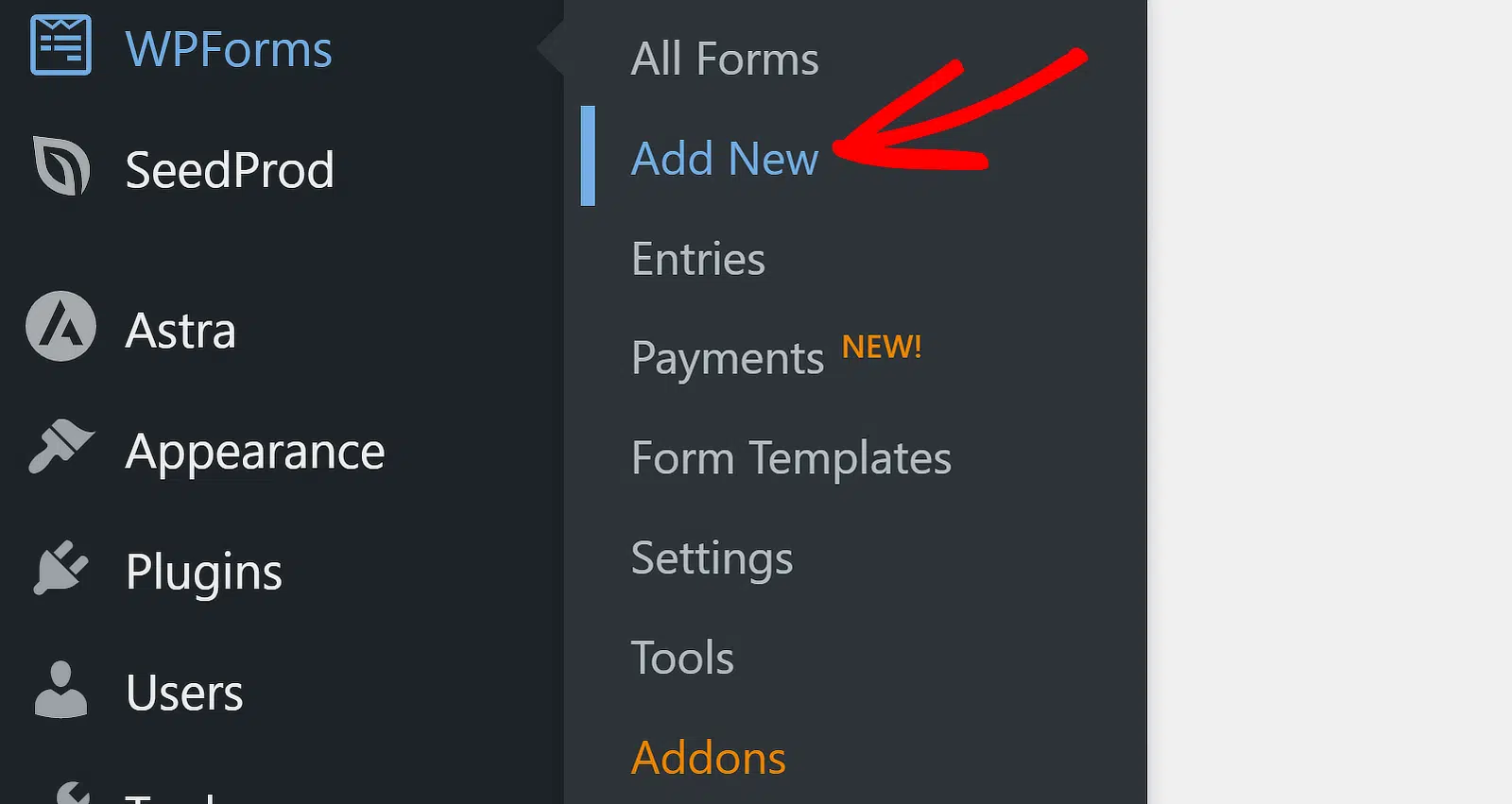
Now you can build the question itself. Navigate to WPForms » Add New to create a new form, or open an existing one if you already have a survey collecting entries.
If you’re creating a form for the first time, you’ll be pleased to hear that there are 2,100+ WordPress form templates to choose from.
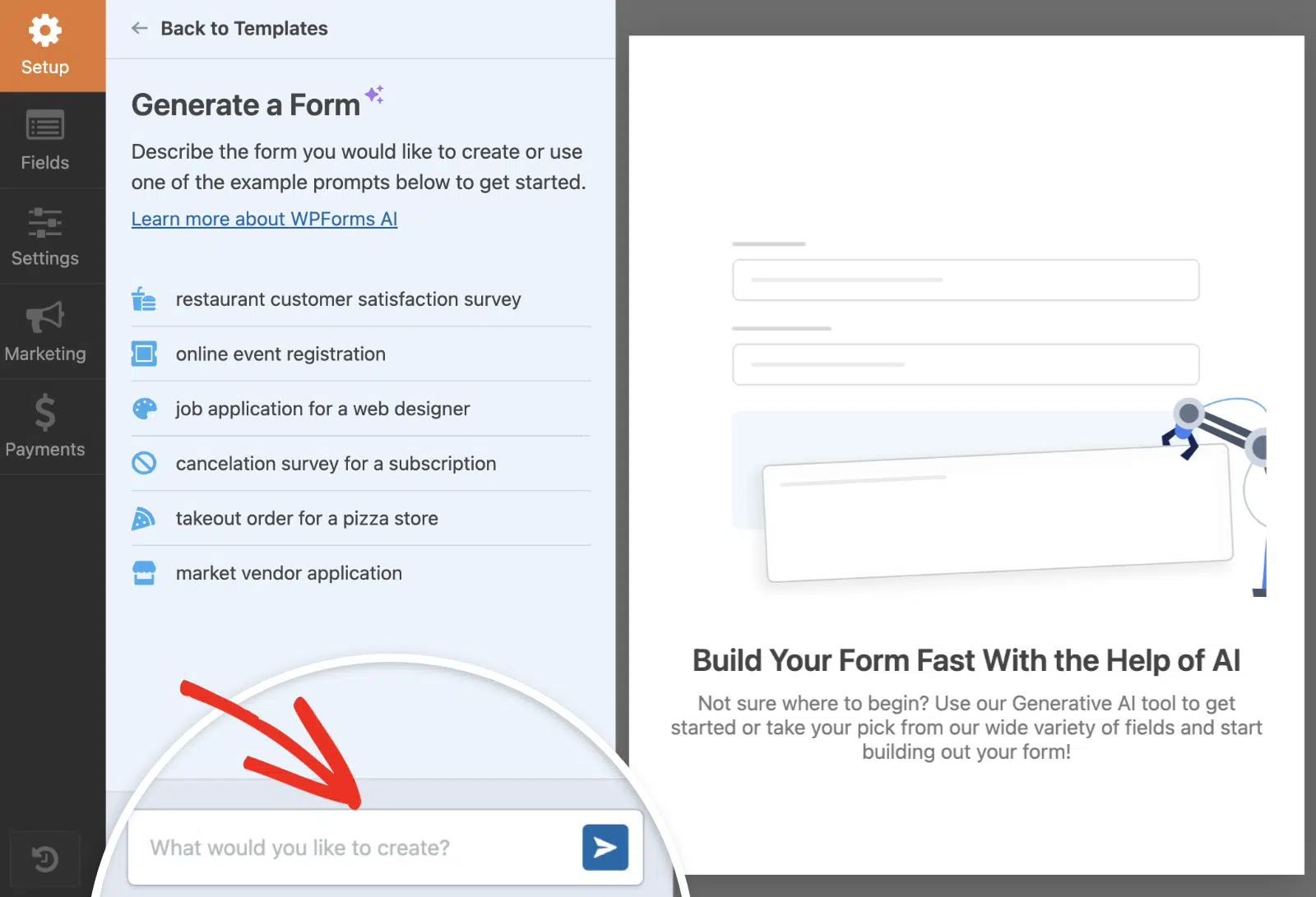
For more specific requirements, I also recommend using the Generate with AI option and entering a custom prompt to use the Ranking Field, and WPForms AI will build the entire thing for you.
Once you’re in the form builder, look under Fancy Fields in the Add Fields panel. The Ranking field sits there alongside the other survey fields.

Click it or drag it into the preview area and it arrives with three placeholder choices and a short description that reads “Put these options in order, with your most preferred at the top.”

Next, click the field in the preview to open its options, then replace the Label with your actual question. Something like “Which feature should we build first?”.
You will also notice the field has no Required setting, which means every submission necessarily contains a complete order, so there is nothing to enforce.
If someone submits without moving anything, the order on their screen is what gets saved. For the full option-by-option breakdown, the full field reference covers every setting in one place.
Step 4: Fill In the Options You Want Ranked
Open the General tab and work through the Choices list. The order you set here is the starting order people see on your form, and you can add, remove, or rearrange rows as you go.
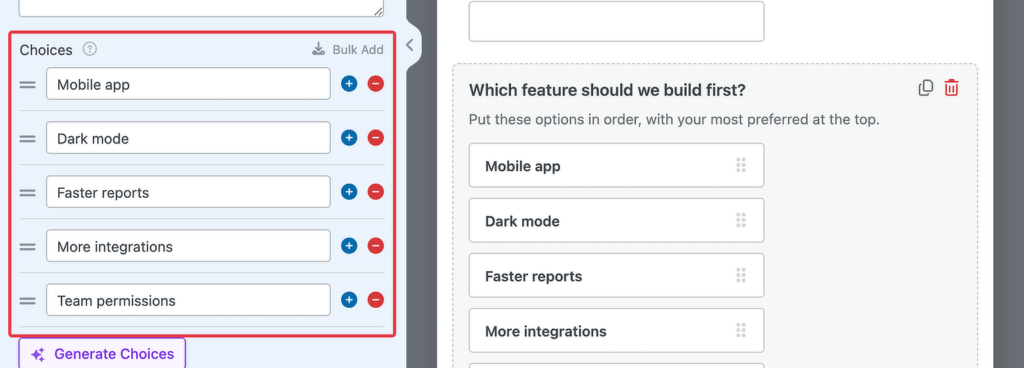
You can also bulk add choices by pasting one option per line, or you can click Generate Choices and let WPForms AI build the list from a plain prompt like “four pricing plans.”

If you want something more visual, you can also toggle on Use Image Choices to show pictures instead of text, or Use Icon Choices if you want icon choices instead.
The entire list can be also automatically filled in by Dynamic Choice, which allows you to add choices based on a post type or a taxonomy on your website.
Step 5: Choose a Layout and Control How Reordering Works
The Advanced tab is also where you decide how the field looks and how people move things around. Start with Layout, which offers List or Grid.
List is the default, so each choice becomes a full-width row stacked from top to bottom, and the row at the top is ranked first. Long option labels have the whole width of the field to breathe, which makes this the safer pick for text.

Switch to Grid and each choice becomes a card instead and cards rank left to right and then top to bottom, so the card in the upper left is first.
A Columns option appears underneath, where you can set anywhere from 2 to 6 cards per row, and 3 is the default.

Grid also changes the field size to Large so the cards have room, and the default description rewrites itself to mention putting your favorite first rather than at the top.
Next comes Arrows, which controls when the reorder buttons appear. On Hover is the default, Visible keeps them showing always, and Never hides them so dragging is the only route.
Step 6: Publish Your Form and Test the Drag and Drop
With the question built, this step puts it in front of real visitors so you can test the interaction yourself. Save your form, then click Embed at the top of the builder.
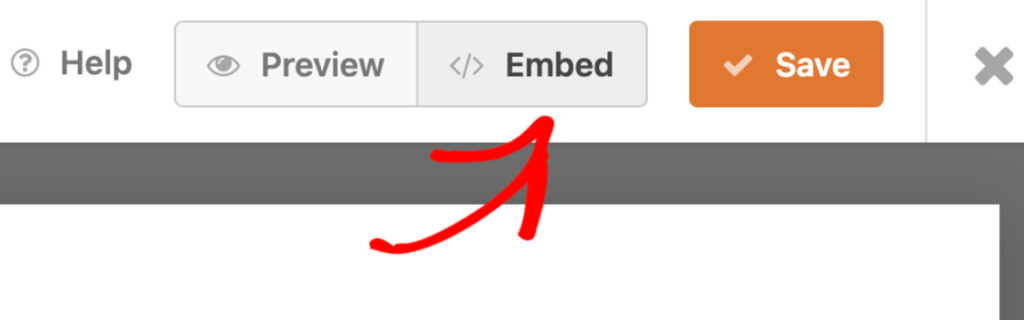
The modal gives you a bunch of options for choosing how to display your ranking form onto your site. Choose the best option. For this tutorial, I’ll select the New Page option and then publish the page.

Regardless of which option you choose, now is a good time to open your published page and use the field just like your visitors would to test if everything works as expected.
Test it on your phone too, where finger dragging works on touch screens and the arrows are always visible, so tapping tends to be the faster route on a small screen.
Step 7: Read Your Ranking Results in the Survey Report
Survey reporting is switched on by default for the Ranking field, so your report starts building the moment entries arrive. Go to WPForms » Entries and pick your form, and you will find a results card sitting above the list of entries.

Ranking gives you two numbers you will not see on any other survey field, and mixing them up is easy.
- Times at #1: A straight count of how many people put that option in first place.
- Rank: The option’s average position across every response, where a lower number is better.
Click View Survey Results for the full report, where you can change the graph style, filter the responses, and export or print the whole thing.

That completes the loop, with your form collecting an order from every visitor and the report turning those orders into a ranked list you can act on.
If you want to go further with filters and exports, here is how to analyze your survey results in more depth.
Ranking Field Accessibility for Keyboard and Screen Reader Users
A keyboard-only visitor cannot drag anything, which makes accessibility a fair question to ask of any ranking question. WPForms builds the answer into the field, so there is nothing for you to wire up.
The field is fully keyboard navigable, so someone can reach it and reorder the list without a mouse. Every reorder is announced to a screen reader by name and new position.
Every label the field adds is ready for translation, and the whole field lays out correctly in right-to-left languages. So a ranking question on an Arabic or Hebrew site reads in the right direction without custom CSS.
FAQs About Adding a Ranking Question in WordPress
Here are the questions that come up most often once people start building ranking questions.
What is the difference between a ranking question and a rating question?
A rating question scores each item on its own scale, and the same score can go to several items. A ranking question compares the items against each other and gives every one a different position, so nothing can tie.
Use a rating scale question when you want to know how people feel about something in absolute terms. Reach for ranking when they face a real either-or choice and you need to know which one wins.
How many options should a ranking question have?
Five to seven options works best. Past eight or so, people stop weighing them properly and start sorting carelessly.
If you genuinely have twelve candidates, split them across two questions or narrow the list first with a multiple choice question.
Can I create a ranked-choice poll in WordPress?
Yes, a ranking question with survey reporting switched on is already a ranked-choice poll, since every voter submits a full order and the report tallies the positions for you.
Turn on Randomize Choices if you are running an actual vote, so the option you listed first does not pick up free support. A standard poll form works well for simpler single-choice questions.
Which WPForms license includes the Ranking field?
The Ranking field comes with the Surveys and Polls addon, which unlocks at Pro and above. If you are already on Pro or Elite, updating the addon is all it takes.
Can I make the Ranking field required?
No, and it does not need to be, because a ranking question always submits a complete order. A visitor who leaves the list alone still sends the order they were shown.
That is the practical reason to switch on Randomize Choices. It stops untouched submissions from all piling onto the same default order.
Can other fields use conditional logic based on the ranking?
No, you can show or hide the Ranking field itself with conditional logic, but no other field can branch on the ranking result.
So you cannot reveal a follow-up question only when a particular option lands in first place. If you need that kind of branching, ask a multiple choice question first and use it as the condition.
Next, Build a Complete Survey Around Your Ranking Question
A ranking question tells you what order people prefer, and it works best next to a question or two that explain why. Adding a matrix question lets you rate several statements against the same scale in one compact grid, which pairs well with the priority order you just collected.
If you want to know whether those people would recommend you at all, a Net Promoter Score survey gives you a single number to track over time. Run it alongside your ranking question and you get both the direction and the sentiment from one form.
Create Your Ranking Survey Now! 🙂
Ready to build your form? Get started today with the easiest WordPress form builder plugin. WPForms Pro includes lots of free templates and offers a 14-day money-back guarantee.
If this article helped you out, please follow us on Facebook and X (Twitter) for more free WordPress tutorials and guides.