


AI Summary
If you’re running a WordPress site with any kind of form, there’s a good chance you’re collecting personal data. Names, email addresses, payment details, feedback responses. And if even one of those visitors lives in the European Union, GDPR applies to you.
I’ve seen too many site owners treat GDPR as a vague checkbox exercise, something you deal with by slapping a cookie banner on your homepage and calling it done. But forms are where the real data collection happens, and that’s exactly where regulators are paying attention.
Making your WordPress forms GDPR compliant doesn’t have to be painful. In this guide, I’ll walk you through everything you need to know, from what the regulation actually requires to how you can set up compliant forms in WPForms.
How to Make Your WordPress Forms GDPR Compliant
GDPR compliance for forms comes down to a few core principles. You need to collect personal data only with clear consent, store only what’s necessary, be transparent about how you use it, and give people control over their own information.
WPForms has security and compliance features built into the plugin to help with all of this. The details matter, though. Different form types have different compliance needs, and your third-party integrations add their own layer of responsibility. I’ll break all of this down section by section.
- What GDPR Actually Requires From Your Forms
- The 2026 Enforcement Landscape and Why It Matters Now
- A Quick GDPR Compliance Checklist for WordPress Forms
- Enabling GDPR Features in WPForms
- Adding a GDPR Consent Form Field
- Managing Entry Data for GDPR Compliance
- GDPR Compliance for Different Form Types
- Third-Party Integrations and GDPR
- Going Beyond GDPR With CCPA and Global Privacy
What GDPR Actually Requires From Your Forms
The General Data Protection Regulation (GDPR) has been in effect since May 25, 2018, but its requirements haven’t gotten any less relevant. If anything, enforcement has gotten stricter over time.
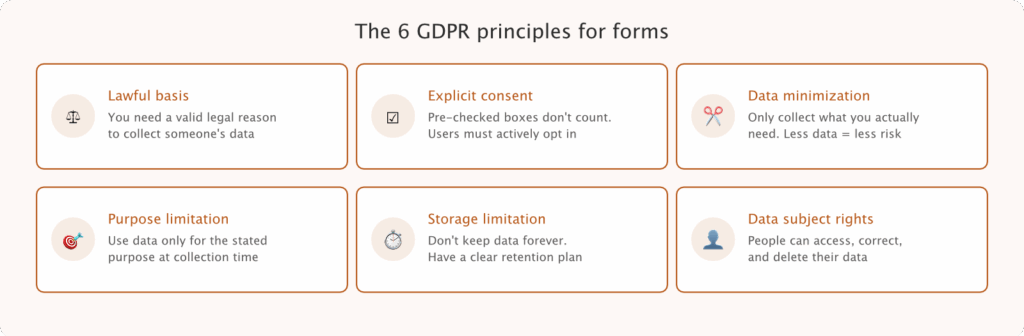
When it comes to forms specifically, there are six GDPR principles you need to know about.
- Lawful basis for processing: You need a valid legal reason to collect someone’s data. For most WordPress forms, that reason is consent. The person filling out your form has to actively agree to you processing their information.
- Explicit consent: Pre-checked checkboxes don’t count. The user must take a clear action, like checking an unchecked consent box, to give you permission. And you need to tell them exactly what they’re agreeing to.
- Data minimization: Only collect the data you actually need. If your contact form doesn’t need a phone number, don’t include a phone number field. Every extra field is extra risk.
- Purpose limitation: You can only use the collected data for the purpose you stated at the time of collection. If someone gave you their email to receive a quote, you can’t add them to your marketing email list without separate consent.
- Storage limitation: Don’t keep personal data forever. Have a plan for how long you’ll retain form entries and stick to it.
- Data subject rights: People have the right to access their data, request corrections, and ask you to delete it. You need a process for handling those requests.
None of this requires a law degree to implement. Most of it comes down to being transparent and giving people real choices about their data.
The 2026 Enforcement Landscape and Why It Matters Now
GDPR enforcement has entered a new phase. European data protection authorities have shifted from issuing warnings and guidance to actively pursuing enforcement actions, particularly around deceptive consent practices.
The focus on dark patterns is what site owners should pay attention to. Consent interfaces that use confusing language, tiny reject buttons, or manipulative design to push people toward “Accept All” are exactly the kind of thing regulators are targeting. And form consent checkboxes fall squarely into this territory.
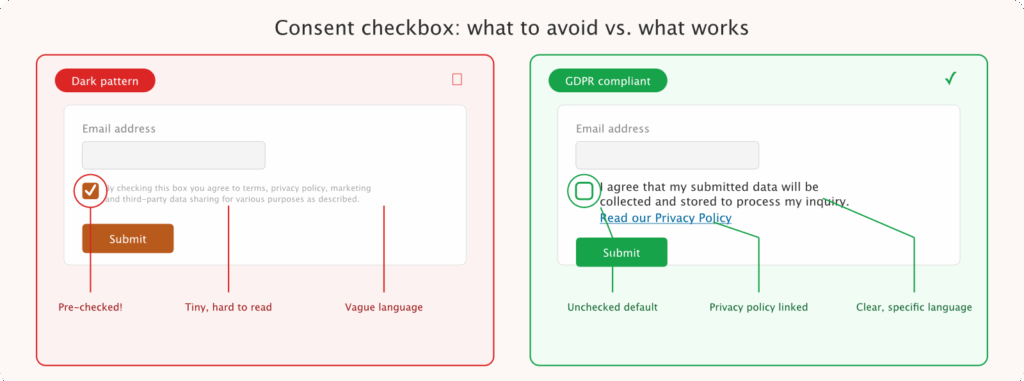
If your GDPR consent text is buried, vague, or written in legalese that nobody reads, you’re exposed. The expectation now is that consent must be genuinely informed, with clear language that a regular person can understand.
For WordPress site owners, this means the “good enough” approach from a few years ago probably isn’t good enough anymore. The practical steps in this guide are designed around where enforcement is heading, not just where it’s been.
A Quick GDPR Compliance Checklist for WordPress Forms
Before getting into the specific WPForms settings, here’s a practical checklist you can use to audit your forms. Run through each item for every form on your site.
- Consent checkbox present and unchecked by default: Every form collecting personal data needs an explicit opt-in, not a pre-checked box.
- Consent text is specific and plain-language: Tell users exactly what data you’re collecting and why. Avoid vague phrases like “we may use your data for various purposes.”
- Privacy policy linked: Your consent text should link to your full privacy policy so users can read the details before agreeing.
- Only necessary fields included: Remove any form field that doesn’t serve a clear purpose. Less data means less risk.
- IP address and user agent tracking evaluated: Decide whether you need to collect these. If not, disable them.
- Entry storage policy defined: Know how long you’ll keep form submissions and have a plan for deleting old entries.
- Data access and deletion process in place: You need a way for people to request their data or ask you to delete it. A simple data request form works.
- Third-party processors documented: If form data goes to Mailchimp, Stripe, Google Sheets, or any other service, you should know what those services do with the data and have documentation in place.
- Cookie usage reviewed: Some form plugins use tracking cookies. Know whether yours does and disclose it.
Enabling GDPR Features in WPForms
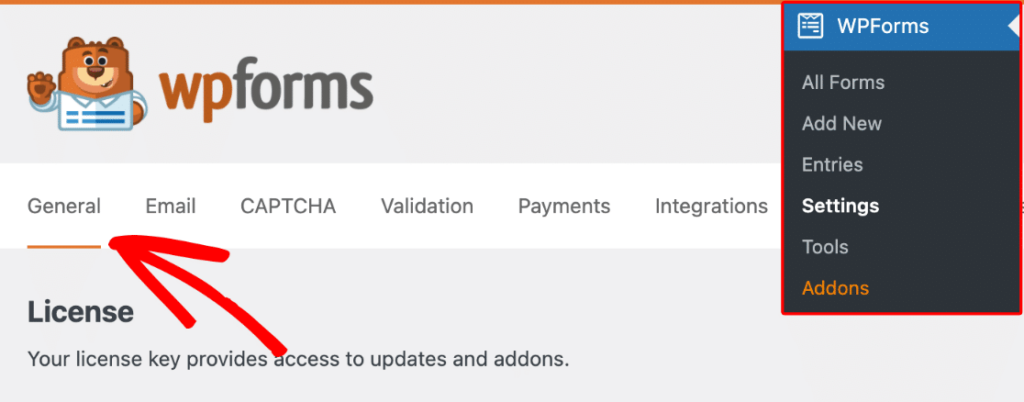
WPForms has a dedicated set of GDPR compliance tools built into the plugin. The setup takes just a few minutes. Start by going to WPForms » Settings and opening the General tab.
Scroll down until you see the GDPR section, then toggle on the GDPR Enhancements option. Once you enable this, two additional options appear.
- Disable User Cookies stops WPForms from assigning a UUID (Universally Unique Identifier) cookie to visitors. This cookie normally powers features like Entries, the Geolocation addon (Pro), and the Form Abandonment addon (Pro). If you’re prioritizing minimal data collection and don’t use those features, turn this on.
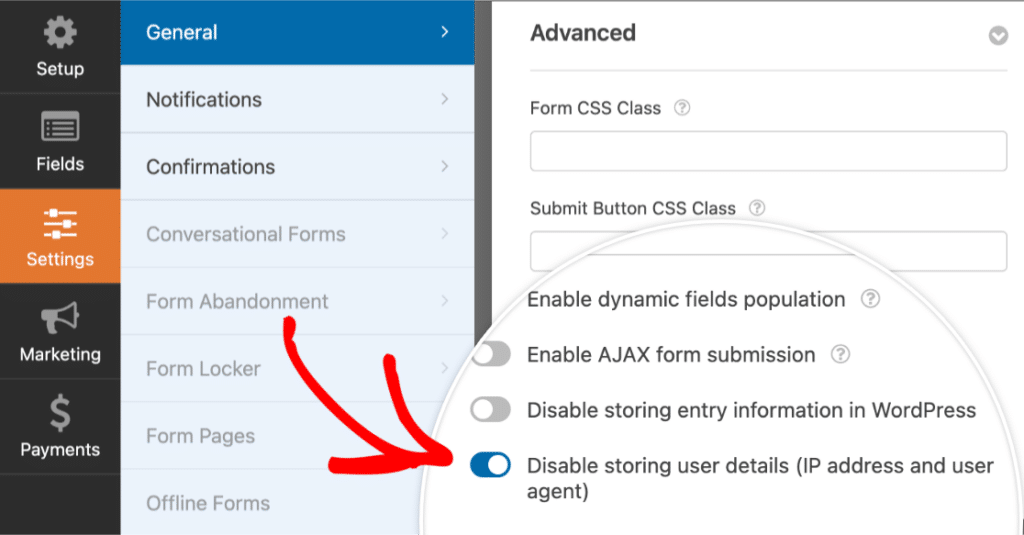
- Disable User Details prevents WPForms from collecting IP addresses and user agent information (browser and operating system data) when someone submits a form. You can enable this site-wide to apply it to all forms at once.
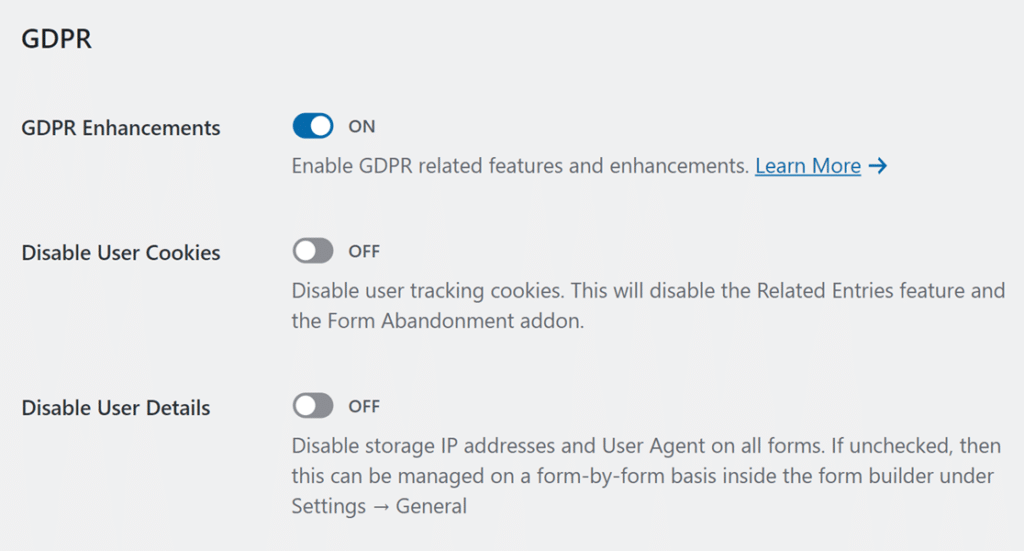
If you prefer more control, you can leave the site-wide toggle off and disable user details on individual forms instead.
Open any form in the builder, go to Settings » General, scroll to the Advanced section, and check the Disable storing user details (IP address and user agent) option.
If you’re using WPForms Lite (the free version), user cookies aren’t used and additional user details aren’t collected by default.
So Lite users are already starting from a privacy-friendly baseline without needing to change any settings. You can read more about creating GDPR compliant forms in the WPForms documentation.
Adding a GDPR Consent Form Field
With GDPR Enhancements enabled, a special GDPR Agreement field becomes available in your form builder under the Standard Fields section.
This field is specifically designed for GDPR consent collection. What makes the GDPR Agreement field different from a regular checkbox? Three things.
- It’s always required, so there’s no option to make it optional, because consent shouldn’t be optional when you’re collecting personal data.
- It can’t be pre-checked, as GDPR explicitly prohibits default consent. The user has to actively check the box themselves.
- It only allows a single checkbox, so you can’t add multiple options to this field. It’s a clear, binary “I consent” or “I don’t” choice.
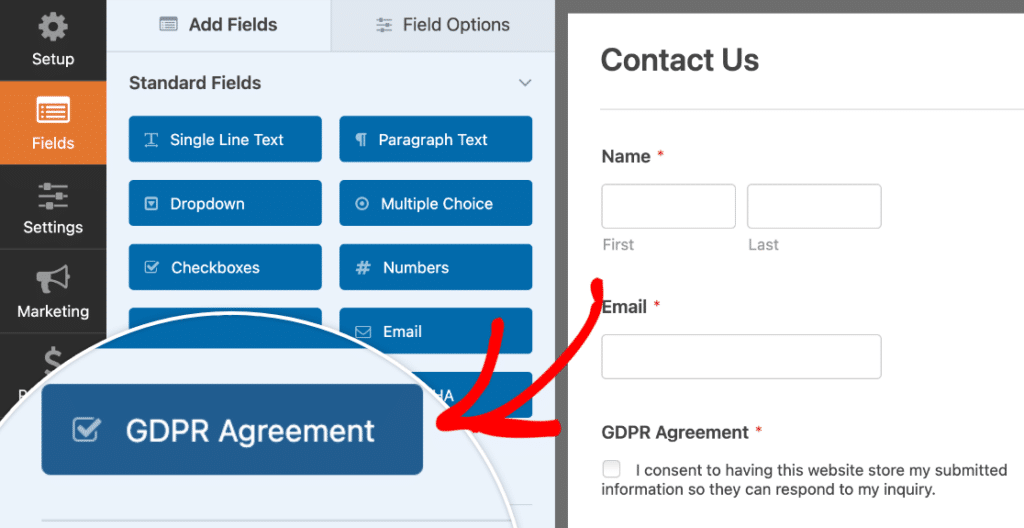
When writing your consent text, be direct and specific. Something like “I agree that my submitted data will be collected and stored to process my inquiry. See our Privacy Policy for details.” works well. Avoid vague or overly broad language.
If you need to include a detailed disclaimer or link to a terms of service checkbox, WPForms supports that too. You can add formatted text and external links within the field’s description area.

Managing Entry Data for GDPR Compliance
Compliant data collection is only half of the picture. You also need to manage that data responsibly after it’s been submitted.
WPForms stores all form entries directly in your WordPress database, on your own server. No entry data is sent to or stored on WPForms’ servers. This gives you full control over your data, which is exactly what GDPR expects.
When someone exercises their right to access or delete their data, you need to be able to find it quickly. The entry management system in WPForms (available at Basic and above) includes search and filter tools that let you locate entries by name, email, keywords, or by date.

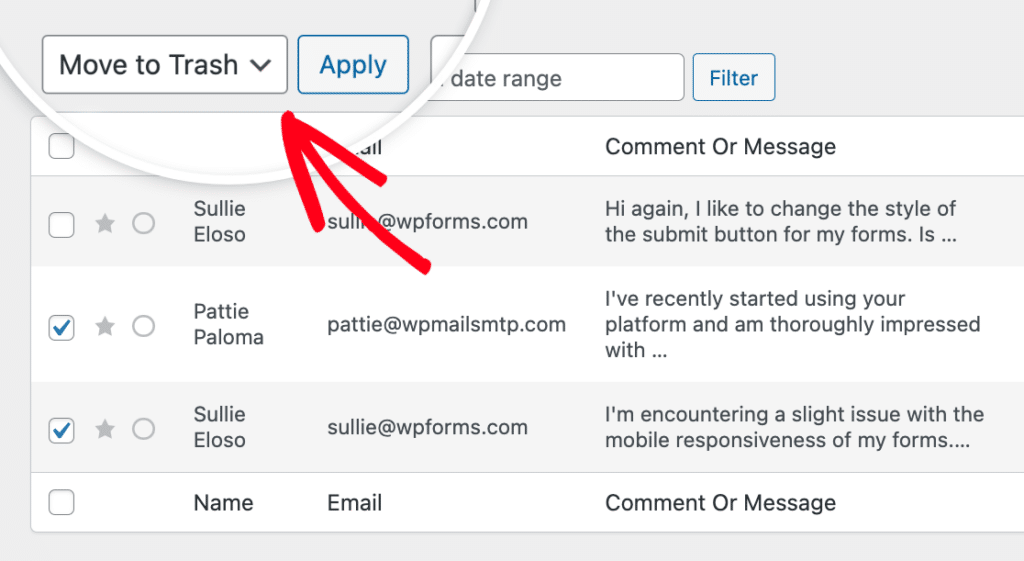
If you need to delete entries, go to WPForms » Entries, select the form, check the entries you want to remove, select the Move to Trash option from the Bulk actions dropdown and then click the Apply button.
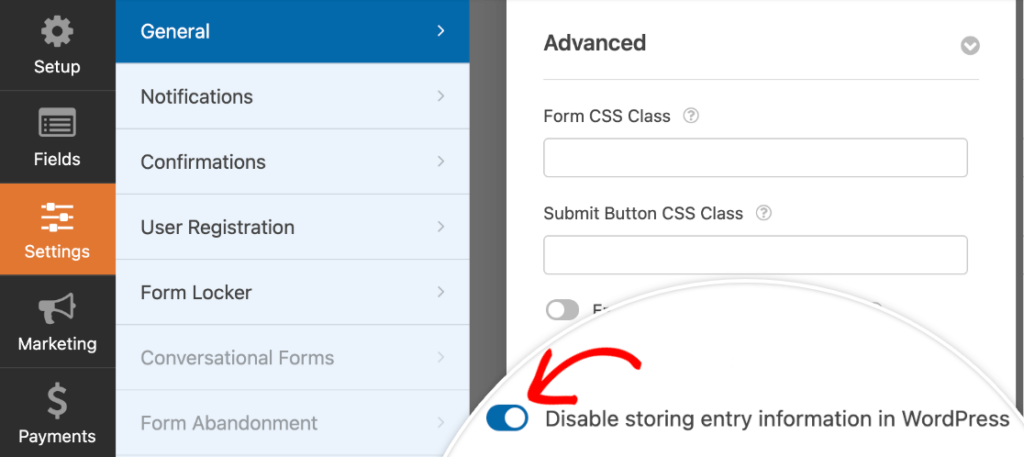
You can also disable entry storage entirely on a per-form basis. Open the form builder, go to Settings » General, scroll to the Advanced section, and check Disable storing entry information in WordPress.
With this enabled, form submissions will only be delivered through your notification emails, with nothing saved to the database. This is useful for forms where you don’t need a record of every submission, like simple contact forms where the email notification is enough.
For sites that need automated data cleanup, the Entry Automation addon (available at the Elite tier) lets you schedule automatic entry exports and deletions. This is helpful for building a data retention policy without having to manually clean up old entries on a regular basis.
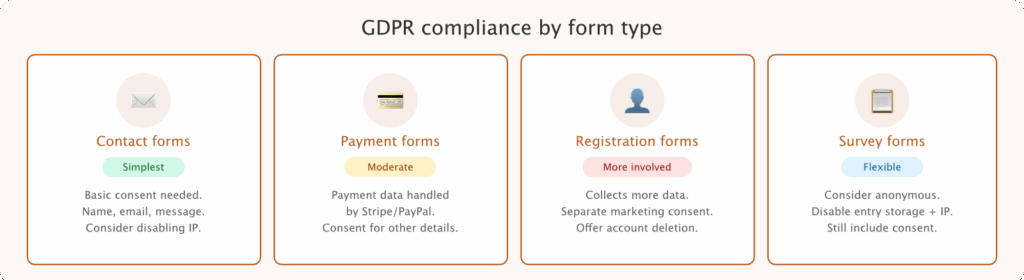
GDPR Compliance for Different Form Types
Not every form on your site collects the same kind of data, and the compliance considerations shift depending on what you’re asking for.
Contact Forms
Contact forms are the simplest GDPR scenario. You’re typically collecting a name, email address, and a message. The compliance requirements are straightforward.
Add a GDPR Agreement field with clear consent text, link to your privacy policy, and consider whether you really need to store entries or if email notifications are enough.
If the form doesn’t need IP tracking, disable user details for that form. A GDPR-compliant contact form can be up and running in under five minutes with the WPForms GDPR Contact Form Template.

Payment Forms
Payment forms introduce an important distinction. When you use WPForms with Stripe or PayPal, the sensitive payment data (credit card numbers, bank details) is processed directly by the payment gateway. That data never touches your WordPress database.
But you’re still collecting personal information alongside the payment, things like the customer’s name, email, and billing address. That personal data does need GDPR consent.
Include the GDPR Agreement field on payment forms just like any other form, and make sure your consent text mentions that transaction data will be processed by the relevant payment provider.
WPForms integrates with PCI-compliant payment processors, so you’re not responsible for PCI compliance on the payment data itself. Your GDPR responsibility covers the personal details your form collects and stores.

Registration and Login Forms
Registration forms collect more personal data by design. Usernames, emails, sometimes phone numbers and addresses. The GDPR requirements are a bit more involved here.
Be specific in your consent text about what the account data will be used for. If you plan to send marketing emails to registered users, that needs separate consent from account creation. And you need to offer a clear path for users to delete their account and associated data if they request it.
WPForms Pro includes a User Registration addon that lets you create custom registration forms with full control over what fields you include. Pair it with the GDPR Agreement field to keep registration compliant.
For restricting access to sensitive forms, the Form Locker addon (also in WPForms Pro) lets you password-protect forms or limit them to logged-in users.

Survey and Feedback Forms
Surveys can collect opinions that people might consider sensitive, especially in workplace or healthcare contexts. If the survey doesn’t need to be tied to a specific person, consider making it anonymous.
You can do this in WPForms by disabling entry storage for the survey form and turning off user details collection. The responses will still come through via notification emails, but without personally identifiable information attached.
Even with anonymous surveys, it’s still good practice to include the GDPR Agreement field. It reinforces transparency and shows your respondents you take their privacy seriously.

Third-Party Integrations and GDPR
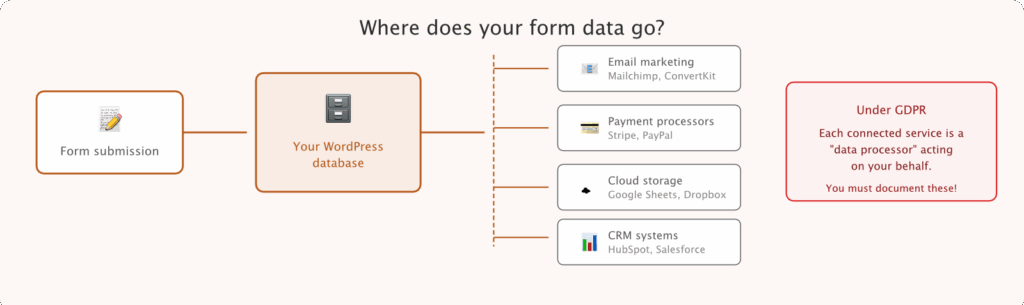
Your WordPress forms don’t exist in isolation. When you connect them to email marketing platforms, CRMs, cloud storage, or payment processors, you’re sending personal data to external services.
Under GDPR, each of those services is considered a “data processor” acting on your behalf. That means you need to verify that your processors are GDPR compliant themselves.
Services like Stripe, PayPal, Mailchimp, and Google all publish their own GDPR compliance documentation. Before connecting an integration, check that the provider has a Data Processing Agreement (DPA) available.
You should also document your data processing chain. Know exactly where form data goes, which services receive it, and what those services do with it. If a user asks “where is my data stored?”, you need to be able to answer that question.
For a broader look at your site’s security posture, the WPForms security guide covers how form data is protected at every stage, from submission to storage.
And if you’re looking for additional privacy tools beyond forms, our roundup of GDPR WordPress plugins covers the full range of compliance tools available for WordPress sites.
Going Beyond GDPR With CCPA and Global Privacy
GDPR isn’t the only privacy regulation you might need to think about. California’s CCPA (California Consumer Privacy Act) has similar requirements around transparency, data access, and the right to delete. Brazil’s LGPD and Canada’s PIPEDA follow comparable frameworks too.
If your forms are already GDPR compliant, you’ve covered most of the ground for other privacy regulations too. GDPR tends to be the strictest standard, so meeting its requirements generally puts you in a strong position globally.
WPForms’ privacy tools, including the GDPR enhancements, consent fields, entry management controls, and data minimization options, aren’t region-specific. They help you build a privacy-respecting data collection process regardless of where your visitors are located.
If your site serves visitors from multiple countries, just default to the highest standard. Build every form as if a European data protection authority is reviewing it. That mindset will keep you covered.
FAQs About GDPR Compliance for WordPress Forms
GDPR compliance for forms can raise a lot of practical questions, especially if you’re setting this up for the first time. Here are answers to the most common ones I’ve seen from WordPress site owners working with GDPR compliant forms.
Do I need GDPR compliance if my website isn’t based in the EU?
Yes. GDPR applies based on where the person submitting your form lives, not where your business is located. If you collect any personal data from someone residing in the European Union, the regulation applies to you.
This is true even if your website is hosted in the US, your business is registered in Canada, or you’ve never set foot in Europe.
Is WPForms GDPR compliant?
WPForms provides built-in tools to support GDPR compliance across all license tiers, including the free Lite version. The GDPR Enhancements toggle, GDPR Agreement field, user cookie controls, user detail controls, entry management, and entry storage options are all designed to help you meet GDPR requirements.
That said, full compliance depends on how you configure and use these tools on your specific site. WPForms always recommends consulting legal counsel for your particular situation.
Can I use WPForms’ GDPR features with the Free version?
The GDPR Enhancements toggle and GDPR Agreement field are available in all versions of WPForms, including Lite.
And since WPForms Lite doesn’t use tracking cookies or collect additional user details (like IP addresses and user agents) by default, free users are already starting from a minimal data collection baseline.
What happens if my forms aren’t GDPR compliant?
The penalties for GDPR non-compliance can be significant. Fines can reach up to 4% of your annual global turnover or €20 million, whichever is higher.
But beyond fines, there’s also the reputational damage. Users who discover their data isn’t being handled properly will lose trust in your site, and that trust is hard to rebuild.
Do I need a Cookie Consent Banner if I use WPForms?
It depends on your configuration. If you disable WPForms user cookies through the GDPR Enhancements settings, WPForms itself won’t require cookie consent.
But your site likely uses other tools, such as analytics, advertising pixels, or other plugins, that do set cookies. You’ll still need a cookie consent solution for those. Our list of best cookie consent plugins for WordPress can help you find the right one.
Next, Lock Down the Rest of Your Form Security
Now that your forms are GDPR compliant, it’s worth looking at the bigger security picture. Our guide to spam protection in WPForms covers how to keep bot submissions out of your forms without adding friction for real visitors.
And if you’re collecting agreements or contracts through your forms, digital signatures (available in WPForms Pro) can add an extra layer of authenticity.
Create Your GDPR-Compliant Form Now
Ready to build your form? Get started today with the easiest WordPress form builder plugin. WPForms Pro includes lots of free templates and offers a 14-day money-back guarantee.
If this article helped you out, please follow us on Facebook and Twitter for more free WordPress tutorials and guides.





