



AI Summary
A request a quote form is a web form that lets potential customers describe what they need and receive a price estimate — either instantly on-screen or via follow-up email. With WPForms and the Calculations Addon, you can build one that automatically calculates quotes in real time based on the services and options a visitor selects. No manual follow-up or spreadsheet math.
In this tutorial, I’ll show you how to create a request a quote form in WordPress using a pre-built template, and how to add custom pricing formulas so your visitors get an instant estimate as soon as they hit submit.
Create Your Request a Quote Form Now! 🙂
Create an Instant Quote Form in 5 Steps
The WPForms Calculations Addon makes it easy to add custom formulas to your form, create custom calculators, and calculate a quote based on user input.
Users will often be eager to provide their email addresses in exchange for an instant quote rather than waiting hours or days for someone to get back to them.
Step 1: Get the WPForms Pro License
The first thing you’ll need to do is install and activate the WPForms Pro plugin. WPForms is a powerful and easy-to-use form builder for WordPress.
This plugin allows you to create all kinds of contact forms, order forms, survey forms, etc without needing to write any complex code.
If you want to create a request a quote form with automatic quote calculation, you should opt for the WPForms Pro license.
This license includes the Calculations Addon and comes with many extra features, templates, and addons to help you run your business more efficiently.
Who Uses Request a Quote Forms?
Quote forms work for any business where pricing depends on what the customer needs. Here are some of the most common use cases:
- Marketing & creative agencies — quote based on service type (SEO, PPC, design) and contract duration
- Contractors & home services — quote based on project scope, square footage, or materials needed
- Freelancers & consultants — quote based on hourly rate, project complexity, or number of deliverables
- Photographers & videographers — quote based on session length, location, and editing package
- Manufacturers & wholesalers — quote based on order quantity, customization, and shipping
- IT & software services — quote based on number of users, support tier, or feature set
This tutorial uses a digital marketing agency as the example, but you can adapt the same form and formula logic for any of these — just swap in your own services, pricing tiers, and multipliers.
If you want more detailed instructions, follow this step-by-step guide on how to install a plugin in WordPress.
Step 2: Install and Activate the Calculations Addon
Before building your request a quote form, make sure you’ve installed and activated the Calculations addon. You can do this quickly and easily by navigating to WPForms » Addons in your WordPress dashboard.
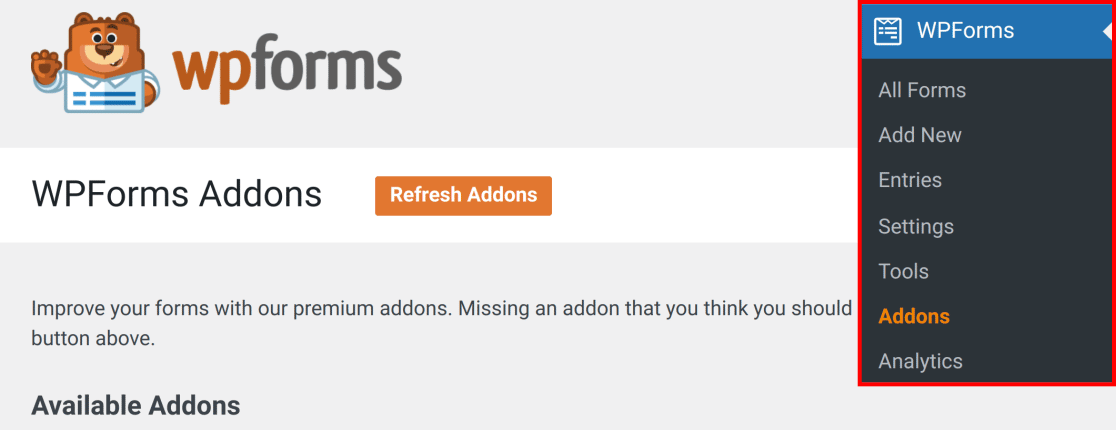
Next, search for “Calculations” to find the addon. If you don’t see it, click the Refresh Addons button to load the list again.
To install Calculations, click on the Install Addon button. Wait a few moments for the addon to install.
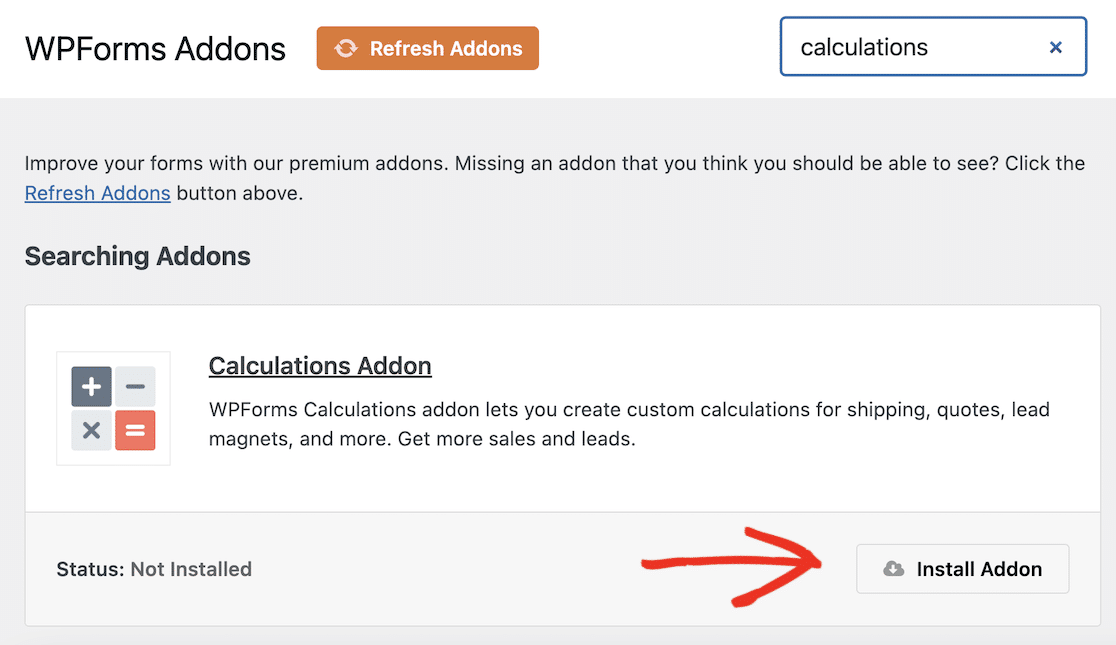
Finally, make sure the status of the addon is set to Active, and click the Activate button if it’s not. Congratulations! You’re about to enter the exciting world of calculation forms. Let’s get started.
Step 3: Create a Request a Quote Form
It’s now time to create your request a quote form. From your WordPress dashboard, navigate to WPForms » Add New to create a new form.
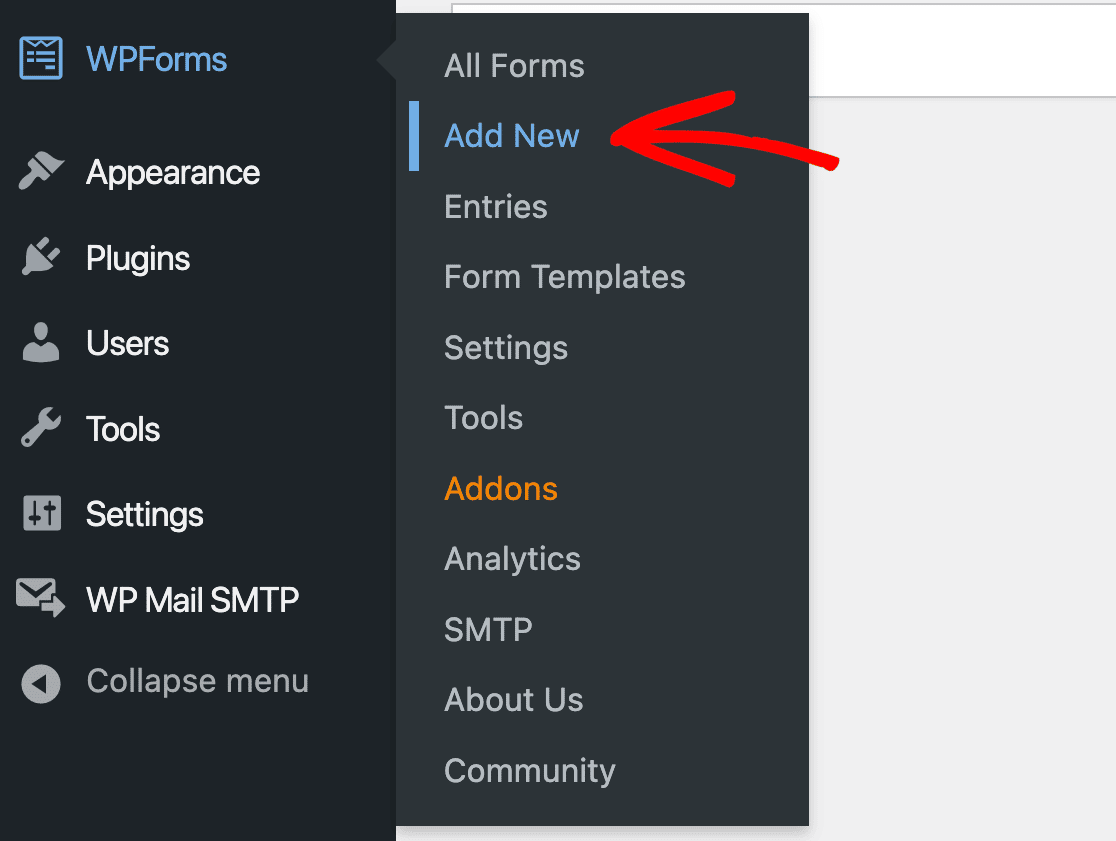
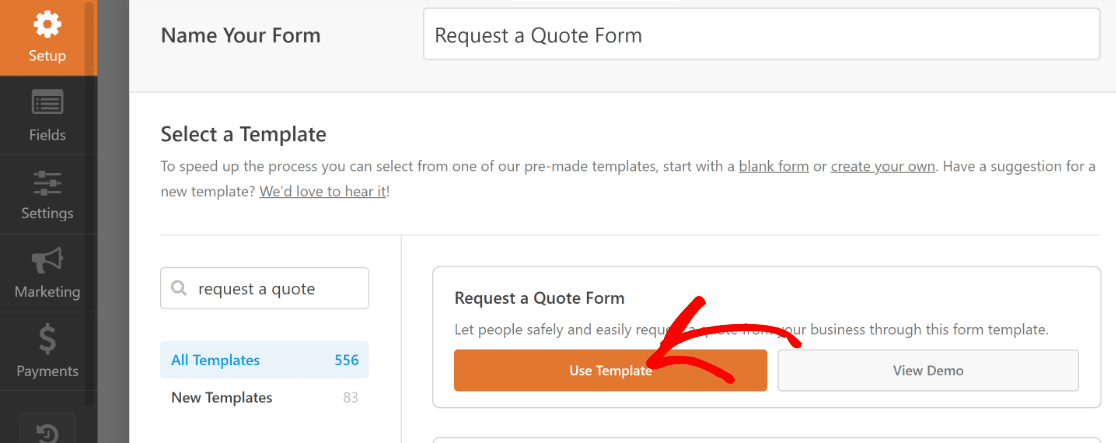
On the setup screen, you can name your form and choose a template to kick off your from creation process.
Luckily, WPForms has 2,100+ form templates, including a ready-to-use Request a Quote Form template which is perfect for our purposes.
WPForms will now redirect you to the form builder, where you can see a list of fields already included on the right side of the screen.
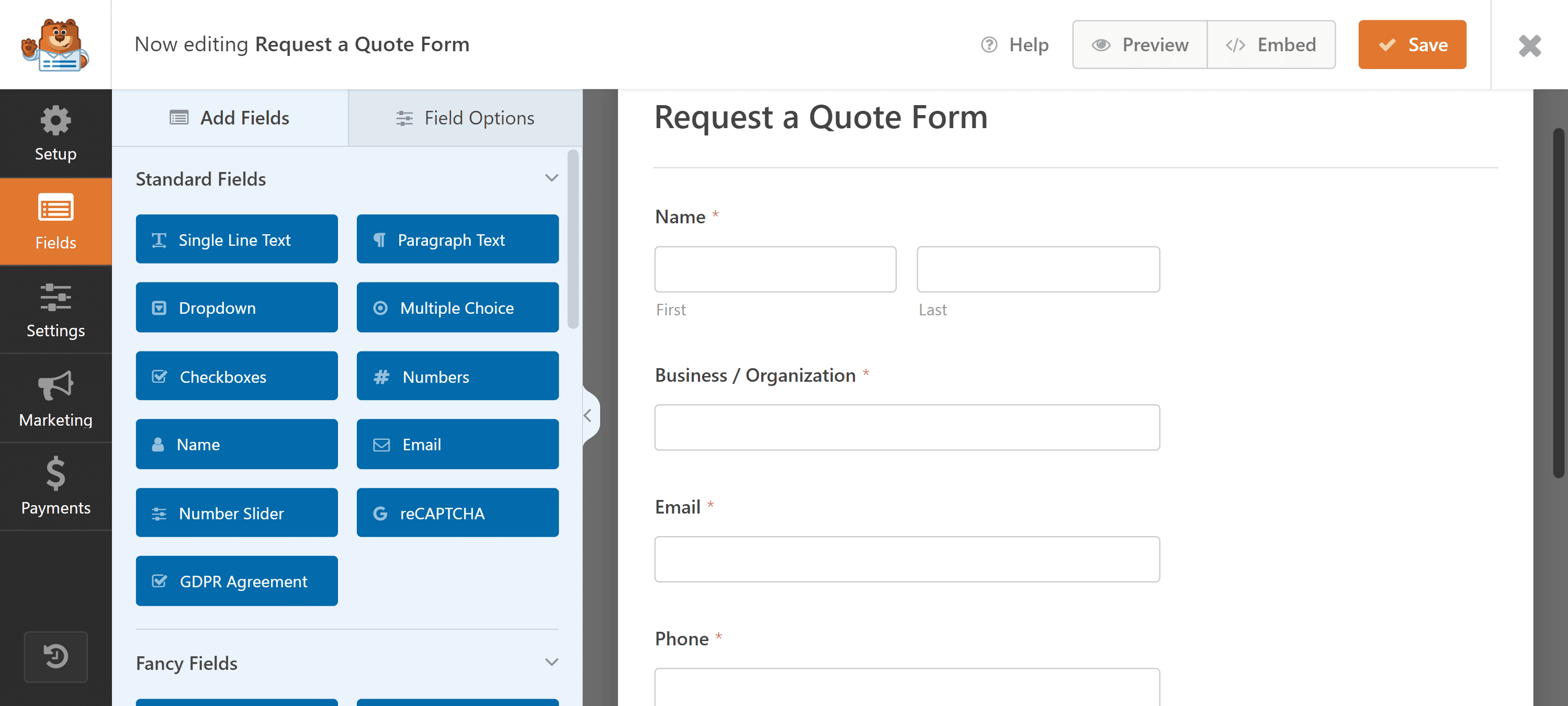
In the next step, we’ll customize this form template to be a good fit for a hypothetical digital marketing agency. But you’re free to replicate the same process for any kind of business with a few modifications as necessary.
Step 4: Customize Your Quote Request Form
Our hypothetical agency offers 3 different services for a selected service duration. The final quote depends on the exact type of service and duration requested.
To create such a form, we’ll be using a couple of Payment Fields and a Hidden Field, where we will add our custom formula.
Add Calculation Fields
To begin with creating your customizable quote request form, simply start by adding the Checkbox Items field.
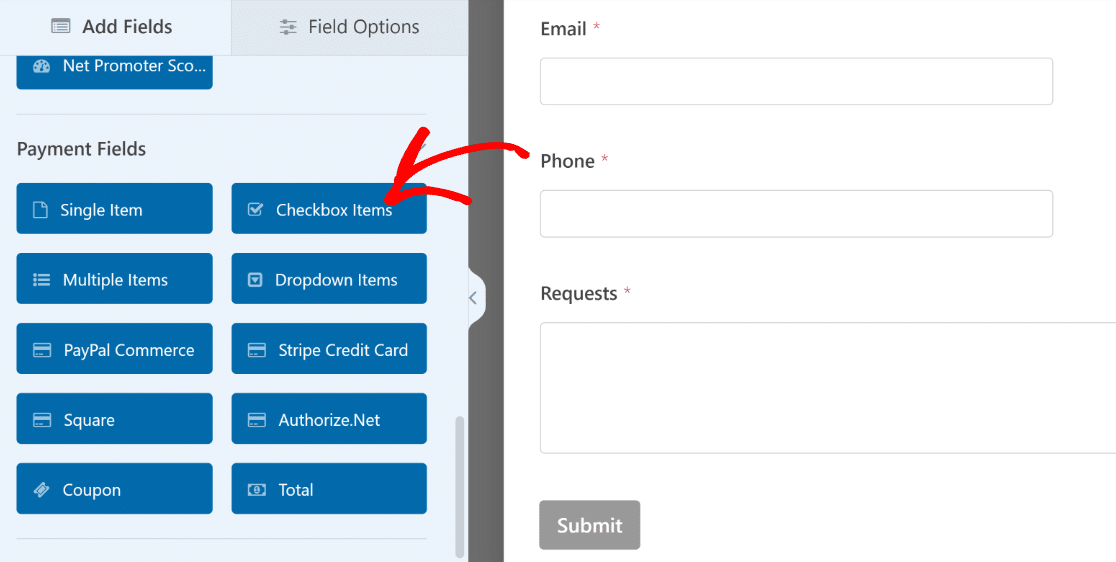
Click on the field after adding it to your form to open the Field Options menu on the left.
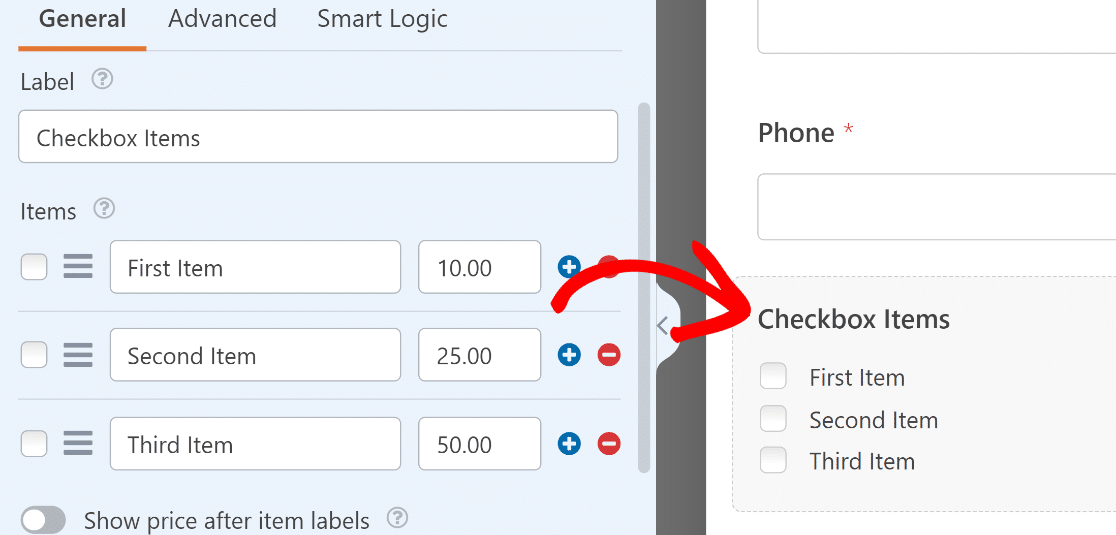
Let’s rename the field to “Services Needed”. Feel free to change this to anything you’d like, based on your requirements.

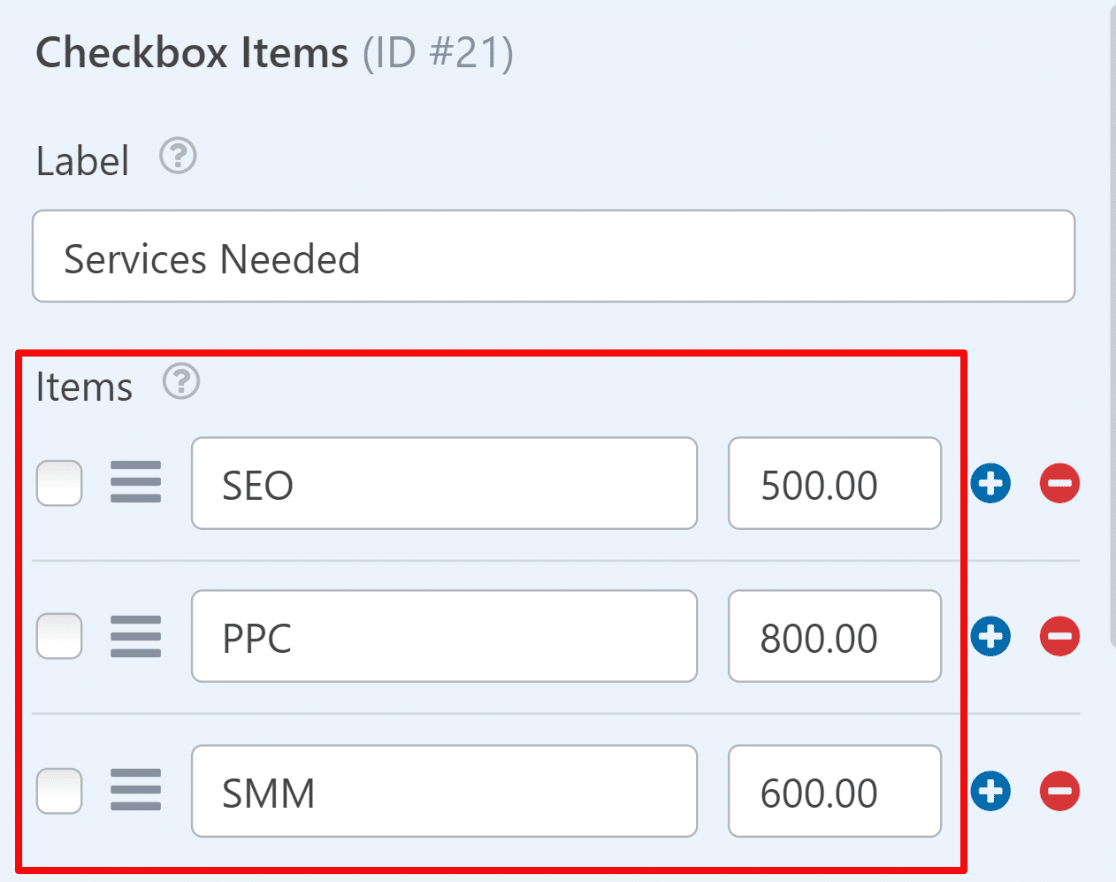
Next, add the service options along with the base price you want to set for each service next to it.
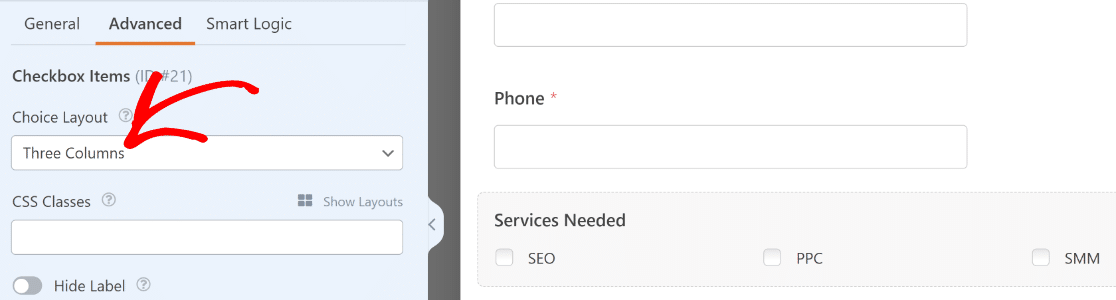
If you have a lot of service options for people to pick from and want to split your checkboxes into several columns, go to Advanced Options and pick your Choice Layout to be 1, 2, 3, or inline columns.
This will make your form more concise and prevent form fatigue when customers are filling it out.
You can easily label your field and add different service options using the Checkboxes Field Options.
If you want to add image choices next to your service options, check out our tutorial on how to add image choices to WPForms.
After that, click on the Add Fields tab and drag and drop the Multiple Items field onto your form.
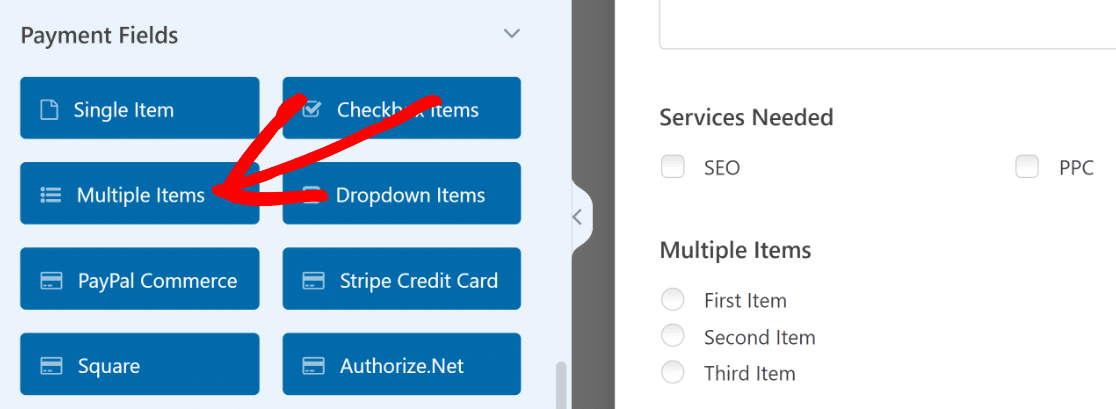
We’ll use the Multiple Items field to let people select a service duration for their requested service.
Now, we’ll access the Field Options of the Multiple Items field to change its label and add different service durations.
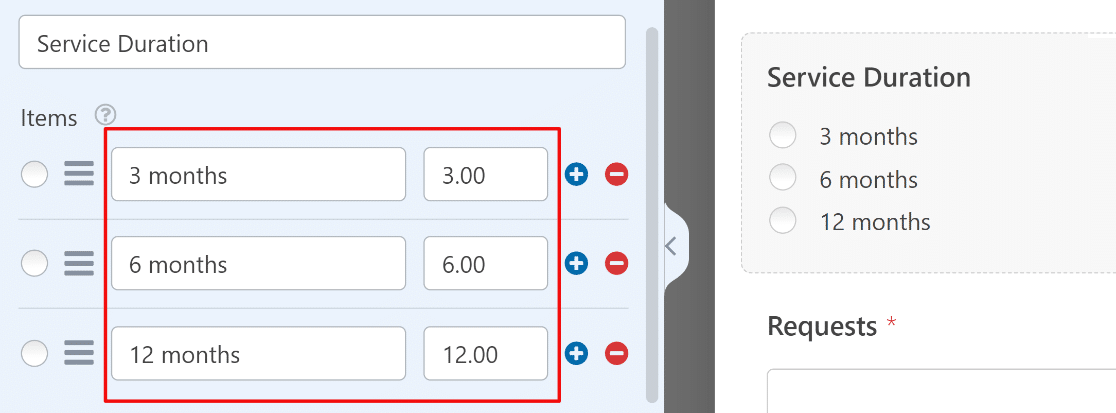
Note that we’ve given a value to each service duration matching the number of months, which we’ll be using as a multiplication factor to calculate the final quote.
For instance, if a visitor wants SEO services for 3 months, the base price of the SEO service will be multiplied by 3 to calculate the quote, and so on.
In the next step, we’ll be using WPForms’ calculation capabilities to work up some magic to display an estimated quote.
Create a Formula for Calculating a Quote
We’ll add a Hidden Field in the form and use it to perform some calculations behind the scenes.

After adding the Hidden Field, click to open its Field Options and then go to the Advanced tab.
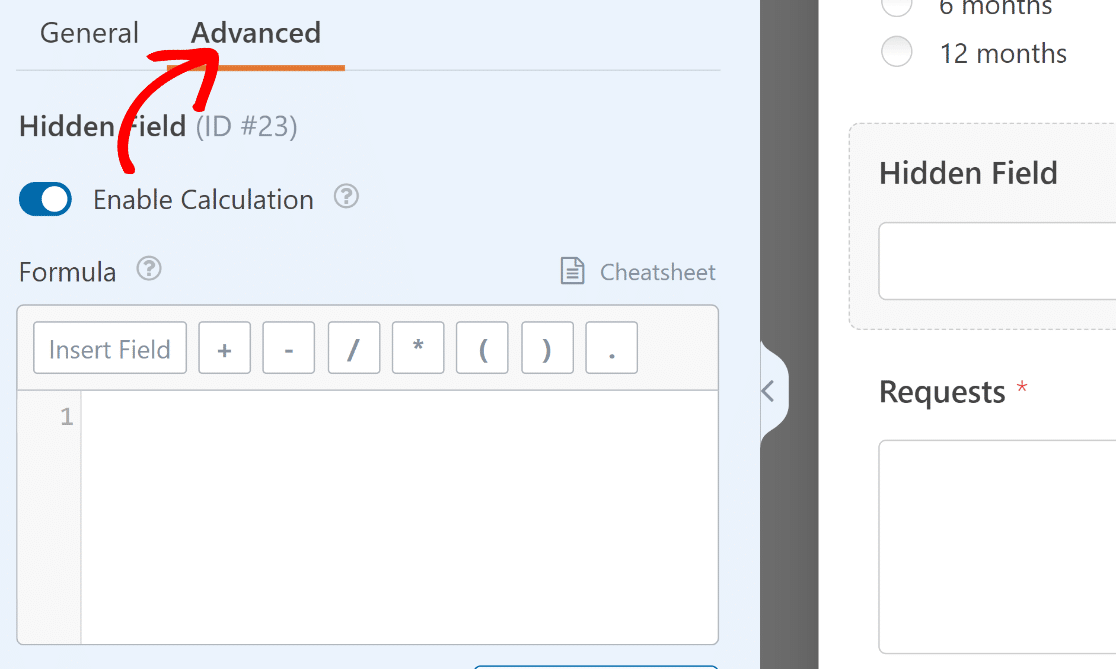
Now, click on the Enable Calculation toggle button, so that you can add your custom formula.
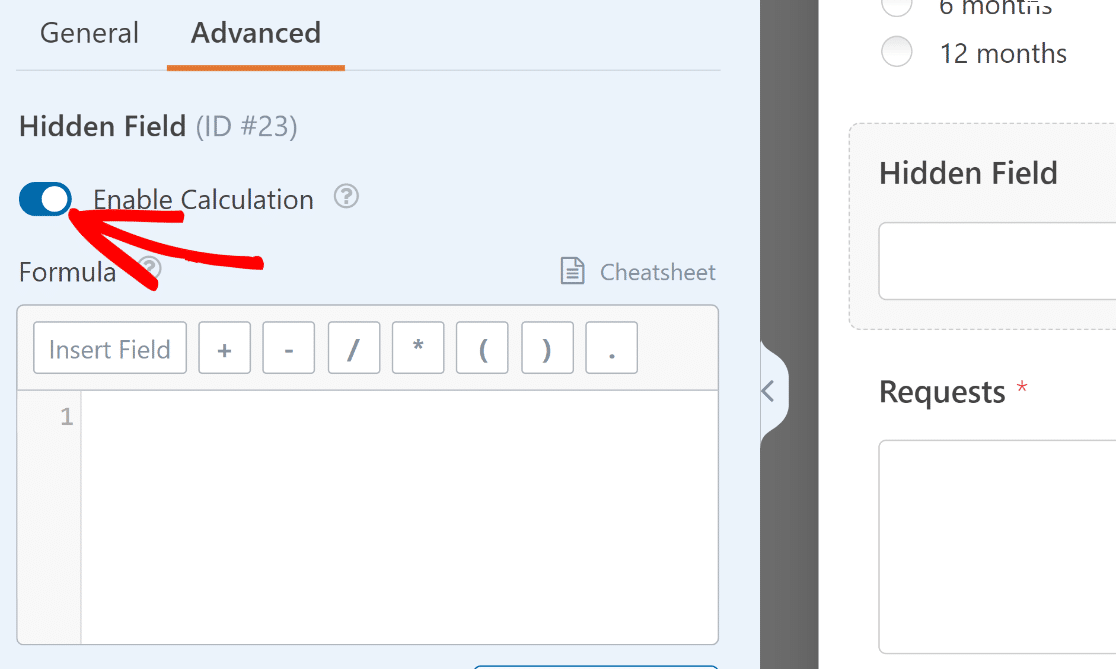
You’ll notice an editor appear in the left-hand pane. Here, you can use other form fields as variables and perform math operations on them by creating a formula.
WPForms makes it incredibly easy to create formulas. In this example, we just need to multiply our Services Needed field by Service Duration to get the quote.
This can be done by clicking on the Insert Field button to open the list of available fields in this form that we can use as variables.
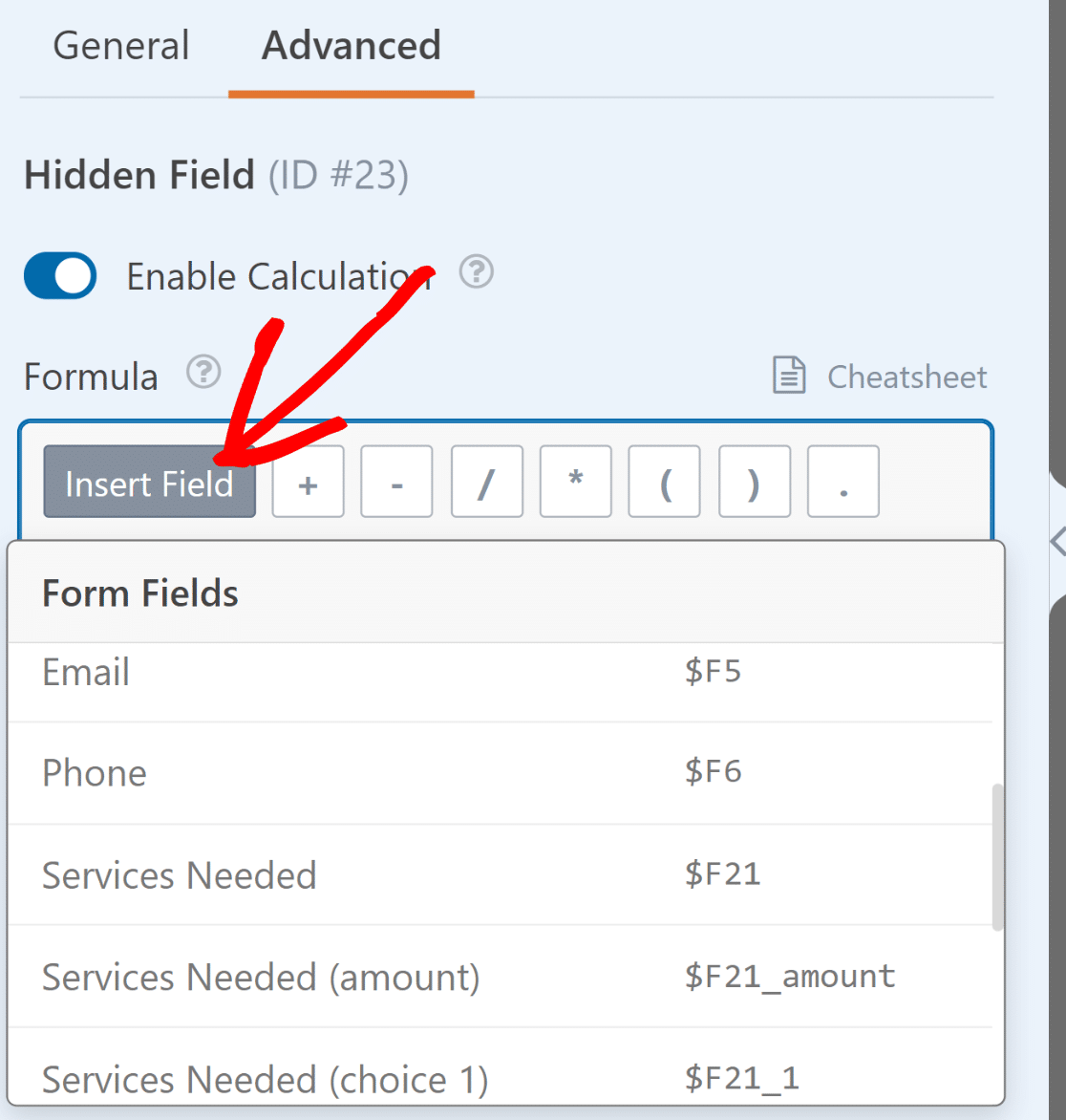
We’ll now select the Services Needed (amount) variable from the list, as that’s the field where we want to apply the formula.
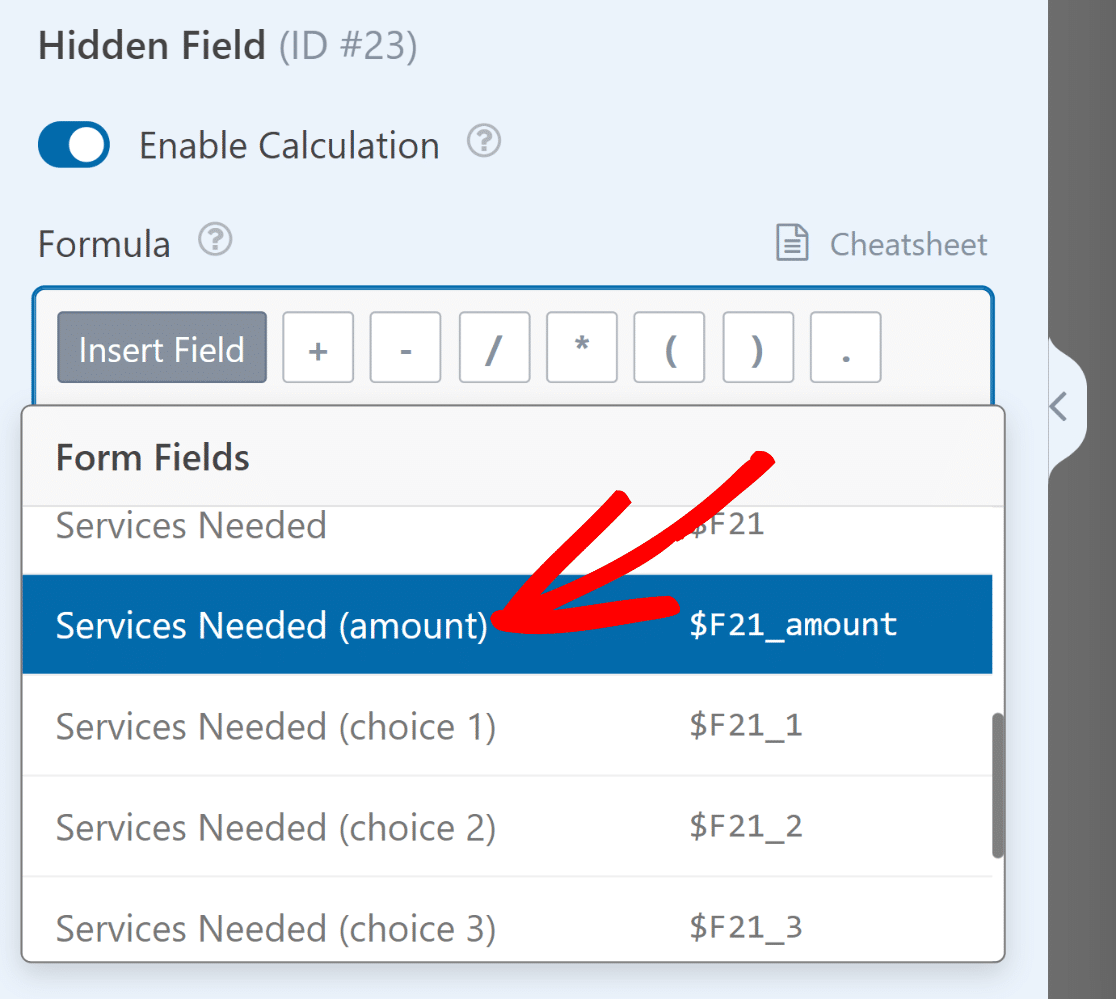
Then, we need to enter an asterisk (*), which is the multiplier function. In a similar fashion, we’ll then select the Service Duration (amount) variable.
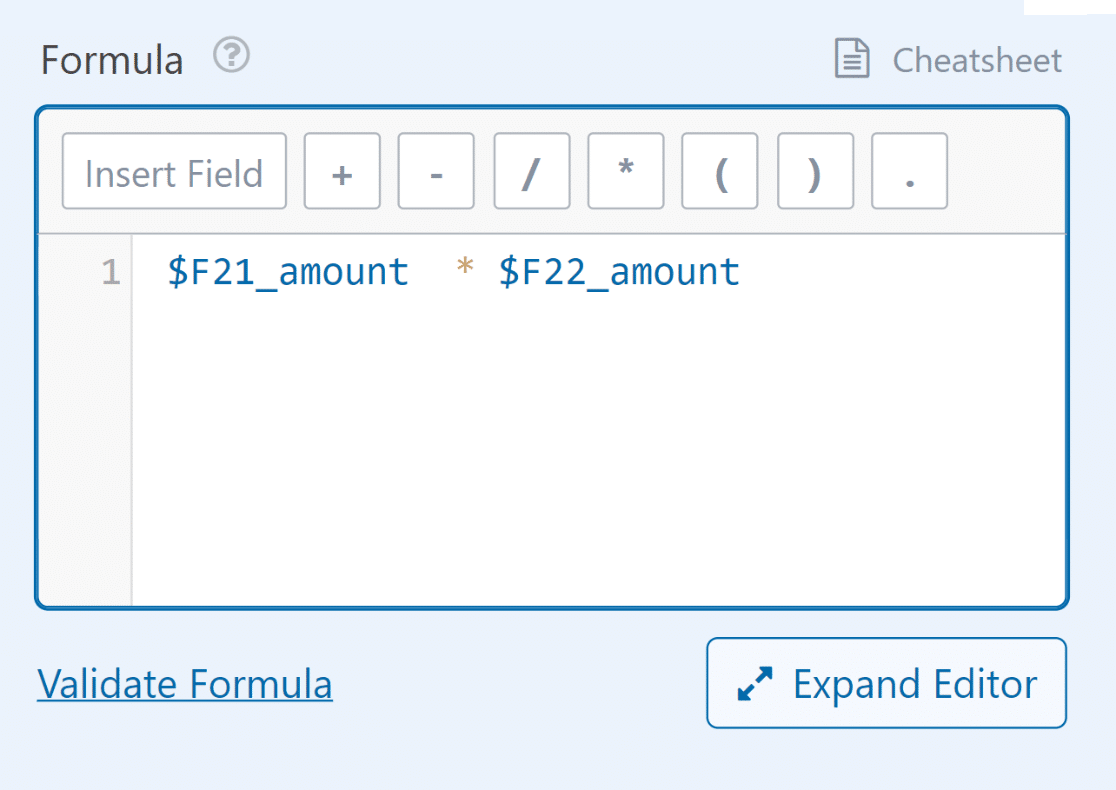
You can also validate your formula by clicking on the Validate Formula link at the bottom. If there are no errors in the formula, you’ll see a green check mark appear.
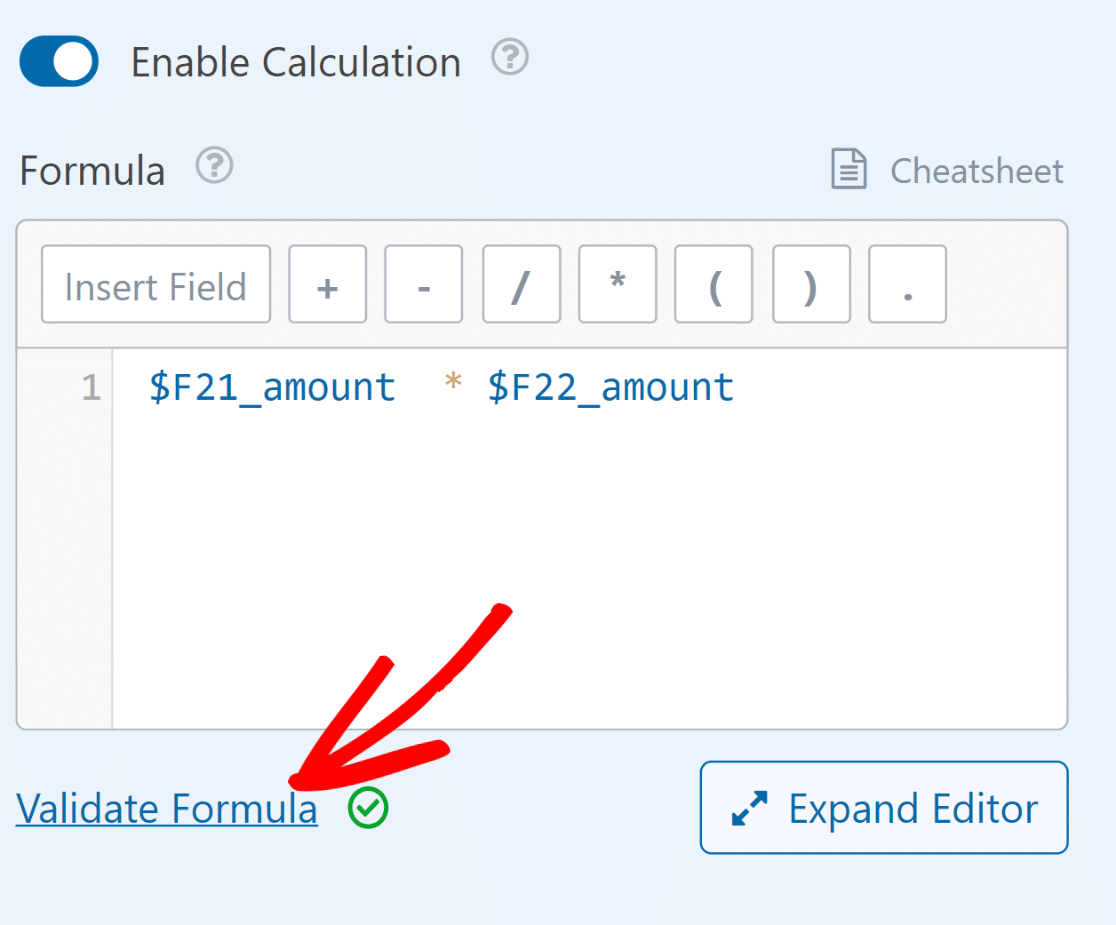
OK now that our form is ready to calculate a quote, we need to display the quote estimate in a proper way.
Display Quote Estimate in Form Confirmation
Once a user submits a form, you can display any message you want to assure your visitors that their form has been successfully submitted.
In this case, we can take advantage of the Hidden Field we set up in the previous step. All we need to do is use Smart Tags.
This will allow you to pull the calculated value inside the Hidden Field and use it in the confirmation message. To do this, click on Settings » Confirmations.
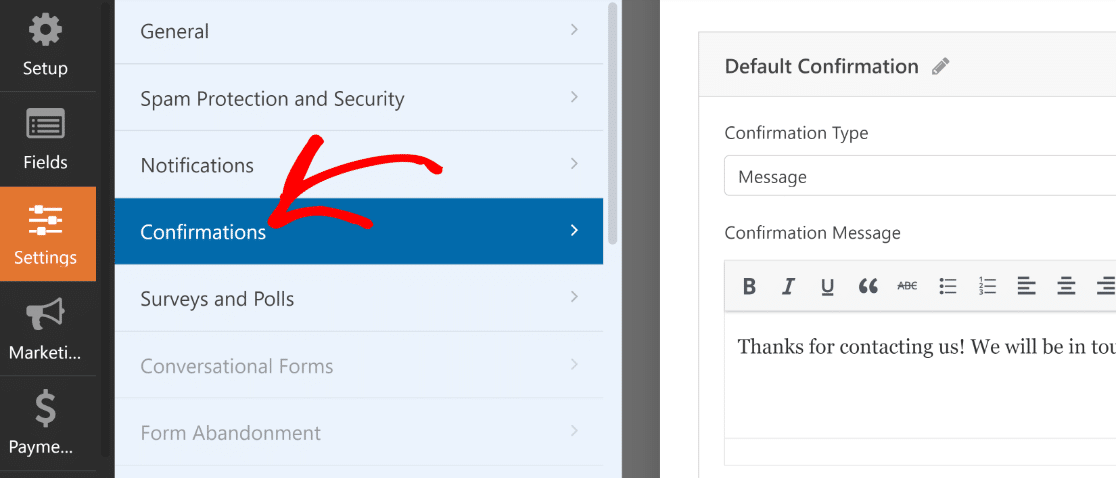
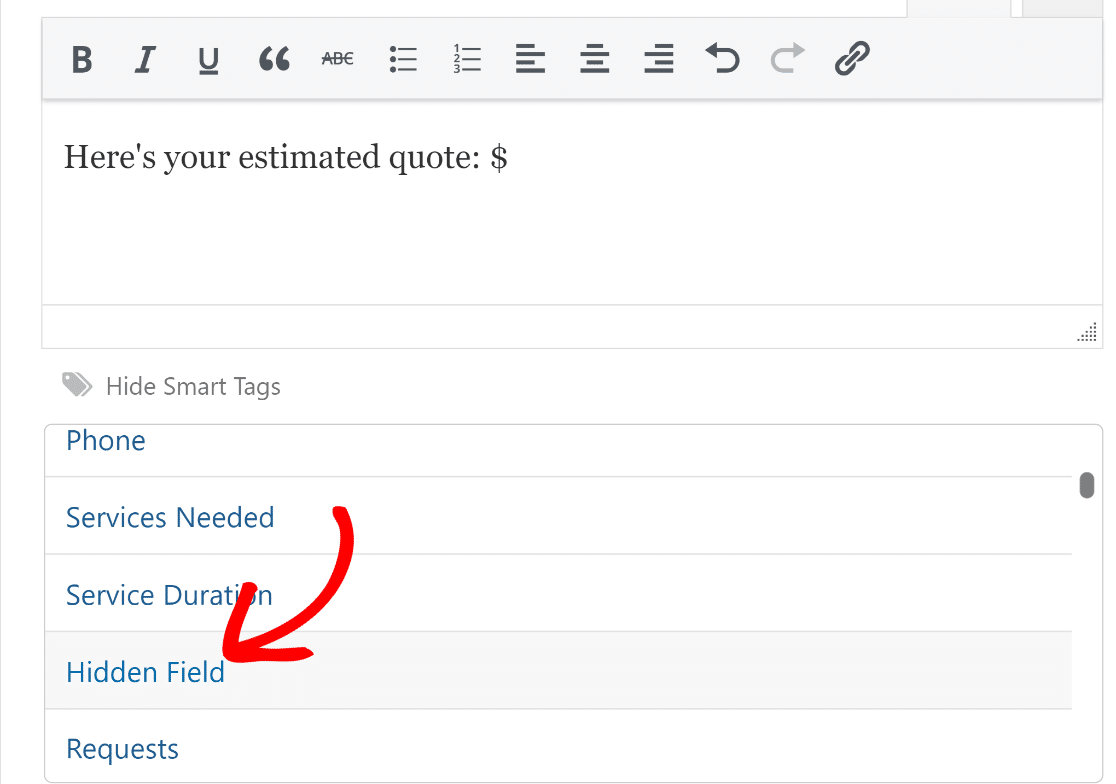
Using the text editor, we can rephrase the confirmation message to draw attention to the quote estimate. Then, we’ll click on the Show Smart tags link under the text editor.
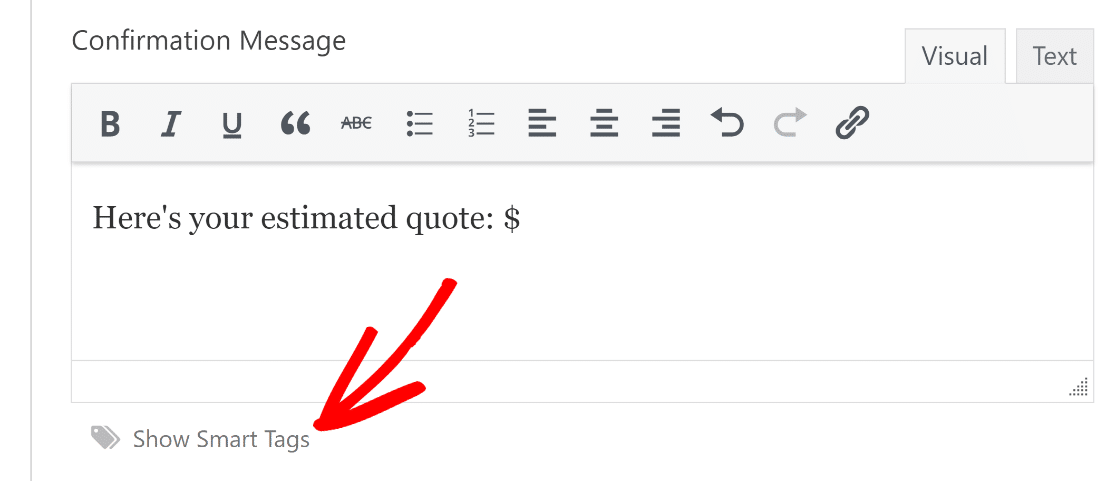
And select the Hidden Field from the list of available tags for fields to display the desired output in the confirmation message.
Perfect. All we need to do now is Save and Publish this form to start accepting entries and provide instant
Step 5: Publish the Request a Quote Form
Embedding your form with WPForms is easy, as you can use the embed wizard to add your form to any post, page, and sidebar widgets of your WordPress site.
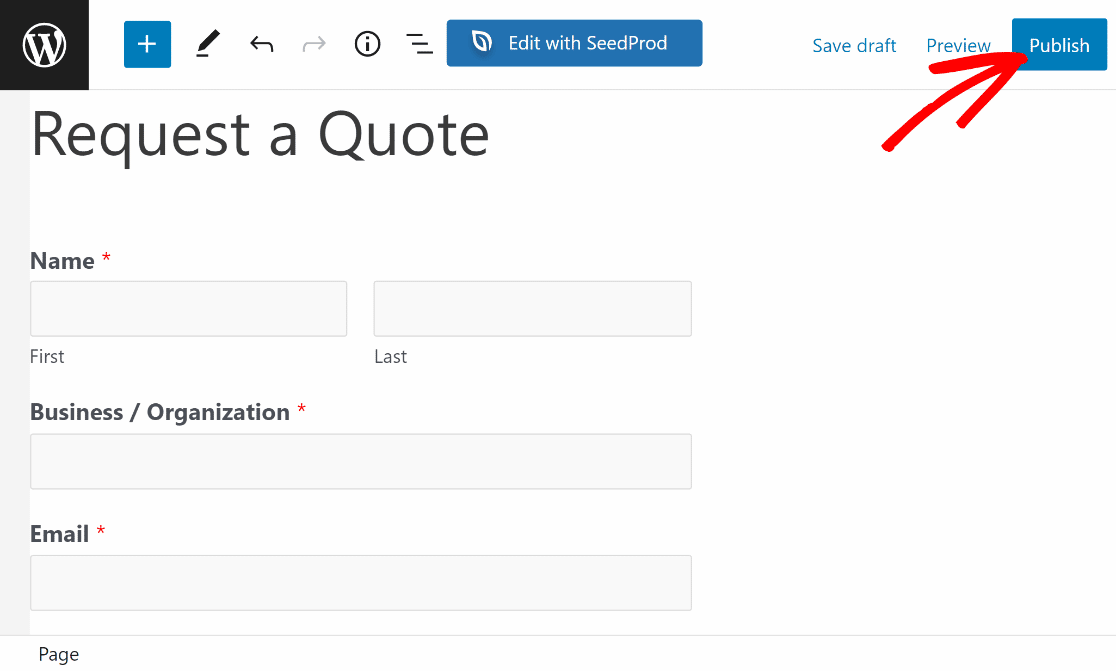
When you’re ready to embed, click on the Embed button at the top of the form builder and click on the Create New Page button to proceed.

Once you’ve done that, you’ll be taken to the WordPress page editor with your new form already added to it. If you’re satisfied with how everything looks, click on the Publish button to take your form live.
Excellent! The form is now ready. You can test this form out by filling out a dummy entry. If everything is set up correctly, you’ll see a quote appear in the confirmation message as soon as the form is submitted.

Pretty awesome, right? 🤩 And there you have it! You can now create a fully customized request a quote form in WordPress without hiring a developer!
FAQs about Request a Quote Form WordPress
Creating a request a quote form is a popular topic of interest among our readers. Here are answers to some common questions about it:
What is a request a quote form?
A request a quote form allows leads to specify their service/product requirements and get accurate pricing information from you.
For example, if you offer home decor services, then your quote will depend on the extent of the job required by your client.
When your service has variable pricing, it’s usually a good idea to use a request quote form, so both parties (client and business) know what’s expected of them.
The best part of a request a quote form is that it’s very effective for collecting leads. With every request for a quote that you receive, you’ll also have a new lead that you can convert to grow your business!
How to create a request a quote form in WordPress?
To create a request for a quote form in WordPress, start by installing the WPForms plugin. This user-friendly tool makes it simple to build forms using a drag-and-drop interface.
Once installed, select Add New to create a new form, choose the Request a Quote Form template, customize it to fit your needs, and then embed the form on your WordPress site using the provided shortcode.
How to create a request form in WordPress?
Creating a request form in WordPress is easy with WPForms. First, install WPForms and activate it. Go to the WPForms menu and click Add New.
Then, select a template that suits the type of request form you need, like a service request or a quote request.
Customize the fields as necessary, then save and embed the form on your desired page or post using the shortcode or block provided by WPForms.
How do I automatically calculate quotes in WordPress forms?
Use the WPForms Calculations addon to create custom formulas.
Add your service options as Checkbox Items or Multiple Items fields with prices, insert a Hidden field, enable calculations in the Hidden field settings, and build a formula using your pricing fields as variables (like Service Price × Duration).
The Hidden field automatically calculates the total, which you can display in confirmations or notifications.
Can I create a quote form without the Calculations addon?
Yes, but it won’t calculate quotes automatically. Without the Calculations addon, your quote form functions as a standard request form that collects customer information and service requirements.
You’ll need to manually calculate quotes and email them to customers later, which delays response time and reduces conversion rates compared to instant quote calculation.
What documents or information should customers have ready for a quote form?
This depends on your industry. For service businesses, customers should know their project timeline, budget range, and specific requirements.
For product-based quotes, they need quantity, specifications, and delivery location. Add clear instructions above your quote form listing what information customers should prepare.
Can I collect payment deposits with quote forms?
Yes, after displaying the calculated quote in your confirmation, you can add payment fields (Stripe, PayPal, Square) to collect deposits.
Use conditional logic to show payment fields only after customers see their quote estimate. This two-step process (quote first, then payment) converts better than requiring payment before showing the price.
Next, Learn Adding a Disclaimer Checkbox
If you want to add an official terms of service or disclaimer to your request a quote form, check out our documentation on how to add a Terms of Service checkbox to your WordPress forms.
This helps ensure your users know exactly what’s in store for them when they submit a request for a quote from you. Also, would you like to track if your forms are converting? If so, see our guide on setting up form tracking in WordPress.
Create Your Request a Quote Form Now! 🙂
Ready to build your form? Get started today with the easiest WordPress form builder plugin. WPForms Pro includes lots of free templates and offers a 14-day money-back guarantee.
If this article helped you out, please follow us on Facebook and Twitter for more free WordPress tutorials and guides.


