


AI Summary
Privacy laws like the GDPR say you can only keep personal data for as long as you genuinely need it, so letting old form entries sit there forever puts you at risk.
Deleting them by hand is tedious, and honestly, most people forget, so the data just keeps growing. The fix is to delete old entries automatically on a schedule you set one time.
WPForms gives you two ways to do that, one built into every paid plan and one more capable option for sites that take compliance seriously. I’ll walk you through both, then help you decide which one fits your situation.
Why Deleting Old Form Entries Matters for GDPR
The GDPR is built on a handful of principles, and one of them is storage limitation. In plain terms, you’re not supposed to hold onto personal data longer than you need it for the reason you collected it.
A contact form message you answered eight months ago has done its job. Keeping it around indefinitely is hard to justify if a regulator ever asks.
Old entries create real exposure too, because every name, email, and phone number stored in your WordPress database could leak if your site is ever breached.

Storing less personal data simply means a smaller loss if that happens. Trimming old submissions also keeps your database lean, which helps your site stay fast and your backups stay small.
WPForms ships with security and compliance tools across all paid plans, so the building blocks are already there. What the plugin can’t do is decide your retention policy for you.
That part is your call, and our complete guide to GDPR compliance for WordPress forms is worth a read if you want the full picture beyond deletion.
How to Automatically Delete Old Form Entries in WordPress
There are two routes here, and they suit different needs. The first is a built-in setting called Purge Entries Automatically that wipes entries older than a number of days you choose.
The second is the Entry Automation addon, which lets you target specific entries, run on a custom schedule, and safely export data before it’s removed.
Before we get into the steps, it helps to understand why this matters and how long you should actually be keeping form data. That context makes the retention number you set far easier to defend.
How Long Should You Keep Form Entries?
This is the question everyone gets stuck on, and there’s no single legal number. The GDPR asks you to keep data only as long as you have a genuine purpose for it, then justify and enforce that period.
So the right answer depends on what the form does, but below are retention windows I see used most often. Treat them as a sensible starting point, not legal advice, and adjust them to your own situation.
| Form type | Common retention period |
|---|---|
| Contact and support inquiries | 6 to 12 months after the issue is resolved |
| Newsletter signups | Until the person unsubscribes |
| Job applications | 6 to 12 months after the role is filled |
| Sales and quote requests | About 1 year after last contact |
| One-off event or contest entries | Until the event closes, plus a short buffer |
Once you’ve picked a period you can stand behind, the goal is to apply it automatically so you never have to remember it again. Both of the WPForms methods below handle that for you.
Install the WPForms Plugin
Both methods live inside WPForms, so you’ll want the plugin set up first. WPForms is the most beginner-friendly form builder for WordPress, with a drag-and-drop builder and more than 2,100+ ready-made templates, so you’re not starting any form from a blank page.
What I like most about WPForms for retention work is that the data controls sit right next to where you build the form. You’re not bolting on a separate cleanup plugin or writing code. The settings that decide how long an entry lives are part of the form itself.
Which license tier you need depends on the method you choose. To store entries at all, and to use the built-in purge option, you need any paid plan (Basic and up). To use the Entry Automation addon, which is the option I recommend for serious GDPR workflows, you’ll need WPForms Elite.
To get started, buy the Elite license. Then install WPForms on your website. If you need help, follow these instructions on how to add a plugin to WordPress.
Method 1: Turn On Purge Entries Automatically
This option is built into every form’s settings, so there’s no addon to install. It works on any paid plan because it relies on stored entries, which start at Basic.
Once it’s on, WPForms quietly removes entries past your cutoff date without you doing anything else. Switching it on takes three steps.
- Open the form you want to manage in the builder, then go to Settings » General.
- Scroll down to the Advanced section and toggle on Purge Entries Automatically.
- Enter the number of days you want to keep entries before they’re deleted, then save your form.

From now on, any entry older than your chosen window gets deleted on its own. You can still view and manage form entries inside your dashboard as usual, and a paid plan also gives you full entry management for searching, starring, and exporting before anything ages out.
Bear in mind though that this setting deletes permanently, so the entries are gone for good once they pass the cutoff.
It also treats every entry the same, with no way to spare certain submissions or save a copy first. If you’d rather delete entries manually on your own timing, that works too, but it puts the remembering back on you.
Method 2: Automate Deletion With the Entry Automation Addon
The built-in purge is great for simple forms, but the Entry Automation addon gives you more control, and it’s the option I lean on whenever a client actually has to answer to GDPR. It’s an Elite feature, and it turns entry cleanup into a proper, repeatable task you can rely on.
1. Create a Delete Entries Task
Open your form in the builder and go to Settings » Entry Automation, then click Add New Task. Give the task a name, then choose Delete Entries as the task type.

From there, you can use the Filter section to target only the entries you want gone, like submissions that contain a certain value, and the Status dropdown to limit deletion by entry status.
Then set the Schedule to decide how often the task runs, whether that’s weekly, monthly, or on specific days. Our guide on how to create an automation task walks through every option in detail.

2. Export Entries Before You Delete Them
This is the safest way to handle retention and instead of just deleting data, you keep a record of it somewhere off your live site first, then remove it from WordPress.
To set this up, create an Export Entries task that sends your data out as a CSV, XLSX, JSON, or PDF file. You can deliver it by Email, or push it to an FTP Server, Dropbox, or Google Drive.

Then add a second Delete Entries task and leave Run After Previous Task enabled so the deletion only happens once the export finishes. If you want a refresher on the export side, here’s how to export your entries to CSV.

I set this exact chain up for a client’s job application form last year. Applications exported to a private Google Drive folder on the first of each month, then anything older than 12 months got deleted from the site.
They kept a hiring record for reference, and their WordPress database stopped carrying a year of applicant personal data it no longer needed.
3. Manage Your Automations From One Dashboard
Once you’ve built a few tasks, you don’t have to open each form to check on them. Go to WPForms » Tools and open the Entry Automation tab to see every task across your site in one table.

The dashboard shows you a Last Run time for each task, so you can confirm your deletions are actually happening. You can also pause tasks or run bulk actions from here when you need to make a change.

Which Method Should You Use?
Both methods get old entries off your site, so the choice comes down to how much control and proof you need. Here’s how they compare.
| Purge Entries Automatically | Entry Automation addon | |
|---|---|---|
| Plan | Basic+ | Elite |
| Targeting | Deletes everything past the cutoff | Filter by field value or status |
| Scheduling | Days-based retention only | Custom days, weeks, or months |
| Export before delete | No | Yes |
| Best for | Simple forms, set and forget | Compliance you have to document |
If you run a basic contact form and just want old messages to disappear after six months, the built-in purge is plenty. It’s already with your plan and takes a minute to turn on.
But if GDPR compliance is something you actually have to stand behind, Entry Automation earns the Elite upgrade. You can delete only the data you’re required to remove, keep an exported record of what you held and when, and point to a Last Run log as evidence the policy is enforced.

For sites collecting sensitive data at any real volume, that audit trail is worth a lot. It also pairs well with steps like choosing to limit how many entries your form collects in the first place, so you’re minimizing data on both ends.
Handling Individual Right-to-Erasure Requests
Auto-deletion takes care of bulk retention, but the GDPR also gives individuals the right to see their data and ask you to erase it. Those one-off requests need a different tool than a scheduled purge.
To get started, you’ll need to go to WPForms » All Forms in the WordPress admin menu. From there, you can hover over a form title and click Entries.
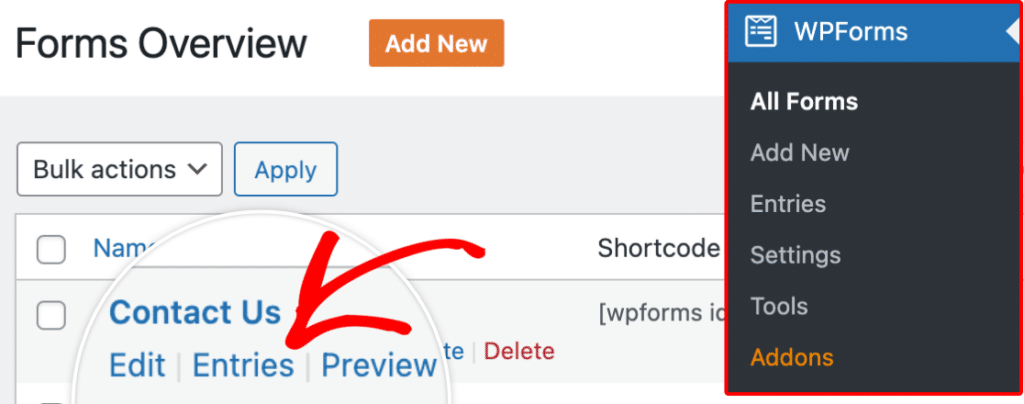
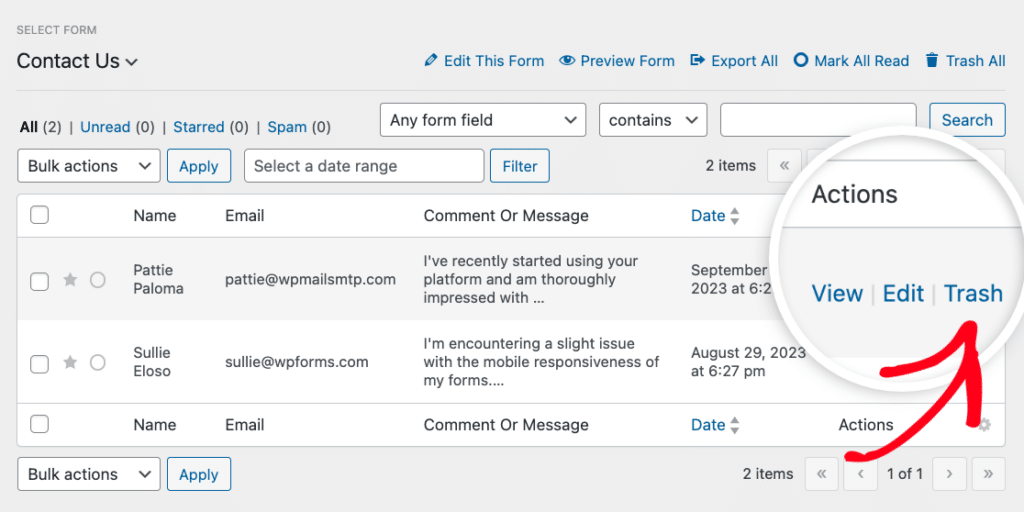
From the Entries page, you can remove entries from your site by adding them to the trash. To add a single entry to the trash, hover over the entry and click the Trash option.
It also helps to get consent right when the data comes in. Adding a GDPR agreement field to your forms gives people a clear checkbox to agree to how their data is used.
If you’re setting all of this up from scratch, our guide on how to create GDPR-compliant forms covers consent, privacy, and data handling together.
FAQs About Form Entry Retention and GDPR
Auto-deleting form entries and WordPress data retention raise a lot of the same questions. Here are quick answers to the ones I hear most often.
Does GDPR require you to delete form entries?
The GDPR doesn’t set a deadline, but its storage limitation principle says you can’t keep personal data longer than you need it for the purpose you collected it. So once a form submission has served its purpose, holding it forever is difficult to defend. Auto-deletion is how you enforce a retention period you can actually justify.
How long can you keep form submissions under GDPR?
As long as you genuinely need them, and no longer. There’s no fixed number in the law. In practice, many sites keep support inquiries for 6 to 12 months, newsletter signups until someone unsubscribes, and sales leads for about a year after last contact. Pick a window you can justify for each form and apply it consistently.
Can you auto-delete form entries on WPForms Lite?
You need a paid plan (Basic or higher) for entry storage and the built-in Purge Entries Automatically option, and WPForms Elite for the Entry Automation addon.
Will auto-deleting entries affect my notifications or integrations?
No. Email notifications and integrations, like sending data to a CRM or a spreadsheet, fire the moment a form is submitted. Deleting the stored entry later doesn’t undo any of that. The only thing that changes is the entry leaving your WordPress database.
Next, Keep Your Form Data Secure
Old entries are just one piece of protecting the data your forms collect. The other piece is keeping the data you do hold safe while it’s on your site.
Our complete guide to WPForms security covers how to lock down your forms, and adding strong spam protection keeps junk submissions from cluttering the entries you’re trying to manage in the first place.
Automate Your Entry Cleanup with WPForms Elite 🙂
Ready to build your form? Get started today with the easiest WordPress form builder plugin. WPForms Pro includes lots of free templates and offers a 14-day money-back guarantee.
If this article helped you out, please follow us on Facebook and X (Twitter) for more free WordPress tutorials and guides.


