


AI Summary
Do you want visitors to calculate the number of days between two dates right on your website?
Maybe you rent out equipment and need customers to see their rental length before they book. Maybe you run an event site and want a countdown people can check themselves. I’ve seen this exact request come up for booking pages, project deadline tools, and even pregnancy due date trackers.
The good news is you don’t need to write a single line of code. A days between dates calculator takes a few minutes to set up with a ready-made template, and I’ll walk you through the whole process.
Create a Days Between Dates Calculator
Why Add a Days Between Dates Calculator to Your Website
A days between dates calculator gives your visitors a quick answer and gives you a more useful, interactive site. Here are some of the most common ways I’ve seen people put one to work:
- Deadline Calculator: Helps professionals managing assignments and tasks figure out how many working days they have left on a project.
- Event Countdown: Builds excitement for upcoming events. Handy for wedding planners, event organizers, and attendees.
- Visa Calculator: Useful for planning the length of stays and renewals. Travel agents can offer it as a quick planning tool for clients.
- Pregnancy Calculator: Gives a clear countdown to the expected delivery date, which makes planning baby-related events like showers much easier.
- Shipping Date Calculator: Improves customer service by showing delivery timelines. A practical tool for businesses managing logistics and inventory.
- Travel, Booking, or Rental Price Calculator: Lets customers count the days between two dates for a trip or rental, then see what that time will cost.
Chances are you landed on this article with your own use case already in mind. So let’s get straight to building it.
How to Create a Days Between Dates Calculator in WordPress
The fastest way to build a days between dates calculator is with WPForms and its date/time picker field. There’s a prebuilt template for this exact calculator, so most of the work is already done for you.
Step 1: Install the WPForms Pro Plugin
WPForms is the most beginner-friendly form builder for WordPress, and it’s my go-to for calculator forms. It comes with ready-to-use calculator templates for everything from rental pricing to date math, as part of a library of 2,100+ templates in total.
What I like most about WPForms for this project is that the calculator logic is built into the form builder itself. You pick a template, and the date fields and formula are already wired together in one screen.
For this tutorial, you’ll need WPForms Pro. The Pro license unlocks the Calculations addon that powers the date math, along with premium features like advanced integrations, conditional logic, and form reports.

To get started, buy the Pro license. Then, install the WPForms plugin on your website. If you need help, follow these instructions on how to add a plugin to WordPress.
Step 2: Activate the Calculations Addon
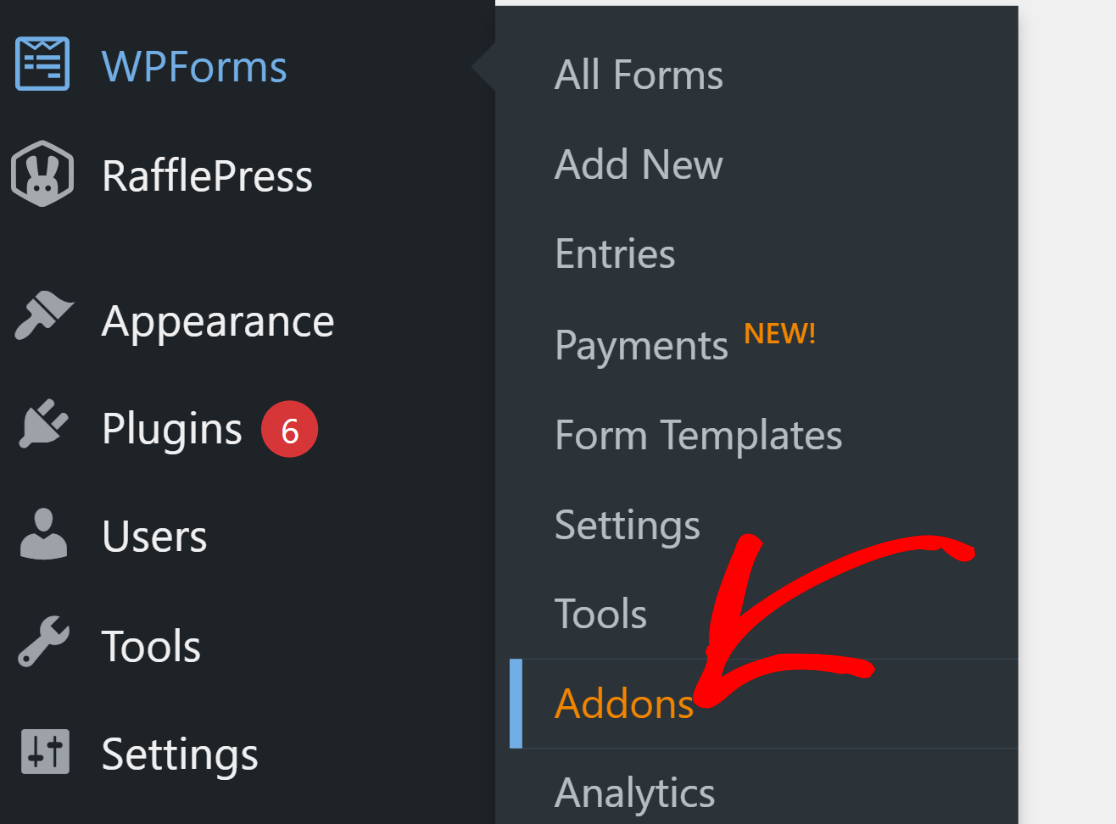
The Calculations addon is what turns an ordinary form into a working calculator, so let’s switch it on. From your WordPress dashboard, go to WPForms » Addons.
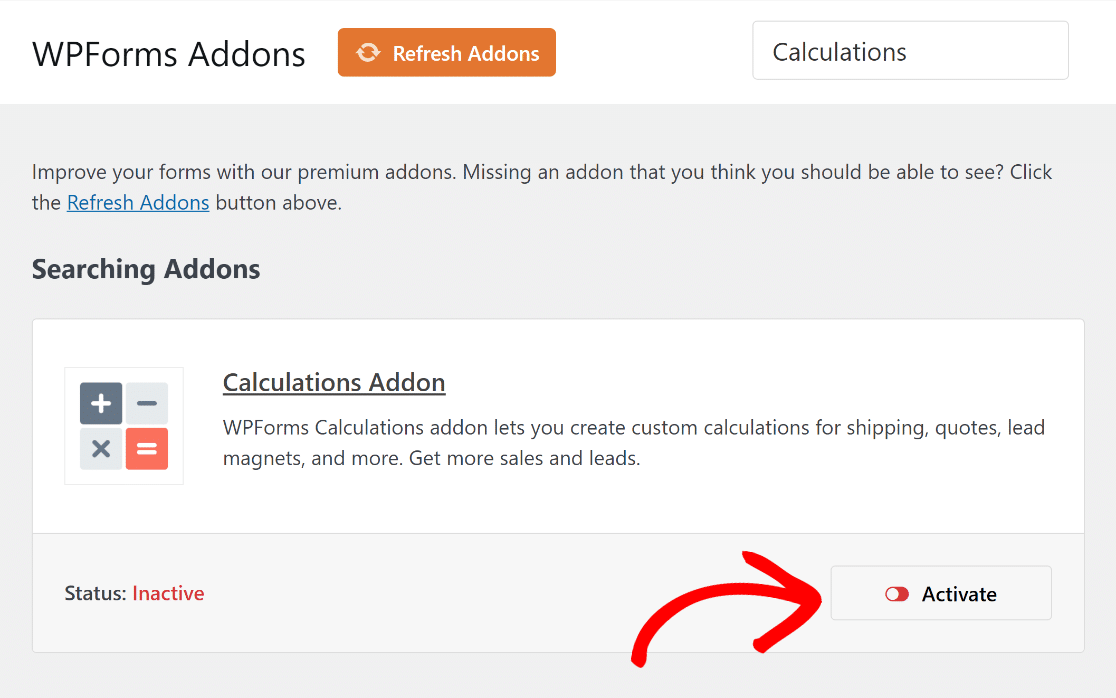
In the Search Addons field, type “Calculations.” Then hit the Install Addon button followed by the Activate button.
That’s all the setup the addon needs. Your form builder can now calculate how many days sit between any two dates a visitor picks.
Step 3: Pick the Days Between Dates Calculator Template
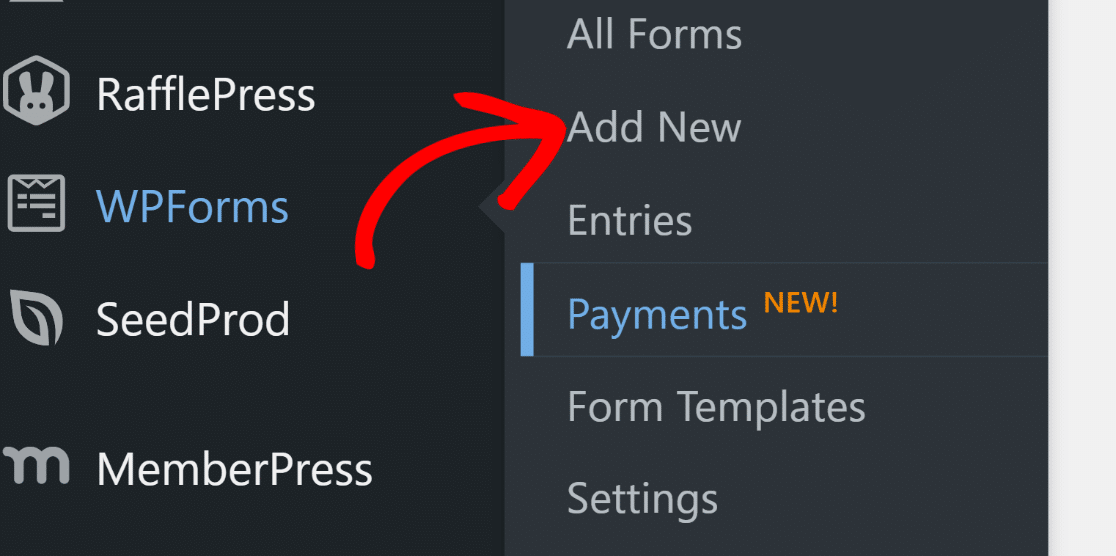
Now for the fun part, building the calculator itself. In your dashboard, go to WPForms » Add New.
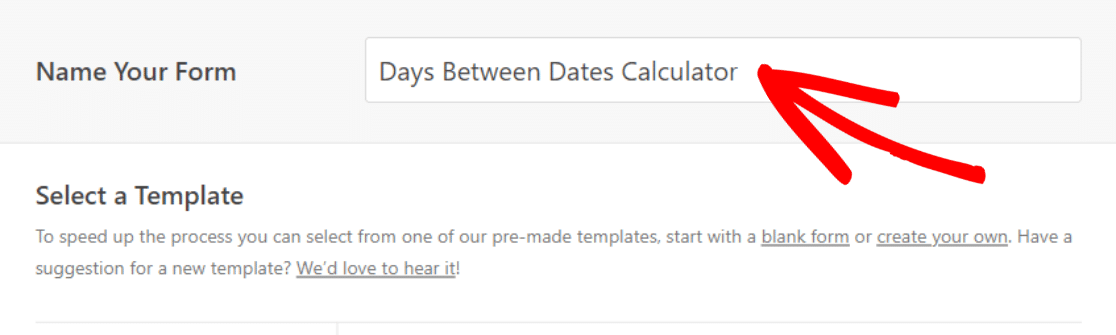
On the next screen, give your form a name. I’m calling mine “Days Between Dates Calculator” to keep things simple.
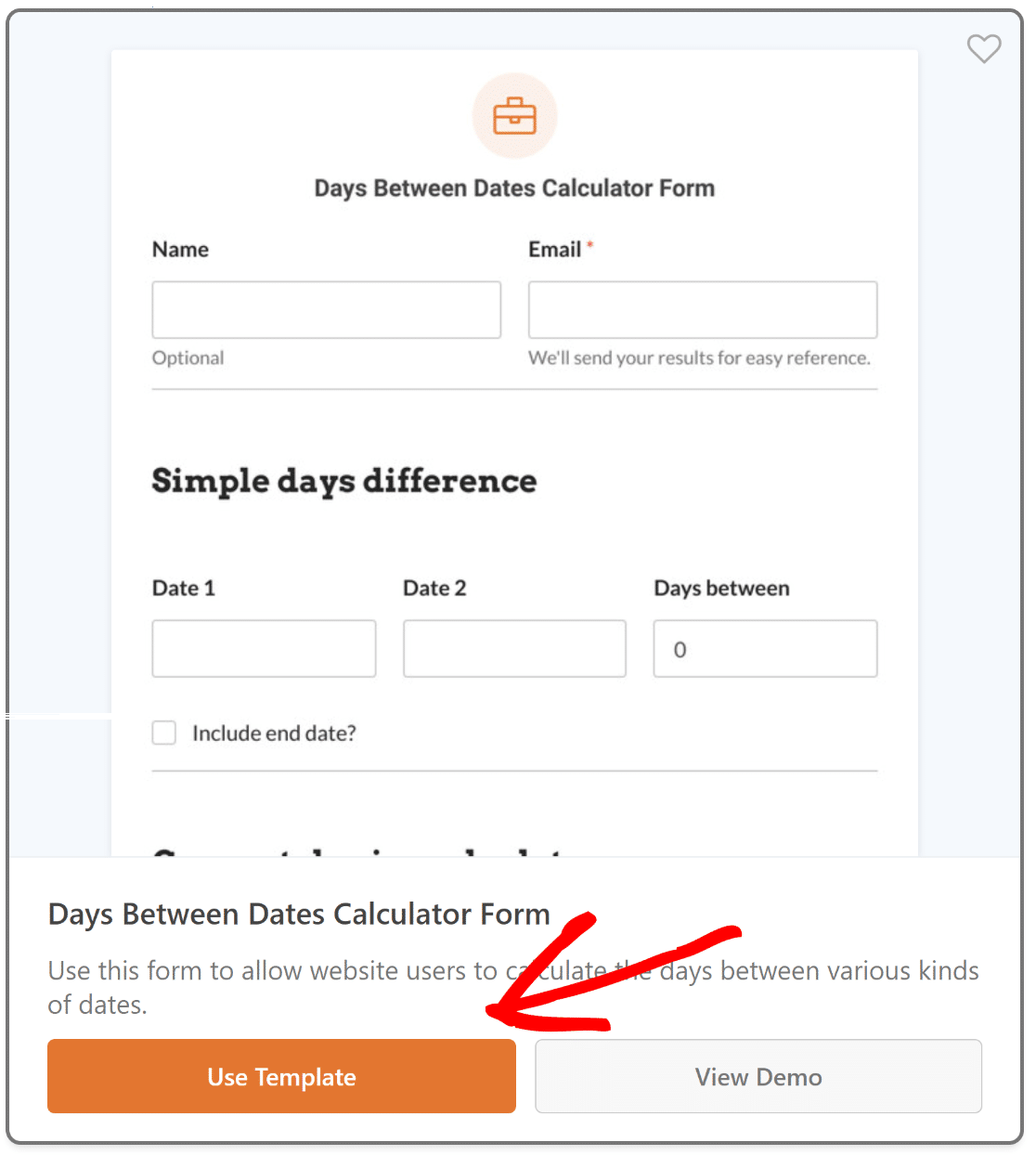
Then, scroll down to the Calculator template category and pick the Days Between Dates Calculator Template by hitting the Use Template button.
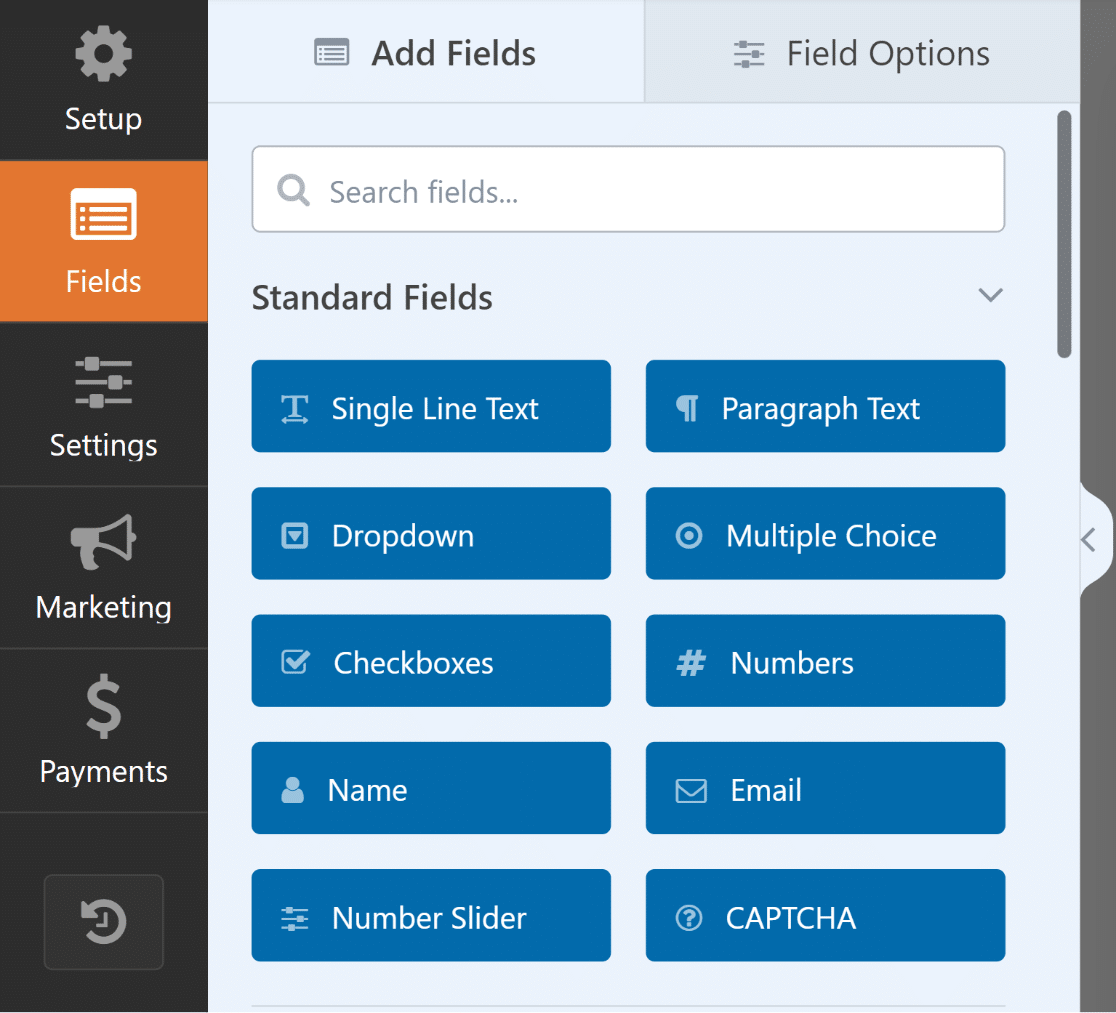
This brings you into the Fields area of the form builder. The left panel holds all the fields you can add to customize the template further.
On the right, you’ll see a live preview of your form. Since you started from a template, the date fields and the calculated result are already in place.
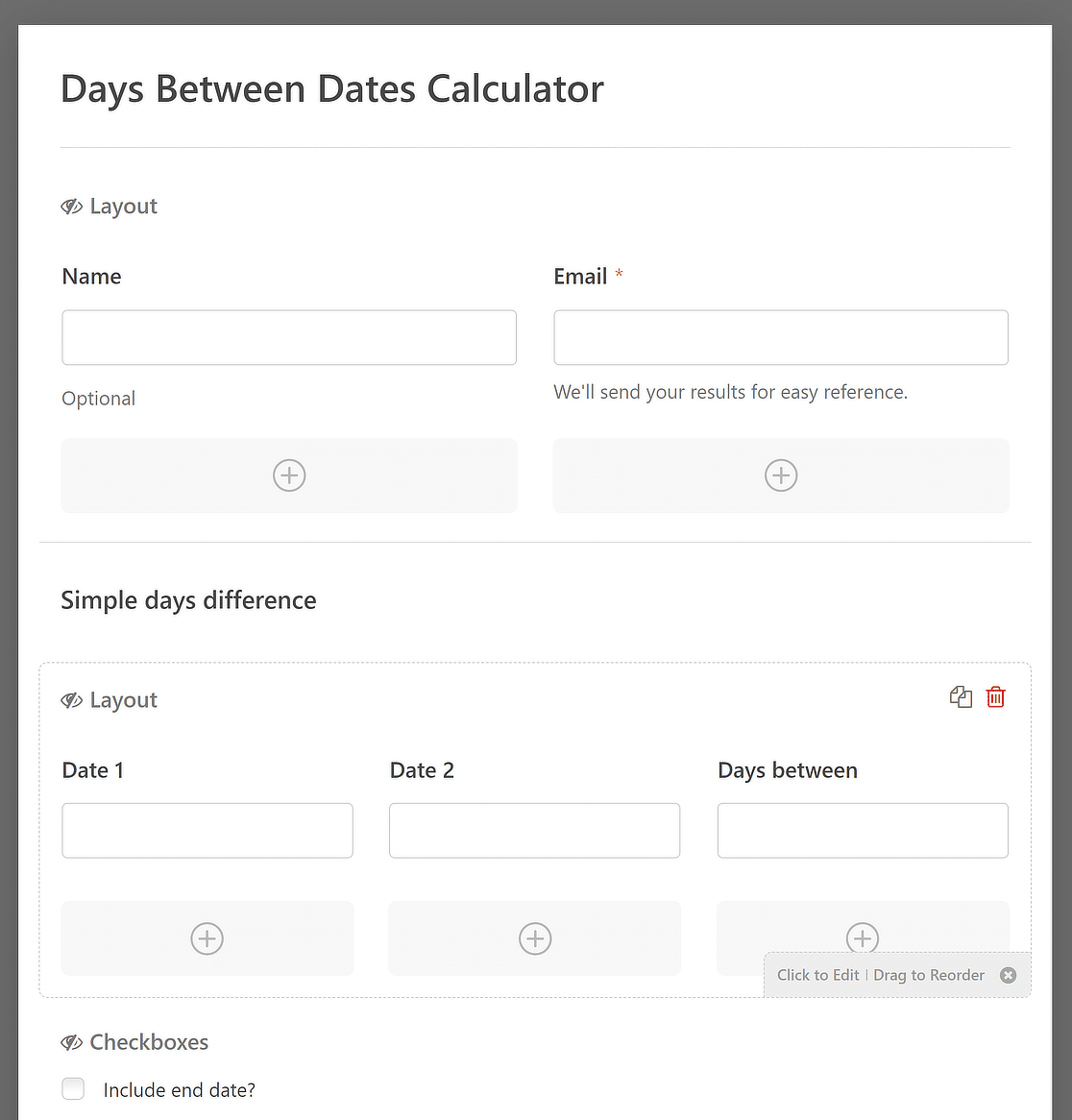
Feel free to drag fields around, rename labels, or add new fields until the form fits your site. The builder updates the preview as you go.
Step 4: Customize the Days Between Dates Calculator
Since you’re working from one of WPForms’ 2,100+ WordPress form templates, the form is usable as-is, and you could embed it on a page right now.
That said, the template is more flexible than it first looks. It ships with 3 different sections, and each one fits a different use case:
- Simple days difference: The straightforward option. A visitor picks a start date and an end date, and the form shows the number of days between two dates. Perfect for event planning sites.
- Car rental price calculator: Customers enter their pick-up and drop-off dates, and the form calculates the rental duration and what it costs. A practical setup for any rental business.
- Days countdown: Visitors see how many days remain until a date, like the end of a sale or the start of a trip. eCommerce and travel sites get a lot of mileage out of this one.
To focus your form on just one of these scenarios, click on any field or section you don’t need and remove it with the Delete button.
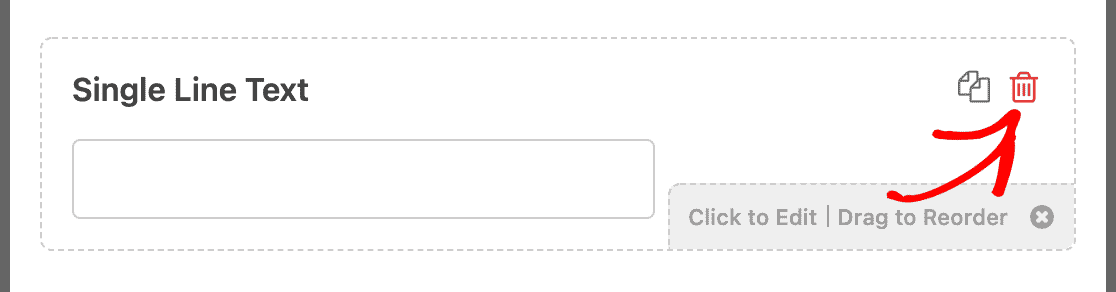
Beyond trimming sections, there are a few customizations I’d recommend looking at before you publish.
Change the Date Format
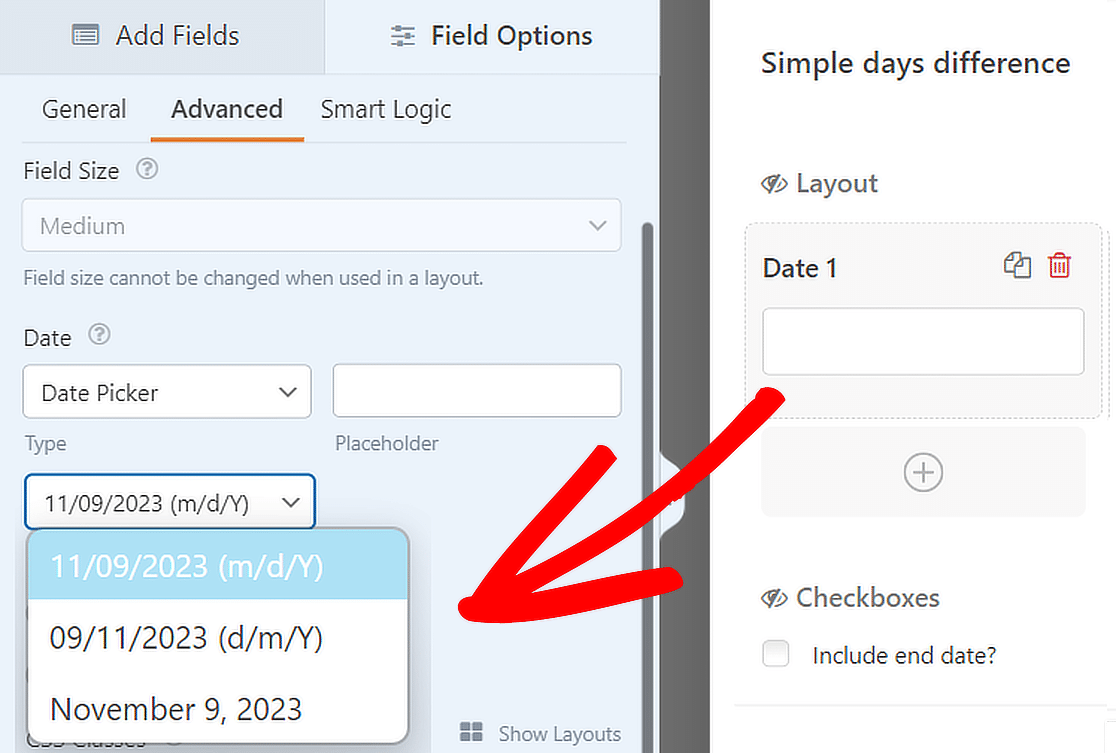
The Date sub-field comes with built-in formatting options for displaying dates. These include:
- M/D/Y: Formats the date as Month, Day, and Year.
- D/M/Y: Formats the date as Day, Month, and Year.
- Month, Day, Year: Writes out the full month name along with the day and year.
Pick whichever format your audience expects, and apply it to both Date 1 and Date 2 so the form stays consistent.
To do that, click on a date field, open the Advanced tab, and expand the Format options.
Use a Date Dropdown
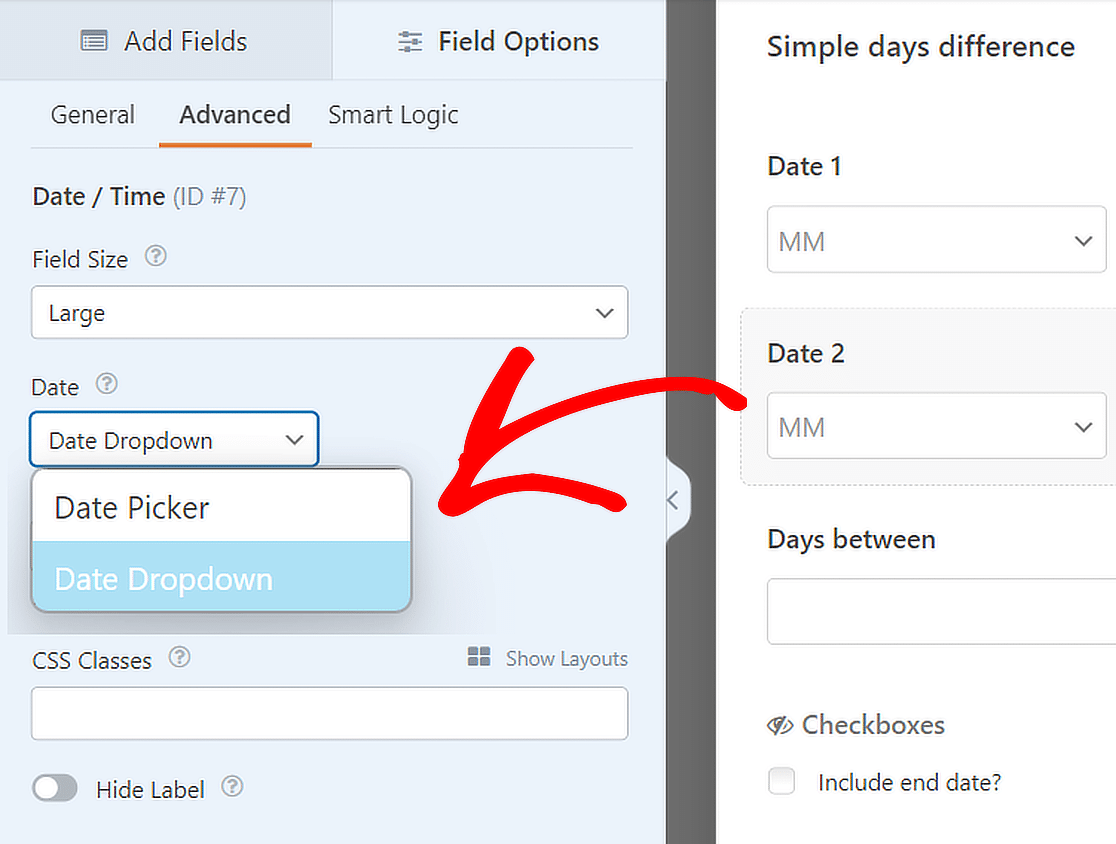
You can also change how visitors select their dates. The default is a calendar-style date picker, but a dropdown works better on some layouts.
Select a date field in the form preview, head to the Advanced tab, click Type, and choose Date Dropdown.
Customize the Calculation Formula
The date math itself lives in the calculated field. Click on the total or result field in your form preview, and you’ll find the formula under its Calculations settings, where you can adjust it to fit your scenario.
This is how the template supports those 3 different configurations. The rental version multiplies the day count by a daily rate, while the countdown version measures the distance from today to a target date. The documentation on building formulas with the Calculations addon explains the available functions, and there’s a library of calculation formula examples you can copy from.
If formulas aren’t your thing, you can generate the formula with WPForms AI instead. Describe the calculation in plain English, and it writes the formula for you.
Remove the Submit Button
Want the calculator to feel like a true instant tool? You can set it up for real-time calculations with no submit step at all.
From your WordPress dashboard, go to WPForms » Tools. Then, open the Code Snippets tab.
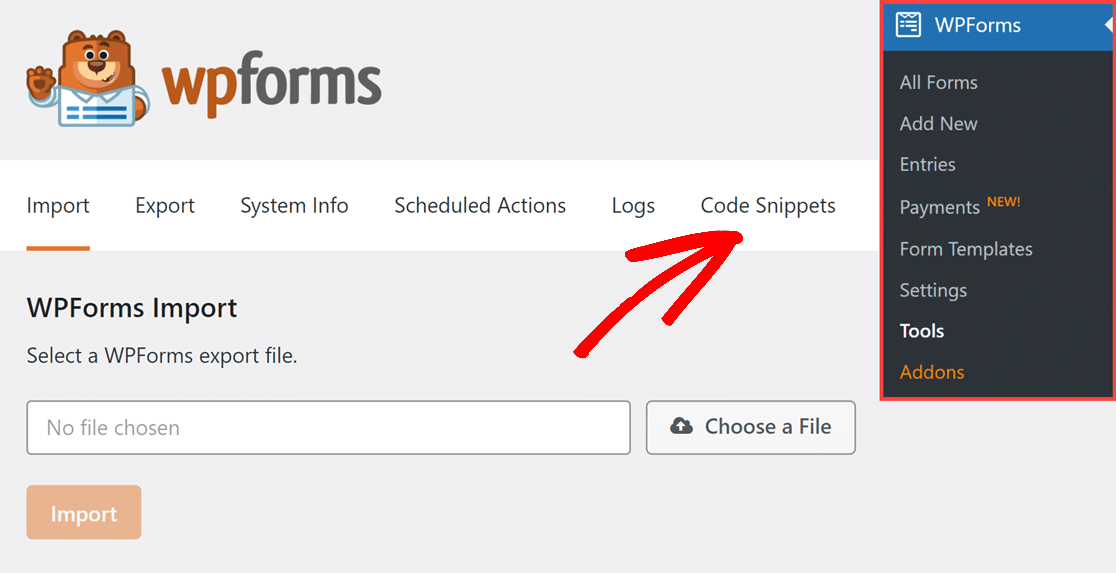
Search for the hide submit button snippet by typing its name in the Search Snippets field. Next, click on the Install Snippet button.
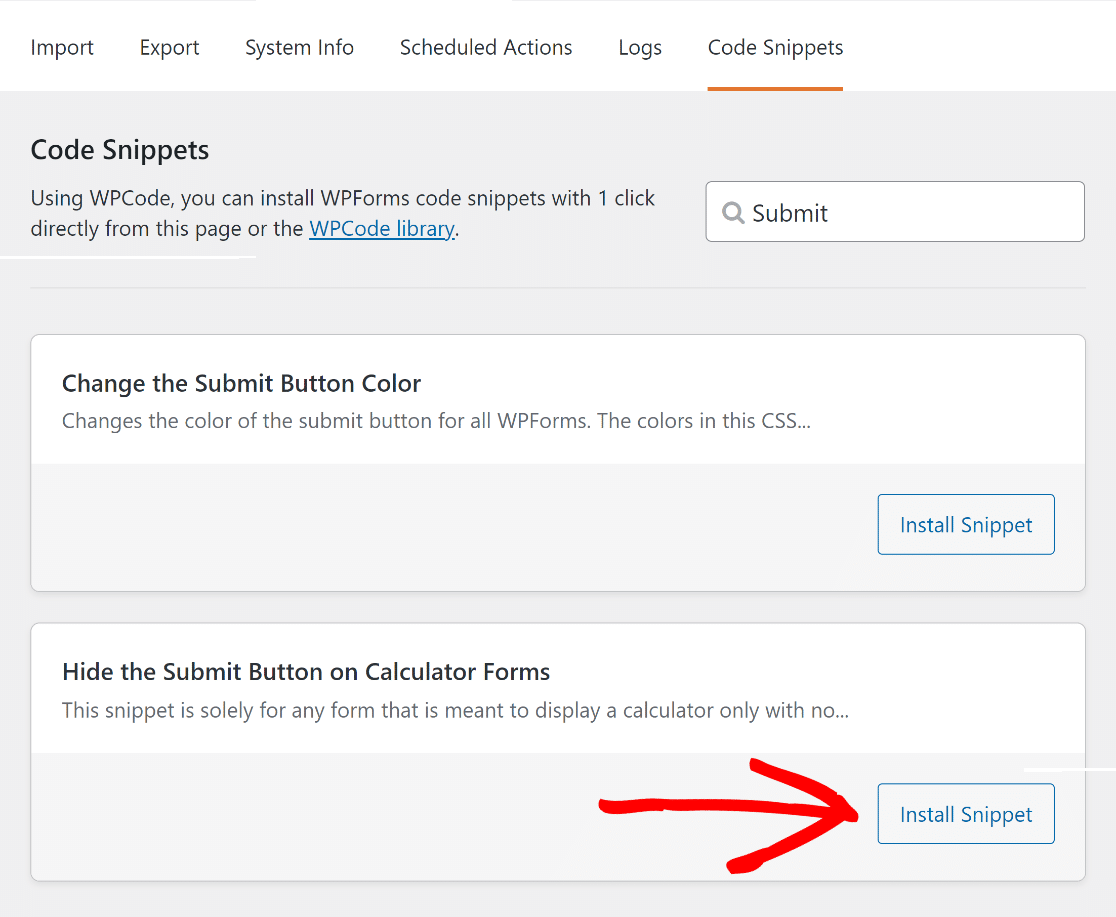
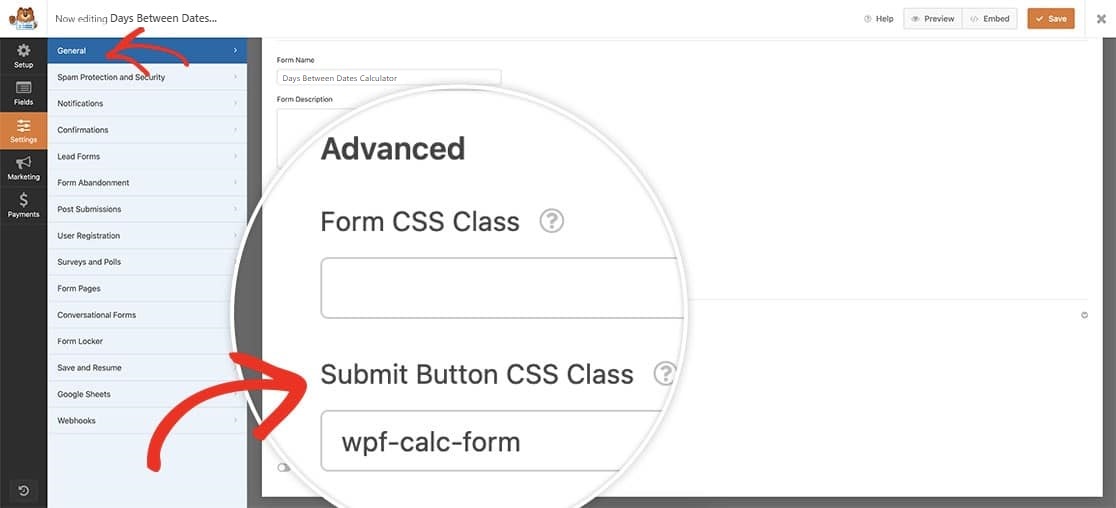
After that, paste the wpf-calc-form CSS into the Submit Button CSS Class field in your form builder to activate the snippet.
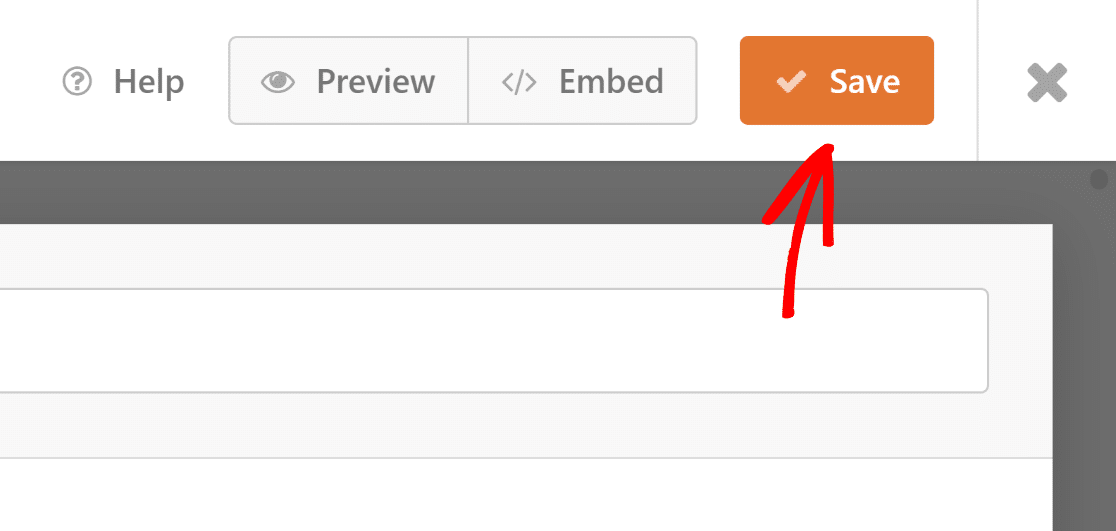
Once your days between dates calculator looks the way you want, press the Save button.
Step 5: Publish the Days Between Dates Calculator
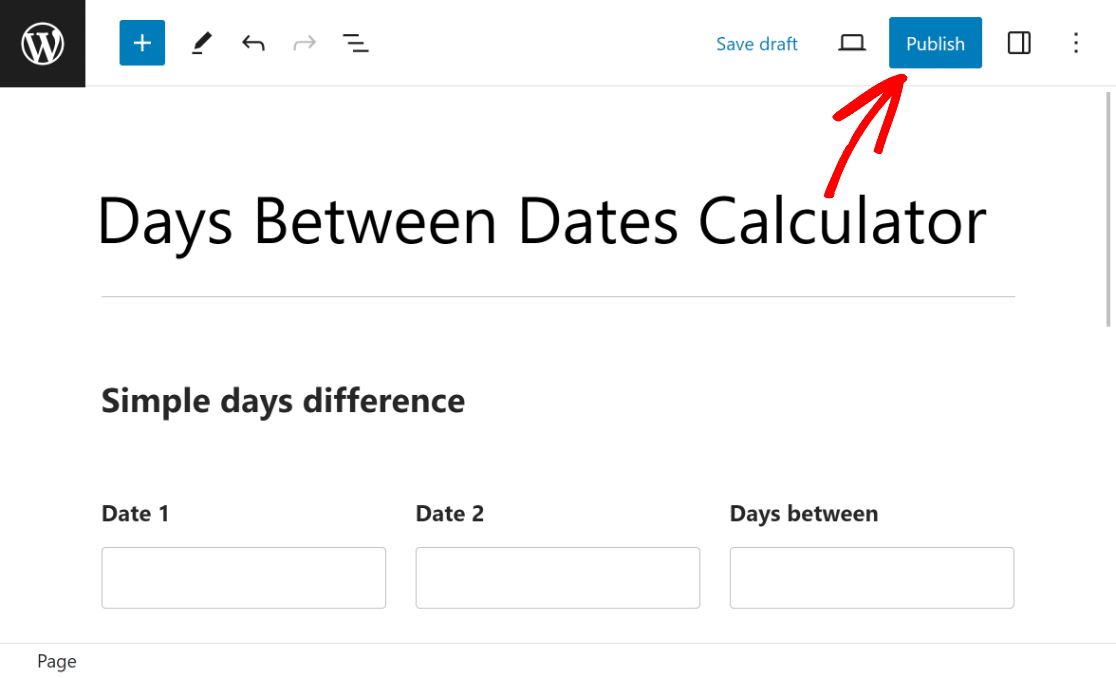
Your calculator is ready, so let’s get it live. You can use the block editor to style it further and publish it anywhere on your WordPress site.
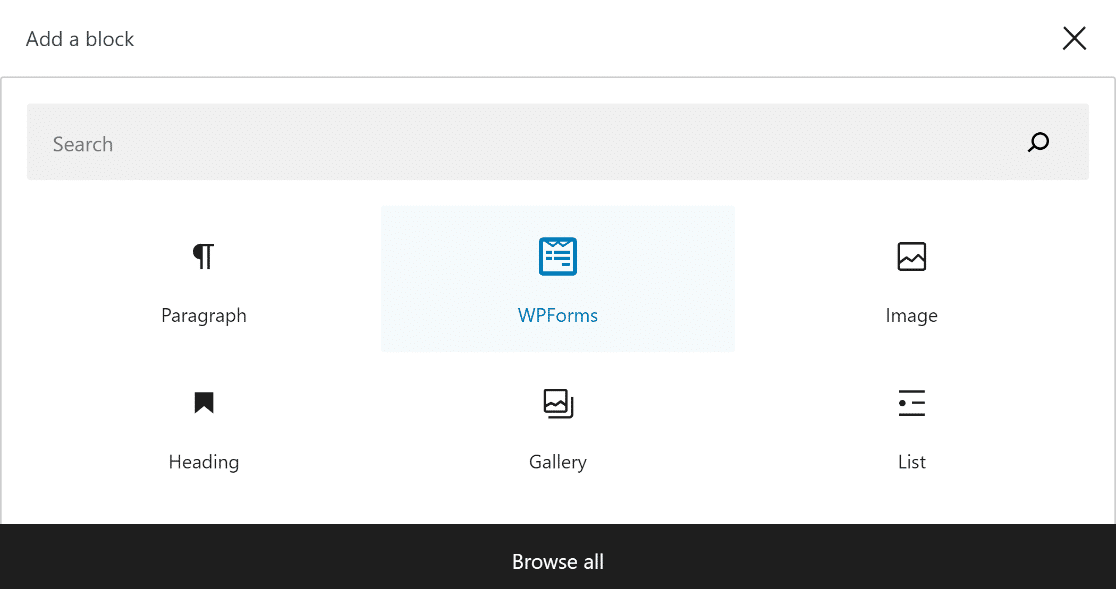
Open a new or existing page or post. Click the Add Block button and choose the WPForms icon.
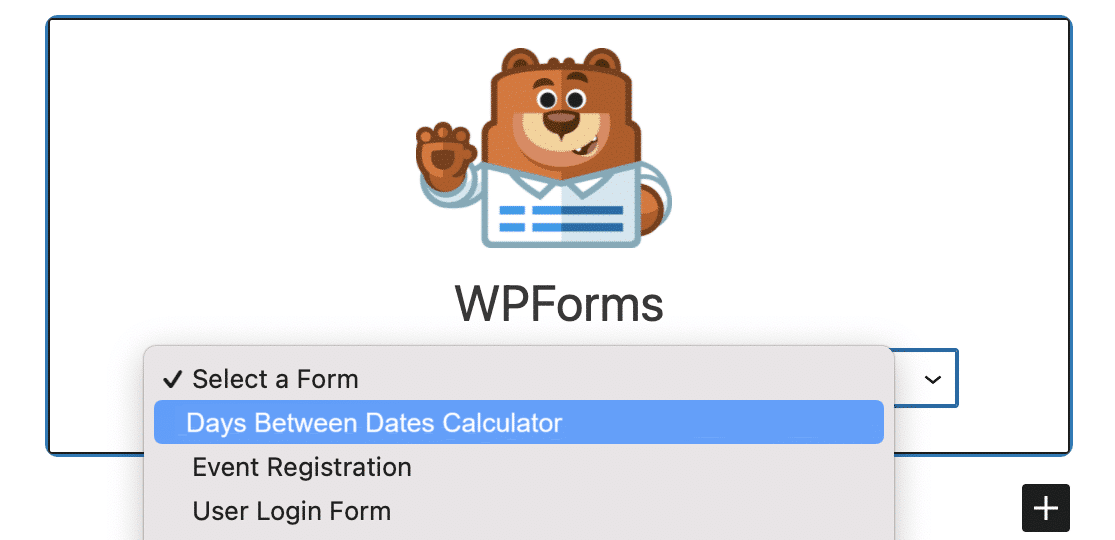
Next, pick your days between dates calculator from the WPForms widget’s dropdown menu.
If you’re happy with how the form looks, hit the Update or Publish button to make it live.
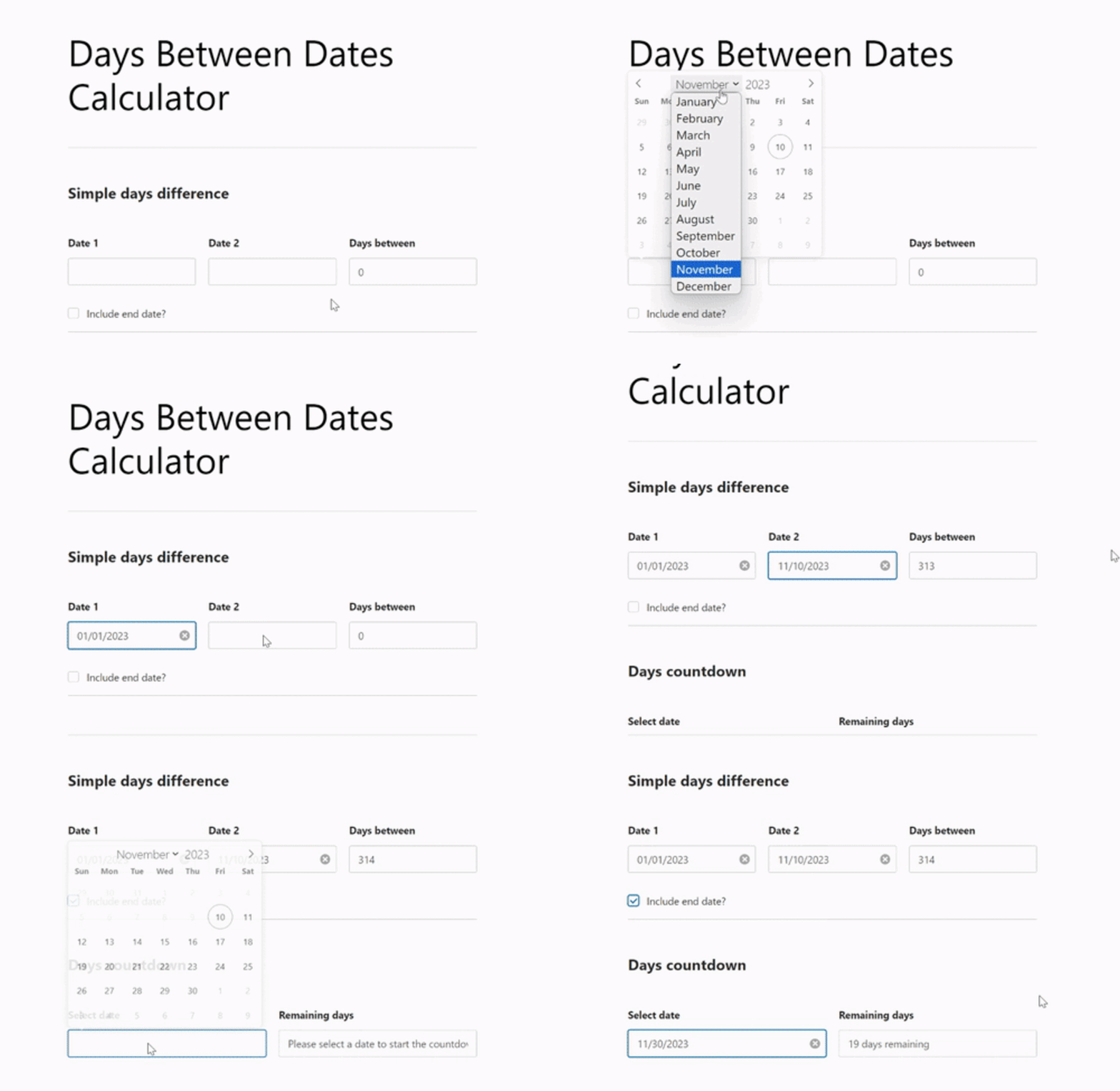
Before you share the page, test the embedded form on the front end. Pick a couple of dates, check the math, and confirm the result updates the way you expect.
FAQs About Days Between Dates Calculators
Adding a days between dates calculator to your website is a popular topic among our readers. Here are answers to the questions we hear most often.
How do I calculate the number of days between two dates?
Subtract the earlier date from the later date. The result is the number of full days between them, so June 1 to June 5 is 4 days. If you want to count both the start and end dates, add 1 to the result. On a website, a calculator form does this automatically whenever a visitor picks two dates.
Can I add a days between dates calculator to my website without coding?
Yes. With WPForms Pro and the Calculations addon, you start from the Days Between Dates Calculator template and the formula is already set up. The whole build is drag and drop, and the only code-adjacent step is optional, pasting a CSS class if you want to hide the submit button.
Can the calculator count down the days until a date?
It can. The template includes a days countdown section that measures the days from today until a date the visitor picks. It works well for sale deadlines, event countdowns, and trip planning.
Do I need Excel to calculate days between dates?
No. Excel can do this in a spreadsheet by subtracting one date cell from another, and that’s fine for your own records. But if you want visitors to run the calculation on your website, an embedded calculator form is the better tool because there’s nothing to download or open.
Next, Learn How to Change the Total Price Calculations with WPForms
Would you like to change the total order amount using WPForms calculations based on the products a user selects? Learn how to add product options that change the total pricing.
And if this project got you curious about what else calculator forms can do, you can make any kind of calculator in WordPress with the same addon, from mortgage estimates to BMI tools.
Create Your Days Between Dates Calculator Now
Ready to build your form? Get started today with the easiest WordPress form builder plugin. WPForms Pro includes lots of free templates and offers a 14-day money-back guarantee.
If this article helped you out, please follow us on Facebook and Twitter for more free WordPress tutorials and guides.