



AI Summary
Want to create a Click To Call Now button on your WordPress website?
Since over 50% of web traffic happens on mobile devices, you want to make it easy for potential and current customers to call you with a simple click.
In this tutorial, I’ll show you exactly how to add a Click To Call button to your WordPress site.
How Do I Create a Call Now Button?
The easiest way to create a Call Now button is to use the WP Call Button plugin. It makes it easy to create a clickable phone number button without writing code.
Since the call button appears at the bottom of the screen, it acts like a call to action button and helps you to get more inquiries.
How to Add a Click To Call Now Button in WordPress
Want to make a phone number button clickable in WordPress? It’s super easy with the (free) WP Call Button plugin. Just follow these methods:
Method 1: Make a Phone Number Clickable With a tel: Link
WordPress treats a phone number like any other link once you give it the right prefix. You use tel: followed by your number, and the browser knows to start a call when someone taps it. The raw link looks like this.
<a href="tel:+15551234567">Call Us Now</a>You rarely need to write that by hand, as the block editor handles it for you. Add a Buttons block where you want the call button to sit, type a label like Call Us Now, then highlight it and click the link icon.
In the link field, enter your number with the tel: prefix, like tel:+15551234567, and press enter. You can do the same trick with plain text.

Highlight any phone number in a Paragraph block, click the link icon, and add the tel: link. I’d always include the country code with a plus sign so the number dials correctly for visitors calling from anywhere.
Method 2: Add a Sticky Call Now Button With WP Call Button
A sticky button works well on mobile because it’s always within thumb’s reach, so it behaves like a constant call to action. The free WP Call Button plugin sets one up without any code. Here’s how to configure it, step by step.
Step 1: Install the WP Call Button Plugin
First, install and activate the WP Call Button plugin on your site. You can download it from WordPress.org or search for it under Plugins » Add New in your dashboard.
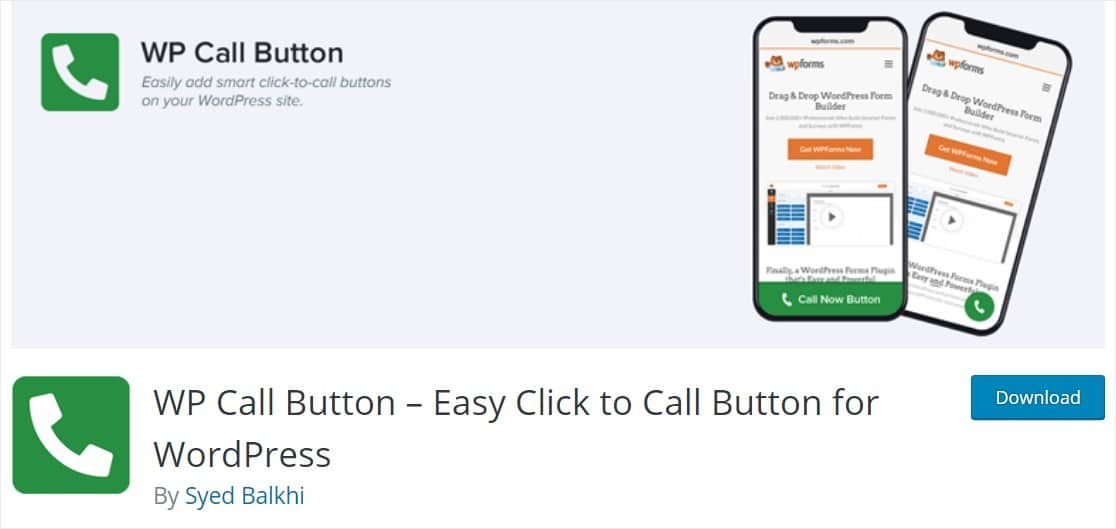
If you haven’t installed a plugin before, follow this guide on how to install a WordPress plugin for beginners.
Step 2: Open the WP Call Button Settings
Once the plugin is active, you’ll want to set it up to match your site. Go to Settings » WP Call Button in the left-hand menu of your dashboard.
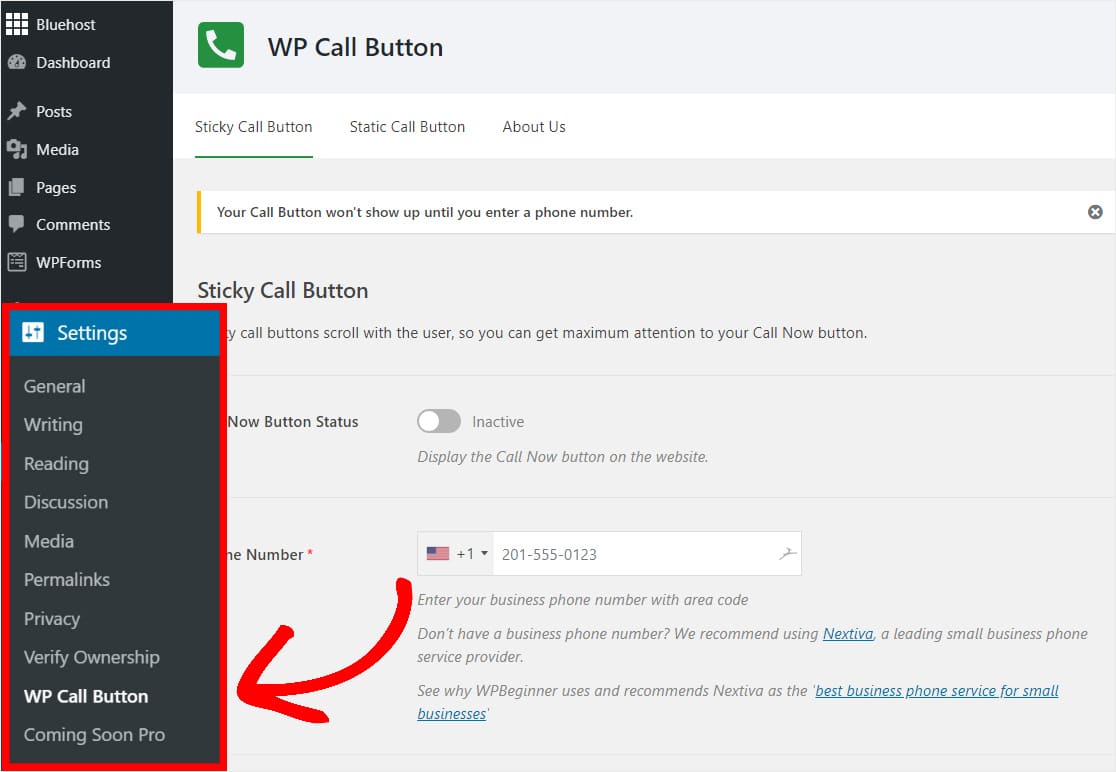
The settings open on the Sticky Call Button tab. This is the button that sits at the bottom of the screen and moves with visitors as they scroll, which is a big part of why it converts so well.
Step 3: Enter Your Business Phone Number
Now add the business telephone number where you want to receive calls from your visitors.

WP Call Button uses a smart phone field, so you pick your country and it adds the country code in the right format for you. If you don’t have a dedicated business number yet, you can get one from Nextiva and forward calls to your mobile or landline however you like.
Step 4: Edit the Button Text
Next, change the button text to whatever fits your site. Click inside the text box where the default Call Us label sits and type your own, like Call Now or Talk to Us.

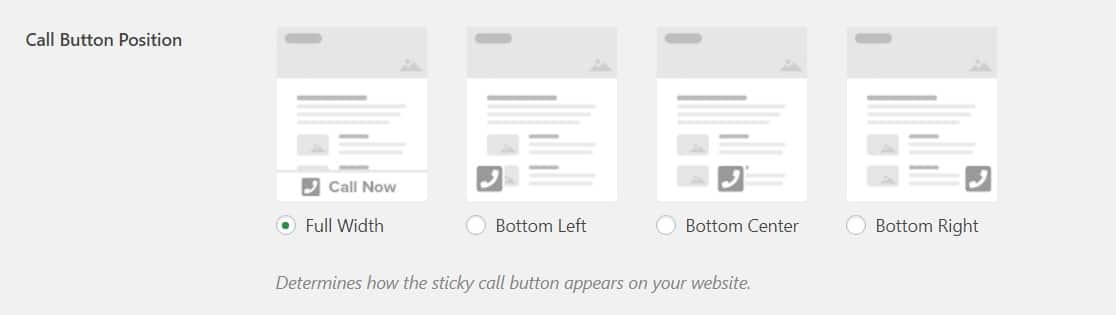
Button text only shows on a full-width button, since that’s the one position that displays a label. I’ll cover positions next.
Step 5: Pick the Button Position
Now choose where the call button appears. There are four options, and full-width buttons tend to get the most clicks, so they’re usually the most effective for capturing leads.
Step 6: Edit the Button Color
Pick a color for your call button. I’d go with one of your brand colors or a shade that matches your small business WordPress theme so it looks like it belongs.

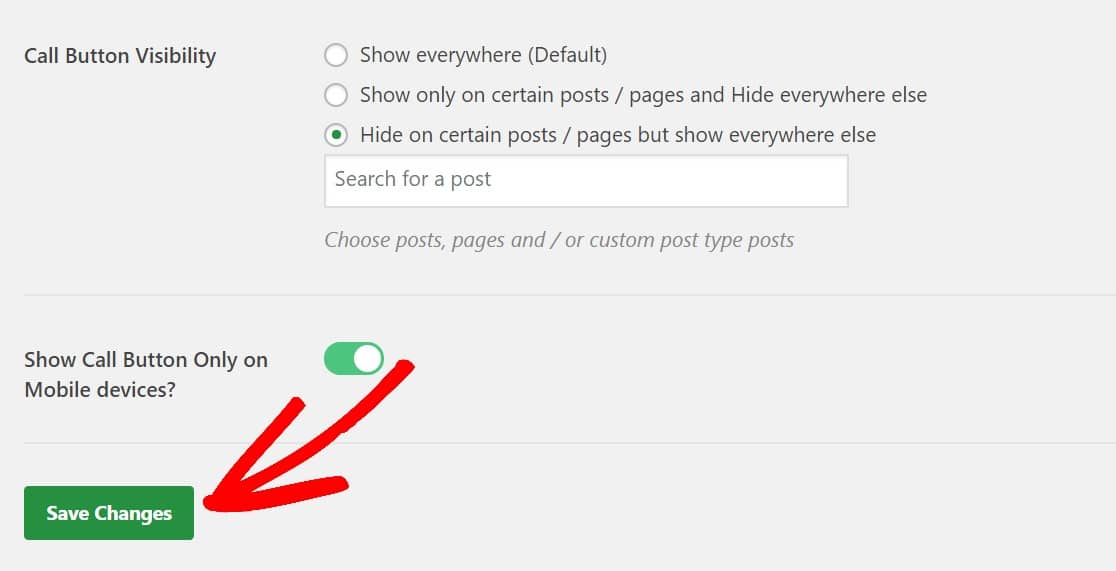
Step 7: Set the Button Visibility
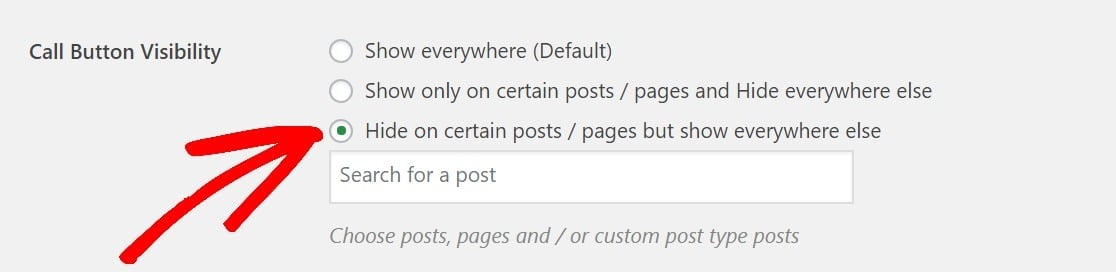
Decide where the button shows up. Displaying it everywhere is the default and the most common choice, but you can also limit it to certain pages or hide it on the ones where it doesn’t fit.
Step 8: Save Your Changes
Once everything looks the way you want, click the green Save Changes button at the bottom left of the settings page.
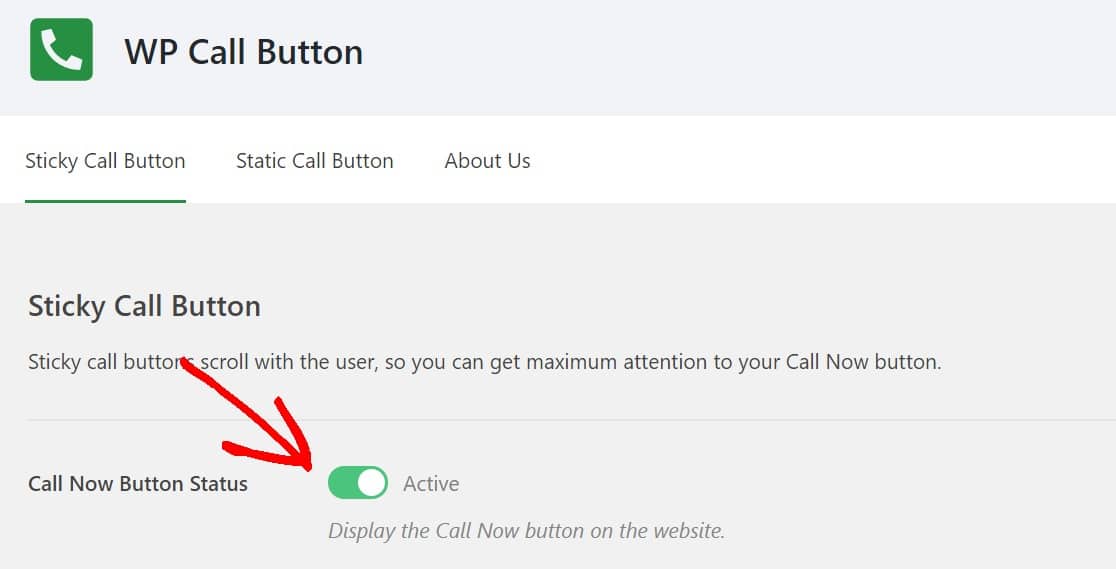
Step 9: Turn Your Button On
Finally, scroll back to the top of the page and click the green toggle to switch your call button on.
Visit your site and you’ll see the button live. Tap it on a phone and it starts a call to your number right away.
This is why I recommend WP Call Button for a sticky call button. It’s free, and it’s about as simple as setup gets. It also works with Google Analytics when you use MonsterInsights, so you can track how many people tap your button and see how much it’s helping you make more money online.
Method 3: Add a Static Call Button With the WP Call Button Block
A static button stays put as part of your content, so it doesn’t follow the visitor down the page, and it shows a phone icon by default.
WP Call Button adds its own block for this, so you can use it whether or not the sticky button is turned on. To add one, edit any page or post, click the plus icon, and choose the WP Call Button block.
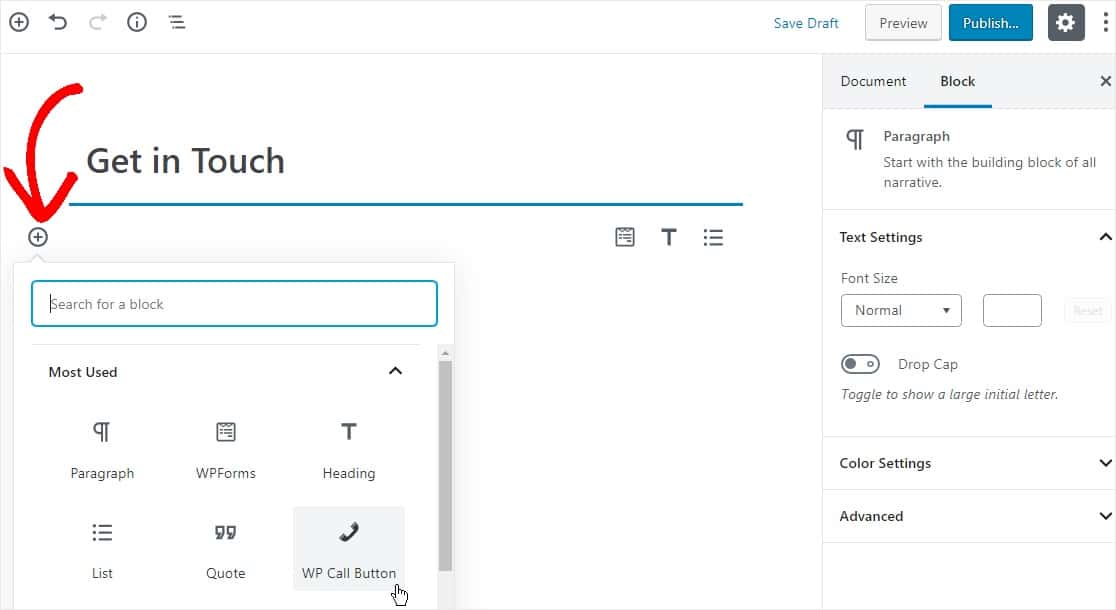
The button is fully customizable from the block settings on the right, where you can change the font size along with the background and text colors.
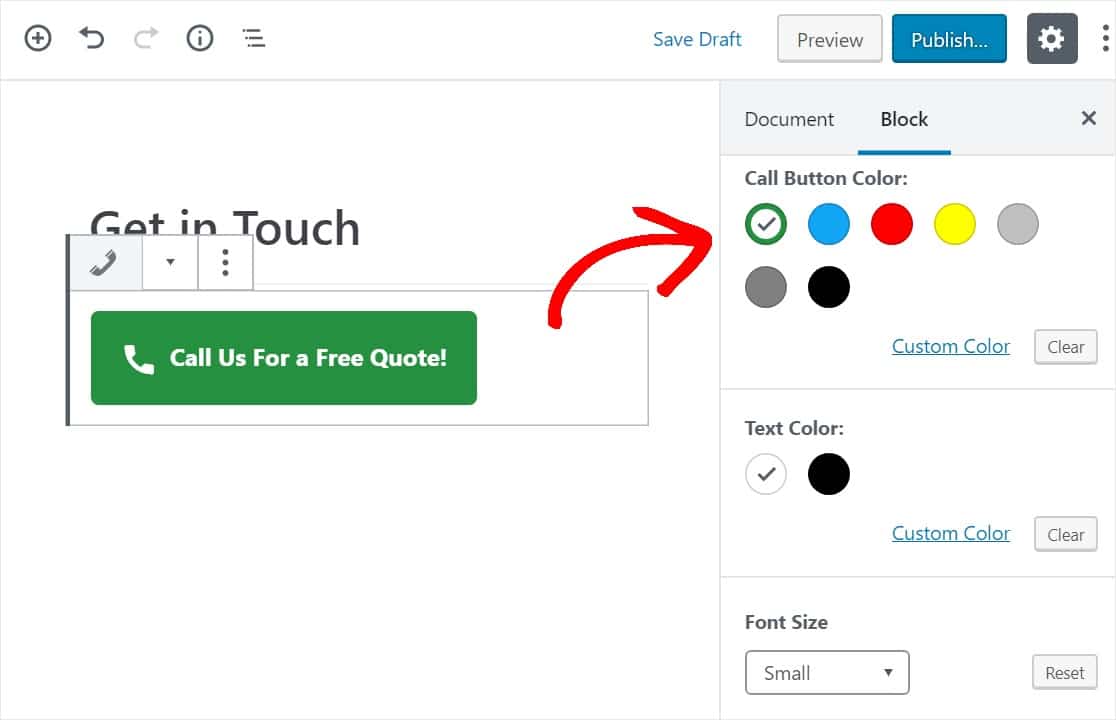
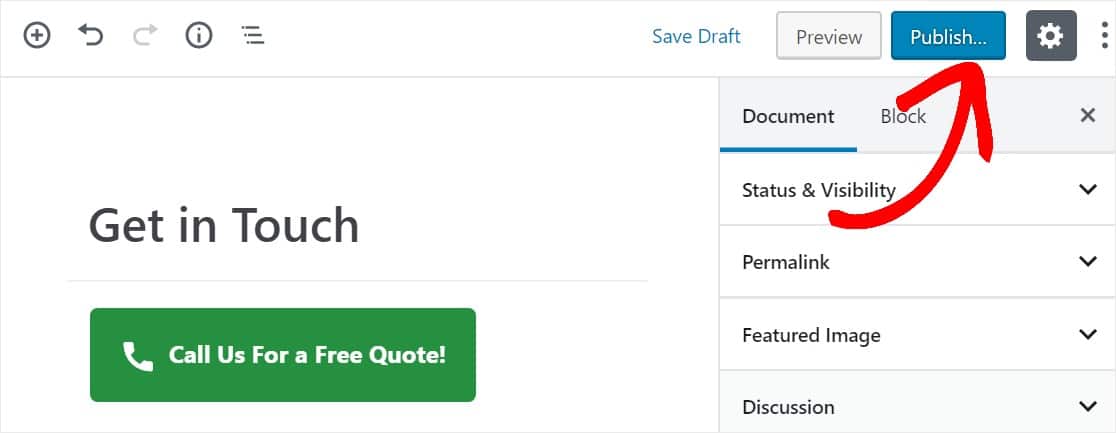
When it looks right, click the blue Publish button to make your page live, and the static call button will appear in your content.
FAQs About Click to Call Buttons
Click to call buttons are a common topic when people are making their sites more mobile-friendly. Below are the most common questions about adding a clickable phone number in WordPress.
Why add a click to call link?
Phone calls are often your highest-quality leads, because someone who picks up the phone is usually ready to talk. Not everyone wants to fill in a form or hand over their email address, but plenty of them will happily tap a button to call you. A clickable number gives those people the fastest possible way to reach you, especially on mobile.
How do I make a phone number clickable in WordPress?
Add your number as a link using the tel: prefix, like tel:+15551234567. You can do this in any block that supports links, including the Buttons block and a plain Paragraph block. No plugin is needed for this method, which makes it the quickest option if you only have one or two numbers to link.
Does click to call work on desktop?
Yes. On a phone, tapping the link starts a call straight away. On a desktop, it opens whatever calling app the visitor uses, such as Skype, FaceTime, or their default dialer. The link still works either way, it just hands off to the right app for the device.
Can I add a WhatsApp click-to-chat button too?
You can, and the idea is the same. Instead of pointing the link at a phone number, you point it at WhatsApp. If a lot of your visitors prefer to message rather than call, take a look at these WhatsApp plugins for WordPress to add a click-to-chat button alongside your call button.
Next, Add a Contact Form to Capture Every Lead
A call button is perfect for visitors who want to talk right now. To capture the ones who’d rather type, pair it with a contact form so no lead slips away, whether they call you or message you. For more ways to turn visitors into customers, check out these guides.
- Best Free Contact Form Plugins
- Best WordPress Lead Generation Plugins
- Best WordPress Automation Plugins
- Best Social Media Plugins
- Best SEO Plugins
Build Your WordPress Forms Now
Ready to build your form? Get started today with the easiest WordPress form builder plugin. WPForms Pro includes lots of free templates and offers a 14-day money-back guarantee.
If this article helped you out, please follow us on Facebook and X (Twitter) for more free WordPress tutorials and guides.





How do I get that WP Call Button block?
How don’t see it even though I use the Call Now plugin. What have I been missing?
Hey Filippo – I apologize for the confusion. Could you please ensure you are using the correct plugin? Here is the correct URL to download the plugin. I just checked that WP Call Button block works fine with that plugin. Here is a screencast showing how that block works.
You can also contact the plugin support for any further help on this.
I hope this helps!
Email Links’ & ‘Call/Whatsapp’ of contact us page is not clickable
Hey Tuntun – We’d be happy to help! When you get a chance, please submit a support ticket so we can assist.
Thanks 🙂