AI Summary
If you’re using WPForms to collect leads, process registrations, or gather feedback, you’re already on the right track. But how do you know if your forms are performing at their best?
Good news, this just got a whole lot easier. WPForms 2.0 introduces Form Analytics, a built-in performance dashboard that shows you exactly how visitors use your forms. Add in the other tracking tools WPForms already includes, and you can spot problems, fix them, and watch your conversions climb. I’ll show you how it all works in this article!
How to Use WPForms Analytics to Improve Your Forms
- WPForms Built-In Analytics Tools
- 1. Meet the New WPForms Dashboard
- 2. Using the WPForms Analytics Dashboard (New in WPForms 2.0)
- 3. Using the Entries Tab
- 4. Email Summaries for Tracking Trends
- 5. Understanding User Behavior
- 6. Tracking Payments
- 7. Advanced Tracking with Google Analytics
- FAQ About WPForms Analytics
WPForms Built-In Analytics Tools
WPForms provides multiple ways to track form performance directly from your WordPress dashboard. These tools help you:
- See how many people view your forms, interact with them, and convert.
- Identify submission trends and user behavior.
- Detect form abandonment and incomplete submissions.
- Analyze where users may struggle with filling out the form.
- Track payments and revenue from order forms.
So instead of just guessing what’s working, you can make informed decisions based on real user data.
1. Meet the New WPForms Dashboard
Before you dig into any single form, WPForms now gives you a home base. The Dashboard is the first thing you land on under the WPForms menu, and it pulls your most important numbers into one screen so you can see how things are going at a glance.

Right at the top, you get four stat cards: Forms, Total Entries, Total Views, and Spam Entries. One look tells you how much activity your forms are pulling in and how much junk your spam protection is catching. There’s a date filter in the top corner, so you can switch between the last 7 days, 30 days, or a custom range, and the whole page updates to match.
Below the stat cards, the Dashboard breaks down into a few widgets you can customize:
Entries. A chart of entries over time, plus a table of your forms with Views, Interactions, and Conversion side by side. Click the gear on the widget to turn the chart on or off, change how many forms show, and pick exactly which ones you want to keep an eye on.

Top Locations. If you have the Geolocation addon, this widget maps out where your visitors are coming from, with a share and visitor count for each country. It’s a quick way to see if your forms are reaching the audience you expected. You can set how many countries to show and exclude any you don’t need.

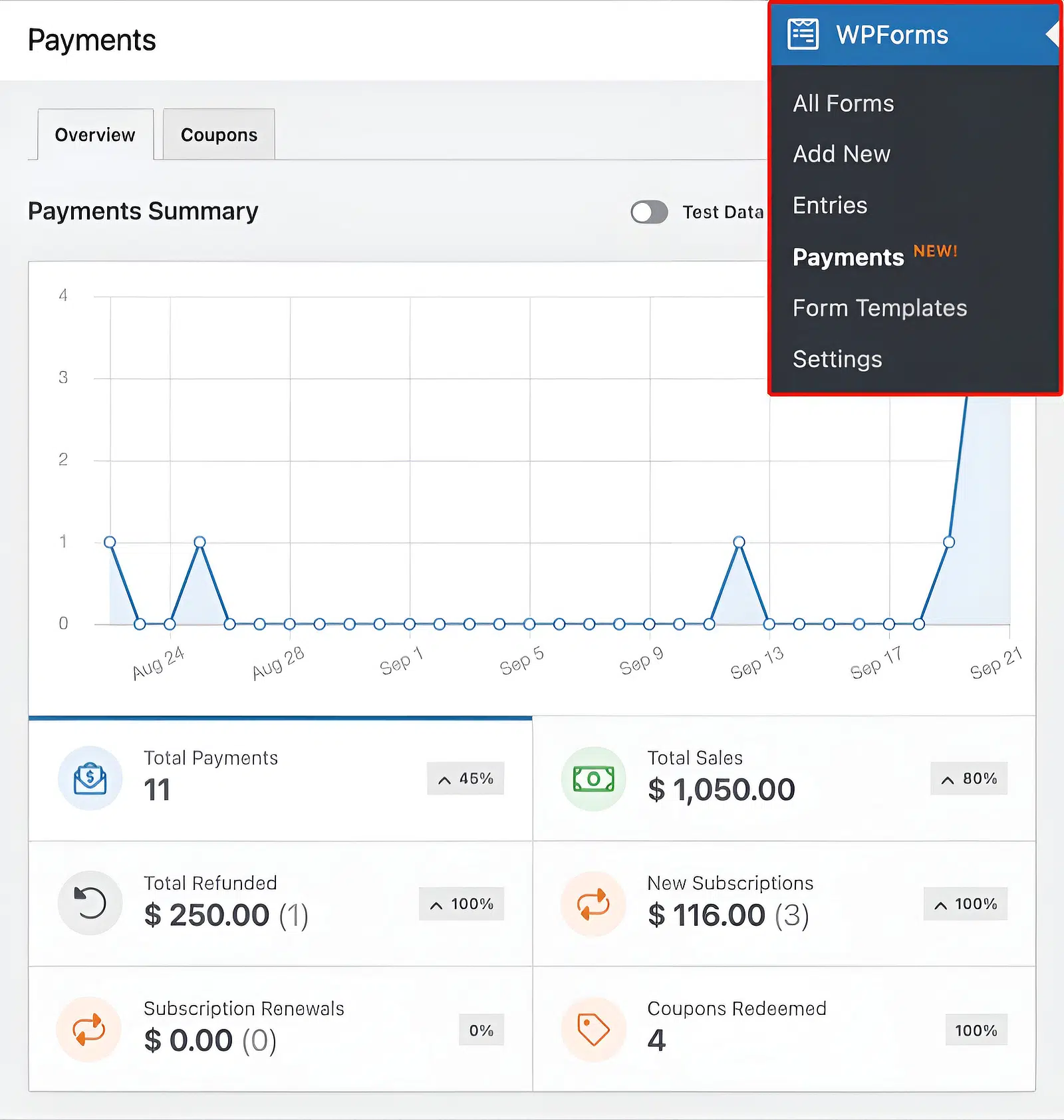
Payments. Running order forms or donations? This widget surfaces your sales right on the Dashboard, with cards for Total Sales, Total Payments, New Subscriptions, Subscription Renewals, Total Refunded, and Coupons Redeemed. More on the full Payments page later in this post.

Think of the Dashboard as your at-a-glance view and Form Analytics (up next) as the deep dive. When a number here looks off, that’s your cue to click in and find out why.
How to Access the Dashboard
- Log in to your WordPress dashboard.
- Go to WPForms » Dashboard.
- Set your date range in the top corner, and use the gear on any widget to customize what you see.
2. Using the WPForms Analytics Dashboard (New in WPForms 2.0)
This is the big one. WPForms 2.0 added real form analytics directly to the plugin, and I’m a little obsessed with it. The moment you update, Form Analytics starts tracking every published form on your site automatically. There’s nothing to install and no tracking code to set up.

Form Analytics follows 5 core metrics for every form. You get views, interactions, conversion rate, abandonments, and errors, and it even measures how long visitors spend in each field. In plain terms, you can finally see which parts of a form slow people down instead of guessing.
How to Access Form Analytics
Once you’re on WPForms 2.0, go to WPForms » All Forms. Next to the Entries column, you’ll find 3 new columns showing Views, Interactions, and Conversion for every form on your site. One glance tells you which forms are pulling their weight (and which ones need a little attention).
To open the full dashboard for a form, hover over its name and click Analytics. Clicking any of the metric numbers next to a form takes you to the same place. Form Analytics doesn’t add a separate item to the WPForms menu, so the Forms Overview page is always your starting point.
What You Can Do on the Form Analytics Page
At the top of the page, you’ll see a stat card for each of the 5 core metrics. Below them, the Form Fields table breaks your form down field by field. Here’s what I recommend playing with first:
- Find where people give up: The Form Fields table shows views, interactions, abandonments, errors, and average time spent for every field. Fields with multiple inputs get their own rows, so a Name field set to first and last name appears as 2 rows.
- Sort the table: Click any column heading to sort. Sorting by Avg. Time shows you which fields take visitors the longest to complete.
- Set a conversion rate goal: Click Set Goal on the Conversion Rate card and enter a target percentage. A green arrow means you’re above your goal, and a red arrow means there’s work to do.
- Filter by date range: The page shows the last 30 days by default, with presets from Today all the way to Last 1 year, plus a custom range option.
- Share the numbers: Click Export CSV to download your data, or Print Report for a print-friendly version you can hand to a client or teammate.
For a full walkthrough of every setting, check out the complete guide to Form Analytics.
Asking WPForms AI About Your Form Data
If you’d rather ask questions than read charts, click the sparkle icon in the bottom right corner of the Form Analytics page. WPForms AI reads your form’s analytics data and answers in plain language.

Try starters like “Which fields have the most drop-offs?” or “How does the conversion rate compare to last week?” The answers come from your form’s real data, and when you ask it to compare time periods or forms, it includes small charts and comparison tables right in the reply.
How to Use Form Analytics Data to Improve Your Forms
- If a form gets lots of views but has a low conversion rate, try shortening it or moving it higher on the page.
- If one field shows a high abandonment rate, make it optional, split it into smaller questions, or cut it entirely.
- If errors keep piling up on a field, check its validation settings and add clearer instructions.
- Set a conversion goal, make one change at a time, and check back weekly to see if the number moves.
And honestly, this is my favorite part. All of the tracking data stays in your own WordPress database. Form Analytics doesn’t set cookies, doesn’t record personal information about your visitors, and doesn’t send anything to outside services. It also ignores form previews and logged-in admins, so your own testing never inflates your numbers.
3. Using the Entries Tab
Form Analytics tells you how people behave before they hit submit. The Entries tab is where you see what they actually submitted. It provides detailed data on individual submissions, which allows you to view all submitted form entries, track responses for each field, and identify common trends in user submissions.
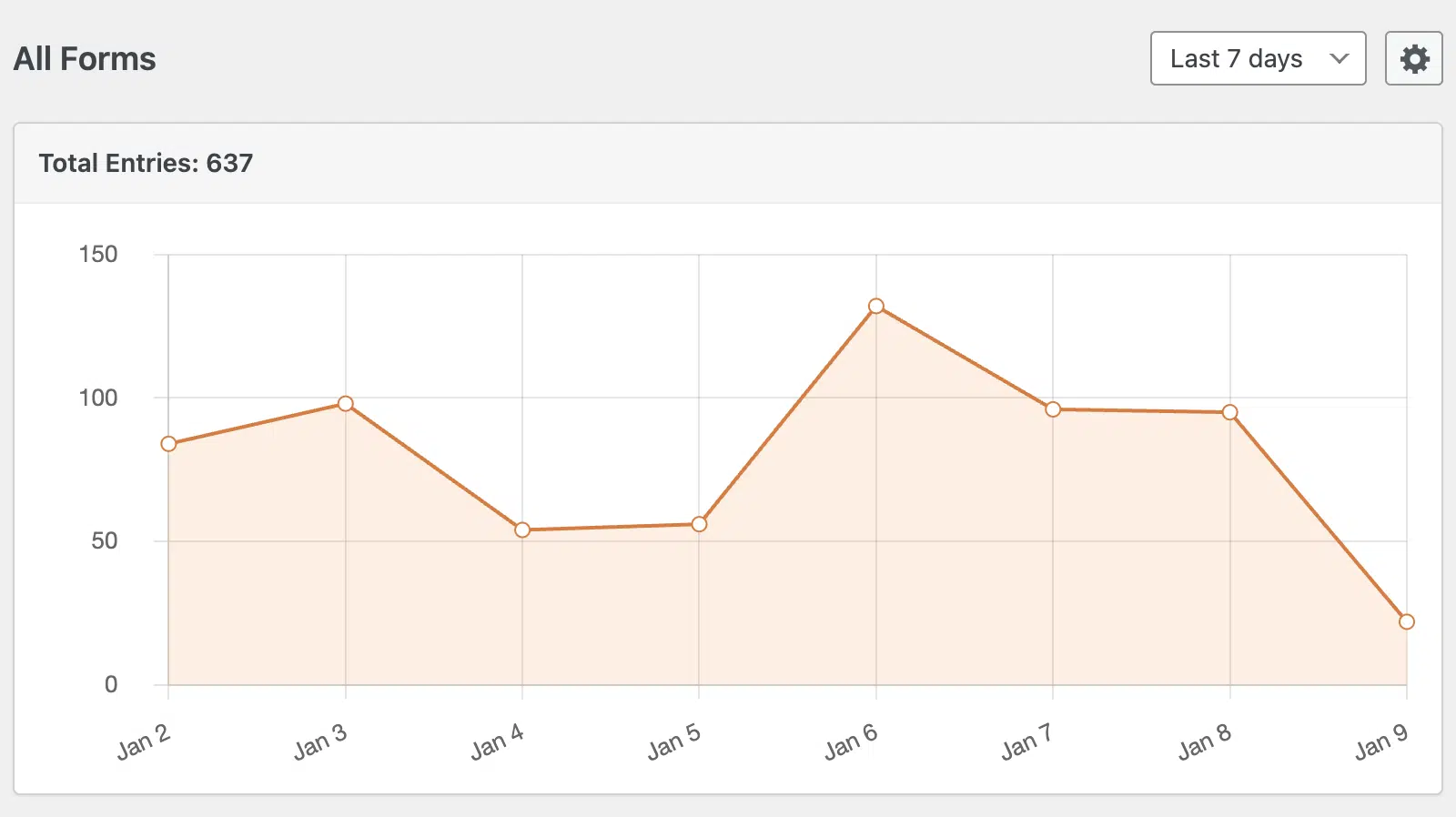
And if you’re using the Form Abandonment addon, you can also detect incomplete or abandoned forms to understand where users drop off.
How to Access the Entries Tab
1. Log in to your WordPress dashboard.
2. Go to WPForms » Entries.
3. Select the form you want to analyze.
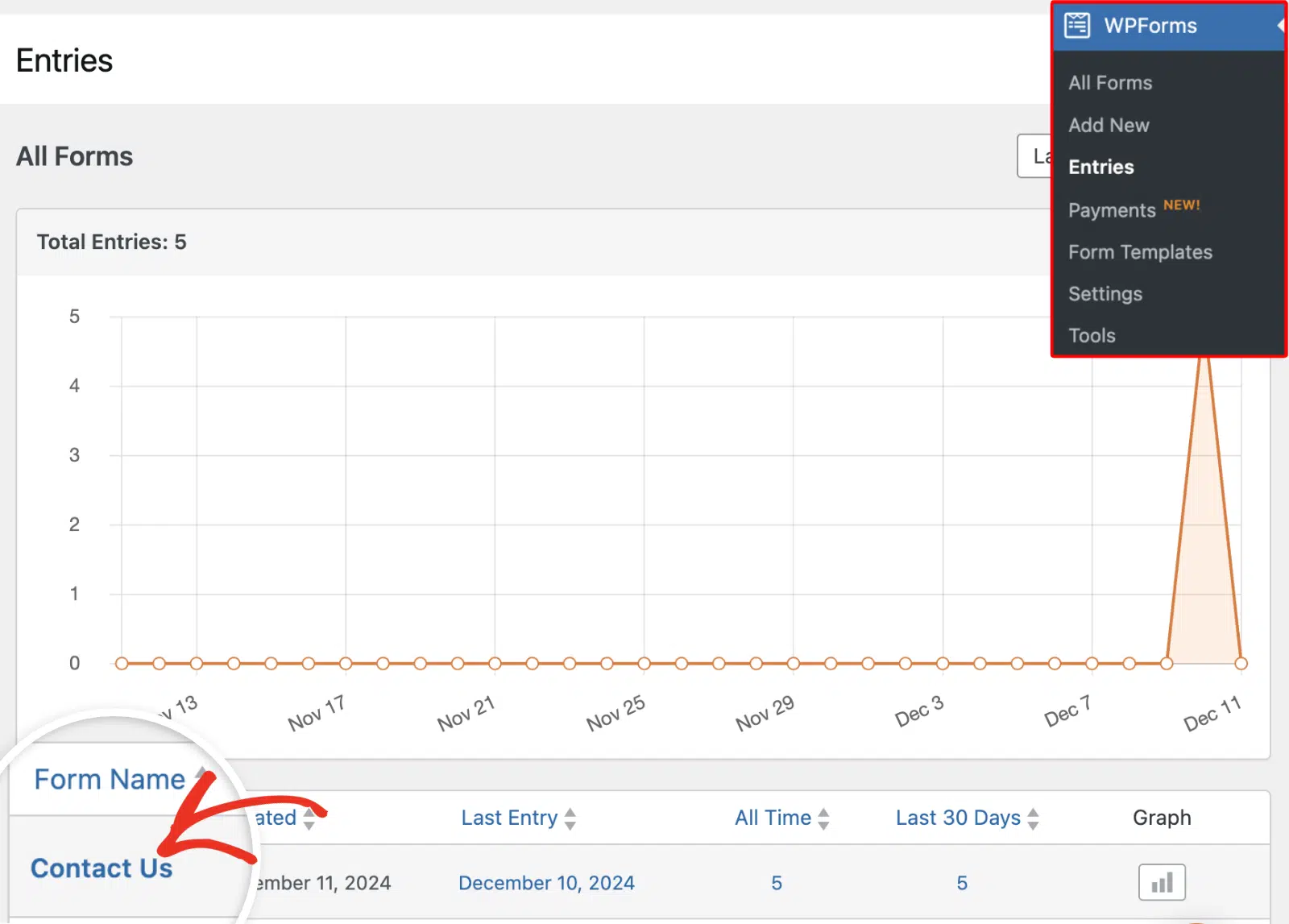
From here, you’ll see a list of all form submissions complete with timestamps, field responses, and user details. WPForms’ entry management tools also let you search, filter, star, and export entries whenever you need them.
How to Use Entry Data to Improve Your Forms
- If users frequently skip a particular field, consider simplifying or removing it.
- If responses are vague, rewrite questions for clarity or provide multiple-choice options.
- If submission times are unusually long, optimize form layout and instructions.
4. Email Summaries for Tracking Trends
As a WPForms user, you’ll receive email summaries — which provide a weekly overview of your form performance — delivered straight to your inbox.

This feature helps you stay updated on submission trends without needing to log in to your WordPress dashboard.
How to Use WPForms Email Summaries
1. Make sure Email Summaries are not disabled in your WPForms Settings (the Email Summaries documentation shows you exactly where the setting lives).

2. Receive a weekly report summarizing form performance, including submission counts and trends.
3. Use this data to quickly assess which forms are performing well and which may need adjustments.
New in WPForms 2.0: Your summary email now flags when a form’s entry volume suddenly drops. That kind of dip usually means something broke, like a deleted page or a plugin conflict, so the alert helps you catch it before you lose a week of leads.
How to Use Email Summaries to Optimize Forms
- Identify peak submission times to adjust marketing efforts accordingly.
- Spot sudden drops in submissions, which may indicate technical issues or form fatigue.
- Compare weekly trends to track improvements after making form adjustments.
5. Understanding User Behavior
For even deeper insights, the User Journey addon tracks how visitors interact with your website before submitting a form.

How to Use the User Journey Addon
1. Enable the User Journey addon in WPForms.
2. View the full journey of users who submitted forms, including pages they visited before completing the form.
Benefits of Tracking User Journeys
- Discover which pages drive the most form submissions.
- Identify potential roadblocks in the user experience.
- Adjust page content or CTAs to increase conversion rates.
6. Tracking Payments
If you’re using WPForms for order forms, donations, or any payment-related transactions, the Payments tab helps you monitor revenue and transaction status.
How to Access Payments Tracking
1. Go to WPForms » Payments.
2. View transaction details, including amounts, payment status, and customer information.
3. Filter payments by form, date, or status to track performance over time.
How to Use Payments Data to Improve Your Forms
- Identify which products or services generate the most revenue.
- Track incomplete payments and follow up with potential customers.
- Spot trends in donation or sales activity to refine your fundraising or marketing strategy.
7. Advanced Tracking with Google Analytics

Form Analytics covers everything that happens on the form itself. But if you want the bigger picture, like which traffic sources and campaigns send you the visitors who actually convert, WPForms integrates with Google Analytics to track form submissions as events. This allows you to:
- Measure goal completions in Google Analytics.
- Compare form performance across different traffic sources.
- Identify which marketing channels drive the most form submissions.
To set this up, you can use the WPForms Google Analytics integration or add tracking manually through Google Tag Manager.
Read More: How to Set Up WordPress Form Tracking in GA4 (The Easy Way)
With WPForms, you can continuously refine your forms for better conversions and user engagement. Keep an eye on performance, make adjustments based on insights, and watch your forms perform better than ever.
FAQ About WPForms Analytics
Searching for something in particular? Browse our most frequently asked questions:
Does WPForms have built-in analytics?
Yes! As of WPForms 2.0, Form Analytics is built into the plugin. It tracks views, interactions, conversion rate, abandonments, and errors for every published form, right in your WordPress dashboard. Tracking starts automatically as soon as you update, with no setup required.
Which WPForms license levels include Form Analytics?
The full Form Analytics experience, including field-level tracking, conversion goals, exports, and WPForms AI insights, comes with Pro and Elite licenses. WPForms Lite, Basic, and Plus include form view tracking on the Forms Overview page.
Can I get form performance reports emailed to me?
Yes! WPForms offers Email Summaries, which provide a weekly overview of your form submissions and trends. This helps you stay informed about form performance without needing to check manually.
How do I know if users are abandoning my forms before submitting?
Form Analytics shows abandonment counts and percentages for the form as a whole and for every individual field, so you can see exactly where people give up. And if you want to capture the partial entries themselves, the Form Abandonment addon saves what users typed before they left so you can follow up.
Is there a way to see what users do before submitting a form?
Yes, the User Journey addon tracks the pages a visitor viewed before filling out and submitting a form. This insight helps you understand what content is driving conversions.
Next, Elevate that Submit Button
We’re on a roll here with all the ways to use analytics to improve your forms. But I’m going to share one more idea — giving some attention to your form’s submit button!
Take a look at the full article to learn all our tips for the submit button: best practices for boosting clicks.
Ready to build your form? Get started today with the easiest WordPress form builder plugin. WPForms Pro includes lots of free templates and offers a 14-day money-back guarantee.
If this article helped you out, please follow us on Facebook and Twitter for more free WordPress tutorials and guides.