



AI Summary
Number range sliders in a form look really cool and that in itself is an important benefit since visitors are likely to trust you more if you’re using visually impressive forms that reflect professionalism.
Plus, number range sliders add a greater level of interactivity to your forms. Interactivity creates engagement, and it’s your engaged visitors that ultimately end up converting.
So, how do you add a number range slider in your WordPress forms? I’ll walk you through the simplest way you can achieve this right here.
Create Number Range Slider Form Now
What Is a WordPress Range Slider?
A WordPress range slider is a form field that lets people pick a number by dragging a handle along a track instead of typing it in.
You set the lowest and highest values the field accepts, and your visitor chooses any number inside that range. That small change does a few useful things:
- More completed fields: Dragging is quicker than typing, so people are less likely to leave the field blank or skip past it.
- Better quality answers: You get a real figure instead of a vague guess, which makes the slider a genuinely useful lead generation tool when you follow up.
- Works on phones: A slider handle is easier to hit on a touchscreen than a number input, and it looks right on whatever WordPress theme you’re running.
- Nothing to learn: Your visitor drags left or right, so there’s no format to get wrong and no validation error to run into.
WPForms calls this field the Number Slider, and it sits in the Standard Fields group of the form builder. Follow the steps below to get started:
How to Add a Number Range Slider in WordPress
- Step 1: Install the WPForms Plugin
- Step 2: Create a Simple Form
- Step 3: Add a Number Range Slider
- Step 4: Configure Form Notifications & Confirmations
- Step 5: Add Your Number Range Slider Form to Your Site
- FAQs on WordPress Range Sliders
- Is the number slider free in WPForms?
- Can I set a default starting value for the slider?
- Can I make the slider snap to specific increments?
- How do I display the currently selected value next to the slider?
- Can I use a range slider with two handles for a minimum and maximum?
- Does the number slider support decimals?
- How do I customize the look of my slider?
- Next, Build a Calculator Form With Your Slider
Step 1: Install the WPForms Plugin
The easiest way to insert a number range slider in your form is to use WPForms, which is the most beginner-friendly WordPress form plugin that comes equipped with a ton of advanced form creation features.
What I like the most about WPForms is that it offers a native Number Slider field. You drag it in, set a minimum and a maximum, and the label under the track starts reporting the selected value on its own.
While you can use WPForms Lite (the free version) to create a form with the number range slider, I’ll be using WPForms Pro for this tutorial because this opens up tons of extra possibilities for using the slider field in exciting ways.

If you don’t know how to install the plugin, click this guide for WPForms installation instructions. This will only take a few minutes. When WPForms is ready on your site, you can begin creating a form with the numerical slider.
Step 2: Create a Simple Form
From your WordPress dashboard, navigate to WPForms » Add New to create a new form.
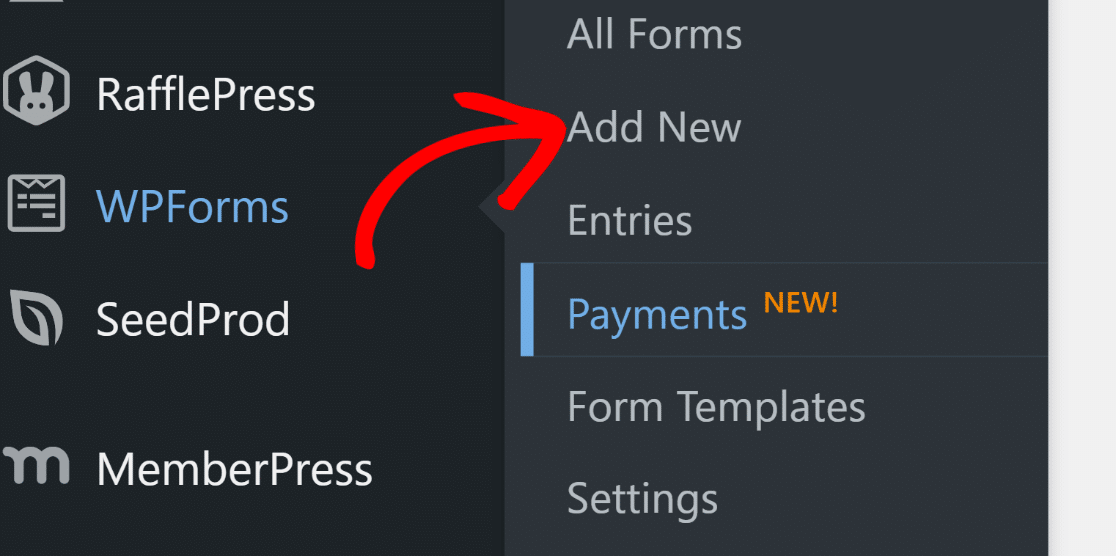
Immediately, you’ll see the form setup screen appear on your window. Here, you can enter a name for your form and select a template.
You can build your from entirely from scratch (starting with a blank template), or you can use a ready-made template to make things even faster for you.
For this post, I’ll use the Simple Contact Form template to demonstrate how you can work with a template to insert additional fields like the number slider.
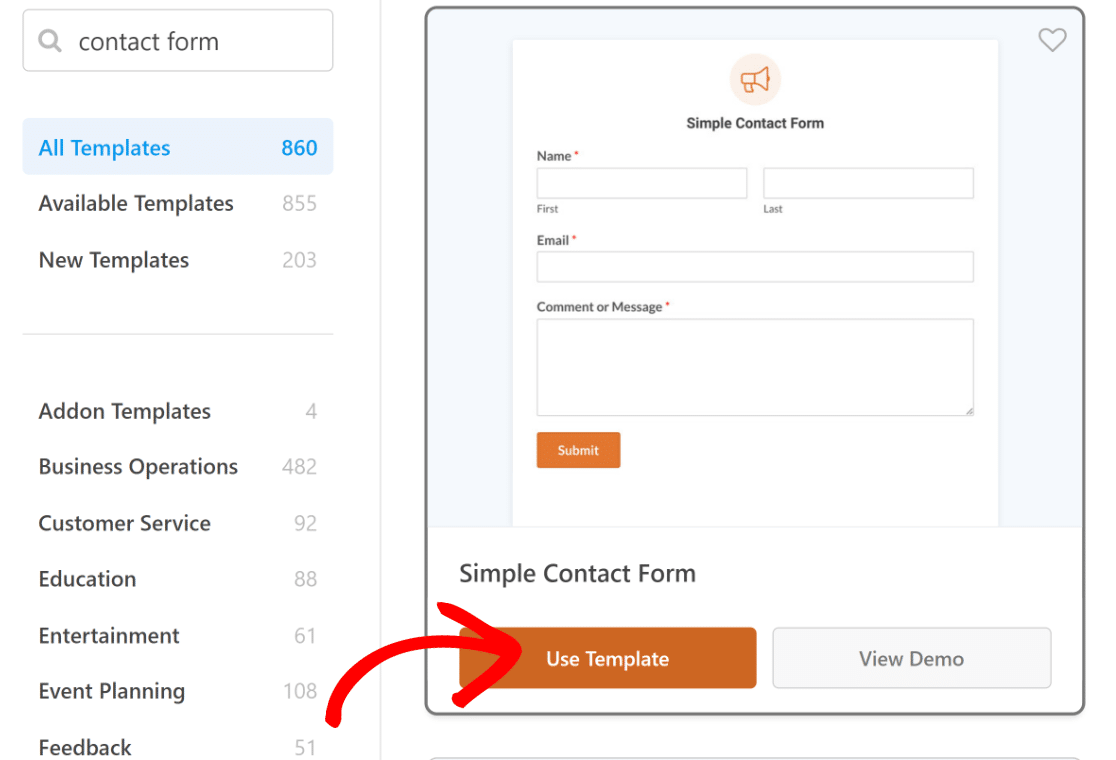
After selecting the template, you’ll be taken to the form builder interface where you can either proceed to embedding the form directly on your site or customize it further.
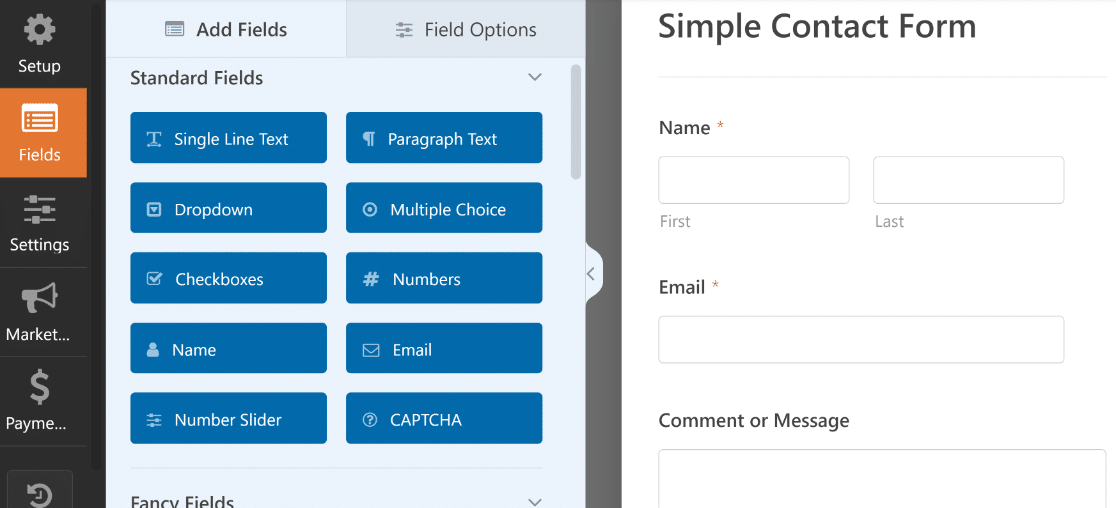
In the next step, we’ll explore the number range slider field and its associated settings.
Step 3: Add a Number Range Slider
Now let’s go ahead and add a number range slider to your form. You can simply drag the Number Slider field from the Standard Fields menu on your left onto your form on the right.
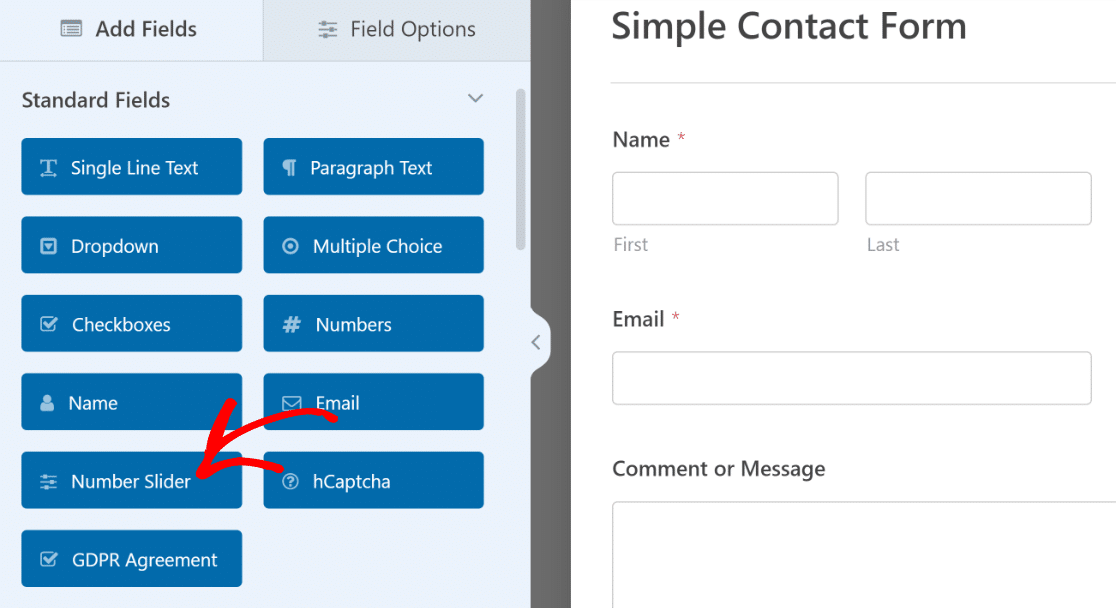
To change some of the settings and behavior of this field, click on the Number Slider that you just added. You’ll see its Field Options appear on the left-hand pane now.
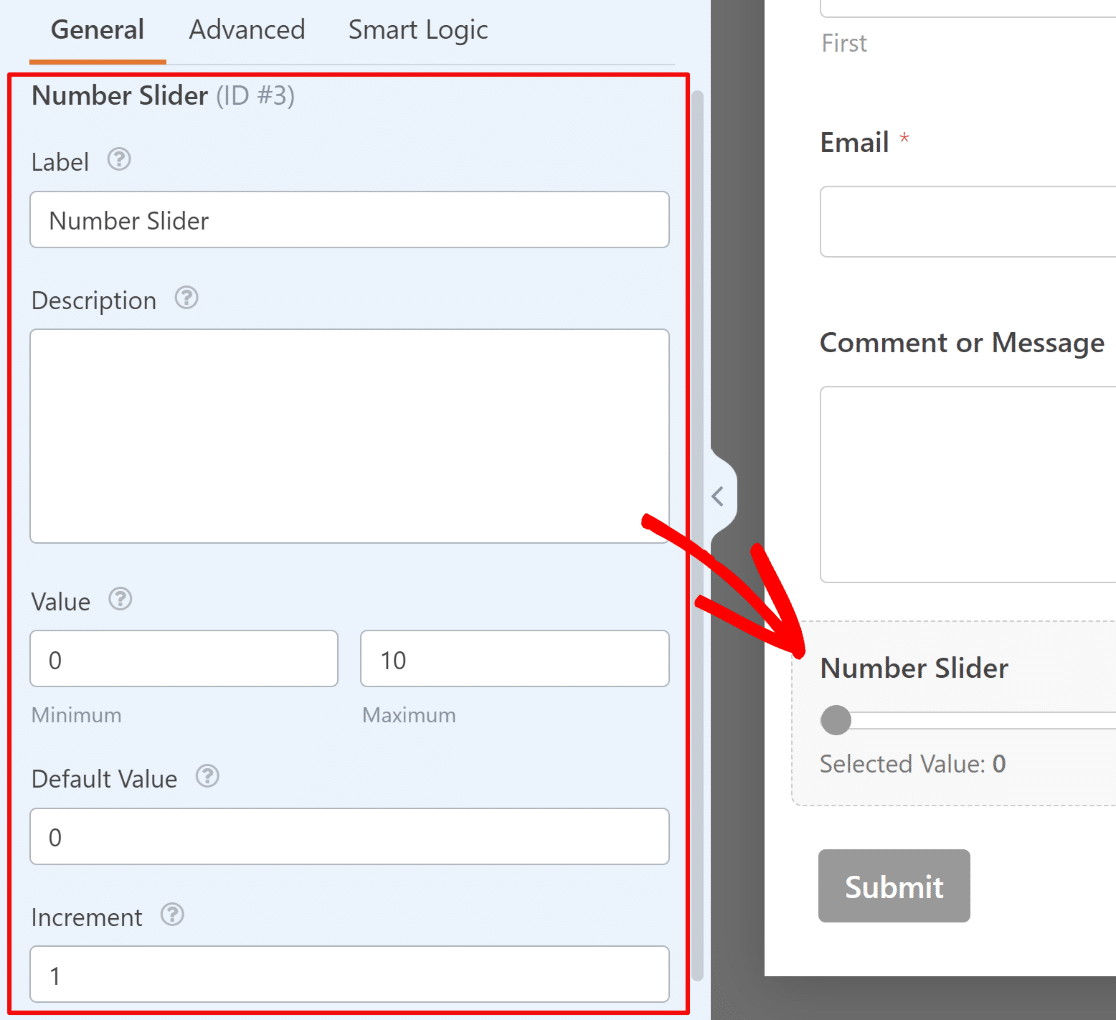
These options allow you to change:
- Label – Use this to add a name representing the quantity being controlled by the slider.
- Description – This helps provide additional context, if needed.
- Value – Set the minimum and maximum selectable values for the slider.
- Default Value – This is the value the field would assume when the form is first loaded.
- Increment – Lets you choose the amount of increment between each selectable value.
Lastly, you can add any additional fields to your number range slider form by dragging them from the left-hand side to the right-hand side.
When you’re done customizing your range slider form, click Save in the top right corner.
Step 4: Configure Form Notifications & Confirmations
WPForms automatically sends you a notification every time your form is submitted. You can customize form notifications by going to Settings » Notifications.
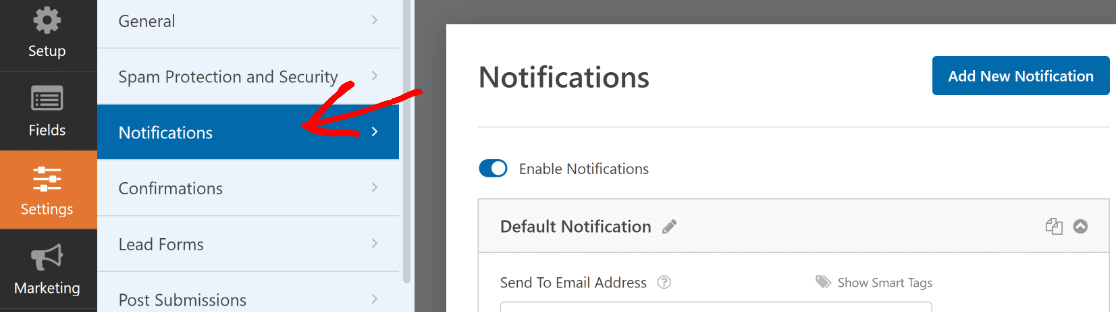
Here, you can choose the recipients of your notification (which can be your admin email, the person submitting the form, or any other hardcoded email you want to enter). WPForms Basic and above users can also create multiple form notifications.
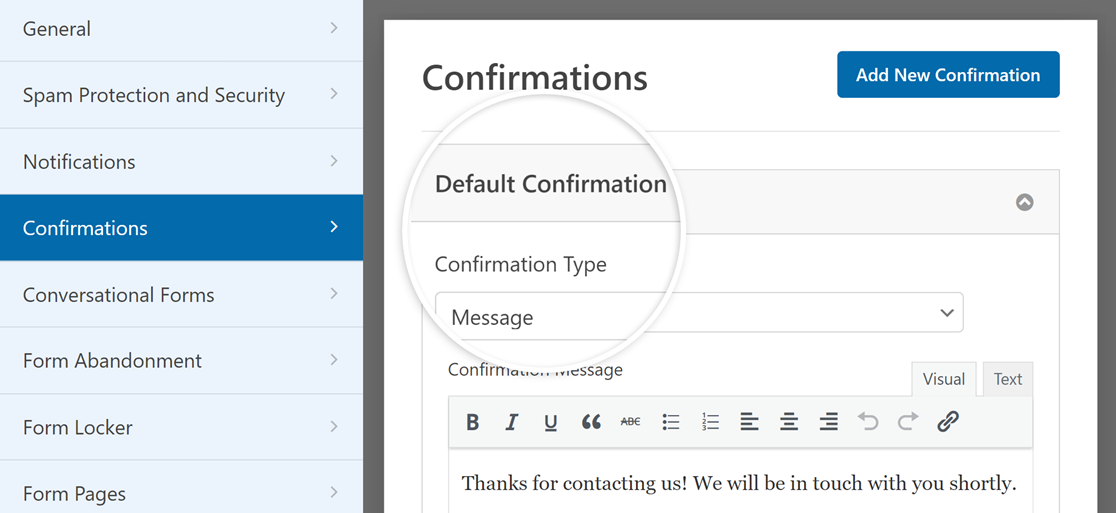
While you’re at it, I also recommend checking your form confirmations. The confirmation appears immediately after a form is submitted. This could be as simple as a message, or a redirection to a different page depending on your strategy. You can customize confirmations by going to Settings » Confirmations.
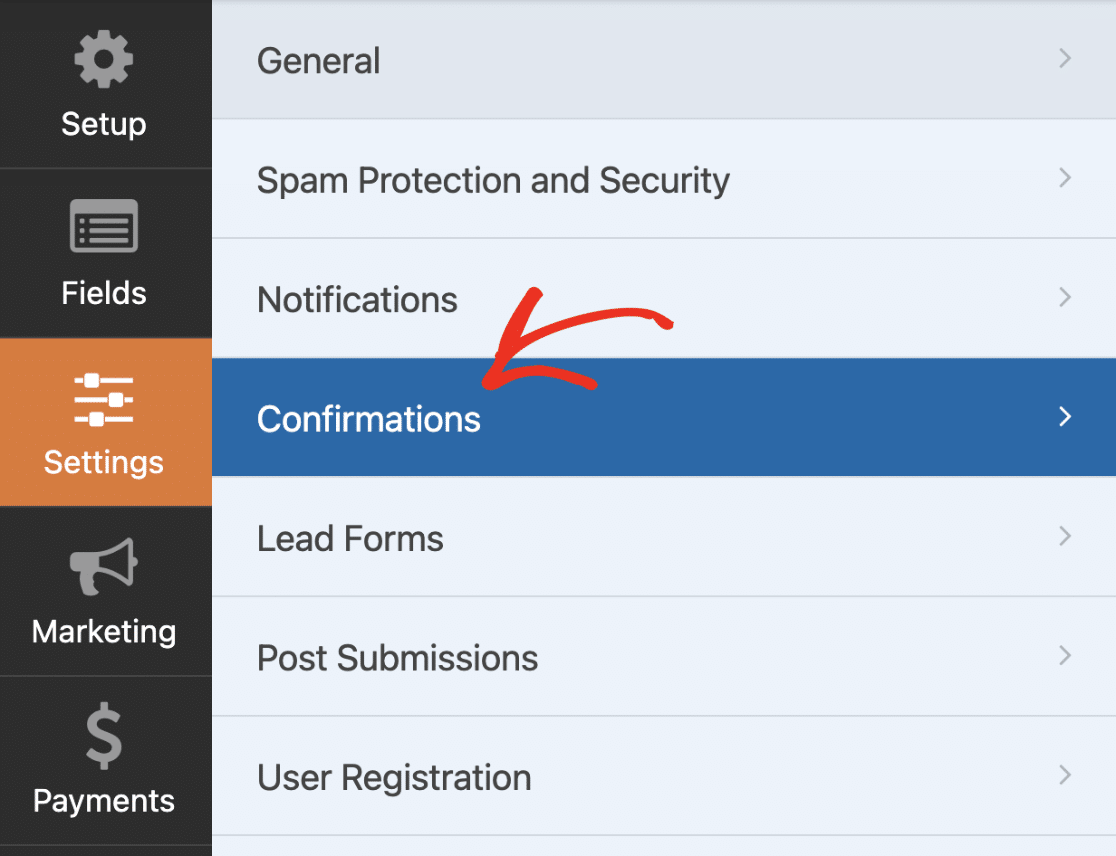
You can then select the type of confirmation (Message, Show Page, Redirect to URL) you want and enter the message and other details as needed.
When you’re done, press Save again at the top of the form builder. It’s time to embed your form!
Step 5: Add Your Number Range Slider Form to Your Site
After you’ve created your form, you need to add it to your WordPress website. WPForms allows you to add your forms to many locations on your website, including your blog posts, pages, and even sidebar widgets.
Let’s take a look at the most common placement option: page/post embedding. To begin, click the Embed button at the top of the form builder.

Next, you’ll see a modal asking if you’d like to embed this form into a new page or an existing one. Let’s go with the latter option and click on Create New Page.

Give your page a name and then press the Let’s Go button. You’ll find yourself inside the WordPress block editor now with the form embedded.
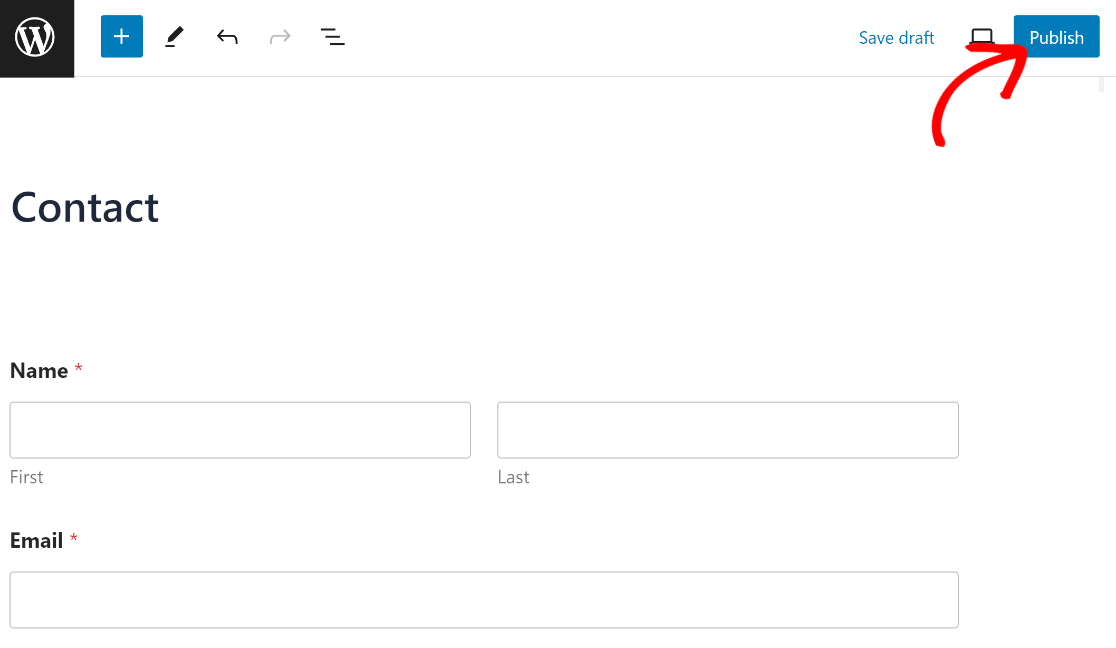
If you want, you can style your form using the block editor without any code. When you’re ready, press the Publish button to take your form-embedded page live.
You’ll now be able to see your number range slider form on your website, and visitors can start using it right away, without any hassle.
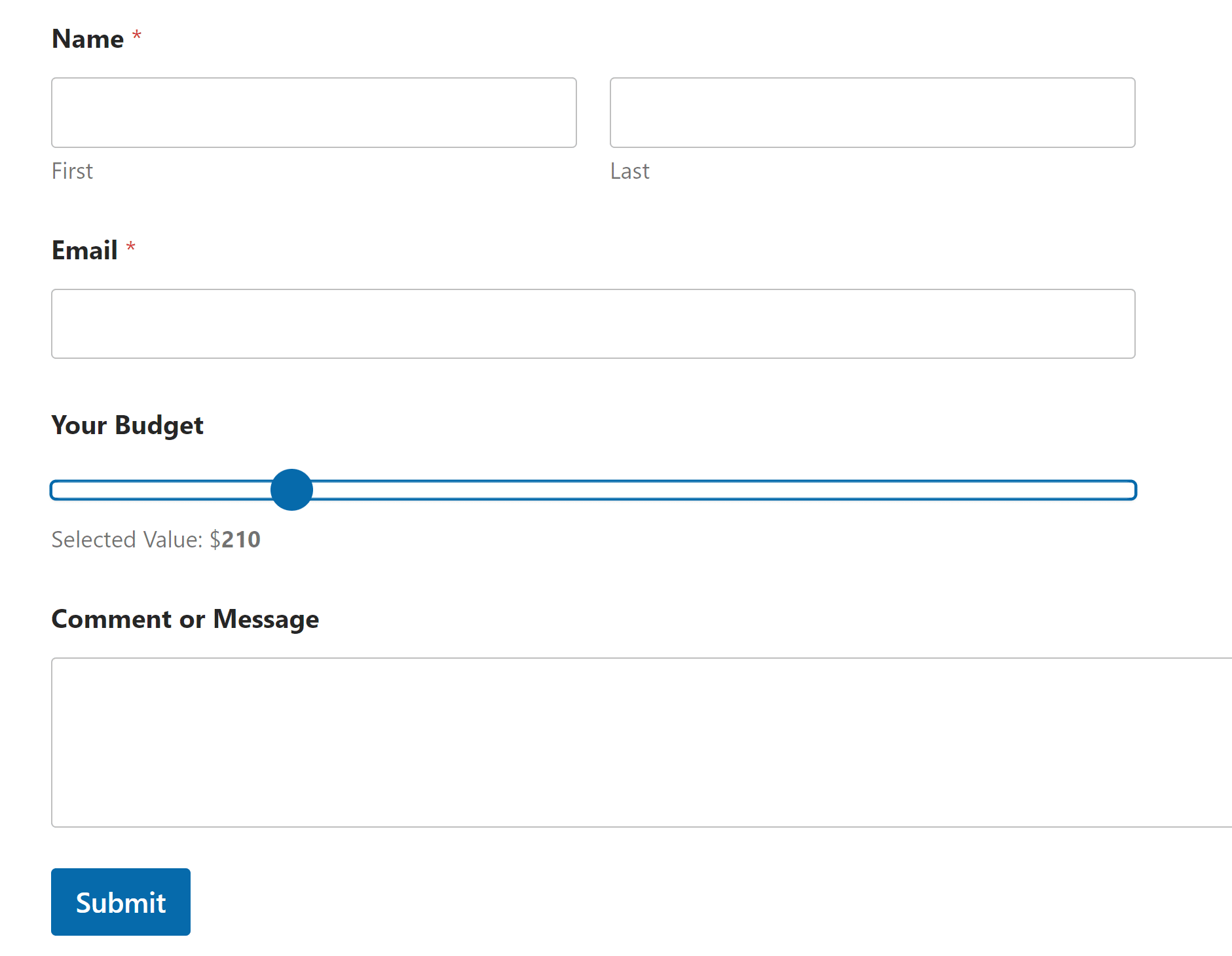
To view form entries after they’ve been submitted, check out this complete guide to form entries. For example, you can view, search for, filter, print, and delete any form entries.
And there you have it! You now know how to create a form with a number range slider form in WordPress using the WPForms plugin so you can easily get detailed form submissions from your website visitors!
FAQs on WordPress Range Sliders
A WordPress range slider raises the same handful of questions every time, mostly around what the free version covers and where the field’s limits sit. These are the ones that come up most often.
Is the number slider free in WPForms?
Yes, the Number Slider is a Standard Field, so it’s included in WPForms Lite at no cost and needs no separate addon.
You only need a paid license for what you build around it, specifically conditional logic at Basic and above, and calculations at Pro.
Can I set a default starting value for the slider?
You can, and the setting is called Default Value, sitting on the Advanced tab of the field options. It matches your minimum value until you change it, so type any whole number inside your range to move the starting position.
Can I make the slider snap to specific increments?
That’s exactly what the Increment setting is for, since it controls the step size between one selectable value and the next.
An increment of 5 on a 0 to 100 slider gives you 0, 5, 10 and so on. Just make sure your increment divides evenly into your range, or the handle will stop short of your maximum.
How do I display the currently selected value next to the slider?
The Value Display setting on the Advanced tab handles this, and it’s switched on by default. The text reads Selected Value: {value}, where {value} updates live as your visitor drags the handle.
You can rewrite the wording around that placeholder to anything you like, which is how you add a currency symbol or a unit label.
Can I use a range slider with two handles for a minimum and maximum?
Not with a single field, because the Number Slider has one handle and you define the range it moves across.
If you need your visitor to select a span, add two Number Slider fields labelled something like Minimum and Maximum. Both values save to the entry separately, so they’re easy to read and act on afterwards.
Does the number slider support decimals?
No, the field works with whole numbers only, and that applies to the minimum, maximum, default value and increment alike.
When you need decimal precision, use the Numbers field instead. It has its own Range setting for minimum and maximum values, and your visitor types the figure rather than dragging to it.
How do I customize the look of my slider?
The slider track and handle take their color from your submit button, along with the progress bar and radio bullets, which keeps everything in the form visually consistent.
So changing the submit button color in the block editor styling options changes your slider too. You can also switch Field Size between Small, Medium and Large, and edit the label from the form builder.
Next, Build a Calculator Form With Your Slider
The obvious next step is to put that slider to work inside a formula, so the price moves in real time while your visitor makes up their mind.
That’s the reason most people add a slider to a form in the first place, and it turns a data-collection field into a selling one.
If you’d rather point the slider at feedback than pricing, these NPS survey examples show how a 0 to 10 scale works as a satisfaction question and what to do with the responses you get back.
Add a Number Range Slider to Your Form Now
Ready to build your form? Get started today with the easiest WordPress form builder plugin. WPForms Pro includes lots of free templates and offers a 14-day money-back guarantee.
If this article helped you out, please follow us on Facebook and X (Twitter) for more free WordPress tutorials and guides.





How can I change a value on the basis on slider value?
Hi Qasim! You can change the Values of your Number Slider at Field Options > Advanced Options > Value Display. More details about this can be found in our documentation.
I hope this helps to clarify 🙂 If you have any further questions about this, please contact us if you have an active subscription. If you do not, don’t hesitate to drop us some questions in our support forums.
Hi there, I have added a slider to my form, the issue I have is the value is not displayed when I add it to my site so people who use the form will have to guess if they use the slider, what am I doing wrong??
Hey John- I am sorry about the trouble you are facing here! We’d be happy to help! When you get a chance, please drop us a line in support so we can assist.
If you have a WPForms license, you have access to our email support, so please submit a support ticket. That way we can discuss more details and investigate this further. Otherwise, we provide limited complimentary support in the WPForms Lite WordPress.org support forum.
Thanks 🙂
How do I change the color of the circle on the slider?
Hi Wayne- Currently, we do not have the option to style the number slider circle. I do agree it would be super helpful, though. I’ve made a note of the feature request and we’ll keep it on our radar as we plan out our roadmap for the future.
Thanks!
I have tried many ways, but I am failed. Can anyone tell me how can I add extra validation to the number range slide?
I don’t want to use a limit, I want a custom validation function for all the forms on my website. not a single form and single field id. I need to get the field id dynamically if I use wpforms_process hook.
any Idea?
Hi Sabbir,
In order to make sure we answer your question as thoroughly as possible, could you please contact our support team with some additional details about what you’re looking to do?
Thanks! 🙂
Hello,
is there a way to separate thousands and millions with space or comma?
Hey JS,
You can use the custom input mask to achieve this 🙂
Hi,
When the form is submitted, the values of the slider which were 1 to 9 goes as follows:
e.g.
1 (1 min / 9 max)
We want to show only the selected value which was 1, NOT the min and max values (1 min / 9 max) in the email.
Hello Waheed – I am sorry to hear about the trouble.
I just tried on my end and I am getting only the value which is selected like this. To assist further, if you have a WPForms license, you have access to our email support, so please submit a support ticket.
Thanks 🙂