

AI Summary
Do you want to add a downloadable PDF to your WordPress form confirmation? Handing visitors a resource the moment they submit your form is a great lead generation strategy.
Email notifications are still a great way to keep a record on file, but your confirmation message is the first thing a visitor actually sees, so it’s the perfect place to put the file front and center.
How to Add a Downloadable PDF to Your WordPress Form Confirmation
WPForms includes a PDF addon that turns any submission into a styled PDF document. You decide what goes in it, how it looks, and where people get it.
You build the form, design the PDF once, then drop a download link into your confirmation message so every submitter gets their copy the moment they finish.
Step 1: Install the WPForms Pro Plugin
Before you can build a PDF, you need WPForms running on your site. WPForms is the most beginner-friendy drag-and-drop form builder that ships with 2,100+ ready-made templates so you rarely start from scratch.
What I like most about WPForms for this job is that the PDF lives inside the same form you already built. You design the document once, and every submission fills it in automatically, so a workshop signup or an order form becomes a finished PDF without any extra work from you.
The PDF addon is a Pro feature, so you will need a WPForms Pro license or higher to follow along. Pro is also where entry management and conditional logic unlock, and both pair naturally with PDFs.
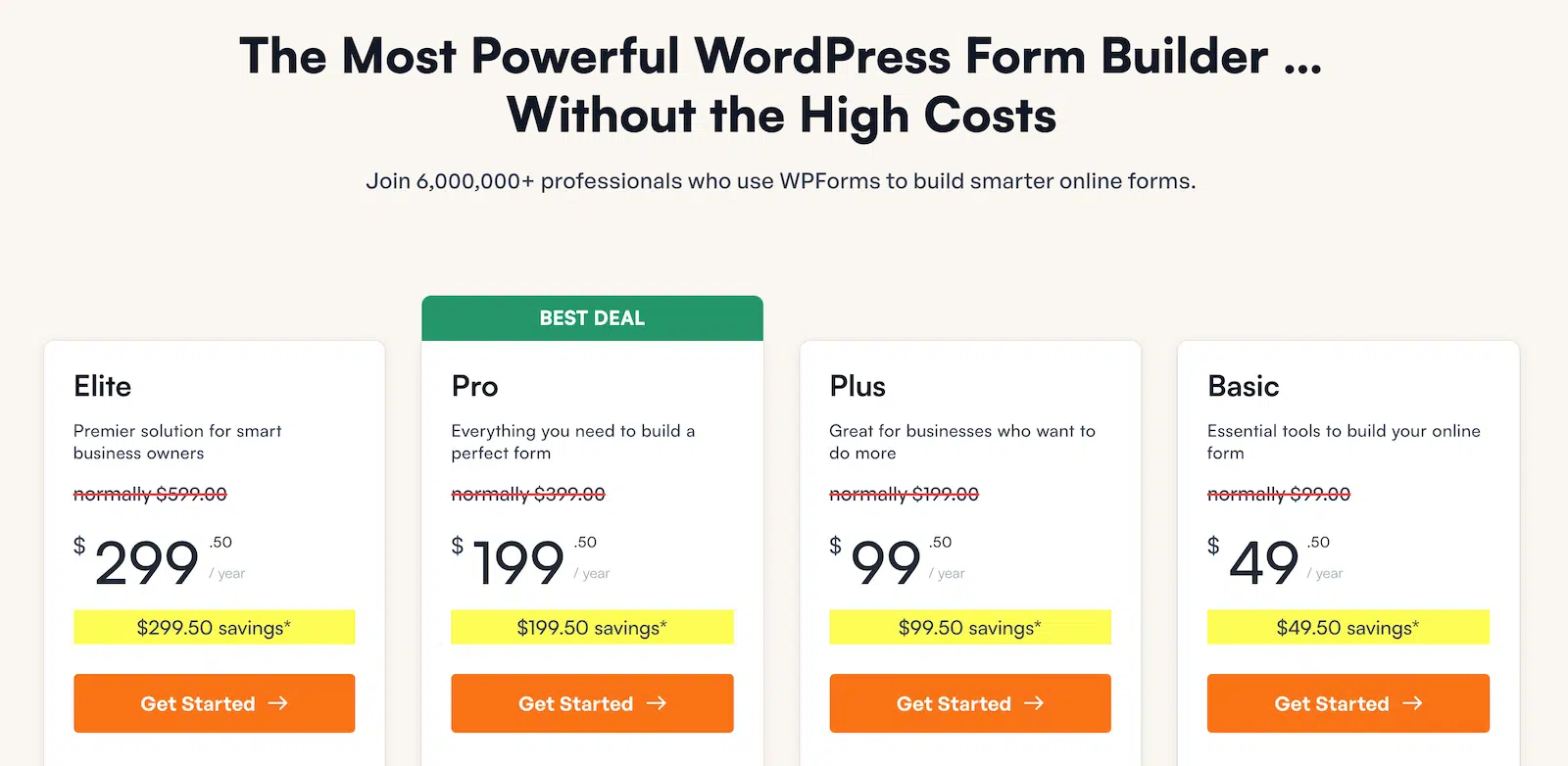
To get started, buy the Pro license. Then, install WPForms on your website. If you need help, follow these instructions on how to add a plugin to WordPress.
Once the plugin is active, take a minute to verify your license so the addon installer can reach the Pro addons.
Step 2: Install and Activate the PDF Addon
With Pro active, you can add the piece that generates the documents. The PDF addon creates a styled PDF from each submission and gives you the confirmation smart tags you will use later.
Go to WPForms » Addons and find the WPForms PDF addon, or type PDF into the search box at the top to filter the list down to it.

Click the Install Addon button on the card. WPForms downloads and activates it in a single step, so there is nothing to upload by hand. If you prefer, you can install and activate it from the Plugins screen instead.

The card switches to an Activated status once it finishes, which means the PDF tools are now ready inside every form you build, including the smart tags for the confirmation download.
Step 3: Create the Form Behind Your PDF
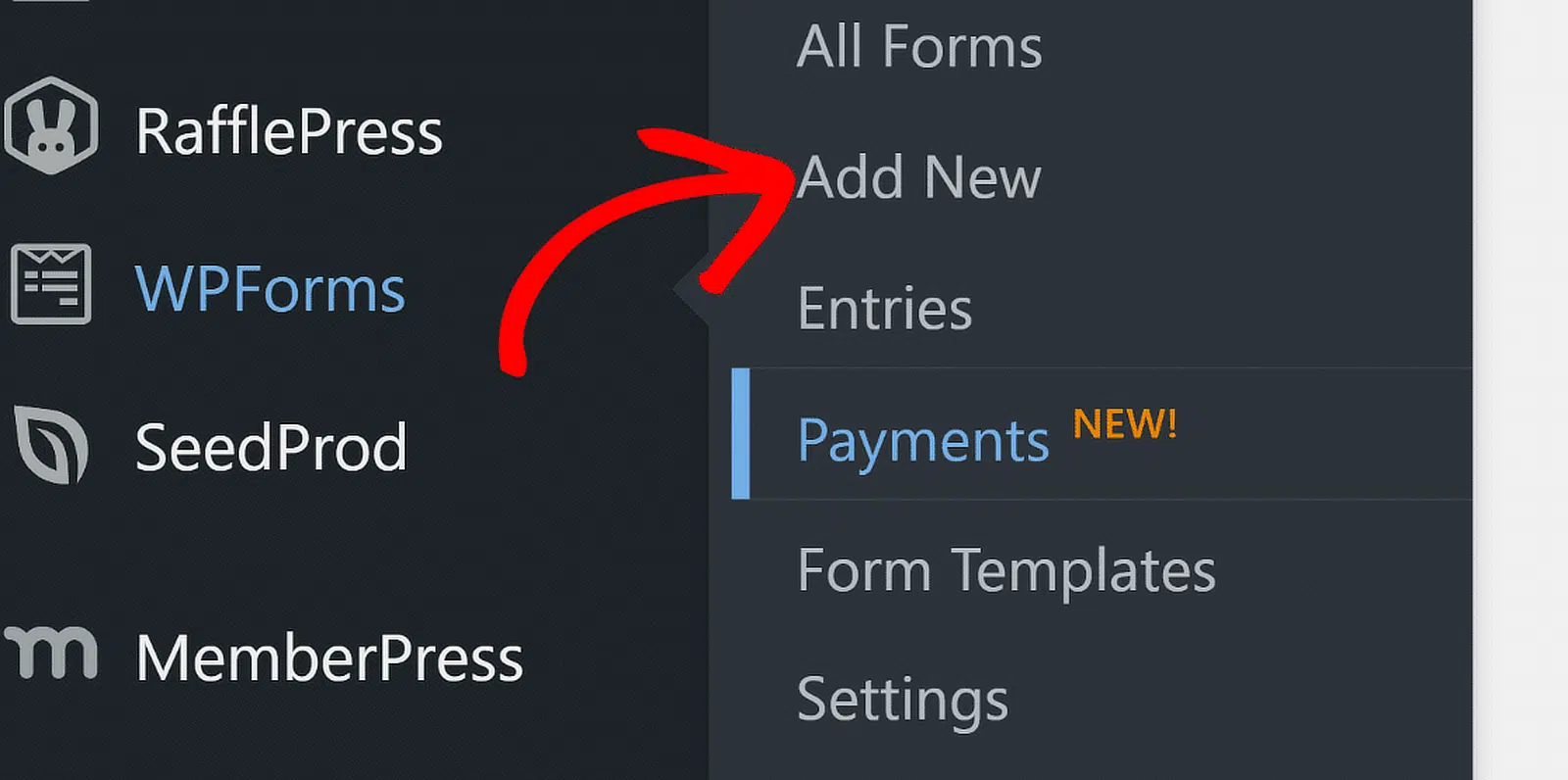
Your PDF is built from the fields on your form, so the next move is to create the form that feeds it. Go to WPForms » Add New to open the form builder.
Give the form a name you will recognize later, and pick one of the pre-built form templates or start from a blank form. A template gives you a head start, and you can adjust every field from there.
You can also choose to Generate with AI if you prefer just typing out the form you want to create, the fields you want people to see in their document, and set up everything automatically.

For the purpose of this tutorial, I had WPForms AI build me a workshop registration form that comes with a Name, Email, Phone, and a Multiple Choice field for the session visitors picked.

Once your form captures everything you need, it is ready to turn into a document. Just be sure to keep the field labels clear and descriptive, because these same labels become the headings inside your PDF.
Step 4: Design Your Downloadable PDF
With the form built, you can create the document itself. Inside the form builder, go to Settings » PDF and click Add New PDF. Give it a name, like Registration Confirmation, then click OK.

WPForms opens the PDF editor, with a live preview on the left and your settings on the right. Under Template, choose a Category such as Documents or Financial, then pick a Style for the look you want.
The preview updates as you go, so you can see the layout before you commit. For a full tour of every option, the PDF addon documentation walks through each one.

Now fill the document with each submitter’s details by clicking a field and using the smart tag icon to pull dynamic values from each entry, so the PDF fills itself in for every submission.

Next. open the Appearance section to make the document yours. Pick a Theme, then upload a logo and set its Size and Position so the PDF carries your branding.
You can also set the PDF to generate only under certain conditions with conditional logic, which helps when one form needs to produce different documents.

Step 5: Add the PDF to Your Confirmation Message
Now you add the download link to the message people see the moment they submit. Still in the builder, go to Settings » Confirmations.
After that, simply set the default Confirmation Type to Message, which is what shows on the page right after someone submits.

Write your thank you message, then click the Smart Tags icon below the message editor. A dropdown opens with the PDF tags listed by the name of each PDF on your form.
You have three tags to pick from, and each one delivers the download a little differently.
- PDF Link inserts a ready-made Download PDF link, which is the easiest option for most forms.
- PDF URL gives you the raw download address, handy when you want to wrap it in your own button.
- PDF Links lists every PDF on the form, one link per line.
If your form makes more than one PDF, the tag includes a number that points to a specific document, like a PDF Link tag set to 1 or 2. Select PDF Link, and WPForms adds it straight into your message.

When the form is submitted, that tag becomes a real download link, so the visitor gets their document without waiting for an email.
If you want to send people to a page instead, the form confirmation options cover that, and this guide on setting up form confirmations walks through each type.
Because the download is separate from your notification emails, you can still email a copy too, which I will come back to in the FAQs.
Step 6: Test Your Form and View the Generated PDF
Before you share the form, submit a test entry so you can see exactly what your visitors will see. Open a preview of your form, fill it in, and submit. Your confirmation message appears right away, with the Download PDF link ready to click.

Click the link to confirm the PDF opens and looks the way you designed it. The builder preview only shows the first page, so this quick test is the best way to check the full document.
That test submission also proves the other half of the setup, which is that you still capture the data. Go to WPForms » Entries and select your form to see the submission saved alongside any others.

Click View on an entry, where you can manage your form entries and download the same PDF from the PDF section on the entry page.
In the individual entry page, you’ll find a link to download the PDF that was created for that submission under the PDF section.

And that’s it. Your form now delivers a downloadable PDF on submit while still saving every entry for you.
FAQs About Adding a Downloadable PDF to WordPress Forms
A downloadable PDF in your form confirmation raises a few common questions. Here are quick answers to the ones that come up most when you let users download a PDF after submitting a form.
Which WPForms plan includes the PDF addon?
The PDF addon is a Pro feature, so it comes with WPForms Pro and Elite. Pro starts at $199.50 per year as an introductory price, and it also unlocks the entry management and conditional logic that work well with PDFs.
How is a confirmation download different from emailing the PDF?
A confirmation download shows the PDF link on the page the instant someone submits, so there is no inbox to check and no risk of it landing in spam. Use the confirmation for speed, and use the email as a copy people can find in their inbox later. You can turn on both at the same time.
What is the difference between the three PDF smart tags?
The PDF Link tag inserts a ready-made Download PDF link, which suits most forms. Choose PDF URL when you want just the web address, so you can build a custom button around it. The PDF Links tag lists the download links for every PDF on the form, which helps when one submission creates several documents.
Does the form still save the entry if the PDF downloads on submit?
Yes, the download link and the saved entry are separate, so handing someone their PDF never stops WPForms from storing their submission. You will find every entry under WPForms » Entries, with the generated PDF attached to each one.
Can I control who is allowed to download the PDF?
You can restrict access from the PDF editor by opening the Advanced section and turning on Enable Access Restrictions. From there, limit downloads to logged-in users, specific roles, or individual users, and set a password for an extra layer of security.
Can I attach the same PDF to a notification email too?
The same PDF can also go out by email, so you get both delivery methods at once. When you set up the PDF, choose which notifications it attaches to, and the document sends alongside the confirmation download. For a full walkthrough of that route, see our guide on how to send the PDF as an email attachment.
Next, Turn More of Your Form Data Into Documents
If you would rather create documents in bulk from past submissions, take a look at how to print your form submissions to PDF straight from the entries screen.
And when you want those documents to match your brand, our guide to generate branded PDFs covers themes, logos, and colors in more detail.
Get WPForms Pro and Start Building PDFs 🙂
Ready to build your form? Get started today with the easiest WordPress form builder plugin. WPForms Pro includes lots of free templates and offers a 14-day money-back guarantee.
If this article helped you out, please follow us on Facebook and X (Twitter) for more free WordPress tutorials and guides.