


AI Summary
If you’re adding a calculator to a WordPress form, you’ve probably realized that picking the fields and dragging them around is the easy half of the job.
The math behind those fields is where things get tricky, especially if you’ve never written a formula with field IDs and conditional logic before.
This is where WPForms AI comes in! You describe what you want to calculate in normal English, and the AI writes the formula using the right fields and operators.
In this guide, I’ll walk you through how to generate calculation formulas with WPForms AI from start to finish. You won’t write a single line of math yourself!
Build Calculation Formulas with AI! 🙂
How to Use WPForms AI to Generate Calculation Formulas
WPForms AI uses the field labels in your form to figure out what you’re calculating, then writes the formula using the right field variables. Follow the steps to get started:
Step 1: Install the WPForms Pro Plugin
The first thing you’ll need is WPForms Pro. It comes with the Calculations addon and WPForms AI, which together power the formula generator we’re about to use.
WPForms Pro also unlocks 2,100+ form templates, so you’ll often find a calculator template that gets you 80 percent of the way there before AI even kicks in.
What I like most about WPForms for calculator forms is how the AI does everything for you. All you have to do is write a sentence like “calculate total price based on quantity and discount”, and the formula is built!

To get started, buy the Pro license. Then, install WPForms on your website. If you need help, follow these instructions on how to add a plugin to WordPress.
Step 2: Install and Activate the Calculations Addon
Once your Pro license is verified, go to WPForms » Addons in your WordPress dashboard and search for Calculations. Then click the Install Addon button. The addon will install and activate in a few seconds.
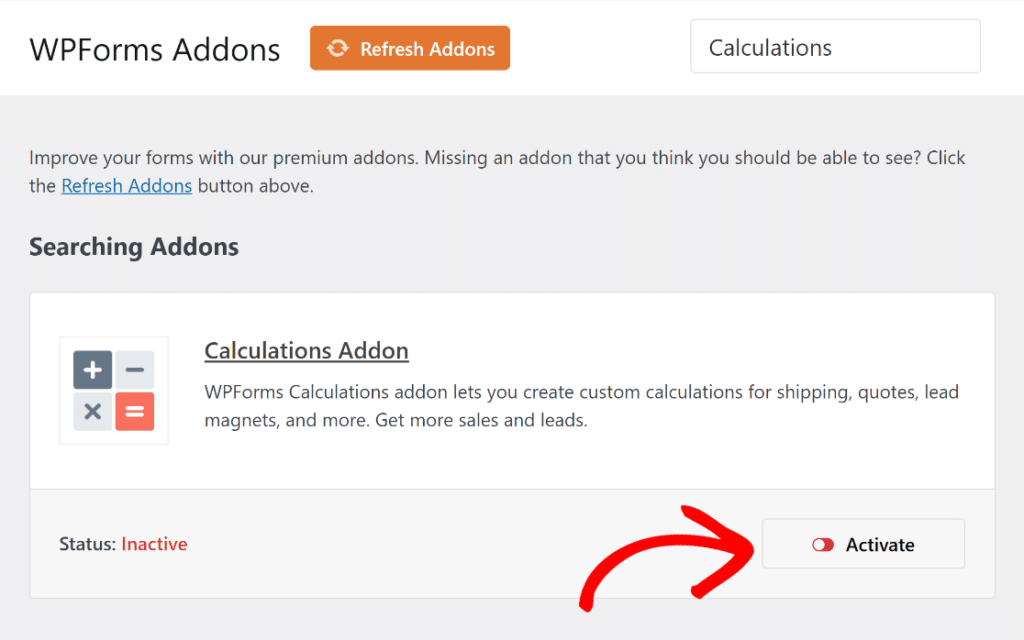
This is the addon that adds the Enable Calculation toggle to supported fields in the form builder. Without it, you won’t see the formula builder or the Generate Formula button anywhere.
If you need a refresher on the install flow, see our doc on how to install and activate the Calculations addon. Now you’re ready to build the form that the AI will write a formula for.
Step 3: Build Your Form With Clear Field Labels
You can start from scratch or pick a template from the WPForms library and edit it. WPForms comes with 2,100+ form templates to kick off your form creation process.
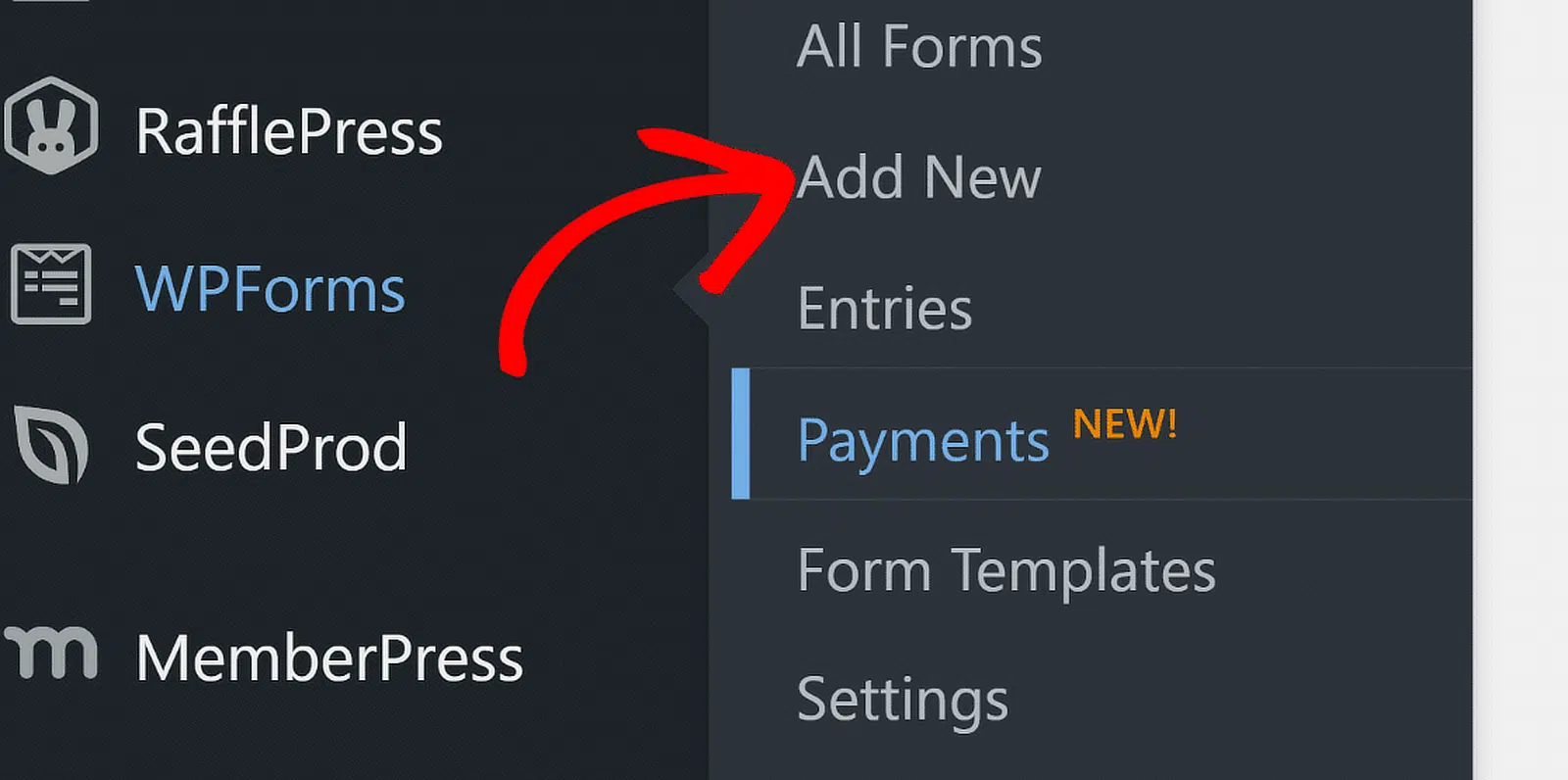
Add three Numbers fields for the inputs and one Single Item field for the calculated total. Then change each label to something descriptive.
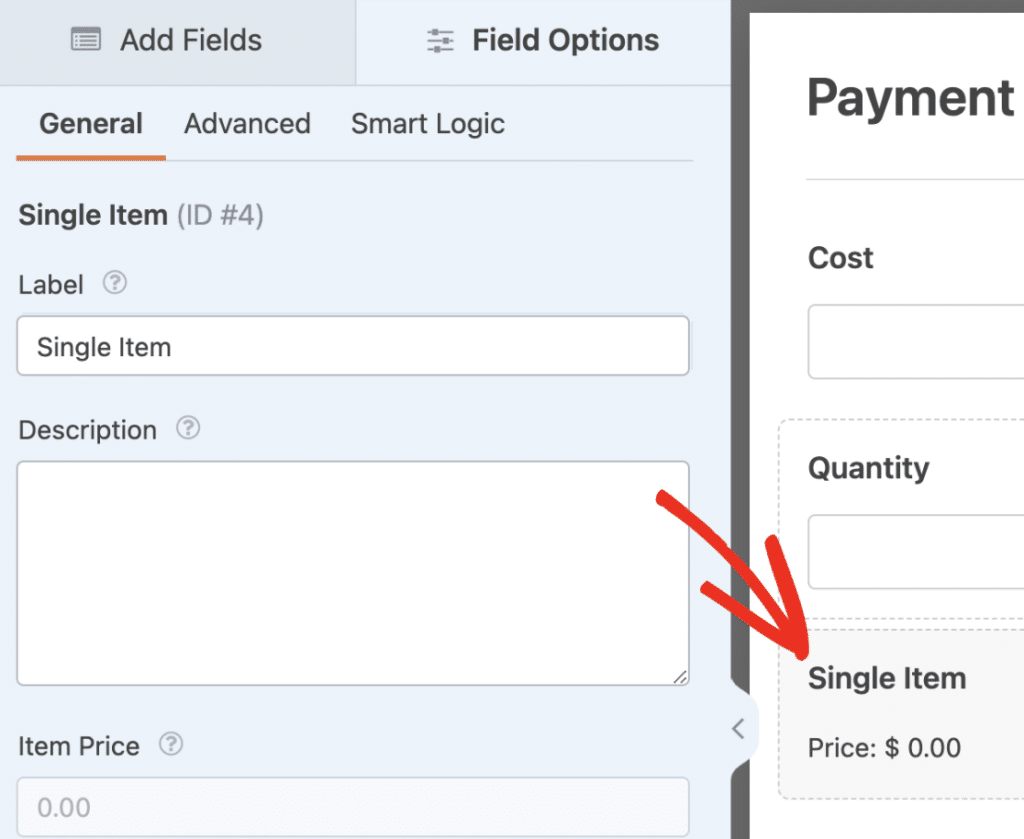
Clear labels matter more than you’d think. WPForms AI reads your field labels to figure out which field is which when it writes the formula.
If you leave a label as “Single Line Text” or “Number 1”, the AI has to guess. Names like “Product Price” or “Discount Percentage” give it the context it needs to map your prompt to the right field IDs.
Step 4: Enable Calculations on the Result Field
Click the Total field to open its options panel on the left side of the builder.
Then click the Advanced tab at the top of that panel. Inside the Advanced tab, you’ll see an Enable Calculation toggle. Flip it to the ON position.
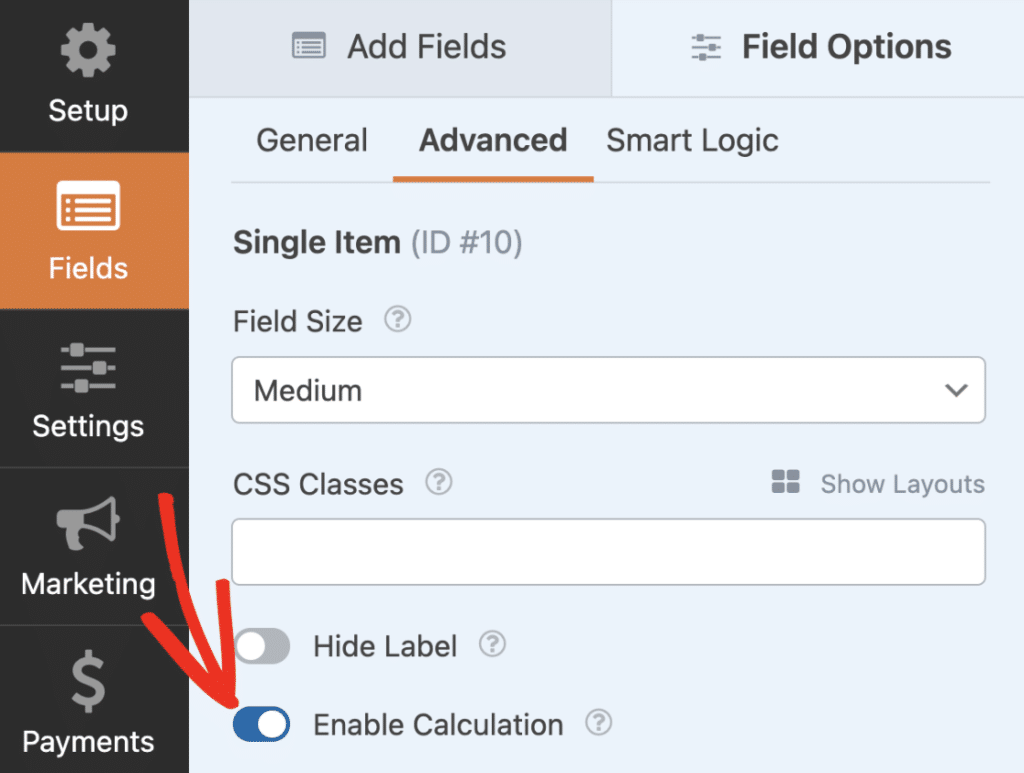
Once calculations are on, the field’s value gets set by your formula. That means anything a user types or selects directly in that field gets ignored.
Step 5: Generate Your Formula With WPForms AI
In the formula builder, click the Generate Formula button. This opens the WPForms AI chat interface, which has a single text input at the bottom.

Type your calculation in plain English, something like ‘Calculate total price based on product price and quantity combined with discount percentage’. Then hit enter or click the Send icon.

WPForms AI takes a few seconds to think, then returns a formula along with a short explanation of how it works. It tells you which field IDs map to which labels, so you can verify it picked the right ones.

The explanation underneath the formula is what won me over the first time I tested this. The AI walks you through each part of the math, so that you can understand what’s happening behind the scenes.
Step 6: Refine the Formula With Follow-Up Prompts
Most calculators need more than a single equation. You might want to add tax, change the discount rule, or round the result to a clean number of decimals.
The chat interface lets you stack changes on top of the original formula by sending follow-up prompts. So let’s add sales tax to our pricing calculator. In the same chat, type a new prompt.

WPForms AI updates the formula, walks you through what changed, and shows the new version with the tax line included.
To layer in another change, send another prompt. For our example, I asked WPForms AI to round the result to two decimal places.

You can also click any previous AI response in the chat history to roll back to that version of the formula. That’s useful if a refinement goes sideways and you want to start from the last good state instead of starting over.
FAQs on Generating Calculation Formulas With WPForms AI
Here are the questions I see come up most often when people start using WPForms AI for calculator forms. If you’re new to AI calculations or hitting an error mid-build, this section should have you covered.
How does WPForms AI know which fields to use?
WPForms AI reads the field labels in your form and matches them against the language in your prompt. Each field also has a numeric ID, written as $F1, $F2, and so on.
When the AI writes the formula, it uses those IDs as variables. That’s why descriptive labels matter so much. The clearer your labels, the more accurate the field mapping.
Can I edit the AI-generated formula manually after inserting it?
Yes. Once the formula is inserted into your field, you can edit it directly in the formula builder like any other Calculations addon formula.
Some people prefer to let the AI handle the heavy lifting and then tweak the result by hand. Both flows work fine, and you can switch between them on the same form.
Why is WPForms AI not generating a formula for my form?
The most common cause is missing fields. If you ask for a sales tax calculator but haven’t added a field for the tax rate, WPForms AI will return an error saying the form structure doesn’t include the necessary fields. Add the missing field, give it a clear label, and send the prompt again.
Can I use WPForms AI calculations on the free version of WPForms?
No. The free version of WPForms (WPForms Lite) does include AI form generation, but the Calculations addon and the formula generator are Pro-only features. If you’re on Lite and want to add calculations to a form, you’ll need to upgrade to Pro or higher first.
Can WPForms AI fix formulas I built manually?
Yes. After clicking Validate Formula, if your manually written formula has an error, the Fix with AI button appears in the error popup.
Click it and WPForms AI will rewrite the formula and explain what was wrong. The one case where Fix with AI won’t show up is when the error is caused by a field ID that doesn’t exist in your form, since the AI can’t invent missing fields.
Next, Build Your Form From Scratch With WPForms AI
Once you’ve used WPForms AI to add a formula to an existing form, the next step worth trying is generating the entire form, including the calculation fields and the formula, in a single prompt.
WPForms AI can build a full pricing calculator, quote tool, or registration form with payment math baked in. Our guide on how to generate forms with WPForms AI walks through that flow.
If you want to compare WPForms against other calculator tools before you commit, take a look at our roundup of the best calculator plugins for WordPress.
Ready to build your form? Get started today with the easiest WordPress form builder plugin. WPForms Pro includes lots of free templates and offers a 14-day money-back guarantee.
If this article helped you out, please follow us on Facebook and X (Twitter) for more free WordPress tutorials and guides.





