


AI Summary
When it comes to creating a quiz, it can be difficult to set up 20+ questions from scratch, and somewhere around question 9, you start second-guessing the whole endeavor.
That’s where an AI quiz generator earns its keep. You describe the quiz you want, the AI drafts the questions, the choices, the scoring, and you spend your time reviewing instead of writing.
The catch with most options I’ve tried is that they ask you to bring an OpenAI API key, manage credits, and stitch the quiz output back into your site yourself.
The approach I’ll walk you through here uses WPForms, which has the AI builder and the quiz engine built into the same plugin. There’s no API key to set up or credits to manage.
Get WPForms Pro to Build Your AI Quiz
What an AI Quiz Generator Does (and Why You’d Use One)
An AI quiz generator takes a short prompt from you and turns it into a working quiz, including the questions, the answer choices, and the scoring rules.
You can produce a graded quiz where each question has a correct answer, a personality quiz where each choice maps to an outcome, or a weighted quiz where every option contributes a score toward the result.
I usually reach for it when I need to ship a quiz fast. The first-pass questions become a starting draft I can edit, which is a different job than writing them from scratch.
If you’re still deciding which tool to use, our roundup of the best WordPress quiz plugins covers the field in more detail. For this tutorial, we’re going with WPForms because the AI is part of the builder.

How to Create an AI-Generated Quiz in WordPress
Below is the full walkthrough, from installing the plugin to publishing your quiz on a WordPress page.
The steps are the same whether you’re building a knowledge test, a “What kind of X are you” personality quiz, or a weighted assessment.
- Step 1: Install the WPForms Pro Plugin
- Step 2: Activate the Quiz Addon
- Step 3: Open the AI Form Builder
- Step 4: Write a Prompt for Your Quiz
- Step 5: Refine the Quiz With Follow-Up Prompts
- Step 6: Customize the Generated Quiz in the Form Builder
- Step 7: Set Up Outcomes and Smart Tags
- Step 8: Publish Your Quiz on a Page or Post
Step 1: Install the WPForms Pro Plugin
WPForms is a drag-and-drop form builder for WordPress. It also happens to be one of the few plugins that bundles AI form generation, a quiz engine, and conversion features into a single tool.
With over 2,100+ form templates and 6+ million users, you’re getting a tool that’s already been pressure-tested by a lot of websites.
What I like most about WPForms for this kind of project is that I don’t need to install three separate plugins to get an AI-generated quiz live.
The Quiz addon you’ll need for this tutorial requires a Pro license or higher. AI form generation works on Lite too, but the quiz-specific features unlock at Pro.

To get started, buy the Pro license. Then, install WPForms on your website. If you need help, follow these instructions on how to add a plugin to WordPress.
Step 2: Activate the Quiz Addon
Once the core plugin is active and your license is verified, you’ll add the Quiz addon. This is the piece that adds quiz mode, scoring rules, outcomes, and the Results dashboard.
In your WordPress admin, go to WPForms » Addons. Find the Quiz addon in the list (you can search to filter faster), then click Install Addon. WordPress activates it for you once the install finishes.

If you want to read about everything the addon ships with, our documentation is a good starting point.
The short version is that you get three quiz types, a results dashboard with charts, time limits, smart tags for outcomes, and the option to convert any existing form into a quiz.
Step 3: Open the AI Form Builder
Now that the plugin and the addon are ready, you can open the AI builder. Go to WPForms » Add New in your WordPress admin.
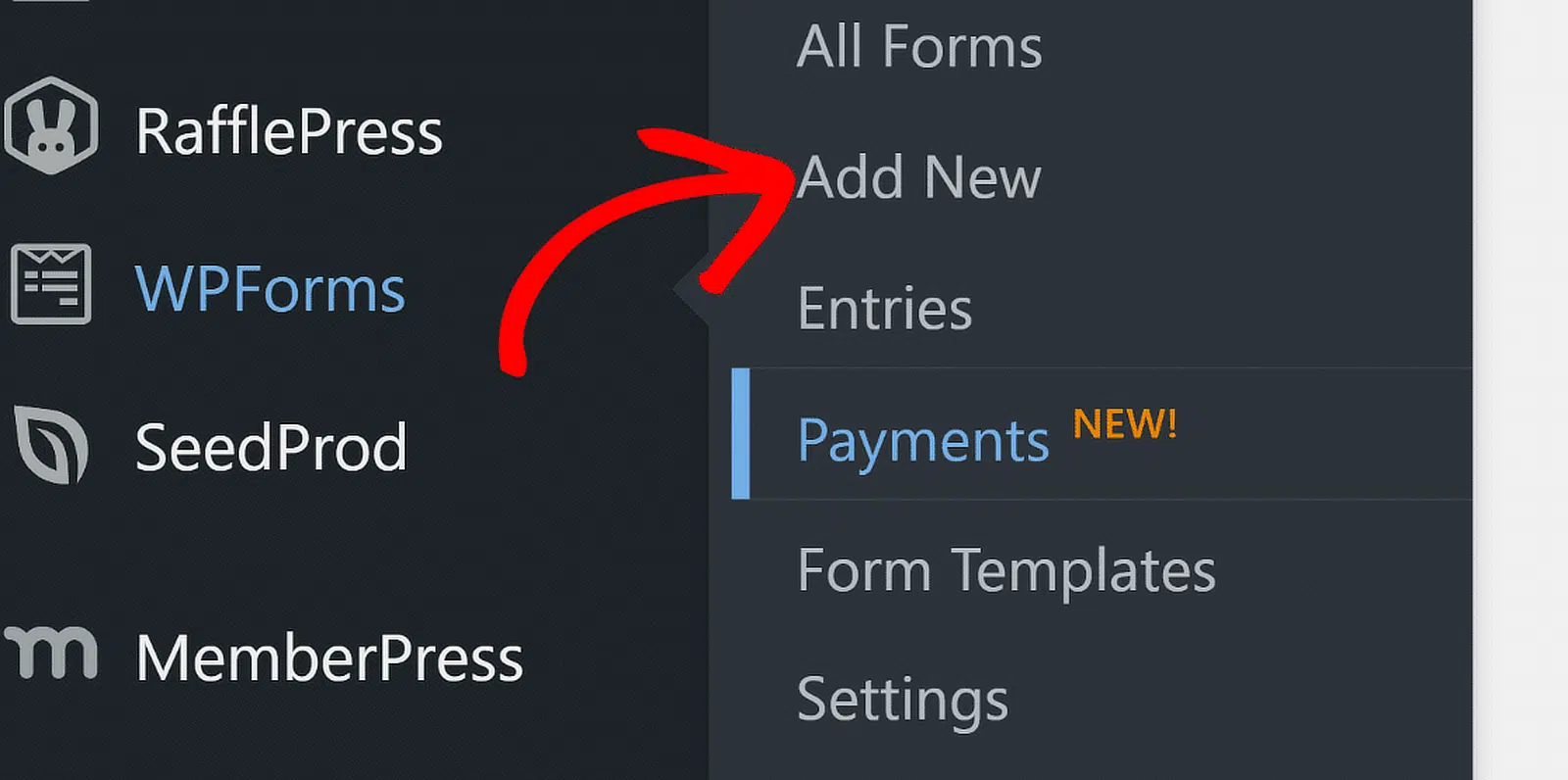
On the form templates page, you’ll see a Generate With AI option near the top. Hover over it and click the Generate Form button.

The first time you do this, WPForms will ask if you want to install a few recommended addons (Calculations, Signature, Coupons, Surveys and Polls), which are optional.
They give the AI more types of fields to choose from when it builds your form. I usually click Yes, Install and let it set them up so I’m not blocked later. You can read more about how the AI builder works on the WPForms AI feature page.

After the install finishes, you’ll land on a chat-style screen with a prompt field at the bottom and a few preset prompts you can use as starting points. This is where you describe the quiz you want.
Step 4: Write a Prompt for Your Quiz
A good prompt is more specific than “make me a quiz.” The AI will give you a usable form either way, but the more context you give upfront, the less you have to fix afterwards.
I include four pieces of information in every prompt. The quiz topic, the quiz type, the number of questions, and what should happen at the end.

Here are three prompt examples I’ve used for the three quiz types you can build with the addon. Feel free to copy these and swap in your own topic:
- Graded quiz prompt: Create a 10-question graded quiz on basic Spanish vocabulary. Use multiple choice questions with four options each. Set the passing grade at 70 percent. Add a name and email field at the start so I can capture leads.
- Personality quiz prompt: Create a personality quiz called “What kind of writer are you” with 8 multiple choice questions. Map the answers to four personality types named Storyteller, Strategist, Researcher, and Visualizer. End with a results message that recommends a starting article.
- Weighted quiz prompt: Create a weighted quiz that scores how ready a small business is to launch an email newsletter. Use 6 multiple choice questions with weights from 0 to 5 on each option. Show different outcome messages for low, mid, and high scores.
Type your prompt in the field, then hit Enter or click the Send icon. The AI takes a moment to think, and then a draft of your quiz appears in the preview area on the right.

If you want to see how the AI handles non-quiz forms too, this guide on how to use AI to create forms in WordPress covers other use cases like surveys and registration flows.
Step 5: Refine the Quiz With Follow-Up Prompts
The first draft is rarely the final draft. That’s fine. The AI keeps the chat open so you can keep nudging it until the quiz looks right. Here are common follow-ups I send.
- “Add a phone number field after the email field.”
- “Rewrite question 3 in a friendlier tone.”
- “Add a 5-minute time limit to the quiz.”
- “Change the wrong-answer feedback to be encouraging instead of corrective.”
- “Reorder the questions so the easiest one is first.”

Each prompt updates the same form. You can also click on any earlier AI response in the chat to roll the quiz back to that version, which I rely on a lot when I overshoot a refinement.
The AI session lives only as long as the builder window is open. If you close the tab and come back, the chat history clears. So if you’re mid-refinement and want to step away, save the form first.
Step 6: Customize the Generated Quiz in the Form Builder
Once the AI version looks close enough, click Use This Form at the top of the preview.
WPForms imports the quiz into the regular form builder, where you can drag fields, edit choices, and adjust quiz settings the same way you would for a hand-built form.

The quiz-specific configuration lives under Settings » Quiz. From here, you can confirm the quiz type, adjust scoring rules, and review how the AI mapped your answers.
I always do a quick review pass on this tab even when the AI nailed the draft, because the small details (correct answers, personality mappings, weights) are easy to skim past.

What you’ll review depends on the quiz type:
- Graded quiz: Open the Questions tab and confirm the correct answer is selected for every Multiple Choice and Dropdown field. Walk through the graded quiz guide if you want more on grading scales and feedback.
- Personality quiz: Confirm every answer choice has a personality type assigned in the mapping dropdown. Unmapped choices won’t count toward results. The personality quiz tutorial covers the mapping flow in detail.
- Weighted quiz: Open each choice-based field and confirm the weights (0 to 99) match what your prompt asked for. The weighted quiz guide walks through tuning weights for trickier scoring.
If you spot a question you don’t like, you can edit it directly in the field options or pop back to the AI builder by clicking the Setup tab and choosing Continue Generating.
Just remember that “Use This Form” again will overwrite your manual edits with whatever the AI version looks like at that moment.
Step 7: Set Up Outcomes and Smart Tags
Outcomes are what your quiz takers see after they hit submit. When quiz mode is on, the regular Confirmations tab in the form builder is replaced by an Outcomes tab.
The AI sets up a default outcome based on your prompt, but you’ll usually want to add a few more so different scores or personality types see different messages.
Open the Outcomes tab and you’ll notice that each outcome has a Type dropdown with three options:
- Show Message: Displays text on the same page after submission. Good for quizzes where you want the reader to see their result immediately.
- Show Page: Sends the user to a published page on your site. Useful for personality quiz results that point to a specific recommendation.
- Go to URL (Redirect): Sends the user to any URL, including off-site. Handy for routing high-scoring leads to a sales page.
Inside the Show Message type, you can insert smart tags that pull data from the quiz. Click the Smart Tags icon in the message editor to see what’s available for your quiz type.

To send different users to different outcomes (a common pattern for personality quizzes), click Add New Outcome, toggle on Enable Conditional Logic, and set a rule.
For example, “Show this outcome if Quiz Personality Type is Storyteller.” Keep the Default Outcome as a fallback so every submission lands somewhere.
Step 8: Publish Your Quiz on a Page or Post
When the quiz feels right, save the form and head over to the page or post where you want it to live. In the WordPress block editor, click the + button to add a new block, search for “WPForms,” and select the WPForms block.
In the block settings on the right, pick your quiz from the dropdown. The block will load a preview of the form right inside the editor, so you can confirm you’ve embedded the right quiz before you publish.

Before you announce the quiz, take it yourself once on the front end. Submit a real entry and walk through the result so you know the outcomes fire correctly, the smart tags resolve, and your notifications land where they should.
If you’re using the quiz to capture leads, the lead generation quiz guide has a few patterns worth borrowing for the contact-info section.
FAQs About AI Quiz Generators in WordPress
Here are the questions I get asked most often about AI quiz generators in WordPress and how WPForms handles them.
Do I need an OpenAI API key for WPForms AI?
No. The AI generation is included with WPForms, so you don’t have to bring your own OpenAI account or manage API credits. There’s a daily rate limit per site, but it’s high enough that I’ve never hit it during a normal day of building.
Can I use the AI quiz generator on WPForms Lite?
You can run AI form generation on Lite, but the Quiz addon itself requires a Pro license. So if you want a graded, personality, or weighted quiz, you’ll need to be on Pro or higher. AI fields that need Pro show up with a PRO badge during generation, and you can upgrade later without losing your draft.
Can the AI generate graded, personality, and weighted quizzes?
Yes, all three. Just specify the quiz type in your prompt. If you write “create a personality quiz” or “create a weighted quiz with weights from 0 to 5,” the AI configures the right quiz mode and sets up the mappings or weights. If you don’t specify, you’ll usually get a graded quiz by default.
Can I edit the questions after the AI generates them?
Yes. Once you click Use This Form, the quiz behaves like any other WPForms form. You can rewrite questions, add fields, change the order, adjust the scoring, and tweak the outcomes from inside the builder. You can also keep prompting the AI from the Setup tab if you want it to do another pass before you commit to manual edits.
How long does it take to build a quiz this way?
About 15 minutes from blank form to published quiz, in my experience. The AI draft takes 30 to 60 seconds, the review pass takes 5 to 10 minutes depending on quiz length, and publishing on a page is another minute or two. Most of the time goes into editing the questions so they sound like your brand.
Next, Add Lead Capture to Your Quiz
Adding a name and email field at the start of your AI-generated quiz turns a fun result page into a working lead capture tool that feeds whatever email or CRM platform you’re already using.
If you sell products, the same pattern works as a product recommendation quiz where the result page points to the right product based on the user’s answers.
And if you’re shopping around for AI tools more broadly, our roundup of the best AI form builder options is definitely worth a read.
Get WPForms Pro to Build Your AI Quiz
Ready to build your form? Get started today with the easiest WordPress form builder plugin. WPForms Pro includes lots of free templates and offers a 14-day money-back guarantee.
If this article helped you out, please follow us on Facebook and X (Twitter) for more free WordPress tutorials and guides.





