


AI Summary
Most lead generation forms ask for a name and email. People see them, think ‘not right now,’ and click away. Quizzes are different. They promise something in return: a result, an answer, a recommendation. That’s why quiz-based lead generation consistently outperforms static forms.
With the Quiz addon, you can build any of three quiz types: Personality, Graded, or Weighted, and turn each one into a lead-capture machine. In this guide, I’ll show you exactly how to do it for all three quiz formats, along with some quiz-building tips and tricks as we go.
How to Create a Lead-Generation Quiz in WordPress
- Step 1: Set Up WPForms and Enable the Quiz Addon
- Step 2: Choose the Right Quiz Type for Your Goal
- Step 3: Build Your Lead-Gen Quiz
- Step 4: Add a Lead Capture Field to Your Quiz
- Step 5: Connect Your Quiz to an Email Marketing Service
- Step 6: Write Outcome Messages That Convert
- Step 7: Publish and Promote Your Quiz
Why Quizzes Work for Lead Generation
The thing about standard opt-in forms is that they ask for something (your email) and give nothing back. Quizzes flip that around! They deliver real value first, like a personality result, a score, a recommendation… and people are happy to share their contact info to get it.
The numbers back this up. Interactive content like quizzes generates twice the engagement of static content. And because quiz takers are already invested by the time they reach the results screen, conversion rates are naturally higher.
There’s also a segmentation advantage. When someone completes a quiz, you know something meaningful about them — their preferences, knowledge level, or priorities — before they’ve ever bought anything. That makes your follow-up emails much more targeted.
Ready to create quizzes to generate leads? Let’s go!
What You’ll Need
Before we start, make sure you have:
- WPForms Pro or higher (the Quiz addon is included with all Pro plans)
- The Quiz Addon installed and activated
- An email marketing service to collect and manage your leads (optional but recommended — more on this in Step 5)
Step 1: Set Up WPForms and Enable the Quiz Addon
Once you’ve got WPForms Pro installed, head to WPForms » Addons from your WordPress dashboard. Find the Quiz Addon in the list and click Install Addon, then Activate.

Now go to WPForms » Add New to open the form builder. You’ll see a range of templates — feel free to start with one of the quiz templates to save time, or choose Blank Form if you want to build from scratch.
Inside the builder, click Settings in the left panel, then choose Quiz. You’ll see a large Enable Quiz button. Click it, and quiz mode activates.

Four new tabs will appear at the top of your form builder: Questions, Outcomes, Results, and Settings. I’ll cover these tabs further down.
⚡ Skip Everything: In a hurry? Use the WPForms AI Form Builder. From WPForms » Add New, click the purple Generate With AI button. Describe the quiz you want, and the AI builds it for you with all questions, answer choices, weights, and quiz settings included. You can then edit anything to suit your needs.
Step 2: Choose the Right Quiz Type for Your Goal
After enabling quiz mode, WPForms will ask you to pick a quiz type. This is the most important decision you’ll make, because it shapes everything else: how answers are scored, what results users see, and how you can use the data.

Here’s a quick breakdown of all three options:
Personality Quiz
Personality quizzes map each answer to a personality type, then show the type that got the most votes. There’s no right or wrong — every answer is valid. These are perfect for product recommendation quizzes (“Find your perfect skincare routine”), audience segmentation quizzes (“What’s your marketing style?”), or just-for-fun viral quizzes (“Which type of bread are you?”).
They work brilliantly for lead gen because the results feel personal, and people love sharing them.
Graded Quiz
Graded quizzes score answers as correct or incorrect and calculate a final percentage or letter grade. They’re ideal for knowledge tests, certification prep, training assessments, or “How much do you know about X?” quizzes that qualify leads based on their expertise level.
High-scoring leads might get routed straight to your sales team, while lower-scoring leads enter a nurture sequence. The quiz does your segmentation for you.
Weighted Quiz
Weighted quizzes assign a numeric value to each answer choice, then add up the total to determine an outcome range. Unlike personality quizzes (which count votes) or graded quizzes (which mark right/wrong), weighted quizzes measure intensity — how strongly someone feels about something, or how well a product fits their needs.
A great use case: a “Which pricing plan is right for you?” quiz where each answer nudges the total score toward Starter, Growth, or Pro based on the user’s situation.
Step 3: Build Your Lead-Gen Quiz
The build process varies slightly depending on which quiz type you chose. Here’s what to do for each:
Building a Personality Quiz
Head to the Settings tab and scroll to the Personality Types section. Add 3 to 5 personality types with short, understandable names names like “The Strategist,” “The Creator,” “The Analyst.”

Next, click the Questions tab and drag Multiple Choice, Dropdown, or Checkbox fields into your form.

For each answer choice, use the dropdown to map it to a personality type. I suggest aiming for 5 to 10 questions. And every answer should feel like a valid, relatable option.
There’s no wrong choice in a personality quiz!

Building a Graded Quiz
Like I said, this process will be a little bit different.
Go to the Quiz Settings tab and set up your grading scale under the Grading Scale section. A typical letter grade setup looks like this: A for 90–100, B for 80–89, C for 70–79, D for 50–69, and F for 0–49.

Then, under the Feedback section, decide whether to show correct answers immediately after each question (great for learning quizzes) or only at the end.

Then click the Questions tab and add your fields. For each question, click the radio button or checkbox next to the correct answer to mark it as right.

WPForms supports Multiple Choice, Dropdown, Checkboxes, Single Line Text, and Paragraph Text fields for graded quizzes, so you have real flexibility in how you ask questions.
You can also add a time limit under the Settings tab, which is useful for making the quiz feel more like an assessment. Choose what happens when time runs out: auto-submit, lock remaining questions, or end the quiz entirely.
Building a Weighted Quiz
Finally, let’s quickly cover the weighted quiz.
Before you start, jot down your scoring scale (for example, 1–5 or 1–10). Using a consistent range keeps the math simple and makes your outcome ranges easier to define later.
Click the Questions tab and add Multiple Choice, Checkbox, or Dropdown fields — these are the field types that support weighted scoring. For each answer choice, enter a numeric weight between 0 and 99 in the small input box next to it.

Step 4: Add a Lead Capture Field to Your Quiz
This is the step that turns your quiz into a lead-generation engine. By adding a Name and Email field to your quiz form, you collect contact information as part of the quiz experience.

The best placement for lead capture fields is just before the results screen: after users have completed all the questions but before they see their outcome.
At this point, they’re already invested and genuinely curious about their result. Conversion rates are much higher here than at the start of the quiz.
You can make the email field required so the quiz can’t be submitted without it, but think about whether this fits your audience.
Some people will leave rather than hand over their email. A required field captures more leads from those who complete it, while an optional field keeps completion rates higher overall.
Step 5: Connect Your Quiz to an Email Marketing Service
Collecting emails is only useful if they go somewhere. WPForms integrates with all the major email marketing platforms, so every quiz submission can automatically add the contact to your list.
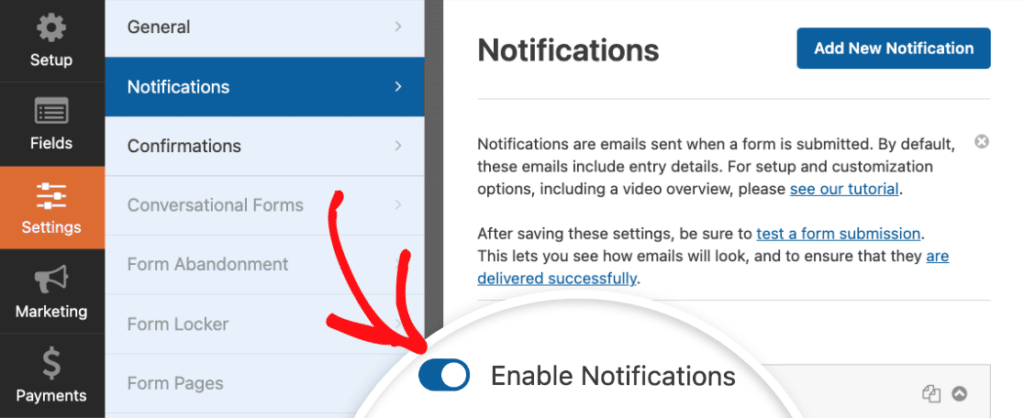
Go to Settings » Notifications in the form builder. Here you can set up email alerts so you’re notified every time someone completes your quiz.
For list integration, go to Settings » Integrations. WPForms connects with:
- Mailchimp
- ActiveCampaign
- AWeber
- Constant Contact
- GetResponse
- Campaign Monitor
- And more via Zapier
💡 About Segmentation: Use conditional logic in your integration settings to route leads to different lists or add different tags based on their quiz result. A lead who scores “Expert” on your knowledge quiz should get a very different email sequence than someone who scores “Beginner.”
Step 6: Write Outcome Messages That Convert
The outcome screen is your best conversion opportunity. By the time users reach it, they’ve engaged with your content, they’re excited to see their result, and they’re primed to take action. Don’t waste it.
Click the Outcomes tab in the form builder. You’ll see a Default Outcome already set up.

For each quiz type, here’s how to approach your outcome messages:
For Personality Quizzes
Create one outcome per personality type. Enable Conditional Logic on each one and set the condition to show when the quiz personality type equals that specific type.
Use the {quiz_personality_type} smart tag to automatically insert their result into the message. A good personality quiz outcome celebrates the result, explains what it means, and suggests a clear next step.
For Graded Quizzes

Create outcomes for different score ranges using conditional logic. You can use these smart tags to personalize the message:
- {quiz_grade}: The letter grade earned
- {quiz_percentage}: The percentage score
- {quiz_correct_answers}: Number of correct answers
- {quiz_summary_link}: A link to a full breakdown of their answers
For high scorers, suggest an advanced resource or next challenge. For lower scorers, point them to a helpful guide or invite them to try again. Both groups get a next step, and both can be added to different email sequences.
For Weighted Quizzes
Add multiple outcomes covering different score ranges. Enable Conditional Logic on each and set the score range it applies to. I usually aim for three to five ranges — low, medium, high, and maybe an “almost there” in between.

💡 Conversion Tip: Every outcome message should include a call to action. Download a free resource. Book a demo. Check out a product. Join a free trial. The outcome message doesn’t just have to be confirmation… It can be the beginning of your sales funnel.
Step 7: Publish and Promote Your Quiz
Once your outcomes are set, click Save in the top right of the form builder. Then click the Embed button to publish your quiz.

You’ll have two options: embed it on an existing page, or create a new page from scratch. Give the page a clear, benefit-focused name — “Find Your Perfect Plan,” “Test Your Marketing Knowledge,” or “Discover Your Leadership Style” all work well because they tell people exactly what they’ll get.
After embedding, use WPForms’ built-in form themes to style your quiz. In the block editor, click the area around your embedded form to open the styling panel on the right. You’ve got 40+ ready-made themes — pick one that fits your brand.
When you’re happy with the look, publish it. Now promote it:
- Share it on social media with a teaser about the result types
- Feature it prominently on your homepage or a dedicated landing page
- Mention it in your existing email newsletter
- Run paid social ads targeting your ideal audience
- Add a pop-up or banner on your most-visited pages
Select your email platform, connect your account, and map the form fields (Name, Email) to the corresponding fields in your list. You can also set up tags or segments based on quiz outcomes — for example, automatically tagging a lead with their personality type or grade range. This makes follow-up emails much more targeted.
💡 Tip: Personality quizzes get shared naturally because people love showing off their results. Add a social share prompt to your outcome message: “You’re a Sourdough! Share your result and find out what bread your friends are.
Next, Explore the Individual Quiz Types
Now that you know how to use any quiz type for lead generation, dive deeper into the one that fits your goals best. Check out our full guides:
- How to Build a Personality Quiz in WordPress
- How to Create a Graded Quiz in WordPress
- How to Create a Weighted Quiz in WordPress
Ready to build your form? Get started today with the easiest WordPress form builder plugin. WPForms Pro includes lots of free templates and offers a 14-day money-back guarantee.
If this article helped you out, please follow us on Facebook and Twitter for more free WordPress tutorials and guides.


