


AI Summary
If you run a membership site, an online store, or any site where people log in, you’ve probably noticed how unhelpful the default WordPress login is.
After someone registers or signs in, WordPress drops them on the admin dashboard or a generic profile screen, which is usually the last place you want your users to land.
I’ve set up my share of registration and login flows over the years, and the approach that keeps things simple is to build your own forms and send people exactly where you want them afterward.
In this guide, you’ll create custom login and registration forms with WPForms and then add redirects so users go straight to a welcome page, an account dashboard, or any page you pick.
How to Redirect Users After Login and Registration in WordPress
We’ll start by building the forms, then walk through every way to redirect your visitors once they log in or sign up. I’ll also show you how
- Why Redirect Users After Login or Registration?
- Step 1: Install the WPForms Pro Plugin
- Step 2: Install the User Registration Addon
- Step 3: Create Your Registration Form
- Step 4: Configure Your Registration Form Settings
- Step 5: Create a Login Form
- Step 6: Embed Your Login and Registration Forms
- Step 7: Redirect Users After They Log In or Register
- Step 8: Redirect the Default WordPress Login and Registration Pages (Optional)
- Troubleshooting Login and Registration Redirects
Why Redirect Users After Login or Registration?
By default, WordPress treats every account the same way. Whether someone is a paying customer, a course student, or a community member, logging in sends them to /wp-admin, and the registration screen is the plain, unbranded form WordPress ships with.
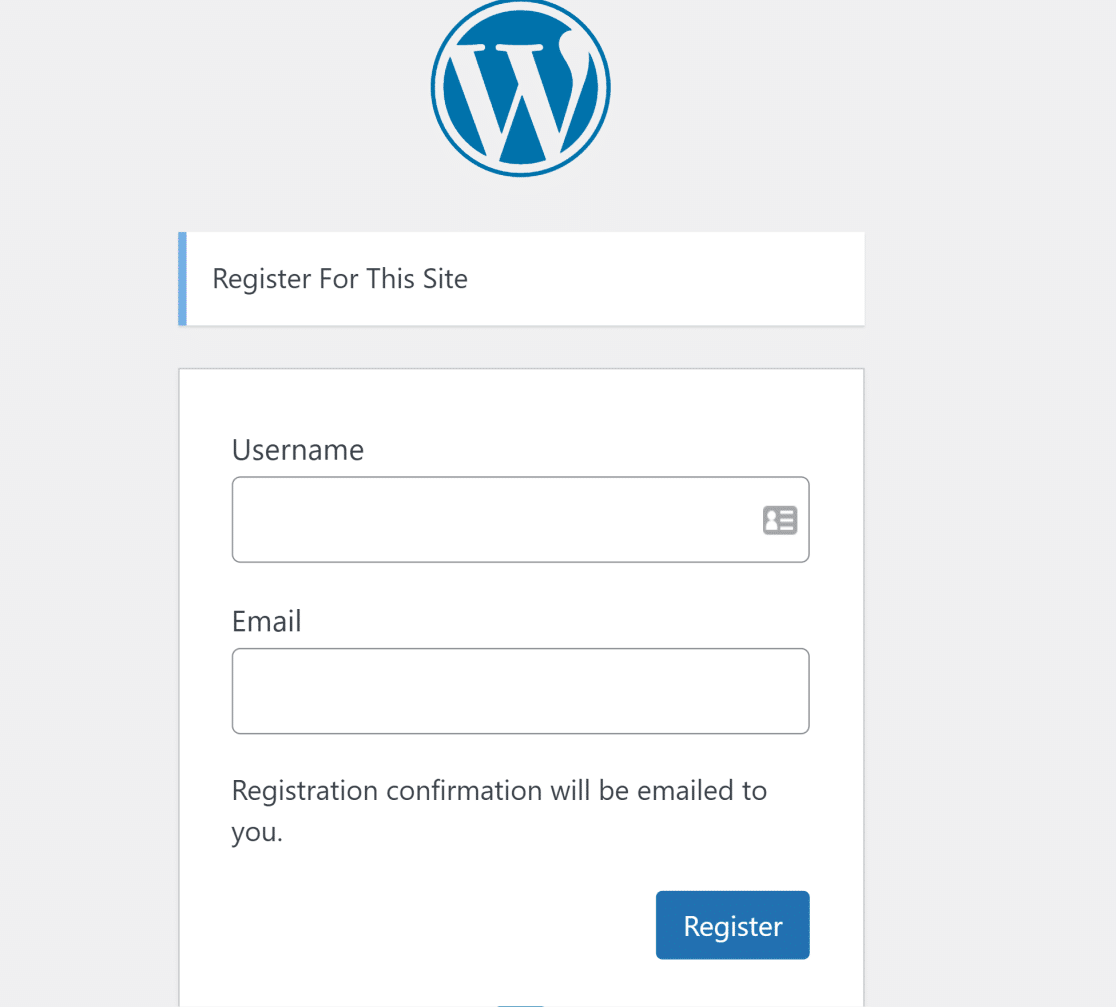
That’s fine for site admins, but it’s confusing for everyone else. A customer who just created an account doesn’t want to see the WordPress back-end. Setting up a redirect fixes that in a few ways:
- Keep users out of the back-end: Send customers and members to a front-end page instead of the admin area they have no reason to see.
- Point people to what matters: Drop new registrants on a welcome or onboarding page, and returning users on their account dashboard.
- Match your branding: Replace the generic WordPress login and registration screens with forms that look like the rest of your site.
WordPress does have a built-in login redirect, but it only applies to the default login screen, and changing it usually means editing code.
The moment you use your own login form, you get a simple redirect setting instead, and that’s the route we’ll take here.
Step 1: Install the WPForms Pro Plugin
The easiest way to create custom login and registration forms is with WPForms, the most beginner-friendly WordPress form builder on the market. It comes with 2,100+ form templates, including ready-made registration form templates you can set up in minutes.
What I like most about WPForms for this job is that the redirect lives right inside the form. Once you build a login or registration form, choosing where users go afterward is a single setting, so there’s no guesswork and nothing to paste into your theme.
Login and registration forms run on the User Registration addon, and that addon is available on the WPForms Pro license and above. It handles registration, login, and password reset forms, and it lets you assign user roles and require email activation too.
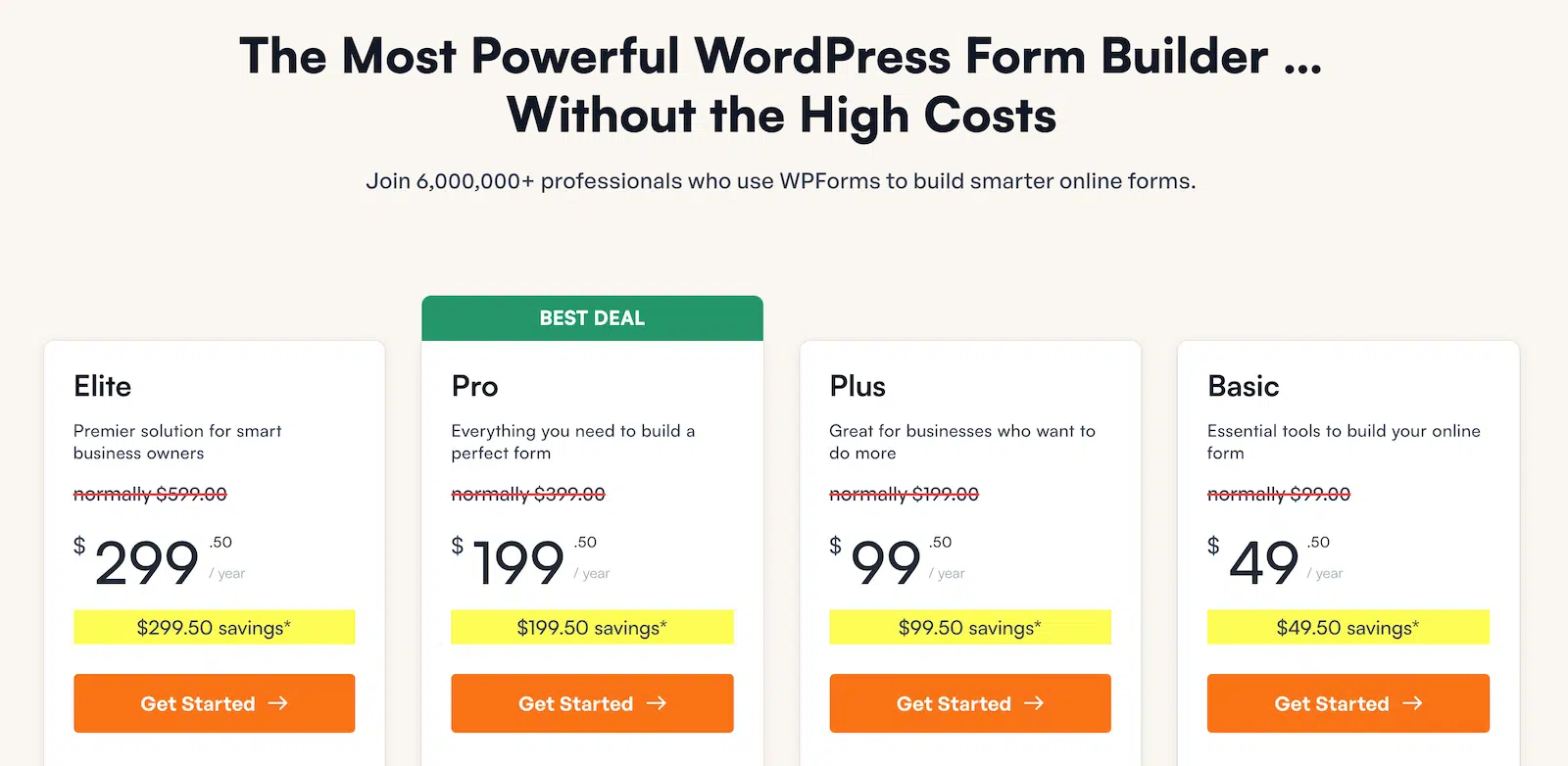
To get started, buy the Pro license. Then install WPForms on your website. If you need a hand, follow these instructions on how to add a plugin to WordPress.
Step 2: Install the User Registration Addon
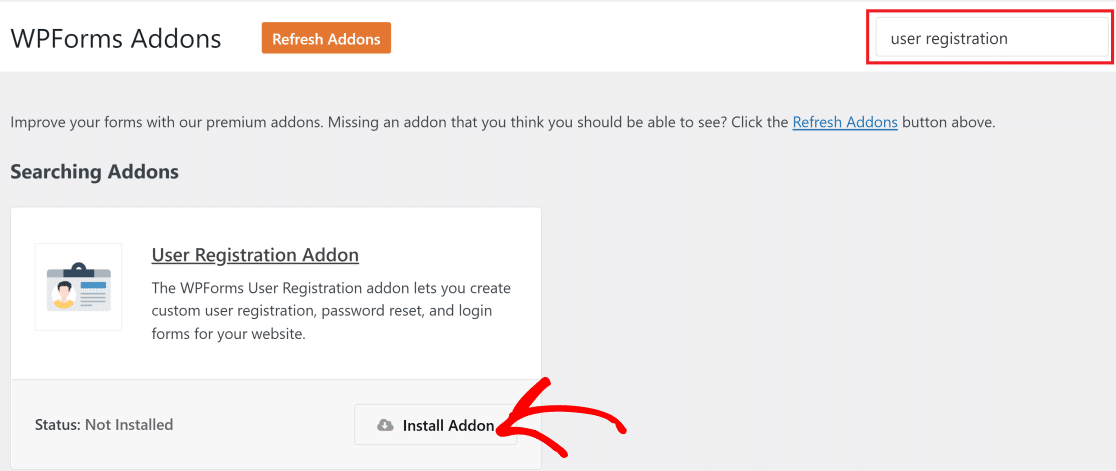
With WPForms active, the next thing to do is install the addon that powers your forms. From your WordPress admin area, go to WPForms » Addons.
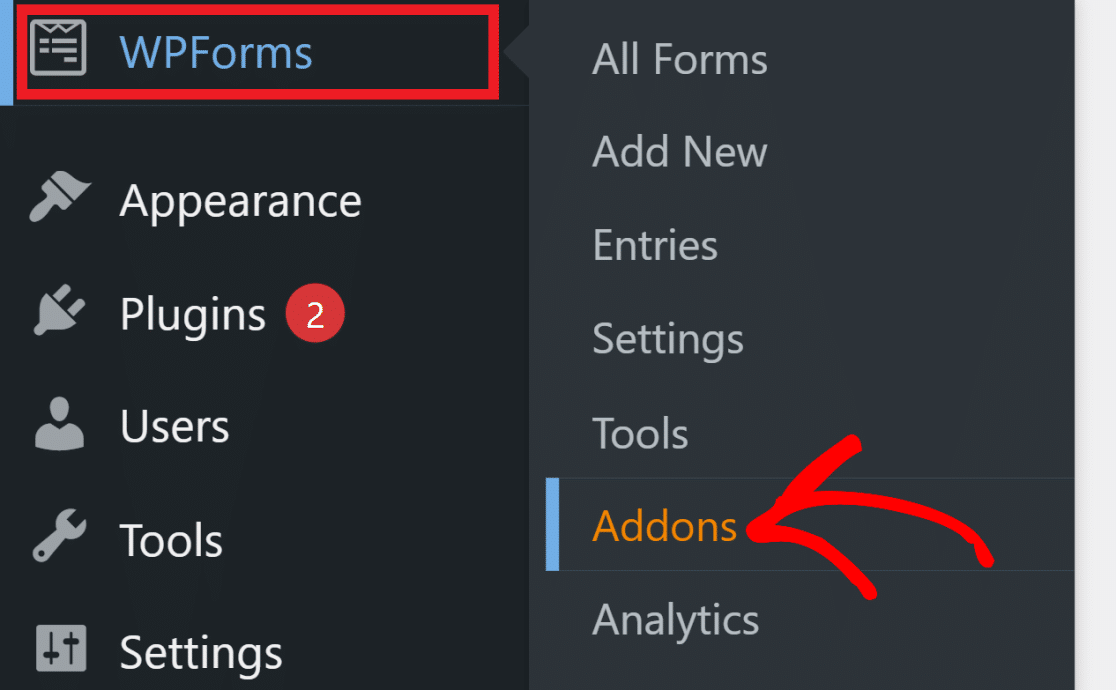
Search for User Registration in the search bar, then click Install Addon under it. The addon installs in a few seconds and activates on its own, so you’re ready to build your first form right away.
Step 3: Create Your Registration Form
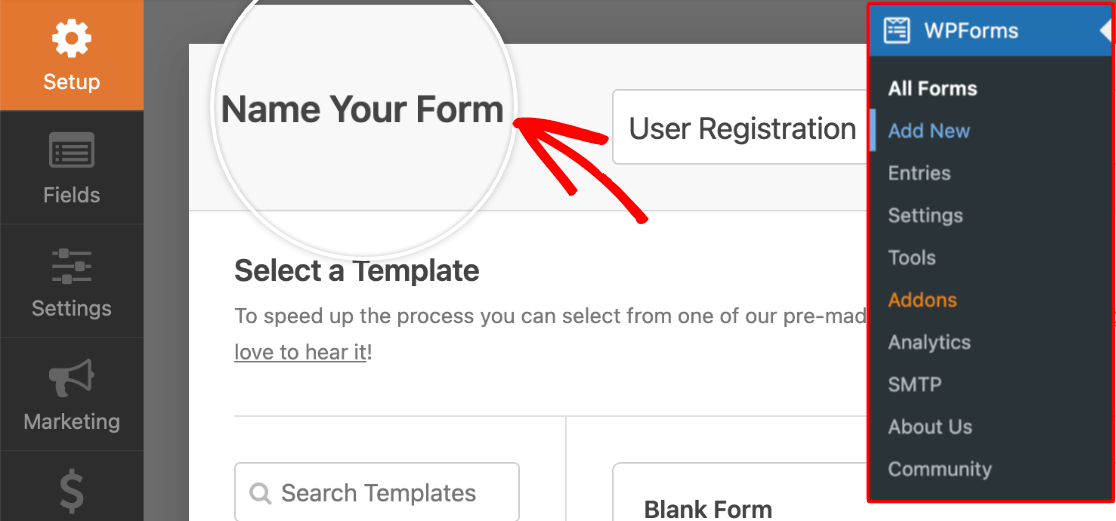
Now go to WPForms » Add New to open the form builder, and give your form a name you’ll recognize later.
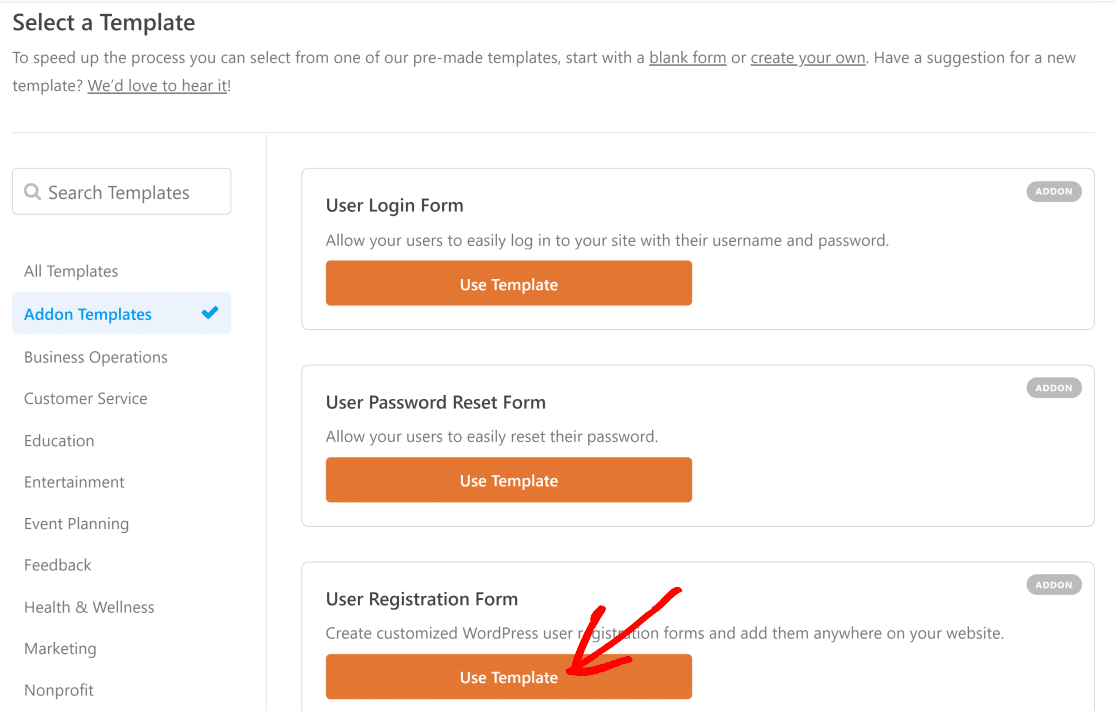
Scroll through the template library and choose the User Registration Form template.
WPForms builds out a complete registration form for you, with all the fields a new user needs already in place.
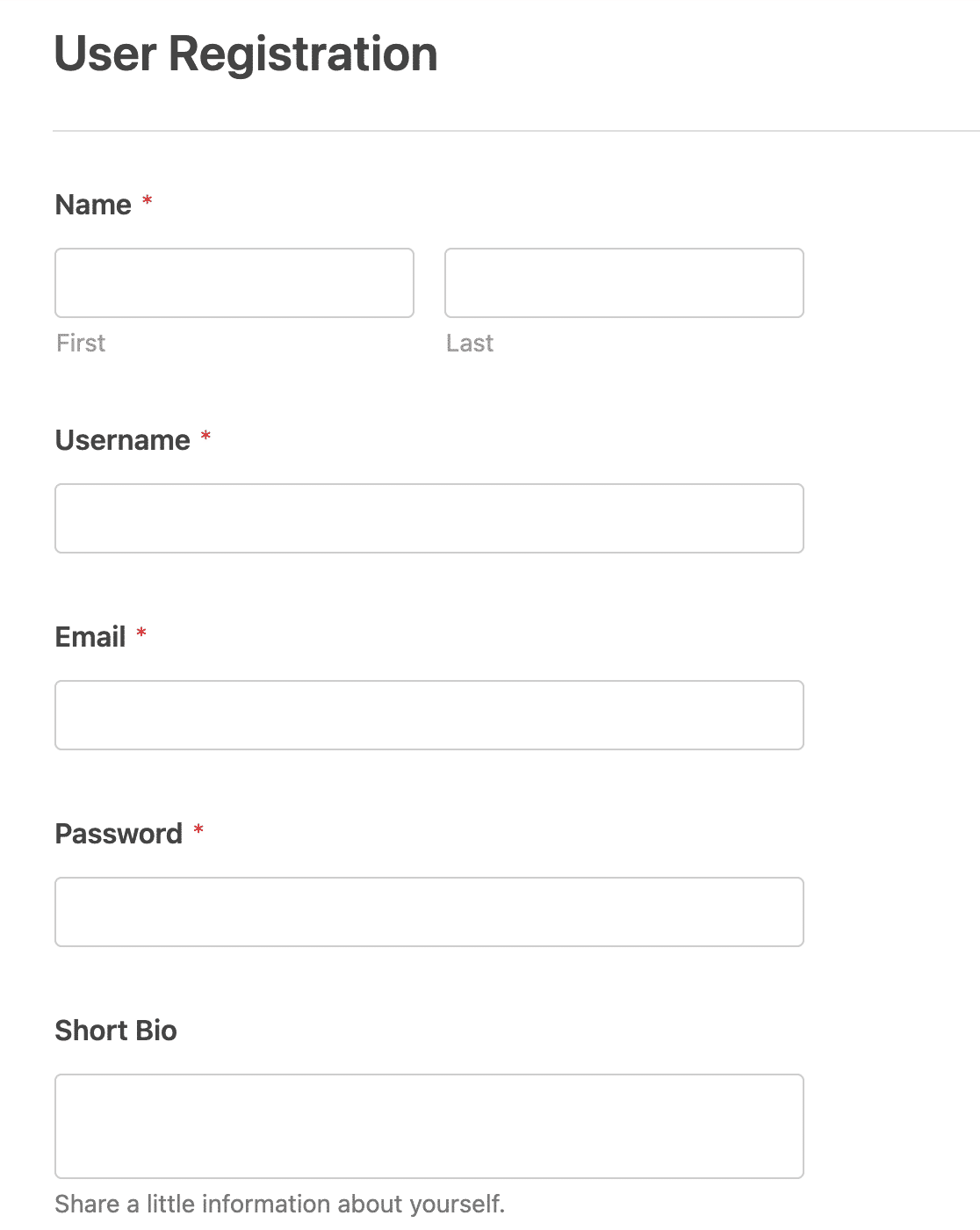
Every template is fully customizable, so you can drag in extra fields or remove ones you don’t need, like the short bio.
If you want to go deeper on field choices, our guide on how to create a user registration form covers more of what’s possible. For now, let’s set up the form settings.
Step 4: Configure Your Registration Form Settings
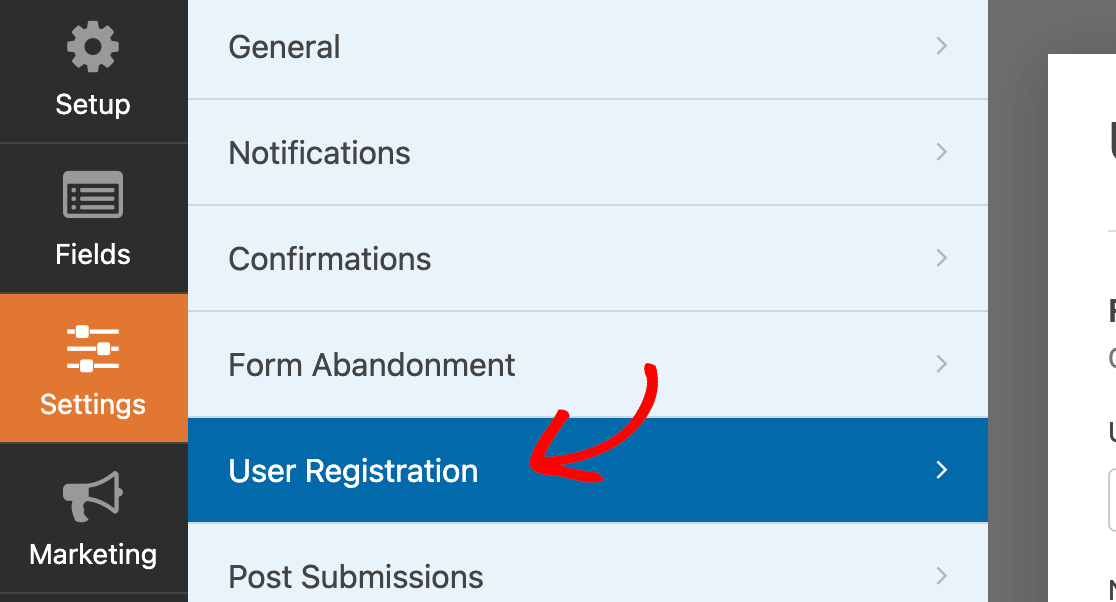
This is where you decide how people register and what happens to their account afterward. Click Settings » User Registration inside the form builder.
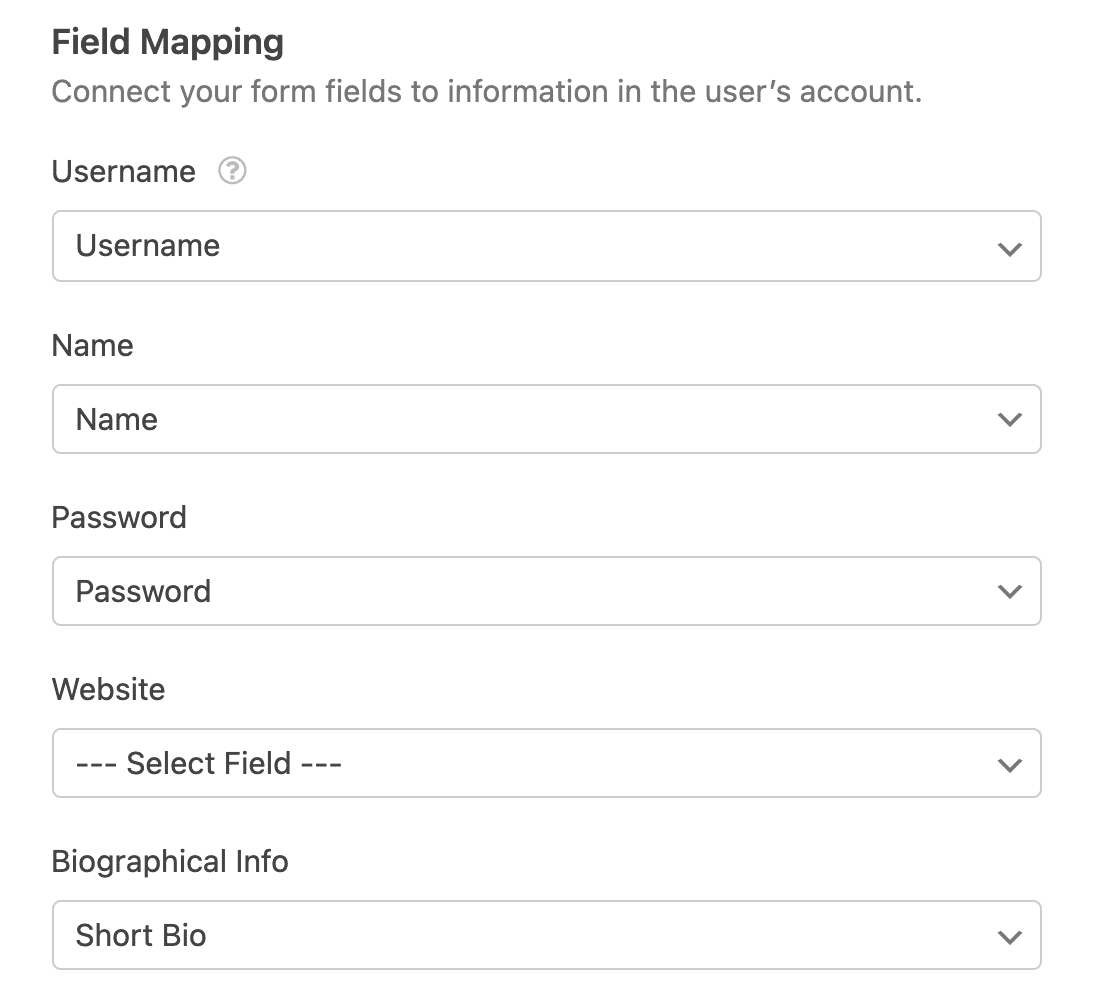
The first section, Field Mapping, is where you match each form field to the matching detail on the user’s WordPress account, like username, email, and password.
Scroll down to the User Roles section. Here you pick the role and access level new sign-ups get. For a typical subscriber-style account, choose Subscriber from the dropdown.

Just below that is User Activation & Login. It’s off by default, which means accounts go live the moment someone submits the form. I’d turn it on, since requiring activation cuts down on spam registrations and gives you more control over who gets in.
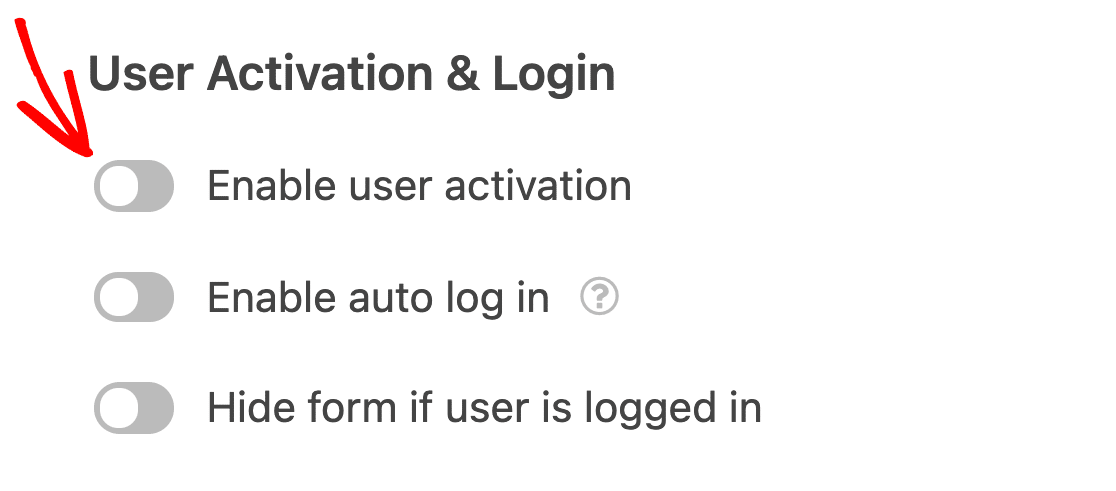
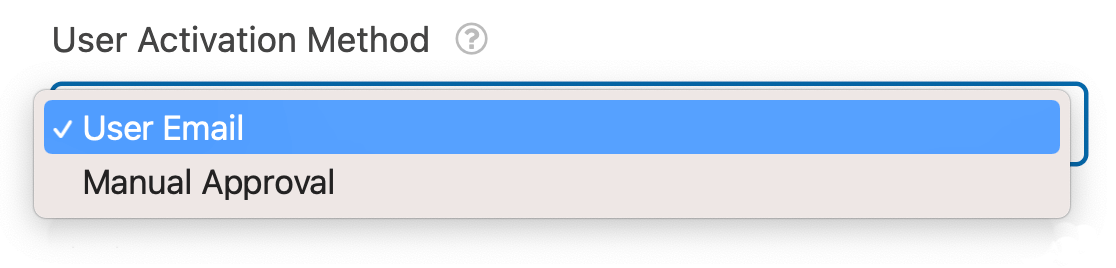
Toggle on Enable User Activation and a dropdown appears for the activation method. Manual Approval means you approve each account yourself, while User Email sends the new user a message with an activation link.
If you go with User Email, you’ll get extra options to customize that message. Edit anything you like, but keep the {url_user_activation} smart tag in place, because that’s the link people click to activate their account.
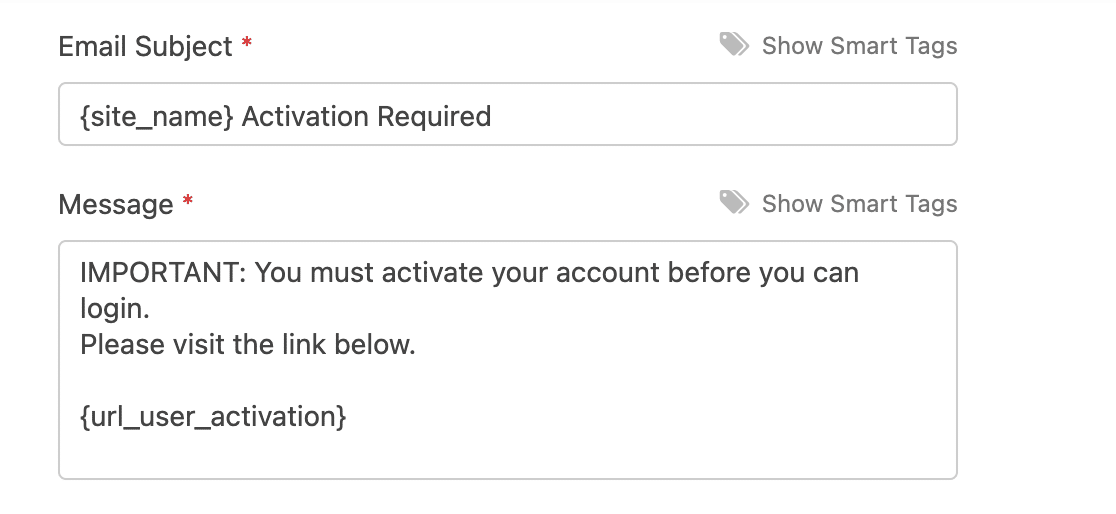
You can also choose the page users land on after they click the activation link. Pick an appropriate confirmation page from the dropdown.

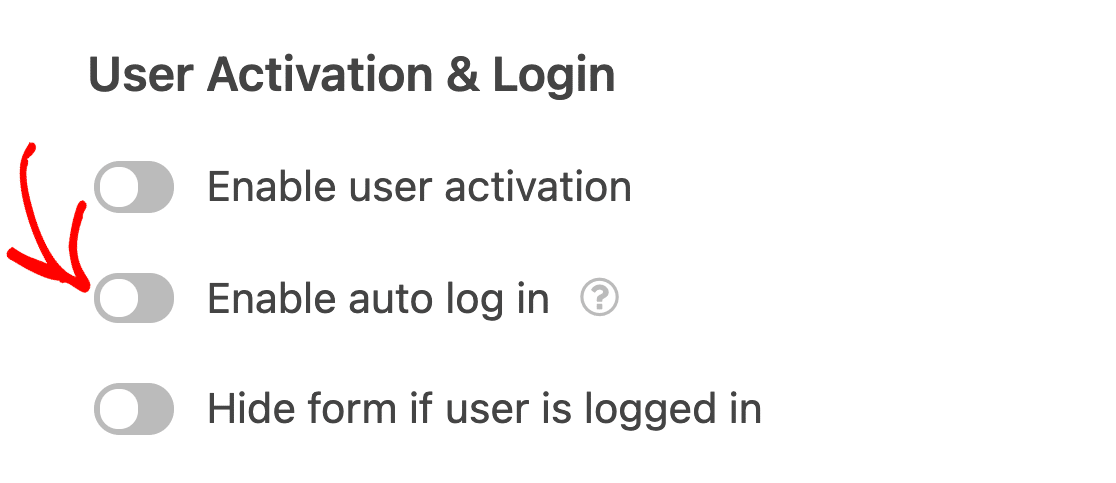
Want people logged in automatically once their account is created? Turn on the Enable Auto Log In toggle and WPForms signs them in as soon as they register.
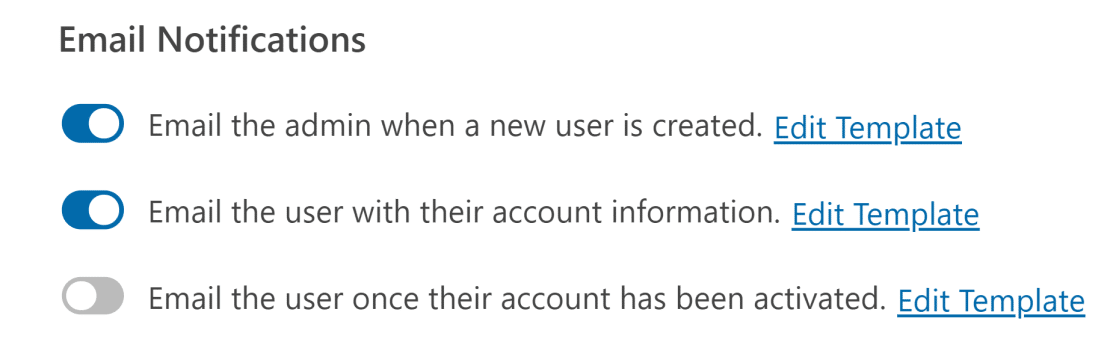
Near the bottom you’ll find the Email Notifications section. Use the toggles to control which emails go to you and to the user, and click Edit Template next to any of them to change the wording.
Once everything looks right, click Save in the top-right corner.

Step 5: Create a Login Form
With the registration form done, you need a login form for people coming back. Go to WPForms » Add New again, and this time pick the User Login Form template.

It’s a simple form with a username and password field, plus a Remember Me option that makes future logins quicker for your users.
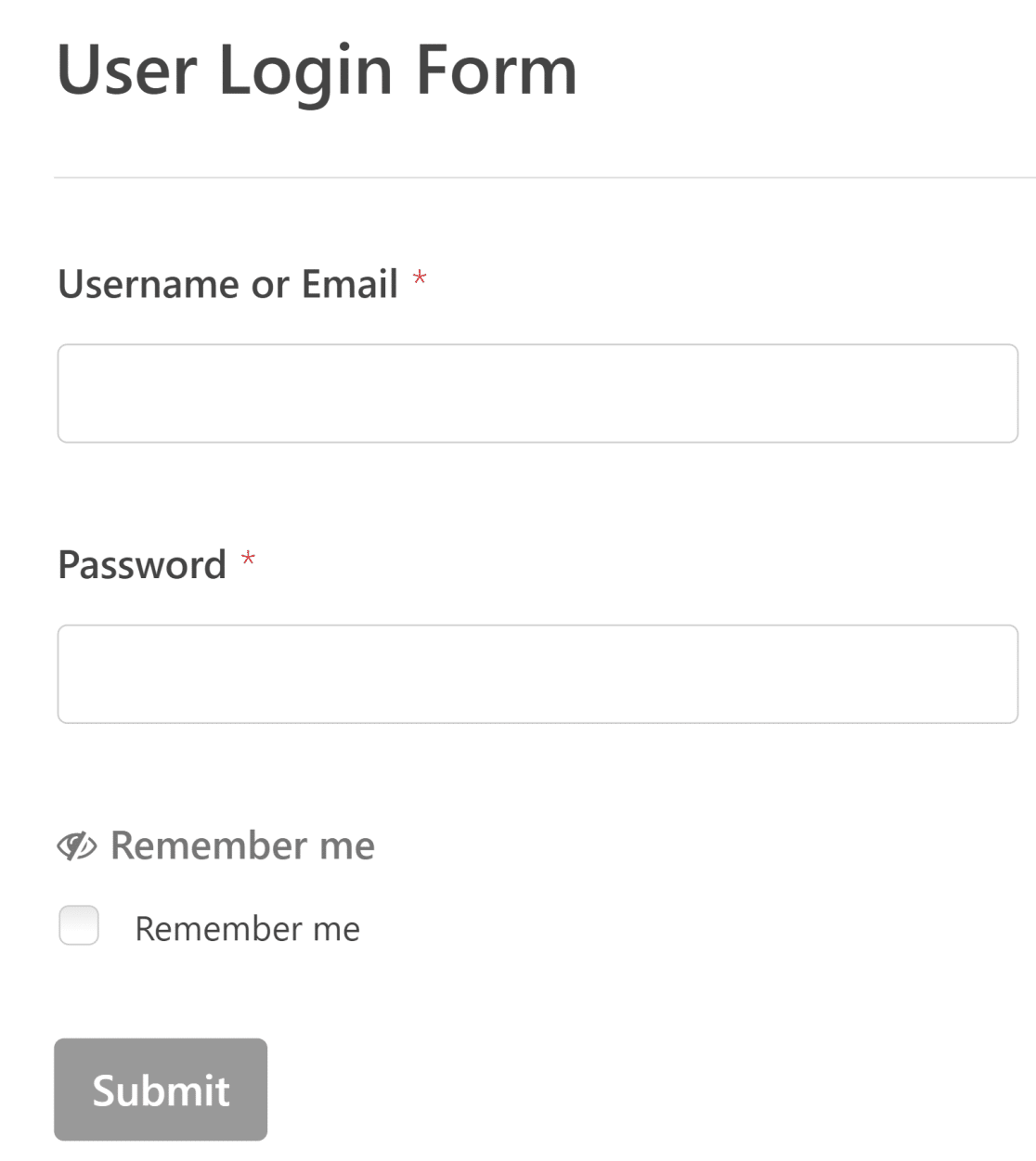
To adjust how the form behaves, open Settings » User Registration for the login form.
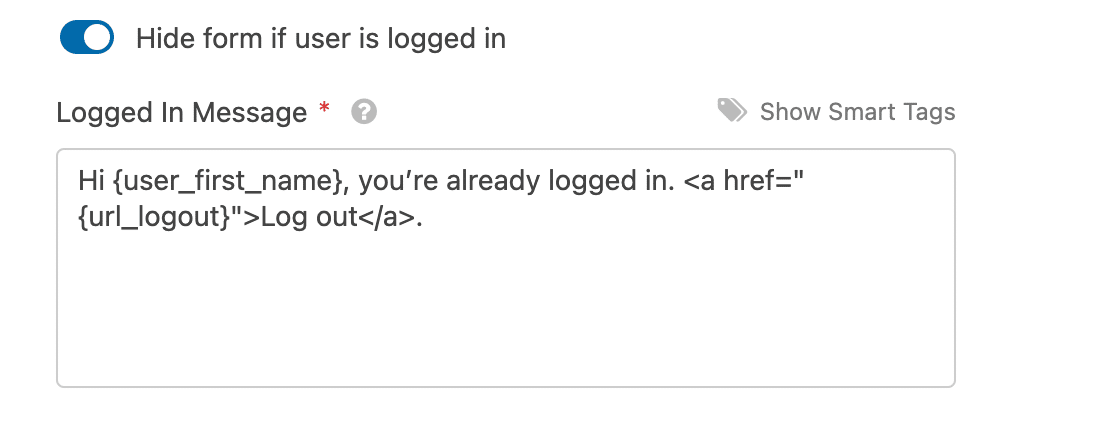
Here you can choose to hide the form from people who are already signed in and show them a message instead. Just switch on the toggle next to Hide Form if User Is Logged In, then Save the form.
Step 6: Embed Your Login and Registration Forms
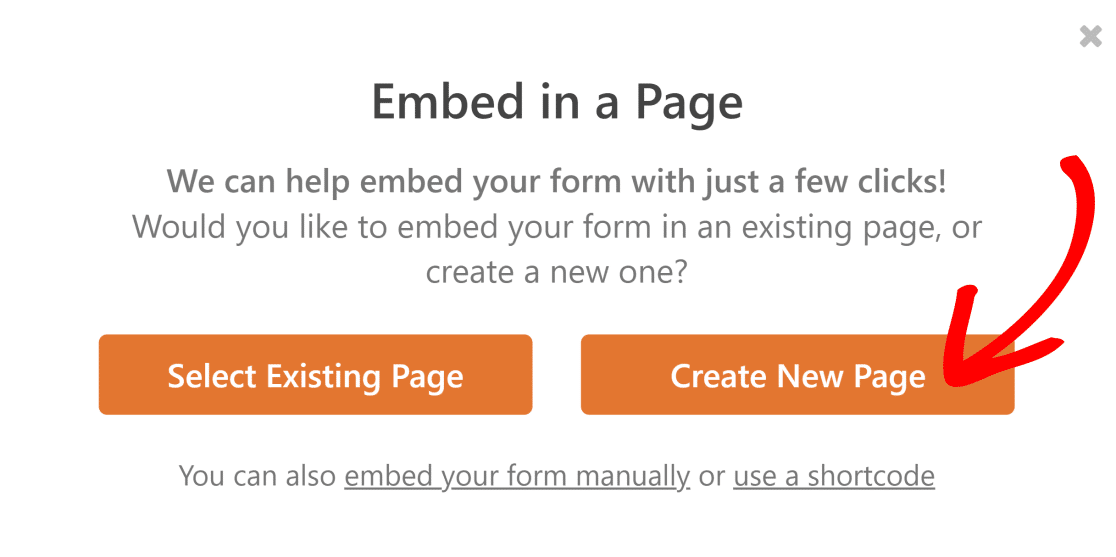
Your forms are built, so now you’ll put them on real pages. WPForms makes this part quick. Click the Embed button in the top-right corner of the form builder.

Choose Create New Page, since you’re publishing fresh login and registration pages that you can later use in place of the default WordPress ones.
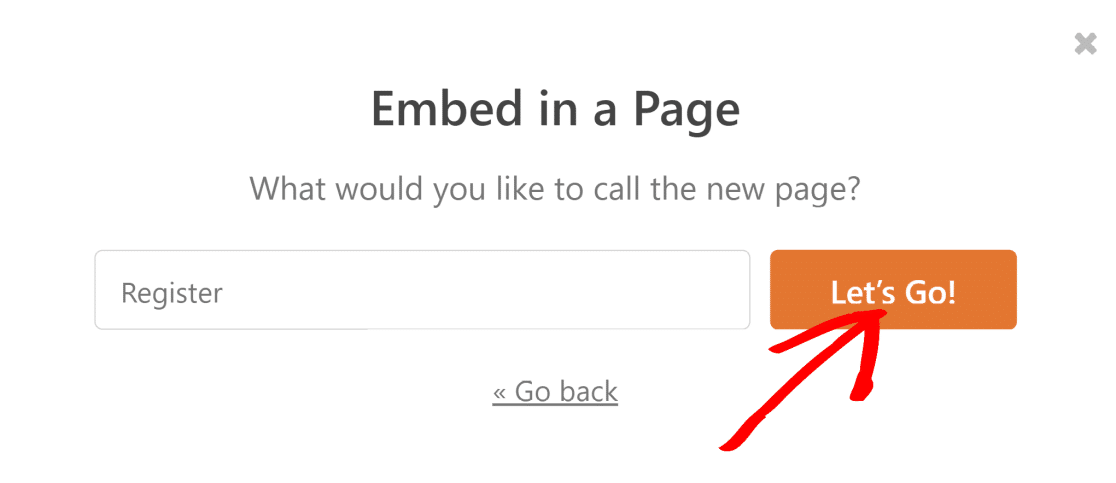
Give the page a name and click Let’s Go.
Your form drops straight into the page content. Click Publish to make it live.
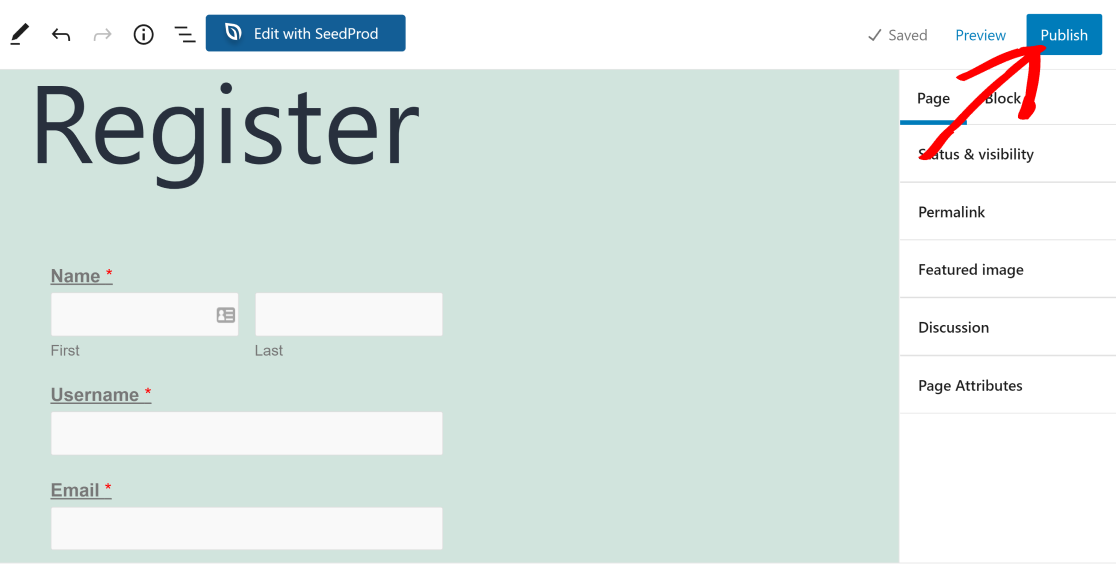
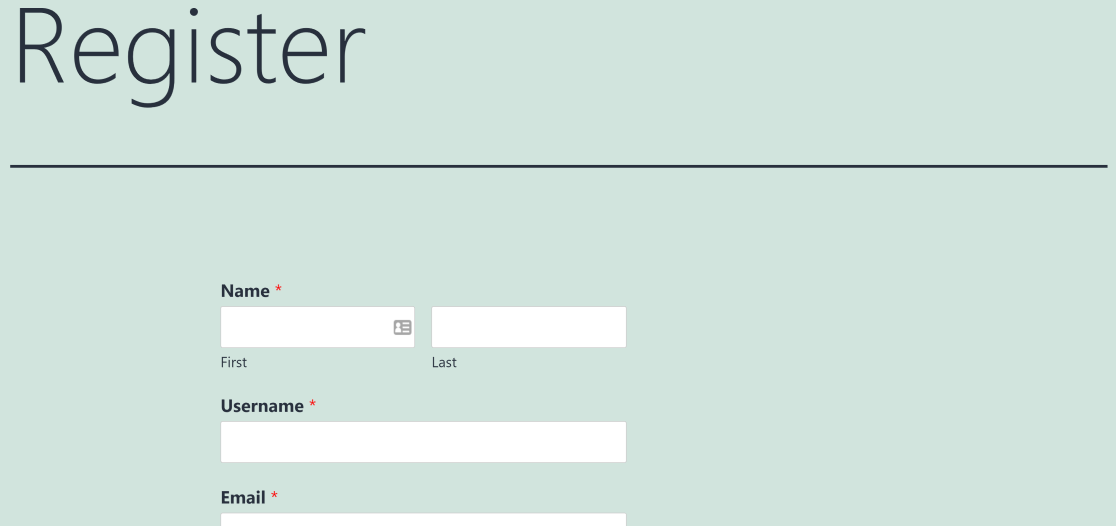
Your registration page is now live, and you’ll notice it uses your theme’s styling and your customized fields instead of the rigid default WordPress page.
Repeat the same embed steps for your login form so both pages are ready. If you’d rather place the forms inside an existing page or widget area, here’s how to display login and register forms on any page.
Step 7: Redirect Users After They Log In or Register
To send users somewhere specific after they submit a login or registration form, edit the form, open Settings » Confirmations, and set the confirmation type to Show Page or Go to URL.

Start by editing the form you want to add a redirect to. Then head to the Confirmations tab in your form settings.
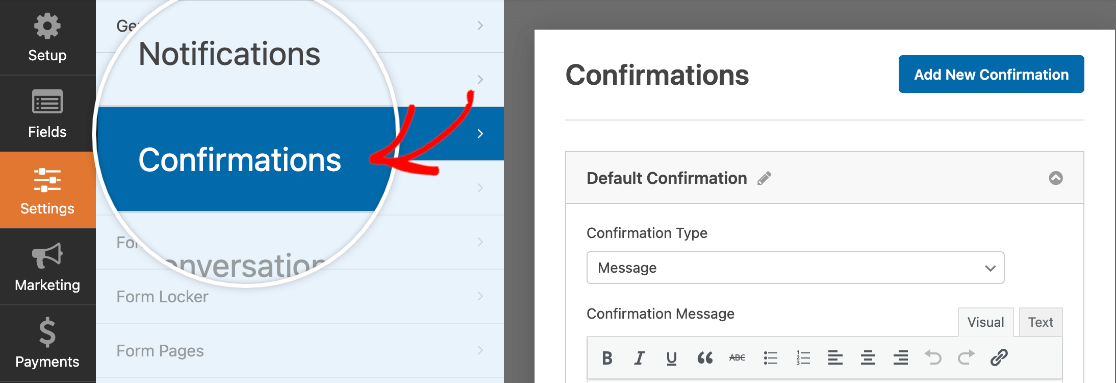
By default, WPForms shows a confirmation message after submission.
Switch the Confirmation Type to Show Page and choose any page on your site, or pick Go to URL and paste in a custom link.
From now on, anyone who submits the form is forwarded there instead of seeing a message.
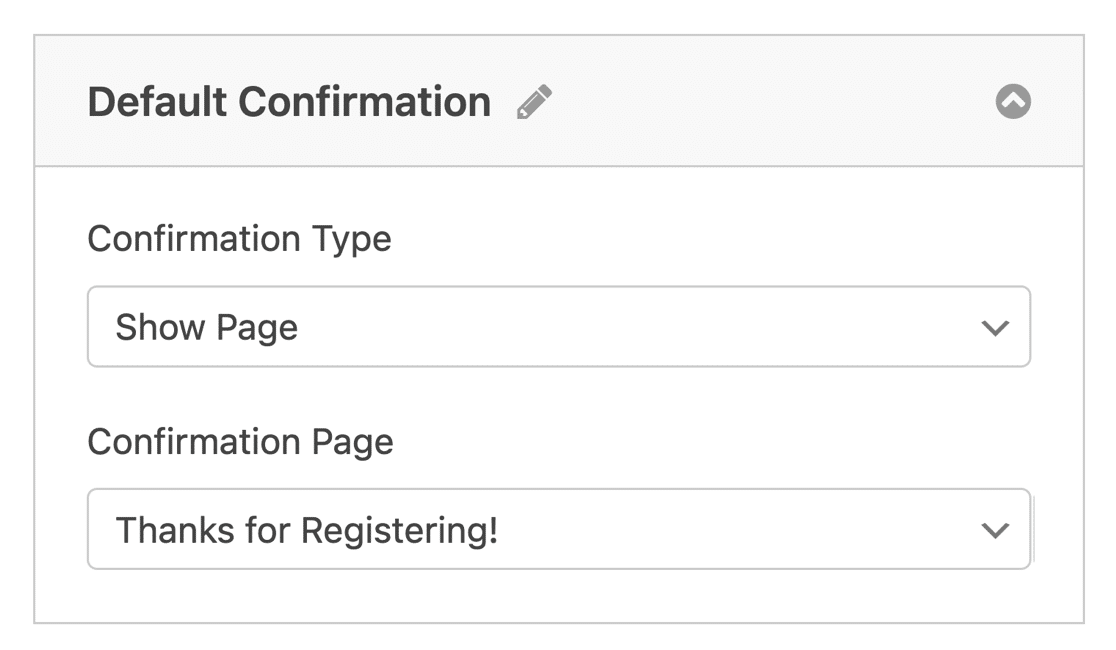
The same setting works for both forms, and you set them independently. So your registration form can send brand-new users to a welcome or onboarding page, while your login form sends returning users straight to their account dashboard.
If you ever need to redirect after a regular contact or order form too, the process is the same, and you can read more in our guide on how to redirect users after a form submission.
Step 8: Redirect the Default WordPress Login and Registration Pages (Optional)
At this point your custom pages are live, but visitors can still reach the old WordPress screens directly through these URLs:
- Registration page:
https://example.com/wp-login.php?action=register - Login page:
https://example.com/wp-login.php
If you’d like those default URLs to forward to your new pages, you can add a small code snippet. I’d recommend doing it with the free WPCode plugin rather than editing your theme’s functions.php file directly, since WPCode lets you add snippets safely without risking your site if something goes wrong.
For the registration page, add this snippet and swap /registration-url for the slug of your new registration page:
// Redirect the default WordPress registration page
function my_registration_page_redirect() {
	global $pagenow;
	if ( strtolower( $pagenow ) == 'wp-login.php' && isset( $_GET['action'] ) && strtolower( $_GET['action'] ) == 'register' ) {
		wp_redirect( home_url( '/registration-url' ) );
		exit;
	}
}
add_action( 'init', 'my_registration_page_redirect' );
For the login page, add this snippet and replace /login-url with your custom login page slug:
// Redirect the default WordPress login page
function my_login_page_redirect() {
	$login_page  = home_url( '/login-url' );
	$page_viewed = basename( $_SERVER['REQUEST_URI'] );
	if ( $page_viewed == 'wp-login.php' && $_SERVER['REQUEST_METHOD'] == 'GET' ) {
		wp_redirect( $login_page );
		exit;
	}
}
add_action( 'init', 'my_login_page_redirect' );
The exit; line matters here. Without it, some setups (multisite especially) can still slip users onto the default wp-signup.php screen. With these snippets in place, your custom login and registration pages fully replace the WordPress defaults.
Troubleshooting Login and Registration Redirects
If your login page keeps refreshing or bouncing you back to the form instead of redirecting, it’s almost always a browser cache or cookie issue. Clear your cache and cookies, then test again in a private window.
If the redirect doesn’t fire at all, open the form’s Confirmations settings and confirm the type is set to Show Page or Go to URL, not the default message.
If you turn on Enable Auto Log In and your entries or notification emails stop coming through, test the form with auto login switched off to confirm that’s the cause. When it is, a deliverability fix like WP Mail SMTP usually sorts out the email side.
FAQs About WordPress Login and Registration Redirects
Setting up a WordPress login form redirect raises a few common questions, especially around user roles and code-free options. Here are quick answers before you build your own login and registration redirects.
Can I redirect users to different pages based on their role?
A WPForms confirmation redirect sends everyone who submits that form to the same destination. If you want different pages for different roles, the simplest WPForms approach is to use a separate form for each role, each with its own redirect. For role-by-role branching on the default login, you’d use the optional code method in Step 8 with the WordPress login_redirect filter.
Can I set up login redirects without writing any code?
Yes. Steps 1 through 7 are completely no-code. You build the forms, then set the redirect in each form’s Confirmations settings.
The only part that touches code is Step 8, which is optional and only needed if you want to redirect the default WordPress login and registration URLs.
Will a custom login form redirect users like the default WordPress login does?
It actually gives you more control. The default WordPress login redirect is limited and usually needs code to change. A WPForms login form lets you pick the destination from a setting, and you can place that form on any page you like.
How do I redirect the default WordPress login page to my custom one?
Add the login redirect snippet from Step 8 using the free WPCode plugin, and replace the placeholder slug with your custom login page. After that, anyone visiting wp-login.php lands on your branded login page instead.
Next, Customize Your WordPress Login Page
Now that your redirects are working, it’s worth giving your login experience the same polish as the rest of your site.
Our guide on how to create a custom login form for better site branding walks through the design side, and if you want to compare your options, take a look at the best WordPress login page plugins.
Create Your Login and Registration Forms Now
Ready to build your form? Get started today with the easiest WordPress form builder plugin. WPForms Pro includes lots of free templates and offers a 14-day money-back guarantee.
If this article helped you out, please follow us on Facebook and Twitter for more free WordPress tutorials and guides.


Redirecting /wp-login?action=register works great when using this code but how would I go about doing the same for the /login and /wp-login.php pages?
I tried doing it with this code but I really have no idea what I’m doing. Basically just guessing here.
// Redirect login Page
function my_login_page_redirect()
{
global $pagenow;
if ( ( strtolower($pagenow) == ‘wp-login.php’) && ( strtolower( $_GET[‘action’]) == ‘login’ ) ) {
wp_redirect( home_url(‘/my-account’));
}
}
add_filter( ‘init’, ‘my_login_page_redirect’ );
Hi John,
Great question. We’ve actually shared the code you’d need for this over in our custom login page tutorial (please see #2 in that article).
Hope that helps! 🙂
Hi,
Is it possible to redirect the user to a specific location based on the button he just clicked to register/login?
That mean that each different button would be linked to a different register/login form, each redirecting to a specific address.
Would that be possible?
Thanks in advance
Hi Sowx,
I’m afraid I’m not 100% sure of your question but yes, you can link buttons on your website to different forms and then once those forms are submitted, have them redirect the user to a different URL. If you need any more information on redirecting a user upon submitting a form, please check out our guide!
I hope this helps!
Hi, the auto login and redirection works great but for some reason im not receiving the notification emails. ( users are not available in the entries section as well )
and when i disable the auto login, it works again.
Hi Kami,
I’m sorry to hear you’re having issues with email notification deliverability. I’d recommend checking out our article which shows you show to fix this issue using the WP Mail SMTP plugin.
I hope this helps! 🙂
Hi, thanks for the reply, the email notifications are working fine now, but the other problem still remains, the form is still not storing the entries for users, i’ve tested it many times, the auto login and redirection is working great, and the email notifications as well, but for some reason its not storing users entries in the form, kindly suggest what to do Thanks.
Hi Kami,
If you have a paid WPForms license, please contact our support team so they can look into the issue further.
Thanks! 🙂
Hey! I’m getting an error when I try to add this copied code to the “snippits” plugin detailed in the “how to paste code snippets into your functions.php file”.
Code:
// Redirect Registration Page
function my_registration_page_redirect()
{
global $pagenow;
if ( ( strtolower($pagenow) == ‘wp-login.php’) && ( strtolower( $_GET[‘action’]) == ‘register’ ) ) {
wp_redirect( home_url(‘https://date.intro-social.com/new-user/’));
}
}
add_filter( ‘init’, ‘my_registration_page_redirect’ );
Error Message:
Don’t Panic
The code snippet you are trying to save produced a fatal error on line 6:
syntax error, unexpected ‘;’
The previous version of the snippet is unchanged, and the rest of this site should be functioning normally as before.
Please use the back button in your browser to return to the previous page and try to fix the code error. If you prefer, you can close this page and discard the changes you just made. No changes will be made to this site.
I found a workaround. By using a global redirect manager, I was able to redirect the login from wordpress to my wpform.
Hey Tyler – Thanks for letting us know! Glad to know you were able to sort it out, please feel welcome to reach out to us for any other questions!
Hey Tyler, We had a small glitch on the site for a short span of time, that inserted some special characters in the code. I assume you tested the code during that time.
Code formatting is fixed now, could you please try that code again and it should work fine.
Apologies for the inconvenience!
I think you need to add “exit”, e.g.
if ( wp_redirect( home_url(‘/registration’) ) ) {
exit;
}
If not, a multisite site will still put up the wp-signup.php page.
Hi George!
Thanks for your feedback regarding this. I’ve noted it to our team and we’ll review your suggestion.
We appreciate you taking the time to reach out to us with this 🙂
after the user login, the HOME (the main page) is not accessible; in other words, it redirects to a profile page persistently
all other subpages (like contact) is accessible, only the HOME is not, as I said after login
Hi Gabor,
Sorry for any trouble you are facing here! If you are paid license holder, could you please reach out to our Support Team and we will be happy to assist.
Thanks,