AI Summary
If you let people create accounts on your WordPress site, you already know what shows up uninvited: fake signups, throwaway addresses, and the occasional bot that registers a hundred times before breakfast. Email verification for new user registrations is the fix. It holds every new account in an unverified state until the person clicks a link sent to their inbox, so only people with a real, working email address get in.
In this guide, you’ll set up WordPress email verification for new user registration using WPForms and its User Registration addon. You’ll build the registration form, turn on account activation, customize the confirmation email, and make sure those emails actually land in the inbox instead of the spam folder. No code, and about ten minutes start to finish.
How to Require Email Verification for New User Registrations in WordPress
- Step 1: Create your user registration form
- Step 2: Turn on email verification
- Step 3: Customize the activation email
- Step 4: Add your form to a page
- Step 5: Make sure your verification emails actually arrive
- Step 6: Layer in extra spam protection (optional but smart)
- Give new members a front door you can trust
Why email verification matters for new registrations
When someone registers, WordPress creates the account immediately by default. That account is live whether or not the email address behind it is real. For a membership site, an online community, a course, or any site with a members-only area, that’s a problem waiting to pile up.
Requiring email verification changes the order of events. The account gets created, but it stays inactive until the person proves they can receive mail at the address they gave you. A few things get better right away:
- Fewer spam and bot accounts. Bots rarely click a verification link, so most junk registrations never activate. WPForms notes that account activation helps prevent spam registrations by making sure a fake address can’t become a working account.
- A cleaner user list. Every active member has a confirmed, reachable email, which means your welcome emails, receipts, and updates go somewhere real.
- Better data you can trust. When you email your members later, you’re not fighting a list half-full of dead addresses that drag down your sender reputation.
Verification won’t stop every bot on its own, which is why we’ll layer it with a couple of WPForms’ built-in spam tools near the end. But as a first line of defense, it does a lot of the heavy lifting.
What you’ll need
To follow along, you’ll need two things:
- WPForms with a Pro license or higher. The User Registration addon is a Pro feature, so you’ll need a Pro or Elite license to install it.
- The User Registration addon installed and activated. Once your license is active, go to WPForms » Addons, find the User Registration addon, and click Install Addon. It activates automatically.

That’s the whole setup. Now let’s build the form.
Step 1: Create your user registration form
From your WordPress dashboard, go to WPForms » Add New. Give the form a name you’ll recognize later, like “Member Signup.”
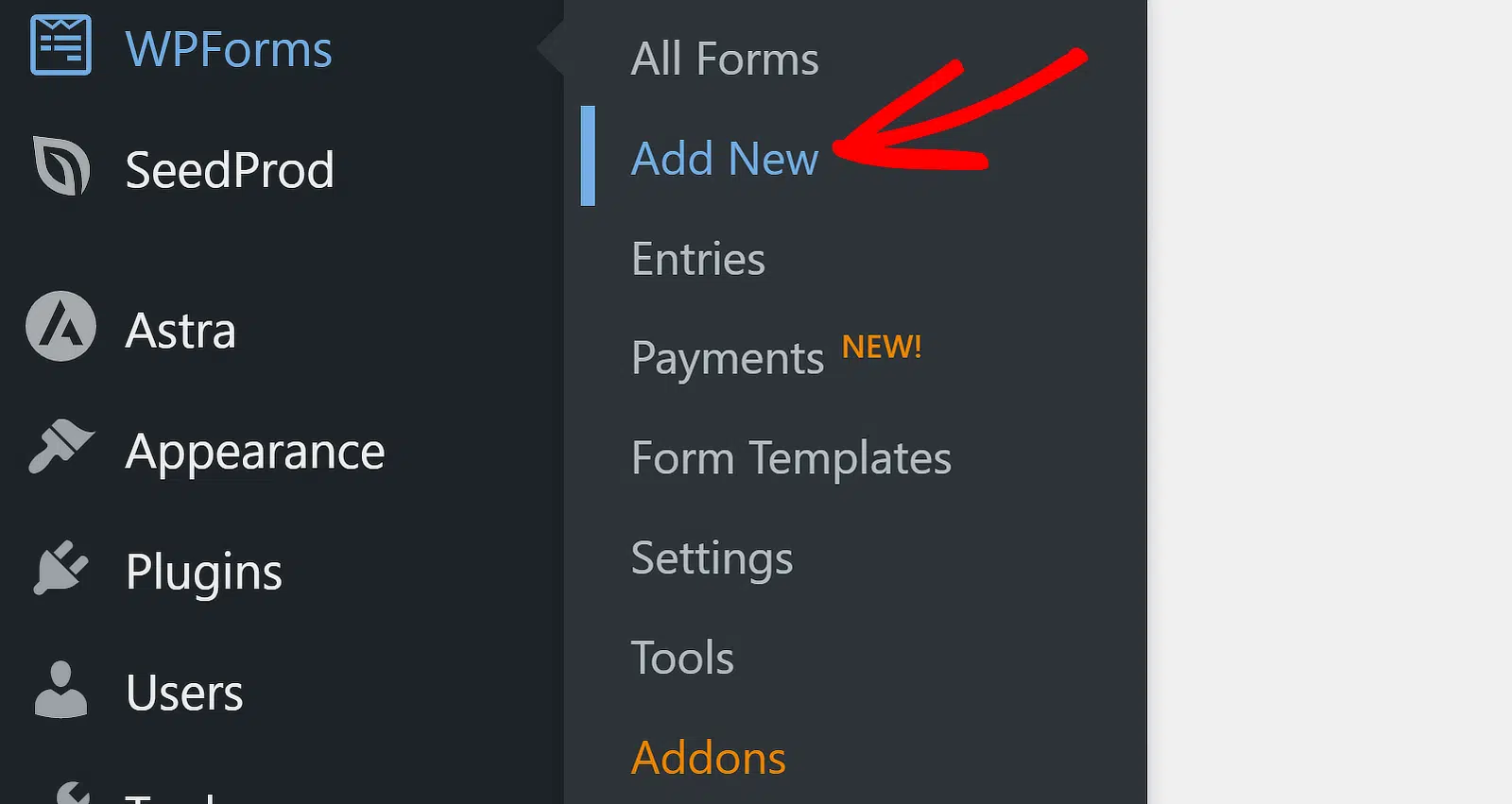
In the template search, look for the User Registration Form template and click Use Template. WPForms builds a ready-to-go registration form with the fields most sites need: name, email, username, and password.

From here you can add or remove fields with drag-and-drop. Want to collect a phone number or a “how did you hear about us” dropdown? Drag it in. Just keep the Email field, since the verification link depends on it.
Step 2: Turn on email verification
This is the part that makes new accounts wait for confirmation.
In the form builder, go to Settings » User Registration. Scroll to find Enable User Activation and toggle it on. This tells WPForms not to activate new accounts automatically.

Once it’s on, a new dropdown appears: User Activation Method. You have two choices here:
- User Email — the person receives an email with an activation link and clicks it to activate their own account. This is email verification, and it’s what we want.
- Manual Approval — you (the admin) review and approve each registration by hand from the WordPress admin area.
Choose User Email.
You’ll also see a setting for the User Activation Confirmation Page, the page people land on after they click the link. You can point it at a simple “Your account is active, you can log in now” page you create, so the whole flow feels finished instead of dumping them somewhere random.
Step 3: Customize the activation email
The activation email is the one thing standing between a new signup and an active account, so it’s worth making it clear and on-brand.
Still in the User Registration settings, you can edit the Email Subject and the Message that gets sent. Write something that tells people exactly what to do, for example: “Thanks for signing up! Click the link below to activate your account.”
The one piece you can’t skip is the {url_user_activation} Smart Tag. Drop it into the message wherever you want the activation link to appear. WPForms swaps it out for each person’s unique link when the email sends. Leave it out, and there’s no link to click.
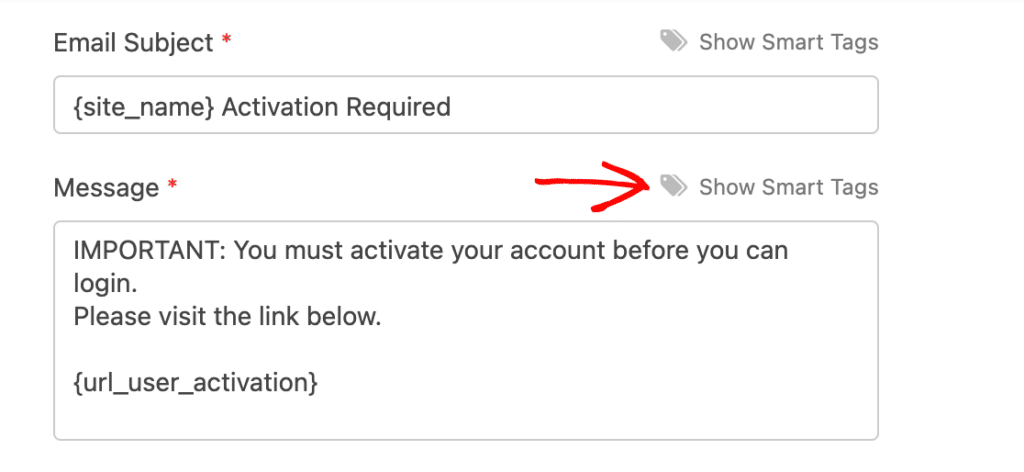
A quick tip: keep the message short and the link obvious. The faster someone understands what to do, the more of your real signups actually finish activating.
Step 4: Add your form to a page
With the form built and verification switched on, click Save, then Embed at the top of the builder. WPForms walks you through adding the form to a new or existing page.

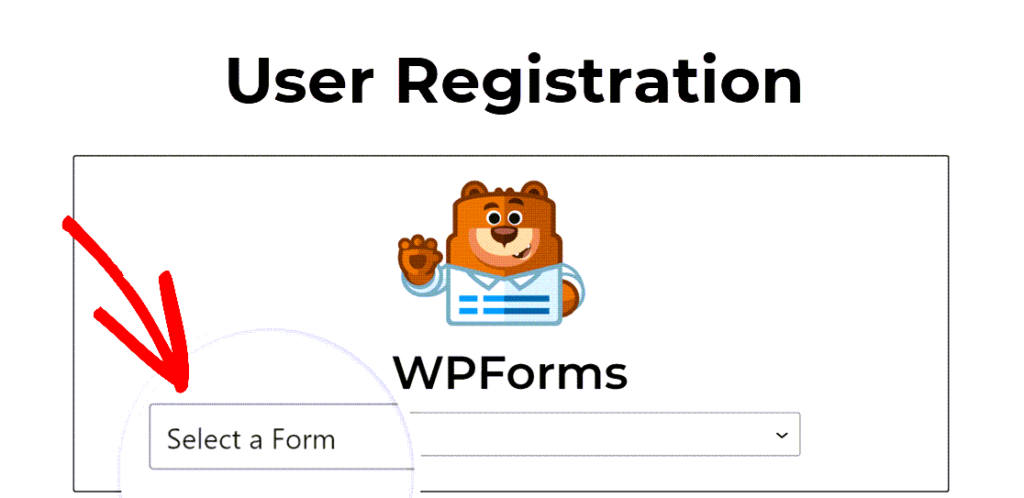
If you’d rather do it manually, edit any page or post, add the WPForms block, and pick your registration form from the dropdown. Publish the page, and your signup form is live.
Now when someone registers, they’ll see a message telling them to check their email, and their account will sit inactive until they click the link. You can watch this happen under Users in your dashboard, where unactivated accounts are flagged.
Step 5: Make sure your verification emails actually arrive
Here’s the catch nobody warns you about: an email verification flow only works if the email shows up. And by default, WordPress isn’t great at sending mail.
WordPress uses PHP’s built-in mail function, which many hosts don’t configure properly. The result is verification emails that land in spam or never send at all, which means real members get stuck at the front door through no fault of their own.
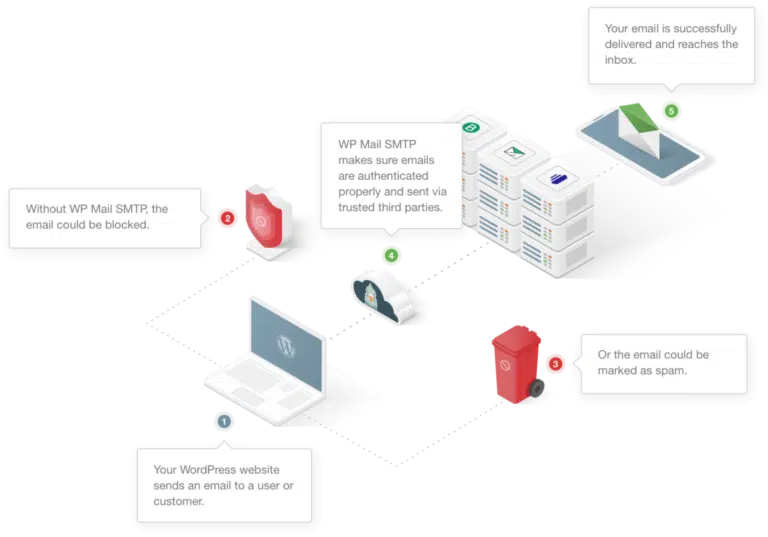
The fix is to send your WordPress email through a proper authenticated mail service using SMTP. WP Mail SMTP, built by the same team behind WPForms, reroutes your site’s email through a provider like Gmail, Outlook, SendLayer, or Brevo, so your activation and welcome emails are authenticated and far more likely to hit the inbox. It’s the single biggest thing you can do to keep your verification flow from silently breaking.
If a member says they never got their activation email, you can also resend it. Go to Users in your dashboard, find the unactivated account, and use the resend activation link option to fire off a fresh email.
Step 6: Layer in extra spam protection (optional but smart)
Email verification stops fake accounts from activating, but it doesn’t stop bots from submitting the form in the first place. If you want to cut down on the noise before it ever reaches the verification step, WPForms gives you several spam protection tools you can stack on the same form:
- Anti-spam token — a smart, invisible check that’s on by default and blocks a large share of bot submissions without asking real visitors to do anything.
- CAPTCHA — turn on hCaptcha, Google reCAPTCHA, or Cloudflare Turnstile from the form’s spam settings if you’re getting hit hard.
- Akismet — the same spam-fighting service many WordPress sites already use for comments, available for form submissions too.
- Country filter and keyword blocklists — block signups from regions you don’t serve, or reject entries containing specific spammy terms.
You don’t need all of them. Start with the anti-spam token that’s already running, and add a CAPTCHA if spam registrations keep slipping through. Verification plus one CAPTCHA covers most sites well.
Give new members a front door you can trust
Email verification turns your registration form from an open door into a checkpoint: accounts only go live once someone confirms a real, working email, which trims spam signups and keeps your user list clean. Pair it with WP Mail SMTP so those emails actually arrive, and add a spam tool or two if you need it.
Ready to set it up? Get WPForms Pro and build a user registration form with email verification in the next ten minutes.
Next, Give Members a Branded Way Back In
Now that new accounts confirm their email before going live, the last piece is a login page that matches your site instead of the default WordPress screen.
Follow our guide on how to add a WordPress login form to any page to build one with the same drag-and-drop form builder, so your members get a front door and a login that both feel like part of your site.
Ready to build your form? Get started today with the easiest WordPress form builder plugin. WPForms Pro includes lots of free templates and offers a 14-day money-back guarantee.
If this article helped you out, please follow us on Facebook and X (Twitter) for more free WordPress tutorials and guides.