


AI Summary
Someone lands on your site, finds exactly what they want, heads to checkout… and then hesitates. Not because they don’t want it, but because the total feels like a lot to hand over all at once.
That’s the moment Buy Now, Pay Later (BNPL) was made for.
And now, thanks to PayPal integration in WPForms, you can offer it on any WordPress form! You don’t need WooCommerce or a complex setup. And no paid upgrade is required.
In this guide, I’ll break down what PayPal Pay Later actually is, why it works so well for higher-priced items, and exactly how to turn it on in WPForms.
How to Add Buy Now Pay Later (BNPL) to Your WordPress Forms
- Step 1: Install or Update WPForms Lite
- Step 2: Connect Your PayPal Account
- Step 3: Create or Open Your Payment Form
- Step 4: Configure Your Payment Amount
- Step 5: Add the PayPal Field to Your Form
- Step 6: Customize the PayPal Field Settings
- Step 7: Save and Embed Your Form
- Tips for Getting the Most Out of Pay Later
- FAQs About BNPL
What Is Buy Now, Pay Later?
Buy Now, Pay Later is exactly what it sounds like: your customer pays for a purchase in installments over time, typically interest-free, instead of all at once. It’s basically the modern, app-based version of a layaway plan, except the customer gets the thing immediately.
PayPal’s version — called Pay Later — lets eligible customers split purchases into installments. In the US, that means options like Pay in 4 (four bi-weekly payments) or Pay Monthly for larger amounts. The exact options vary by country.
Here’s the part that matters most to you as the seller:
- You get paid in full, immediately. PayPal pays you the complete amount upfront.
- PayPal takes on the risk. If a customer misses payments, that’s PayPal’s problem, not yours.
- There’s nothing extra for you to manage. No tracking installments, no chasing late payments.
From a customer’s perspective, it removes the sting of a big upfront cost. From your perspective, it removes a major reason people abandon checkout.
Who Is This For?
You might be thinking: “this is for eCommerce stores, not me.” But BNPL is especially powerful outside of traditional eCommerce, which is exactly why it matters for WPForms users.

Think about situations like these:
- A photographer or videographer charging $400 – $1,200 for a package. Splitting that into four payments can be the difference between booking and losing the client.
- A yoga studio or fitness coach selling a premium membership or workshop bundle. Offering Pay Later lowers the barrier to “yes.”
- A nonprofit running a fundraising campaign where donors might give more if they can spread it out.
- A consultant or freelancer sending invoices through a WordPress form to clients who’d prefer installments.
- An event organizer selling registrations where the ticket price is high enough to cause hesitation.
None of these people need WooCommerce! They just need a form that takes money. And now that form can offer Pay Later, too.
What You’ll Need Before You Start
Before diving into the tutorial, quickly check these off:
- WPForms Lite version 1.10.0 or later. PayPal Pay Later is available on all plans, including WPForms Lite.
- A PayPal Business account. If you don’t have one, you can create one for free at paypal.com.
- Pay Later eligibility. PayPal Pay Later is currently available in the US, UK, Australia, Germany, France, Spain, Italy, and Canada, among other countries. Availability depends on your PayPal account’s country settings.
How to Add PayPal Pay Later to Your WordPress Form (Step by Step)
Now let’s jump into the step by step tutorial!
Step 1: Install or Update WPForms Lite
If you don’t already have WPForms installed, head to your WordPress dashboard and go to Plugins » Add New. Search for “WPForms” and click Install Now, then Activate.

Already using WPForms? Make sure you’re on version 1.10.0 or later (go to Dashboard » Updates if needed). That’s the release that introduced PayPal Pay Later and expanded the payment options.
Step 2: Connect Your PayPal Account
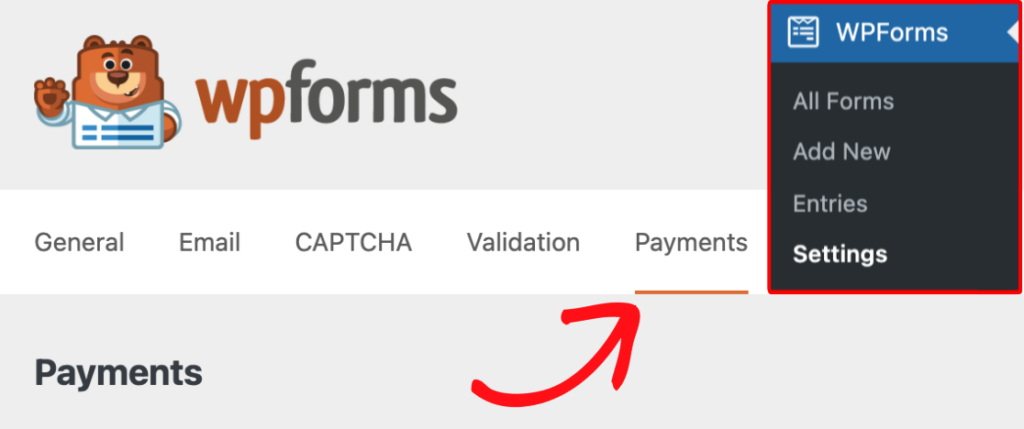
From your WordPress dashboard, go to WPForms, then Settings » Payments.
Then click the Connect with PayPal Commerce button and follow the prompts to log into your PayPal Business account.
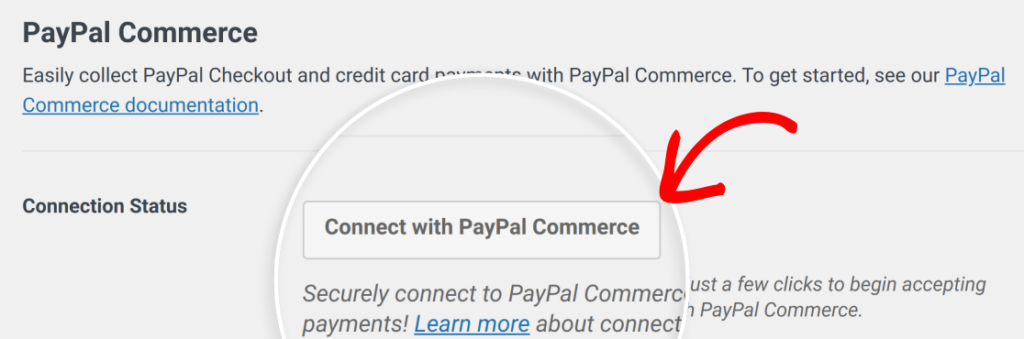
WPForms handles the authorization securely. You’ll be redirected back to your settings page once connected, and you’ll see your PayPal account confirmed with a green checkmark.

Step 3: Create or Open Your Payment Form
Go to WPForms and create a new form to start, or click Edit on an existing one. For a payment form, the Billing / Order Form template is a great starting point — it comes with the right fields pre-configured.
Give your form a name, choose your template, and you’ll land in the drag-and-drop form builder.
Step 4: Configure Your Payment Amount
Make sure your form has a Total or Single Item field selected from the available Payment Fields to use with PayPal. WPForms will automatically pass the correct amount to PayPal at checkout.

If you’re selling a fixed-price service, set a Single Item field with your price. If you’re offering variable pricing or multiple items, use a product list or the Total field.
Pay Later works with both one-time payments and recurring subscriptions — so whether you’re selling a product, a session package, or a monthly membership, it’s got you covered.
Step 5: Add the PayPal Field to Your Form
Still within the Payment Fields, you’ll see the PayPal field — drag it into your form wherever you’d like the payment section to appear.

Once it’s in the form, click on the PayPal field to open its settings.
Step 6: Customize the PayPal Field Settings
In the PayPal field settings, you’ll see a list of payment methods you can enable.

But wait, there’s more! The PayPal Commerce field supports:
- Credit and debit cards (Visa, Mastercard, Amex, Discover, Maestro — all through the same field)
- Google Pay and Apple Pay — one-tap checkout for mobile users
- Venmo — popular with US buyers, especially younger audiences
- Fastlane — PayPal’s accelerated checkout that auto-fills details for returning customers
You can enable as many or as few as you like. Customers will see whichever options are available to them at checkout — Pay Later shows up as its own button alongside the standard PayPal button.

You can also customize the button appearance, like its shape, color, and size, so it fits your site’s branding instead of looking like a generic third-party widget.
Just click the Advanced tab in the field settings and go wild!

Step 7: Save and Embed Your Form
That’s all there is to it! Hit Save in the form builder, then add the form to any page or post on your site. You can use the WPForms block in the WordPress editor, or copy the shortcode and paste it wherever you need it.

When visitors reach your form, the PayPal checkout opens directly on your page… No redirects, no leaving your site. The Pay Later option appears as its own button, letting customers choose how they want to pay without any friction.
And when a payment comes through, or a Pay Later plan is accepted, your WPForms dashboard updates in real time. You’ll see confirmed payments, subscription renewals, and refunds all in one place.
Tips for Getting the Most Out of Pay Later
- Highlight it on your page. Don’t just let the button appear at checkout. Mention near your pricing that PayPal Pay Later is available. Something as simple as “Pay in installments with PayPal” can reduce hesitation before someone even reaches your form.
- Use it for your highest-ticket offerings. Pay Later has the biggest impact on conversions for items $100 and up, where the full upfront cost is the main friction point.
- Pair it with other payment methods. The WPForms PayPal field lets you offer cards, Google Pay, Apple Pay, Venmo, and Pay Later all at once. Give customers options and they’re more likely to complete checkout.
- Consider upgrading to remove the 3% fee. If you’re processing regularly, WPForms Pro removes the per-transaction fee and adds conditional logic — handy if you want to show Pay Later only for orders above a minimum threshold.
Ready to Stop Losing Sales at Checkout?
Buy Now, Pay Later is one of those features that sounds like it’s for big retail stores. But it’s often the small, independent businesses that benefit most.
When your price point is high enough to cause a moment of hesitation, Pay Later removes the barrier. And now you can offer it for free, on any form, without needing WooCommerce or a paid plugin plan.
FAQs About BNPL
Do I need WooCommerce to use PayPal Pay Later in WordPress?
Nope! That’s one of the best things about this update. WPForms works independently of WooCommerce — you just need a form, a PayPal account, and WPForms Lite.
Do I get paid immediately when a customer uses Pay Later?
Yes. PayPal pays you the full amount upfront when a customer selects Pay Later. The installment arrangement is between the customer and PayPal — you’re out of that loop entirely.
Does Pay Later work for recurring payments or subscriptions?
Pay Later is designed for one-time purchase financing, not ongoing subscription billing. For subscriptions, standard PayPal billing applies.
Can I offer Pay Later on any type of form?
Yes — order forms, event registration forms, donation forms, booking forms, invoice forms. If your form collects a payment amount, you can add the PayPal field and enable Pay Later.
Next, Add Multi-Location Options to Your Booking Form
Now that you know how to add PayPal options to something like an order form or booking form — now consider taking that booking form to the next level with pin locations on an interactive map.
It’s possible with the tutorial I’ve linked above!
Ready to build your form? Get started today with the easiest WordPress form builder plugin. WPForms Pro includes lots of free templates and offers a 14-day money-back guarantee.
If this article helped you out, please follow us on Facebook and Twitter for more free WordPress tutorials and guides.


