AI Summary
Open any form in the WPForms builder and look under Settings: Confirmations and Notifications sit right next to each other. They fire at the same moment, their names sound like synonyms, and the thing most people call a “confirmation email” is technically built in the Notifications tab. No wonder these two get mixed up.
The difference matters, because each one handles half of what should happen after someone hits Submit. In this post, I’ll break down what confirmations and notifications each do, how to set them up, and how to use them together so no lead, question, or signup slips past you.
Form Confirmations vs. Notifications: What’s the Difference?
The short answer: a confirmation is what your visitor sees on the page right after they submit your form. A notification is the email WPForms sends behind the scenes, usually to you.
Here’s the side-by-side:
| Details | Form Confirmation | Form Notification |
|---|---|---|
| Who it’s for | The person who submitted the form | You and your team (and the submitter, if you choose) |
| Where it shows up | On your website, in place of the form | In an email inbox |
| What it looks like | A message, a thank-you page, or a redirect | A customizable email |
| Default behavior | “Thanks for contacting us! We will be in touch with you shortly.” | Email to your site admin address with the subject “New Entry” + your form name |
| Its job | Reassure the visitor and point them to a next step | Alert you so you can follow up fast |
Both are included with every WPForms plan, both are on by default, and both live in the form builder under Settings. You don’t have to pick one. Nearly every form should use both, and later in this post I’ll show you how they team up.
One clarification before we go deeper, because it causes most of the confusion: when someone says they want to “send a confirmation email,” they’re describing a notification — one pointed at the visitor’s email address instead of yours. In WPForms, that gets set up in the Notifications tab, not the Confirmations tab. Keep that single distinction straight and everything else falls into place.
What Is a Form Confirmation?
A form confirmation is your form’s on-page response. The moment someone submits, WPForms swaps out the form and shows the confirmation in its place, so the visitor knows immediately that their submission went through.

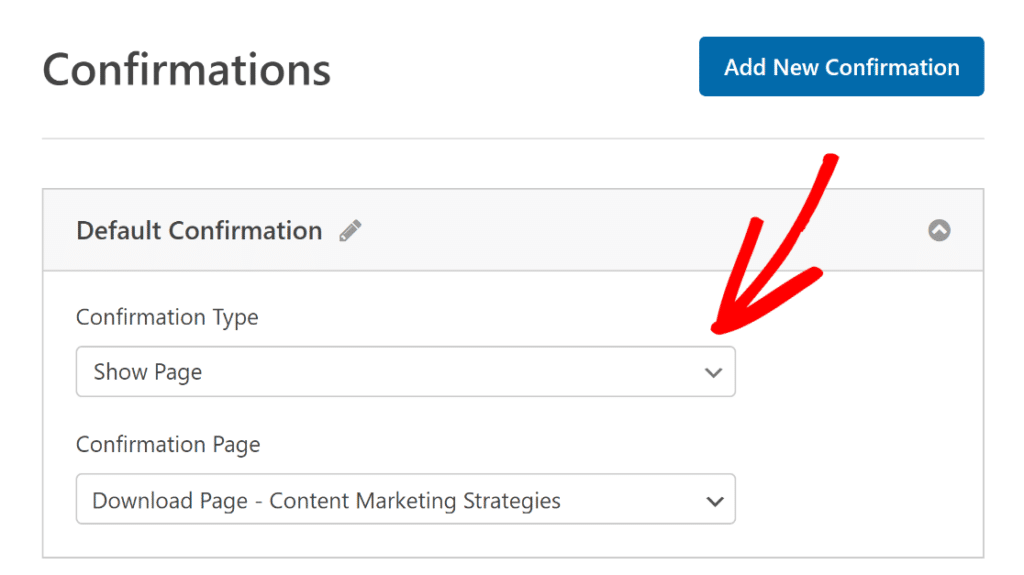
You’ll find these settings in the form builder under Settings » Confirmations, where you can choose from three confirmation types:
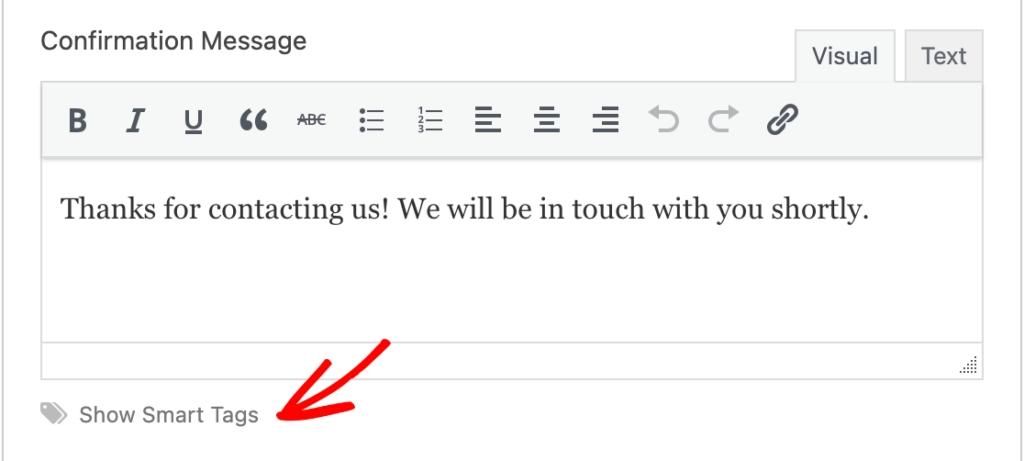
- Message (the default). A short note that appears where the form was. WPForms starts you with “Thanks for contacting us! We will be in touch with you shortly,” and you can rewrite it however you like.
- Show Page. Sends the visitor to another page on your site, like a dedicated thank-you page. Handy when you want to say more than a two-line message allows, or when you’re tracking conversions on a specific URL.
- Go to URL (Redirect). Sends the visitor to any external link. Useful for booking calendars, payment pages, or anything that lives outside your site.
The default message works fine, but the confirmation is prime real estate. The visitor just did exactly what you hoped they’d do, and they’re paying full attention. Tell them what happens next (“We reply within one business day”), hand them the download they signed up for, or point them somewhere useful while they wait.
A few upgrades worth knowing about:
- Smart Tags let you pull the visitor’s own answers into the message, so “Thanks!” can become “Thanks, Maria! We got your request.”
- Entry preview shows visitors a summary of what they submitted, which is reassuring on longer forms.
- Conditional confirmations (available on paid plans) show different confirmations based on how someone filled out the form. Someone who picks “Request a quote” can land on your pricing page while someone who picks “General question” sees a simple thank-you.
What Is a Form Notification?
A form notification is the email WPForms sends automatically when your form is submitted. Notifications are on from the moment you create a form: by default, WPForms emails your site’s admin address with the subject “New Entry” plus your form name, and the message includes everything the visitor filled in.

Head to Settings » Notifications in the form builder and you can customize the whole thing:
- Send To Email Address. Defaults to your admin email. Add multiple recipients by separating addresses with commas.
- Email Subject Line. Swap “New Entry” for something scannable, like “Quote request from your website.”
- From Name and From Email. Control how the email shows up in your inbox. Stick with an address that matches your domain so it doesn’t trip spam filters.
- Reply-To. Set this to the {email} Smart Tag and hitting Reply in your inbox goes straight to the person who filled out the form. This one setting saves a copy-paste on every single lead.
- Message. The {all_fields} Smart Tag includes every answer, or you can hand-pick specific fields and write your own email around them.

You can also create more than one notification on the same form, and this is where that “confirmation email” everyone asks about comes in. Add a second notification, set Send To to the {email} Smart Tag, and write it as a receipt: “We got your message, here’s a copy of what you sent, expect a reply within a day.” Your visitor gets an email trail, you get fewer “did my form go through?” follow-ups.
On paid plans, conditional notifications take routing further. A form with a “What do you need help with?” dropdown can send sales questions to your sales inbox and support questions to support, automatically, without anyone forwarding emails.
One practical note: notifications are only as reliable as your site’s email. WordPress sends mail in a way that spam filters distrust, so if notifications are landing in spam or not arriving at all, set up SMTP with a plugin like WP Mail SMTP. It’s a one-time fix.
When to Use a Confirmation vs. a Notification
Trick question. You use both, because they cover different halves of the same moment. A confirmation without a notification means happy visitors and an owner who never finds out. A notification without a confirmation means you got the lead, but your visitor is staring at the page wondering if anything happened.
Here’s how they pair up on real forms:
Contact or quote request form. The confirmation sets expectations (“We reply within one business day”). The notification hits your inbox the second the lead comes in, with Reply-To set to their email so you can respond in one click. Speed matters more than almost anything else here: the business that answers first usually wins the job.
Lead magnet or newsletter signup. Use the confirmation to deliver the download link right on the page, before they can even switch tabs. Then a second notification sends the link to their inbox too, so they have it when they want it later.
Booking or consultation form. Skip the message entirely and use a Go to URL confirmation that drops them straight onto your booking calendar. The notification tells you a consultation request is coming so it’s on your radar.
Forms with a team behind them. Conditional notifications route each submission to the right person, and conditional confirmations show each visitor a next step that matches what they asked for. One form, several tailored experiences.
How to Set Up Confirmations and Notifications in WPForms
Both take just a few minutes, and both live in the same place:
- Open your form in the WPForms builder. Go to Settings » Confirmations to choose your confirmation type and write your message (full walkthrough: How to Set Up Form Confirmations).
- Go to Settings » Notifications to customize who gets emailed and what the email says (full walkthrough: How to Set Up Form Notifications).
- Save, then submit a test entry to see both in action.
That last step is the one people skip. Fill out your own form once: you’ll see exactly what your visitor sees, and you’ll confirm the notification lands in your inbox instead of your spam folder.
FAQs — Form Confirmations vs. Notifications
Are form confirmations and notifications included with every WPForms plan?
Yes. Both are core features available on every plan, including Lite. Conditional confirmations and conditional notifications require a paid license.
Can I send a confirmation email to the person who filled out my form?
Yes. Create a second notification and set the Send To field to the {email} Smart Tag. The visitor gets an automatic email receipt with whatever message and fields you include.
Why am I not receiving my form notification emails?
Usually it’s email deliverability, not the form. Check your spam folder first, then set up SMTP with a plugin like WP Mail SMTP so your notifications send through a trusted mail service.
Can I show different confirmation messages to different people?
Yes, with conditional confirmations on paid plans. You can display different messages, pages, or redirects based on how someone answered your form.
Can notifications go to more than one person?
Yes, two ways: add multiple addresses to Send To separated by commas, or create separate notifications with different recipients, subjects, and messages.
Can I redirect visitors to another website after they submit?
Yes. Choose the Go to URL (Redirect) confirmation type and enter any external link, like a booking calendar or payment page.
Can I include the visitor’s answers in the notification email?
Yes. The {all_fields} Smart Tag includes every completed field, or you can insert individual field Smart Tags to build a custom message around specific answers.
Do confirmations and notifications work on every form template?
Yes. Every form you build with WPForms includes both settings automatically, whether you start from one of 2,100+ templates or from scratch.
Next, Send Confirmation Emails to Your Visitors Automatically
Now that the difference is clear, the highest-impact next step for most forms is that visitor-facing email receipt. It cuts down “did my message go through?” replies and starts the conversation in their inbox, where the follow-up happens anyway.
Our full guide walks through it step by step: How to Send Confirmation Emails to Users After Form Submission.
Get started with WPForms today and put both settings to work on your next form.
Ready to build your form? Get started today with the easiest WordPress form builder plugin. WPForms Pro includes lots of free templates and offers a 14-day money-back guarantee.
If this article helped you out, please follow us on Facebook and X (Twitter) for more free WordPress tutorials and guides.