


AI Summary
You’ve built the form. Your product is great. Someone heads to checkout… and then leaves because you don’t take Venmo.
It sounds minor. But for a lot of people, Venmo isn’t just a payment option. It’s the payment option. They have a balance sitting there, they don’t want to dig out their card, and if you can’t take it, they move on.
Venmo has over 78 million users in the US, and it’s especially popular with younger buyers. If your site doesn’t offer it, you’re making checkout harder than it needs to be for a huge chunk of your audience.
The good news: WPForms lets you accept Venmo directly on your WordPress forms. And you don’t need WooCommerce, or a Venmo business account, or paid plugin plan required. It’s built into WPForms Lite through the PayPal Commerce integration, and it takes about five minutes to turn on.
Here’s exactly how to do it.
How to Accept Venmo on Your WordPress Forms
What You’ll Need Before You Start
Before jumping into the tutorial, make sure you have these ready:
- WPForms Lite version 1.10.0 or higher. This is the free version, available in the WordPress plugin directory. Venmo support was added in this release.
- A PayPal Business account. If you don’t have one, you can create it for free at paypal.com. This is required to connect to PayPal Commerce — but you do not need a separate Venmo business account.
- A US-based PayPal account. Venmo is currently only available to US users through the PayPal Commerce integration.
Step 1: Install or Update WPForms
If you don’t have WPForms yet, head to your WordPress dashboard and go to Plugins » Add New. Search for “WPForms,” click Install Now, then Activate.

Already using WPForms? Check that you’re on version 1.10.0 or later by going to Dashboard » Updates. That’s the release that added Venmo and the expanded PayPal payment options.
Step 2: Connect Your PayPal Business Account
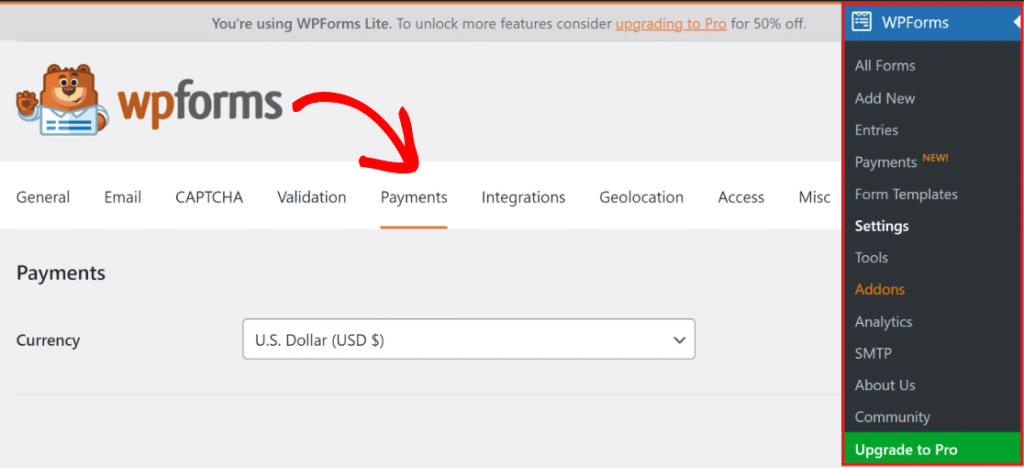
From your WordPress dashboard, go to WPForms » Settings and click the Payments tab.
Scroll down to the PayPal Commerce section and click Connect with PayPal Commerce.
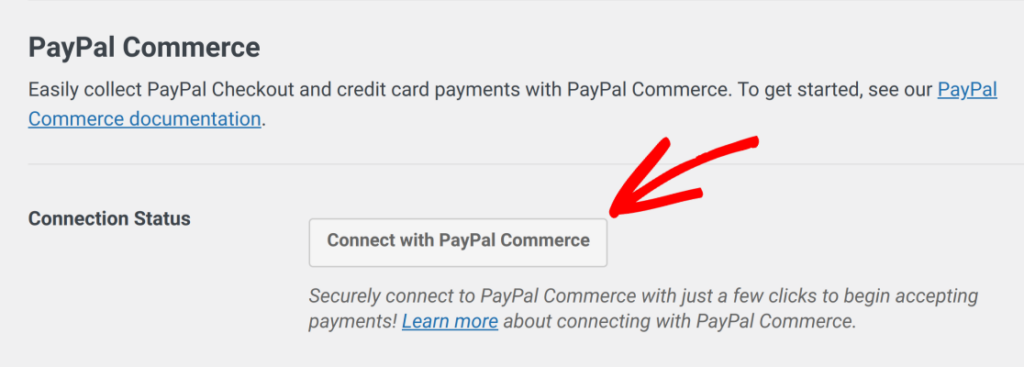
A PayPal window will open so you can log in to your PayPal Business account and authorize the connection. Once you’ve completed the setup, you’ll be redirected back to your WordPress dashboard. Look for the green checkmark next to Connection Status — that’s how you know it worked.

Note: A PayPal Business account (not a personal account) is required to connect to PayPal Commerce. Webhooks are automatically configured on WPForms version 1.10.0 and higher when you connect, so your payment records will stay in sync in real time.
Step 3: Create or Open Your Payment Form
Go to WPForms » Add New to create a fresh form, or click Edit on an existing payment form. If you’re starting from scratch, the Billing / Order Form template is a good one to start with. It comes with the right fields pre-configured.

Like this template? Get it here.
Your form will need at least one payment field (like a Single Item, Multiple Items, Checkbox Items, or Dropdown Items field) to work with PayPal Commerce.

These tell WPForms the amount to pass to PayPal at checkout.
Step 4: Add the PayPal Commerce Field
Here in the form builder, look for the PayPal Commerce field under Payment Fields in the left panel.

Click it or drag it into your form wherever you’d like the payment section to appear.
Once you add the field, you’ll see a popup prompting you to enable PayPal Commerce payments for the form. Click OK — you’ll configure the payment settings in the next step.
Step 5: Enable the Field Settings
Click on the PayPal Commerce field in your form to open its settings in the sidebar. Under Field Options, you’ll see a list of payment methods you can enable.

Make sure that you have PayPal Checkout selected, since this is what will support the Venmo button option your users will see.
That’s it. When a customer reaches your form, Venmo will appear as a payment option in the checkout UI — right alongside any other methods you’ve enabled.

You can also enable or disable other methods here, and customize the button’s shape, color, and size under the Advanced tab so it matches your site’s branding instead of looking like a generic widget.

Note: Venmo is available to US-based PayPal accounts only. If your PayPal Business account is registered outside the US, Venmo won’t appear as an option.
And that’s it!
When visitors reach your form, the PayPal checkout opens directly on your page — no redirects, no leaving your site. Venmo appears as one of the available payment buttons, and customers tap it to complete checkout in the Venmo app.
Plus, payments show up in your WPForms dashboard in real time.
Bonus: What Else You Can Enable at the Same Time
Since you’re already in the PayPal Commerce field settings, it’s worth knowing that you can offer several other payment methods at the same time — all through the same single field:
- PayPal Checkout — lets customers pay with their PayPal balance or any method they’ve saved in PayPal (including cards)
- Credit and Debit Cards — Visa, Mastercard, Amex, Discover, Maestro
- Google Pay and Apple Pay — one-tap checkout for mobile visitors
- Pay Later — lets customers split purchases into installments (PayPal pays you in full upfront)
- Fastlane — PayPal’s accelerated checkout that auto-fills details for returning customers
You set it up once, and customers see whichever options are available to them.
Next, Offer BNPL (Buy Now, Pay Later) on Your Forms
Another reason why someone might not finish a payment on your forms is because of the price. Sometimes, a larger amount can cause hesitation or payment abandonment.
That’s why offering a buy now, pay later option for your form users is a game-changer. It splits payments into smaller increments, and is possible with the PayPal field, too. Take a look at our step-by-step tutorial for all the details.
Ready to build your form? Get started today with the easiest WordPress form builder plugin. WPForms Pro includes lots of free templates and offers a 14-day money-back guarantee.
If this article helped you out, please follow us on Facebook and Twitter for more free WordPress tutorials and guides.


