AI Summary
Google gives you three versions of reCAPTCHA for your WordPress forms, and only one of them asks visitors to click anything. The other two run out of sight. So the real reCAPTCHA v2 vs v3 decision isn’t old versus new. It’s what should happen when a real person gets mistaken for a bot.
That moment doesn’t come up often, but it’s exactly where the versions split. Invisible reCAPTCHA v2 hands that person a picture puzzle and lets them prove they’re human. reCAPTCHA v3 gives them a score, and if the score is too low, the form won’t send. One keeps a door open. The other never interrupts anyone, including the occasional human it gets wrong.
In this post, I’ll break down how reCAPTCHA v2 and v3 work on a WordPress form, what your visitors see with each one, and which version I’d pick for different kinds of forms. I’ll also show you how to switch versions in WPForms, which takes a couple of minutes.
reCAPTCHA v2 vs v3 for WordPress Forms: Which Should You Use?
reCAPTCHA v2 vs v3 at a Glance
WPForms supports all three Google options. Here’s how they compare side by side:
| v2 Checkbox | v2 Invisible | v3 | |
|---|---|---|---|
| What visitors see | An “I’m not a robot” checkbox, sometimes followed by an image puzzle | Nothing, unless Google gets suspicious; then an image puzzle | Nothing (a small Google badge sits in the corner) |
| When the check runs | When they click the checkbox | When they click Submit | In the background, scored as they interact |
| A real person who looks suspicious… | Solves a puzzle and gets through | Solves a puzzle and gets through | Gets blocked and sees your fail message |
| Extra settings in WPForms | Fail Message, Preview | Fail Message | Fail Message, Score Threshold |
| Best for | Forms bots target hard | Lead forms where you want a safety net | Most contact, quote, and signup forms |
Each version needs its own Site Key and Secret Key from Google, so switching later means generating a new pair. That’s a two-minute job, so you’re not locked into your first pick.
How reCAPTCHA v2 Checkbox Works
This is the one everybody recognizes: a checkbox that says “I’m not a robot.” When a visitor clicks it, Google looks at how the click happened, along with signals from their browser. Most people pass with that single click. If something looks off, Google follows up with an image grid and asks them to pick out every traffic light or crosswalk.
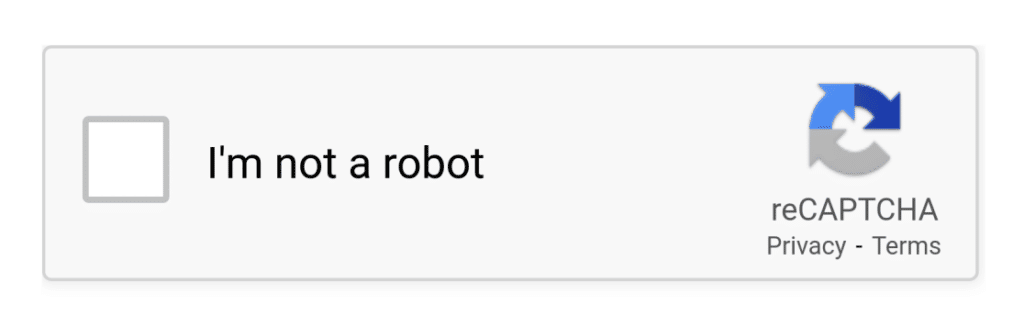
The upside is that the checkbox is visible, so it works as a deterrent, and anyone who gets flagged still has a way through. The downside is that every single visitor has to do it, including the vast majority who were never suspicious. Image puzzles are also rough for people using screen readers or squinting at a phone.
That trade makes sense on forms that get hammered, like a user registration form that bots keep signing up through. On a contact form, it’s usually more friction than you need.
How Invisible reCAPTCHA v2 Works
Invisible v2 drops the checkbox. The check runs when someone clicks Submit, and most visitors never know it happened. When Google isn’t confident the person is human, it pops up the same image puzzle the checkbox version uses.
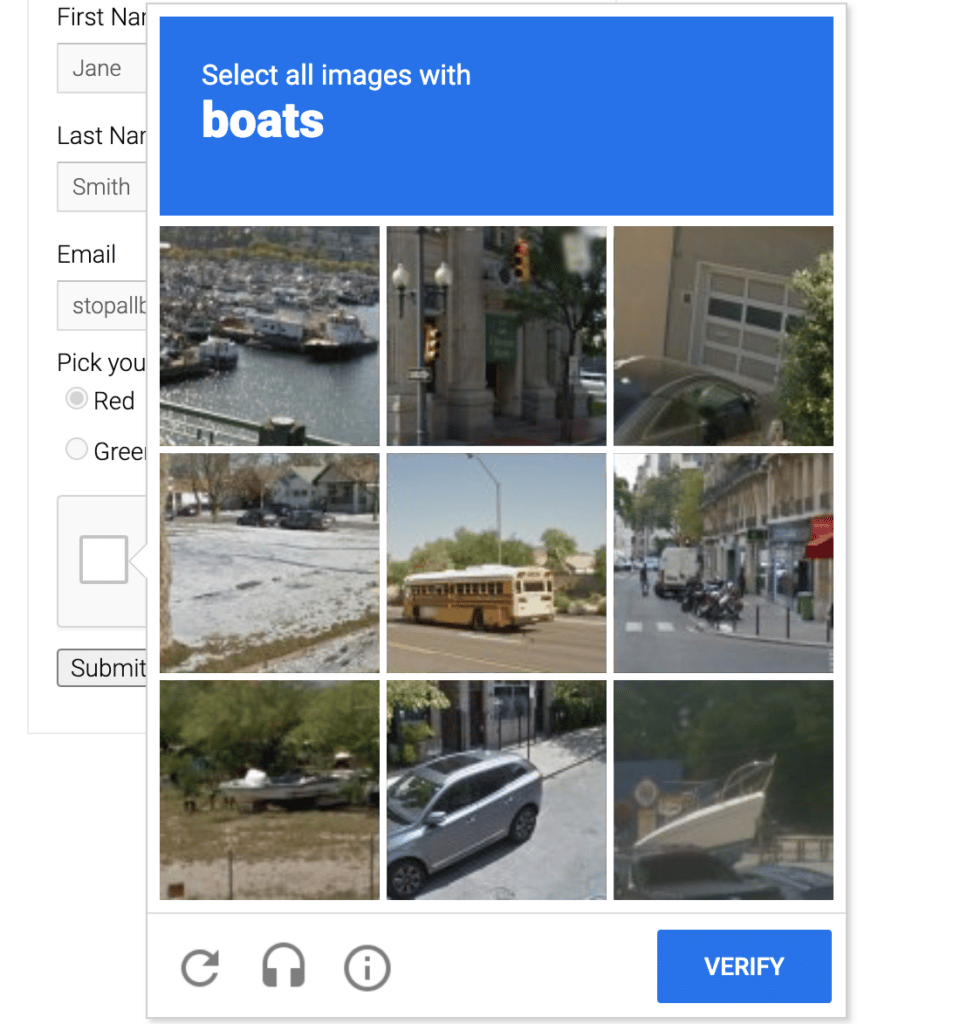
So you get the frictionless experience for nearly everyone, plus a fallback for real people who happen to look unusual: someone on a VPN, using a privacy-focused browser, or filling out your form on a brand-new laptop.
The catch is timing. That puzzle shows up at the worst possible moment, after the visitor has filled out every field and clicked Submit. Still, a puzzle they can solve beats an error they can’t do anything about.
How reCAPTCHA v3 Works
reCAPTCHA v3 never challenges anyone. Instead, it gives each submission a score from 0.0 (very likely a bot) to 1.0 (very likely a human). WPForms compares that score to the Score Threshold you set. Anything below the line gets blocked, and the visitor sees your fail message.

For real visitors, that’s as smooth as spam protection gets. There’s nothing to click and nothing to solve, so v3 adds zero steps between “I want to contact you” and “Sent.”
The trade-off is that a low score has no appeal process. If a real person scores below your threshold, they can’t solve a puzzle to prove themselves. They can try again, or they can leave. And because the submission never went through, you won’t find it in your entries.
You do get one dial to turn. Lowering the Score Threshold makes v3 more forgiving; raising it makes v3 stricter. Google suggests starting at 0.5 and adjusting from there.
Which reCAPTCHA Version Should You Use?
For most WordPress forms, I’d start with reCAPTCHA v3.
Contact forms, quote requests, and newsletter signups all have the same job: get as many real people through as possible. Every step you add between interest and submission costs you a few of them, and v3 doesn’t add any. For a small business, a lead that bails on a puzzle is a lead you never hear about.
Switch to Invisible v2 if real people tell you the form won’t send.
Watch for an email or DM saying “your contact form didn’t work,” or a dip in entries right after you turned v3 on. It’s also worth starting with Invisible v2 if your audience leans toward privacy tools, like developers or security-minded customers, since those setups are more likely to score low. Visitors get nearly the same experience, but the ones Google isn’t sure about get a puzzle instead of a dead end.
Save the v2 Checkbox for forms bots specifically target.
If a form is getting flooded no matter what, the visible checkbox is the strictest of the three. Use it where stopping bots matters more than an extra click, and keep your other forms on v3 or Invisible v2.
Here’s the quick version:
| Your form | Pick |
|---|---|
| Contact form or quote request | reCAPTCHA v3 |
| Newsletter or lead magnet signup | reCAPTCHA v3 |
| Lead form for a privacy-minded audience | Invisible reCAPTCHA v2 |
| Any form where people report getting blocked | Invisible reCAPTCHA v2 |
| User registration form bots keep abusing | reCAPTCHA v2 Checkbox |
How to Switch reCAPTCHA Versions in WPForms
Whichever version you land on, the setup is the same few steps.
Step 1: Generate keys for the version you want.
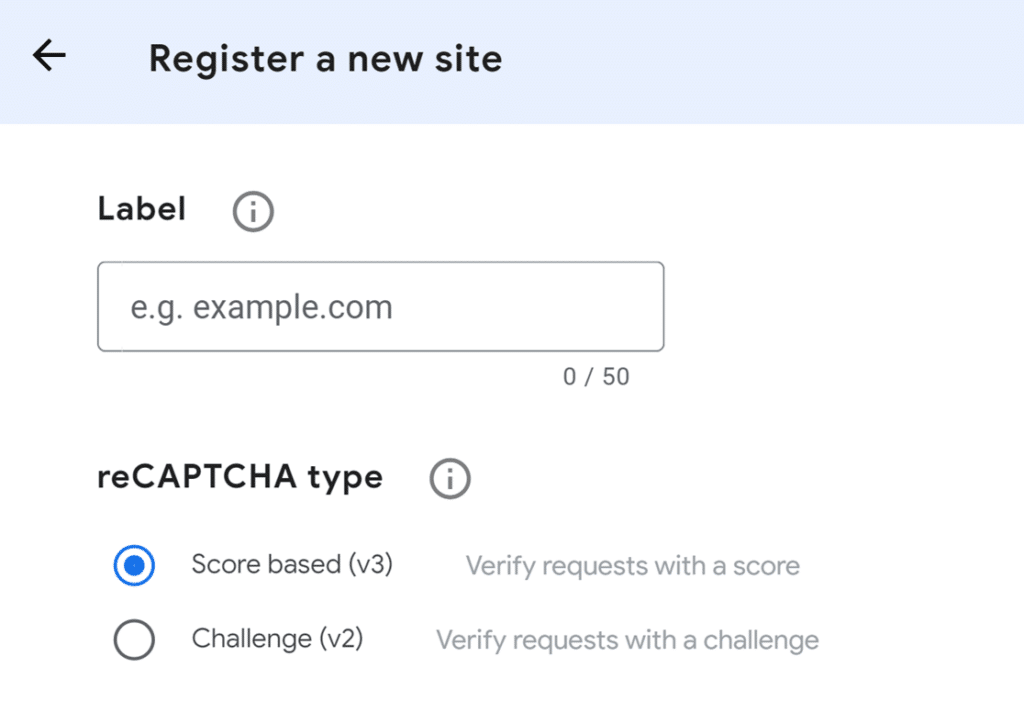
In Google’s reCAPTCHA admin console, register a new site, choose the reCAPTCHA type (v3, or v2 with either “I’m not a robot” Checkbox or Invisible), and add your domain. If your form lives on a subdomain, enter it as subdomain.yoursite.com.
Step 2: Add the keys to WPForms.
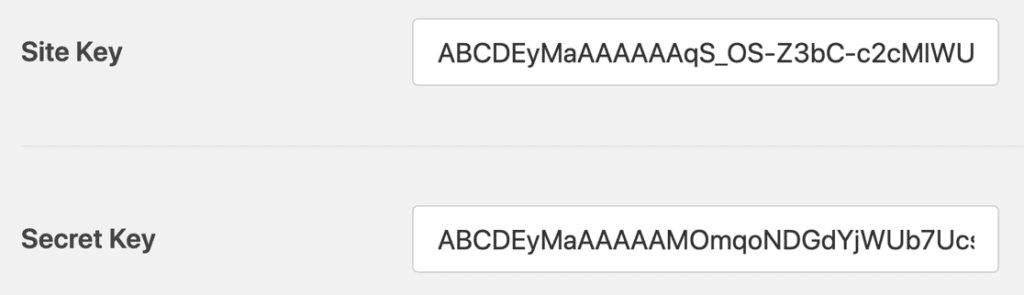
In your WordPress dashboard, go to WPForms » Settings and open the CAPTCHA tab. Select reCAPTCHA, choose the same type you picked in Google, and paste in your Site Key and Secret Key. This is also where you write your Fail Message and, for v3, set your Score Threshold. Click Save Settings.
Step 3: Turn it on for your form.
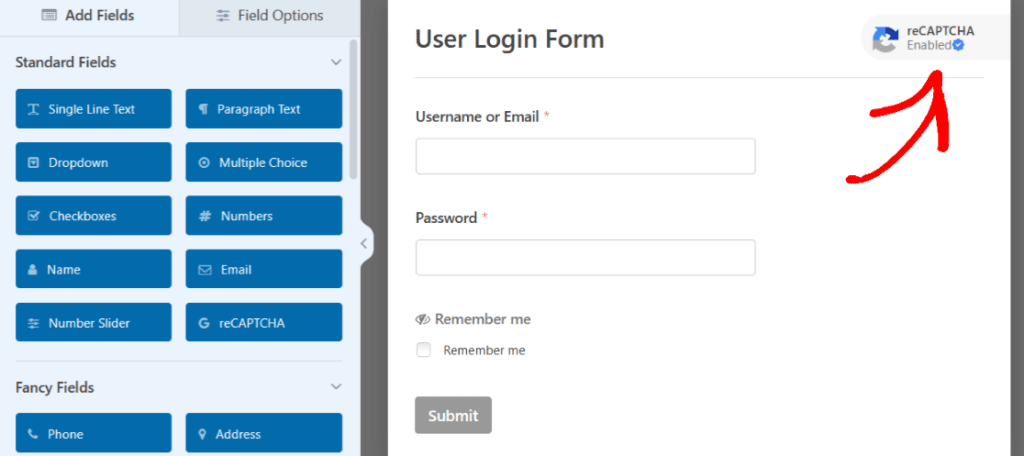
Open your form in the builder, go to Settings » Spam Protection and Security, and toggle on reCAPTCHA in the CAPTCHA section. You can also click the reCAPTCHA field under Standard Fields. A reCAPTCHA badge in the upper right of the builder confirms it’s active.
Step 4: Test it.
Open your form in a private browser window and send a test submission. On v3, keep an eye on your entry count for the next week or so. A sudden drop is your cue to lower the threshold or move to Invisible v2.
If you see verification errors right after switching, the usual culprit is a leftover key from the old version. Keys only work with the type they were created for. Caching and optimization plugins that delay scripts, like WP Rocket or Autoptimize, can also get in the way. Our guide to fixing reCAPTCHA in WordPress walks through each error.
Pair reCAPTCHA With WPForms’ Other Spam Tools
reCAPTCHA works best as one layer, not the whole wall. WPForms lets you stack it with the built-in anti-spam token, Akismet, country filters, and keyword filters, and you can set them up per form.
This matters most on v3. If some spam is still sneaking through, adding a keyword or country filter is usually a better fix than raising your Score Threshold. A filter targets the spam you’re seeing; a higher threshold blocks more of everyone, including real people.
FAQs About reCAPTCHA v2 vs v3 in WordPress
Is reCAPTCHA v3 better than v2?
For most WordPress forms, yes, because it never asks visitors to do anything. The trade-off is that a real person with a low score gets blocked instead of challenged, so Invisible v2 is the safer pick if you can’t afford to lose those submissions.
Does reCAPTCHA v3 ever show a challenge?
No. reCAPTCHA v3 only scores visitors. It never shows a checkbox or image puzzle. If a submission scores below your threshold, WPForms blocks it and shows your fail message.
What score threshold should I use for reCAPTCHA v3?
Google suggests starting at 0.5. If real people report getting blocked, lower it. If spam is getting through, add a keyword or country filter before you raise it.
Can I use my reCAPTCHA v2 keys for v3?
No. Each reCAPTCHA type needs its own Site Key and Secret Key. When you switch versions, generate a new pair in Google’s admin console and paste both into WPForms » Settings » CAPTCHA.
Is Invisible reCAPTCHA v2 the same as v3?
No, though both are invisible to most visitors. Invisible v2 shows an image puzzle when Google isn’t sure about someone. v3 never shows a puzzle and blocks low scores outright.
Which reCAPTCHA version is the most accessible?
v3 and Invisible v2 are the friendliest because most people never see a challenge. The v2 Checkbox puts a step in front of everyone, and its image puzzles can be hard to use with a screen reader.
Next, Fix Common reCAPTCHA Errors
Switched versions and seeing an “invalid site key” error, or a form that won’t submit? Check out our guide on how to fix reCAPTCHA not working in WordPress for step-by-step fixes to every common error.
Ready to build your form? Get started today with the easiest WordPress form builder plugin. WPForms Pro includes lots of free templates and offers a 14-day money-back guarantee.
If this article helped you out, please follow us on Facebook and X (Twitter) for more free WordPress tutorials and guides.