


AI Summary
Someone lands on your website, finds your contact form, and starts typing their name into the first field. Then their phone buzzes, or their boss pings them, or they just close the tab thinking they’ll come back later.
Studies show that over 80% of people who start filling out a form never submit it. That’s traffic and interest lost because there was no way to capture what they’d already typed.
The good news is that WPForms has a way to capture that data before it disappears. The Form Abandonment addon saves partial entries in real time. Follow the steps in this guide to set it up!
Recover Abandoned Form Entries in WordPress! 🙂
How to Recover Abandoned Form Entries and Follow Up with Leads
Form abandonment happens when someone starts filling out your form but leaves the page before submitting it. Maybe they got distracted, the form felt too long, or their phone rang. Whatever the reason, the result is the same, and you end up losing a potential lead.
The average form abandonment rate sits above 80% across most industries. If your contact form gets 100 visitors a month, more than 80 of them are leaving without completing it. And if you’re running a business, you’re losing real people who were interested enough to start typing.
The Form Abandonment addon for WPForms captures partial form data the moment a visitor leaves your page. Below, I’ll show you how to set it up, configure your capture settings, and create follow-up emails that bring leads back. I’ll also share some tips for reducing abandonment so fewer people leave in the first place.
Step 1: Install the WPForms Pro Plugin
WPForms is a solid choice for building forms like lead capture forms and contact forms. It has over 2,100+ WordPress form templates you can use right out of the gate.
What I like most about WPForms for this particular use case is that the abandonment tracking is built right into the form builder. You’re not installing a separate analytics tool or stitching together plugins.
To capture abandoned form entries, you’ll need WPForms Pro, which includes the Form Abandonment addon along with all the other conversion tools like Lead Forms and Conversational Forms.

To get started, buy the Pro license. Then, install WPForms on your website. If you need help, follow these instructions on how to add a plugin to WordPress.
Step 2: Install the Form Abandonment Addon
With WPForms Pro active, go to WPForms » Addons in your WordPress dashboard.
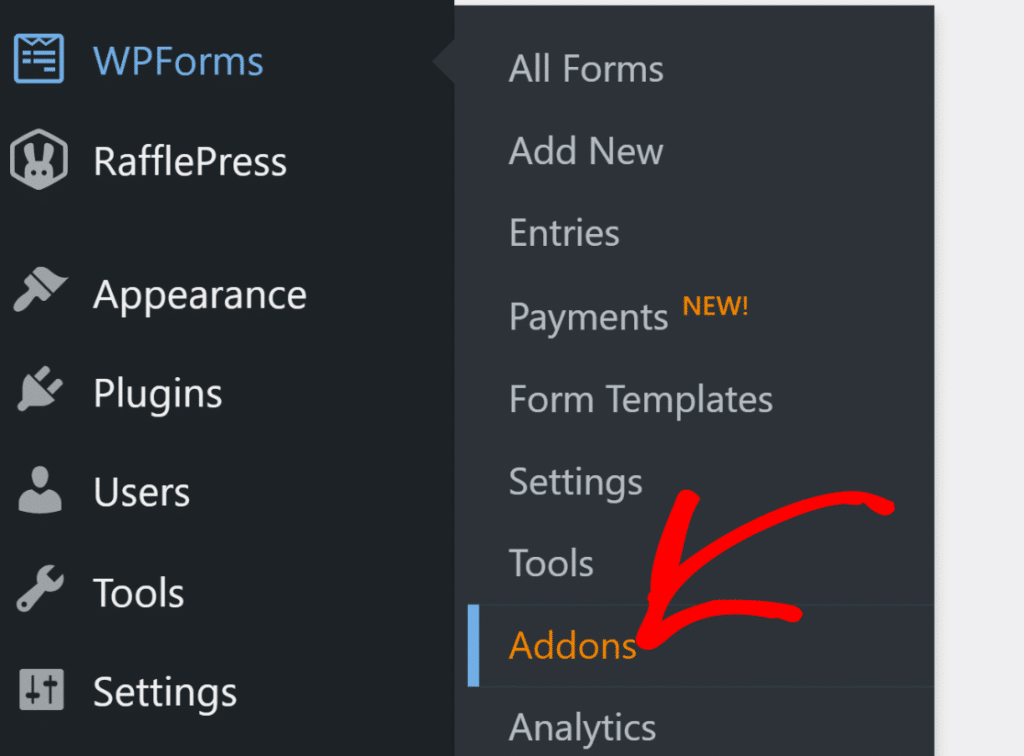
Search for “Form Abandonment” and click Install Addon, then Activate.

That’s it for this step. The addon is now ready to use on any form.
Step 3: Enable Form Abandonment on Your Form
Now that the addon is installed, you need to turn it on for the specific forms where you want to capture partial entries.
Open the form you want to protect in the WPForms builder and go to Settings » Form Abandonment
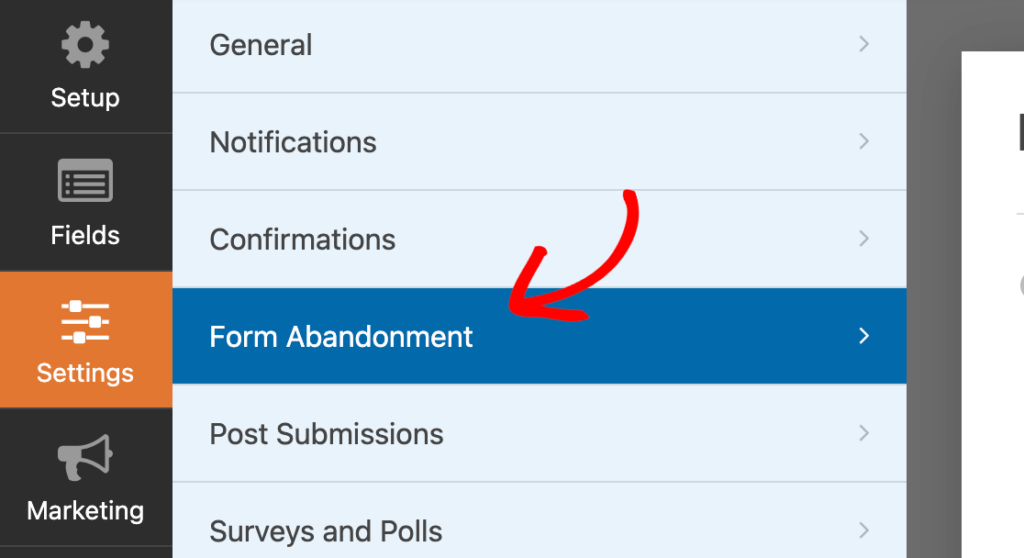
After that, toggle on Enable Form Abandonment Lead Capture. This is what will allow you to capture all submissions even if a person abandons the form half way through.

Before we move forward, take a second to think about your field order. WPForms captures abandoned data in the order fields appear on the form. So if someone fills in just the first two fields and leaves, you’ll only get those two.
Step 4: Configure Your Capture Settings
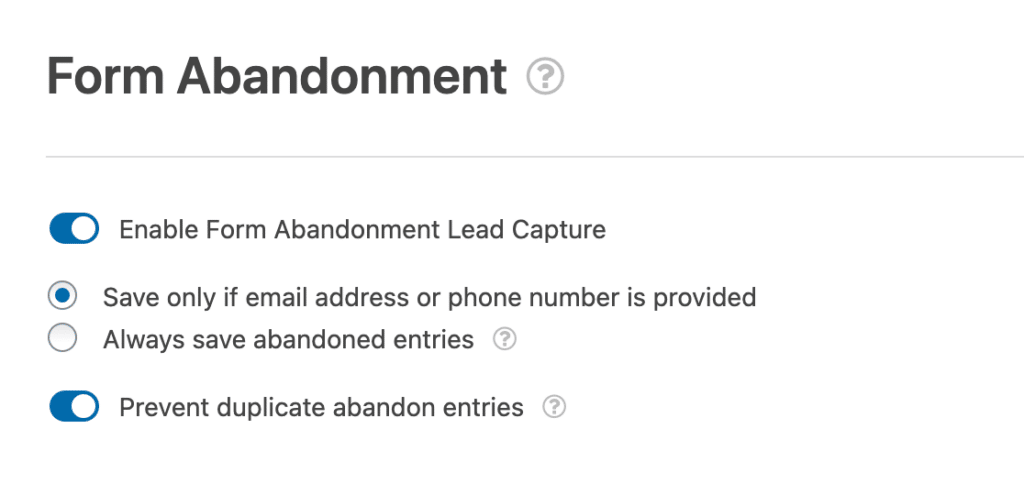
Once you’ve enabled form abandonment, a few more options appear. The first is your capture mode. You get two choices:
- Save only if email address or phone number is provided (recommended for most forms). This gives you the minimum info needed to actually reach the person.
- Always save abandoned entries. Use this if you want every partial entry regardless of contact info. It’s useful for anonymous surveys or polls where you don’t need to follow up individually.
There’s also a Prevent duplicate abandon entries toggle. I’d turn this on. Without it, the same person abandoning your form three times creates three separate entries. That just clutters things up.
One more thing. Certain field types don’t get captured when a form is abandoned. Password fields, Signature fields, File Uploads, and all payment fields (Stripe, Square, PayPal Commerce) are excluded for security reasons. Your text fields, dropdowns, checkboxes, and radio buttons all work fine.
Step 5: View and Manage Abandoned Entries
After setting things up, abandoned entries start appearing in your entry management dashboard alongside regular submissions.
Go to WPForms > Entries and select the form you enabled abandonment on. You’ll notice a Type column that labels each entry as either “Completed” or “Abandoned.”
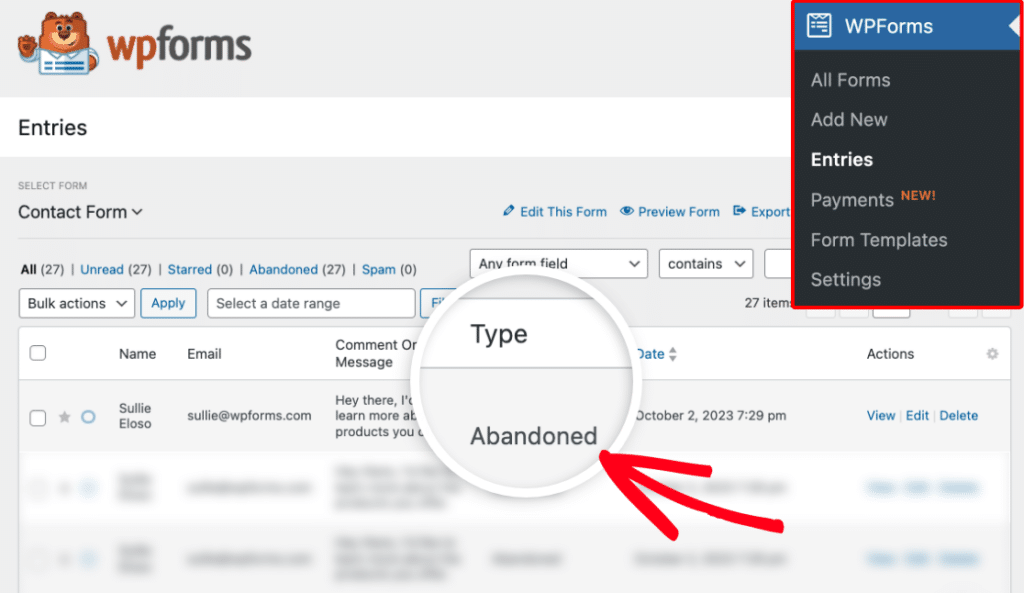
Click on any abandoned entry to see what data was captured. You might find a full name and email address, or just a single field. Either way, it’s more information than you had before.
Step 6: Set Up Automated Follow-Up Emails
This is where form abandonment recovery really pays off. Capturing partial entries is great, but the real value comes from acting on them.
Go to Settings > Notifications in the form builder. Scroll to the bottom of your notification settings and toggle on Enable for abandoned forms entries.
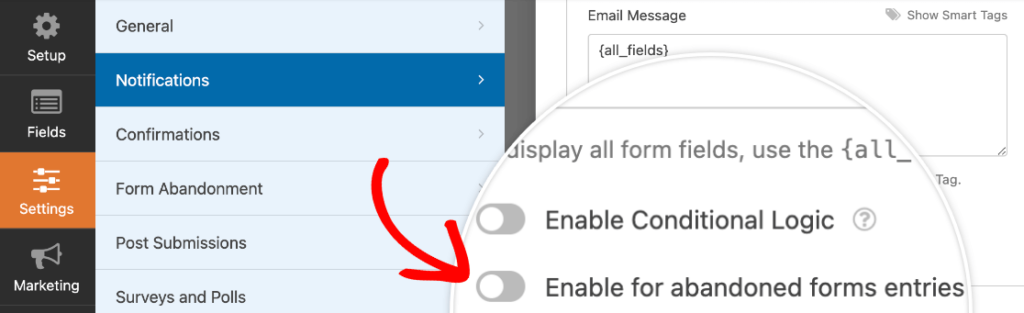
I’d set up at least two separate notifications for abandoned entries.
- Recovery email to the visitor: This goes to the email address they entered. Something like, “We noticed you didn’t finish your request. Click here to pick up where you left off.” Don’t be salesy about it. A simple, friendly nudge works better than anything aggressive.
- Alert to your team: Send this to whoever handles incoming leads. Include the captured fields so they can follow up with a quick phone call or personalized email. In my experience, a human follow-up within the first hour converts way better than any automated sequence.
You can set up as many notification emails as you need. For details on creating multiple notifications, check out the WPForms guide on automating form submission follow-up emails.
Tips to Reduce Form Abandonment Before It Happens
Capturing abandoned entries is a smart safety net. But you’ll get even better results by preventing abandonment in the first place. I’ve found that a few simple changes to your forms can make a noticeable difference.
Here are some strategies that pair well with the Form Abandonment addon, all backed by research on improving contact form conversions.
Find Out Where People Drop Off With Form Analytics
The Form Abandonment addon captures the leads, but it doesn’t tell you which field made people quit. That’s where the built-in Form Analytics in WPForms comes in. It starts tracking every published form automatically, so there’s no setup or separate Google Analytics to wire up.

Go to WPForms » All Forms and click Analytics under the form you want to check. Along with views, interactions, and your conversion rate, you get two numbers that matter most for abandonment:
- Abandonments: How many people started the form and left without finishing.
- Average time per field: he field-by-field table flags the exact spot where people stall.

Once you spot the field that’s causing the drop-off, you can shorten it, make it optional, switch it to a simpler input, or ask WPForms AI for suggestions.
And since the Form Abandonment addon already runs on Pro, you’ve got the full analytics experience unlocked, right down to that field-level breakdown.

Keep Forms Short and Use Conditional Logic
The number one reason people abandon forms is length. If your form has 15 fields and someone only needs to fill out 8 of them, you’re losing people unnecessarily.
Use WPForms’ conditional logic to show and hide fields based on the visitor’s answers. This way, each person only sees what’s relevant to them. The form feels shorter, even if it technically has the same number of fields.

Break Long Forms Into Pages
If you genuinely need a lot of information, don’t show it all at once. Multi-page forms with a progress bar help users commit incrementally. They fill out page one, see they’re 25% done, and keep going.
I’ve used this approach on application forms and registration forms. It works. People are more willing to continue when they can see their progress. For a full walkthrough, check out how to create a multi-part form in WordPress.

Try Conversational Forms
The Conversational Forms addon turns your form into a one-question-at-a-time experience. It feels more like a conversation than a chore.
This works especially well on mobile, where long forms are painful to scroll through. I’ve seen noticeably better completion rates with conversational forms on pages that were struggling with abandonment.

Use Lead Forms for High-Conversion Pages
The Lead Forms addon creates a focused, distraction-free layout for your forms. It strips away the clutter and puts all the attention on the form itself.
If you have a landing page or a page that gets a lot of traffic, Lead Forms can help keep visitors engaged long enough to actually submit. It’s a small design change that can have a real impact on your conversion rate.

FAQs About WordPress Form Abandonment Recovery
WordPress form abandonment recovery is a common concern for site owners who want to capture more leads from their existing traffic. Here are answers to the questions I see most often.
What’s a good form abandonment rate?
Most forms sit somewhere between 60% and 80% abandonment. If yours is significantly above that range, it’s worth looking at your form length, field types, and the overall user experience on that page. Even small adjustments, like removing one or two unnecessary fields, can make a real difference.
Does form abandonment work with payment forms?
The addon captures partial entries from any form, but payment field data (Stripe, Square, PayPal Commerce) is never saved. That’s a security decision, and it’s the right one.
The good news is that contact information, text fields, dropdowns, and everything else still gets captured. So if someone enters their name and email before they hit the payment step and bounce, you’ve still got a way to reach them.
Can I use Form Abandonment with Save and Resume?
Yes. They actually work well together because they solve different sides of the same problem. Form Abandonment captures data passively, the visitor doesn’t do anything.
Save and Resume lets visitors actively save their progress and come back later through a secure link. For long forms like applications or multi-step registrations, running both gives you the best shot at not losing anyone.
Next, Take Your Forms Further
Now you know how to recover abandoned form entries and follow up with the leads you were losing.
Between capturing partial data, setting up automated recovery emails, and using smart form design, you’re in a much stronger position to convert more of your existing traffic.
You might also want to read:
- How to Automate Form Submission Follow-Up Emails
- Research-Based Tips to Improve Contact Form Conversions
- How to Create a Multi-Step Form in WordPress
Ready to build your form? Get started today with the easiest WordPress form builder plugin. WPForms Pro includes lots of free templates and offers a 14-day money-back guarantee.
If this article helped you out, please follow us on Facebook and X (Twitter) for more free WordPress tutorials and guides.





