


AI Summary
Something big is happening in WordPress right now.
The tools you rely on are starting to work alongside AI, as a real way to get things done.
WordPress 6.9 opened that door with its Abilities API, and the assistants you already use, like Claude, ChatGPT, or Cursor can act directly on your site.
WPForms was one of the first to build on it.
Since earlier this year, your AI assistant has been able to connect to WPForms and understand your forms, your fields, and your entries.
Today, we’re taking that a step further!
Introducing Write Support for the WordPress Abilities API
I’m thrilled to announce new write support for the WordPress Abilities API in WPForms. The same connection that could read your forms can now build and change them.
Ask for a contact form with name, email, and a file upload, and watch it appear in WPForms moments later, ready to publish.
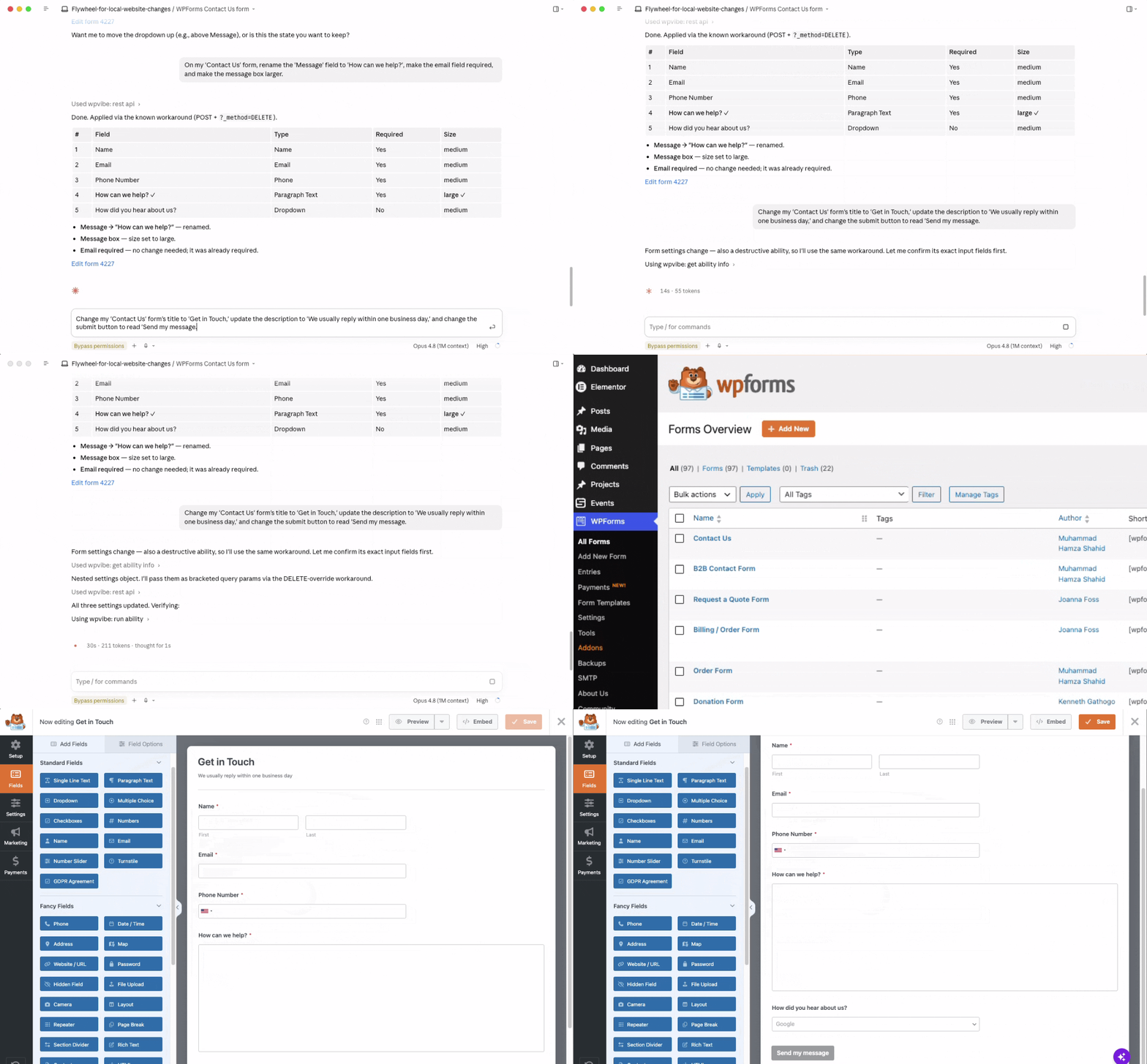
Want to add a phone field, rename a label, or change the submit button to read “Send my application”? Ask, and it is done in seconds.
And the best part? It is live today, it works with the assistants you already love, and it’s completely free in WPForms Lite.
Everything Your Assistant Can Now Do With Your Forms
Because this is built on an open WordPress standard, it works beautifully with any MCP-compatible AI client you already prefer, whether that is Claude, ChatGPT, or Cursor.
Once the connection is live, your assistant can build and shape your forms for you. Here is what that looks like in practice:
- Build a Whole Form From Scratch: Ask your assistant for a contact form with name, email, phone, and a message box, and it creates the entire thing, fields and settings included.
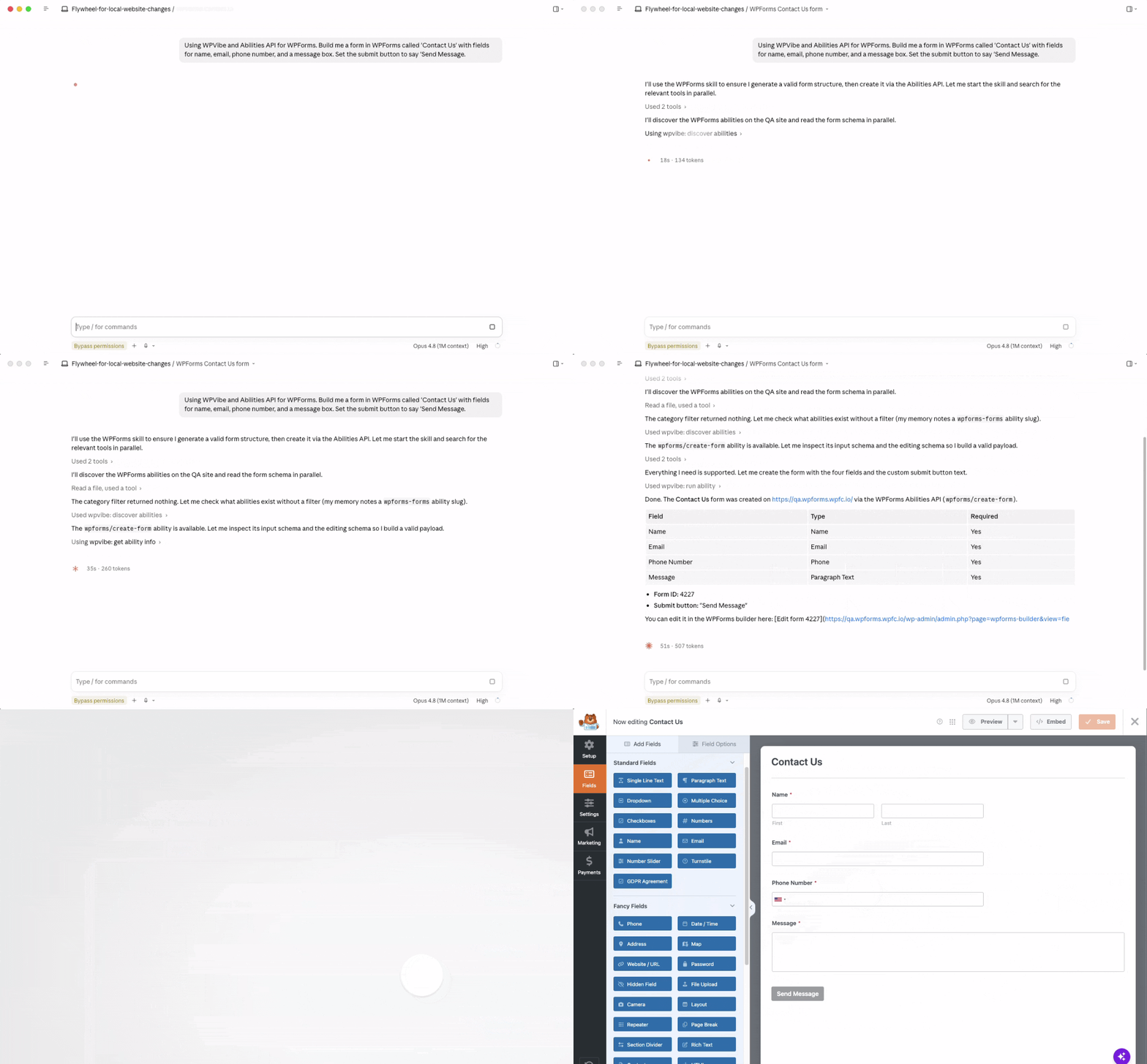
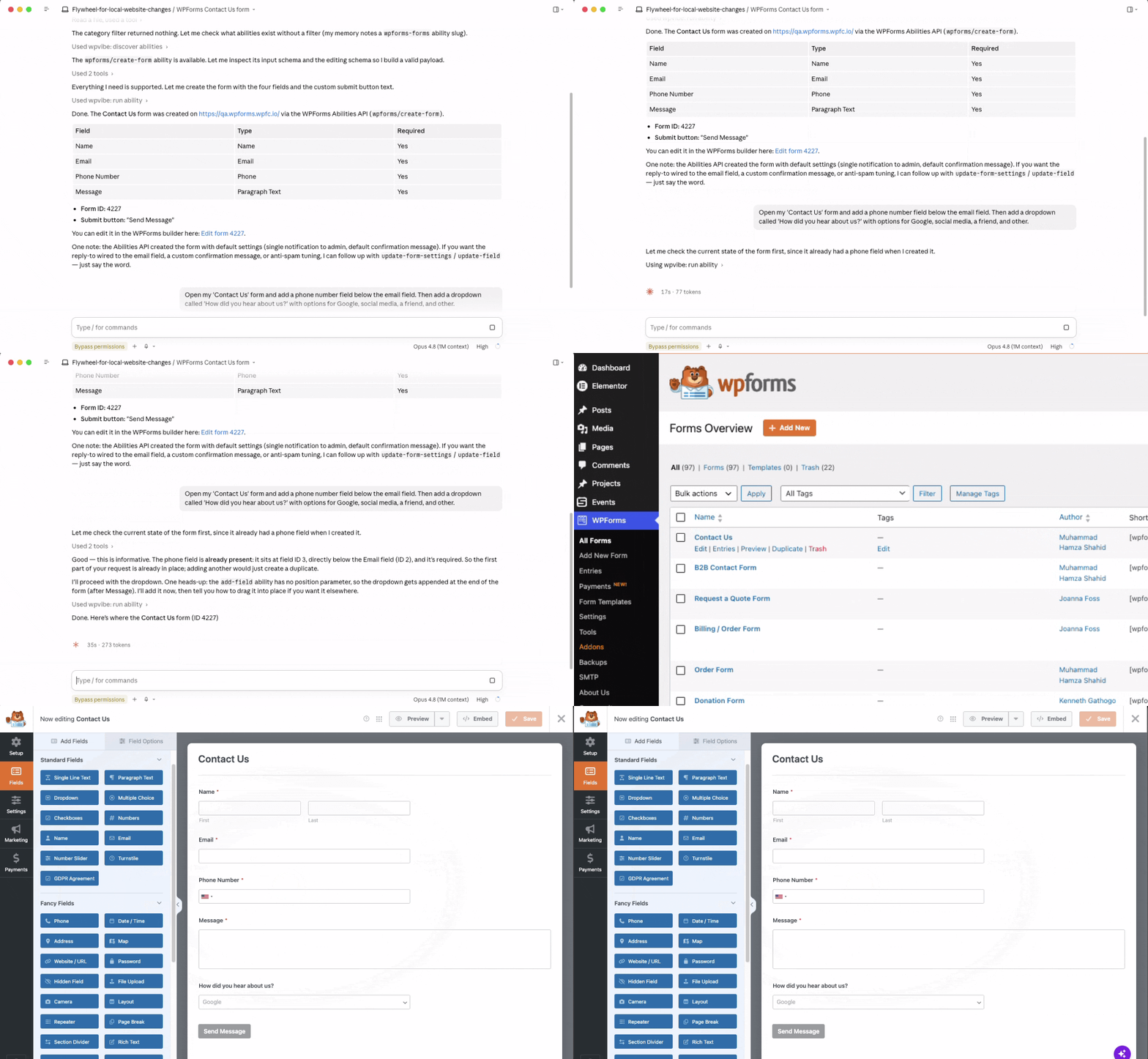
- Add Fields to Forms You Already Have: Need a phone number on your contact form, or a few more options in a dropdown? Ask your assistant to add it and the field shows up in your builder, placed and ready to go.
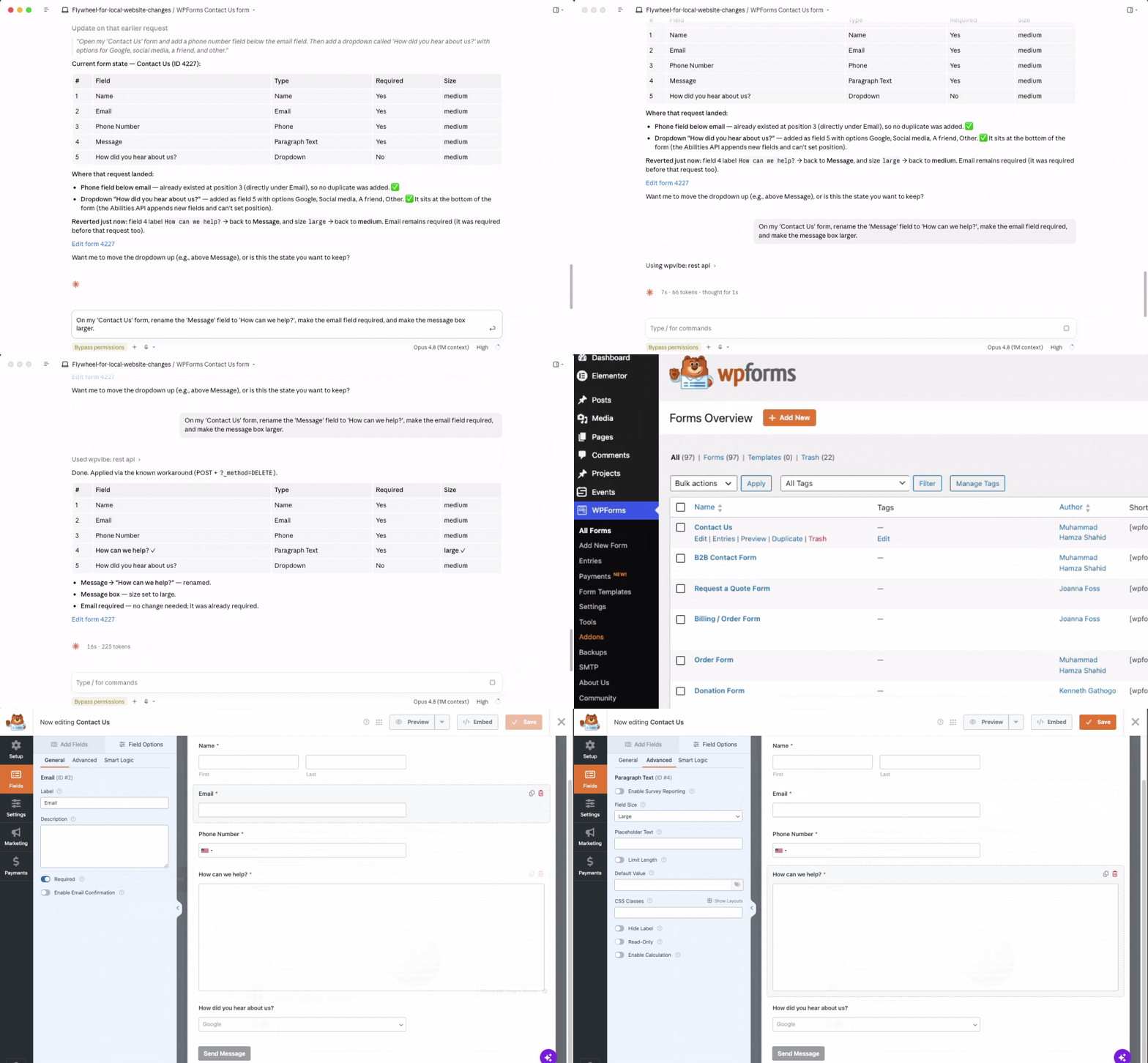
- Edit the Fields That Are Already There: Rename a label, mark a question required, or resize a text box by asking. Your assistant changes only what you asked for, then tells you exactly what it touched and what it left alone.
- Update Your Form’s Settings: Change a form’s title, its description, or the text on the submit button. Want it to read “Send my application” instead of “Submit”? Done. Other settings like email notifications stay off-limits on purpose.
- Build with the Field Types You Love: On Lite, your assistant can build with single line text, paragraph text, email, numbers, dropdowns, multiple choice, checkboxes, and name fields. Pro unlocks three more it can place for you: phone, date and time, and file upload.
What This Looks Like for Your Business
Imagine you are already chatting with your assistant about a new service you want to offer. In the same conversation, you ask it to build a sign-up form for it.
A minute later, that form is sitting in your WPForms builder, the right fields already in place, ready for you to publish.
You never left the conversation you were already in. The tool you were already working in builds the thing you need, while you stay focused on the work that actually matters.
Who Is Going to Love This?
This is for anyone who would love to simply ask for a form and watch it come to life. A few people who will feel the difference right away:
- Small business owners who already keep an assistant open all day and want their forms handled in the same place as everything else.
- Marketers who want a campaign’s lead form built the moment the idea is approved, instead of waiting on it.
- Developers and agencies who run lots of client sites and can connect an assistant to a site once, and even register their own custom field types for client builds.
- Store owners who want their order, intake, and inquiry forms to keep pace with the catalog, file uploads and all.
Real-World Use Cases Include:
- Building a webinar registration form mid-conversation while you map out the event, without leaving the chat you are already in.
- Asking your assistant to add a consent checkbox and a phone field to an existing contact form in seconds, right when you realize you need them.
- Handing a client site to your assistant to scaffold a batch of intake forms, then refining the labels and required fields by asking.
See It in Action Today
Want to try this right now? Just update to the latest version of the WPForms plugin, V1.10.2, and then follow the steps below:
Step 1: Connect Your Site with WPVibe
To let your assistant work with your site, you connect it through a WordPress MCP server, and the easiest place to start is WPVibe, a free-to-start server from SeedProd, part of the same team behind WPForms.
Simply go to WPForms » Tools and click on the AI MCP tab. From here, click on the Install & Activate WPVibe button.

Step 2: Add WPVibe to Your AI Assistant
Once the WPVibe plugin is installed, connect it to Claude, ChatGPT, or Cursor using the quick setup instructions.
All you have to do is paste the URL into any MCP-compatible AI client, and after that just copy the prompt to connect your site. Your assistant is now ready to work with your site.

Step 3: Turn On Form Building and Just Ask
Form building stays switched off until you decide to turn it on, so it works entirely on your terms, exactly when you are ready for it.
To enable it, just head to WPForms » Tools » AI MCP and move the toggle to the ON position for where it says, “Enable MCP Write Access”.

Step 4: Ask for Your First Form
That is it. Ask your assistant to build a form, and it appears in your WPForms builder, ready to open and use.
Try something simple to start, like a contact form with name, email, and a message box, and watch it land.

Why Build Forms This Way
You already know what AI can do inside WPForms.
The AI Form Builder, AI Choices, AI Calculations, and Smart Edit are built to make the form building process smarter and faster.
This is the next step, and it points towards an entirely new direction. The assistant you already use out in the world can now reach in and build forms for you.
While other form plugins are still catching up to basic drag-and-drop, WPForms is connecting your forms to the future of how people work.
What sets this apart is that it rides on an open WordPress standard, so you are never locked into one assistant, and it produces real WPForms forms that work with everything you already run.
That is the kind of groundwork only a platform powering more than 6 million websites can build on with confidence.
Ready to Let Your Assistant Build Your Forms?
Here is the best part: this is free.
On WPForms Lite, your assistant can build and edit forms with eight field types at no cost. Go connect it and see for yourself.
Want your assistant building with phone, date and time, and file upload fields too?
Those come with any paid WPForms plan, and upgrading to WPForms Pro unlocks the full library of 40+ addons along the way: Surveys & Polls, Form Abandonment, and so much more.
As always, thank you for your continued support of WPForms. We are constantly working to make WPForms the most useful, and the most effortless way to build forms on WordPress.
We can’t wait to see what you create.
Syed and the WPForms Team
P.S. The assistant you already use is ready to build your next form the moment you ask. Connect it with your site using WPVibe, say the word, and watch it happen. Get started with WPForms and put it to work for you today.





