


AI Summary
Imagine this scenario: a customer lands on your site, adds two items to their order form, and gets to checkout ready to buy. Then they hit the shipping section and pause. They live three blocks from your shop. Do they really want to pay for shipping and wait two days when they could walk over at lunch?
If your form doesn’t offer a pickup option, they’ll probably close the tab and contact you instead. Or worse, buy from a competitor who makes pickup easy.
Buy Online, Pick Up In-Store (BOPIS) isn’t just for big retailers anymore. Local shops, restaurants, bakeries, and even florists are offering it because customers expect it. And the good news is you don’t need a full eCommerce platform to make it work. With WPForms and the Geolocation addon, you can add an interactive store pickup selector to any of your WordPress order forms.
I can show you exactly how to do it. Let’s go!
How to Add a Store Pickup Selector to Your WordPress Order Form (Step-by-Step)
- Step 1: Install and activate the Geolocation addon
- Step 2: Connect Google Places
- Step 3: Start with the Store Pickup Order Form template
- Step 4: Add your pickup locations to the Map field
- Step 5: Turn the map into a selector (this is the important one)
- Step 6: Customize the map markers and display
- Step 7: Use conditional logic to show pickup-only details
- Step 8: Test it, then publish
- FAQs About Adding a Store Pickup Selector
What you’ll need before you start
Quick inventory check before diving in:
- WPForms Pro or higher. The Geolocation addon is included on Pro plans and above.
- The Geolocation addon installed and activated.
- A Google Places API key or Mapbox access token. Both work — we’ll cover how to set either up.
- A list of your pickup locations with full addresses, business names, and any details you want customers to see (hours, parking notes, entrance instructions).
That’s it! Custom code? No. Separate store locator plugin? Not needed. Juggling between tools? Never!
But Also… Why?
Why add a pickup selector instead of a plain dropdown?
You could use a regular dropdown field that lists your store locations. It’d work. But an interactive map does three things a dropdown never will:
- It answers “which one is closest to me?” visually. This is especially helpful if your location names aren’t obvious (a customer might not know “Riverside” vs. “Bridgeview” by name).
- It builds trust. A real map pin tells customers you’re a real business with a real address. That matters for first-time buyers.
- It reduces pickup mix-ups. When a customer sees the map pin and selects it themselves, they’re far less likely to show up at the wrong location.
Step 1: Install and activate the Geolocation addon
Log into your WordPress dashboard and head to WPForms » Addons. Search for “Geolocation” and click Install Addon. WordPress handles the rest.
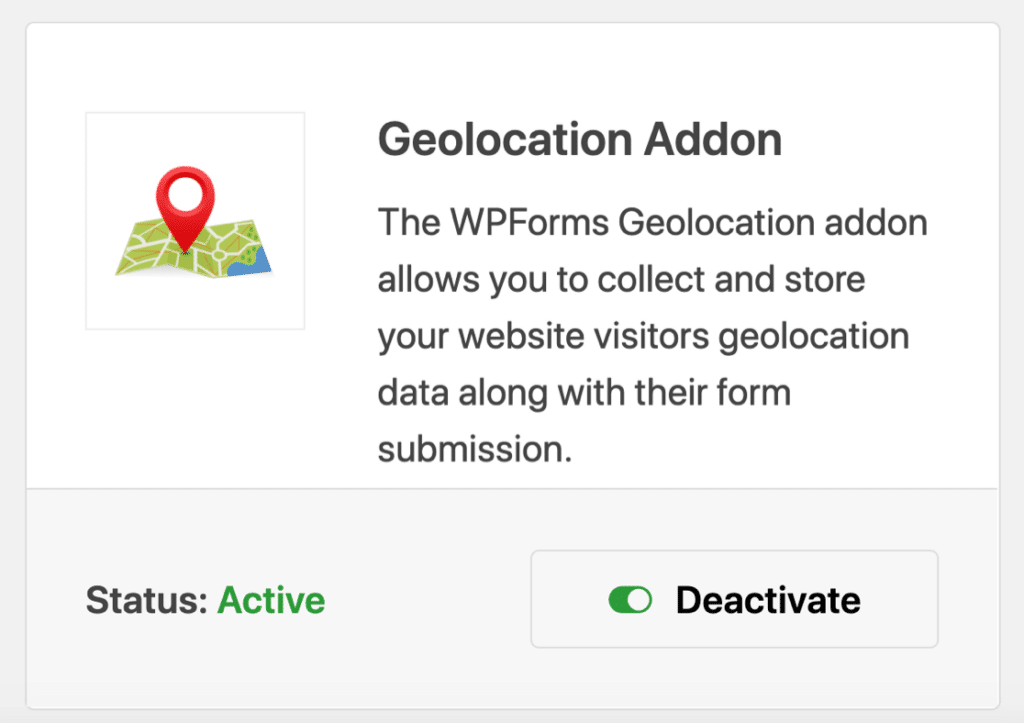
Once it’s active, you’ll see a new Geolocation tab appear in your WPForms settings.
Step 2: Connect Google Places
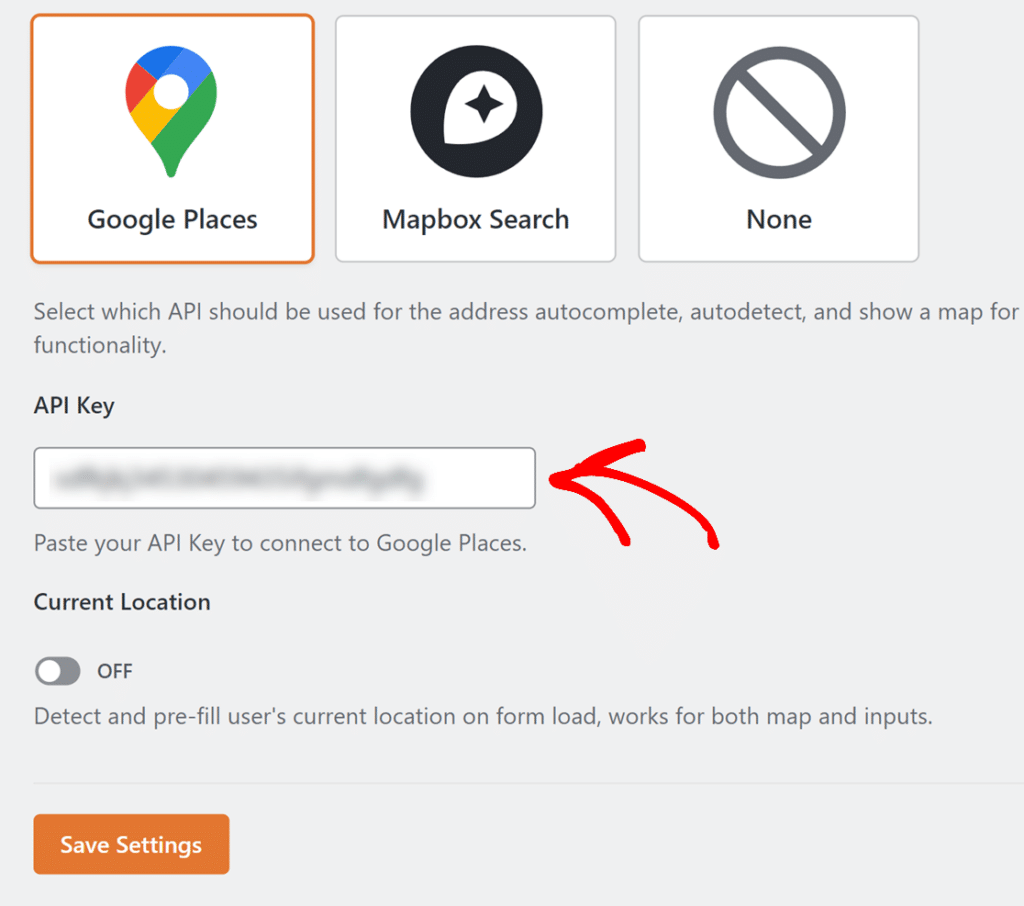
The Map field pulls map data from Google Places. You’ll need a free Google Cloud account and an API key.
Once you’ve grabbed your API key, go to WPForms » Settings » Geolocation, paste the key in, and save the settings.
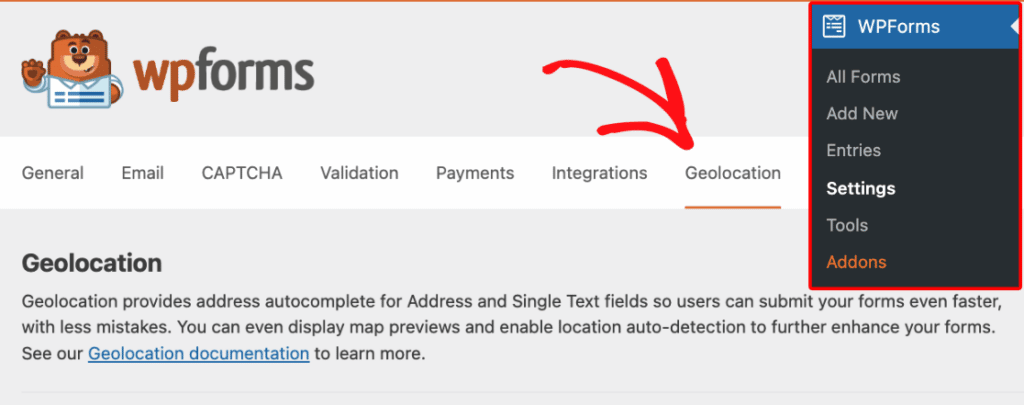
If you get stuck on the API key step, we have a detailed setup guide in the Geolocation Addon documentation that walks through the Google Cloud Console screen-by-screen.
This is the one slightly technical step in the whole setup — about 10 minutes, and you only do it once.
Step 3: Start with the Store Pickup Order Form template
You can build this from scratch, but WPForms already has a template that does 90% of the work for you. From WPForms » Add New, search for “Store Pickup Order Form.”

The template comes pre-loaded with:
- Image-based product selection
- Quantity and color options
- Customer contact fields
- A Map field for location selection
- A Stripe credit card field
- A calculated total that updates in real time
- Terms acknowledgment checkboxes
With this template you’ve got a functional order form with a pickup selector already wired in. From here, you’re customizing — not building from zero.
Step 4: Add your pickup locations to the Map field
In the form builder, find the Map field under the Fancy Fields section. Click it or drag it into the form preview to add it.
Then click the Map field in the preview to open its Field Options. Under the General tab, you’ll see a Locations section with fields for each pickup location you want to show.
For each location:
- Type an address in the Address field. Google Places will autocomplete — pick the right match.
- Add a Name (something customers will recognize, like “Downtown Flagship” or “Eastside Pickup Counter”).
- Add an optional Description — this is where you put the details that save customer service calls (pickup hours, which door to use, whether to call on arrival).
- Click the + button to add the next location.

A couple of admin-side settings worth knowing:
- Find Nearby Locations — when you toggle this on in the builder, your browser asks for your location (the admin’s), and the address autocomplete prioritizes suggestions near you. Handy if all your pickup locations are in the same city as your desk. It does not affect what customers see on the frontend.
- Zoom Level — defaults to 15, which is a good street-level zoom. This setting is only used when you have a single location; once you add multiple locations and enable selection, the map auto-fits to show them all and this setting is disabled.

Step 5: Turn the map into a selector (this is the important one)
By default, the Map field is display-only — customers can look at your locations but can’t pick one. To turn it into a real pickup selector, enable both of these toggles under the General tab:
- Show List of Locations — displays each location’s name and address in a text list below the map. This is important for accessibility and for mobile users who struggle with small map pins.
- Allow Location Selection — adds radio buttons next to each location in the list. This is what turns the map into a form input.

Step 6: Customize the map markers and display
A few tweaks that make the map feel branded instead of generic:
Custom markers — For each location, open the Icon dropdown and choose:
- Icon — pick from over 2,000 Font Awesome icons (search in the icon picker). Default is a star.
- Image — click Upload Image to use your logo or a custom pin from your media library.

Then set the Size (Small, Medium, or Large) and color using the picker (preset colors, a custom drag-and-drop picker, or a hex value). A larger branded marker helps your stores stand out from other businesses on the map.
Advanced tab settings — click the Advanced tab in Field Options for presentation and interaction controls:
- Presentation: Hide Full Screen, Hide Map Type (satellite/terrain), Hide Location Info (popups that appear when clicking a marker), Hide Street View. Most are hidden by default for a cleaner look.
- Interactive: Hide Camera Control, Hide Zoom, Disable Dragging, Disable Mouse Zooming.
- Other: Show in Entry, Show Thumbnail in Entry (how the map appears in submission records), Hide Label.
Step 7: Use conditional logic to show pickup-only details
Here’s a detail most tutorials skip: your order form probably has fields that only apply to pickup or shipping — not both. If you’re offering both options, add a radio button at the top of the form: “How would you like to receive your order?” with Pickup and Ship options.
Then use conditional logic (built into WPForms Pro) to show:
- The Map field only when “Pickup” is selected.
- The shipping address fields only when “Ship” is selected.
This keeps your form short and relevant to whatever the customer actually wants.

Step 8: Test it, then publish
Save your form and embed it on a page using the WPForms block. Before you promote it anywhere, run through it yourself on both desktop and mobile:
- Does the map load quickly?
- Does your selected location actually appear in the confirmation email?
- Does it show up correctly in WPForms » Entries when you look at the submission?
On the Advanced tab, make sure Show in Entry (and optionally Show Thumbnail in Entry) is turned on — this is what makes the customer’s selected location visible to whoever’s prepping orders on the pickup side.

Where a lot of store owners take this next
Once you’ve got the basic pickup form working, two upgrades are worth knowing about:
- Google Calendar integration. Connect the form to your team’s shared calendar so every pickup automatically shows up as an event. A few WPForms customers have told us this replaced a paper notebook at the counter that kept leading to double-bookings.
- Save and Resume. If your order form is long, Save and Resume lets customers come back later without losing progress.
Neither is required for the pickup selector to work, they’re just nice upgrades when you’re ready.
And that’s the whole setup! Map field plus Geolocation addon plus a few minutes of configuration gets you a real, interactive pickup selector.
Ready to add pickup to your site? Grab WPForms Pro if you haven’t yet, install the Geolocation addon, and start with the Store Pickup Order Form template. You can have a working form live in no time!
FAQs About Adding a Store Pickup Selector
Do I need WPForms Pro to use the Map field?
Yes. The Map field is part of the Geolocation addon, which is included with the Pro license or higher. If you’re on WPForms Lite or Basic, you’ll need to upgrade before the addon becomes available.
Is the Google Places API free to use?
Google Cloud requires a billing account, but Google Places includes a generous monthly credit that covers free usage for most small businesses. Unless you’re driving massive traffic to your form, you’ll almost certainly stay within the free tier. You can also set hard usage caps in Google Cloud if you want peace of mind.
What’s the difference between the Address field and the Map field?
The Address field collects the customer’s address — they type it, and autocomplete helps them pick the right one. The Map field displays your pre-configured locations on a map and lets customers pick one. For a pickup selector, you want the Map field. For a shipping address, you want the Address field. Many order forms use both.
How many pickup locations can I add to a single Map field?
There’s no hard limit — you can keep clicking the + button to add more. Practically, I’d keep it under 10 on a single form. If you’re a regional chain with 30+ locations, consider adding a zip code field first and using conditional logic to show only the relevant nearby stores.
Can I hide other businesses and points of interest on my map?
Yes, but it takes an extra step. To hide POIs like restaurants and neighboring shops so only your custom markers show, you’ll need to create a custom map style in Google Cloud Console and apply it to the Map field using a code snippet. WPForms has developer documentation on applying custom map styles if you want to go this route.
How do I see which location a customer picked after they submit the form?
Go to WPForms » Entries and open the submission. The selected location appears in the entry detail, including the name and address. Make sure Show in Entry is enabled on the Map field’s Advanced tab (it is by default) so the location displays in entry records and email notifications.
Can I connect pickup submissions to Google Calendar?
Yes — and it’s one of the most useful upgrades for a pickup form. Install the Google Calendar addon and connect your form to a shared team calendar so every pickup order automatically creates a calendar event. This replaces the notebook-at-the-counter problem a lot of shops deal with.
Next, Create a Multi-Location WordPress Booking Form
Putting a pickup selector on your order form isn’t the only way to use this powerful feature. Are you booking appointments or events with your WordPress forms? Why not turn it into a multi-location booking form? With the map field, you can! Check out the full tutorial to learn how.
Ready to build your form? Get started today with the easiest WordPress form builder plugin. WPForms Pro includes lots of free templates and offers a 14-day money-back guarantee.
If this article helped you out, please follow us on Facebook and X (Twitter) for more free WordPress tutorials and guides.





