


AI Summary
A customer fills out your order form. They scroll to checkout. They look for their preferred payment method… and it’s not there. Tab closed. Sale gone. You’ll never know they were close.
That tiny moment is responsible for a lot of lost orders. Some customers will only pay with PayPal. Some live in Apple Pay. Some won’t type a card number on a small business site they’ve never bought from before.
The fix isn’t bolting on three more checkout plugins. It’s just one field!
In this post, I’ll show you how to add the PayPal Commerce field to a WPForms form so your customers get a single button that handles PayPal, Venmo, Apple Pay, Google Pay, and credit cards. All from the same form, with no extra plugins, no separate Stripe setup, and no developer required.
Also, PayPal works on every WPForms plan, including Lite. So whether you’re using a paid license or just getting started with the plugin, you can follow along.
By the time you finish reading, you’ll have a working multi-method payment form on your WordPress site.
Why one field beats stitching together multiple
Most form builders treat payment methods like separate features. You set up Stripe for cards. PayPal goes in a different button. Venmo and Apple Pay either don’t show up at all or live behind a third integration.
That’s three account connections, three checkout flows, and three ways for something to break.
The PayPal Commerce field works differently. It’s a single drop-in field that renders one smart payment button. PayPal handles the routing — when a customer clicks, they see whatever payment options apply to their device and account: PayPal balance, Venmo, Apple Pay (on Safari/iOS), Google Pay (on Chrome/Android), credit and debit cards, or Pay Later.
You configure it once and PayPal does the rest.
What you’ll need
- A WordPress site with WPForms (any plan — including Lite)
- A PayPal Business account (you’ll connect it in one click during setup — no API keys to copy)
- About 10 minutes
Step 1: Set up PayPal Commerce in WPForms
If you’re on WPForms Pro or Elite: Head to WPForms » Addons and scroll until you see PayPal Commerce. Click Install Addon, then Activate.

This gives you the full PayPal Commerce integration with no transaction fees from WPForms and access to conditional logic for your payment forms.
If you’re on WPForms Lite: You’re already set. PayPal Commerce is built right into the plugin — no addon to install. The only difference is that WPForms applies a 3% transaction fee on Lite. If you want to remove that fee (and unlock conditional logic), you can upgrade to Pro anytime.
Either way, the next step is the same.
Step 2: Connect your PayPal Business account
Go to WPForms » Settings » Payments.
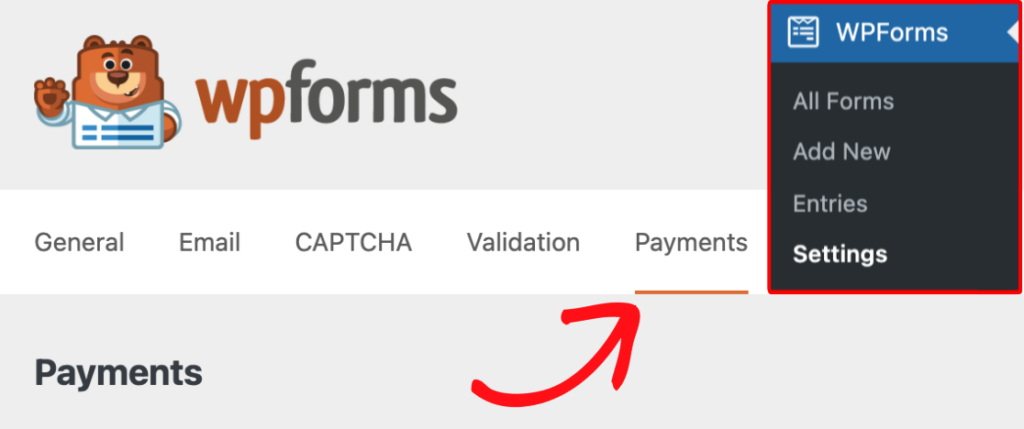
Now, scroll down and click Connect with PayPal. A PayPal window opens asking you to log in to your PayPal Business account and grant WPForms permission to process payments on your behalf. Approve it. Window closes.
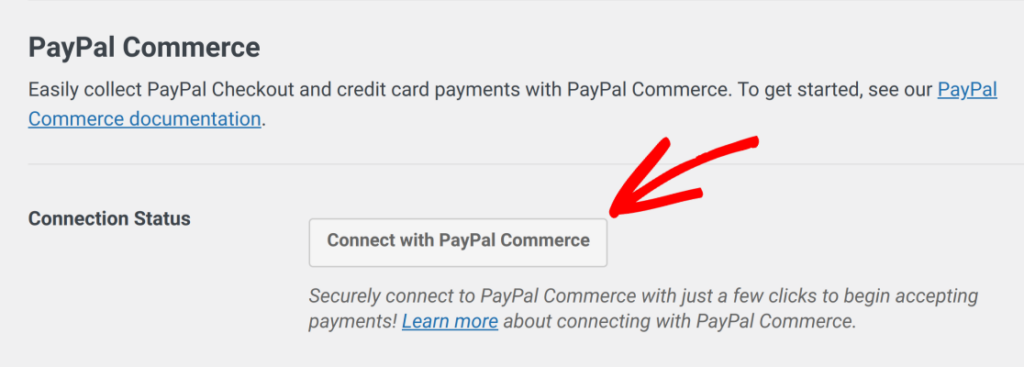
Back in your WP dashboard, you’ll see a green “Connected” status.

That’s your account linked. No webhooks to configure, no client IDs to paste — PayPal Commerce uses the modern OAuth flow that WPForms wraps for you.
WPForms also sets up your PayPal Commerce webhooks automatically in the background. Webhooks are what keep your payment records in sync between PayPal and WordPress — so refunds, status changes, and payment updates show up correctly in your entries without you having to lift a finger.

If they don’t get configured for some reason, you can set them up manually by following the guide on setting up PayPal Commerce webhooks.
If you don’t have a PayPal Business account yet, you can create one during this step. PayPal walks you through it in about 5 minutes.
Step 3: Create or open the form you want to take payments on
If you don’t have a payment form yet, go to WPForms » Add New and pick a template.
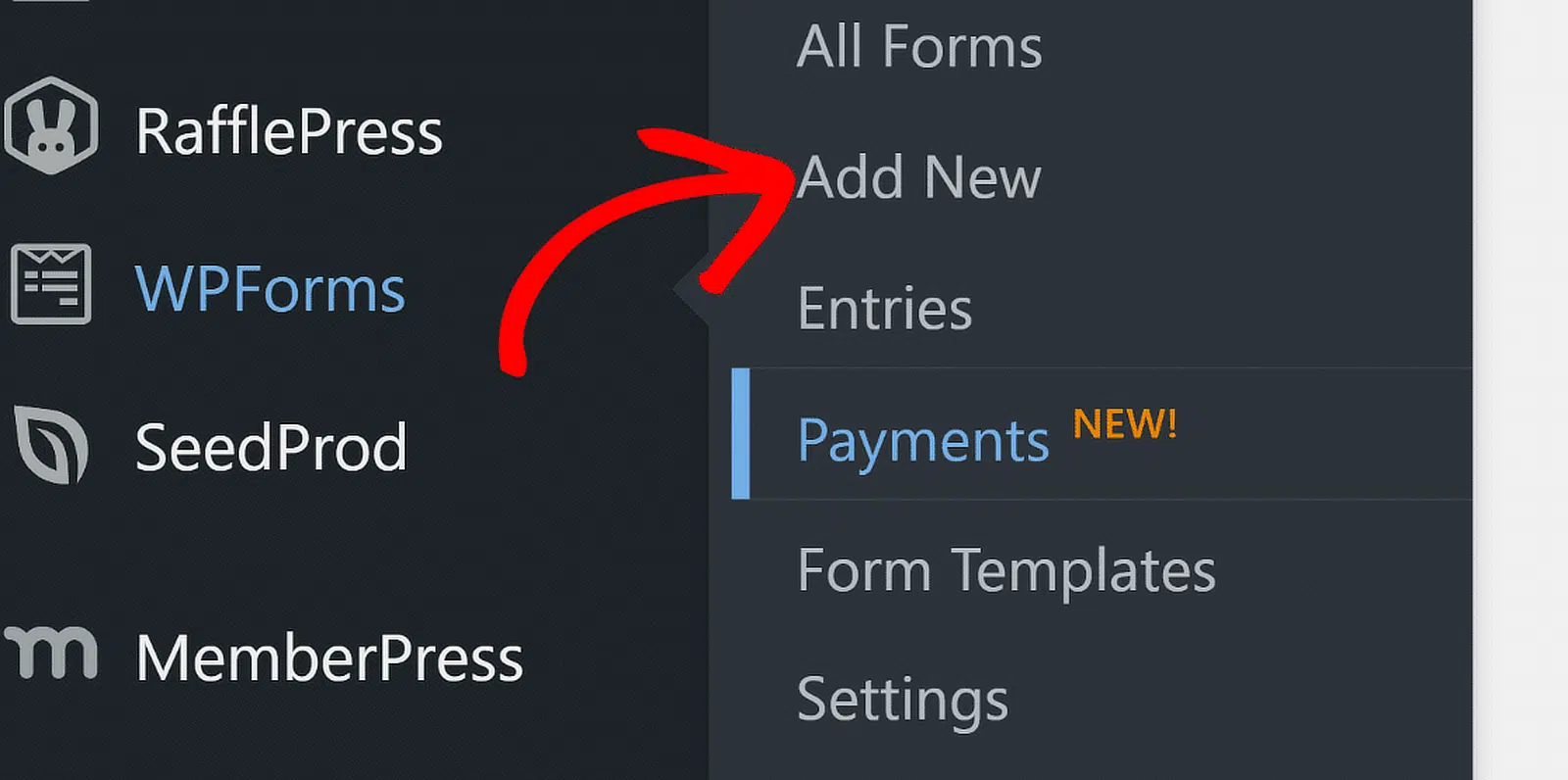
The Order Form or Donation Form templates are good starting points — they already have name, email, and product fields wired up.
If you’re adding payments to an existing form, just open it in the form builder.
Step 4: Add the PayPal Commerce field
In the builder, look at the field panel on the left. Scroll down to the Payment Fields section. Drag PayPal Commerce into your form.

Place it at the bottom of the form, after your customer’s contact info and product selections. Customers should see what they’re paying for before they see the pay button.
Step 5: Choose which payment methods to show
Now that the PayPal Commerce field is on your form, it replaces the submit button with the PayPal button, along with buttons for Google Pay, Apple Pay, and Venmo if it’s offered in your user’s region.

Go ahead and click on this PayPal field you just added. The field options open in the left sidebar.
Under Payment Methods, you’ll see toggles for a handful of settings. For example, you can decide if this PayPal field and selection of buttons will be the default view, or if the credit card option will be.
Then, toggle on every payment method you want to offer. Most site owners turn on all of them — the more options a customer sees, the more likely one of them is the one they trust.
And that’s what’s really neat about this PayPal field… It actually offers up to 6 payment options, all in one field. Because even though the field is geared toward Paypal, users can still enter their credit card information instead if they prefer.

So overall, the payment options your user can choose from with this field on the frontend are:
- Credit or debit card
- Apple Pay
- Google Pay
- venmo
- Fastlane
- PayPal Buy Now, Pay Later
It’s a great way to offer multiple payment methods on one form, from one field.
Step 6: Configure Your PayPal Settings
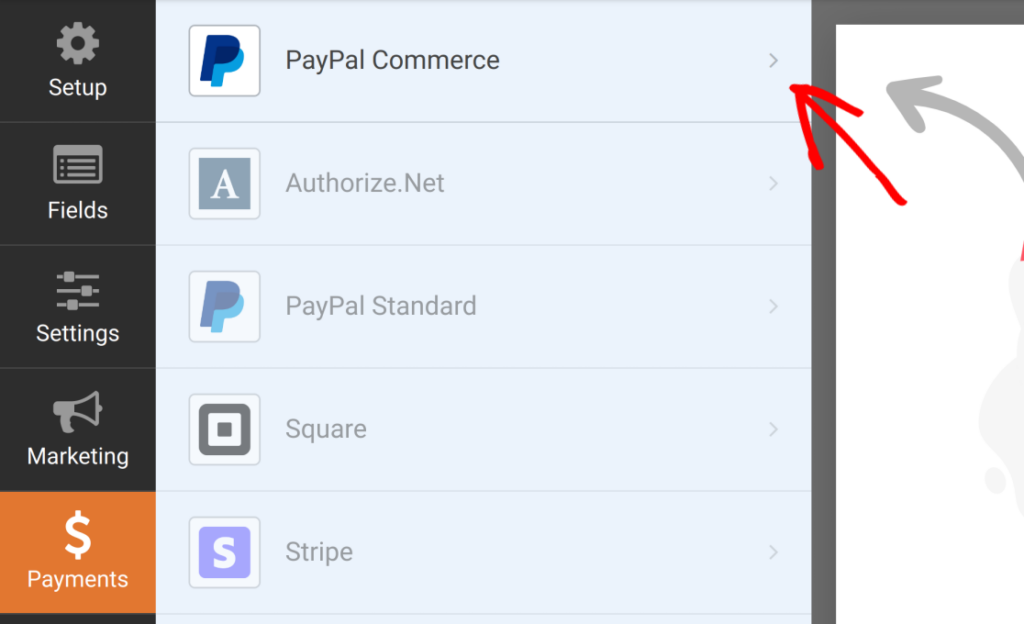
With your fields in place, the last piece is telling PayPal how to handle the payment itself. In the form builder, click Payments » PayPal Commerce in the left sidebar to open the payment settings.
One-time payments
For a single charge per form submission, toggle on Enable one-time payments.
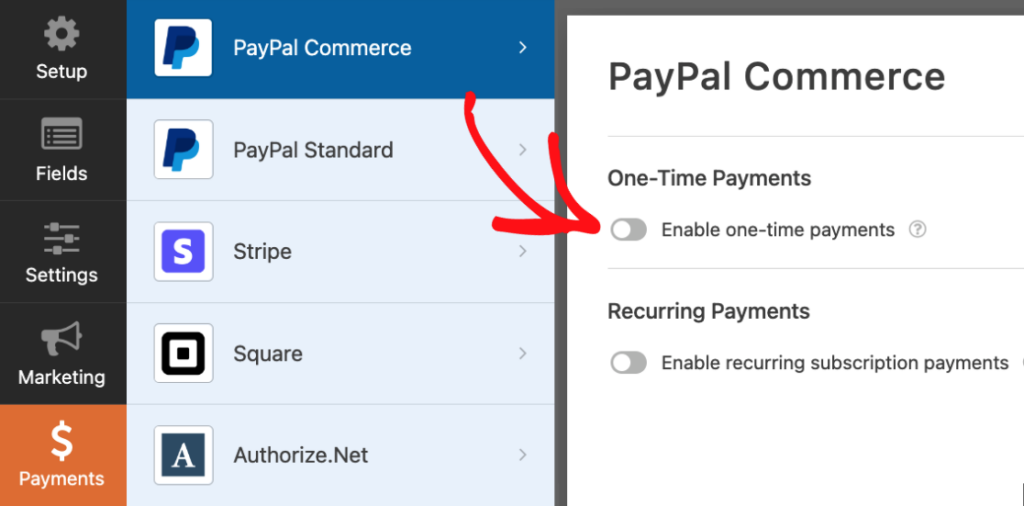
You’ll see a Payment Description field — drop in a short label that helps you identify the payment later in your PayPal records. Something like “Website consultation fee” or “Product order” works well.
Note: A few extras — Billing Address, Shipping Address, and Conditional Logic — are Pro-only. For straightforward one-time payments, though, Lite has everything you need right here.
Recurring payments
For monthly memberships, subscription services, or ongoing retainers, toggle on Enable recurring subscription payments instead.
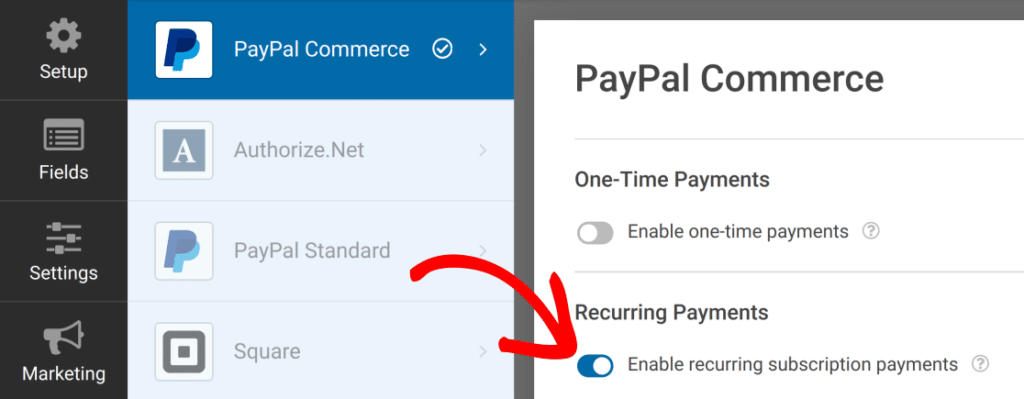
A few settings to fill in for the plan:
- Plan Name — internal label for your records
- Product Type — what the payment is for
- Recurring Times — billing frequency (weekly, monthly, yearly)
- Total Cycles — how many times the charge repeats before stopping

Lite also includes an automatic retry if the first payment attempt fails — a nice safety net if you’re running a subscription business.
One thing to know: Lite supports a single recurring plan per form, and you can’t mix one-time and recurring on the same form. If you need both — say, a “pay now” option alongside a monthly plan — that’s where WPForms Pro and the PayPal Commerce addon come in, since you can use conditional logic to switch between them.
For a deeper dive on subscription billing, here’s how to accept recurring payments on your WordPress forms.
Step 7: Set up your confirmation and notifications
Click the Settings » Confirmations tab in the builder.

Edit the default thank-you message to confirm the order or donation — something like “Thanks for your order! You’ll get a receipt at the email you provided.”
Then under Settings » Notifications, make sure your admin notification includes the order details and the customer’s email so you can follow up.

If you sell multiple products, consider adding a second confirmation triggered by smart conditional logic — for example, a digital product confirmation that includes the download link, separate from a physical product confirmation that mentions shipping.
Step 8: Embed the form on a page
When you’re happy with the form, be sure to Save it.

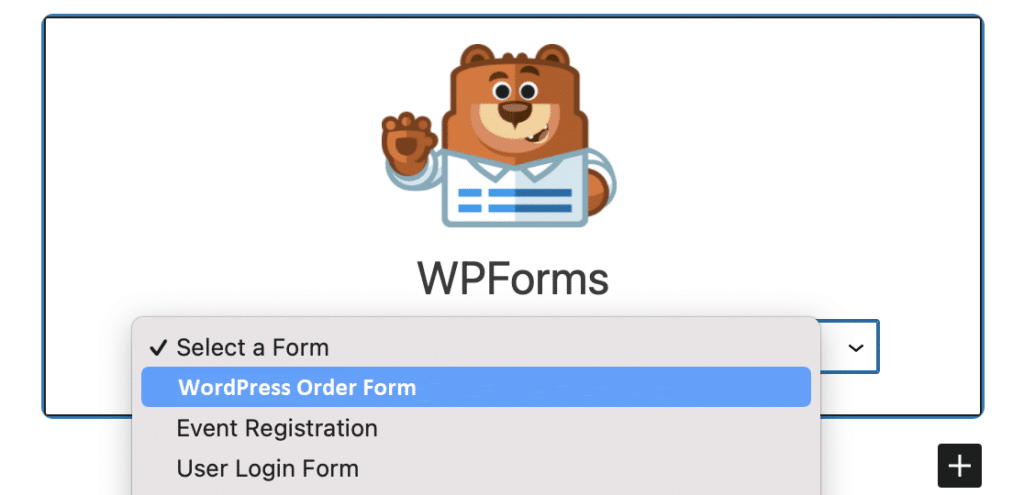
Then, open the page where you want it to appear (or create a new one) and add the WPForms block. Pick your form from the dropdown.
Publish the page, then preview it in an incognito window so you see the form the way a customer does.
How to test it before going live
PayPal Commerce ships with a sandbox mode you can use to run a fake payment from end to end.
- Go to WPForms » Payments » PayPal Commerce and toggle on Test Mode.
- Submit a test purchase from your form. Use the sandbox credentials PayPal provides.
- Check that the entry shows up in WPForms » Entries with the payment marked as completed.
- Confirm the customer gets the right confirmation message and email.
- Toggle test mode off when you’re ready to go live.
If you watch the form on your phone, an iPad, and a desktop browser during testing, you’ll see how the button shifts to surface Apple Pay or Google Pay depending on the device. That visual confirmation is worth the extra two minutes.
What to do next
You now have one form that takes multiple payment methods. A customer who only uses PayPal won’t bounce. A customer who lives in Apple Pay won’t have to dig out a card. And the customer who will type a card number can still do that — same field, no extra clicks.
Already on WPForms Lite? You’re collecting payments right now — that’s huge. When you’re ready to drop the 3% transaction fee and add features like conditional logic, Stripe, and Square, upgrading to WPForms Pro unlocks all of that.
Already on WPForms Pro? Install the PayPal Commerce addon from your WP dashboard and you’re 10 minutes away from accepting Apple Pay, Google Pay, Venmo, PayPal, and cards on every form you publish.
FAQs About Offering Multiple Payment Methods
Can I accept PayPal payments on WPForms Lite?
Yes. PayPal Commerce is built into every WPForms plan, including Lite. Lite users can accept PayPal, Venmo, Apple Pay, Google Pay, Pay Later, and credit and debit cards on any form. WPForms applies a 3% transaction fee on Lite, which is removed when you upgrade to Pro or Elite.
What’s the difference between PayPal Commerce on WPForms Lite and Pro?
Both plans support the same payment methods through the same one-click setup. The differences are at the feature level: Pro removes the 3% transaction fee, unlocks conditional logic for payment forms, adds Billing and Shipping Address fields, and lets you mix one-time and recurring payments on the same form. Lite supports a single payment type per form (one-time or recurring).
Which payment methods can I add to one WordPress form with PayPal Commerce?
A single PayPal Commerce field can offer PayPal balance, Venmo, Apple Pay, Google Pay, credit and debit cards (Visa, Mastercard, Amex, Discover, Maestro), and Pay Later installments. PayPal automatically surfaces the right options based on the customer’s device and account — you don’t have to configure each one separately.
Do Apple Pay and Google Pay require separate plugins or setup?
No. The PayPal Commerce field handles both wallets automatically. Apple Pay shows up for visitors on iOS Safari, and Google Pay shows up for visitors on Chrome or Android. PayPal handles the device detection in the background, so there’s no extra plugin, API key, or conditional logic to configure.
Can I accept recurring or subscription payments through PayPal Commerce?
Yes. In the form builder, open Payments » PayPal Commerce and toggle on Enable recurring subscription payments. You can set a plan name, product type, billing frequency (weekly, monthly, yearly), and total cycles. Lite supports one recurring plan per form. To combine one-time and recurring options on the same form, you’ll need WPForms Pro with conditional logic.
Do I need a developer to set up PayPal Commerce on a WordPress form?
No coding or developer is required. Connecting PayPal uses a one-click OAuth flow inside WPForms — there are no API keys to copy, client IDs to paste, or webhooks to configure manually. WPForms sets up the webhooks for you in the background so payment statuses and refunds stay in sync between PayPal and WordPress.
How do I test a PayPal Commerce form before going live?
Go to WPForms » Payments » PayPal Commerce and toggle on Test Mode. Submit a test purchase using PayPal’s sandbox credentials, then check that the entry appears in WPForms » Entries with the payment marked completed and that your confirmation email fires correctly. Toggle Test Mode off when you’re ready to accept real payments.
Next, Build a Product Recommendation Quiz
If you’re adding PayPal and other payment options on your forms, then you’re likely offering products on your website. But are your website visitors overwhelmed with choices?
Give them a product recommendation quiz! It’s a slight nudge in the direction they need while also helping them feel catered to.
Ready to build your form? Get started today with the easiest WordPress form builder plugin. WPForms Pro includes lots of free templates and offers a 14-day money-back guarantee.
If this article helped you out, please follow us on Facebook and X (Twitter) for more free WordPress tutorials and guides.





