


Resumo de IA
Quer permitir que seus usuários enviem vários arquivos através de seus formulários do WordPress? Você veio ao lugar certo. Neste guia, vou mostrar como criar formulários com aparência profissional com vários campos de upload de arquivos – sem necessidade de codificação.
Este método é perfeito para coletar portfólios, documentação ou qualquer situação em que você precise que os usuários enviem vários arquivos de uma vez.
Crie seu formulário WordPress agora
Como Permitir Uploads de Múltiplos Arquivos para Formulários de Contato do WordPress
Dar aos visitantes do seu site a capacidade de enviar um arquivo em seu formulário do WordPress facilita a coleta das informações de que você precisa. Mas, às vezes, você precisa de mais do que apenas um arquivo deles. Por exemplo, se você tiver um formulário de inscrição de emprego, pode precisar coletar um currículo, bem como uma carta de apresentação.
O WPForms é uma ótima opção de plugin de upload de arquivos se você quiser a facilidade de criar um campo de upload de arquivos com um construtor de formulários de arrastar e soltar. Por padrão, o campo de upload de arquivos do WPForms permite que os usuários enviem vários arquivos por vez. Tudo o que você precisa fazer é adicionar o campo ao seu formulário.
Aqui está o que vou cobrir neste tutorial:
- Etapa 1: Crie um Formulário de Upload de Arquivos no WordPress
- Etapa 2: Configure as Opções do Campo de Upload de Arquivos
- Etapa 3: Personalize as Configurações do Seu Formulário
- Etapa 4: Configure as Notificações do Seu Formulário
- Etapa 5: Configure as Confirmações do Seu Formulário
- Etapa 6: Adicione Seu Formulário ao Seu Site
- Etapa 7: Visualize os Arquivos
- FAQ — Uploads de Arquivos no WordPress
Pronto? Vamos começar!
Etapa 1: Crie um Formulário de Upload de Arquivos no WordPress
Para este tutorial, vou assumir que você ainda não tem seu formulário pronto e começarei do início. Se você já tem um formulário e só quer ver como adicionar um campo de upload de arquivos a ele, verá como simplesmente arrastar o campo para o seu formulário no editor nesta primeira etapa.
A primeira coisa que você precisará fazer é instalar e ativar o plugin WPForms. Para mais detalhes sobre como instalá-lo, consulte este guia passo a passo sobre como instalar um plugin no WordPress.
Em seguida, vá para o seu painel do WordPress e clique em WPForms » Adicionar Novo no painel esquerdo para criar um novo formulário e nomeá-lo. Você pode escolher o nome que quiser.

Em seguida, role para baixo até a seção Selecionar um Modelo e pesquise pelo modelo de formulário de upload de arquivos. Em seguida, clique em Usar Modelo para abri-lo.
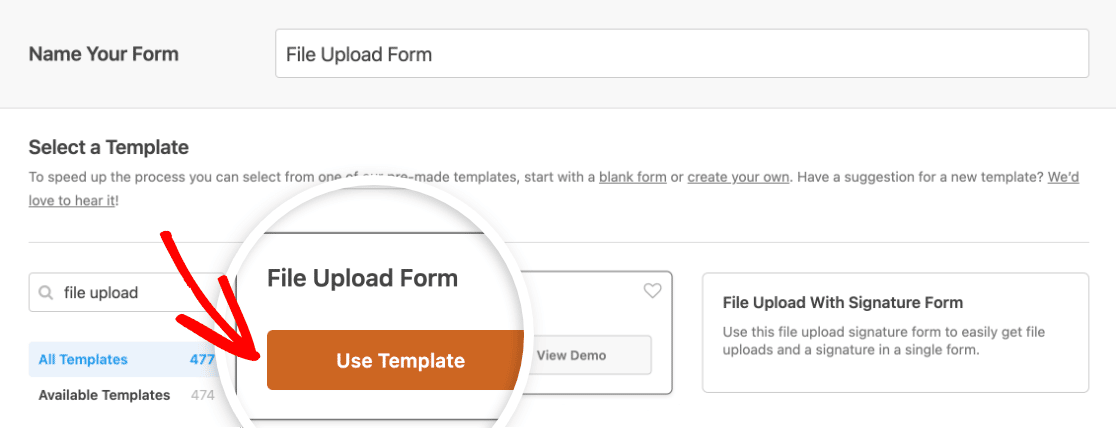
O WPForms agora preencherá um Formulário de Upload de Arquivos pré-construído e exibirá o construtor de arrastar e soltar.
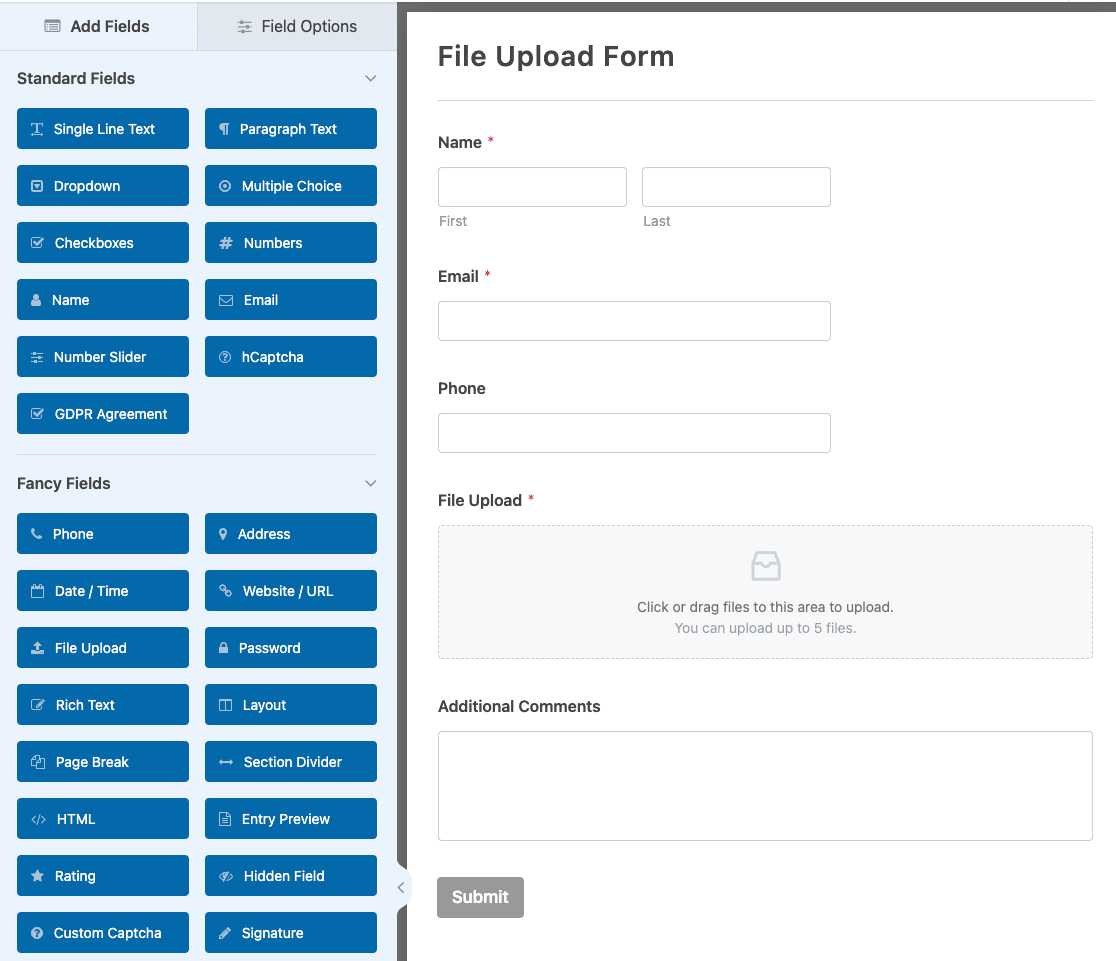
Aqui, você pode adicionar campos adicionais ao seu formulário de contato arrastando-os do painel esquerdo para a área de visualização direita.
Com o modelo de formulário de upload de arquivos, você já terá os campos Nome, Email, Telefone, Upload de Arquivo e Comentários Adicionais .
Clique em qualquer um dos campos do formulário para fazer alterações. Você também pode clicar em um campo do formulário e arrastá-lo para cima e para baixo para reorganizar a ordem em seu formulário.
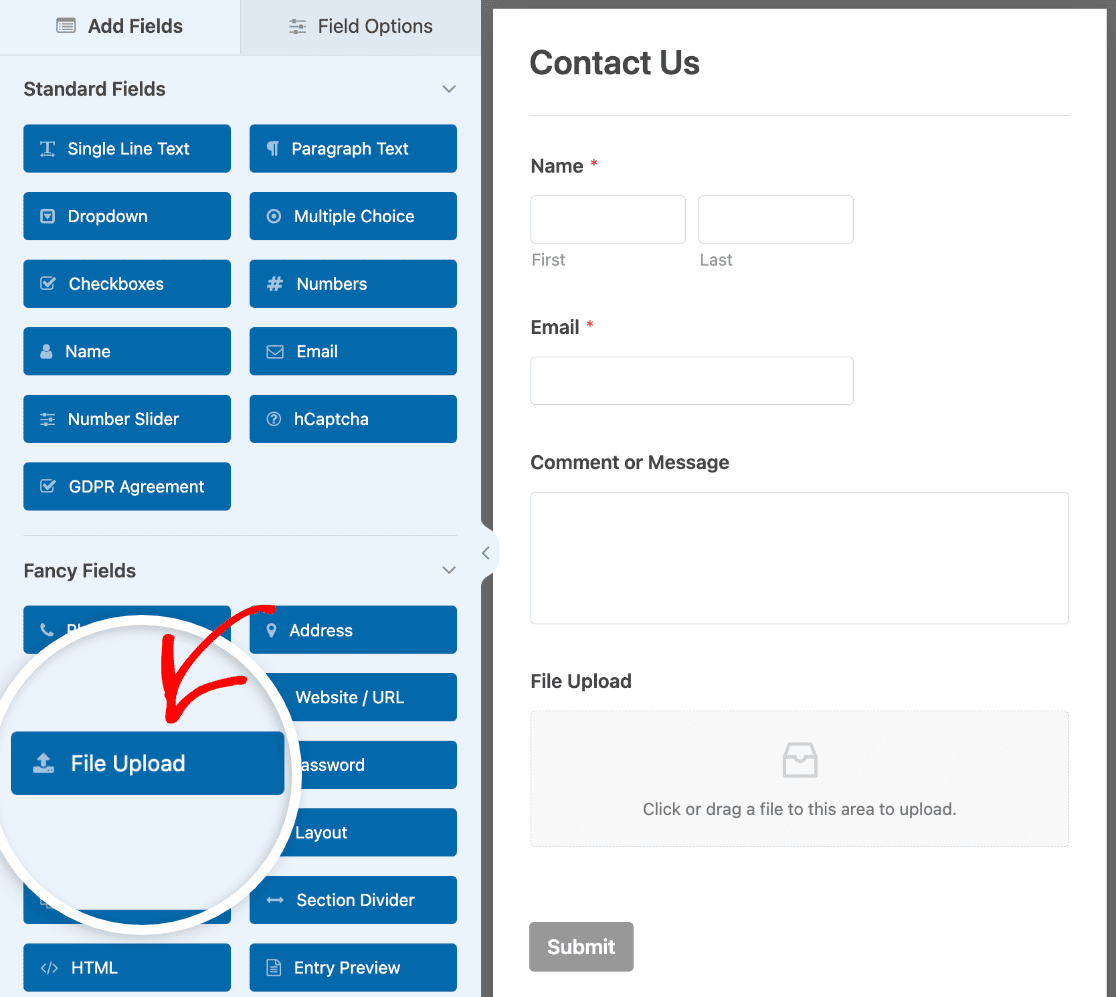
Observação: Você pode adicionar o campo de upload de arquivos a qualquer formulário do WordPress que você criar. Basta arrastar o campo de formulário de upload de arquivos, encontrado em Campos Elaborados, do painel esquerdo do construtor de formulários para a área de visualização.
Etapa 2: Configure as Opções do Campo de Upload de Arquivos
Você pode clicar no campo de upload de arquivos para abrir suas opções de campo.
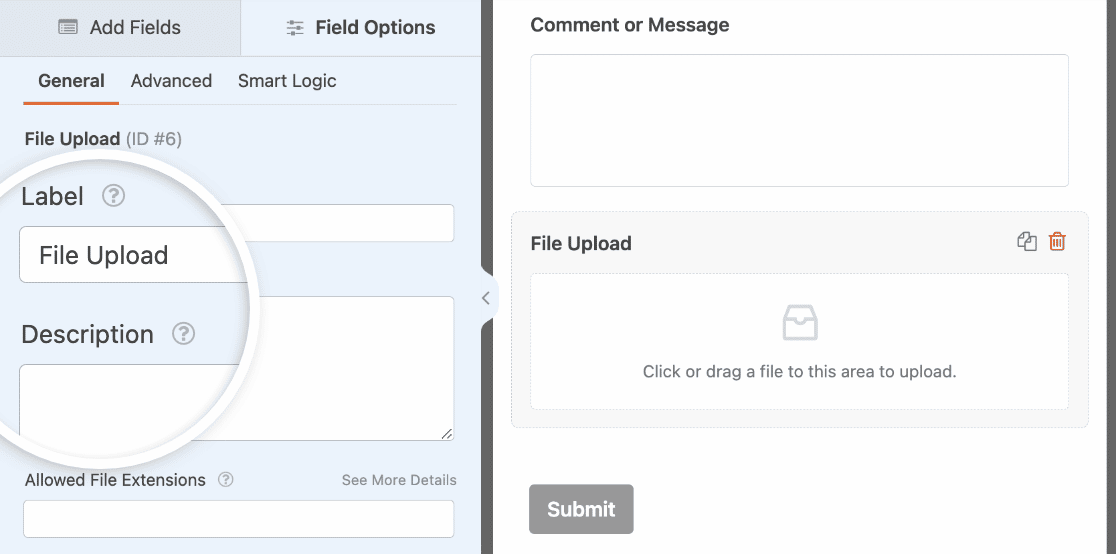
Aqui você pode alterar a:
- Rótulo — Nomeie o campo do formulário para que os visitantes do seu site saibam para que ele serve.
- Descrição — Adicione uma descrição explicando detalhes aos usuários. Por exemplo, se você quiser que as pessoas enviem apenas uma imagem, diga isso a elas.
- Extensões de Arquivo Permitidas — Se você deseja restringir os tipos de arquivos que podem ser enviados em seu formulário do WordPress, liste-os aqui, cada um separado por vírgula
- Tamanho máximo do arquivo — Especifique, em megabytes, o tamanho máximo de arquivo que você permitirá que os usuários enviem. Se você deixar este campo em branco, o WPForms usará o tamanho máximo de arquivo permitido pelo seu provedor de hospedagem. Se precisar alterar isso, consulte este tutorial sobre como aumentar o tamanho máximo de upload de arquivos no WordPress.
- Uploads Máximos de Arquivo — Defina o número máximo de arquivos que os usuários podem adicionar a este formulário.
- Obrigatório — Se você deseja exigir que os usuários façam o upload de um arquivo antes de poderem enviar o formulário, ative esta opção.
Depois de personalizar as opções gerais do campo, clique na aba Avançado. Aqui, certifique-se de que o Estilo esteja definido como Moderno.
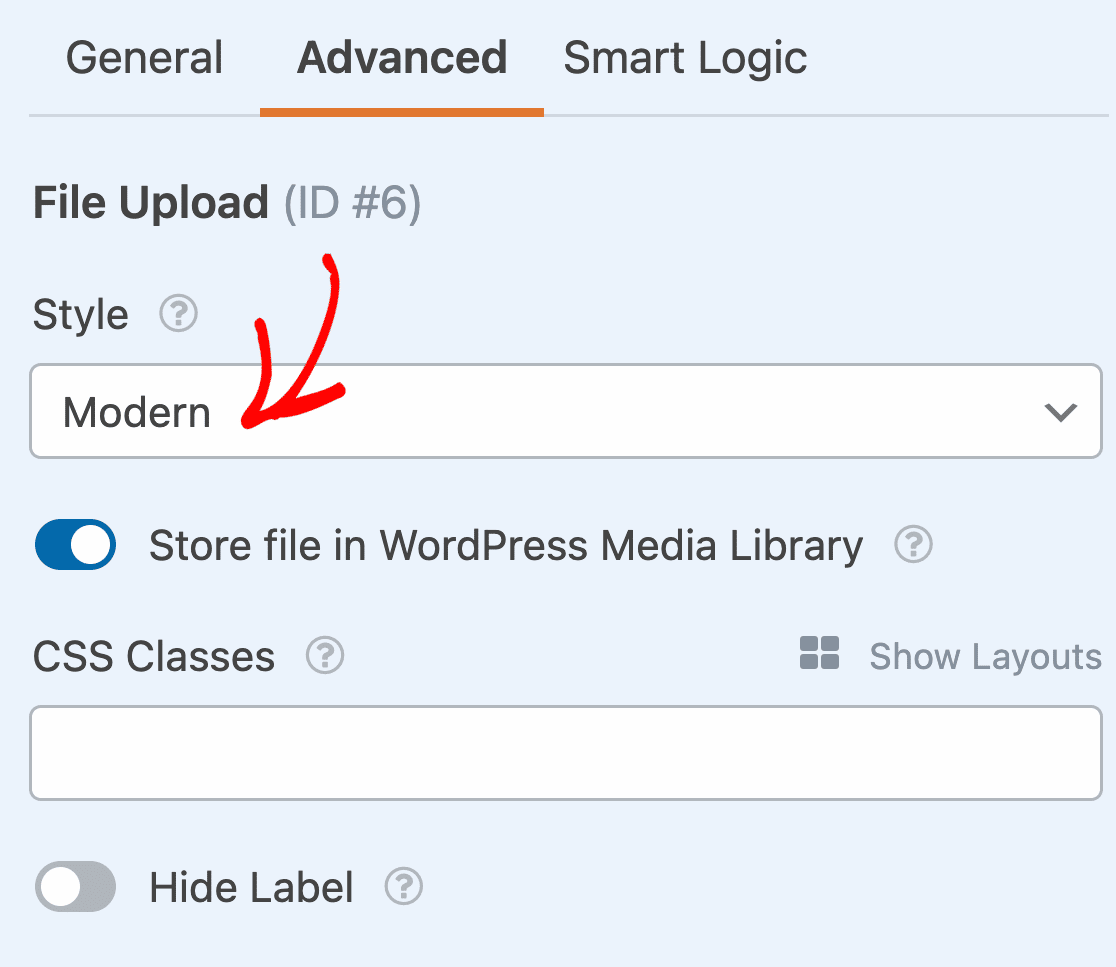
Isso é importante porque o estilo Clássico não permite uploads de vários arquivos.
Quer saber onde esses uploads de arquivos serão armazenados?
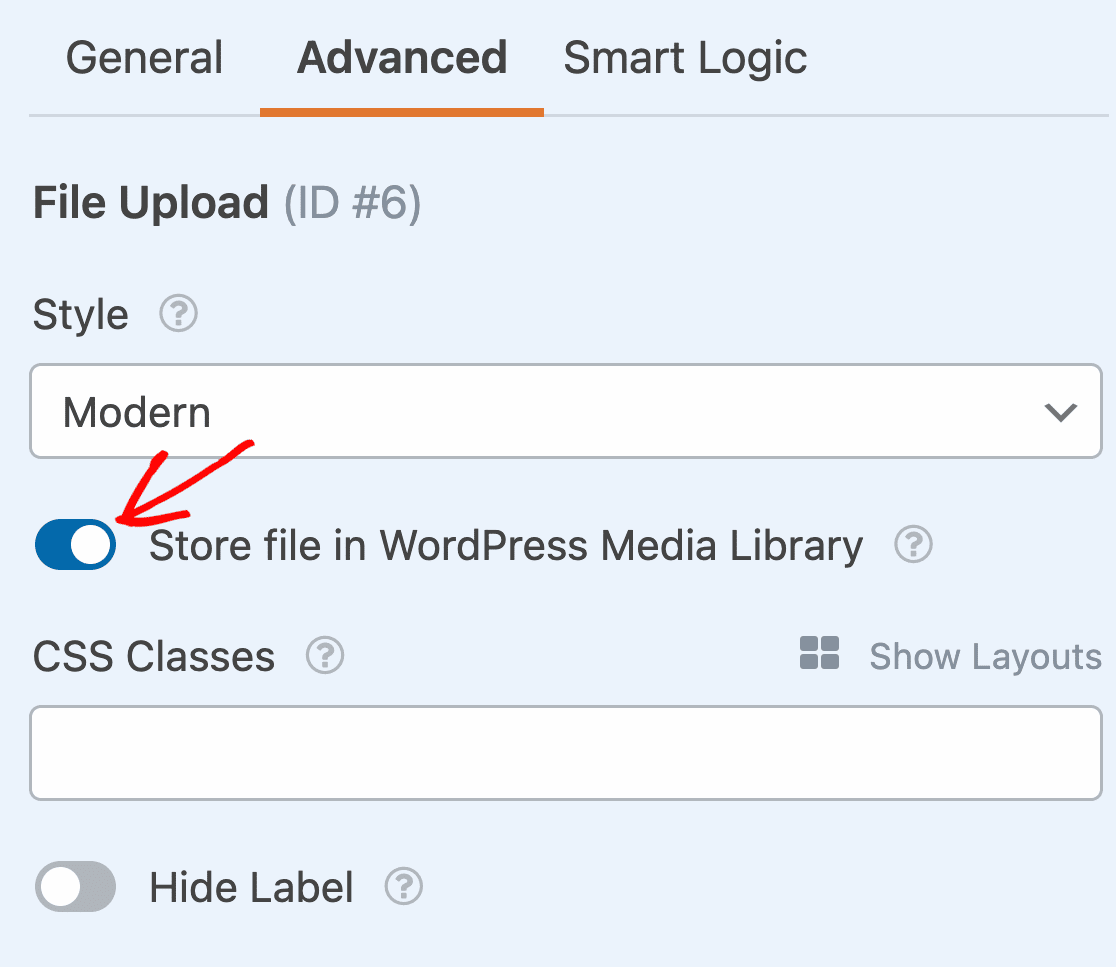
Por padrão, todos os arquivos enviados pelos usuários são armazenados na pasta WPForms dentro do diretório Uploads do seu site. Para facilitar, você também pode armazenar esses arquivos na sua Biblioteca de Mídia do WordPress ativando a opção Armazenar campo na Biblioteca de Mídia do WordPress.
Se você quiser restringir o acesso aos arquivos enviados, isso é fácil de fazer no WPForms. Na aba Avançado do campo Upload de Arquivo, você também verá um interruptor para Ativar Restrições de Acesso a Arquivos.

Quando você seleciona esta opção, pode restringir o acesso por meio de proteção por senha, ou pode restringi-lo com base em funções de usuário. Se você selecionar funções de usuário, o usuário deve estar logado para acessar os arquivos enviados.
Também mostrarei como acessar os arquivos enviados na tela de Entradas e nas notificações por e-mail do seu formulário.
Você pode fazer com que os formulários fiquem ótimos seguindo as etapas em nosso post sobre como criar um formulário de várias etapas no WordPress. Mas, para fins deste tutorial, ficaremos com uma única página.
Etapa 3: Personalize as Configurações do Seu Formulário
Para começar, vá para Configurações » Geral.
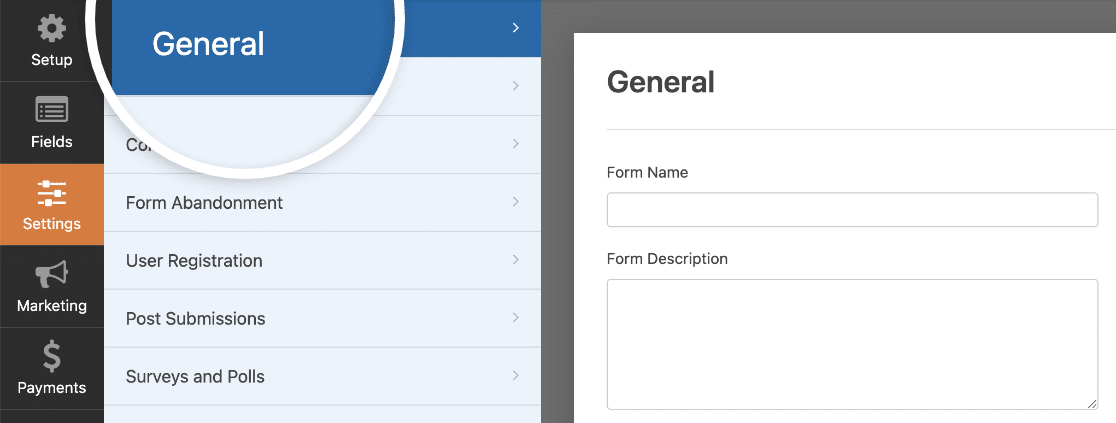
Aqui você pode configurar o seguinte:
- Nome do Formulário — Altere o nome do seu formulário aqui, se desejar.
- Descrição do Formulário — Dê uma descrição ao seu formulário.
- Tags — Adicione tags ao seu formulário para ajudar a manter seus formulários do WordPress organizados.
- Texto do Botão Enviar — Personalize o texto do botão de envio.
- Texto de Processamento do Botão Enviar — Altere o texto que aparece enquanto seu formulário está sendo enviado.
Você também pode expandir as configurações Avançadas para configurar as seguintes opções:
- Classes CSS — Adicione CSS personalizado ao seu formulário ou botão de envio.
- Preencher por URL — Preencha automaticamente alguns campos com base em um URL personalizado.
- Ativar envio de formulário AJAX — Ative as configurações AJAX sem recarregar a página.
- Desativar o armazenamento de informações de entrada no WordPress — Você pode desativar o armazenamento de informações de entrada e detalhes do usuário, como endereços IP e agentes de usuário, em um esforço para cumprir os requisitos do GDPR. Confira nossas instruções passo a passo sobre como adicionar um campo de acordo com o GDPR ao seu formulário de contato simples.
Depois de terminar nas configurações gerais, clique nas configurações de Proteção contra Spam e Segurança.
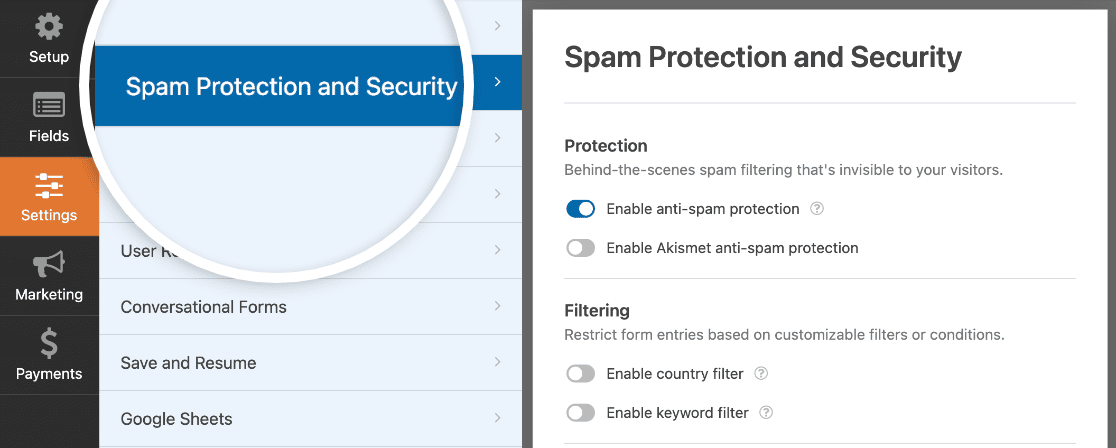
- Ativar proteção anti-spam — Interrompa o spam em formulários de contato com o recurso anti-spam, hCaptcha ou Google reCAPTCHA. A caixa de seleção anti-spam é marcada automaticamente em todos os novos formulários.
- Ativar proteção anti-spam do Akismet — Se você usa o plugin Akismet para gerenciar spam, pode conectá-lo a este formulário para evitar envios falsos.
- Ativar filtro de país — Bloquear envios de determinados países.
- Ativar filtros de palavras-chave — Impedir envios que incluam certas palavras ou frases.
Você também pode configurar um CAPTCHA para bloquear entradas de spam. Confira nosso guia completo de configurações anti-spam para mais detalhes.
E quando terminar, clique em Salvar.
Etapa 4: Configure as Notificações do Seu Formulário
Notificações são uma excelente maneira de saber quando alguém envia um de seus formulários.
E, a menos que você desative o recurso de notificação, você receberá uma notificação por e-mail sempre que alguém enviar um formulário em seu site.
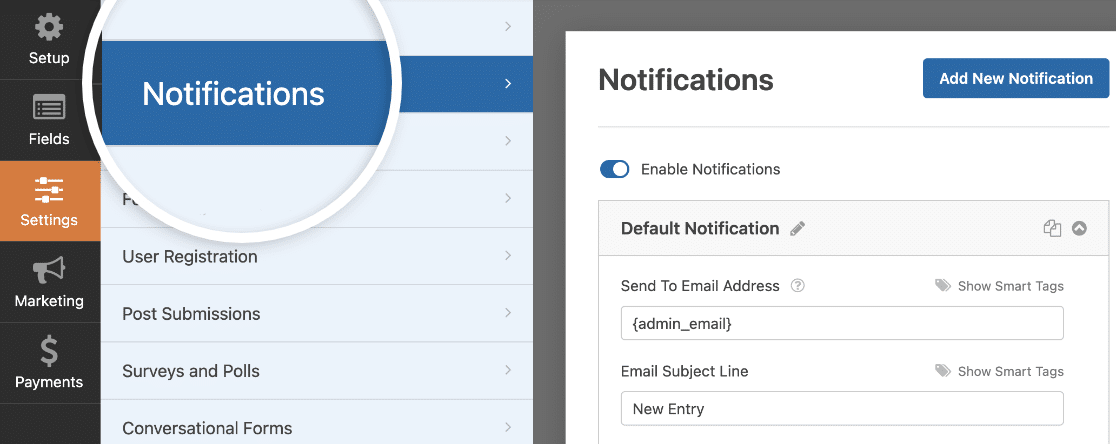
Para receber uma mensagem de e-mail quando alguém preencher seu formulário, você precisará configurar notificações de formulário no WordPress e fornecer seu endereço de e-mail.
Além disso, se você usar Tags Inteligentes, poderá enviar uma notificação personalizada aos visitantes do seu site assim que eles preencherem seu formulário para informá-los de que você o recebeu. Isso garante aos usuários que o formulário deles foi processado corretamente.
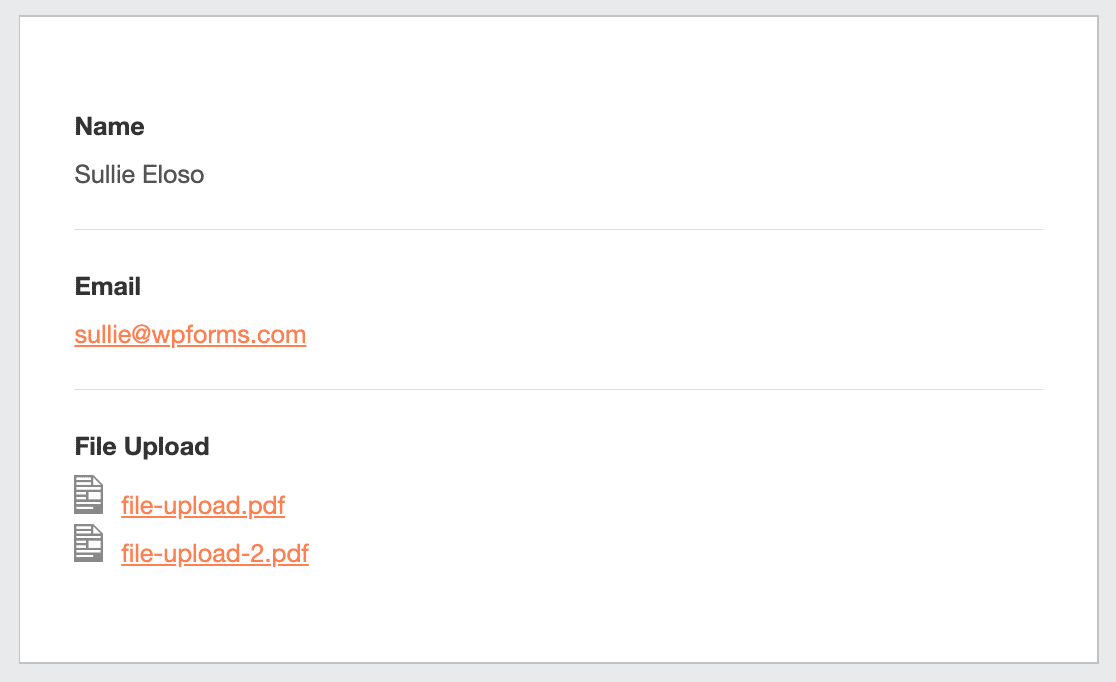
Para incluir os arquivos enviados em sua notificação por e-mail, use uma Tag Inteligente para incluir o conteúdo do campo de Upload de Arquivo no corpo do e-mail. Isso adicionará links nos quais você pode clicar para ver os arquivos enviados.
Para saber mais sobre isso, confira nosso guia passo a passo sobre como enviar várias notificações de formulário no WordPress.
Se você preferir incluir os arquivos enviados como anexos de e-mail, role até o final de sua notificação e expanda as configurações Avançadas. Em seguida, ative a configuração Habilitar Anexos de Upload de Arquivo.
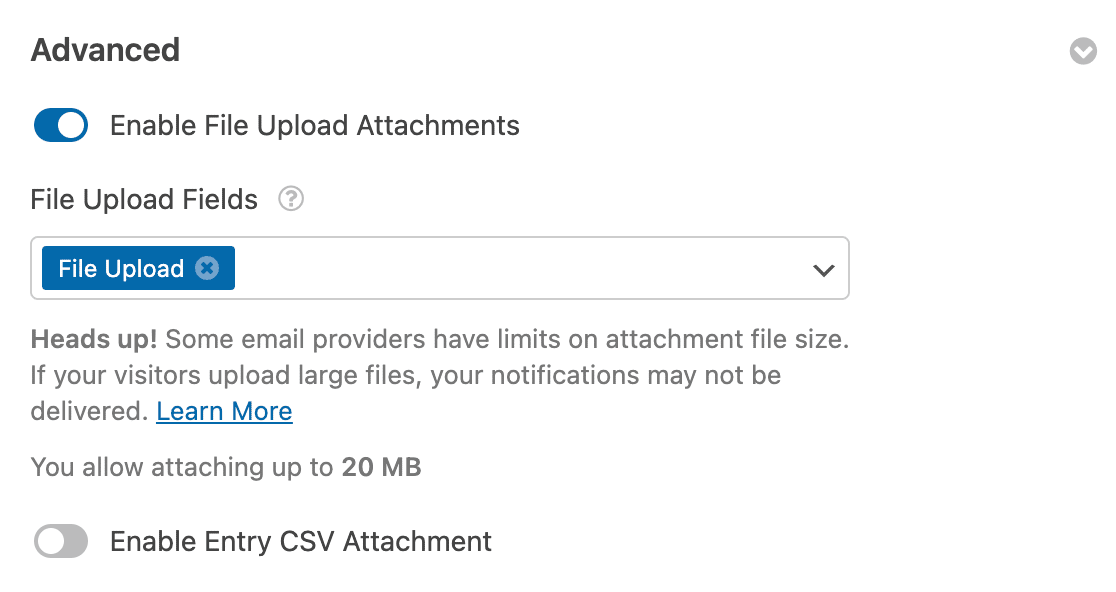
Lembre-se de que alguns provedores de e-mail não entregarão e-mails com anexos grandes. Você pode alterar o tamanho máximo do arquivo nas opções de campo, como mostramos na Etapa 2.
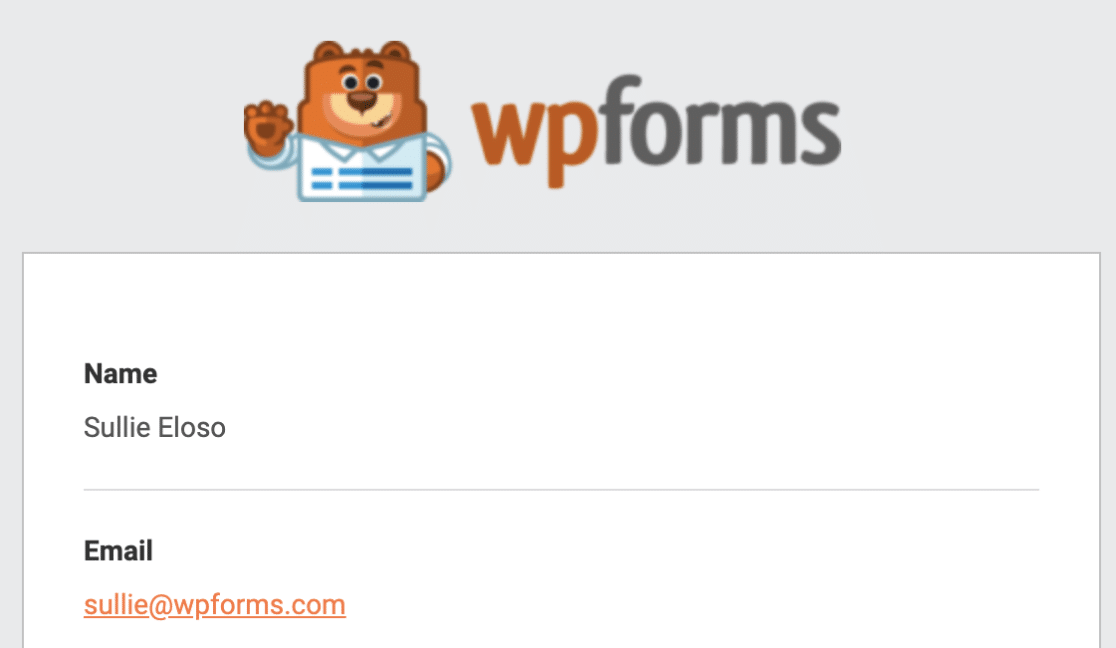
Além disso, você tem a opção de personalizar facilmente seus e-mails de notificação adicionando seu logotipo ou qualquer imagem que escolher na área de imagem de cabeçalho personalizada. A imagem que você escolher aparecerá no topo das notificações por e-mail, como o logotipo do WPForms abaixo.
Etapa 5: Configure as Confirmações do Seu Formulário
Confirmações de formulário são maneiras de agir imediatamente (e automaticamente) após seu usuário ter enviado informações para seu formulário. Para ajuda extra com esta etapa, confira nosso tutorial sobre como configurar confirmações de formulário.
Existem 3 tipos diferentes de confirmações no WPForms:
- Mensagem — Este é o tipo de confirmação padrão que aparece depois que alguém clica em enviar em seu formulário, e é personalizável. Confira nossas dicas sobre maneiras de personalizar sua mensagem de confirmação para aumentar a felicidade dos visitantes do seu site.
- Exibir Página — Envie automaticamente os usuários para qualquer página em seu site, como uma página de agradecimento
- Redirecionar — Útil se você quiser levar o usuário para um site diferente ou URL especializado para desenvolvimento mais complexo.
Então, vamos ver como configurar uma confirmação de formulário simples no WPForms para que você possa personalizar a mensagem de sucesso que os visitantes do site verão quando enviarem um formulário em seu site.
Para começar, clique na aba Confirmações no construtor de formulários em Configurações.
Em seguida, selecione o tipo de confirmação que você gostaria de criar. Para este exemplo, selecionaremos Mensagem.
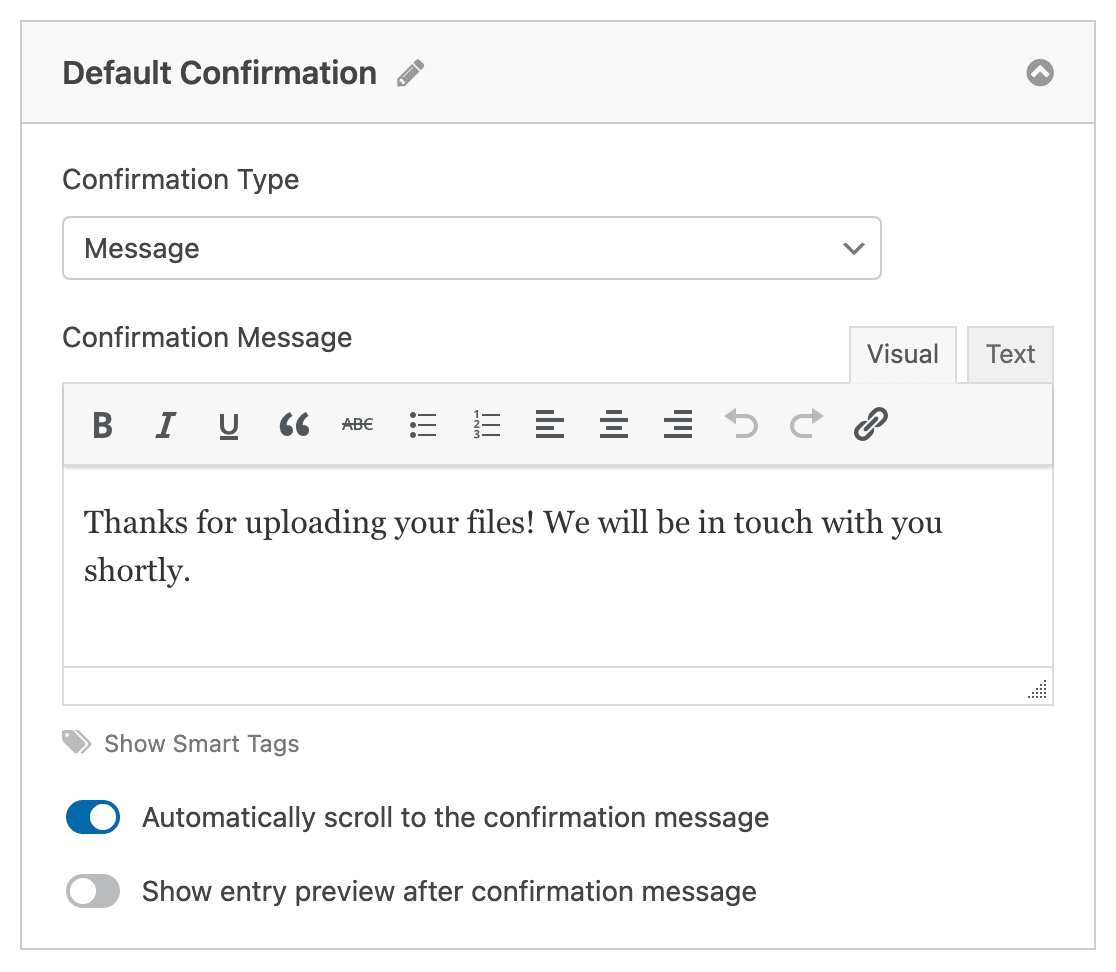
Em seguida, personalize a mensagem de confirmação a seu gosto e clique em Salvar quando terminar.
Agora você está pronto para adicionar seu formulário ao seu site.
Etapa 6: Adicione Seu Formulário ao Seu Site
Depois de criar seu formulário, você precisa adicioná-lo ao seu site WordPress. O WPForms permite que você adicione seus formulários em vários locais em seu site, incluindo suas páginas, posts de blog e widgets de barra lateral.
Então, vamos dar uma olhada na opção de posicionamento mais comum, incorporação em página ou post.
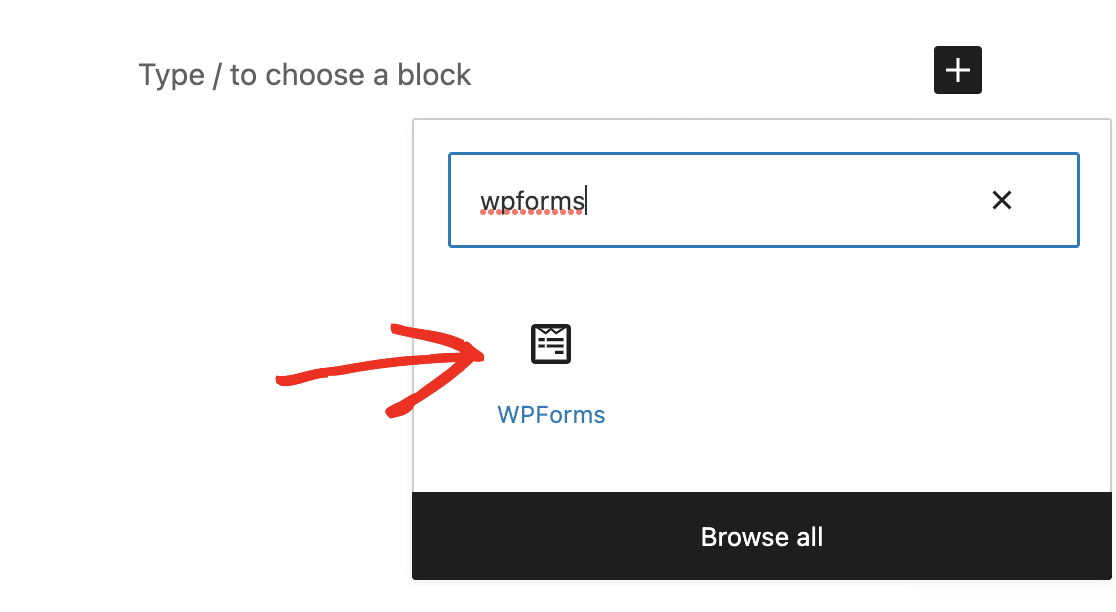
Para começar, crie uma nova página ou post no WordPress, ou abra um existente no editor. Depois disso, adicione um novo bloco e selecione WPForms. Você pode pesquisar por ele se não o vir imediatamente.
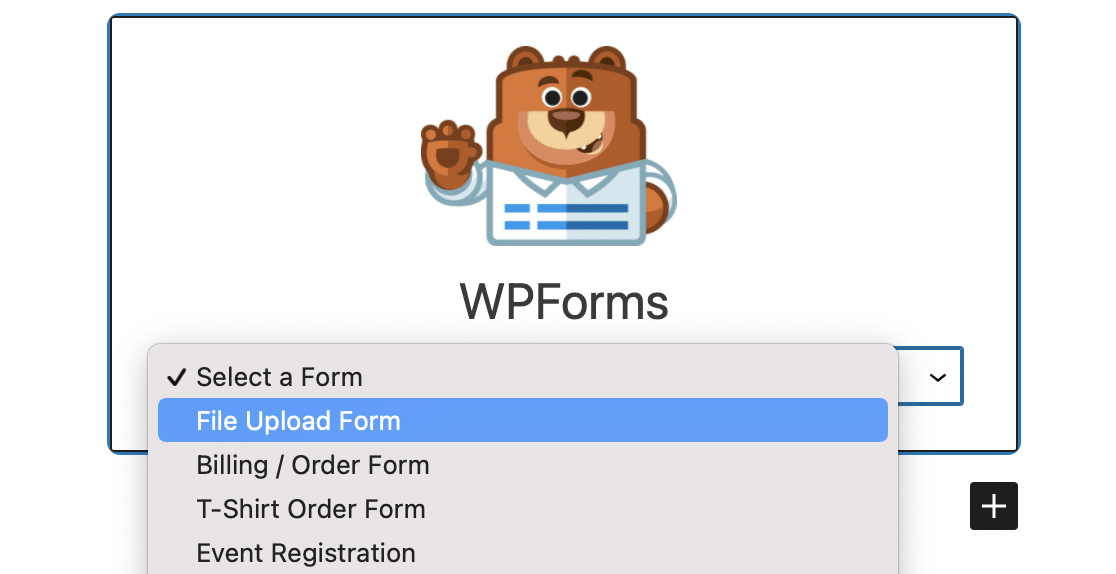
Agora, o widget WPForms aparecerá dentro do seu bloco. Clique no menu suspenso WPForms e escolha o formulário de upload de arquivo que você já criou e deseja inserir em sua página.
Em seguida, clique no botão azul no canto superior direito que diz Publicar ou Atualizar, para que seu formulário apareça em seu site.
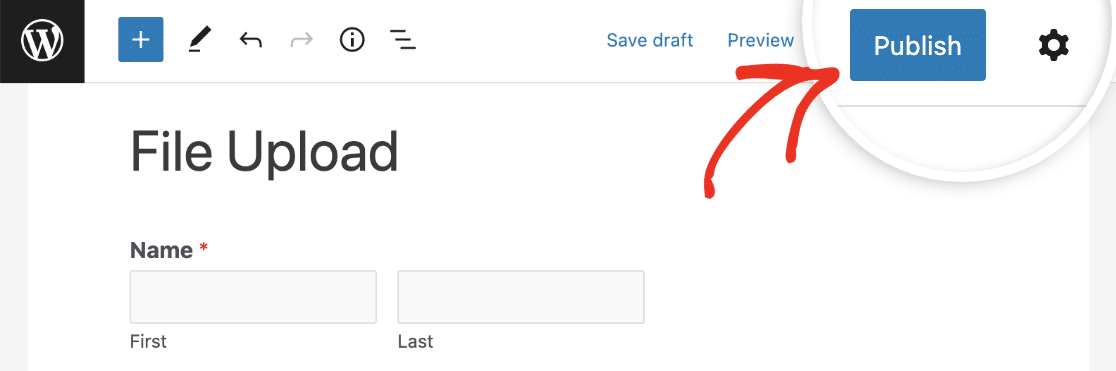
É isso! Seu formulário agora está em seu site.
Etapa 7: Visualize os Arquivos
O WPForms armazena cada envio de formulário como uma entrada. Para visualizar arquivos enviados, vá para WPForms » Entradas.
E a partir daí, selecione o formulário correto no menu suspenso e clique em Ver.
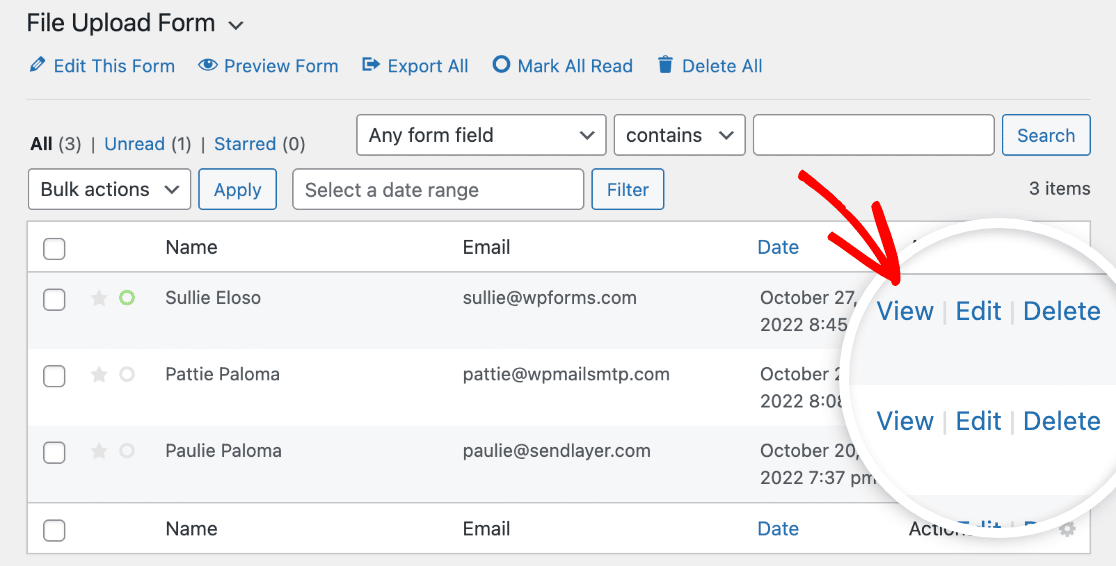
Aqui você pode ver ou baixar os uploads de arquivos para esta entrada.
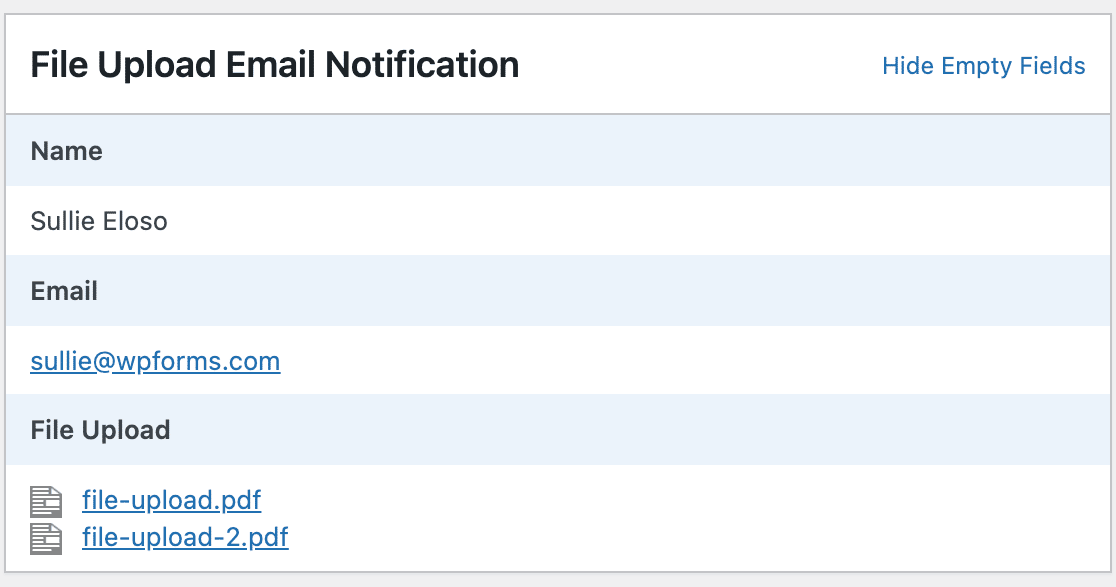
Melhor ainda, você pode usar nosso addon Zapier para salvar automaticamente todos os uploads de arquivos em diferentes aplicativos da web como:
- Google Drive
- Dropbox
- e muitos outros serviços de armazenamento em nuvem
Crie Seu Formulário de Upload de Múltiplos Arquivos Agora
FAQ — Uploads de Arquivos no WordPress
Que tipo de arquivos podem ser enviados para o WordPress?
O plugin WPForms facilita para os visitantes do seu site o upload de todos os tipos de arquivos em seus formulários de contato. Você pode incorporar um campo de Upload de Arquivo para enviar:
- Documentos (.doc, .xls, .ppt e .pdf)
- Imagens (.png, .gif e .jpg)
- Vídeo (.mpg, .mov e .wmv)
- Áudio (.wav, .mp3 e .mp4)
Você pode usar este mesmo processo para aceitar uploads de arquivos CSV no WordPress.
Mas por razões de segurança do WordPress, alguns arquivos não podem ser enviados. Por exemplo, você pode enviar imagens para o WordPress, mas pode descobrir que alguns formatos de smartphone são bloqueados.
Se você encontrar esse problema, aqui está como permitir tipos adicionais de upload de arquivos em seus formulários. E aqui está um guia mais específico para permitir uploads de arquivos do Adobe Illustrator.
Em seguida, Receba Pagamentos em Seus Formulários do WordPress
Aí está! Agora você sabe como criar um formulário do WordPress com uploads de vários arquivos. Você também pode adicionar um campo de pagamento e exigir pagamento com seus uploads de arquivos.
E se você gostou deste artigo, talvez também queira dar uma olhada em alguns exemplos de design de página de contato interessantes.
Pronto para criar seu formulário? Comece hoje mesmo com o plugin de criação de formulários WordPress mais fácil. WPForms Pro inclui muitos modelos gratuitos e oferece uma garantia de devolução do dinheiro em 14 dias.
Se este artigo ajudou você, por favor, siga-nos no Facebook e Twitter para mais tutoriais e guias gratuitos do WordPress.


Gostei muito disso. Estou redesenhando um site de culinária e quero que os usuários compartilhem seus pratos. Quão fácil é para o usuário enviar imagens do celular? Obrigado
Olá Rick! Não seria nada difícil! Geralmente, seus usuários poderão clicar no campo de upload de arquivo, o que abrirá as opções de câmera ou arquivos (das quais eles farão sua seleção), enviarão o formulário e pronto!
Espero que isso ajude a esclarecer 🙂 Se você tiver mais alguma dúvida sobre isso, por favor entre em contato conosco se tiver uma assinatura ativa. Se não tiver, não hesite em nos fazer algumas perguntas em nossos fóruns de suporte.