



Resumo de IA
Por padrão, o WPForms exibirá uma mensagem de confirmação quando seu formulário for enviado. Mas como a barra lateral é um espaço pequeno, a confirmação pode parecer um pouco apertada.
Neste artigo, mostraremos a maneira fácil de adicionar um formulário de contato em um widget de barra lateral sem escrever nenhum código.
Crie Seu Formulário WordPress Agora
Neste Artigo
Tutorial em Vídeo
Se você prefere seguir instruções escritas, continue lendo.
Como Adicionar um Formulário de Contato em um Widget de Barra Lateral do WordPress
Vamos começar configurando nosso plugin.
1. Instale o Plugin WPForms
Comece instalando e ativando o plugin WPForms. Para mais detalhes, veja este guia passo a passo sobre como instalar um plugin no WordPress.
Em seguida, vá para WPForms » Adicionar Novo para criar um novo formulário.
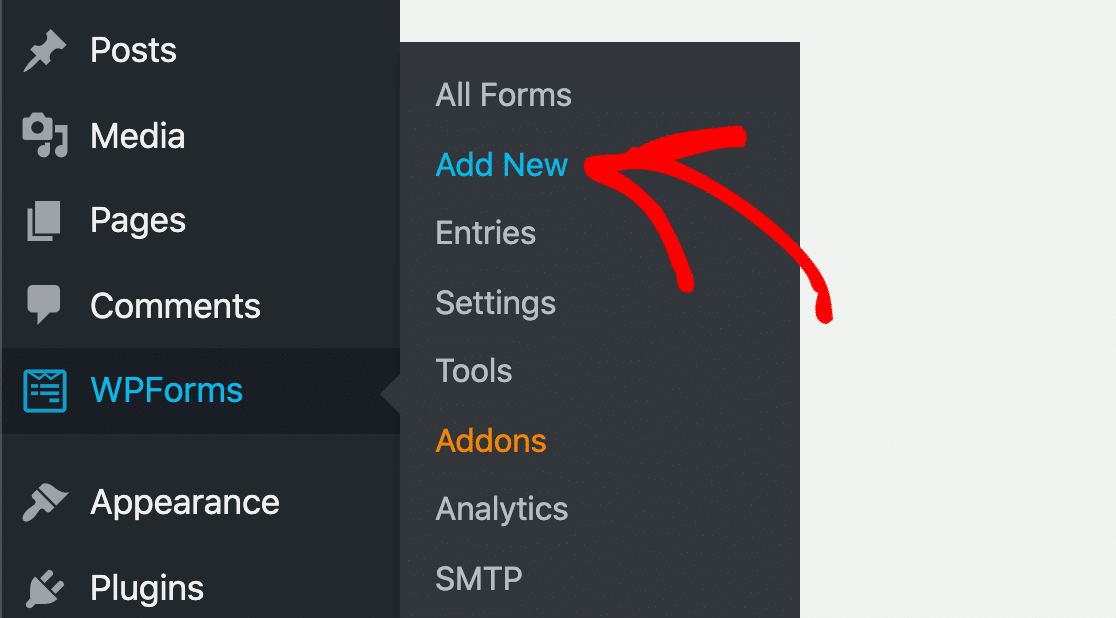
Você verá a janela do WPForms abrir no seu navegador. Vamos adicionar um formulário de contato ao seu site em seguida.
2. Adicione um Formulário de Contato
Na tela de Configuração do WPForms, selecione o modelo de Formulário de Contato Simples.
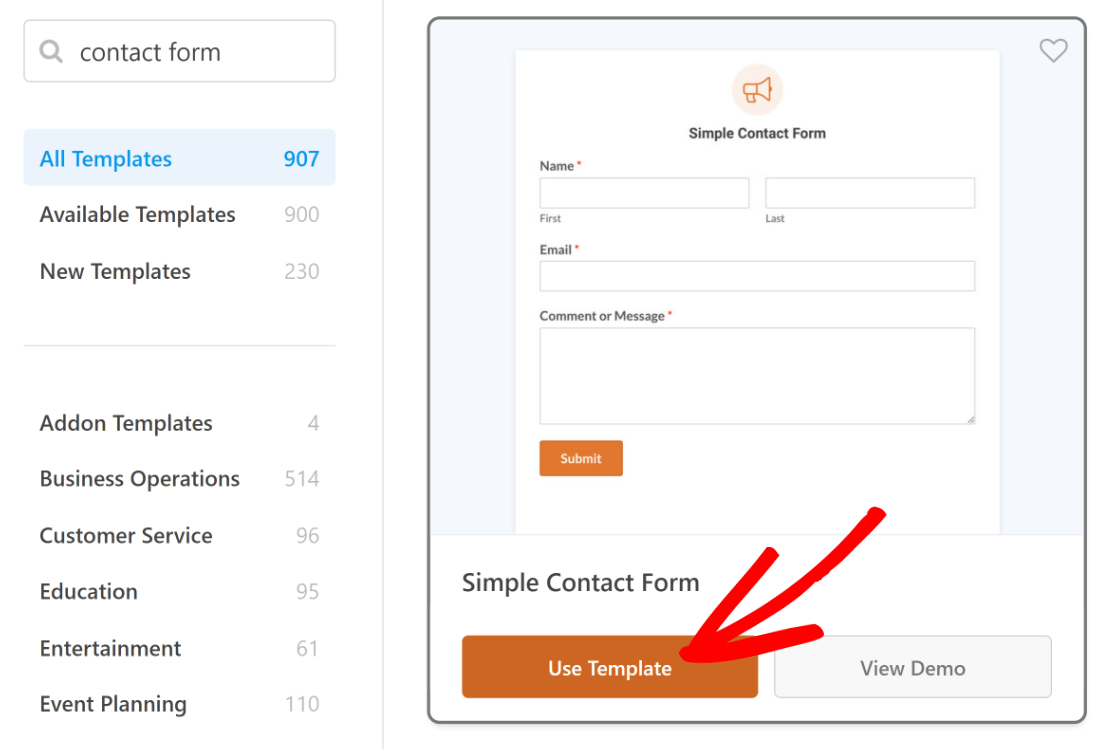
O modelo de Formulário de Contato Simples já possui 3 campos:
- Nome
- Mensagem
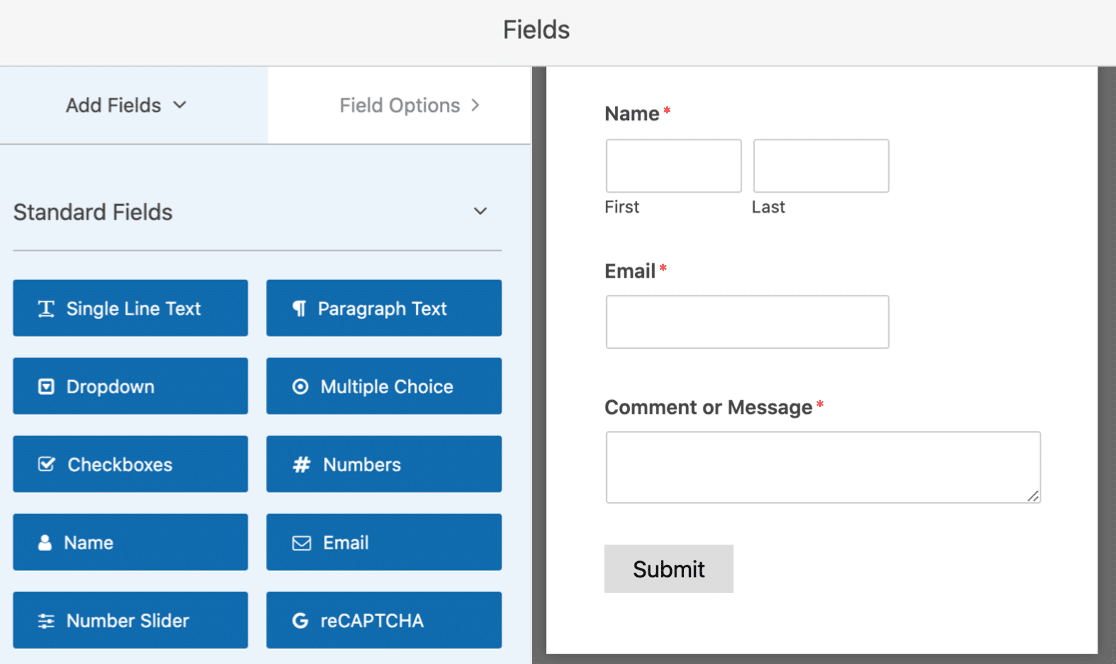
Você pode adicionar campos adicionais arrastando-os do painel esquerdo para o painel direito. Em seguida, clique no campo para fazer quaisquer alterações.
Por padrão, o WPForms exibirá uma mensagem de confirmação quando seu formulário for enviado. Mas como a barra lateral é um espaço pequeno, a confirmação pode parecer um pouco apertada.
Em vez disso, você pode preferir redirecionar o visitante para outra página. Aqui estão alguns guias para ajudar com isso:
- Aprenda como criar uma página de agradecimento
- Descubra como redirecionar usuários para outra página quando eles enviam seu formulário.
Certifique-se de salvar suas alterações antes de fechar a janela do construtor de formulários.
3. Adicionar um Widget de Formulário de Contato na Barra Lateral
Agora que seu formulário está pronto, você pode adicioná-lo à área de widget da barra lateral do seu site.
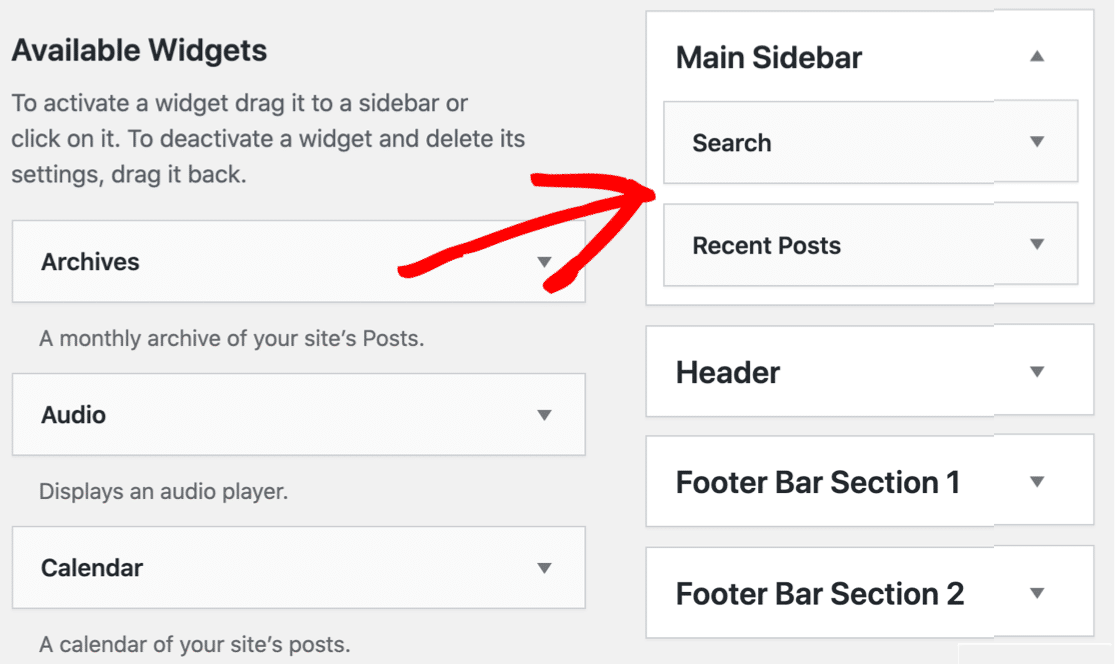
Para adicionar um widget de barra lateral no WordPress, você precisará navegar para Aparência » Widgets na barra lateral do WordPress.
Está faltando o menu Widget no WordPress? Leia este guia sobre como adicionar uma barra lateral pronta para widgets no WordPress.
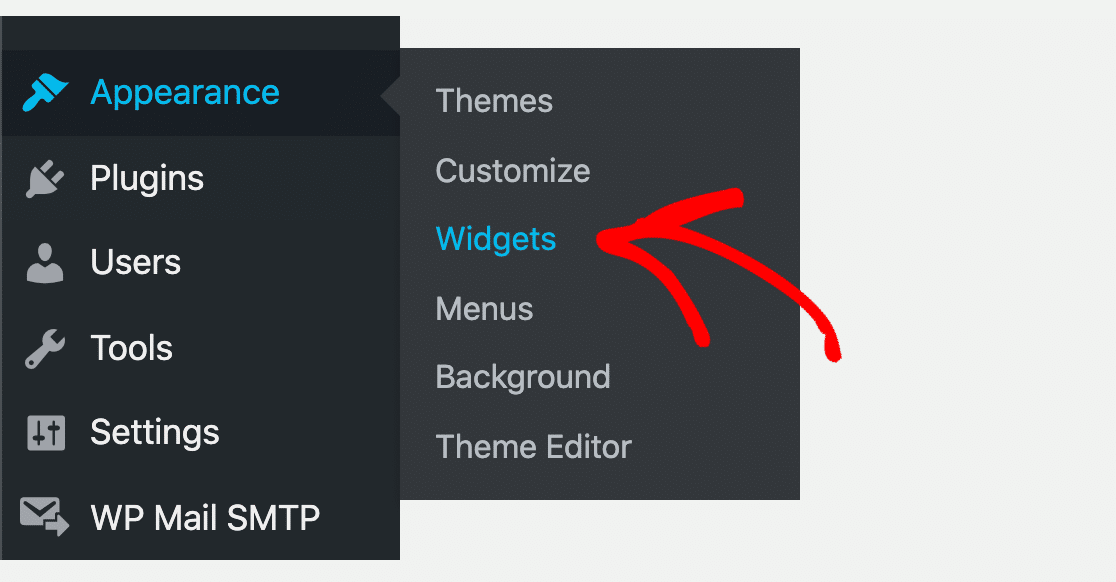
Na lista, você pode ver os widgets disponíveis no seu site WordPress. Você pode arrastar qualquer widget para a área da barra lateral à direita para usá-lo.
Role para baixo até encontrar o widget WPForms. Ao clicar nele, você verá todas as áreas de widget disponíveis no seu tema.
Selecionamos Barra Lateral Principal para adicionar o widget de formulário de contato à nossa barra lateral do WordPress. Dependendo de como seu tema está configurado, sua barra lateral pode ter um nome diferente.
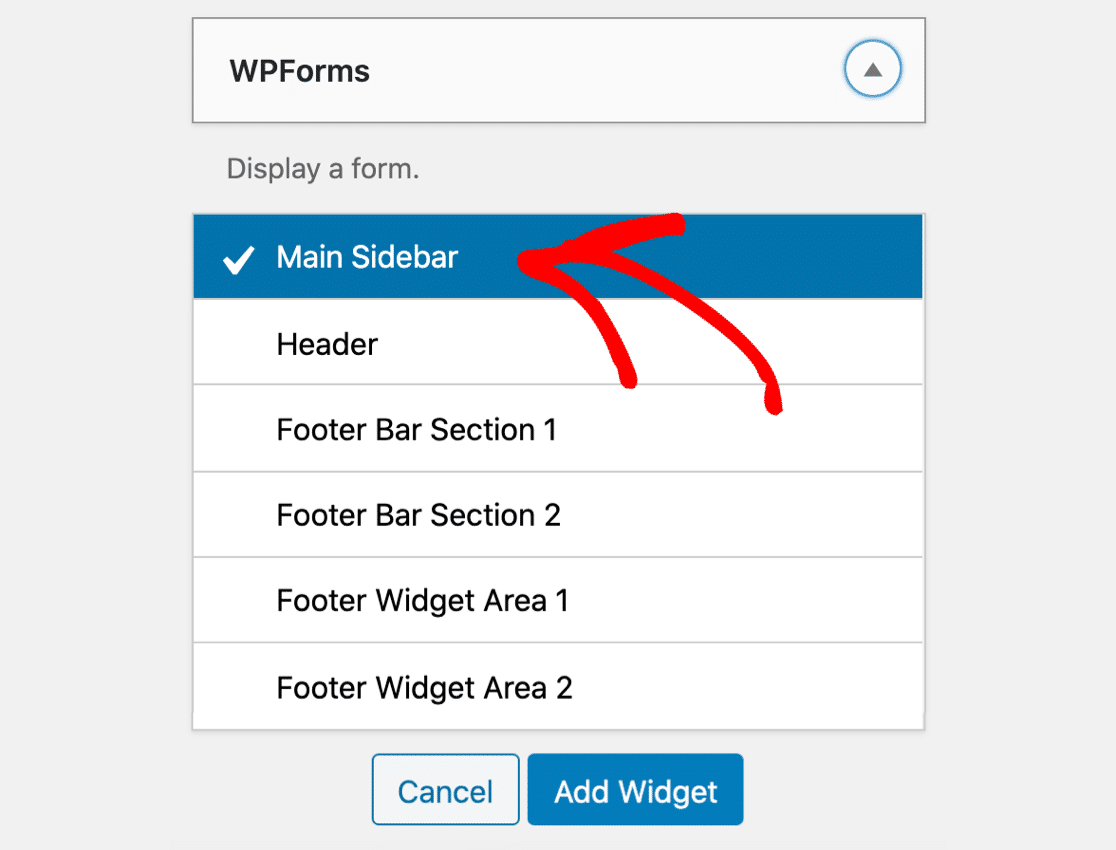
Agora, clique em Adicionar Widget para adicionar o formulário de contato à sua barra lateral.
Vamos selecionar o formulário que queremos exibir. Para fazer isso, role para cima e olhe para o lado direito. Você verá todos os widgets que você está usando atualmente.
Clique no widget WPForms para expandi-lo. Aqui, você pode selecionar seu formulário de contato no menu suspenso.
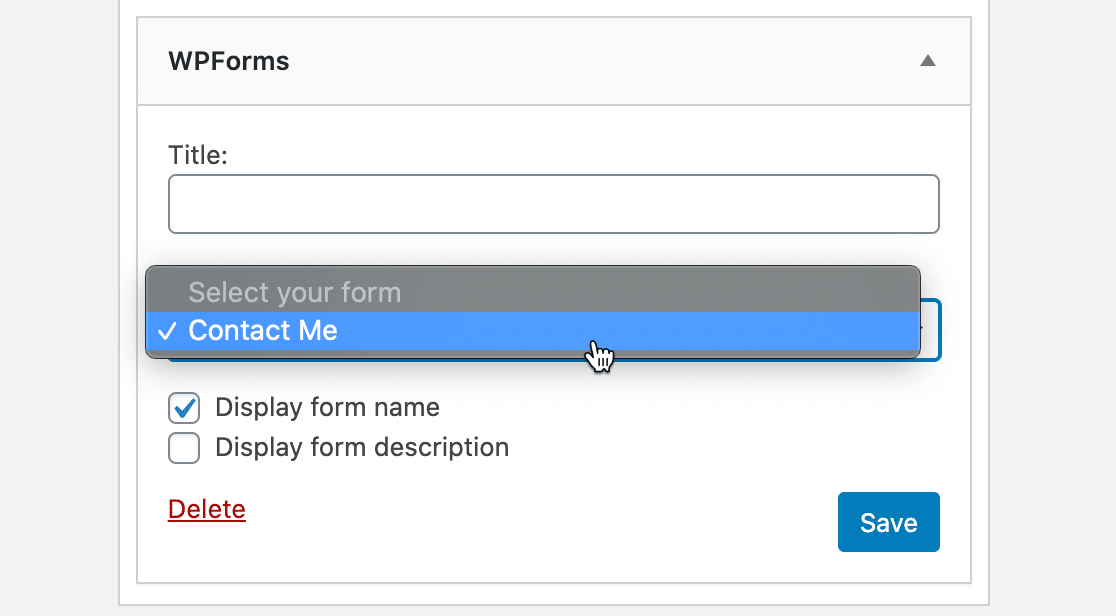
Ao clicar em Salvar, seu widget de formulário de contato na barra lateral estará ativo no seu site e pronto para seus visitantes preencherem.
Veja como ficou nosso formulário de contato final na barra lateral:
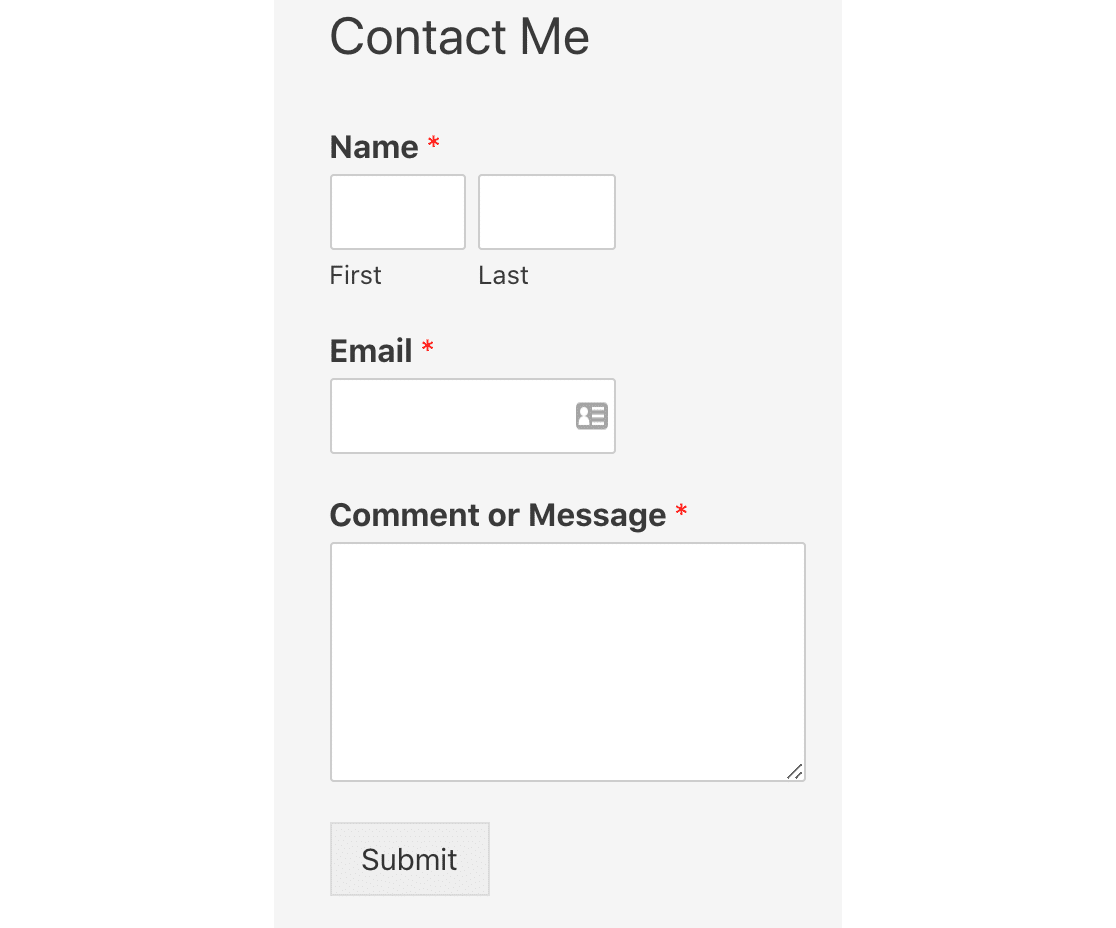
E é isso! Você adicionou com sucesso um formulário de contato à sua barra lateral do WordPress.
Crie Seu Formulário WordPress Agora
Próximo, Crie um Formulário de Upload de Arquivos
Você tem seu formulário de contato no widget da barra lateral. Em seguida, você gostaria de criar um formulário de upload de arquivos para o WordPress?
Aceitar uploads de arquivos é uma ótima maneira de receber pedidos e permitir que seus clientes enviem documentos.
- Para saber como adicionar um campo de upload de arquivos ao seu formulário, confira este guia sobre criação de um formulário de upload de arquivos no WordPress.
- Confira estes exemplos de páginas de contato para ver maneiras mais criativas de usar seus formulários.
Pronto para construir seu formulário? Comece hoje mesmo com o plugin construtor de formulários WordPress mais fácil. WPForms Pro inclui muitos modelos gratuitos e oferece uma garantia de devolução do dinheiro em 14 dias.
Se este artigo ajudou você, por favor, siga-nos no Facebook e Twitter para mais tutoriais e guias gratuitos do WordPress.


