



Resumo de IA
Você quer impedir que uma página recarregue quando alguém envia um dos seus formulários online?
Impedir que uma página recarregue após o envio de um formulário melhora a experiência do usuário e pode até ajudar você a obter mais leads.
Neste Artigo
Crie um Formulário de Contato AJAX no WordPress
Este tutorial de formulário de contato AJAX no WordPress funcionará com qualquer um dos mais de 2.100 modelos de formulário do WordPress incluídos no WPForms.
Observação: O AJAX é habilitado automaticamente nas versões mais recentes do WPForms. Este tutorial explica como ativá-lo se você usou uma versão mais antiga para criar seus formulários.
1. Crie um Novo Formulário
Para começar, instale e ative o plugin WPForms. Para mais detalhes, veja este tutorial passo a passo sobre como instalar um plugin no WordPress.
Depois de instalar o plugin WPForms, vá para WPForms » Adicionar Novo para criar um novo formulário.
Selecione um modelo na lista:
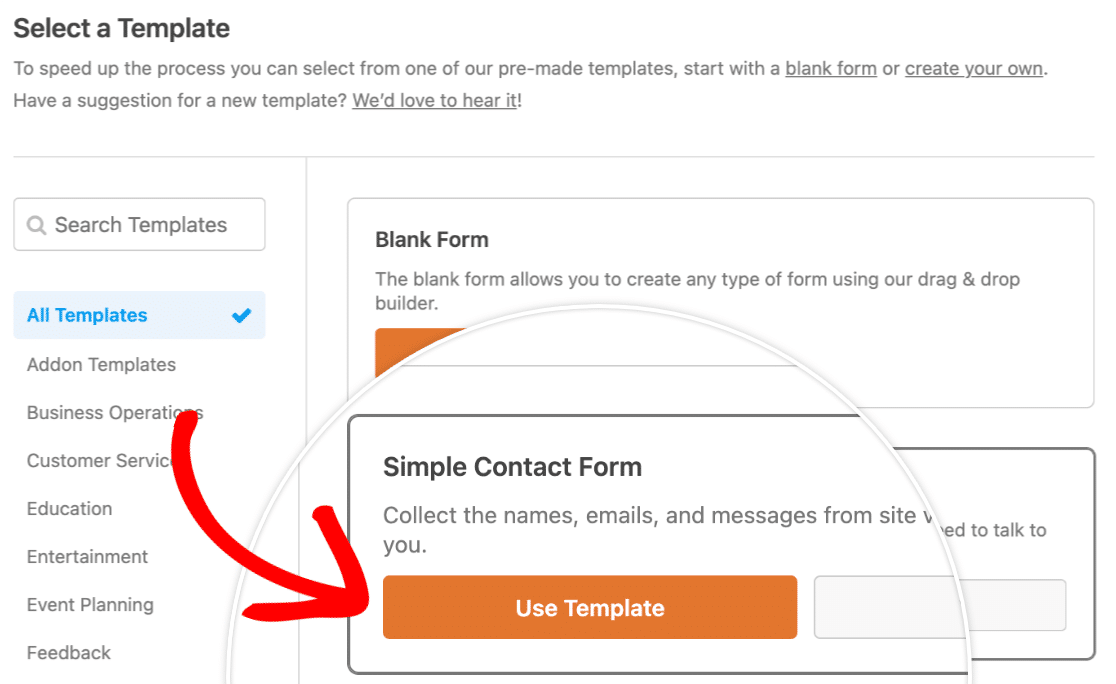
Usaremos o modelo Formulário de Contato Simples para este tutorial.
2. Personalize Seu Formulário
Agora é hora de construir seu formulário. Você pode personalizar facilmente os campos do formulário arrastando-os do lado esquerdo do construtor para a área de visualização à direita.
Adicionaremos um campo de Upload de Arquivo ao nosso formulário de contato para que os usuários possam incluir quaisquer documentos relevantes com o envio.
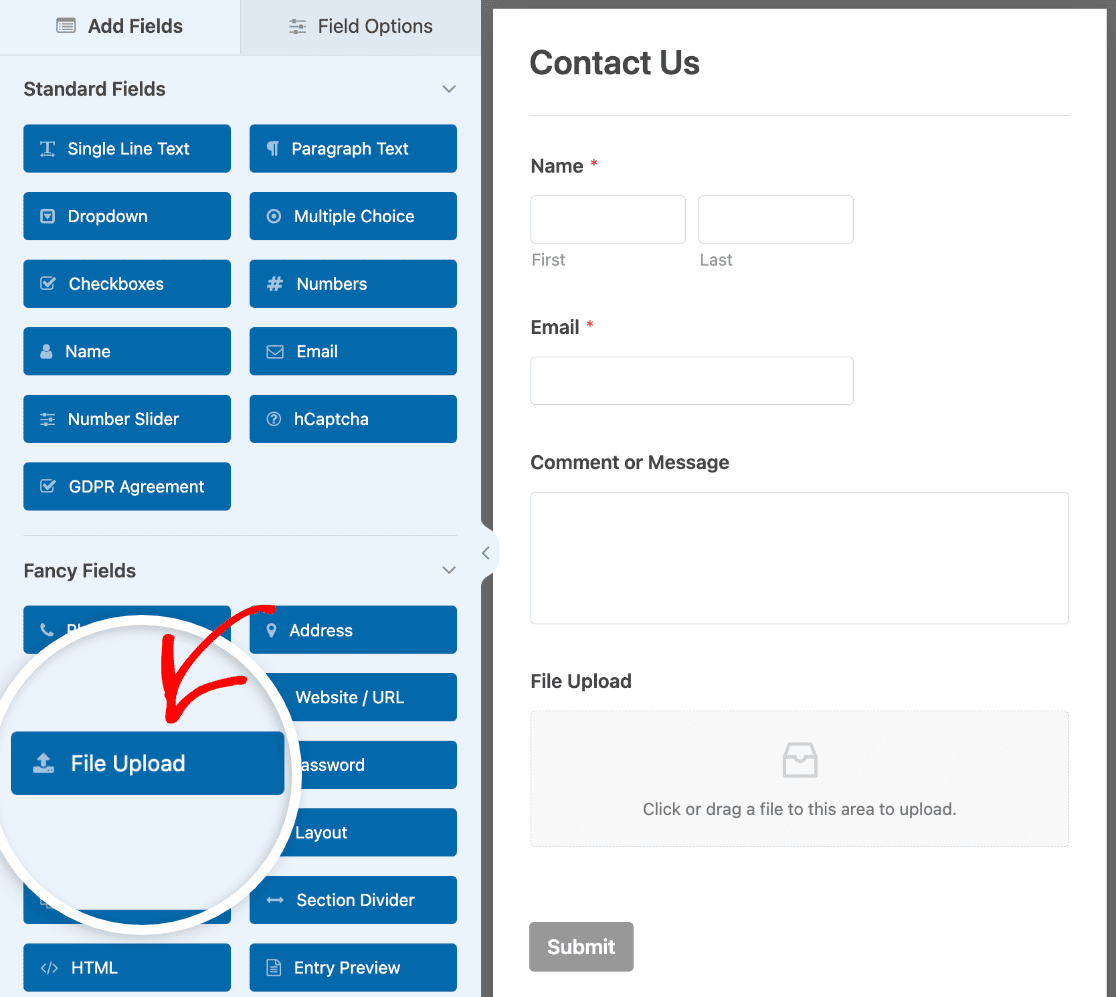
Ajuste a posição dos campos como desejar, arrastando-os para cima e para baixo no seu formulário.
Você também pode clicar em qualquer campo na área de visualização para abrir opções adicionais. Isso permitirá que você altere os rótulos dos campos, adicione lógica condicional e muito mais.
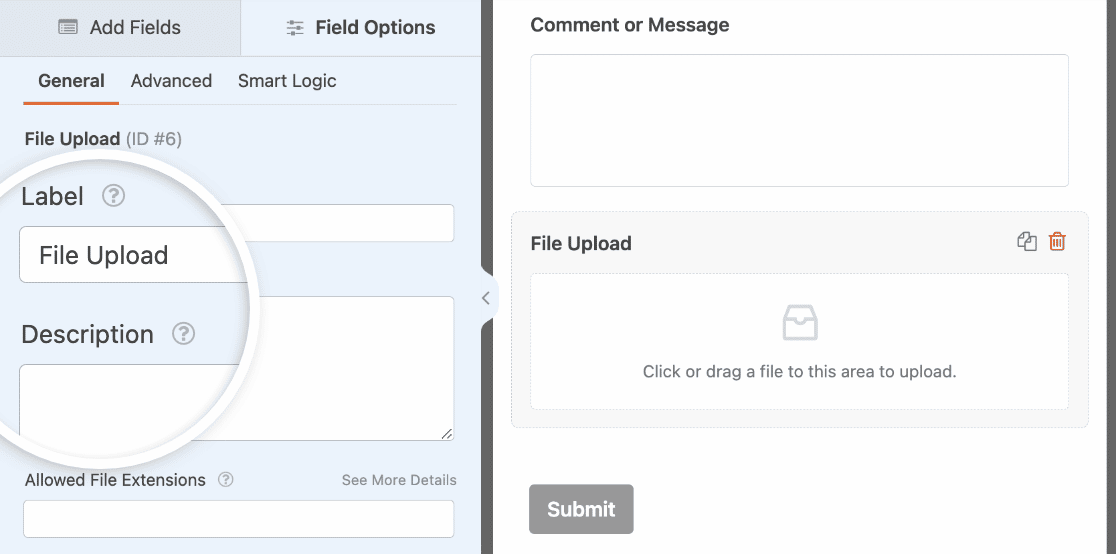
Quando estiver pronto, clique no botão laranja Salvar no canto superior direito.

Agora que criamos um formulário com um campo de Upload de Arquivo, vamos habilitá-lo para AJAX.
3. Habilite o Envio de Formulários AJAX
Em seguida, no lado esquerdo da sua página, clique em Configurações. Em seguida, selecione a seção Geral .
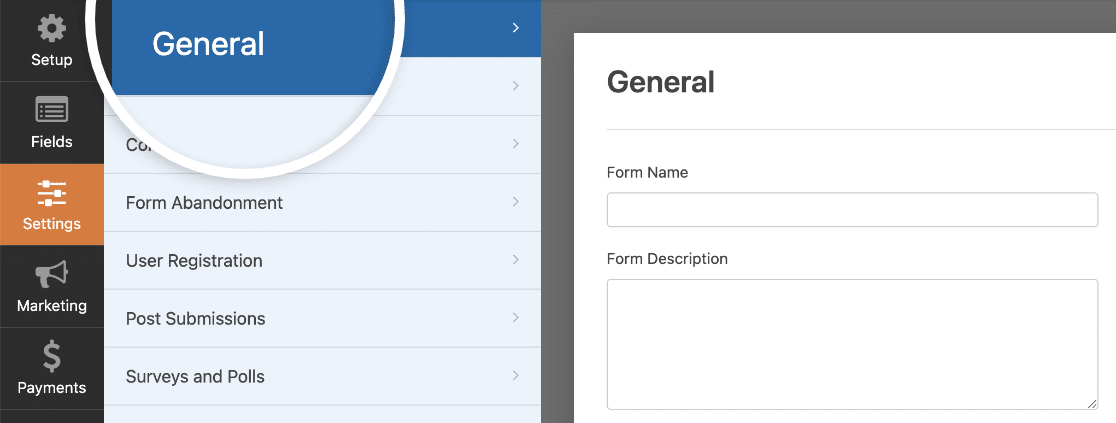
Na parte inferior do painel direito, expanda as opções Avançadas e localize a configuração Habilitar envio de formulário AJAX. Certifique-se de que esteja ativada.
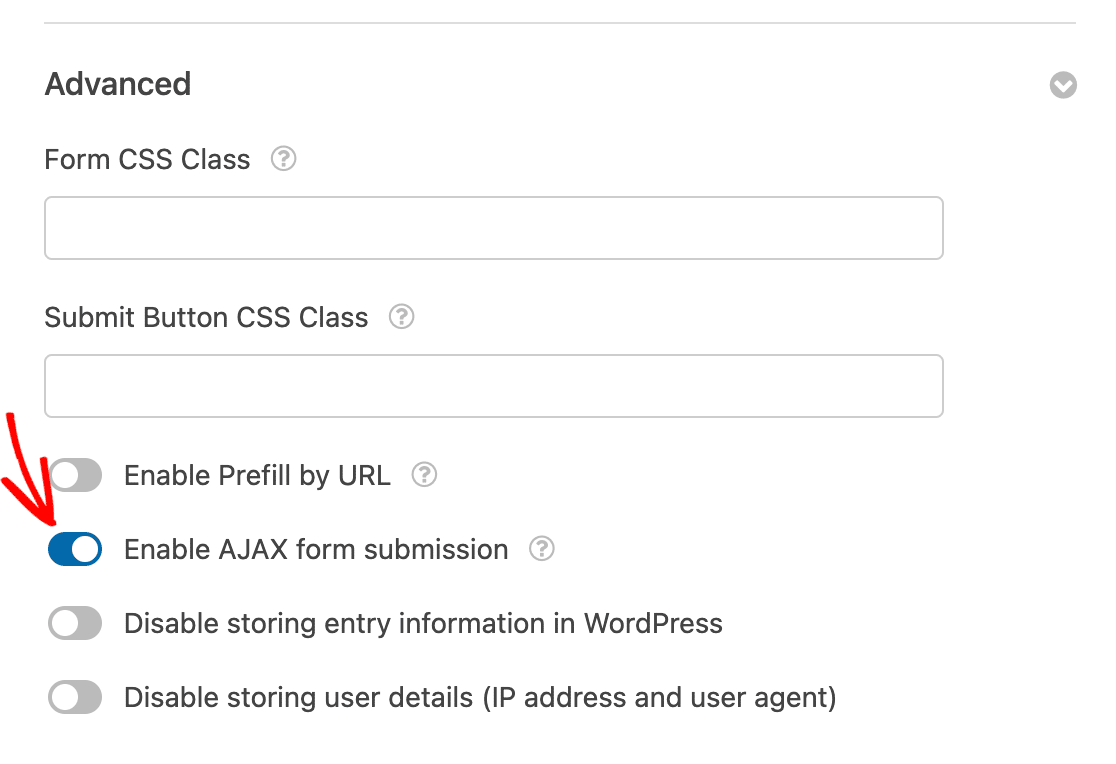
É isso! Seu formulário agora está habilitado para envios AJAX.
Vamos configurar algumas outras coisas importantes com seu formulário de contato AJAX.
4. Configure as Notificações do Seu Formulário
A próxima coisa que você precisará fazer é configurar as notificações por e-mail do seu formulário. Estas são uma excelente maneira de saber quando alguém envia um dos seus formulários habilitados para AJAX.
Para começar, vá para Configurações » Notificações.
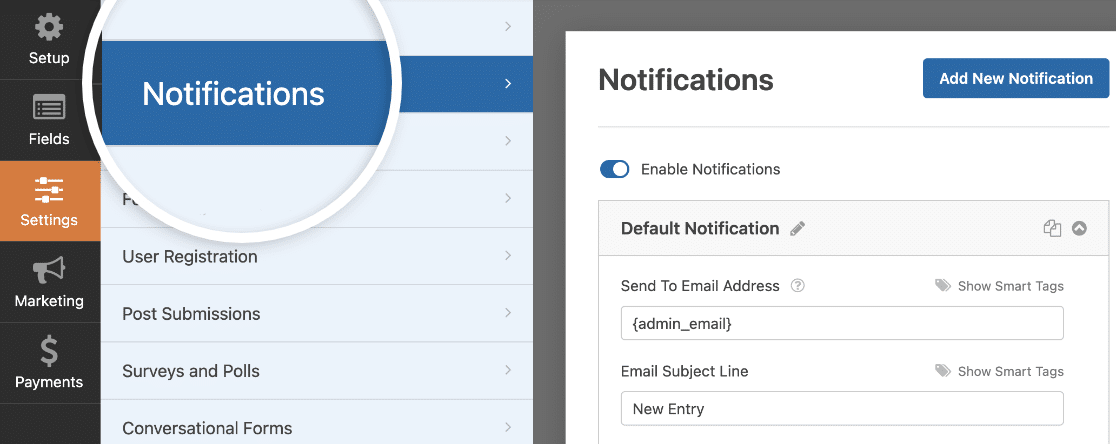
A menos que você desative o recurso de notificação, você receberá uma notificação por e-mail sempre que alguém enviar seu formulário AJAX.
Para obter ajuda ao preencher essas configurações, consulte nosso tutorial sobre como configurar notificações de formulário no WordPress.
Este exemplo tem um fundo cinza, mas você pode mudar a cor para outra coisa, se desejar. Esses ajustes personalizados podem tornar suas notificações por e-mail mais profissionais e dar um toque pessoal. Confira nosso guia sobre como adicionar um cabeçalho personalizado ao seu modelo de e-mail.
5. Configure as Confirmações
As confirmações de formulário permitem que você tome uma ação imediatamente (e automaticamente) após o usuário ter enviado informações para o seu formulário.
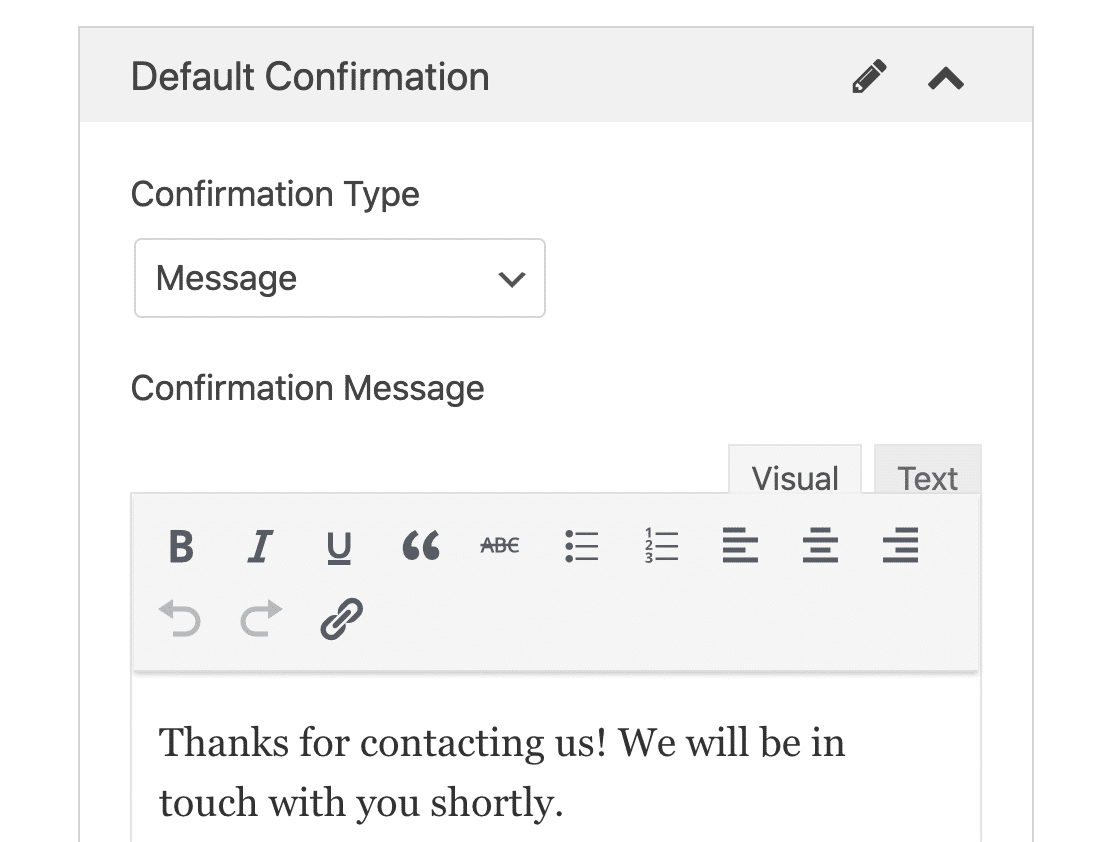
Existem 3 tipos diferentes de confirmações no WPForms:
- Mensagem — Este é o tipo de confirmação padrão que aparece depois que alguém clica em enviar em seu formulário, e é personalizável. Confira nossas dicas sobre maneiras de personalizar sua mensagem de confirmação para aumentar a felicidade dos visitantes do seu site.
- Página de Exibição — Envie automaticamente os usuários para qualquer página do seu site.
- Redirecionar — Útil se você quiser levar o usuário para um site diferente ou URL especializado para desenvolvimento mais complexo.
Para obter ajuda extra com esta etapa, confira nosso tutorial sobre como configurar confirmações de formulário.
Depois de terminar de configurar suas notificações e confirmação, certifique-se de salvar seu formulário novamente.
6. Incorpore Seu Formulário AJAX
Depois de configurar seu formulário com suporte a AJAX ao seu gosto, você vai querer adicioná-lo ao seu site.
O WPForms permite que você adicione seus formulários em vários lugares do seu site, incluindo suas páginas, postagens de blog e widgets de barra lateral. Vamos dar uma olhada na opção de posicionamento mais comum: incorporação em página ou postagem.
Para começar, crie uma nova página ou postagem no WordPress, ou abra uma existente no editor.
Depois disso, adicione um novo bloco e selecione o ícone do WPForms. Se você não o vir imediatamente, pode pesquisar para encontrá-lo.
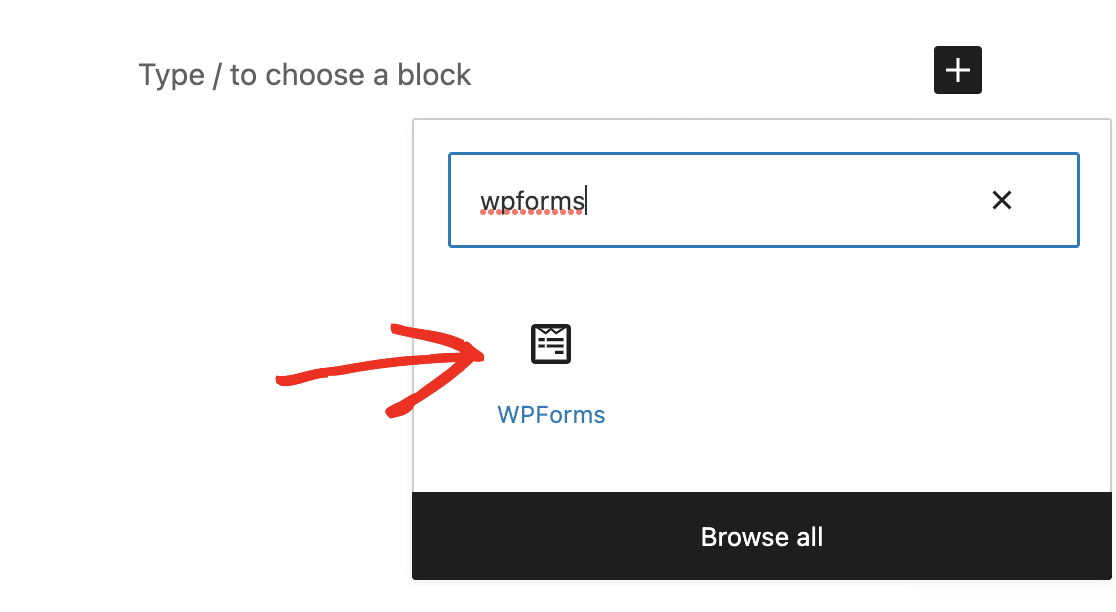
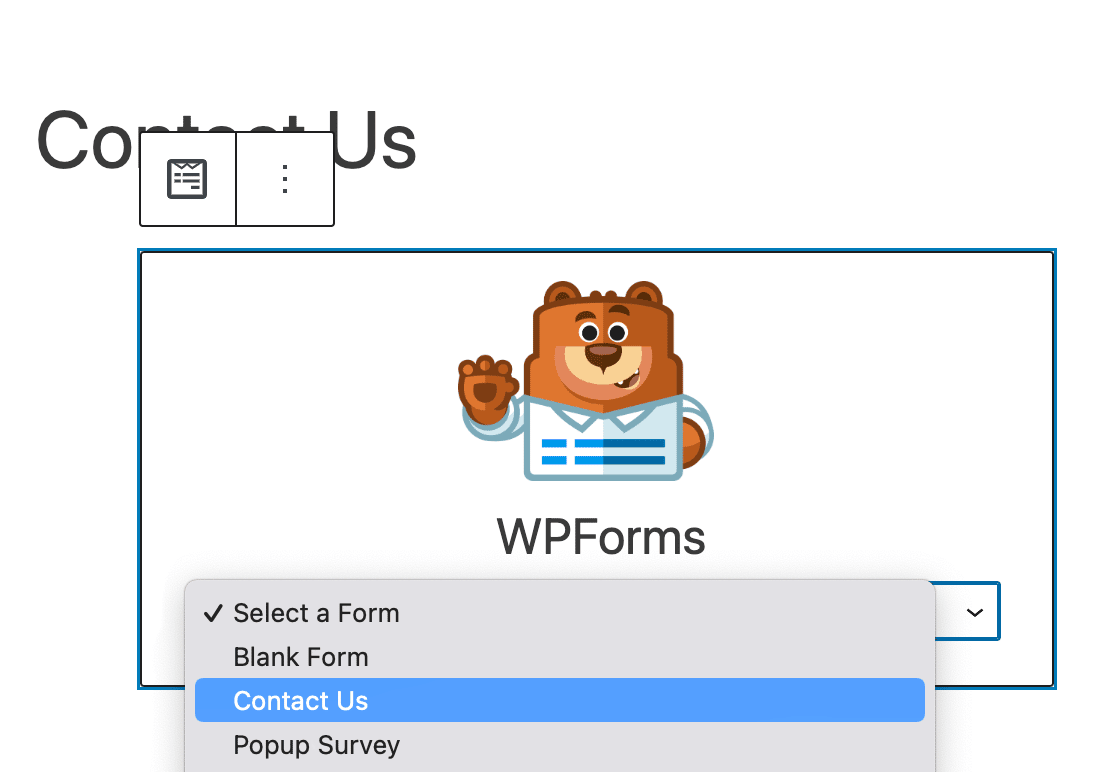
O útil widget WPForms aparecerá dentro do seu bloco. Clique no menu suspenso WPForms e escolha qual dos formulários que você já criou deseja inserir em sua página. Selecione seu formulário AJAX.
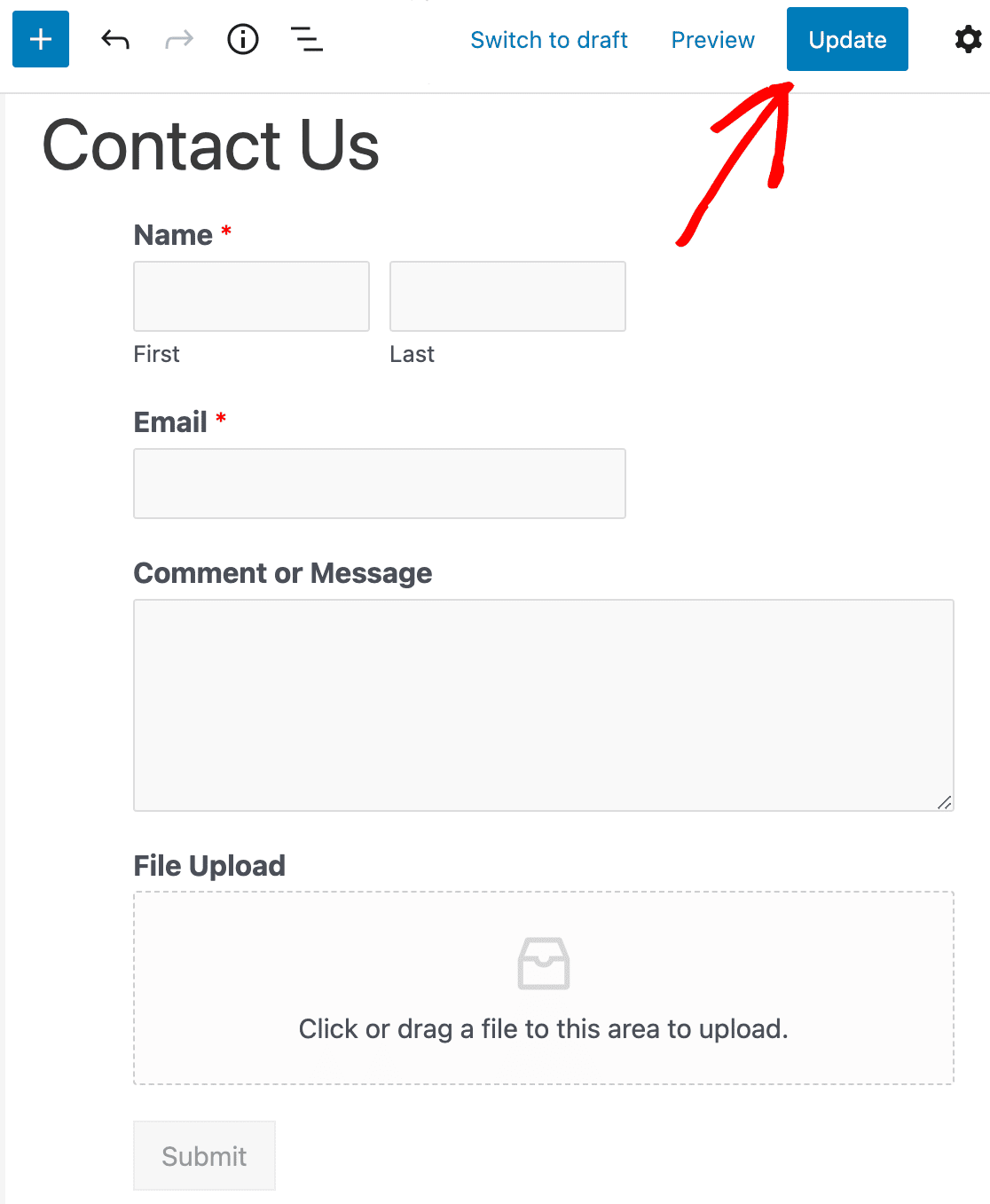
Em seguida, clique no botão azul no canto superior direito que diz Publicar ou Atualizar, para que seu formulário apareça em seu site.
E aí está. Agora você sabe como criar um formulário de contato AJAX simples no WordPress sem recarregar a página, e os visitantes do seu site vão gostar ainda mais de você por isso.
Perguntas Frequentes Sobre Formulários AJAX
O que é um Formulário AJAX?
Um formulário com suporte a AJAX é um formulário rápido e dinâmico que pode enviar e executar processos de back-end sem a necessidade de a página inteira ser atualizada.
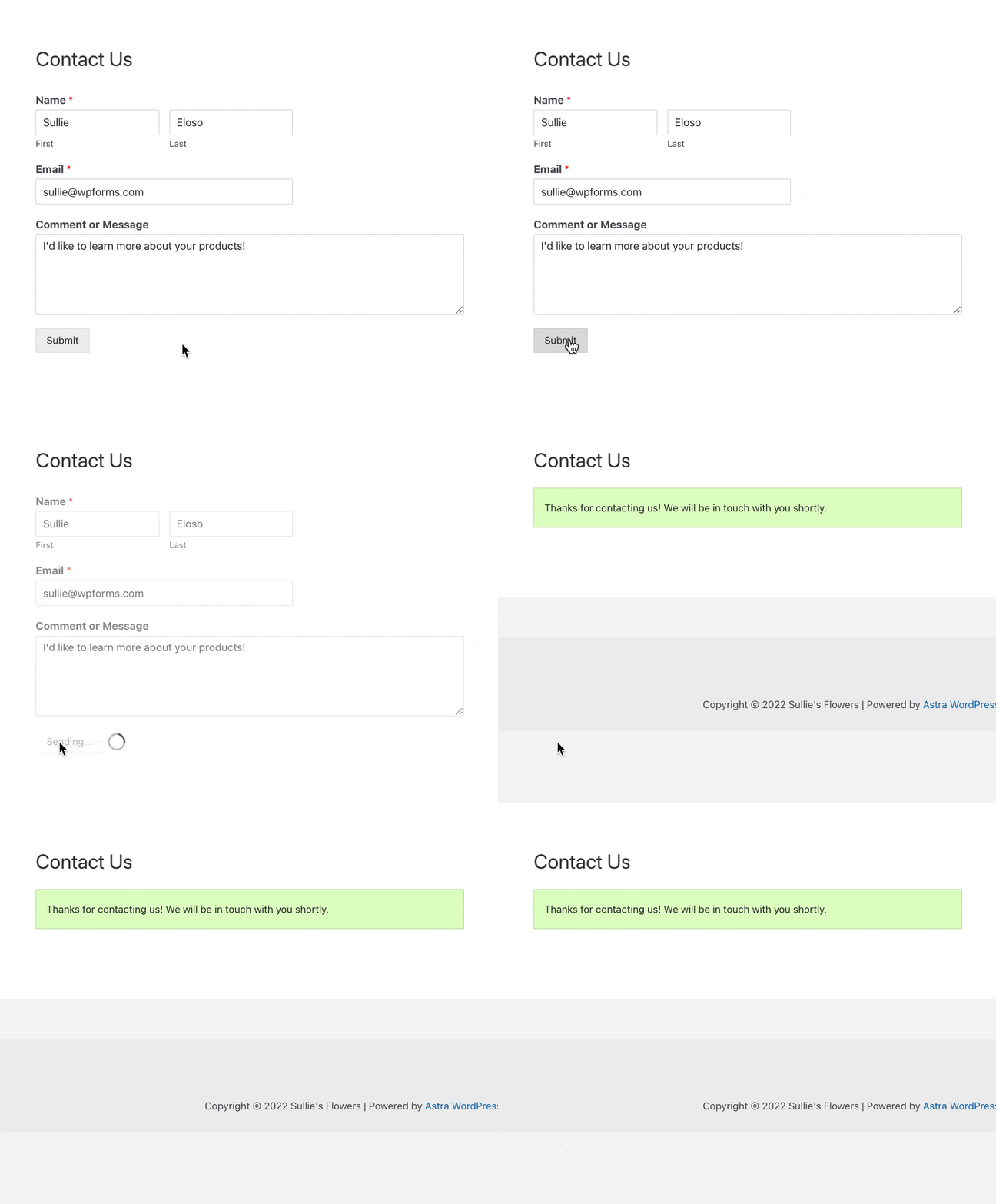
Por padrão, uma página inteira precisa ser recarregada quando um usuário clica em enviar. Isso ocorre porque certos processos precisam ser executados, incluindo o armazenamento dos dados do formulário, o envio de e-mails de notificação e muito mais.
Mas como o WordPress e o WPForms suportam formulários AJAX, você tem a opção de habilitar o envio de formulários AJAX para evitar que seus formulários sejam atualizados após alguém enviar o formulário.
Por que o AJAX é Usado em Formulários de Contato?
Formulários com suporte a AJAX se tornaram subitamente um item essencial para sites de todos os tamanhos.
Aqui estão os principais motivos pelos quais o AJAX está se tornando rapidamente popular para uso em formulários de contato:
- Proporciona uma experiência de usuário muito melhor.
- Tempos de carregamento extremamente rápidos e velocidade do site WordPress aumentada.
- Mantém modais e pop-ups contendo seu formulário abertos para que você possa exibir uma ação ou mensagem de acompanhamento para aumentar as vendas.
- Fornece sinais visuais e garantia de que o formulário está processando.
Em seguida, Crie um Formulário Pop-up no WordPress
Agora que você pode manter seus pop-ups abertos depois que alguém envia, você vai querer um ótimo plugin para exibir uma mensagem direcionada.
- Certifique-se de ler nosso post sobre os melhores plugins de popup do WordPress.
- Confira 2 maneiras diferentes de criar um formulário popup no WordPress.
- E, finalmente, aprenda como criar um popup com um código de cupom usando o WPForms.
Pronto para construir seu formulário? Comece hoje mesmo com o plugin construtor de formulários WordPress mais fácil. WPForms Pro inclui muitos modelos gratuitos e oferece uma garantia de devolução do dinheiro em 14 dias.
Se este artigo ajudou você, por favor, siga-nos no Facebook e Twitter para mais tutoriais e guias gratuitos do WordPress.


Obrigado
Eu usei as instruções, mas não está funcionando.
quando eu envio um formulário com tratamento personalizado, eu vejo 2 requisições para /wp-admin/admin-ajax.php
a primeira (que é na verdade a que eu aciono) falha com Forbidden (relacionado a nonce) e eu realmente quero acionar uma função personalizada que faz algum processamento nos dados do formulário.
A segunda tem sucesso, mas retorna a confirmação que eu quero pular.
Como posso fazer isso? Como posso conseguir um formulário AJAX com tratamento personalizado?
Obrigado.
Oi Eli. Parece que você precisaria de uma solução personalizada para conseguir o que você está procurando. Recomendamos que você consulte a Seahawk, que pode trabalhar com você nisso.