WordPress Form Dashboard
Know How Every Form Is Doing the Moment You Log In
Get a WordPress form dashboard that adds up entries, payments, and views across every form, ready the moment you open WPForms.
One Dashboard, Every Kind of Site
Whether you run one contact form or a hundred order forms, the Dashboard puts your numbers first.
Small Business Owners
Open WPForms on a Wednesday and the stat cards already have the answer: how many people got in touch, which payments landed, and how much spam never made it through.
Your latest payments and most active forms wait right below, so you know whether the website did its job without opening a single form.


Online Store Owners
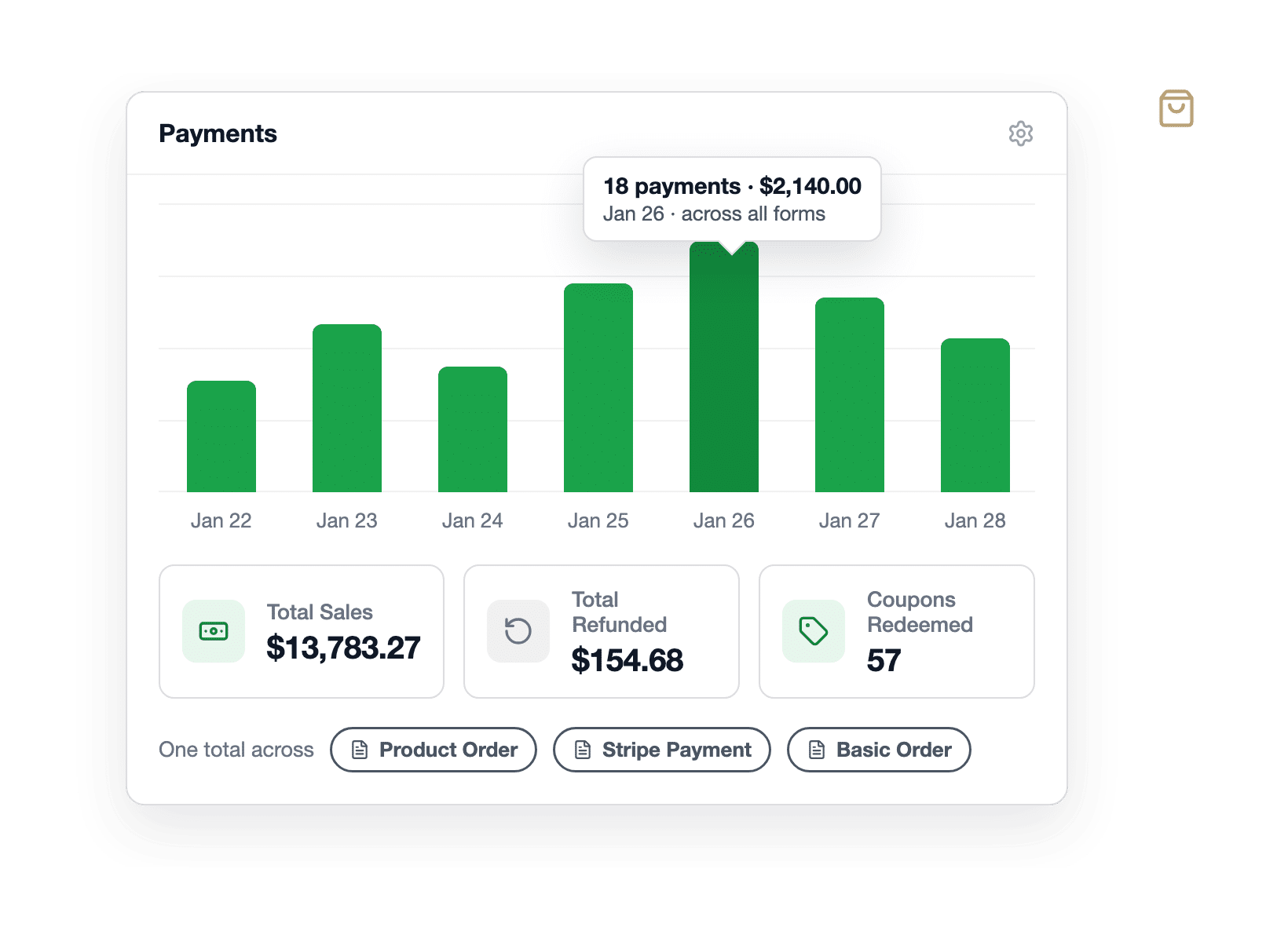
Connect Stripe, PayPal, Square, or Authorize.Net and the Payments widget adds up everything collected across every form: payments, sales, subscriptions, refunds, and coupons redeemed.
For example, a shop selling through three order forms sees one total instead of a total per form, right next to the entries those forms brought in.


Marketers
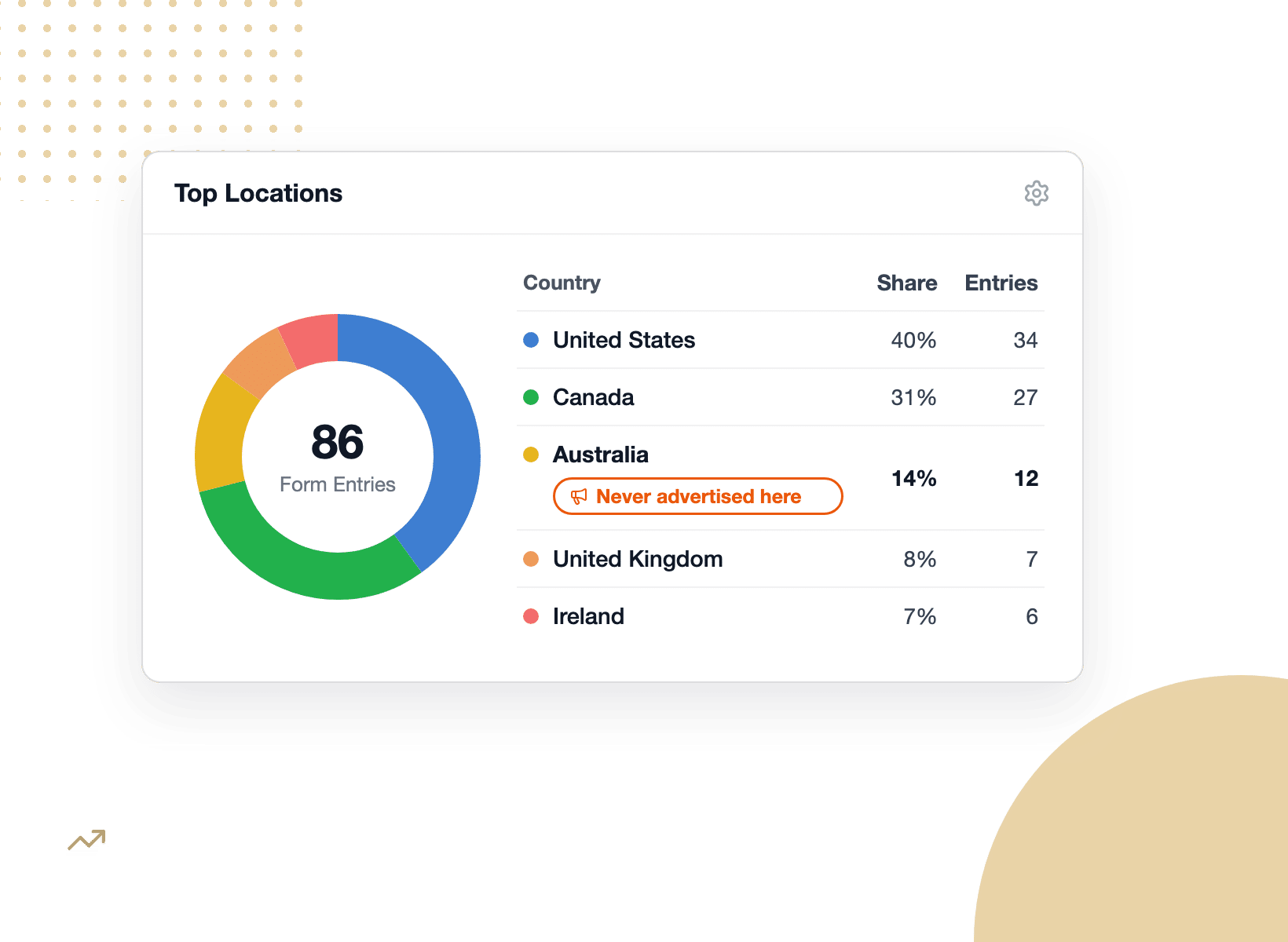
Views and entries across every form show where interest is growing, and Top Locations shows where it comes from.
When a country you have never advertised in lands in third place, you have found your next campaign.
Meanwhile, the date range picker lets you compare this week’s numbers with last quarter’s in two clicks.


Agencies & Developers
Gear settings and dismissed prompts save to each admin’s own login. Tidy the Dashboard on a client’s site and the client still sees every suggestion you cleared.
Everyone sees the same numbers, while the housekeeping stays personal, so the view you set up for yourself is never the view your client inherits.


New WPForms Users
Install WPForms Lite and the Dashboard lays out your first steps, from creating a form to switching on Lite Connect for backing up your entries.
Your forms sit in a table with their backup status, an Entries Backed Up count grows as submissions arrive, and the empty state offers to build your first form from a template, from scratch, or from a sentence you type for WPForms AI.


Everything the WPForms Dashboard Can Do For You
A closer look at the cards, widgets, and controls waiting on your new first screen.
It’s the First Screen You See
Click WPForms in your WordPress admin sidebar and the Dashboard opens before anything else.
The forms list is still there, one click away, but it is no longer the front door.
There is nothing to install and nothing to switch on. Update WPForms, and the whole picture is waiting the next time you log in.


Every Number, Added Up Across Every Form
Eight stat cards sit across the top: Forms, Total Entries, Total Views, Spam Entries, Total Payments, Total Sales, Coupons Redeemed, and Total Refunded.
Each one speaks for your whole site in a single figure, and each appears only when it has something to say.
For example, the payment cards wait for a connected gateway, so a site that never takes a payment never stares at an empty money tile.
Entries and Payments, Side by Side
The Entries widget charts entry activity across all your forms and lists each form with its entries, views, conversions and more!
Below it, the Payments widget does the same with a chart, totals for payments, sales, subscriptions, and refunds.
Open the gear menu on either widget to show anywhere from three to ten rows, and on Payments, to hide the chart or the stat cards.


See Where Your Submissions Come From
The Geolocation addon saves a location with each entry, one form at a time.
The Dashboard is the first place that data comes together: a donut chart and country table show where submissions come from across your whole site.
Use the gear menu to choose how many countries appear and exclude the ones you don’t need.
Plus, if more than a fifth of your recent submissions arrive from visitors browsing in another language, the Dashboard suggests a translation plugin.
Pick a Date Range and Watch Everything Update
On paid plans, a date range picker sits at the top of the Dashboard and every card and widget follows it.
Choose Today, Yesterday, the last 7, 30, or 90 days, the last year, or set a custom range on the calendar.
Last 30 days is the default, so a weekly check and a quarterly review are each two clicks away.
Figures refresh on a schedule, about once an hour, rather than the instant a submission lands.


Your Next Steps, Picked for Your Setup
The Dashboard notices what you haven’t switched on yet and points to it like a payment gateway to connect, an integration to set up, an addon worth a look.
Click Install or Activate and the work happens in place, then the button settles into an Installed state so you know it worked.
Over in the sidebar, your license status, a spam and security checkup, and What’s New in WPForms keep the housekeeping one glance away.
Elevate Your Forms With 2,100+ Ready-Made Templates
Frequently Asked Questions and Resources
Have questions about the WPForms Dashboard? We’ve got answers.
What is the WPForms Dashboard?
The WPForms Dashboard is the screen that opens when you click WPForms in your WordPress admin menu.
It adds up entries, form views, payments, and spam across every form on your site, charts your recent form and payment activity, shows where submissions come from, and points to the next steps worth taking.
It is part of the core WPForms plugin, so there is nothing separate to install and no account to connect.
Is the WPForms Dashboard free?
Yes, the WPForms Dashboard is included with every WPForms plan, including the free WPForms Lite.
On Lite, it shows a table of your forms with their Lite Connect backup status, an Entries Backed Up count, and a Getting Started list.
Paid plans add your real entries and the date range picker, payment totals appear once a gateway is connected, and Pro and Elite plans add Top Locations through the Geolocation addon.
Compare plans to see what each tier includes.
How do I open the WPForms Dashboard?
Update to the latest version of WPForms, then click WPForms in your WordPress admin sidebar. The Dashboard opens as the first screen the layout resizes for smaller screens, so a quick check from a tablet works too.
It is available to administrators, or more precisely to any user who can manage WPForms settings. Team members with other roles keep landing where they do today, and Access Controls still decides what they can reach.
What do the stat cards on the Dashboard show?
The stat cards total up to eight figures across every form on your site.
Forms, Total Entries, Total Views, Spam Entries, Total Payments, Total Sales, Coupons Redeemed, and Total Refunded.
Every figure comes from the entries and payments already stored in your WordPress database.
Cards appear as they become relevant. The four payment cards show once a payment gateway is connected, and the Spam Entries card shows on paid plans.
Can I filter the WPForms Dashboard by date?
Yes, on paid plans the WPForms Dashboard has a date range picker with seven options: Today, Yesterday, Last 7 days, Last 30 days, Last 90 days, Last 1 year, and Custom. Last 30 days is the default, and every stat card and widget follows the range you pick.
The Dashboard reads up to a year of history, and figures refresh about once an hour rather than the instant a submission arrives. Right after you update, longer ranges unlock as WPForms finishes processing your historical data.
Does the Dashboard show payments from all of my forms?
Yes, once a payment gateway such as Stripe, PayPal, or Square is connected, the Dashboard totals live payments across every form.
Total payments, sales, new subscriptions and renewals, refunds, and coupons redeemed, with a list of your latest payments below the chart. Test-mode payments are not included.
To refund, search, or work with an individual payment, head to the Payments Overview page, which is unchanged.
How does Top Locations on the Dashboard work?
Top Locations uses the location the Geolocation addon saves with each entry and brings that data together across every form as a donut chart and a country table.
Use the widget’s gear menu to choose how many countries to list and to exclude any you don’t want to see, and at least one country always stays visible.
The Dashboard does not look up locations itself. Without the addon, the widget introduces the feature instead of showing data.
Is the WPForms Dashboard the same as the WPForms Dashboard Widget?
No. The WPForms Dashboard Widget is the small card that has long lived on the WordPress Dashboard » Home screen, and it stays exactly where it is.
The WPForms Dashboard is a full page inside the WPForms menu, with stat cards, entries, payments, locations, and next steps across all your forms. Both exist side by side.
Does the WPForms Dashboard replace Form Analytics?
No, the WPForms Dashboard summarizes, and Form Analytics goes deep. The Dashboard’s Total Views card and per-form rows give you the site-wide picture at a glance.
Form Analytics remains the place to see views, interactions, conversion rate, abandonment, and errors for a single form, field by field. Use the Dashboard to notice a change and Form Analytics to understand it.
Can I customize or rearrange the WPForms Dashboard?
The layout is fixed, so every admin finds the same screen in the same order. What you can adjust lives in each widget’s gear menu.
How many rows the Entries and Payments tables show, whether the Payments chart and stat cards appear, and how many countries Top Locations lists.
Those settings and any prompts you dismiss save to your own admin account, so one admin’s choices never change another’s view.