


AI Summary
Would you like to create a quiz on your WordPress site, like a scored test, a personality quiz, or a weighted assessment? Quiz forms are a fun way to engage visitors, qualify leads, and learn more about your audience.
This tutorial will show you how to install, set up, and create quiz forms using the Quiz addon.
Requirements:
- You will need an Pro license level or higher to access the Quiz addon
- Ensure that you’ve installed the latest WPForms version to meet the minimum required version for the Quiz addon
Installing the Quiz Addon
Before you get started, you’ll first need to ensure WPForms is installed and activated on your WordPress site and that you’ve verified your license.
After you’ve done that, you’ll be able to quickly install and activate the Quiz addon.
Understanding Quiz Types
In WPForms, quiz questions are typically created using choice based fields like Multiple Choice, Checkboxes, and Dropdown. These fields work across all quiz types. If you are creating a Graded Quiz, you can also use Single Line Text and Paragraph Text fields for questions where users type an answer.
Other fields, such as Name or Email, can still be included in the form, but they are treated as standard form fields rather than quiz questions.
Graded Quizzes
A graded quiz is best when there is a correct answer for each question. WPForms calculates the score based on correct answers, and you can present results as a score, a percentage, or a letter grade.
Use graded quizzes for knowledge checks, training assessments, quizzes in courses, and trivia where each question has a right answer.
Personality Quizzes
A personality quiz is best when answers map to outcomes, not right or wrong. Each option is connected to a personality type, and the final result shows the personality type that matches the user.
Use personality quizzes for product fit recommendations, lead qualification, and fun quizzes like “What type of person are you” or “Which style matches you.”
Weighted Quizzes
A weighted quiz is best when answers have different weights, and the total weight determines the outcome. Instead of correct answers, each option contributes a numeric value.
Use weighted quizzes when you want to score tendencies or preferences, like readiness assessments, risk scoring, or surveys where some answers should count more than others.
Enabling Quiz Mode
Once you know which quiz type you want, the next step is to enable quiz mode for your form. To get started, create a new form or edit an existing one to open the form builder.
Inside the form builder, go to Settings » Quiz. Then click the Enable Quiz button.
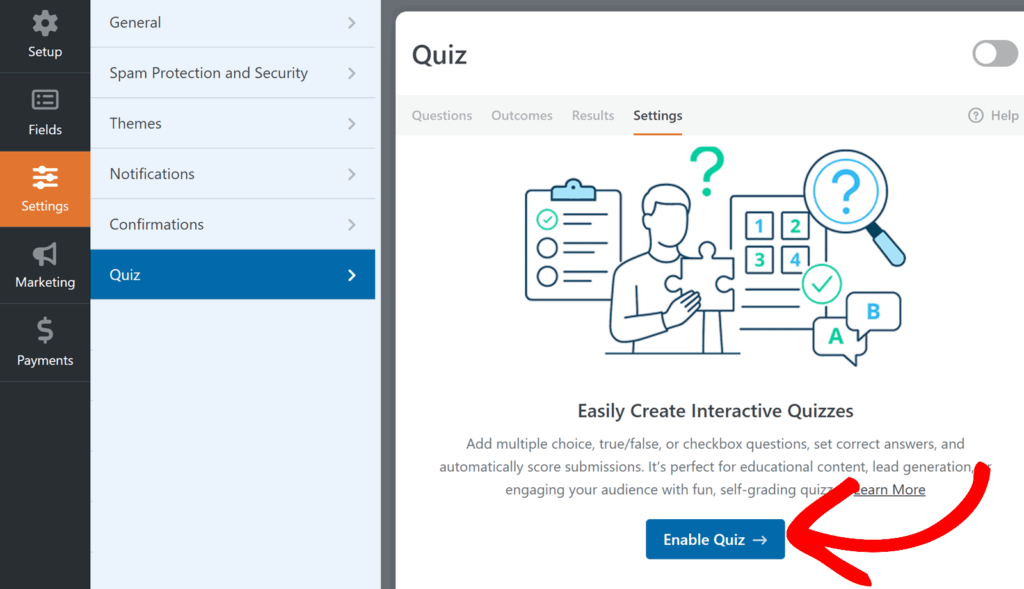
After you enable quiz mode, WPForms adds quiz specific configuration areas for your form, including tabs like Questions, Outcomes, Results, and Settings.
At this point, quiz mode is on, but your form will not behave like a quiz until you select a quiz type and set up your questions.
Choosing a Quiz Type
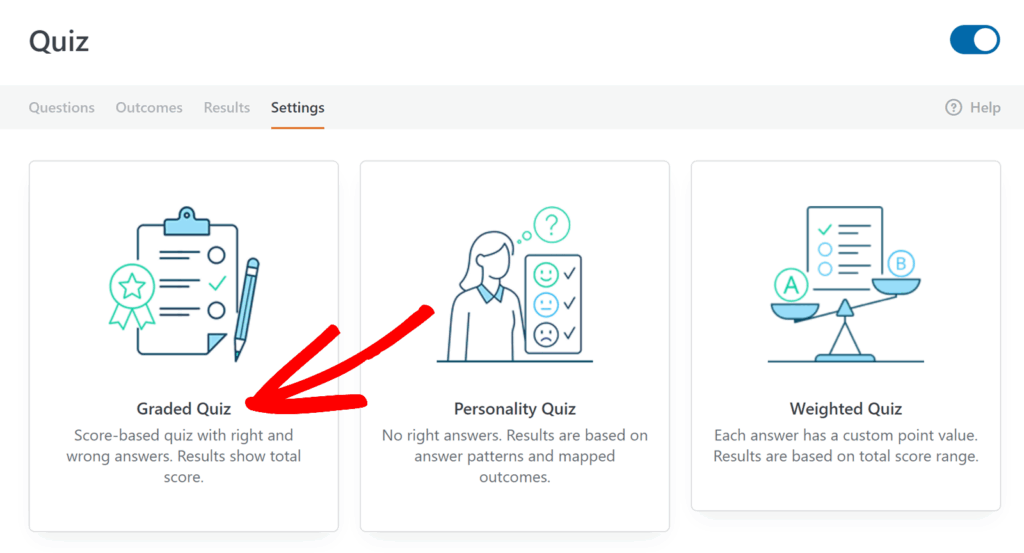
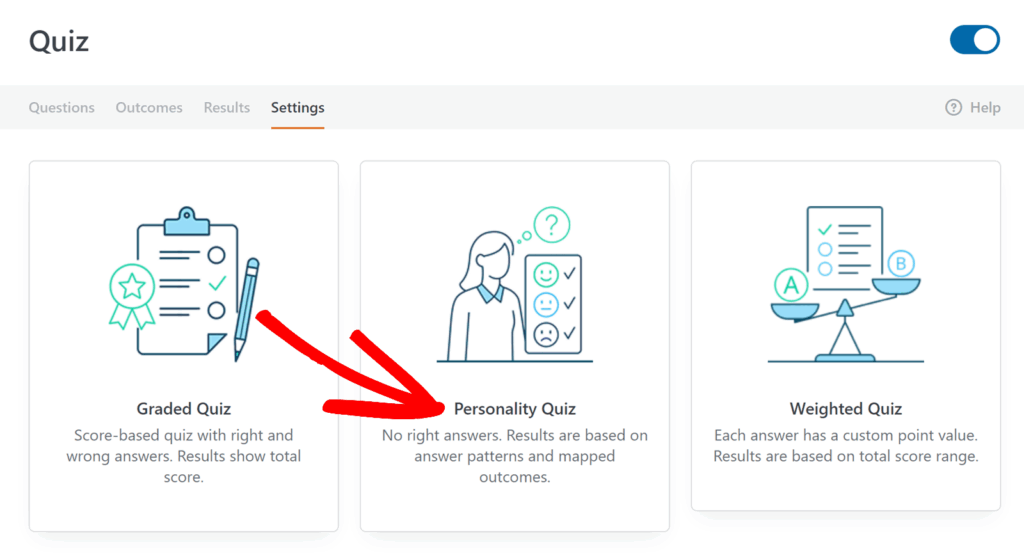
After enabling quiz mode, WPForms prompts you to choose a quiz type. This choice controls what settings you see next and how you will configure questions and results.
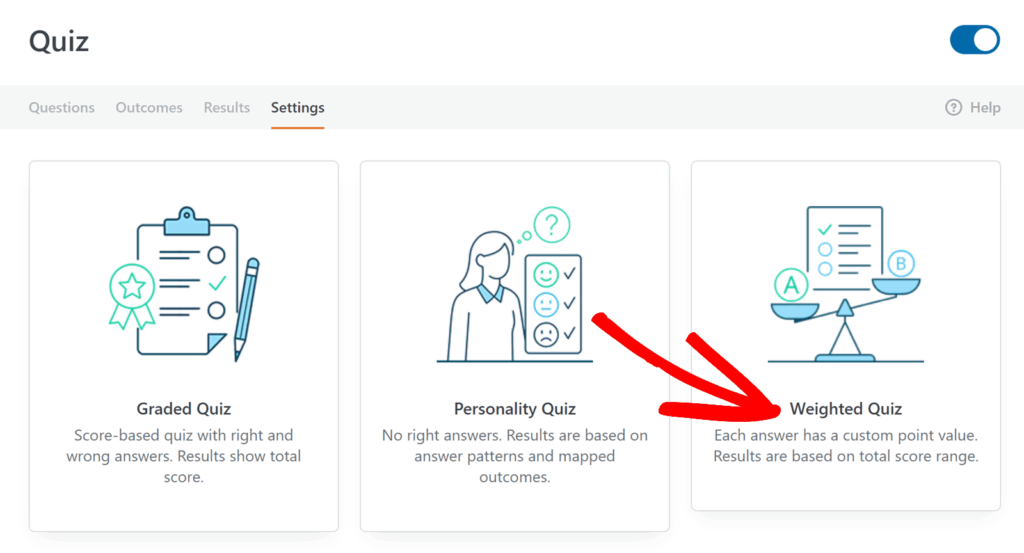
On the quiz type screen, select Graded Quiz, Personality Quiz, or Weighted Quiz based on the experience you want to create.
Building a Graded Quiz
After you enable quiz mode and choose Graded Quiz, you will set up your grading scale, choose how feedback works, and then configure questions and correct answers.
Configuring Graded Quiz Settings
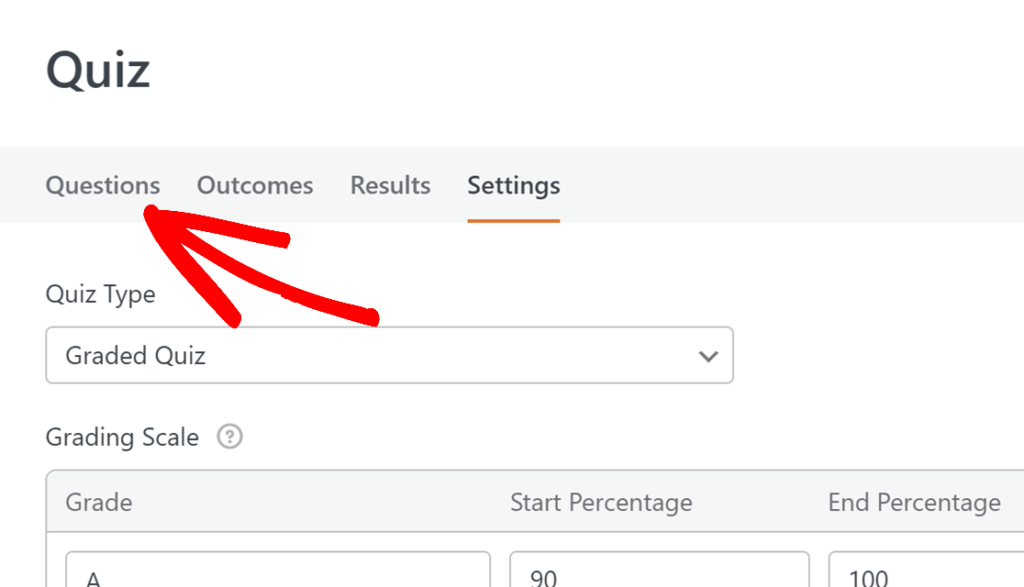
Graded quiz settings live under the Settings tab in the quiz builder. This is where you choose the quiz type and define how scoring and feedback should work.
Setting Up the Grading Scale
The Grading Scale is where you define how quiz percentages translate into letter grades. WPForms calculates a percentage score based on the number of correct answers, then matches that percentage to the ranges you define here.
Each row in the grading scale includes a Grade, a Start Percentage, and an End Percentage. Together, these values create a range. For example, you might define A as 90 to 100, B as 80 to 89, and so on. The key thing is that the ranges should cover the full 0 to 100 span without gaps, so every submission can be graded.
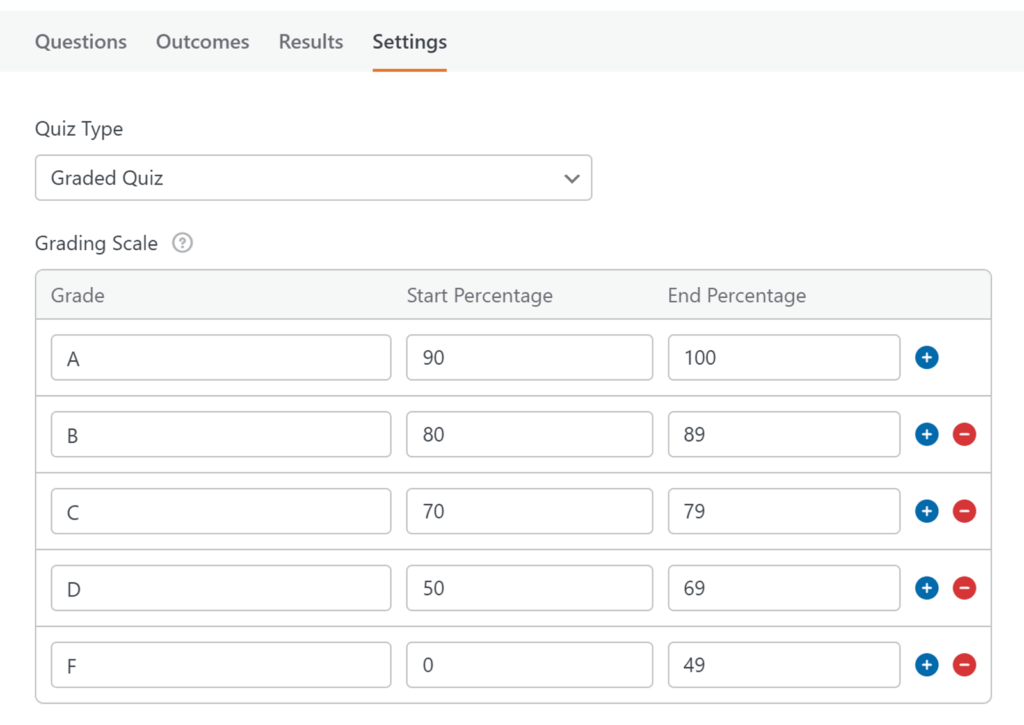
If you want to change your grading structure, you can add new rows to the scale or remove existing rows by clicking on the blue plus (+) or red minus (-) buttons. This is useful if you want fewer grade buckets, like A, B, C, and F, or more granular buckets, like A plus, A, A minus, and so on.
Setting Feedback for Graded Quizzes
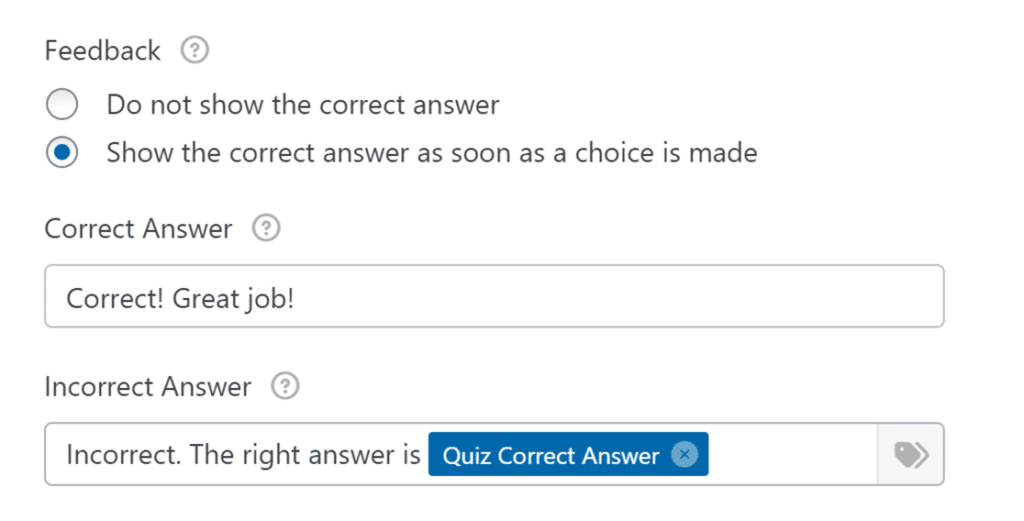
Feedback controls what happens after a user answers a question, and whether they see the correct answer immediately. This is especially useful for training quizzes or practice tests.
In the Feedback section, choose one of the following options:
- Do not show the correct answer: WPForms will not reveal whether a user selected the correct option while they are taking the quiz.
- Show the correct answer as soon as a choice is made: WPForms will show immediate feedback as users answer questions. This option is useful when you want quizzes to feel interactive and instructional.
- When you enable this, WPForms shows two additional fields where you can customize what users see.
- Use the Correct Answer field to enter the message shown when a user selects the correct answer.
- Use the Incorrect Answer field to enter the message shown when a user selects the wrong answer. If you want to tell users what the correct answer was, you can insert the Quiz Correct Answer smart tag into this message.
- When you enable this, WPForms shows two additional fields where you can customize what users see.
Adding Questions for Graded Quiz
Once your grading scale and feedback are set, the next step is to add quiz questions and define which answers are correct.
To do so, open the Questions tab at the top of the quiz builder. This area controls the quiz question behavior for supported fields, including how answers are evaluated and what explanation text is shown in results.
Supported Fields for Graded Quizzes
Graded quizzes support both choice based questions and typed answer questions. You can use the following fields as graded quiz questions:
- Dropdown
- Multiple Choice
- Single Line Text
- Paragraph Text
Marking Correct Answers for Graded Quizzes
After adding your question fields to the form, you will mark correct answers in the field options. How you do this depends on the field type.
Multiple Choice and Dropdown Fields
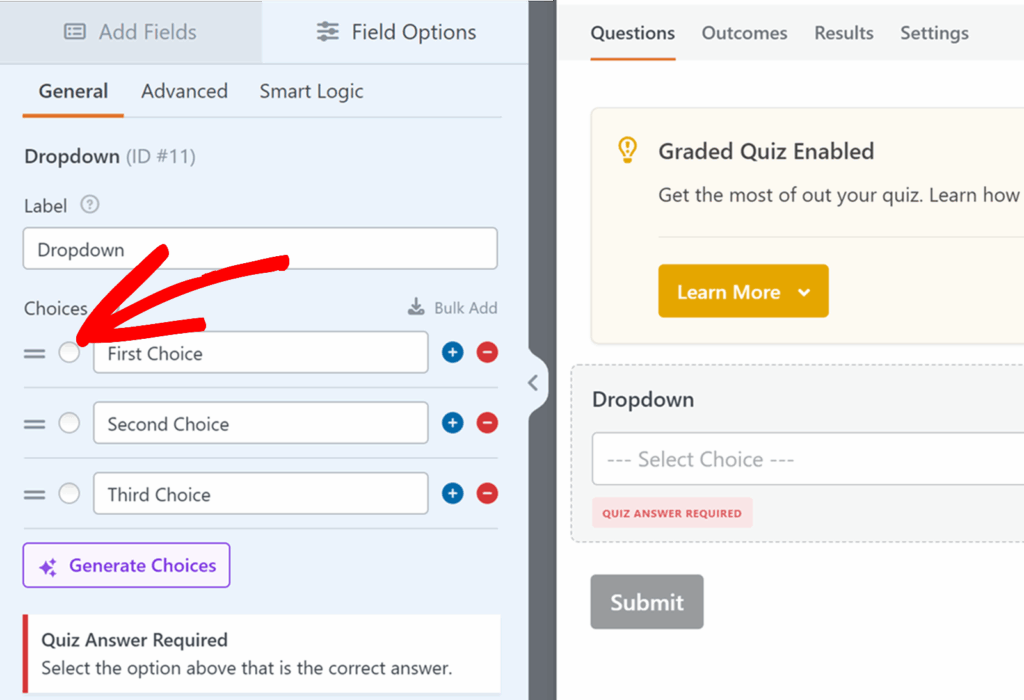
For Multiple Choice and Dropdown fields, each option includes a radio control to the left of the option label. Select the radio control for the option that represents the correct answer. Once selected, WPForms displays a small check mark next to that choice, which confirms it has been marked as correct.
Single Line Text and Paragraph Text fields
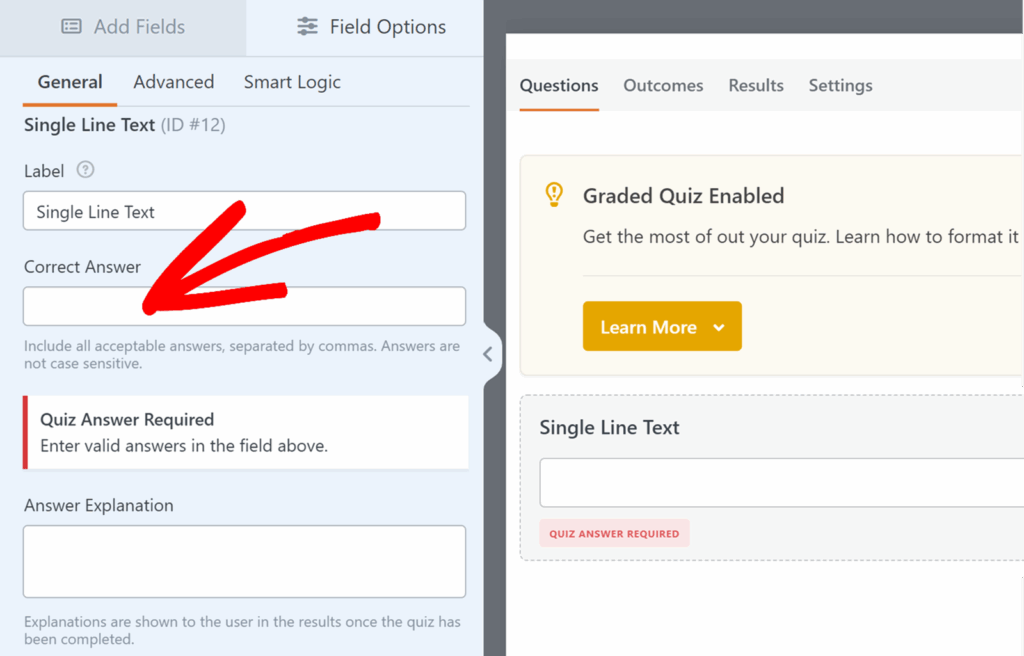
For Single Line Text and Paragraph Text fields, you enter the correct answer directly in the field settings.
In the field options, locate the Correct Answer input and enter the answer you want WPForms to accept. If you want to allow multiple correct answers, enter them as a comma separated list. This is helpful when different spellings, phrasing, or formatting should be accepted.
These fields also include an Answer Explanation option. Explanations are shown to users in quiz results after the quiz is completed, and they are useful for adding context, teaching points, or quick clarification on why an answer is correct.
Building a Personality Quiz
A personality quiz is designed around outcomes instead of correct and incorrect answers. Each answer choice is mapped to a personality type, and WPForms determines the result based on the choices a user makes.
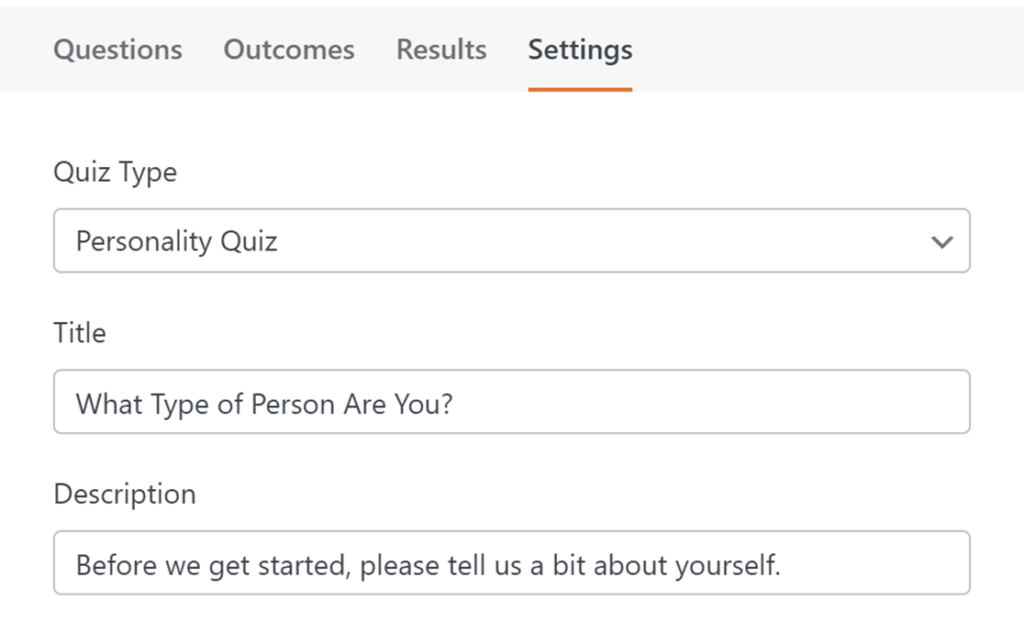
Personality quiz settings are managed from the Settings tab. This is where you select the quiz type, define the personality types users can receive, and optionally configure a time limit.
After you select Personality Quiz, you will see a few additional options that control how your quiz is presented.
The Title field controls the quiz title shown to users. Use this to name your quiz in a way that matches the experience you are creating, such as “Find Your Perfect Plan” or “Which Style Fits You”.
The Description field is used for introductory text that appears at the top of the quiz. This is a good place to explain what the quiz is about, set expectations, or add a short instruction.
Defining Personality Types
Personality types are the possible outcomes a user can receive after completing the quiz. You will define these before setting up your questions, since you will map each answer choice to one of these types.
In the Personality Types section, add the types you want to use as outcomes. For example, if you are building a quiz that recommends a plan, your types might be “Beginner”, “Intermediate”, and “Advanced”. If you are building a product fit quiz, your types might be “Option A”, “Option B”, and “Option C”.
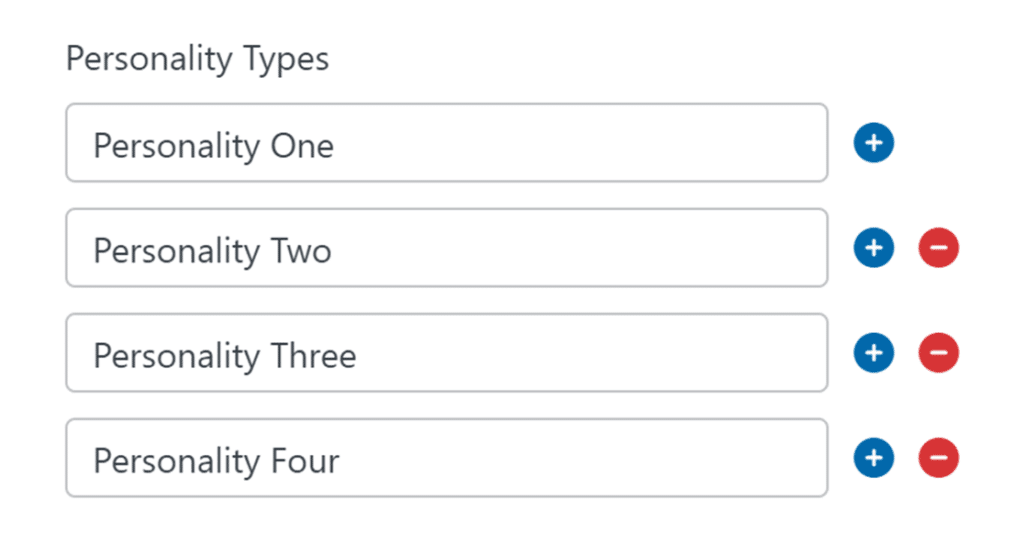
You can also remove personality types at any time, which is helpful while you are still refining your quiz. If you remove a type, make sure to review your questions afterward so each answer choice is still mapped correctly.
Adding Questions for Personality Quiz
After defining your personality types, you will create quiz questions and map each answer choice to a personality type.
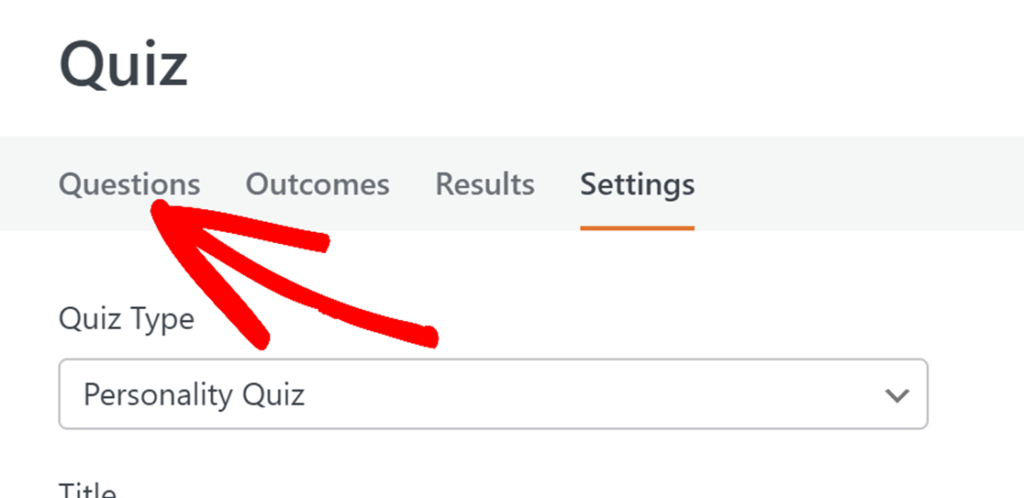
To do so, open the Questions tab at the top of the quiz builder. This area controls the quiz question behavior for supported fields, including how answers are evaluated and what explanation text is shown in results.
Supported Fields for Personality Quizzes
Graded quizzes support both choice based questions and typed answer questions. You can use the following fields as graded quiz questions:
- Dropdown
- Multiple Choice
- Checkboxes
Mapping Each Answer to a Personality Type
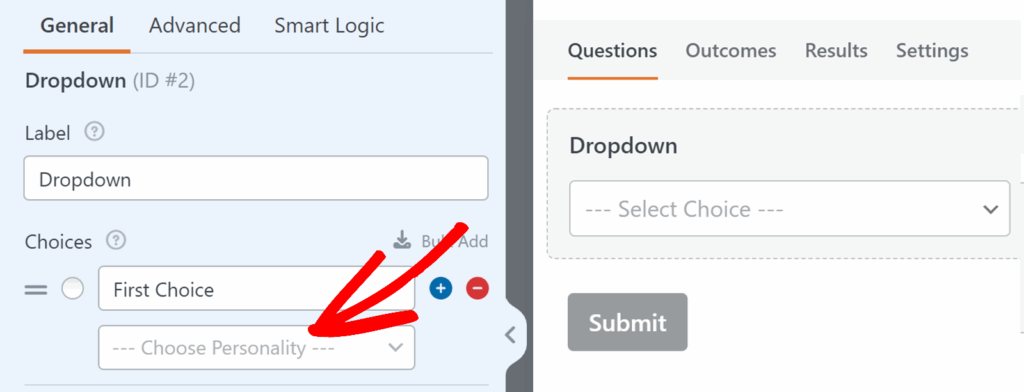
In a personality quiz, mapping is required because it is how WPForms determines the final personality result. Without mappings, WPForms has no way to connect a user’s answers to a personality type.
For each answer choice, click the dropdown and select the personality type you want that choice to count toward. Repeat this for every choice in the field until all options have a personality type assigned. Then move to the next question and do the same.
Building a Weighted Quiz
A weighted quiz is useful when answers are not right or wrong, but some answers should count more than others. In this quiz type, you assign a numeric weight to each answer choice, and the total weight is used to determine the final outcome.
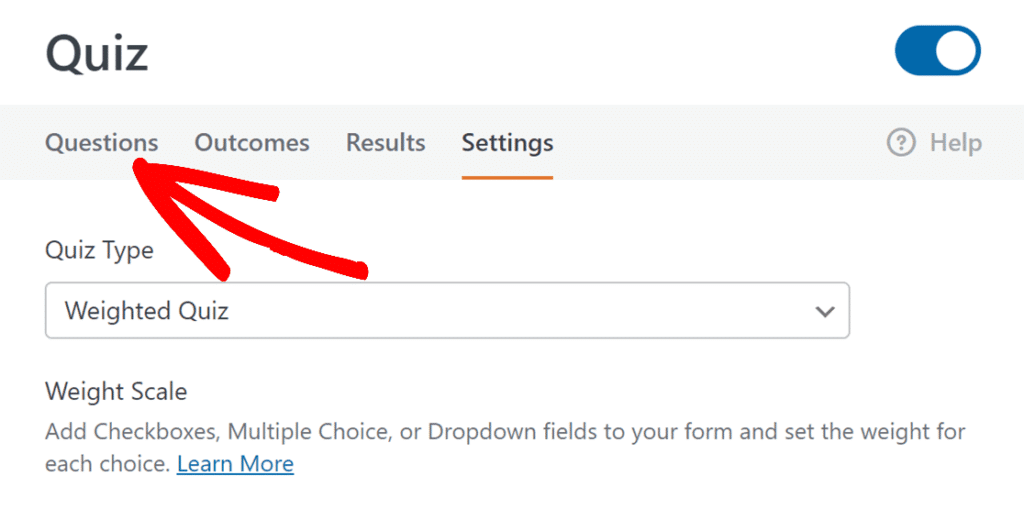
Weighted quiz settings are managed from the Settings tab. This is where you select the quiz type and review the weight scale guidance, and it is also where you can enable an optional time limit.
Adding Questions for Weighted Quiz
After selecting Weighted Quiz, you will add your questions and assign weights to each answer choice.
To do so, open the Questions tab at the top of the quiz builder. This is where you configure how questions behave for weighted quizzes and where you will assign weights to answer choices in supported fields.
Supported Fields for Weighted Quizzes
Weighted quizzes support the following choice based fields:
- Dropdown
- Multiple Choice
- Checkboxes
Setting Weights for Each Answer
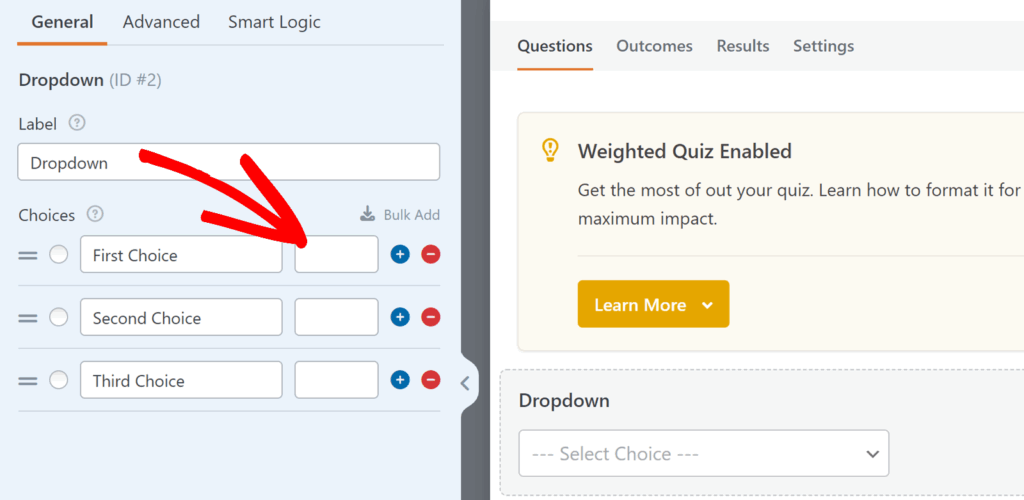
After adding a supported field to your form, open its field options and look for the input field next to each choice label.
Set a weight for each choice based on how much you want that option to contribute to the final result. Weights can be set from 0 to 99. A higher number means that choice contributes more weight to the final total.
As users complete the quiz, WPForms totals the weights from the choices they selected. You can then use that total in your quiz outcomes to show different results based on the final weighted score.
Setting Up Outcomes
After you finish configuring your quiz settings and questions, the next step is to set up outcomes. Outcomes control what users see after they submit the quiz, such as their score, grade, or personality type.
Outcomes are the quiz version of a confirmation message. They let you show a result message that matches your quiz type, and they can include quiz smart tags to display dynamic information.
Creating an Outcome
To create an outcome, open the Outcomes tab at the top of the quiz builder. You will see a Default Outcome, which is the message shown to users unless you create additional outcomes and route users using conditional logic.
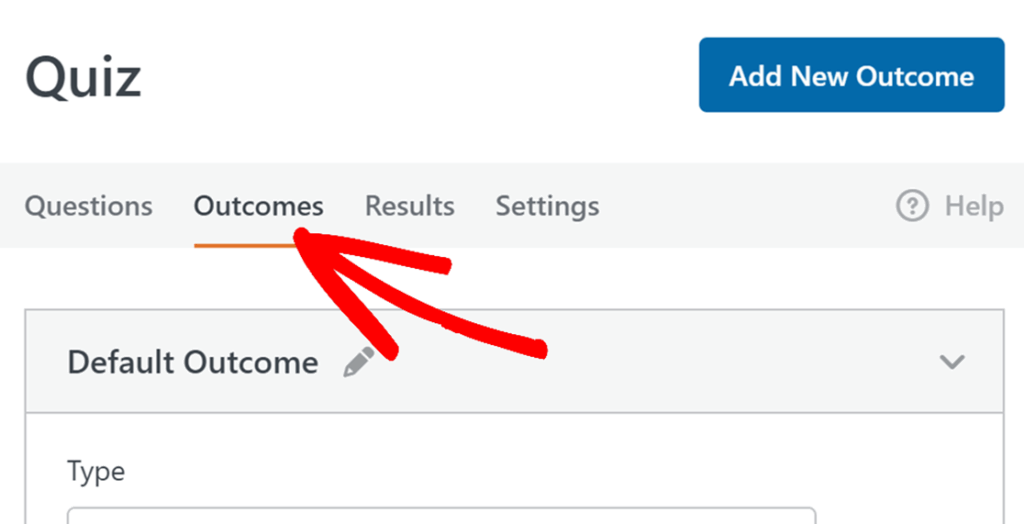
Each outcome includes the Type dropdown with the following options:
- Graded, Personality, or Weighted Quiz: (this label matches the quiz type)
- Show Page
- Go to URL (Redirect)
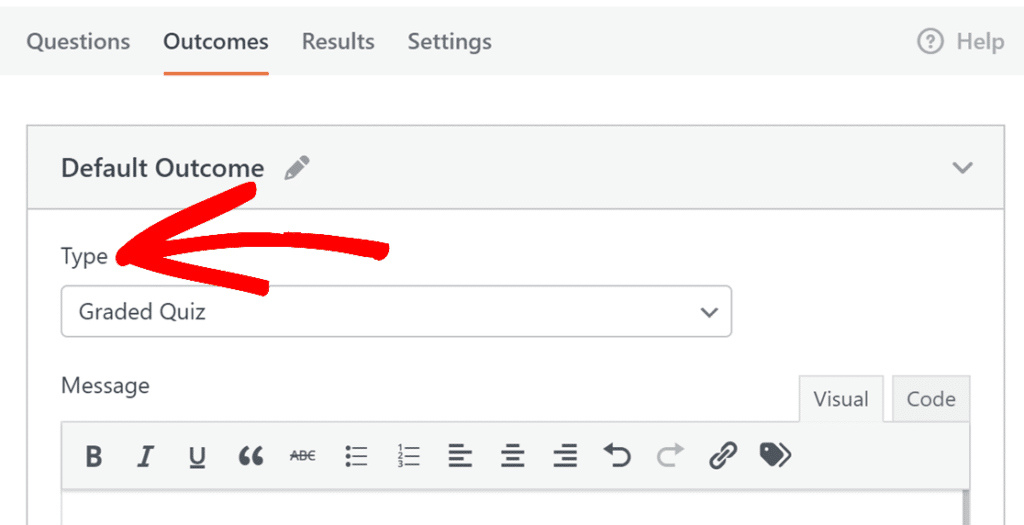
After you choose a type, complete the settings that appear for that option.
- If you select Show Page, a dropdown will appear where you can choose from your site’s published pages. This dropdown also includes a Back to Previous Page (Referrer) option, which sends users back to the page they were on before submitting the quiz. You will also see a URL Parameters field, which lets you append query string parameters to the redirected URL.
- If you select Go to URL (Redirect), WPForms will display a field where you can enter the destination URL. This is useful if you need to send users to a different site or you want a custom URL structure.
- If you select the quiz type option, WPForms will display the Message editor field. This is the most common outcome type for quizzes, since it lets you display results immediately and include quiz smart tags.
A good outcome message usually includes a short result summary and a clear next step. For example, you might tell the user how they did, what that result means, and what to do next, such as reading a recommended page, downloading a resource, or submitting another form.
Using Smart Tags for Outcomes
You can insert quiz values into an outcome message using smart tags. To do so, click the Smart Tags icon in the Message editor, and then select the tag you want to insert.
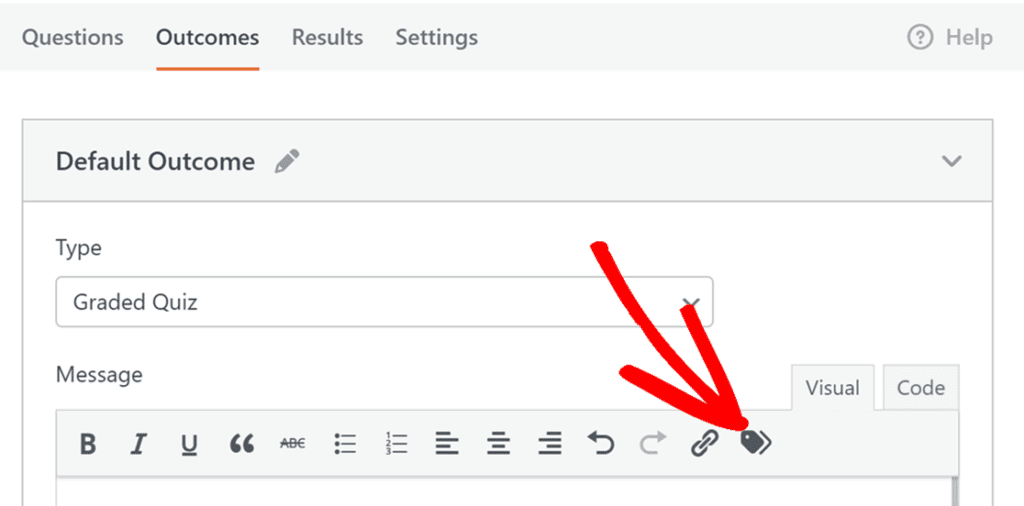
The available quiz smart tags depend on the quiz type.
For a Graded Quiz, you can use:
- Quiz Correct Answers
- Quiz Grade
- Quiz Incorrect Answers
- Quiz Percentage
- Quiz Summary Link
- Quiz Total Questions
For a Personality Quiz, you can use:
- Quiz Personality Type
- Quiz Total Questions
For a Weighted Quiz, you can use:
- Quiz Percentage
- Quiz Total Questions
Showing Different Outcomes Based on Results
If you want different users to see different messages or redirects, create multiple outcomes and use conditional logic to control which one is shown.
To do this, add a new outcome in the Outcomes tab by clicking the Add New Outcome button.
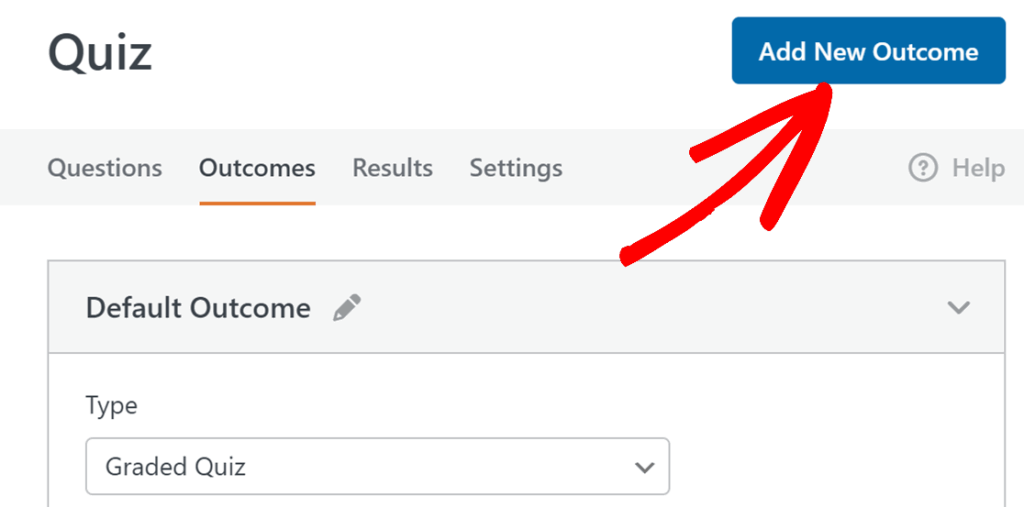
Then, toggle on Enable Conditional Logic for that outcome.
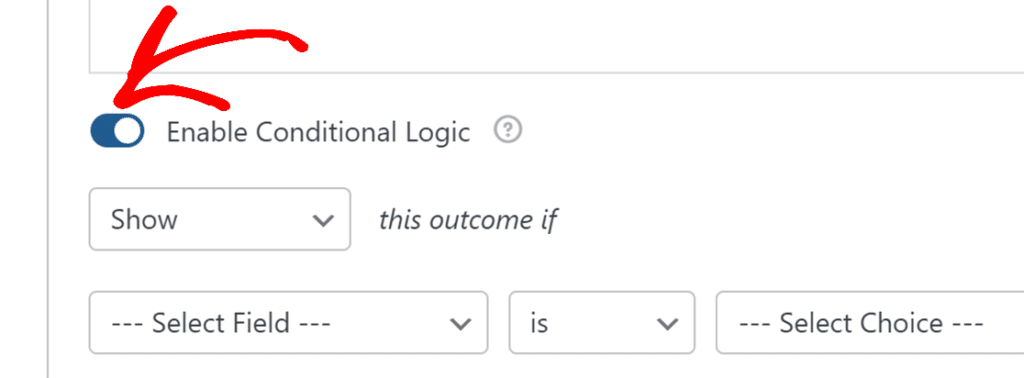
Next, set the rules that should trigger the outcome, then save your changes. When a user submits the quiz, WPForms checks the conditional logic rules and shows the first matching outcome. Keep the Default Outcome as a fallback so users always see something.
Here are a few common ways to use multiple outcomes:
- For a Graded Quiz, create separate outcomes for different grade ranges. For example, you can show one message when the user earns a higher grade, and a different message when the grade is lower. Include smart tags like Quiz Grade, Quiz Percentage, or Quiz Correct Answers in the message to make the result clear.
- For a Personality Quiz, create an outcome for each personality type. Then set conditional logic so the matching outcome displays based on Quiz Personality Type smart tag.
- For a Weighted Quiz, create outcomes based on score ranges. You can reference values like Quiz Percentage smart tag and show a different message, page, or redirect based on the user’s result.
Adding a Time Limit
You can set a time limit for any quiz type.
To do so, open your form in the WPForms builder and go to Settings » Quiz and toggle on the Enable Time Limit option from the Settings tab.
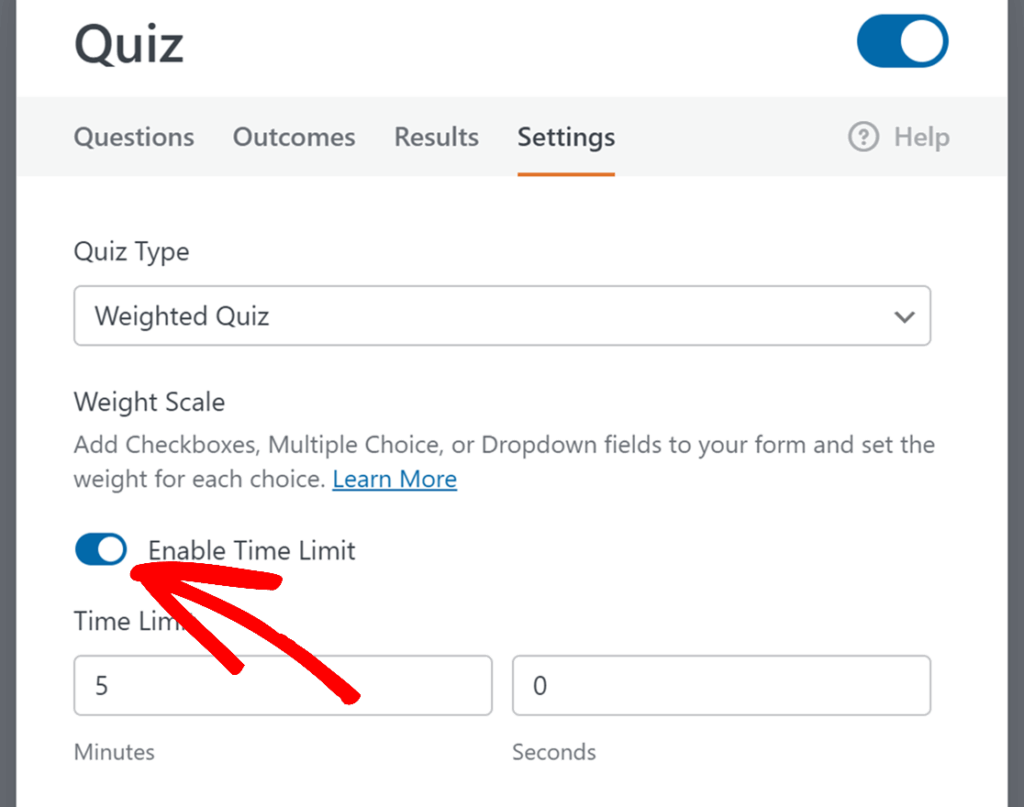
After enabling it, enter the time in the Minutes and Seconds fields. Then, use the When Time Limit Expires dropdown to choose what should happen when the timer runs out:
- Submit the Quiz automatically: Submits the quiz as is when time runs out.
- Lock remaining questions: Prevents users from answering any remaining questions.
- End the quiz completely: Ends the quiz when time runs out.
Finally, customize the Time Limit Exceeded Message to control what users see when the timer expires.
Viewing Quiz Results
After your quiz is live and collecting entries, you can view performance and answer data from the Results tab.
To open it, edit the form in the WPForms builder and click Results in the quiz tabs across the top.
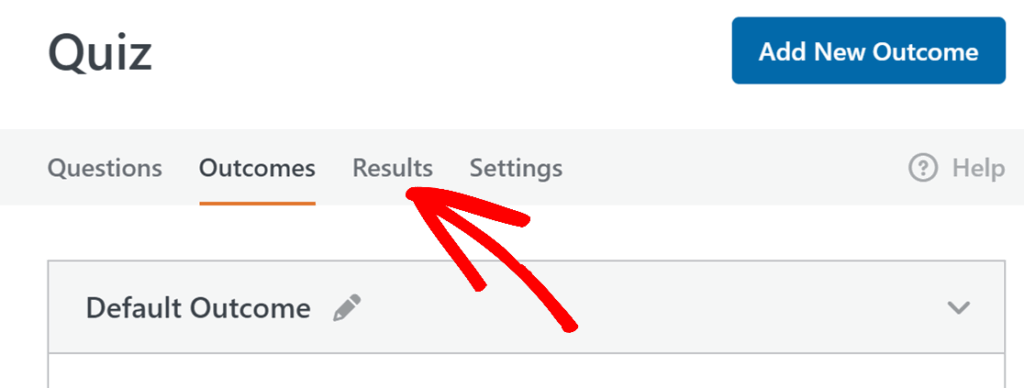
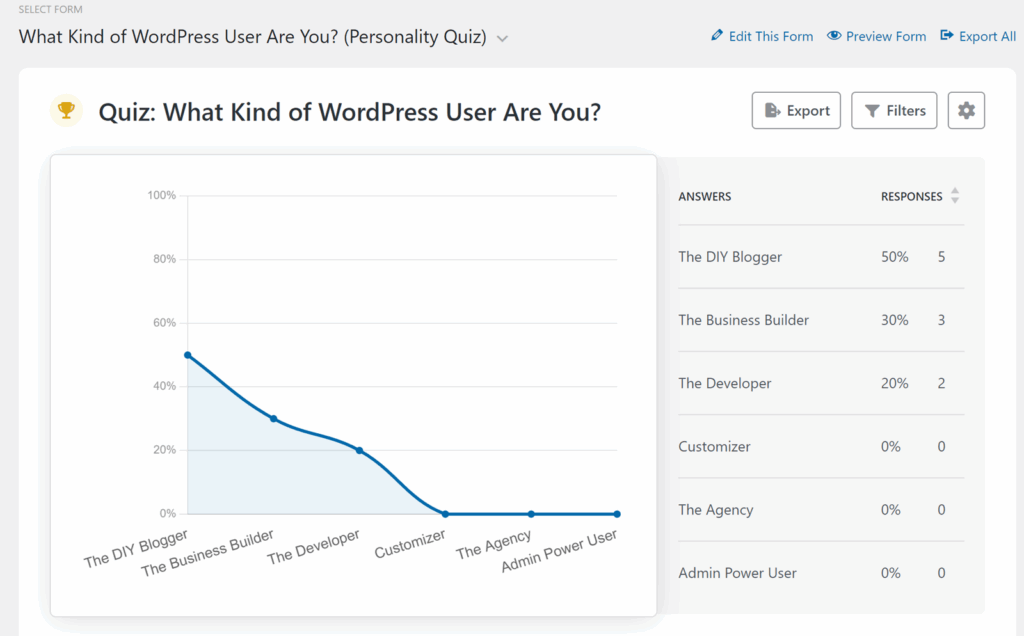
On the Results page, you can review charts and question breakdowns to see how users are answering each question and how results are distributed. As you scroll, each question includes its own chart and answer counts, so you can quickly spot the most common responses.
Filtering Results
The Results page includes filters to help you narrow the data you are viewing. Some filters are shared across all quiz types, and others depend on the quiz type.
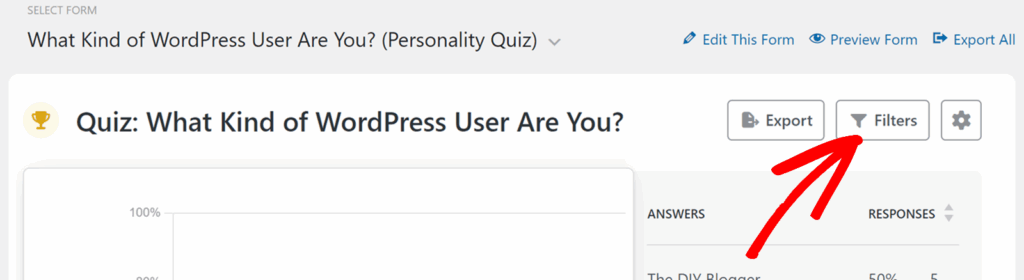
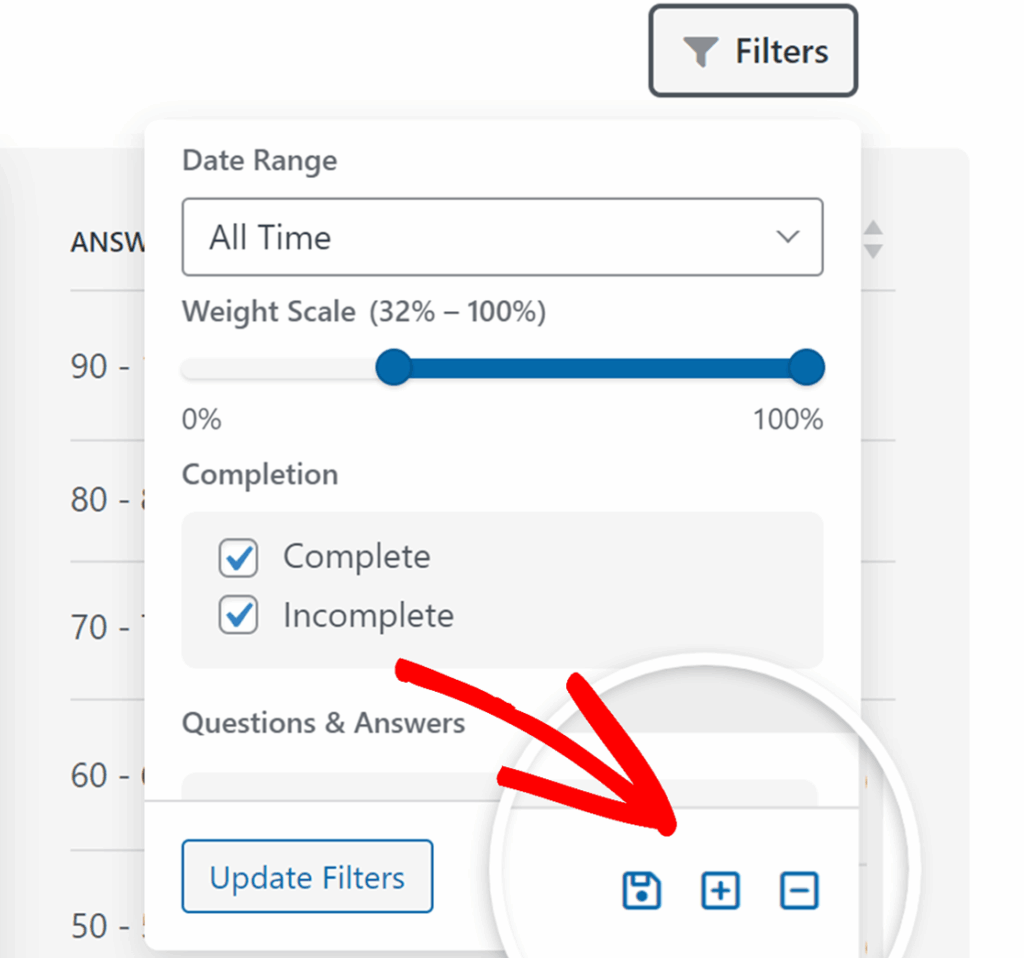
To apply filters, click the Filters option on the Results page. This opens a panel where you can select the filter values you want to use.
Filters for Graded Quizzes
Graded quizzes include the following filter options:
- Date Range
- Grades (based on the grading scale you set up)
- Completion (Complete, Incomplete)
- Questions and Answers
Filters for Personality Quizzes
Personality quizzes include the following filter options:
- Date Range
- Personality Types (based on the types you created in Settings)
- Completion (Complete, Incomplete)
- Questions and Answers
Filters for Weighted Quizzes
Weighted quizzes include the following filter options:
- Date Range
- Weight Scale slider
- Completion (Complete, Incomplete)
- Questions and Answers
Saving and Managing Filters
After selecting filters, you can save them for reuse.
To save your current filter setup, click the save icon below the filters. To quickly select all checkboxes in a filter group, click the plus icon. To clear all checkboxes in a filter group, click the minus icon.
Adjusting Graph Settings
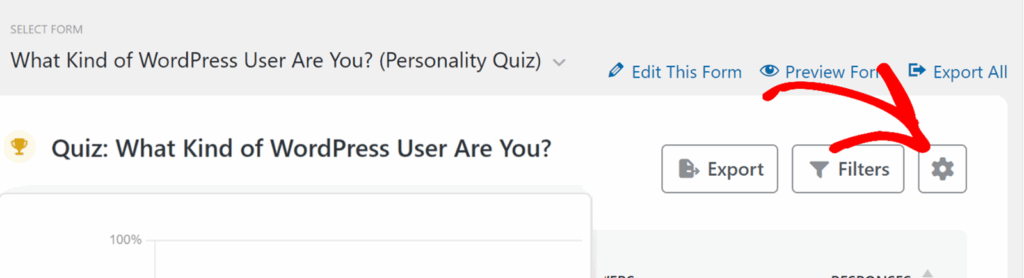
You can also change how charts look in Results. To do this, click the settings icon next to any of the charts.
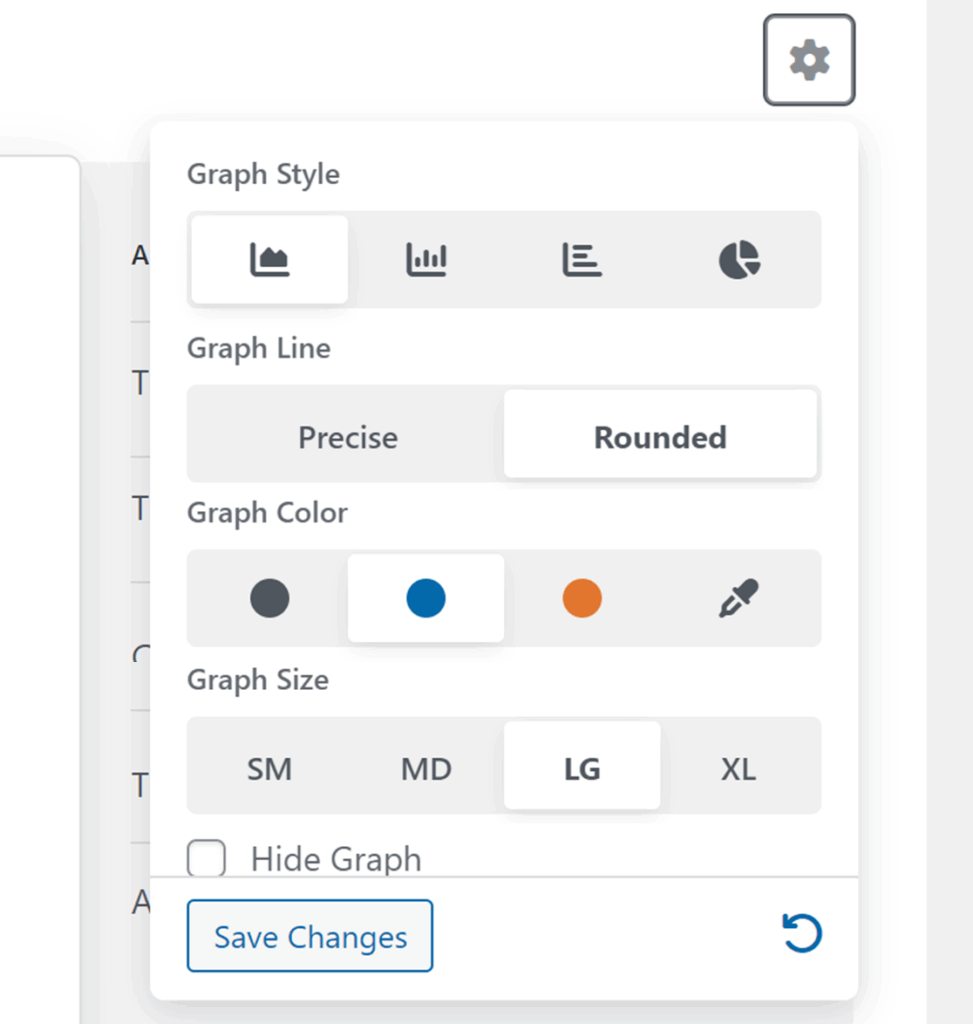
In the panel that opens, you can use these options:
- Graph Style: Changes the chart layout style. Options include: Line chart, Column chart, Bar chart, and Pie chart
- Graph Line Style: Switches the line appearance, such as precise or rounded.
- Graph Color: Updates the chart color.
- Graph Size: Adjusts the chart size, from small to extra large.
- Hide Graph: Removes the chart from the Results view.
- Apply To All Graphs: Uses this same settings for every chart on the page.
Converting an Existing Form Into a Quiz
If you already have a form built and want to turn it into a quiz, you can reuse your existing fields.
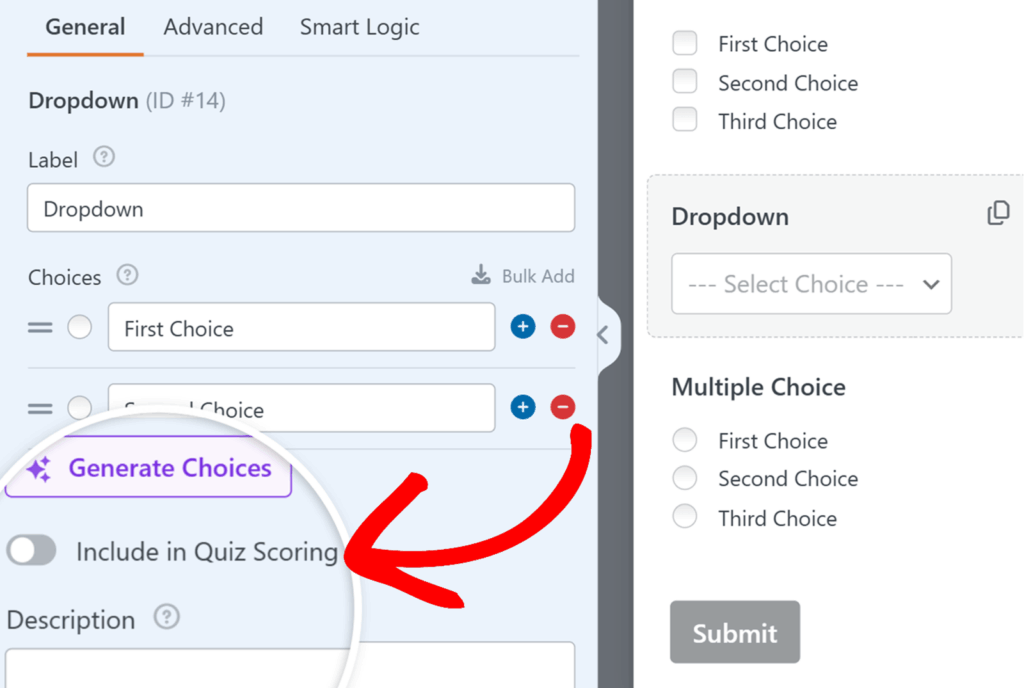
Once quiz mode is enabled and you’ve chosen a quiz type, check the fields you want to use as quiz questions. For a field to be treated as part of the quiz, Include in Quiz Scoring must be enabled in that field’s options.
To do this, click the field in the preview area to open Field Options, then toggle Include in Quiz Scoring on. Repeat this for each supported field you want to count as a quiz question.
Once your question fields are included in scoring, continue to Setting up outcomes to control what users see after submitting the quiz
Frequently Asked Questions
These are answers to some of the top questions we see about using the Quiz addon.
Can I create a quiz with WPForms AI?
Yes. To generate a quiz using WPForms AI, go to the Setup tab in the form builder and click the Generate Form option.
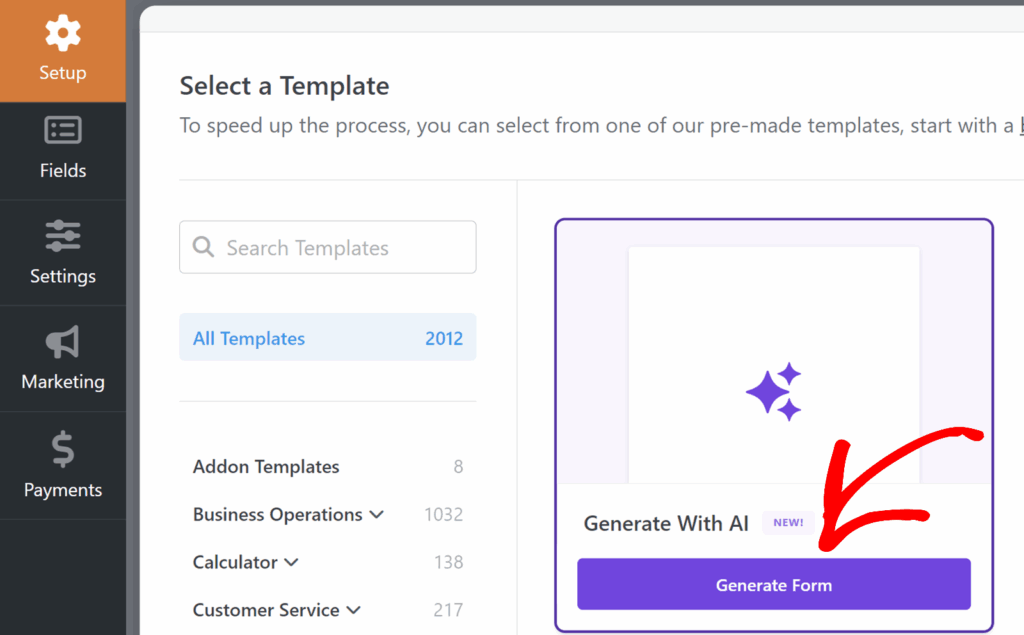
Then, describe the quiz you want in the prompt field (for example, the quiz topic, quiz type, number of questions, and whether you want outcomes). WPForms AI will generate a draft you can preview, then you can click Use This Form to open it in the form builder.
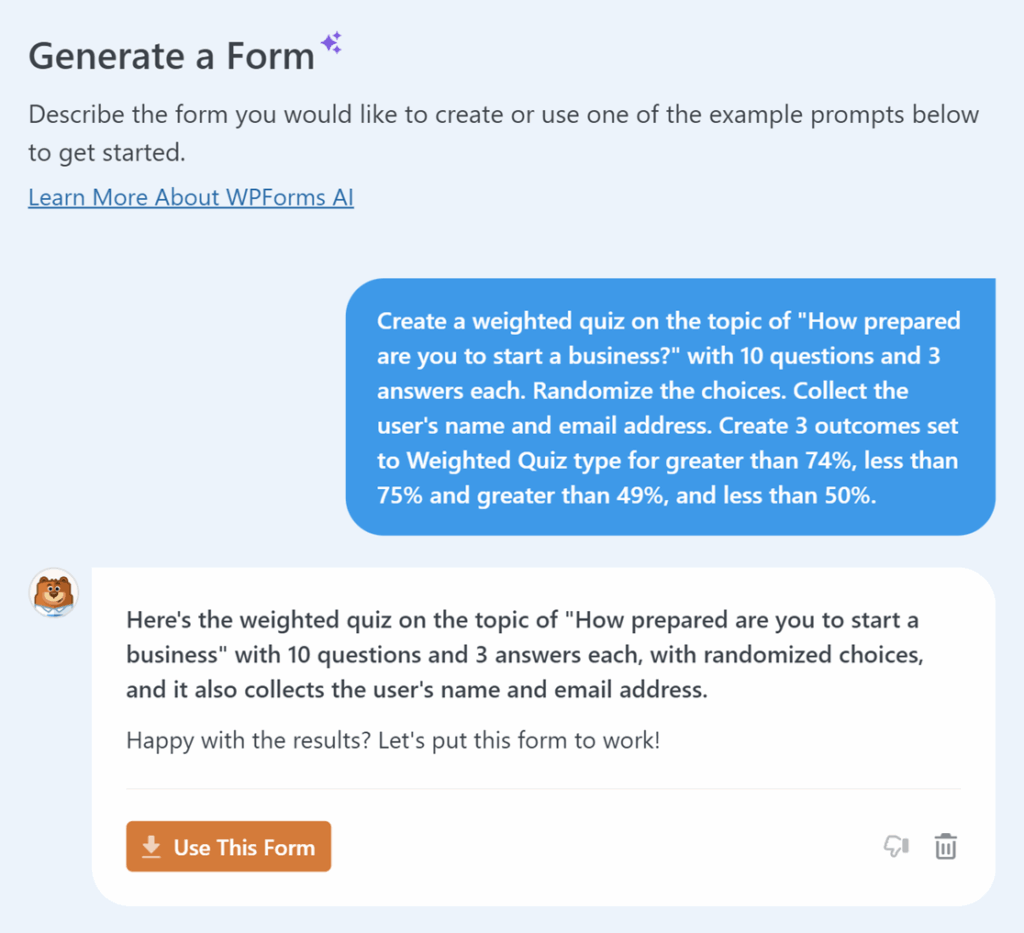
For more details on generating quiz forms with WPForms AI, check out our doc on Generating Forms With WPForms AI.
Can I use any field as a quiz question?
No. Only supported fields can be used as quiz questions and included in scoring or results.
For all quiz types, quiz questions must use these choice based fields: Multiple Choice, Checkboxes, and Dropdown.
For a Graded Quiz only, you can also use Single Line Text and Paragraph Text fields as quiz questions by entering the correct answer in the field options.
I enabled quiz mode, but I don’t see quiz results. What am I missing?
Make sure your form has collected entries. The Results view shows quiz reporting based on submissions, so you will need to submit a few test entries (or publish the form and collect real entries) before you see meaningful charts and breakdowns.
What is the difference between graded, personality, and weighted quizzes?
A Graded Quiz scores users based on correct answers. A Personality Quiz maps answers to personality types and shows the matching type as the result. A Weighted Quiz assigns a numeric weight to each answer choice and uses the total to determine the result.
Why is my personality quiz result not calculating?
Personality quizzes require mapping. Open the Questions tab, edit each choice based question, and make sure every answer choice is assigned a personality type in the mapping dropdown. If any choices are left unmapped, results may not calculate as expected.
What weight values can I use in a weighted quiz?
Weights can be set from 0 to 99 for each choice in Checkboxes, Multiple Choice, and Dropdown fields. Higher numbers contribute more toward the final result.
Can I show different results messages to different users?
Yes. Create multiple outcomes in the Outcomes tab and enable Conditional Logic for each one. This lets you show a different message or redirect based on quiz results, such as grade ranges, personality type, or score range.
Why aren’t my existing fields being counted in the quiz?
Make sure Include in Quiz Scoring is enabled in the field options. See Converting an existing form into a quiz for details.
That’s it! You now know how to use the Quiz addon in WPForms.
To unlock even more powerful features on the Entries page, such as entries analysis, survey reporting, and visualizations, be sure to check out our Surveys and Polls Addon.