



KI-Zusammenfassung
Jemand schreibt Ihnen wegen einer Reise eine E-Mail, Sie antworten mit der Bitte um Termine, er antwortet ohne Budget, und nach ein paar Nachrichten können Sie immer noch nichts genehmigen.
Ein Reiseantragsformular löst dieses Problem, indem es alles im Voraus sammelt, wie z. B. die Reisedetails, den Reisegrund und alle unterstützenden Dokumente an einem Ort, und es dann an die richtige Person zur Genehmigung weiterleitet.
In diesem Leitfaden führe ich Sie durch den Aufbau eines solchen Formulars in WordPress in nur wenigen Minuten mit einer kostenlosen Vorlage und ohne Code.
Ich zeige Ihnen auch, wie Sie Anfragen an den richtigen Manager senden und den Überblick über Genehmigungen behalten, sobald diese eingehen.
Erstellen Sie jetzt Ihr Reiseantragsformular
Was ist ein Reiseantragsformular?
Ein Reiseantragsformular ist ein Online-Formular, das Mitarbeiter verwenden, um eine Geschäftsreise zu genehmigen zu lassen, bevor sie etwas buchen.
Es erfasst die Details des Reisenden, die Reisedaten, das Reiseziel, den Zweck und die geschätzten Kosten, damit ein Manager oder das Finanzteam die Anfrage in einem Schritt prüfen und genehmigen kann.
Anstelle von losen E-Mails und Chat-Nachrichten erhalten Sie eine konsistente Aufzeichnung für jede Reise, was die Genehmigung von Ausgaben und die Kontrolle Ihres Reisebudgets erleichtert.
Ein gutes Reiseantragsformular (manchmal auch als Reiseanforderungsformular oder Reiseautorisierungsformular bezeichnet) sammelt normalerweise Details wie:
- Name und Abteilung des Mitarbeiters
- Name des Managers oder Genehmigers
- Reisegrund
- Abflug- und Zielstädte
- Abflug- und Rückreisedaten
- Benötigte Reisevorkehrungen, wie Flüge, ein Hotel oder ein Mietwagen
- Geschätzte Kosten
- Unterstützende Dokumente, wie eine Konferenzeinladung oder eine ärztliche Bescheinigung
Sie benötigen einen Formular-Builder, mit dem Sie Felder einfach hinzufügen oder entfernen können, damit das Formular zu der Art und Weise passt, wie Ihr Unternehmen tatsächlich reist.
So erstellen Sie ein Online-Reiseantragsformular
Nun kommen wir zum spaßigen Teil und bauen das Formular tatsächlich. Ich werde die Reiseantragsformular-Vorlage von WPForms verwenden, sodass der Großteil der Einrichtung bereits für Sie erledigt ist, bevor Sie überhaupt beginnen.
- Schritt 1: Installieren Sie das WPForms-Plugin
- Schritt 2: Öffnen Sie die Reiseantragsformular-Vorlage
- Schritt 3: Felder hinzufügen oder anpassen
- Schritt 4: Konfigurieren Sie Ihre Formulareinstellungen
- Schritt 5: Benachrichtigungen einrichten
- Schritt 6: Ihre Bestätigungen konfigurieren
- Schritt 7: Veröffentlichen Sie Ihr Reiseantragsformular
- Automatisieren Sie Ihren Reisefreigabe-Workflow
Schritt 1: Installieren Sie das WPForms-Plugin
Der einfachste Weg, ein Reiseantragsformular in WordPress zu erstellen, ist mit WPForms. Es ist das anfängerfreundlichste Formular-Builder-Plugin und kommt mit über 2.100 WordPress-Formularvorlagen, einschließlich einer fertigen Reiseantragsformular-Vorlage, die Sie in wenigen Minuten anpassen können.
Was mir an WPForms für ein Formular wie dieses am besten gefällt, ist, wie viel es von selbst erledigt. Sie erhalten Drag-and-Drop-Bearbeitung, Datei-Uploads für Dokumente und intelligente Benachrichtigungen, die jede Anfrage an die richtige Person senden.
Für dieses Tutorial empfehle ich WPForms Pro, da es die Extras freischaltet, die Reiseanträge wirklich nützlich machen, wie Google Sheets-Tracking, digitale Signaturen für Genehmigungen und Speichern und Fortsetzen für längere Formulare.
Um loszulegen, kaufen Sie die WPForms Pro-Lizenz. Installieren Sie dann WPForms auf Ihrer Website. Wenn Sie Hilfe benötigen, folgen Sie dieser Schritt-für-Schritt-Anleitung, wie Sie ein Plugin in WordPress installieren.
Upgrade auf WPForms Pro jetzt!
Schritt 2: Öffnen Sie die Reiseantragsformular-Vorlage
Mit installiertem WPForms sind Sie bereit, Ihr Formular zu erstellen. In diesem ersten Schritt laden Sie die Reiseantrags-Vorlage, damit Sie nicht auf einer leeren Seite beginnen.
Um zu beginnen, gehen Sie in Ihrem WordPress-Dashboard zu WPForms » Neu hinzufügen und geben Sie Ihrem Formular einen Namen. Scrollen Sie dann zum Abschnitt Vorlage auswählen und geben Sie „Reiseantrag“ in die Suchleiste ein.
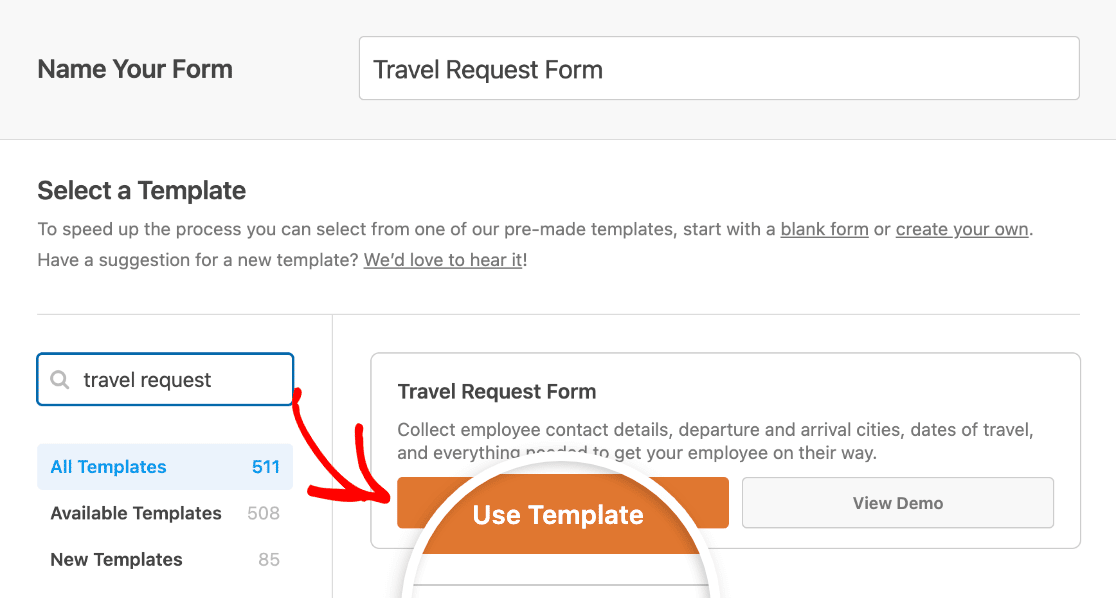
Sobald die vorgefertigte Vorlage für Reiseanträge geladen ist, ist die meiste Arbeit bereits für Sie erledigt. Sie sehen Felder für Folgendes:
- Mitarbeitername
- Mitarbeiter-ID
- Manager / Vorgesetzter
- Reisegrund
- Reisevorbereitungen erforderlich (Flug, Hotel, Mietwagen und Sonstiges)
- Abflugort
- Ankunftsort
- Abflugdatum
- Rückflugdatum
- Zusätzliche Informationen
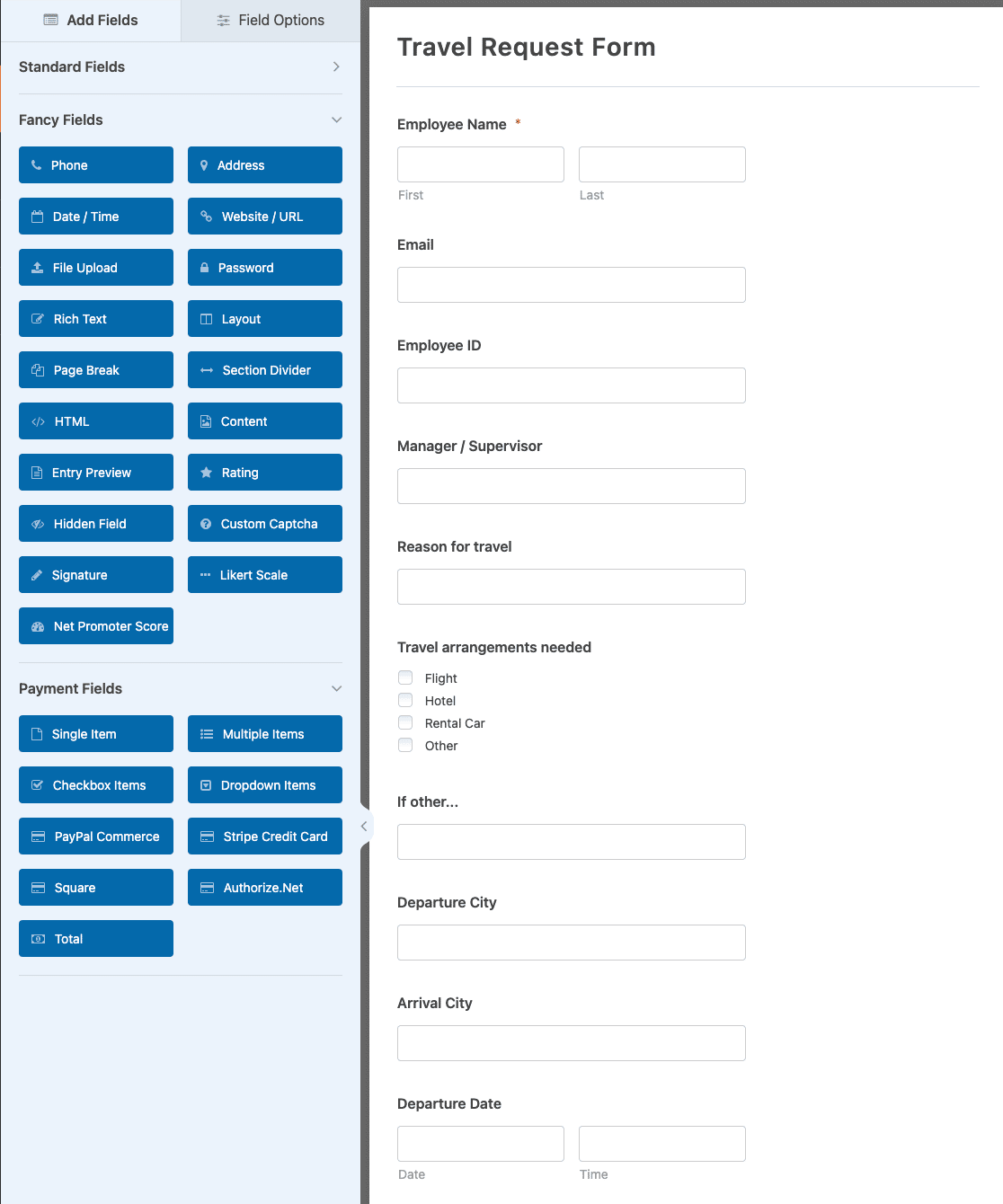
Wenn Sie sich nicht sicher sind, welche Felder Sie tatsächlich benötigen, können Sie Ihr Formular WPForms AI in einfacher Sprache beschreiben lassen und es für Sie erstellen lassen, und dann von dort aus anpassen.
Möchten Sie das fertige Ergebnis zuerst sehen? Unsere Live-Demo des Reiseantragsformulars zeigt genau, was Ihre Besucher ausfüllen werden.
Schritt 3: Felder hinzufügen oder anpassen
Die Vorlage deckt die Grundlagen ab, aber jedes Unternehmen handhabt Reisen ein wenig anders. Fügen Sie also Felder hinzu, entfernen oder ordnen Sie sie neu an, bis das Formular Ihrem Prozess entspricht.
Um ein Feld hinzuzufügen, ziehen Sie es vom linken Bedienfeld in Ihr Formular auf der rechten Seite. Um ein Feld zu bearbeiten, klicken Sie darauf und ändern Sie seine Bezeichnung, Optionen oder Einstellungen. Sie können jedes Feld auch nach oben oder unten ziehen, um seine Reihenfolge zu ändern.
Angenommen, Sie möchten, dass Reisende ein Dokument anhängen, z. B. eine Konferenzeinladung oder eine Quittung. Sie können ein Feld Datei-Upload hinzufügen, indem Sie es aus dem Abschnitt Fancy Fields wie folgt in Ihr Formular ziehen:
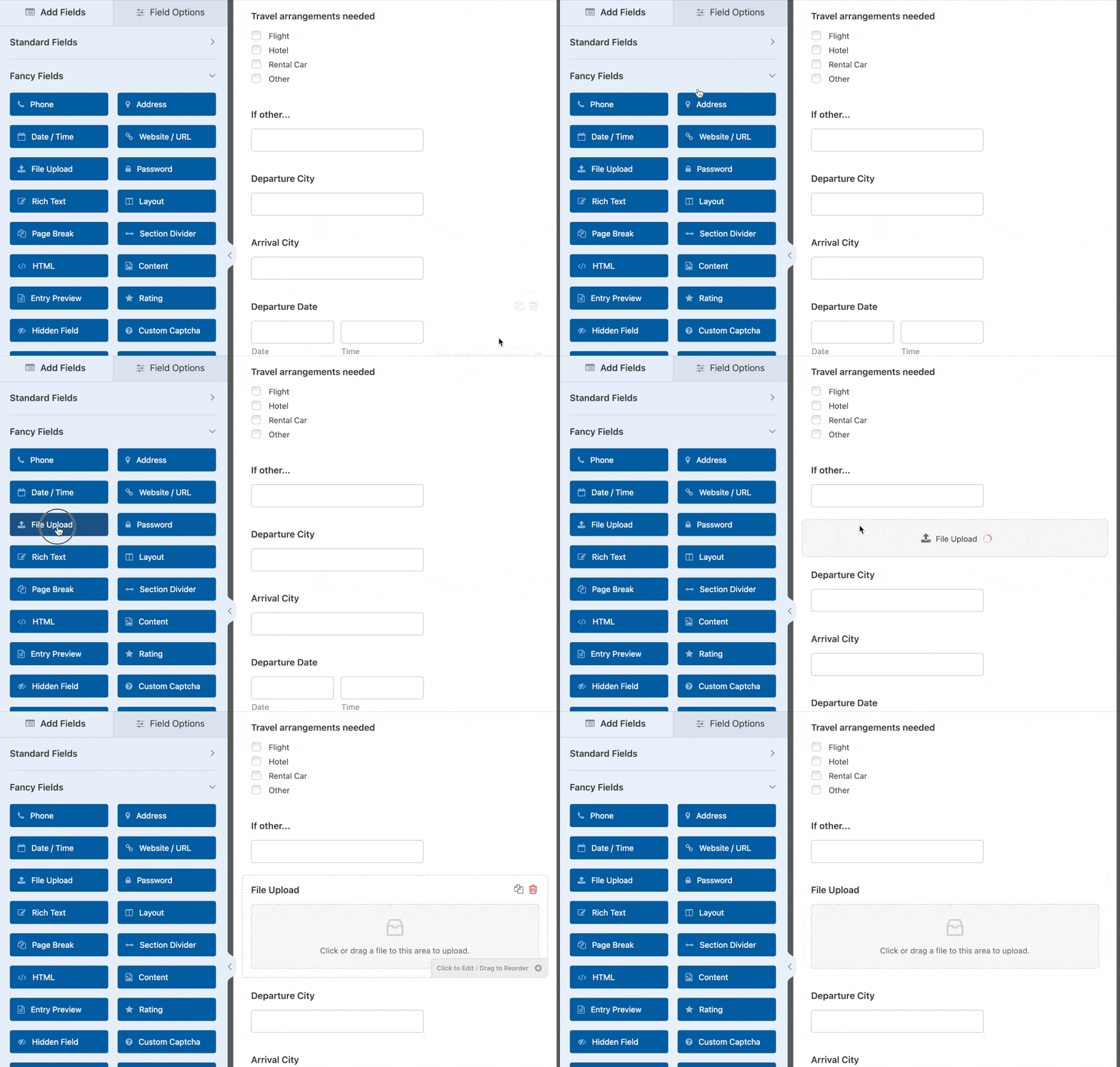
Wenn Ihr Team oft unterwegs ist, ist das neuere Feld Kamera ebenfalls praktisch, da es den Leuten ermöglicht, ein Foto einer Quittung oder eines Dokuments direkt von ihrem Handy aus aufzunehmen. Wenn Ihr Formular so aussieht, wie Sie es möchten, klicken Sie auf Speichern.
Schritt 4: Konfigurieren Sie Ihre Formulareinstellungen
Diese Einstellungen steuern, wie Ihr Formular aussieht und sich verhält. Um zu beginnen, gehen Sie zu Einstellungen » Allgemein.
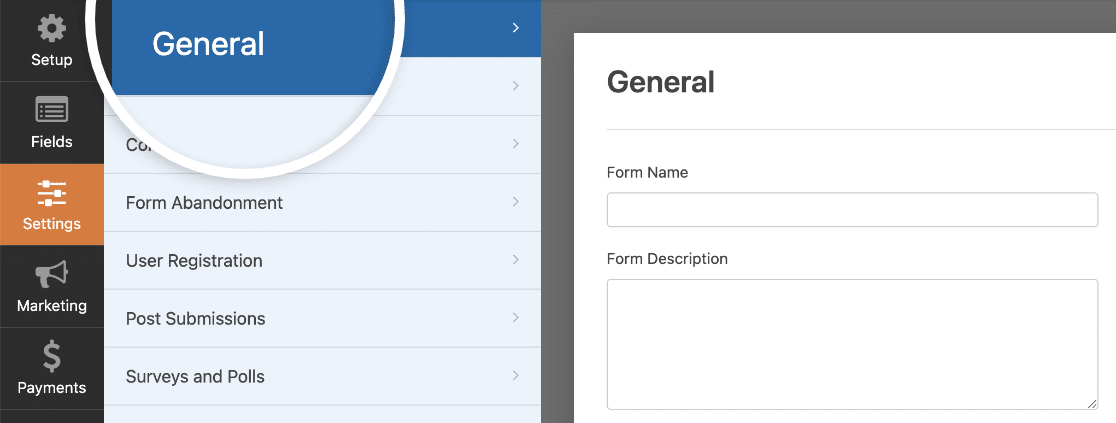
Hier können Sie Folgendes konfigurieren:
- Formularname: Ändern Sie hier den Namen Ihres Formulars, wenn Sie möchten.
- Formularbeschreibung: Geben Sie Ihrem Formular eine Beschreibung.
- Tags: Organisieren Sie Ihre WordPress-Formulare mit Tags.
- Text für die Übermittlungsschaltfläche: Passen Sie den Text auf der Übermittlungsschaltfläche an.
- Text bei Button-Verarbeitung: Ändern Sie den Text, der angezeigt wird, während Ihr Formular gesendet wird.
Im Abschnitt Erweitert können Sie auch:
- CSS-Klassen hinzufügen: Gestalten Sie Ihr Formular oder den Sende-Button mit CSS.
- Vorausfüllung per URL aktivieren: Füllen Sie einige Felder in Ihrem Formular automatisch mit einer benutzerdefinierten URL aus.
- AJAX-Formularübermittlung aktivieren: Aktivieren Sie die AJAX-Einstellungen, damit das Formular ohne Seitenneuladung gesendet wird.
- Speicherung von Eingabeinformationen in WordPress deaktivieren: Sie können die Speicherung von Eingabeinformationen und Benutzerdetails, wie z. B. IP-Adressen und User-Agents, stoppen, um die Einhaltung der DSGVO zu unterstützen. Unsere Schritt-für-Schritt-Anleitung zum Hinzufügen eines DSGVO-Zustimmungsfeldes führt Sie durch den Prozess.
Nachdem Sie mit den allgemeinen Einstellungen fertig sind, gehen Sie zu den Einstellungen für Spam-Schutz und Sicherheit.
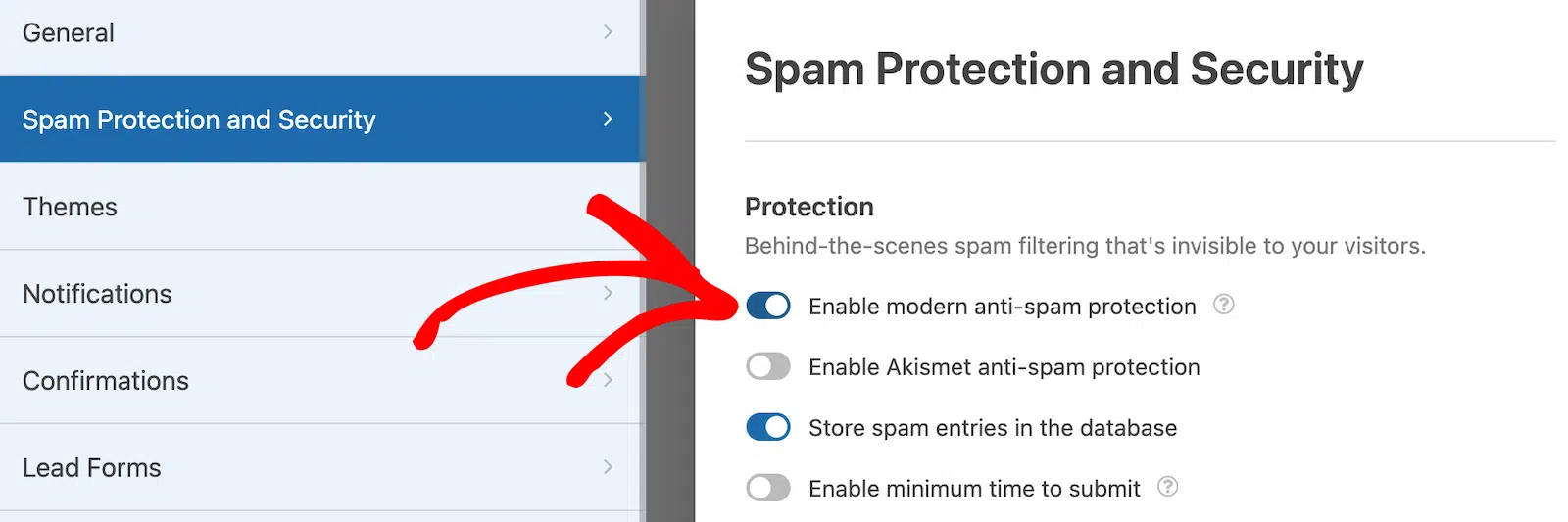
- Modernen Anti-Spam-Schutz aktivieren: Stoppen Sie Spam in Kontaktformularen mit dem modernen Anti-Spam-Schutz von WPForms.
- Akismet Anti-Spam-Schutz aktivieren: Wenn Sie das Akismet-Plugin verwenden, können Sie es mit Ihrem Formular verbinden.
- Länderfilter aktivieren: Einreichungen aus bestimmten Ländern blockieren.
- Stichwortfilter aktivieren: Einträge verhindern, die bestimmte Wörter oder Phrasen enthalten.
Sie können auch Ihr bevorzugtes CAPTCHA für zusätzlichen Schutz einrichten. Wenn Sie mit diesen Einstellungen zufrieden sind, klicken Sie auf Speichern.
Schritt 5: Benachrichtigungen einrichten
Benachrichtigungen sind der Weg, um sicherzustellen, dass eine Reiseanfrage tatsächlich bei der richtigen Person ankommt. Jedes Mal, wenn jemand das Formular absendet, kann WPForms eine E-Mail an denjenigen senden, der sie sehen muss.
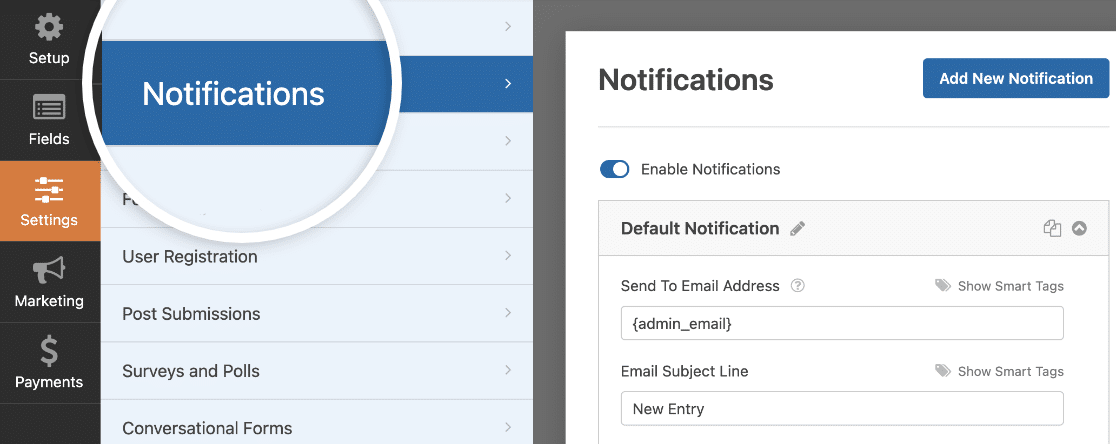
Wenn Sie es nicht deaktivieren, erhalten Sie jedes Mal eine Benachrichtigung, wenn jemand das Formular absendet. Das deckt Sie ab, aber der eigentliche Wert für ein Reiseanfrageformular liegt darin, mehr als eine Benachrichtigung gleichzeitig zu senden.
Für ein Reiseanfrageformular würde ich ein paar separate E-Mails einrichten, damit jeder auf dem Laufenden bleibt. Senden Sie eine an sich selbst oder den Büroverwalter, eine an den Manager des Reisenden, damit dieser die Reise genehmigen kann, und eine an die Personal- oder Finanzabteilung, damit diese mit der Budgetplanung beginnen kann.
Wenn Sie Smart Tags verwenden, können Sie sogar eine Bestätigung an den Mitarbeiter senden, der das Formular ausgefüllt hat, und ihn darüber informieren, dass seine Anfrage eingegangen ist und wie die nächsten Schritte aussehen.
Sie können auch die Details Ihres Reise-Genehmigungs- und Kostenerstattungsprozesses direkt in die Benachrichtigungs-E-Mail aufnehmen, damit niemand fragen muss, wie es funktioniert.
- Um Hilfe bei den Grundlagen zu erhalten, können Sie unsere Dokumentation zum Thema Einrichtung von Formularbenachrichtigungen in WordPress einsehen.
- Um diese separaten E-Mails an verschiedene Personen zu senden, folgen Sie unserem Schritt-für-Schritt-Tutorial zum Thema Senden mehrerer Formularbenachrichtigungen in WordPress.
- Und wenn Ihre E-Mails zu Ihrem Unternehmens-Branding passen sollen, erfahren Sie hier, wie Sie einen benutzerdefinierten Header zu Ihrer E-Mail-Vorlage hinzufügen.
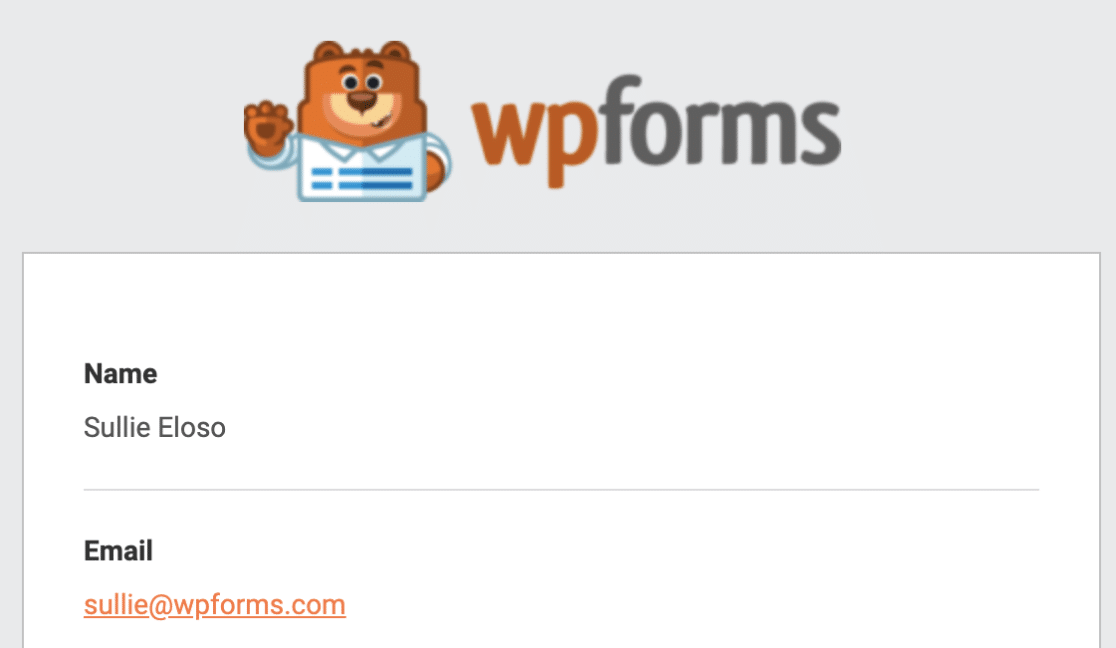
Ein gebrandeter Header ist eine kleine Geste, aber er lässt den gesamten Anfrageprozess für Ihr Team offizieller wirken.
Schritt 6: Ihre Bestätigungen konfigurieren
Richten wir nun Ihre Bestätigung ein, die Nachricht, die die Leute direkt nach dem Absenden des Formulars sehen. Dies ist Ihre Chance, ihnen mitzuteilen, wie die nächsten Schritte aussehen und Erwartungen bezüglich der Genehmigung zu setzen.
WPForms bietet Ihnen drei Bestätigungstypen:
- Nachricht: Wenn jemand das Formular absendet, erscheint eine einfache Nachricht, die ihn darüber informiert, dass seine Anfrage eingegangen ist und bearbeitet wird.
- Seite anzeigen: Dies leitet die Person zu einer bestimmten Seite auf Ihrer Website weiter, z. B. zu einer Dankesseite. Hilfe dazu finden Sie in unserem Tutorial zum Weiterleiten von Kunden zu einer Dankesseite.
- URL aufrufen (Weiterleitung): Verwenden Sie dies, wenn Sie Personen zu einer anderen Website senden möchten.
Für ein Reiseanfrageformular eignet sich eine Nachrichten-Bestätigung gut. Sie können sie verwenden, um Erwartungen zu setzen, z. B. indem Sie die Leute darüber informieren, dass es drei Werktage dauert, bis sie eine Rückmeldung zu Genehmigungen erhalten.
Um dies einzurichten, klicken Sie im Formular-Editor unter Einstellungen auf die Registerkarte Bestätigungen. Wählen Sie dann den gewünschten Bestätigungstyp aus.
Für dieses Beispiel wähle ich Nachricht und schreibe etwas wie: „Vielen Dank für die Einreichung Ihrer Reiseanfrage! Wir werden Sie innerhalb von drei Werktagen darüber informieren, ob sie genehmigt oder abgelehnt wurde.“
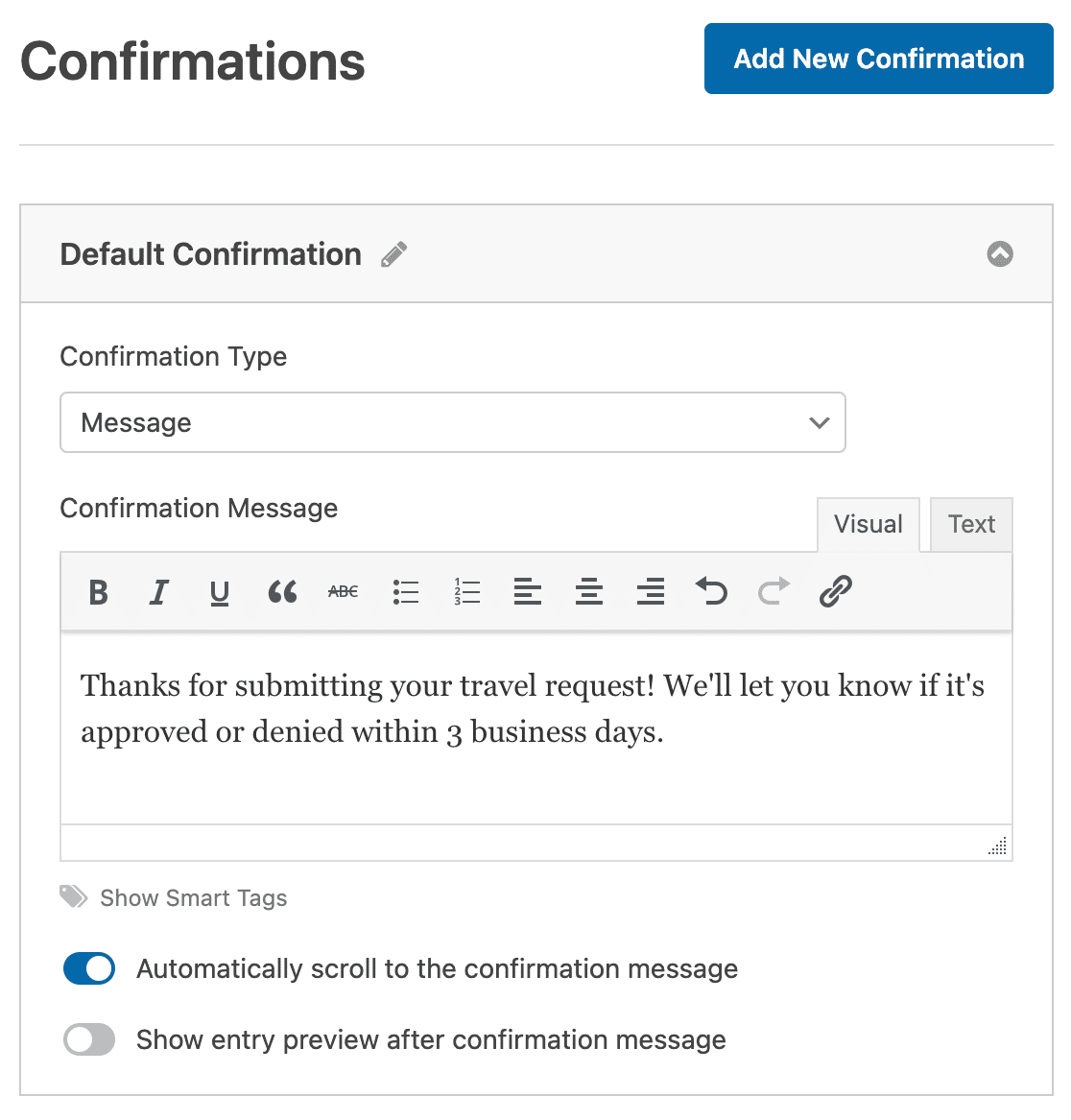
Sobald Sie die Nachricht nach Ihren Wünschen angepasst haben, klicken Sie auf Speichern. Wenn Sie mehr Details wünschen, finden Sie hier unsere vollständige Anleitung zum Einrichten einer Formularbestätigung in WPForms.
Schritt 7: Veröffentlichen Sie Ihr Reiseantragsformular
Ihr Reiseantragsformular ist erstellt, sodass Sie es nur noch auf Ihrer Website platzieren müssen. WPForms vereinfacht die Veröffentlichung mit seinem integrierten Einbettungstool. Klicken Sie zunächst auf die Schaltfläche Einbetten oben im Formular-Generator.

Wenn das Fenster In eine Seite einbetten erscheint, klicken Sie auf Neue Seite erstellen.

Als Nächstes werden Sie von WPForms aufgefordert, die Seite zu benennen. Geben Sie einen Titel ein und klicken Sie auf Los geht’s!

WPForms öffnet eine neue Seite mit Ihrem Reiseantragsformular. Klicken Sie nun auf Veröffentlichen (oder Aktualisieren) oben, um es live zu schalten.
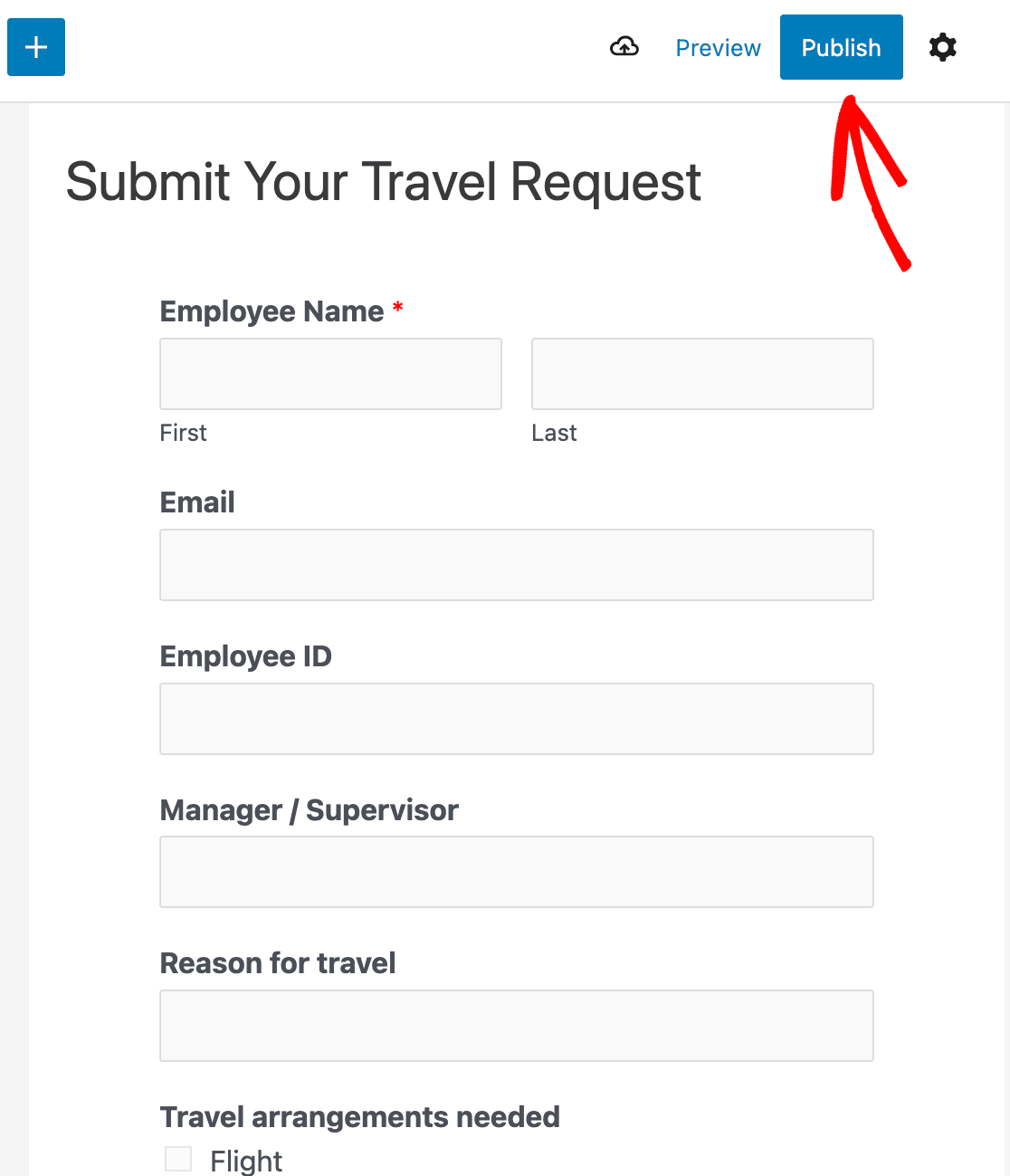
Nach der Veröffentlichung können Ihre Mitarbeiter jetzt Reiseanträge direkt von Ihrer Website aus einreichen, und jeder Antrag landet automatisch im richtigen Posteingang.
Automatisieren Sie Ihren Reisefreigabe-Workflow
Ein einfaches Formular reicht aus, um Anträge zu sammeln, aber der eigentliche Zeitsparer ist das, was passiert, nachdem jemand auf Senden klickt. Mit einigen Pro-Funktionen können Sie Ihr Reiseantragsformular in einen ordnungsgemäßen Genehmigungsworkflow verwandeln.
Der größte Zeitsparer ist das automatische Senden jedes Antrags an eine Tabelle. Das Google Sheets Addon fügt jede neue Einreichung zu einem Google Sheet hinzu, sodass Sie und Ihr Finanzteam eine laufende Aufzeichnung jeder Reise führen.
Wenn Ihre Genehmigungen eine formelle Bestätigung erfordern, können Sie eine digitale Signatur sammeln direkt auf dem Formular, sodass ein Manager eine Reise von jedem Gerät aus genehmigen kann, ohne etwas auszudrucken.
Sie können Anträge auch überprüfen, ohne WordPress zu verlassen. Jede Einreichung wird unter WPForms » Einträge gespeichert, wo Sie Anträge suchen, markieren und als erledigt kennzeichnen können.

Fügen Sie bedingte Logik hinzu, und das Formular kann sich selbst weiterleiten, wobei internationale Reisen an einen Genehmiger und lokale an einen anderen gesendet werden.
Diese Extras sind optional, aber zusammen verwandeln sie ein einfaches Formular in ein System, auf das sich Ihr gesamtes Team verlassen kann.
FAQs zu Reiseantragsformularen
Reiseantragsformulare sind für HR-Teams und Kleinunternehmer sehr relevant. Hier finden Sie Antworten auf einige der häufigsten Fragen zur Erstellung eines Reiseantragsformulars, eines Reisebestellformulars oder eines Reiseautorisierungsformulars in WordPress.
Was ist ein Reiseantragsformular?
Ein Reiseantragsformular ist ein Online-Formular, das Mitarbeiter ausfüllen, um die Genehmigung für eine Geschäftsreise zu beantragen. Es sammelt die Reisedetails, Daten, das Reiseziel, den Zweck und die geschätzten Kosten, damit ein Manager oder das Finanzteam den Antrag prüfen und genehmigen kann, bevor etwas gebucht wird.
Was sollte in einem Reiseantragsformular enthalten sein?
Fügen Sie mindestens den Namen und die Abteilung des Mitarbeiters, seinen Manager oder Genehmiger, den Reisezweck, die Abflug- und Zielstädte, die Reisedaten, die benötigten Vorkehrungen wie Flüge oder ein Hotel und die geschätzten Kosten hinzu. Ein Feld zum Hochladen von unterstützenden Dokumenten, wie z. B. eine Konferenzeinladung oder Quittungen, ist eine hilfreiche Ergänzung.
Wie erstelle ich ein Online-Reiseantragsformular in WordPress?
Installieren Sie WPForms, öffnen Sie die Reiseantragsformularvorlage, passen Sie die Felder an Ihren Prozess an, richten Sie Ihre Benachrichtigungen ein und betten Sie das Formular auf einer Seite ein. Das Ganze dauert nur wenige Minuten, da die Vorlage den Großteil der Einrichtung für Sie übernimmt.
Was ist der Unterschied zwischen einem Reiseantragsformular und einem Reiseautorisierungsformular?
Sie werden oft gleichbedeutend verwendet. Ein Reiseantragsformular ist normalerweise die anfängliche Anfrage des Mitarbeiters, während ein Reiseautorisierungsformular die genehmigte Version ist, die bestätigt, dass die Reise und ihr Budget grünes Licht haben. In der Praxis kann ein Formular mit einem Genehmigungsschritt beides abdecken.
Erstellen Sie als Nächstes die restlichen Formulare Ihres Teams
Sobald Ihr Reiseantragsformular live ist, können Sie denselben Drag-and-Drop-Builder für andere interne Anfragen verwenden, z. B. für ein Urlaubsantragsformular für Urlaubs- und Krankheitstage.
WPForms Pro ist der einfachste Weg, professionelle Formulare auf Ihrer WordPress-Website zu erhalten, ohne einen Entwickler einstellen zu müssen. Neben der kostenlosen Reiseantragsformularvorlage erhalten Sie die Funktionen, die interne Formulare wirklich nützlich machen:
- Konversationelle Formulare, die eine Frage nach der anderen stellen, um die Abschlussrate zu erhöhen
- Ein Feld für Datei-Uploads, damit Personen Dokumente und Belege anhängen können
- Das User Journey-Tool, das Ihnen zeigt, was jemand auf Ihrer Website getan hat, bevor er etwas eingereicht hat
- Die Option, ein mehrseitiges Formular zu erstellen für längere Anfragen
- Integrierte Verbindungen zu den beliebtesten E-Mail-Marketingdiensten
- Prioritätsunterstützung durch ein freundliches, sachkundiges Team
Bald auf der Suche nach Mitarbeitern? Werfen Sie einen Blick auf unseren Leitfaden, wie Sie ein Bewerbungsformular in WordPress erstellen, um Ihren Kandidatenpool zu erweitern.
Erstellen Sie jetzt Ihr Reiseantragsformular
Bereit, Ihr Formular zu erstellen? Beginnen Sie noch heute mit dem einfachsten WordPress-Formularersteller-Plugin. WPForms Pro enthält viele kostenlose Vorlagen und bietet eine 14-tägige Geld-zurück-Garantie.
Wenn dieser Artikel Ihnen geholfen hat, folgen Sie uns bitte auf Facebook und X (Twitter) für weitere kostenlose WordPress-Tutorials und Anleitungen.





