


AI Summary
Would you like to prevent spam from being sent through your WordPress forms? Many anti-spam options are available, and it can be hard to know which one(s) to choose.
In this tutorial, we’ll walk you through the anti-spam options available in WPForms.
- Accessing Spam Protection and Security Settings
- Enabling Anti-Spam Protection
- Upgrading Forms From Legacy Anti-Spam Protection
- Enabling Akismet Anti-Spam Protection
- Enabling Spam Entry Storage
- Enabling Minimum Time to Submit
- Adding a CAPTCHA to Your Forms
- Adding Spam Filters
- Creating an Allowlist or Denylist
- Frequently Asked Questions
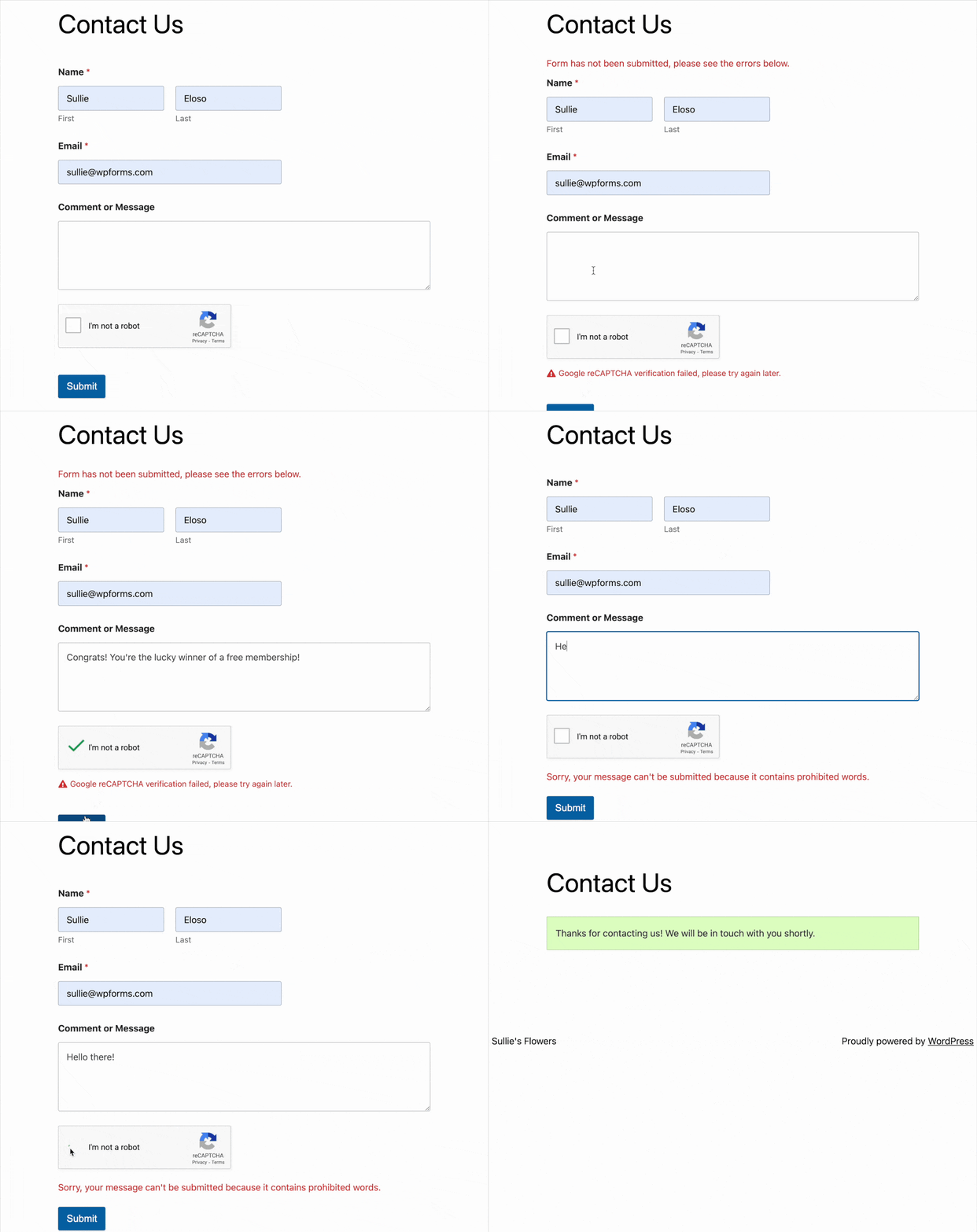
Requirements: The Akismet, reCAPTCHA, hCaptcha, and Cloudflare Turnstile integrations are available with any version of WPForms, including WPForms Lite. The Custom Captcha feature is available with any paid license.
Accessing Spam Protection and Security Settings
WPForms has its own spam protection and security settings that you can access directly in the form builder.
To get started, you’ll first need to create a new form or edit an existing one to access the form builder.
Once you’ve opened the form builder, head to Settings » Spam Protection and Security.
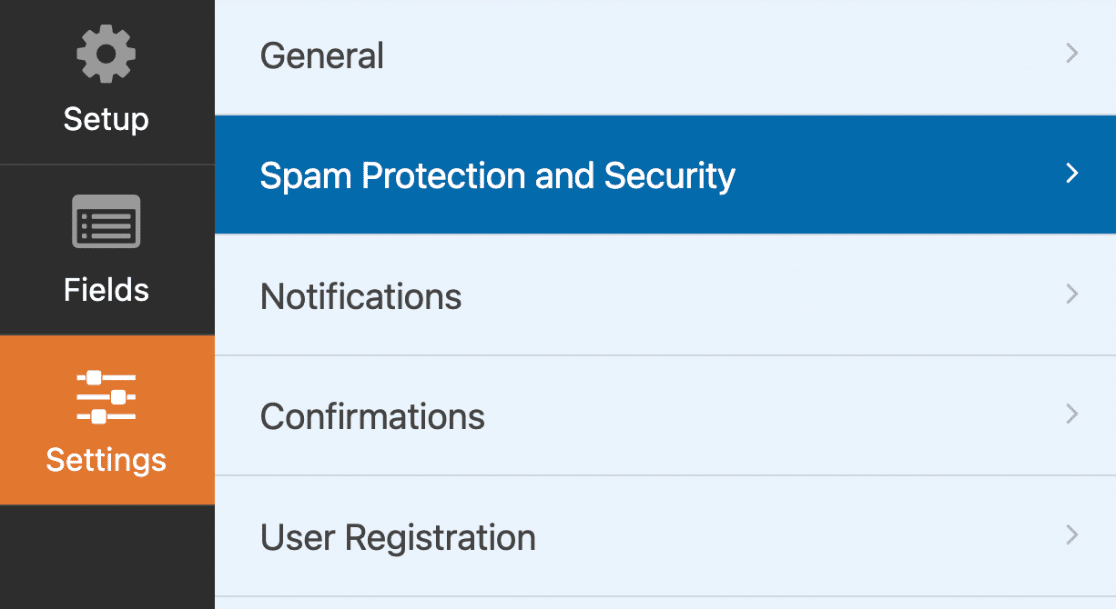
Here is where you’ll find most of the configuration options for preventing spam in your form entries.

Throughout this tutorial, we’ll cover how to configure the available anti-spam options.
Enabling Anti-Spam Protection
Note: For the modern anti-spam protection to function properly, JavaScript must be enabled on your site.
WPForms has a built-in modern anti-spam protection that prevents spam submissions on your WordPress forms.
This modern approach is based on the Honeypot technique and uses a multi-layer solution to enhance spam detection and prevention. Ensuring only real users can submit forms on your website.
Under Settings » Spam Protection and Security, you’ll find the toggle to update this setting.
The Enable anti-spam protection option is turned on by default for new forms, but you can check it here.

With this setting enabled, your form will not submit if a bot triggers the anti-spam protections.
Upgrading Forms From Legacy Anti-Spam Protection
Some older forms still use the anti-spam honeypot or legacy anti-spam protection. When you update to WPForms 2.0.3 or higher, WPForms switches these forms to anti-spam protection automatically. The upgrade runs in the background, and WPForms saves each form’s previous version as a revision before it changes anything.
Once the upgrade is done, you’ll see a notice in your WordPress admin area. Click the number of forms in the notice to see a list of the upgraded forms. Each form name opens that form’s spam settings in a new tab.

When you open an upgraded form’s Spam Protection and Security settings, you’ll see a note about the upgrade. The legacy option stays in the list, turned off, in case you’d like to switch back.

Switching a Form Back to Legacy Protection
We recommend keeping anti-spam protection turned on. If you’d still like an upgraded form to use its old setup, open the form in the builder and click the clock icon in the bottom left corner to open the Form Revisions panel.
Then, select the revision named Auto-saved before anti-spam upgrade. This is the version of your form from right before the upgrade.

Next, click Restore this revision in the notice at the top of the form preview. Restoring a revision brings back the whole form as it was at that time, including fields and settings, and WPForms won’t upgrade it again.
To switch back without restoring a revision, go to Settings » Spam Protection and Security and turn on Enable anti-spam honeypot or Enable legacy anti-spam protection. This turns off Enable anti-spam protection, since a form can only use one of them. Then save your form.
Enabling Akismet Anti-Spam Protection
Akismet anti-spam protection helps keep spammers from submitting WordPress forms. Using smart algorithms, Akismet stops form entries identified as spam from being saved. These algorithms adapt based on user-reported spam, automatically flagging similar content as spam over time.
For a step-by-step guide to using Akismet with WPForms, refer to our tutorial on setting up Akismet anti-spam protection.
Enabling Spam Entry Storage
WPForms lets you choose whether to block spam entries completely or store them in your database. This allows you to review spam submissions and easily recover false-positive entries.
The Store spam entries in the database option is enabled by default, but you can update it based on your preference.

Entries identified as spam will be stored in the Spam section on the form’s Entries page.
Note: For a detailed guide to spam entry management, see our tutorial on viewing and managing spam entries.
Enabling Minimum Time to Submit
WPForms provides the option to set a minimum time before users can submit your form. Setting a minimum time to submit a form helps to reduce bot submissions on your WordPress forms.
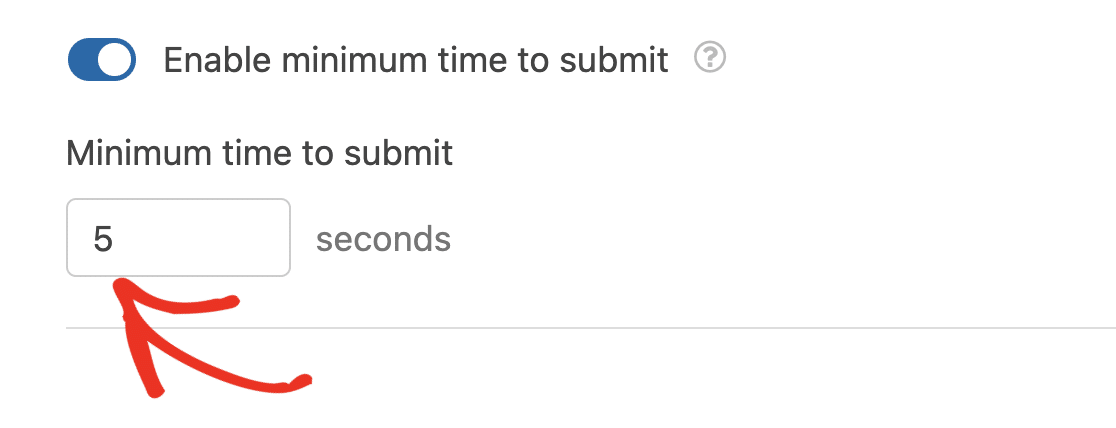
The Enable minimum time to submit option is enabled by default with a minimum time to submit of 2 seconds. However, you can update the minimum time to any value you like.

To do so, enter a value in the Minimum time to submit field. This value is in seconds and would apply to users filling out the form.
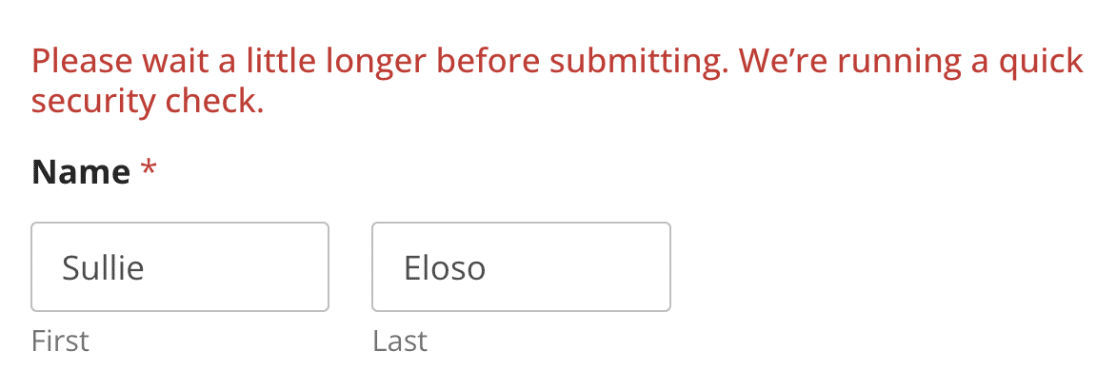
If a user attempts to submit the form before the minimum time you configured, they’ll see an error message prompting them to wait a little longer before submitting the form.
Adding a CAPTCHA to Your Forms
CAPTCHAs are automated tests that check that users are real people and not spambots. There are four different CAPTCHA options you can add to your forms for additional protection beyond the built-in option WPForms provides.
We’ve created separate tutorials to guide you through each method, so you can select the one that best suits your needs.
- reCAPTCHA: Strengthen your form’s security using Google’s reCAPTCHA service.
- hCaptcha: Add an extra layer of protection with the hCaptcha alternative.
- Cloudflare Turnstile: Secure your forms by integrating them with Cloudflare Turnstile.
- Custom Captcha: Create a custom captcha solution tailored to your specific requirements.
Simply click on any of the preferred methods above to explore each option and learn how to add them to your forms.
Adding Spam Filters
Under the Filtering section of your Spam Protection and Security settings, there are 2 different filters you can enable to prevent users from submitting your form.
Here you’ll see an option for enabling a country filter and another for enabling a keyword filter.
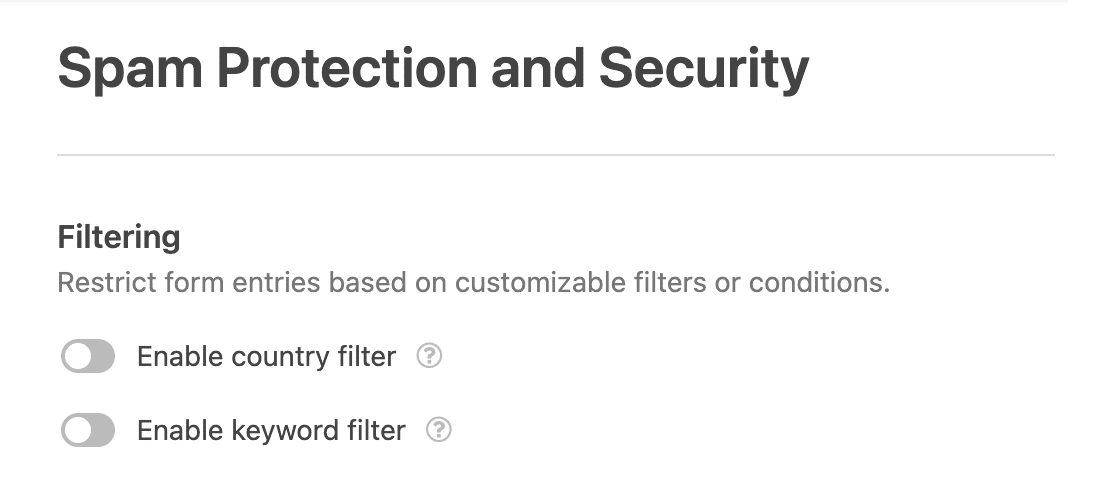
For details on how to set up these filters, see our guide to adding spam filters in WPForms.
Creating an Allowlist or Denylist
Another effective method to safeguard your forms from spam is by using an allowlist or denylist. This approach limits form submissions based on the email addresses of users. If a user’s email address doesn’t comply with your list’s rules, they will be unable to submit the form.
For detailed instructions on these spam protection methods, refer to our full tutorial on setting up an email allowlist or denylist.
Note: In addition to using an allowlist or denylist, you have the option to prevent specific IP addresses from submitting forms using a custom PHP snippet from the WPForms code snippets library. For detailed information on how to set this up, refer to our developer documentation.
Frequently Asked Questions
Below, we’ve answered the top questions we get about spam protection in WPForms.
There’s an option in my settings to enable an anti-spam honeypot. How does that work?
The anti-spam honeypot and legacy anti-spam protection are older protection methods. They only show up in the settings of forms that used them before, and new forms only use anti-spam protection. In WPForms 2.0.3 and higher, these forms are upgraded to anti-spam protection automatically. For details, see the Upgrading Forms From Legacy Anti-Spam Protection section above.
Why does a notice say my forms are using outdated anti-spam protection?
WPForms only upgrades a form automatically when it can save a revision first. If revisions are turned off on your site, or your site keeps fewer than 2 revisions, those forms are skipped and you’ll see the Your Forms Are Using Outdated Anti-Spam Protection notice instead.
Click Upgrade All Forms in the notice to upgrade them. Since no revision can be saved, you won’t be able to restore the old version of these forms. You can still switch a form back by turning its legacy option on again. To keep revisions in the future, see how to enable post revisions.
Why can’t I find the Auto-saved before anti-spam upgrade revision?
WordPress only keeps a set number of revisions for each form. If your site keeps only a few, editing the form after the upgrade can replace the oldest ones, including this revision. In that case, switch the form back by turning on its legacy option in Settings » Spam Protection and Security.
That’s it! Now you know how to prevent spam in your forms.
Next, would you like to edit entries submitted through your forms? Be sure to check out our tutorial on editing entries in WPForms for more details.


