


AI Summary
Would you like to send your form entries directly to a Notion database so you can organize and work with them there? The WPForms Notion addon lets you connect your forms to any Notion page or database and automatically create new items each time a form is submitted.
In this tutorial, we will show you how to install and set up the Notion addon with WPForms.
Requirements:
- You will need an Plus license level or higher to access the Notion addon
- Ensure that you’ve installed the latest WPForms version to meet the minimum required version for the Notion addon
Before you get started, be sure WPForms is installed and activated on your WordPress site, and that you’ve verified your license. Then, go ahead and install and activate the Notion addon.
Connecting WPForms to Notion
After installing the Notion addon, you will need to connect WPForms to your Notion workspace.
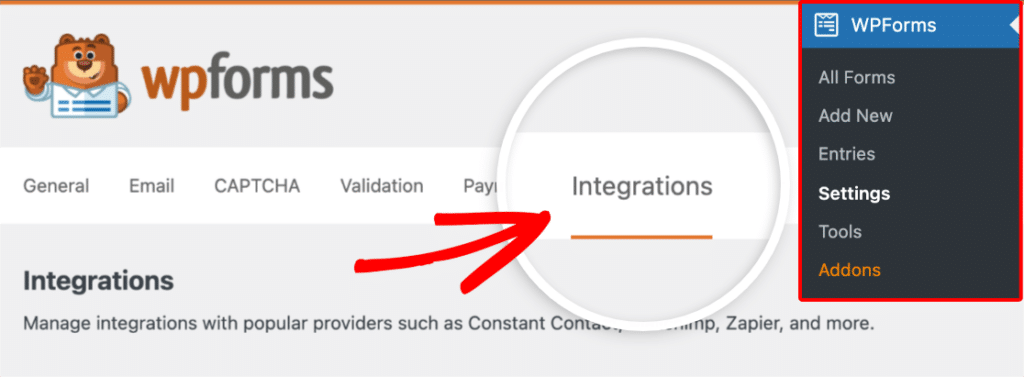
To do this, go to WPForms » Settings and click the Integrations tab.
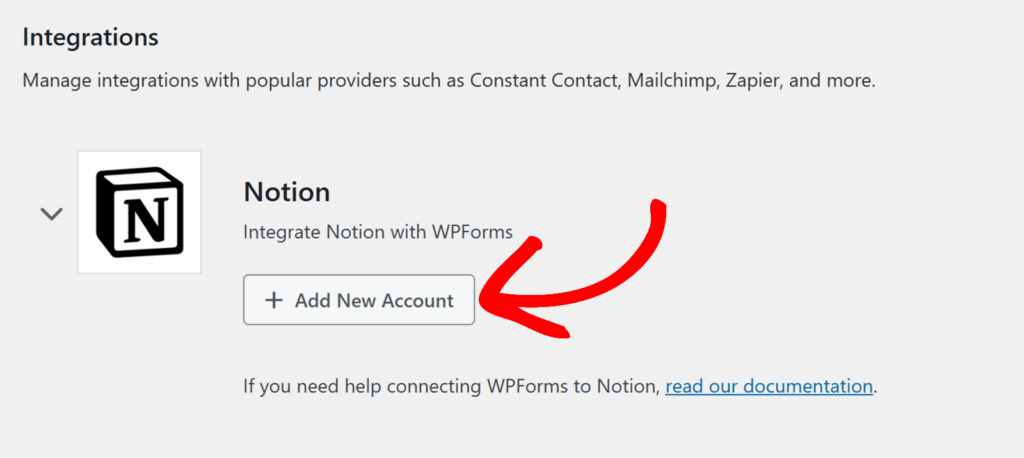
Next, click the Notion integration to expand its settings, then click the Add New Account button.
This will open a Notion sign in window in your browser. Sign in with the Notion account you want to connect to WPForms.
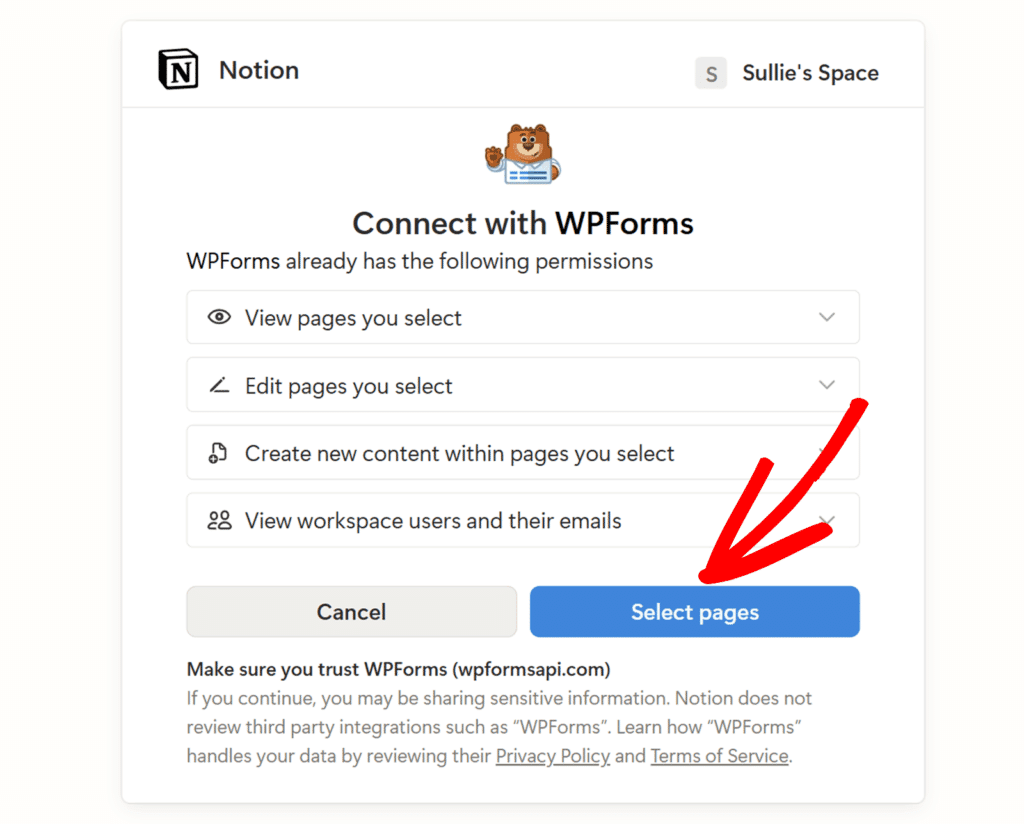
After signing in, you will see a screen titled Connect with WPForms that explains which permissions WPForms will have, such as:
- View pages you select
- Edit pages you select
- Create new content within pages you select
- View workspace users and their emails
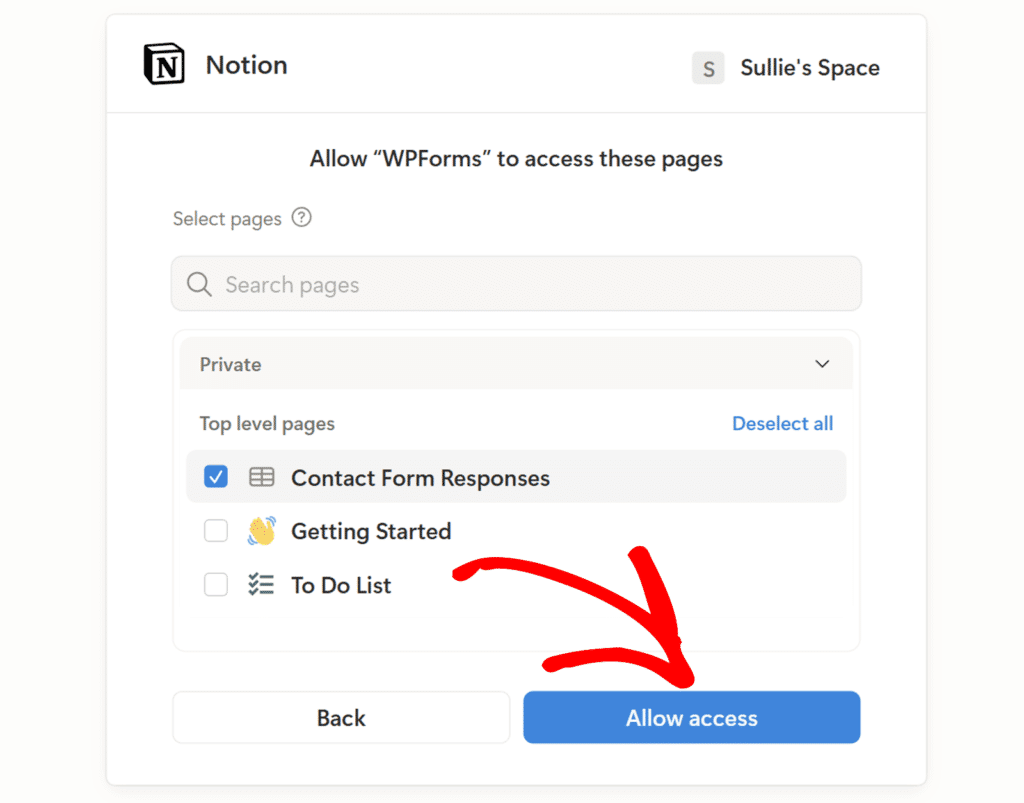
Here, click the Select pages button to choose which Notion pages or databases WPForms is allowed to access.
On the next screen, you will see a Select pages dropdown and a list of pages in your Notion workspace. Check the box next to each page or database you want to connect.
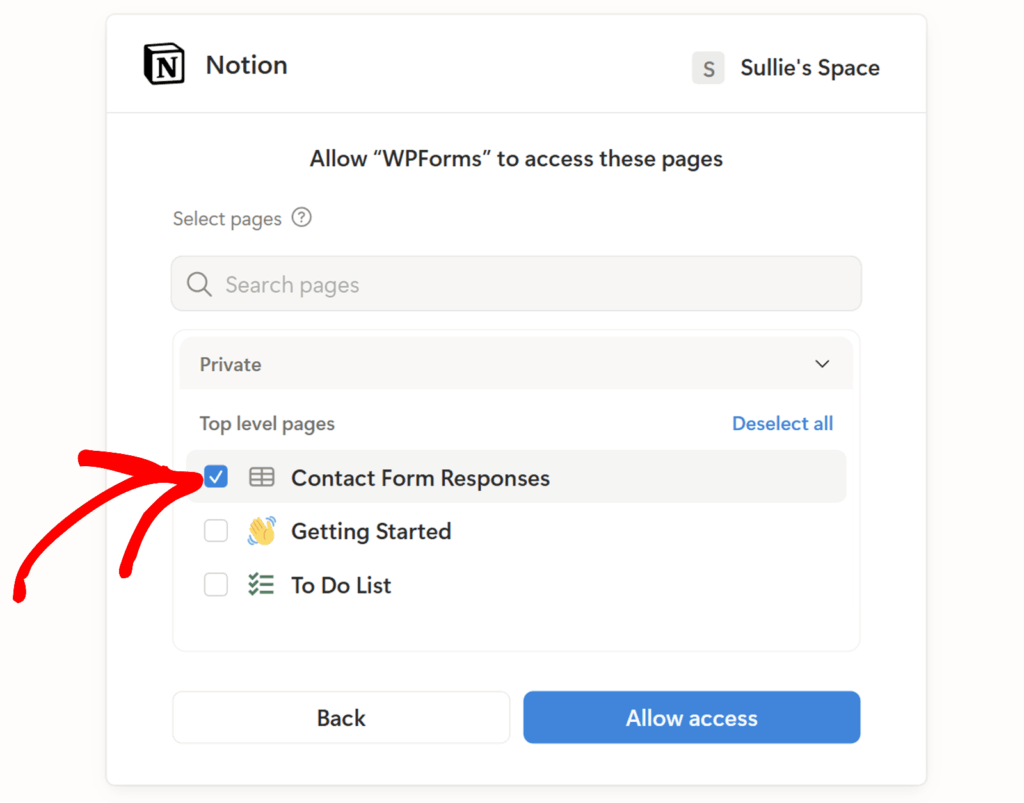
When you are done, click Allow access.
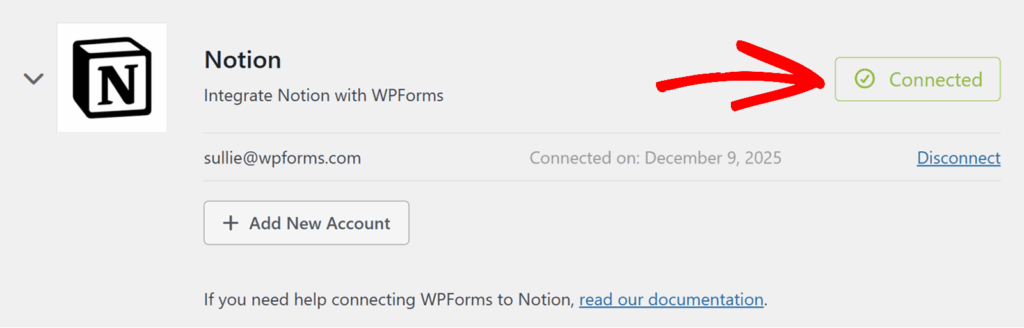
Once access is granted, you will be redirected back to WPForms » Settings » Integrations, where you should now see a green Connected status next to Notion.
Adding a Notion Integration to Your Form
Now that your Notion account is connected, you can link it to any form that you would like to send data from.
To get started, create a new form or edit an existing one to open the form builder.
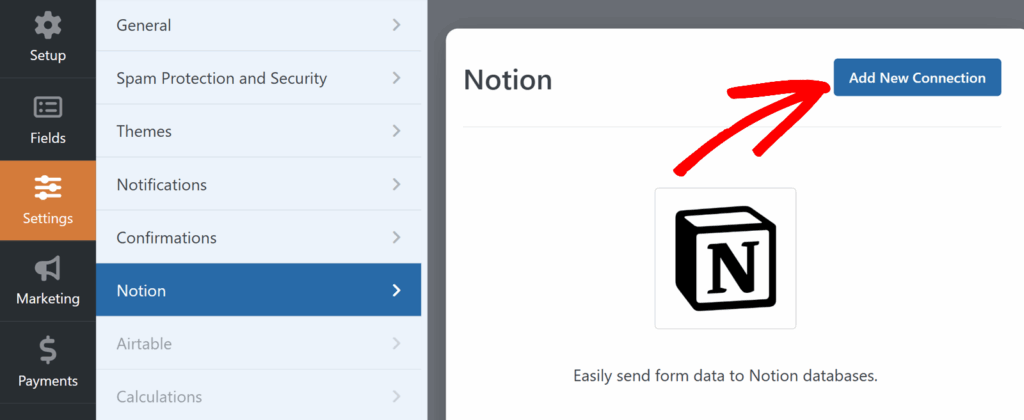
Inside the form builder, go to Settings » Notion. Then click the Add New Connection button.
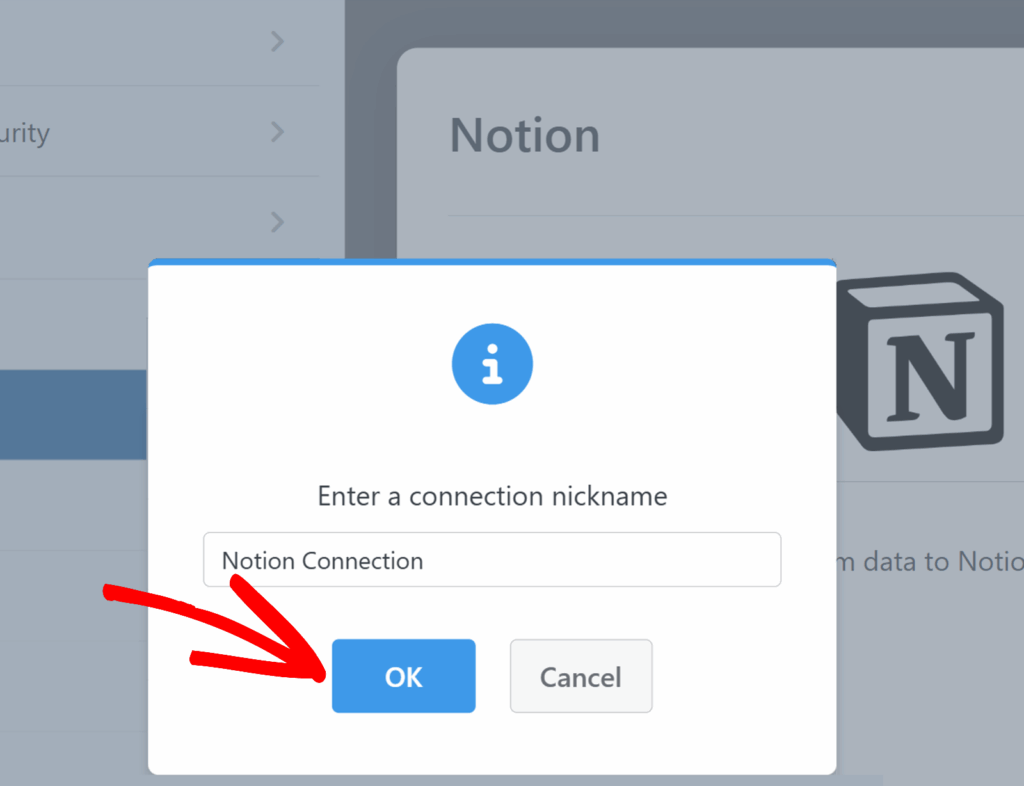
A popup will appear asking you to enter a connection nickname. This label is for your internal reference only and will not be visible to users. After entering a nickname, click OK.
You will now see the Notion connection settings for your form.
Account
Use this dropdown to select the Notion account you connected earlier from the Integrations screen. If you have connected multiple Notion accounts, they will all appear here.
Once an account is selected, additional options for choosing where to send the data in Notion will appear.
Database
Choose the database where you want new entries from this form to be stored. This dropdown lists the Notion databases that belong to the pages you granted access to, such as “Contact Form Responses” or “To Do List”.
Data Source
The Data Source dropdown lets you choose the specific source inside that database that WPForms should send entries to.
Some Notion databases can have multiple sources or configurations available to the API, for example if you reuse the same database across different pages or workspaces. In many cases, you will only see a single option here with the same name as your database. In that case, simply select it to continue.
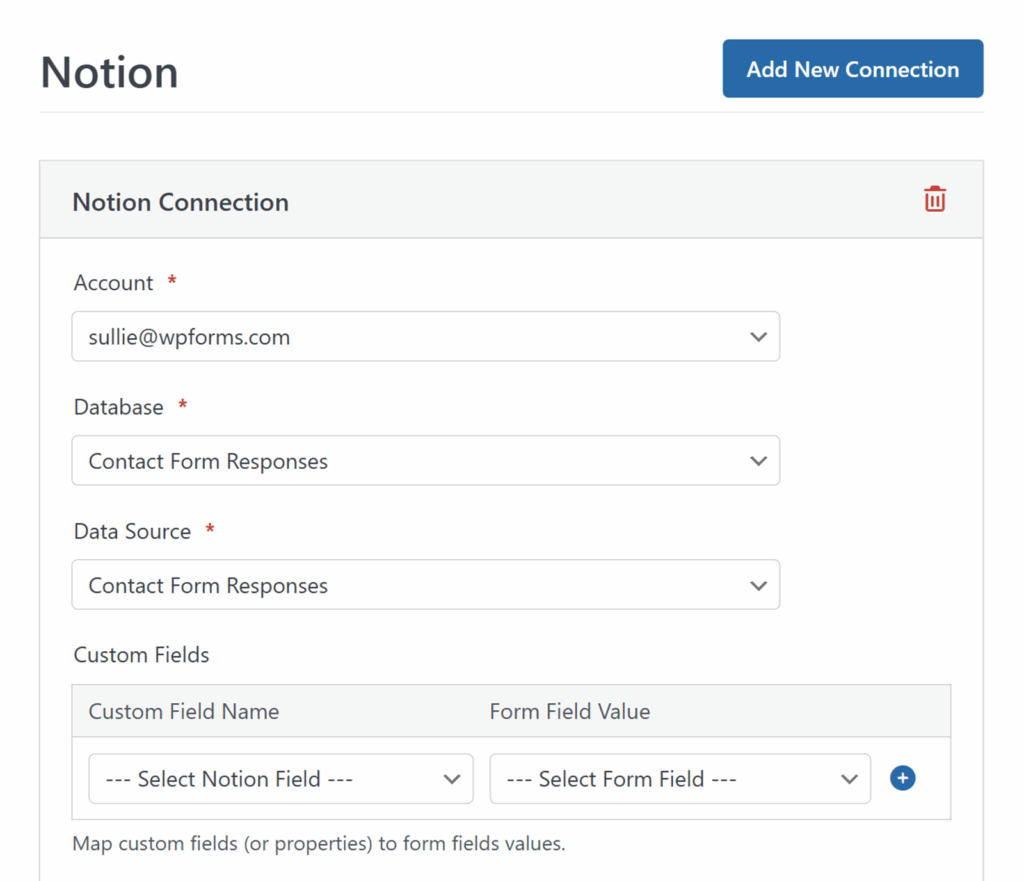
After you have selected both Database and Data Source, the Custom Fields section will appear so you can map your Notion properties to your form fields.
Mapping Fields to Notion
Before mapping fields, make sure your Notion database is set up with the properties you want to fill with form data, such as:
- Name
- Task name or title
- Phone
- Message or notes
In the Custom Fields section:
- Use the Custom Field Name dropdown to select a property from your Notion database, such as
Name,Email, orMessage. - Use the Form Field Value dropdown to choose the corresponding field from your WPForms form that will provide the data for that property.
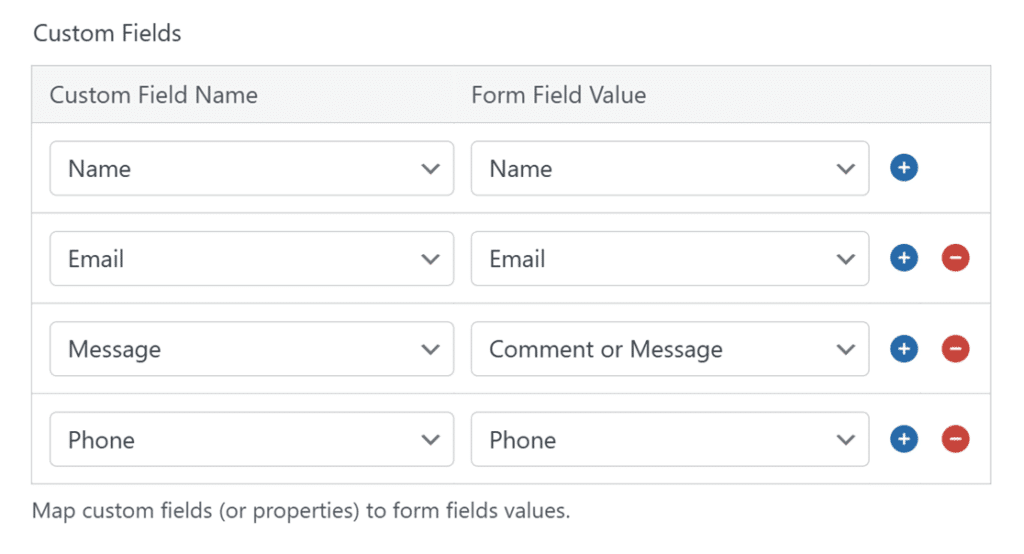
Click the blue plus (+) button to add more mappings as needed until all of the Notion properties you want to fill are connected to your WPForms fields.
Each time the form is submitted, WPForms will create a new item in the selected Notion database and fill the mapped properties with the values submitted in your form.
Be sure to save your form once your mappings are complete.
Setting Up Conditional Logic (Optional)
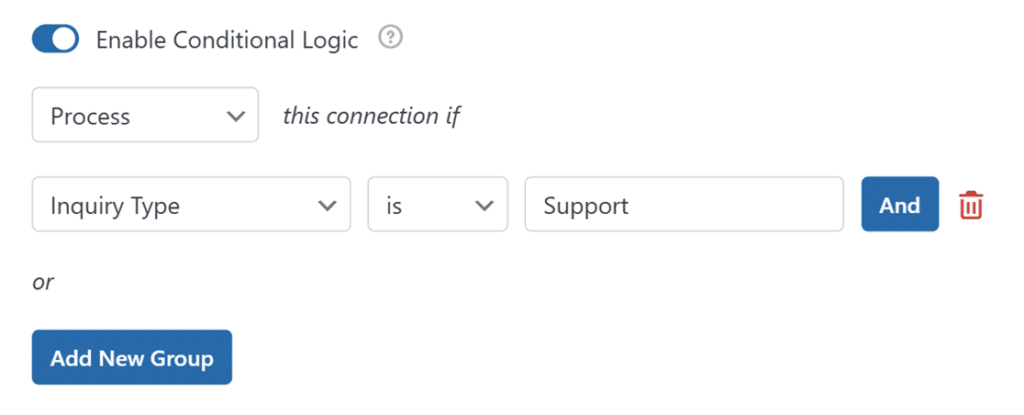
Conditional logic lets you control when your Notion integration runs based on users’ choices in your form.
To use it, scroll to the bottom of your Notion connection settings and toggle on Enable Conditional Logic. Then use the dropdowns to build a rule, such as: ‘Process this connection if Inquiry Type is Support.’
When the condition is met, WPForms will send the entry to Notion. If it is not, the connection will be skipped for that submission.
Frequently Asked Questions
Below, we’ve covered some of the top questions we receive about integrating Notion with WPForms.
Why are some file uploads not appearing in Notion?
When you connect a form that uses a File Upload field, WPForms will send the uploaded files to Notion along with the rest of the entry data. However, Notion also applies its own file size limits.
On the free Notion plan, files larger than 20 MB are not accepted, and the workspace has a total storage limit of 5 GB. If a user uploads a file that is larger than 20 MB, the file will still be stored in your WPForms entry, but it will not be added to the Notion page.
If you expect users to upload larger files, you can:
- Ask them to upload smaller files, or
- Set a Max File Size for your File Upload field so users cannot submit files that exceed Notion’s limit. You can learn how to configure this setting in our guide to the File Upload field.
Do I need a database in Notion before setting up the integration?
Yes. The Notion addon works with databases, such as a table of contact responses or tasks. You should create your database and add the properties you want to populate before setting up the integration in WPForms. After that, the database will appear in the Database dropdown when you connect your form.
Can I choose more than one page when connecting WPForms to Notion?
Yes. When you first connect WPForms to Notion, you can select one or more pages in the Notion permission window. Any databases on those pages that are available to the integration will appear in the Database dropdown when you configure your form.
Why are some Notion properties not appearing in the Custom Field Name dropdown?
The Notion addon lists the properties that are available on the database you selected and that are supported by the integration. If a property is missing, check that it is added to the database itself rather than only existing in a specific view. You may also need to refresh the connection by saving your form and reloading the builder.
Why do my entries take a moment to appear in Notion?
After a form is submitted, WPForms sends the data to Notion through their API. Depending on your network connection and the current load on Notion, it may take a short time for new items to appear in your database. This usually resolves within a minute.
That is it. Now you know how to connect WPForms to Notion and automatically send your form entries into a Notion database.
Next, would you like to get more out of your submissions? Be sure to check out our complete guide to form entries in WPForms.