


Resumo de IA
Portanto, a primeira coisa que você precisará fazer é instalar e ativar o plugin WPForms. Para mais detalhes, consulte este guia passo a passo sobre como instalar um plugin no WordPress.
Neste artigo, mostraremos como criar uma pesquisa de cancelamento de clientes no WordPress com apenas alguns cliques.
Edite seu modelo de pesquisa de cancelamento agora
Por que criar uma pesquisa de cancelamento de clientes?
Quer saber como perguntar a um cliente por que ele cancelou?
Uma maneira perfeita de fazer isso é com um formulário de pesquisa, que pode ajudá-lo a entender seus clientes. Com um formulário de pesquisa de cancelamento de clientes, você pode fazer todas as perguntas certas aos seus ex-clientes de forma fácil. Você pode dizer a eles o quanto lamenta vê-los partir e identificar os motivos pelos quais eles o deixaram.
As informações desta pesquisa o ajudarão a criar uma estratégia para reter seus clientes atuais.
Como Criar uma Pesquisa de Cancelamento de Clientes no WordPress
- Etapa 1: Crie um formulário de pesquisa de cancelamento de clientes no WordPress
- Etapa 2: Configure as configurações do seu formulário de cancelamento
- Etapa 3: Habilite o relatório de pesquisas
- Etapa 4: Adicione seu formulário de cancelamento de clientes ao seu site
- Etapa 5: Gere relatórios de pesquisas
- Perguntas de exemplo para pesquisa de saída de clientes
Etapa 1: Crie um formulário de pesquisa de cancelamento de clientes no WordPress
Então, a primeira coisa que você precisará fazer é instalar e ativar o plugin WPForms. Para mais detalhes, veja este guia passo a passo sobre como instalar um plugin no WordPress.
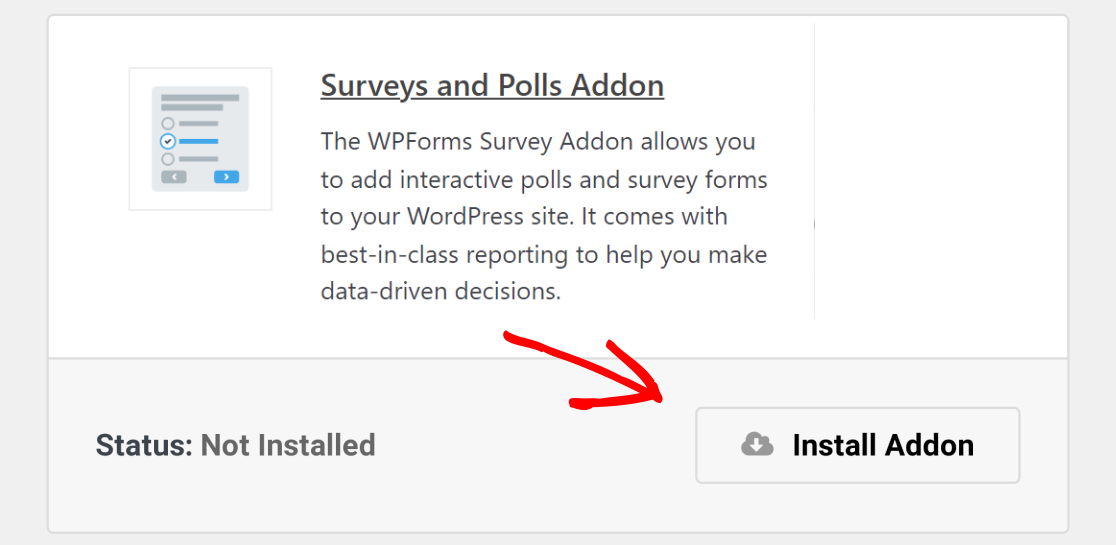
Você também precisará ir para WPForms » Addons e instalar e ativar o addon Surveys and Polls.
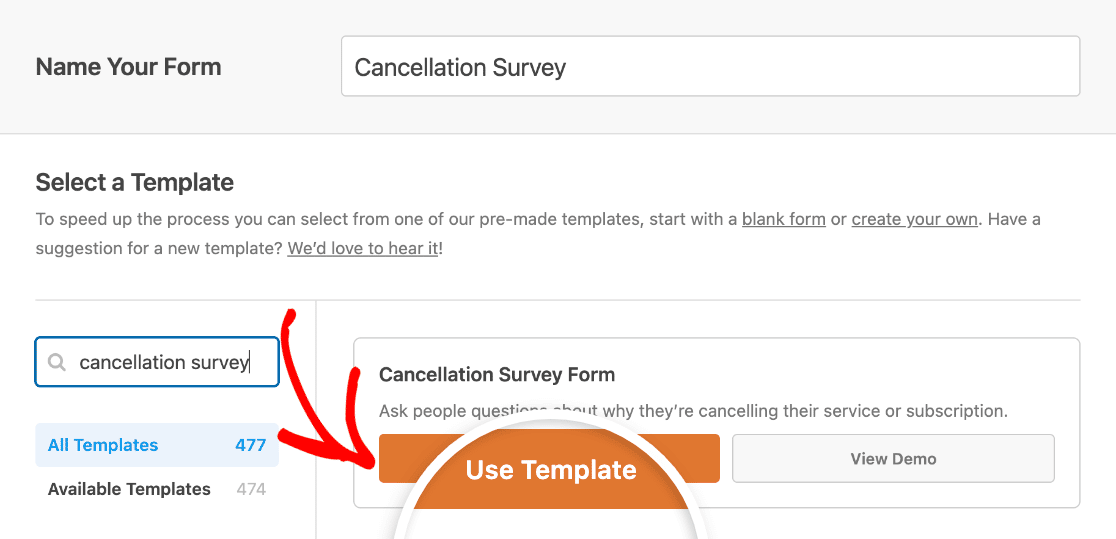
Em seguida, você precisará criar um novo formulário. Para fazer isso, vá para WPForms » Add New, nomeie seu formulário e escolha o modelo Cancellation Survey Form.
O WPForms carregará o modelo de formulário para você no construtor.
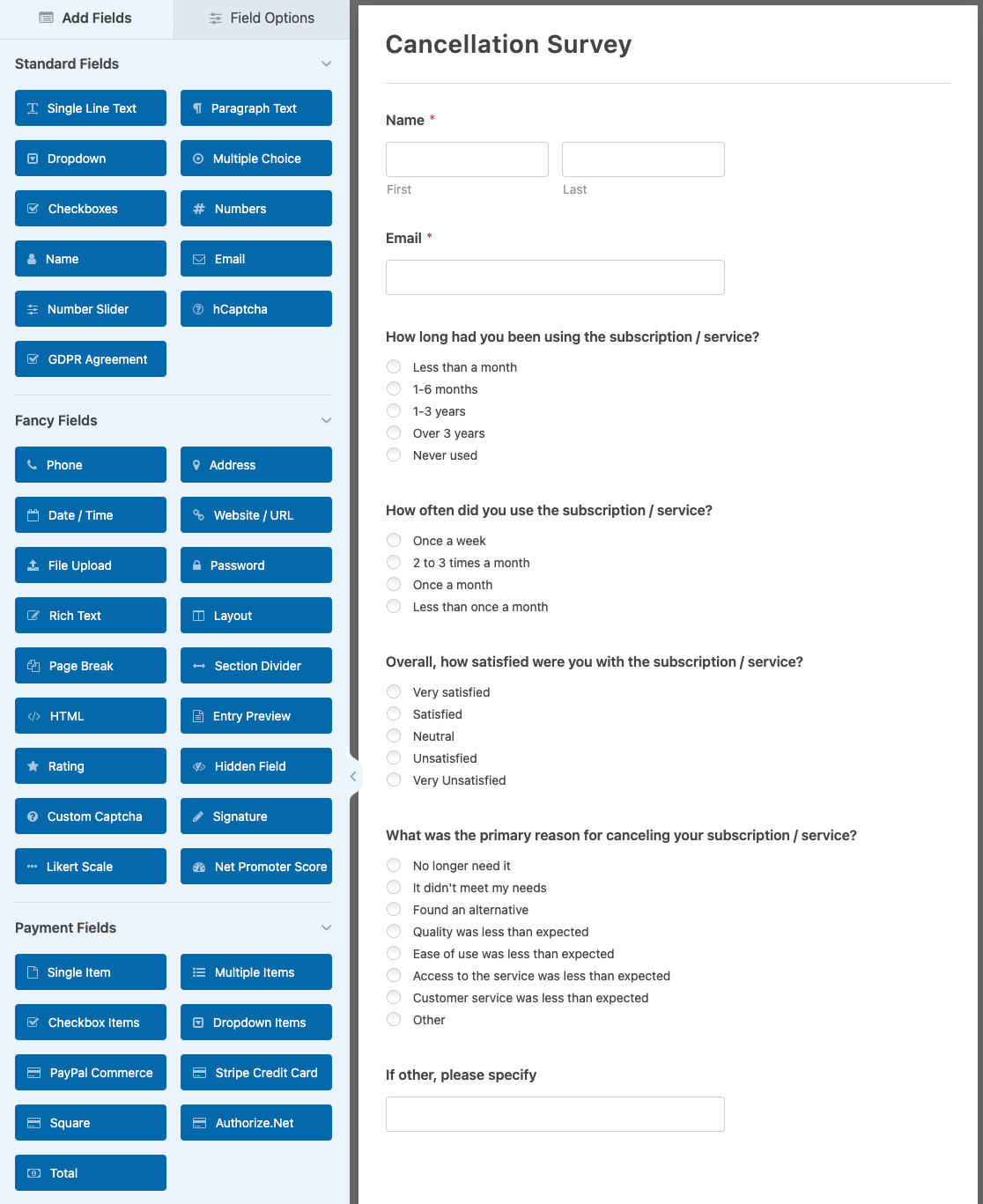
Este formulário vem com perguntas pré-escritas para fazer aos que estão cancelando serviços com você. Isso inclui perguntas de múltipla escolha, bem como campos de texto de parágrafo abertos, onde as pessoas podem expressar suas opiniões e dar a você insights sobre como você pode fazer as coisas de forma diferente no futuro.
Você pode adicionar campos adicionais ao seu formulário arrastando-os do painel esquerdo para a área de visualização direita.
Em seguida, clique no campo para abrir suas opções e fazer quaisquer alterações, como editar o rótulo ou a descrição. Você também pode clicar em um campo do formulário e arrastá-lo para cima ou para baixo para reorganizar a ordem do seu formulário de pesquisa de cancelamento.
Você pode querer ler as principais reclamações sobre pesquisas online enquanto você também está construindo este formulário de pesquisa de cancelamento.
Personalize os campos do formulário de pesquisa
Você pode facilmente adicionar campos de Múltipla Escolha ao seu formulário para fazer mais perguntas às pessoas sobre por que elas estão cancelando com você.
Dito isso, vamos dar uma olhada em alguns dos outros campos de formulário que você pode querer adicionar ao seu formulário de pesquisa de cancelamento. Você pode usar campos diferentes para diferentes tipos de pesquisas. Dessa forma, você pode obter o máximo de informações possível dos clientes:
- Net Promoter Score. O campo de formulário Net Promoter Score (NPS) é ótimo para descobrir se clientes antigos recomendariam sua empresa a um familiar ou amigo. Afinal, só porque alguém está cancelando com você não significa que não esteja satisfeito. Adicionar este campo ao seu formulário permite gerar um Net Promoter Score para medir eficientemente a satisfação do cliente com seu negócio.
- Escala Likert. O campo de formulário Escala Likert é usado para descobrir como as pessoas se sentem sobre algo. Por exemplo, em seu formulário de pesquisa de cancelamento, você pode perguntar às pessoas como melhorar seus produtos, serviços ou atendimento ao cliente e ver se algum desses fatores as levou a cancelar. Campos de Escala Likert às vezes são chamados de perguntas de matriz. Veja aqui algumas perguntas úteis de Escala Likert para adicionar ao seu formulário de pesquisa de cancelamento.
- Avaliação. Outra ótima maneira de ver como as pessoas se sentem sobre seu negócio é adicionar um campo de formulário de avaliação ao seu formulário de pesquisa. Dessa forma, não importa como seu cliente antigo se sinta, você saberá se está fazendo um bom trabalho ou não. Além disso, você pode ativar a lógica condicional em seu campo de avaliação para que, se alguém avaliar mal seu negócio, outro campo possa aparecer perguntando o motivo.
Felizmente, personalizar seu formulário de pesquisa de cancelamento é fácil quando você usa o WPForms.
Se você personalizar seus formulários com o plugin de pesquisa do WPForms, descobrirá que obter informações dos clientes, irritados ou não, também se torna muito mais fácil. Dessa forma, você pode fazer as mudanças necessárias no futuro para impedir que as pessoas cancelem com você.
Se você quiser mais ajuda para escrever suas perguntas, confira estes exemplos e modelos de questionário.
Etapa 2: Configure as configurações do seu formulário de cancelamento
Há muitas configurações para configurar depois que você personalizou seu formulário para que ele fique com a aparência desejada.
Configurações Gerais
Primeiro, vá para Configurações » Geral.
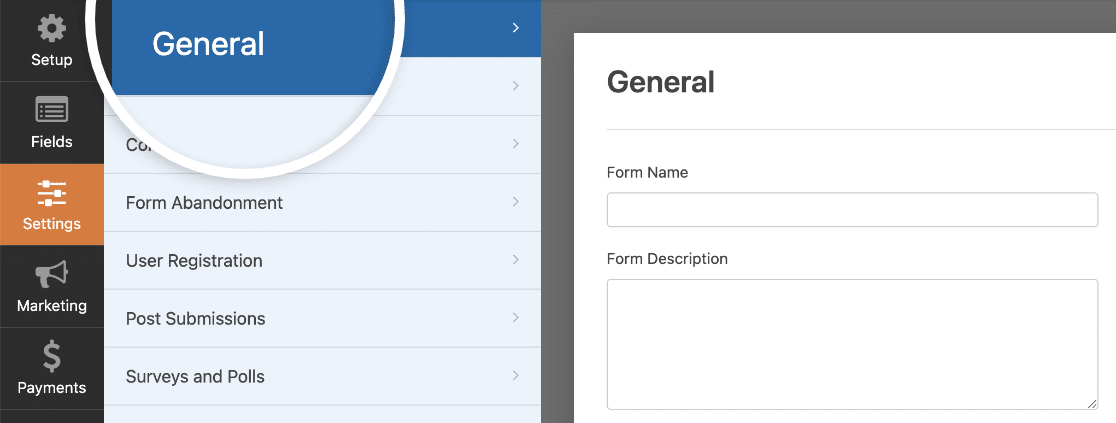
Aqui você pode alterar coisas como o nome do seu formulário, descrição e o texto do botão de envio.
Você também pode adicionar tags de formulário para organizar seus formulários online e ativar recursos adicionais de prevenção de spam para manter seu site seguro contra envios indesejados de formulários.
Proteção contra Spam e Segurança
Em Configurações » Proteção contra Spam e Segurança, você encontrará várias opções para proteger seu formulário contra envios suspeitos.

Aqui você pode ativar a proteção moderna anti-spam do WPForms, conectar seu formulário ao plugin anti-spam Akismet e configurar filtros para evitar entradas de spam.
Você também verá todas as opções de CAPTCHA disponíveis no WPForms. Para mais detalhes, confira nosso guia completo sobre spam em formulários de contato.
Notificações
Notificações são uma ótima maneira de enviar um e-mail sempre que um pedido é enviado em seu site.
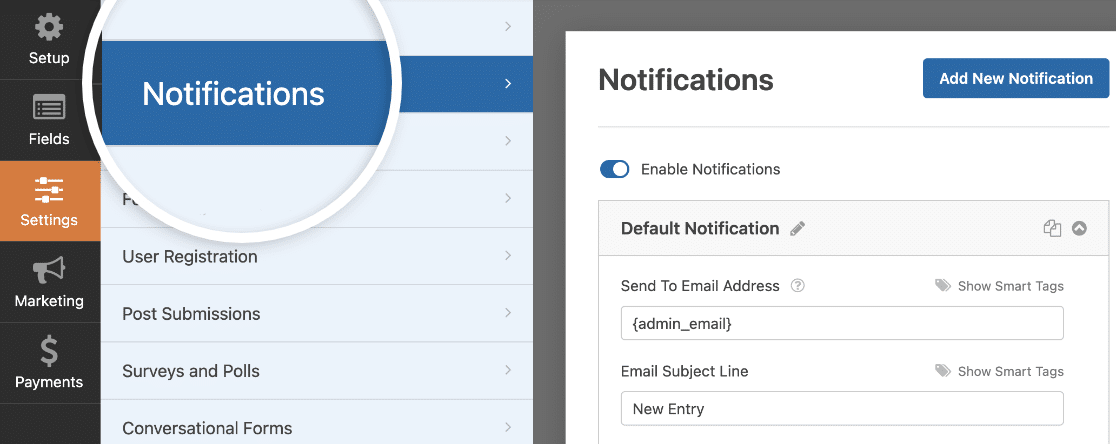
Na verdade, a menos que você desative este recurso, sempre que alguém enviar um formulário de pesquisa de cancelamento de cliente em seu site, você receberá uma notificação sobre isso.
Para obter ajuda com esta etapa, consulte nossa documentação sobre como configurar notificações de formulário no WordPress.
Se precisar enviar mais de uma notificação, por exemplo, para você, a equipe de atendimento ao cliente e seu cliente anterior, confira nosso tutorial passo a passo sobre como enviar várias notificações de formulário no WordPress.
Confirmações
Confirmações de formulário são mensagens exibidas aos visitantes do site depois que eles enviam um formulário em seu site.
O WPForms tem 3 tipos de confirmação:
- Mensagem: Uma mensagem simples que é exibida assim que alguém envia um formulário em seu site, agradecendo e informando quais são os próximos passos.
- Página de Exibição: Redirecione os usuários para outra página em seu site, como uma página de agradecimento.
- Ir para URL (Redirecionar): Envie os visitantes do site para um site diferente.
Se você quiser exibir confirmações diferentes para os visitantes do site com base nas respostas da pesquisa deles, certifique-se de ler sobre como criar confirmações condicionais de formulário.
Etapa 3: Habilite o relatório de pesquisas
Para obter os resultados da sua pesquisa no momento em que um visitante do site a preenche, você precisará habilitar o relatório de pesquisa.
Para fazer isso, vá para Configurações » Pesquisas e Enquetes. Em seguida, clique no botão de alternância Habilitar Relatório de Pesquisa. Isso habilitará o relatório de pesquisa para este formulário.
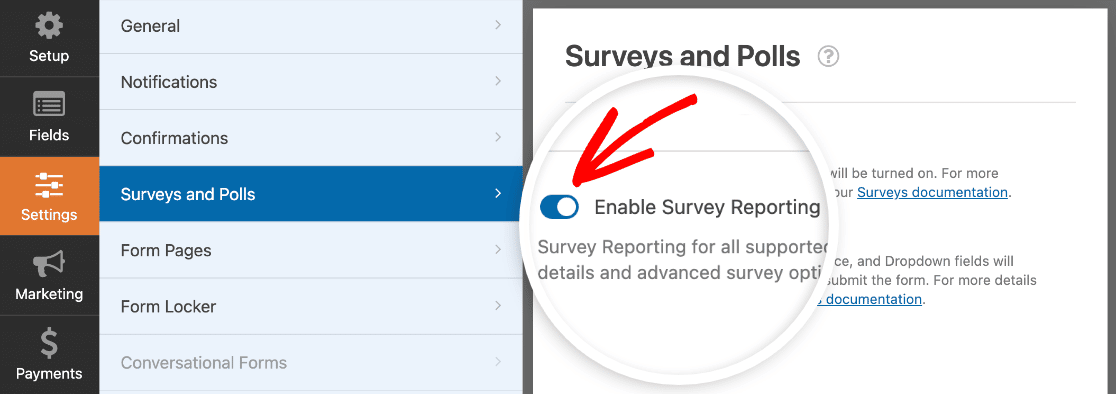
Em outras palavras, o WPForms coletará resultados de pesquisa para qualquer um dos seguintes campos:
- Texto de Linha Única
- Texto de Parágrafo
- Dropdown
- Caixas de seleção
- Múltipla Escolha
- Avaliação
- Escala Likert
- Net Promoter Score
Se você quiser coletar resultados de pesquisa apenas para um campo específico, pode ativar o relatório apenas para esse campo. Primeiro, desative o relatório de pesquisa para todo o formulário clicando no botão de alternância Habilitar Relatório de Pesquisa nas configurações de Pesquisas e Enquetes.
Na área de visualização da seção Campos do construtor de formulários, clique no campo do qual você deseja coletar dados. Em seguida, clique na guia Avançado no painel Opções de Campo. Aqui você pode ativar a configuração Habilitar Relatório de Pesquisa para este campo.
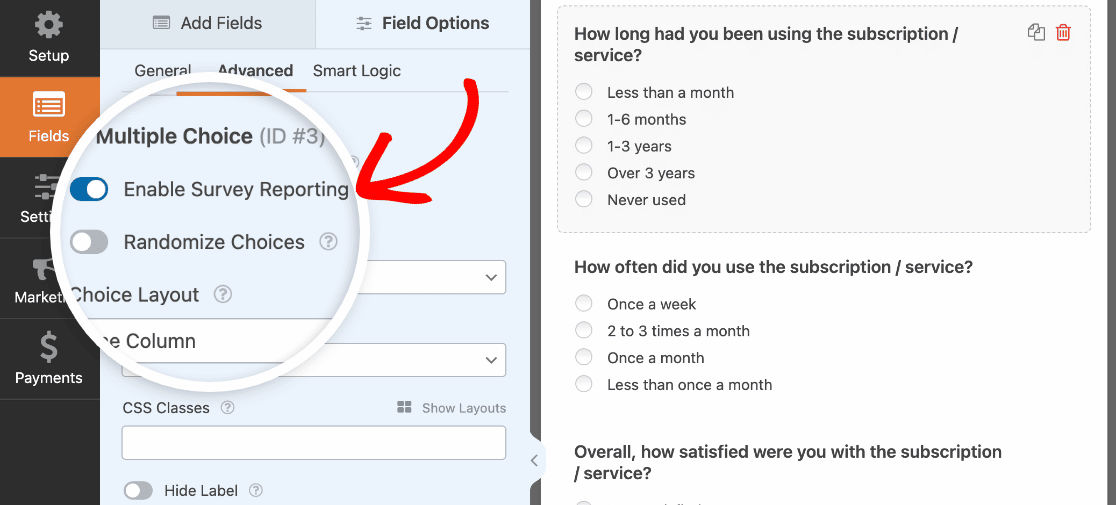
Agora, apenas os resultados da pesquisa nesse campo específico do formulário serão coletados. Faça isso para cada campo do formulário para o qual você deseja coletar resultados em sua pesquisa de cancelamento de cliente.
Etapa 4: Adicione seu formulário de cancelamento de clientes ao seu site
Agora que você criou seu formulário, precisará adicioná-lo ao seu site WordPress para começar a coletar feedback.
O WPForms permite que você adicione seus formulários a muitos locais em seu site, incluindo posts do blog, páginas e até mesmo widgets de barra lateral.
Para começar, crie uma nova página ou post no WordPress, ou abra um existente no editor. Depois disso, adicione um novo bloco e selecione WPForms. Você pode pesquisar por ele se não o vir imediatamente.
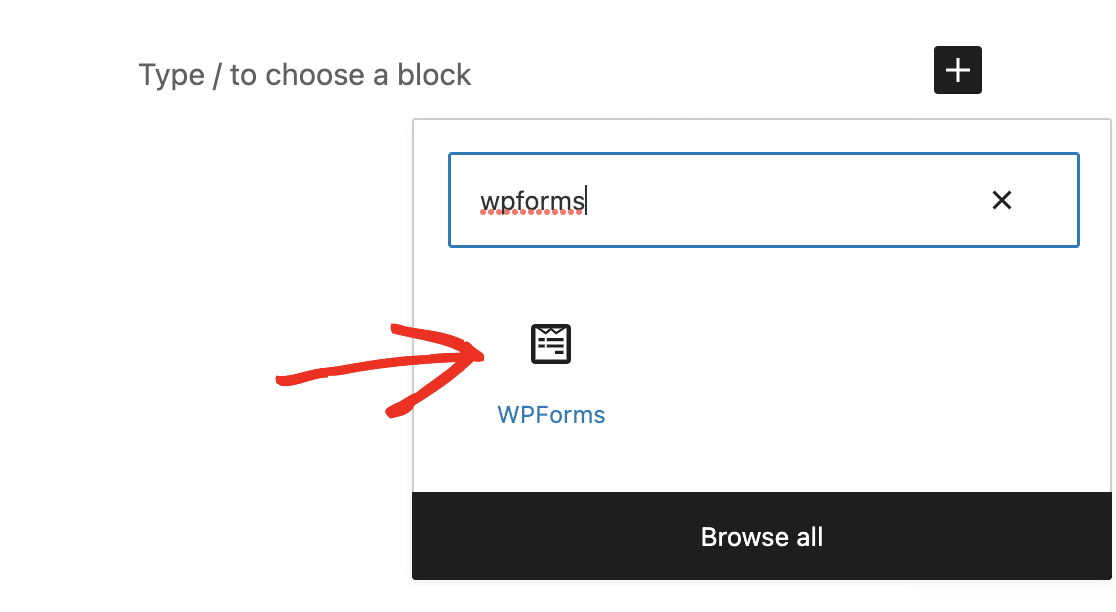
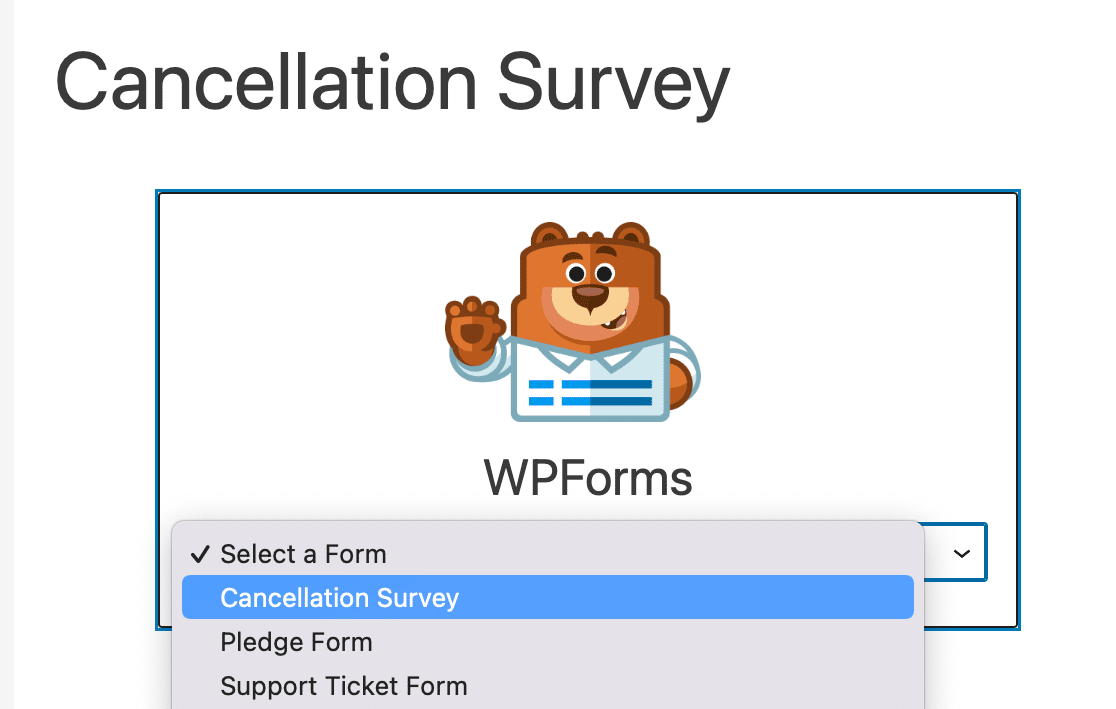
O widget WPForms aparecerá em sua página. Clique no menu suspenso WPForms e selecione seu formulário de Pesquisa de Cancelamento.
O formulário agora será exibido, e você pode verificar para ter certeza de que gosta da aparência dele.
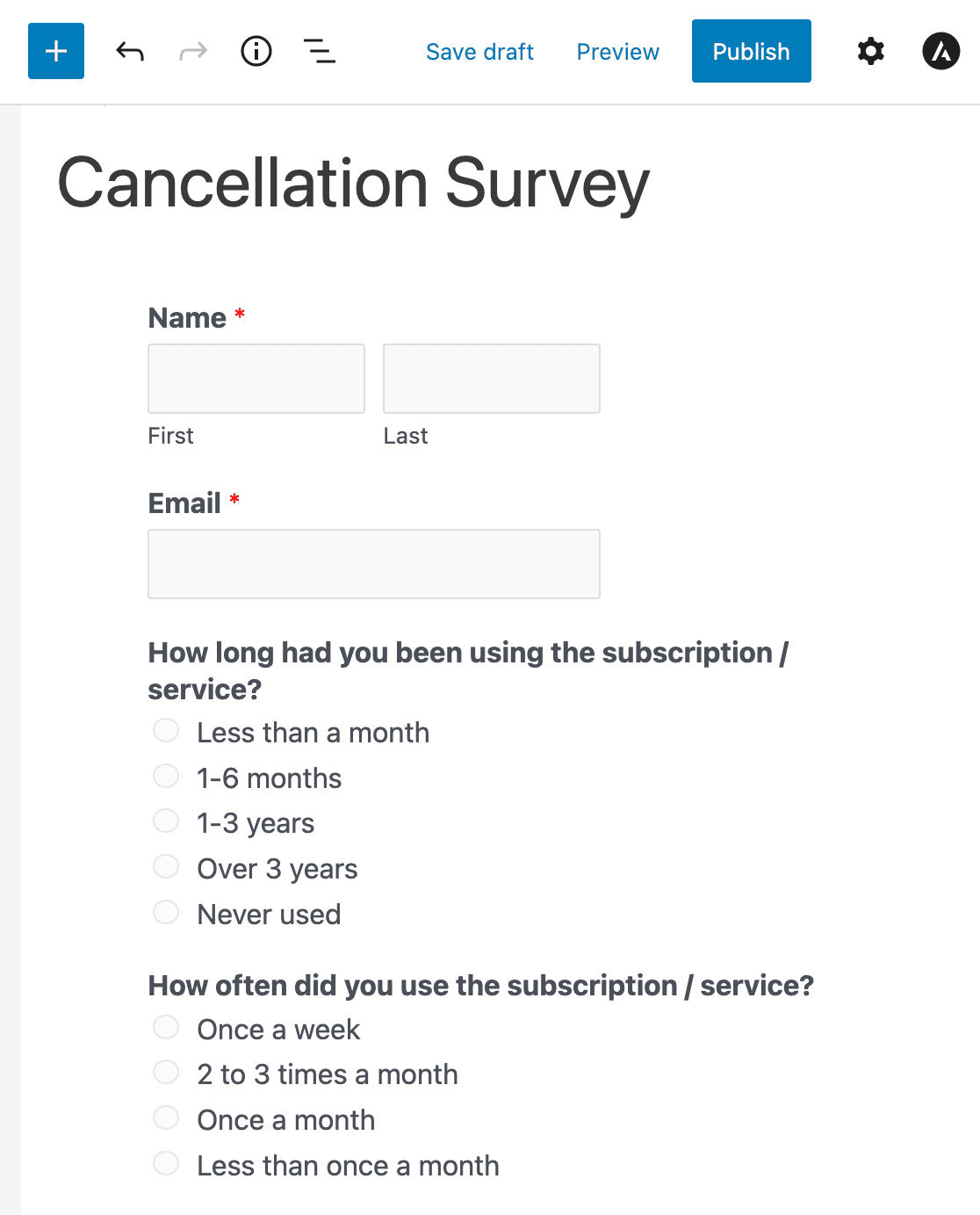
Em seguida, publique ou atualize sua página e seu formulário de pesquisa de cancelamento de cliente aparecerá em seu site.
Etapa 5: Gere relatórios de pesquisas
Assim que as pessoas começarem a preencher seu formulário de pesquisa de cancelamento, você poderá começar a analisar os dados coletados.
Para gerar um relatório de pesquisa, vá para WPForms » Todos os Formulários e passe o mouse sobre seu formulário de pesquisa para exibir as opções. Em seguida, clique em Resultados da Pesquisa.

Você verá os resultados da pesquisa para cada campo do formulário que tem o relatório de pesquisa habilitado.
Por exemplo, veja como podem ser os resultados da primeira pergunta do seu formulário de pesquisa:
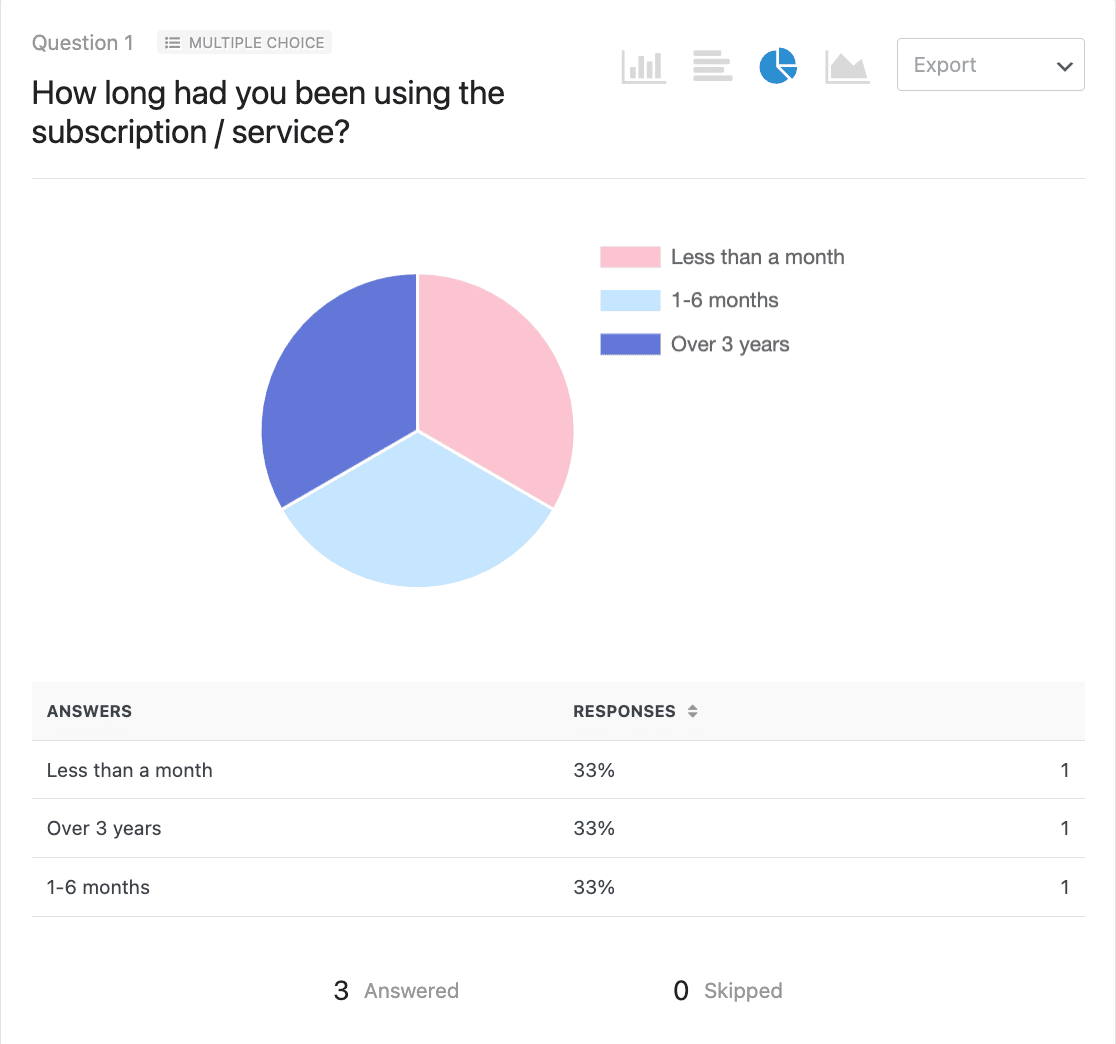
O addon Pesquisas e Enquetes do WPForms permite que você veja os resultados da pesquisa de várias maneiras diferentes, usando visualização de dados.
Se precisar de algumas dicas para escrever sobre suas descobertas, confira este guia para escrever um resumo dos resultados da pesquisa.
Perguntas de exemplo para pesquisa de saída de clientes
Como é basicamente um modelo de pesquisa de saída de cliente, as perguntas da pesquisa padrão no modelo de pesquisa de cancelamento incluem:
- Há quanto tempo você está usando a assinatura/serviço?
- Com que frequência você usou a assinatura/serviço?
- No geral, quão satisfeito(a) você ficou com a assinatura/serviço?
- Qual foi o principal motivo para cancelar sua assinatura/serviço?
- Você usaria o produto/serviço no futuro?
- Você recomendaria nosso produto/serviço a colegas ou contatos em sua área?
- O que poderíamos fazer para melhorar nossa assinatura/serviço?
Estas são ótimas perguntas a serem feitas se você está se perguntando o que dizer quando um cliente quer cancelar ou já cancelou. E para obter o máximo de respostas, recomendamos manter sua pesquisa o mais curta possível. Em outras palavras, escolha suas perguntas com sabedoria.
Aqui estão algumas outras perguntas reveladoras sobre cancelamento que você pode considerar fazer:
- Atendemos às suas expectativas?
- Há algo que poderíamos ter feito de diferente?
- Qual foi o maior benefício que você obteve com o produto/serviço?
- A equipe de suporte tratou você com a atenção e cortesia que você esperava?
- O processo de faturamento foi claro?
Fazer essas perguntas contundentes fornecerá as informações necessárias para tomar decisões baseadas em dados para fazer seu negócio crescer e reduzir o churn de clientes!
Edite seu modelo de pesquisa de cancelamento agora
Em seguida, Crie um Formulário de Solicitação de Retorno de Chamada
E aí está! Agora você sabe como criar facilmente um formulário de pesquisa de cancelamento de clientes no WordPress. Se você quiser intervir antes que alguém cancele, tente adicionar um formulário de solicitação de retorno de chamada para facilitar o contato dos seus clientes para obter ajuda.
E você também pode conferir nossa lista dos melhores provedores de VOIP para pequenas empresas para aceitar chamadas de clientes imediatamente.
Se você gostou deste artigo, talvez também queira ler sobre como aumentar as taxas de resposta de pesquisas para que você possa continuar a construir seu negócio.
Pronto para criar seu formulário? Comece hoje mesmo com o plugin de criação de formulários WordPress mais fácil. WPForms Pro inclui muitos modelos gratuitos e oferece uma garantia de devolução do dinheiro em 14 dias.
Se este artigo ajudou você, por favor, siga-nos no Facebook e Twitter para mais tutoriais e guias gratuitos do WordPress.


