



AI要約
誰かが旅行についてメールしてきて、日付を尋ねてメールを返し、予算なしで返信があり、数通のメッセージの後でも何も承認できません。
旅行リクエストフォームは、旅行の詳細、旅行の理由、および関連文書をすべて一度に収集し、承認のために適切な担当者にルーティングすることで、これを解決します。
このガイドでは、無料テンプレートとコードゼロで、わずか数分でWordPressに作成する方法を説明します。
また、適切な担当者にリクエストを送信する方法や、承認が開始されたら追跡する方法も紹介します。
出張申請フォームとは?
旅行申請フォームとは、従業員が予約を行う前に出張の承認をリクエストするために使用するオンラインフォームです。
これにより、旅行者の詳細、旅行日、目的地、目的、および推定費用が集められ、マネージャーまたは財務チームがワンステップでリクエストを確認および承認できます。
メールやチャットのやり取りではなく、すべての旅行に対して一貫した記録が得られるため、経費の承認が容易になり、旅行予算を管理しやすくなります。
優れた旅行申請フォーム(旅行申請書または旅行承認フォームと呼ばれることもあります)には、通常、次のような詳細が収集されます。
- 従業員名と部署
- マネージャーまたは承認者の名前
- 出張理由
- 出発地と目的地の都市
- 出発日と帰着日
- 必要な旅行手配(航空券、ホテル、レンタカーなど)
- 推定費用
- 会議の招待状や医師の診断書などのサポート書類
会社の実際の旅行処理方法に合わせてフォームを調整できるように、フィールドを簡単に追加または削除できるフォームビルダーが必要になります。
オンライン旅行申請フォームの作成方法
それでは、楽しい部分に入り、実際にフォームを作成しましょう。WPFormsの旅行申請フォームテンプレートを使用するため、開始する前にほとんどの設定は完了しています。
ステップ1:WPFormsプラグインをインストールする
WordPressで旅行申請フォームを作成する最も簡単な方法は、WPFormsを使用することです。これは最も初心者向けのフォームビルダープラグインであり、2,100以上のWordPressフォームテンプレートが含まれており、数分でカスタマイズできるすぐに使用できる旅行申請フォームテンプレートも含まれています。
このようなフォームでWPFormsを最も気に入っている点は、多くのことを自動で処理してくれることです。ドラッグアンドドロップ編集、ドキュメントのファイルアップロード、各リクエストを適切な担当者に送信するスマート通知が利用できます。
このチュートリアルでは、旅行申請を本当に役立つものにするエクストラ(Googleスプレッドシートの追跡、承認のためのデジタル署名、長いフォームのための保存と再開など)をアンロックするため、WPForms Proをお勧めします。
開始するには、WPForms Proライセンスを購入してください。次に、サイトにWPFormsをインストールします。手助けが必要な場合は、WordPressにプラグインをインストールする方法に関するこのステップバイステップガイドに従ってください。
ステップ2:旅行申請フォームテンプレートを開く
WPFormsがインストールされたら、フォームを作成する準備が整いました。最初のステップは、空白のページから開始しないように、旅行申請テンプレートを読み込むことです。
まず、WordPressダッシュボードからWPForms » 新規追加に移動し、フォームに名前を付けます。次に、テンプレートを選択セクションまでスクロールし、検索バーに「出張申請」と入力します。
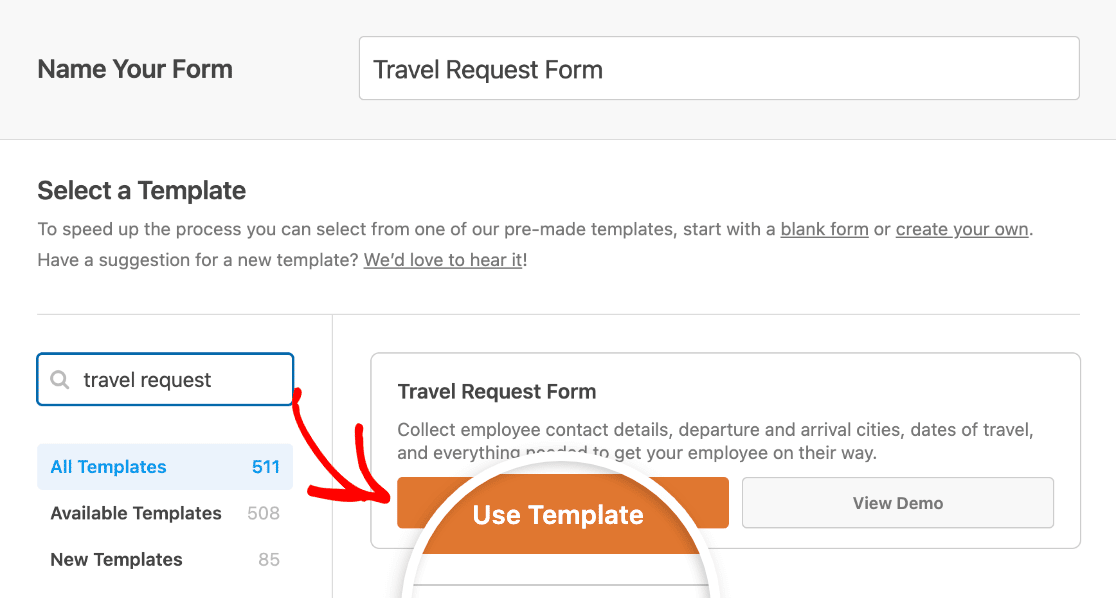
プリビルドされた出張申請フォームテンプレートが読み込まれると、ほとんどの作業は完了しています。以下のフィールドが表示されます。
- 従業員名
- Eメール
- 従業員ID
- 管理者/監督者
- 出張理由
- 必要な出張手配(フライト、ホテル、レンタカー、その他)
- 出発都市
- 到着都市
- 出発日
- 帰着日
- 追加情報
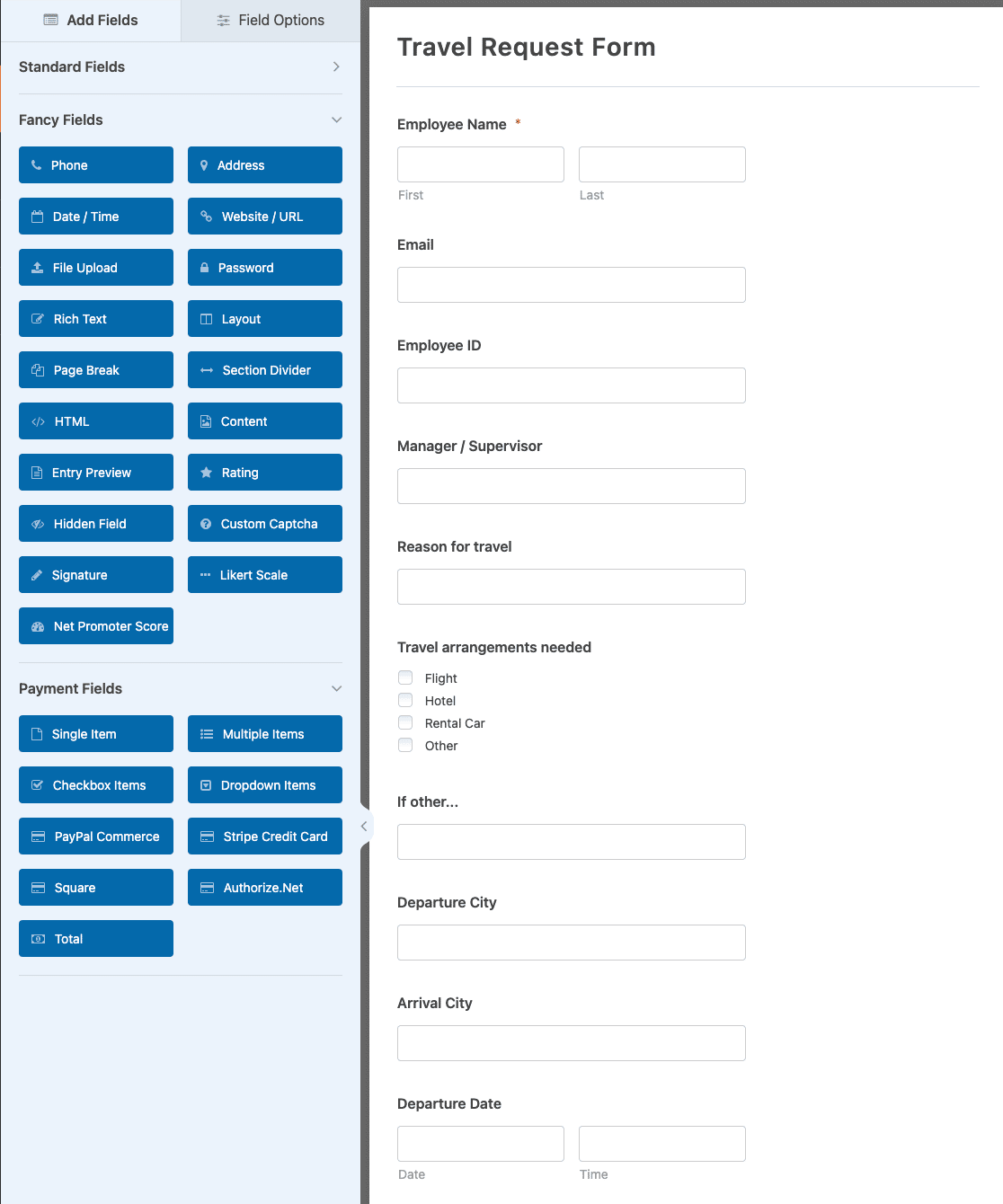
実際に必要となるフィールドがわからない場合は、WPForms AIに平易な言葉でフォームを説明し、作成させてから調整することができます。
最初に完成した結果を見たいですか? 出張申請フォームのライブデモでは、訪問者が入力する内容を正確に確認できます。
ステップ3:フィールドの追加またはカスタマイズ
テンプレートは基本的な内容をカバーしていますが、会社によって出張の扱いは少しずつ異なります。そのため、フォームがプロセスに一致するまで、フィールドを追加、削除、または並べ替えてください。
フィールドを追加するには、左側のパネルから右側のフォームにドラッグします。フィールドを編集するには、クリックしてラベル、オプション、または設定を変更します。フィールドを上下にドラッグして並べ替えることもできます。
旅行者に会議の招待状や領収書などの書類を添付してもらいたいとします。Fancy Fieldsセクションからファイルアップロードフィールドをフォームにドラッグして追加できます。このようになります:
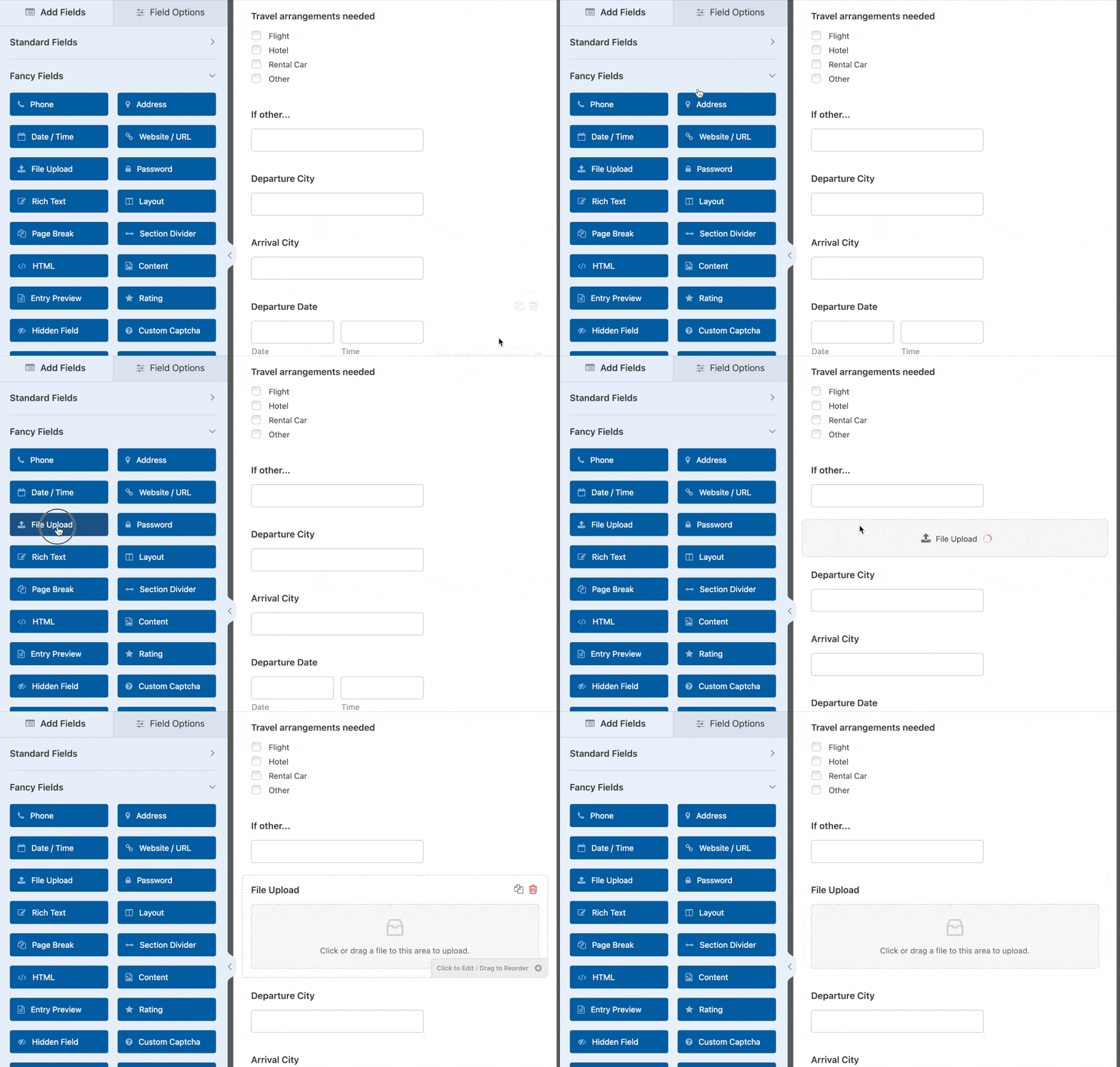
チームが頻繁に出張する場合は、新しいカメラフィールドも便利です。これにより、人々はスマートフォンから直接領収書や書類の写真を撮ることができます。フォームが希望どおりになったら、保存をクリックします。
ステップ4:フォーム設定を構成する
これらの設定は、フォームの外観と動作を制御します。まず、設定 » 一般に移動します。
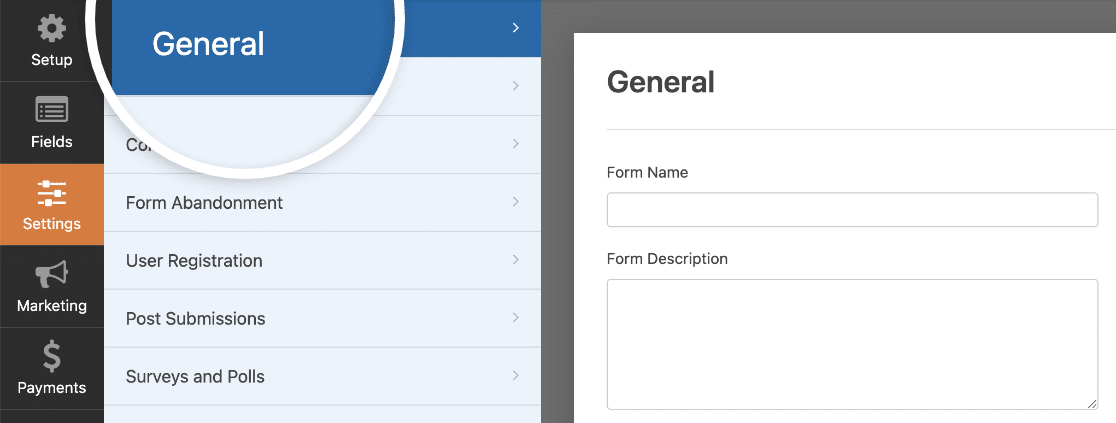
ここで次の設定を構成できます:
- フォーム名: 必要に応じて、フォームの名前をここで変更します。
- フォームの説明: フォームの説明を入力します。
- タグ: WordPressフォームを整理するためのタグ。
- 送信ボタンのテキスト: 送信ボタンの文言をカスタマイズします。
- 送信ボタンの処理中のテキスト: フォームが送信中に表示されるテキストを変更します。
高度な設定セクションでは、次のこともできます:
- CSSクラスを追加: CSSを使用してフォームまたは送信ボタンをスタイル設定します。
- URLによる事前入力の有効化: カスタムURLを使用して、フォームの一部のフィールドを自動的に事前入力します。
- AJAXフォーム送信の有効化: AJAX設定をオンにして、ページをリロードせずにフォームを送信できるようにします。
- WordPressへのエントリ情報の保存を無効にする: GDPRに準拠するために、IPアドレスやユーザーエージェントなどのエントリ情報とユーザーの詳細の保存を停止できます。 GDPR同意フィールドを追加する方法に関するステップバイステップの手順で説明します。
一般設定が完了したら、スパム保護とセキュリティ設定に進みます。
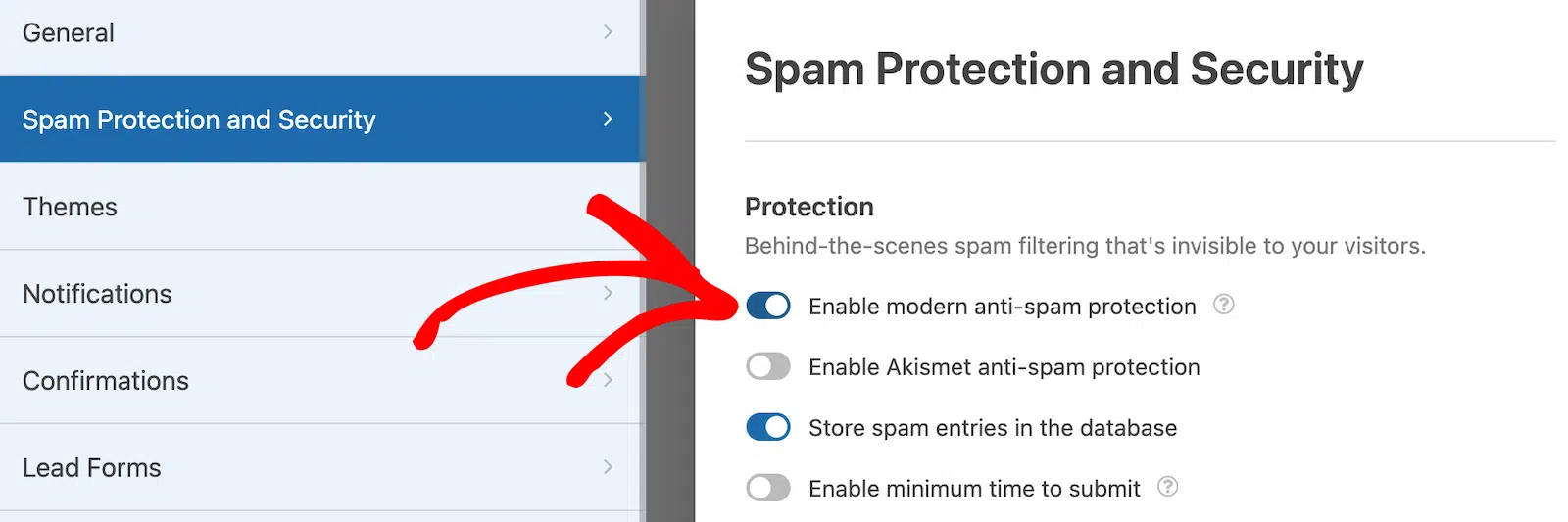
- 最新のスパム対策保護の有効化: WPFormsの最新のスパム対策保護でお問い合わせフォームのスパムを停止します。
- Akismetスパム対策保護の有効化: Akismetプラグインを使用している場合は、フォームに接続できます。
- 国フィルターを有効にする: 特定の国からの送信をブロックします。
- キーワードフィルターを有効にする: 特定の単語やフレーズが含まれるエントリを防ぎます。
追加の保護のために、お好みのCAPTCHAを設定することもできます。これらの設定で問題がなければ、保存をクリックしてください。
ステップ5:通知の設定
通知は、出張申請が実際に適切な担当者に届くようにするためのものです。フォームが送信されるたびに、WPFormsは必要な人にメールを送信できます。
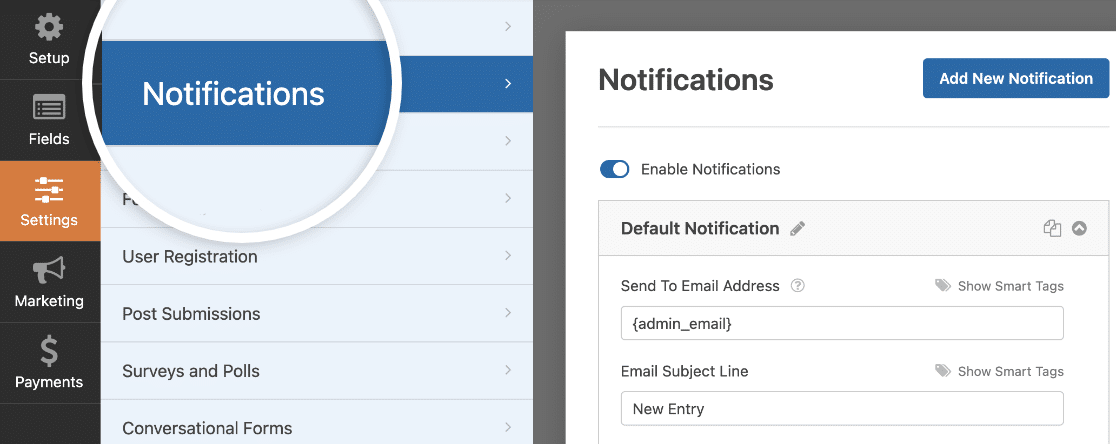
オフにしない限り、フォームが送信されるたびに通知が届きます。これはあなたをカバーしますが、出張申請フォームの真の価値は、一度に複数の通知を送信することです。
出張申請フォームの場合、関係者全員が情報を把握できるように、いくつかの個別のメールを設定することをお勧めします。あなたまたはオフィスマネージャーに1通、旅行者の上司に1通(出張の承認ができるように)、そして人事または経理に1通(予算の計画を開始できるように)送信します。
スマートタグを使用すると、フォームに入力した従業員に確認メールを送信して、リクエストが正常に送信されたことと次のステップを知らせることもできます。
出張承認および払い戻しプロセスの詳細を通知メールに直接追加することもできるため、誰にも仕組みを尋ねる必要がありません。
- 基本的な設定については、WordPressでフォーム通知を設定する方法に関するドキュメントを参照してください。
- これらの個別のメールを異なる担当者に送信するには、WordPressで複数のフォーム通知を送信する方法のステップバイステップチュートリアルに従ってください。
- メールを会社のブランディングに合わせたい場合は、メールテンプレートにカスタムヘッダーを追加する方法を参照してください。
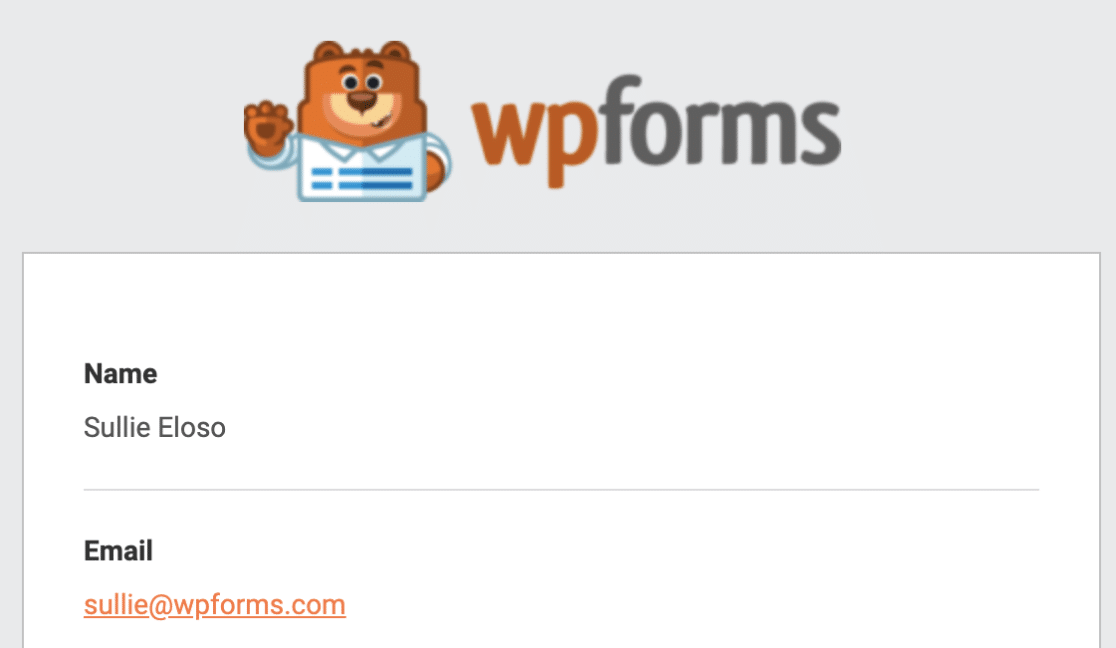
ブランディングされたヘッダーは些細なタッチですが、リクエストプロセス全体がチームにとってより公式なものになります。
ステップ6:確認の設定
次に、フォーム送信直後に表示されるメッセージである確認を設定しましょう。これは、次のステップを伝え、承認に関する期待を設定する機会です。
WPFormsには3つの確認タイプがあります。
- メッセージ: フォームが送信されると、リクエストが受信され処理中であることを知らせる簡単なメッセージが表示されます。
- ページを表示: これにより、感謝のページのようなサイトの特定のページに移動します。そのヘルプについては、顧客を感謝のページにリダイレクトするチュートリアルを確認してください。
- URLに移動 (リダイレクト): 他のウェブサイトにユーザーを送信したい場合に使用します。
出張申請フォームの場合、メッセージの確認がうまく機能します。これにより、承認に関する返信を受け取るのに3営業日かかることを知らせるなど、期待を設定できます。
設定するには、フォームエディタの設定の下にある確認タブをクリックします。次に、目的の確認タイプを選択します。
この例では、メッセージを選択し、「出張申請ありがとうございます!承認または拒否については3営業日以内にご連絡いたします。」のようなメッセージを作成します。
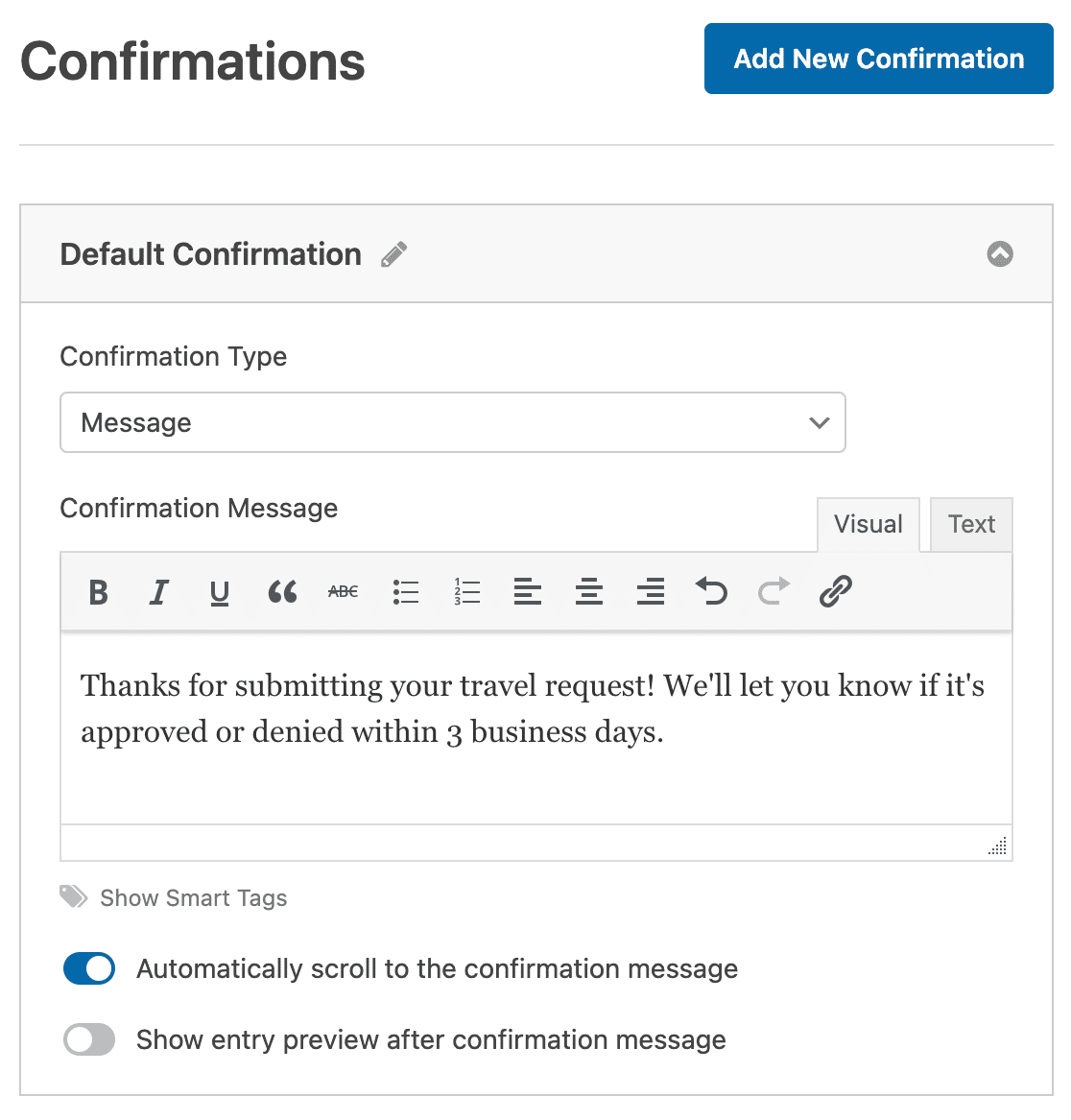
メッセージを好みに合わせてカスタマイズしたら、保存をクリックしてください。詳細については、WPFormsでフォームの確認を設定する方法についての完全なガイドをご覧ください。
ステップ7:旅行申請フォームの発行
旅行申請フォームが作成されたので、あとはウェブサイトに掲載するだけです。WPFormsは、組み込みの埋め込みツールを使用して、公開を簡単に行えます。フォームビルダーの上部にある埋め込みボタンをクリックすることから始めます。
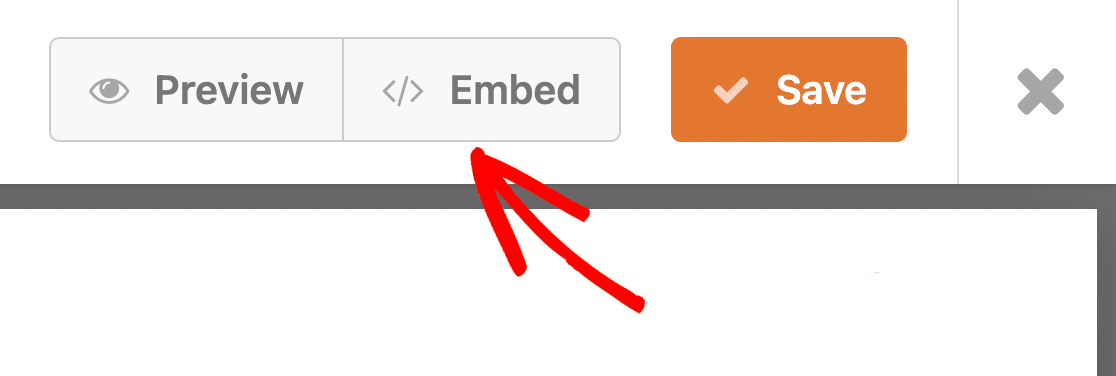
ページに埋め込むウィンドウが表示されたら、新規ページを作成をクリックします。

次に、WPFormsがページの名前を尋ねます。タイトルを入力して、開始!をクリックします。

WPFormsは、旅行申請フォームが既に配置された新しいページを開きます。そのまま上部にある公開(または更新)をクリックして、公開します。
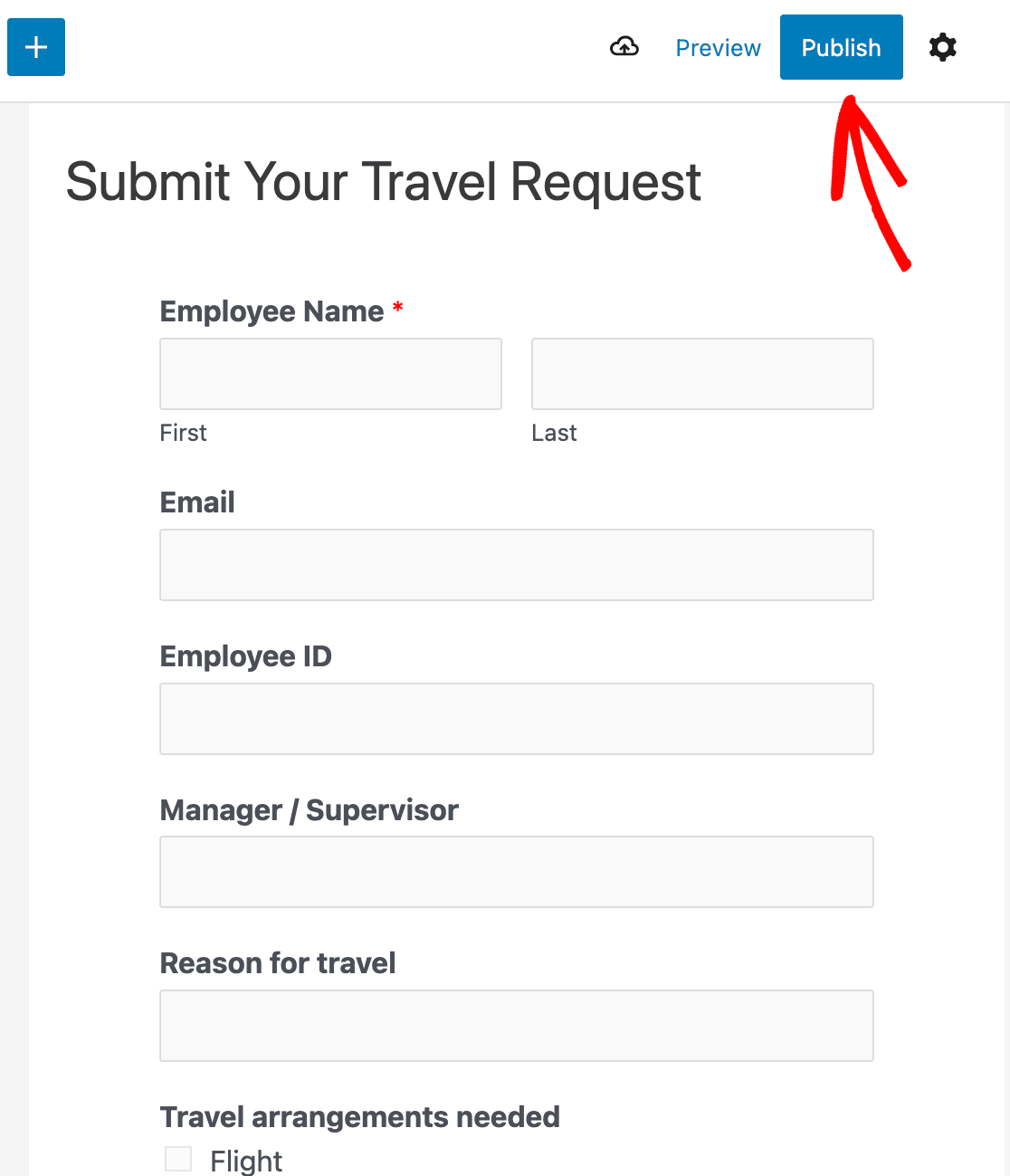
それが公開されると、従業員はウェブサイトから直接旅行申請を送信できるようになり、各申請は自動的に適切な受信トレイに届きます。
旅行承認ワークフローの自動化
基本的なフォームで申請を収集するだけで十分ですが、送信ボタンが押された後に何が起こるかが、真の時間を節約する部分です。いくつかのPro機能を使用すると、旅行申請フォームを適切な承認ワークフローに変換できます。
最も時間を節約できるのは、すべての申請を自動的にスプレッドシートに送信することです。Google Sheetsアドオンは、新しい提出ごとにGoogleシートに記録を追加するため、あなたとあなたの財務チームはすべての出張の継続的なログを保持できます。
承認に正式な署名が必要な場合は、フォーム上で直接デジタル署名を収集することができます。これにより、マネージャーは何も印刷せずに、どのデバイスからでも出張を承認できます。
WordPressを離れることなく、申請を確認することもできます。すべての提出はWPForms » Entriesの下に保存され、そこで申請を検索、スター付け、処理済みとしてマークできます。

その上に条件付きロジックを追加すると、フォームは自己ルーティングでき、国際的な出張は1人の承認者に、国内の出張は別の承認者に送信できます。
これらの追加機能はオプションですが、これらを組み合わせることで、シンプルなフォームがチーム全体が信頼できるシステムに変わります。
旅行申請フォームに関するFAQ
旅行申請フォームは、HRチームや中小企業のオーナーにとって頻繁に必要となります。ここでは、WordPressで旅行申請フォーム、旅行依頼フォーム、または旅行承認フォームを作成する際の最も一般的な質問に対する回答を紹介します。
旅行申請フォームとは何ですか?
旅行申請フォームは、従業員が出張の承認をリクエストするために記入するオンラインフォームです。出張の詳細、日付、目的地、目的、および推定費用を収集するため、マネージャーまたは財務チームは、予約が行われる前にリクエストを確認して承認できます。
旅行申請フォームには何を含めるべきですか?
最低限、従業員の氏名と部署、そのマネージャーまたは承認者、旅行の理由、出発都市と目的地、旅行の日付、フライトやホテルなどの必要な手配、および推定費用を含めてください。会議の招待状や領収書などのサポート文書のファイルアップロードフィールドを追加することは、便利な追加機能です。
WordPressでオンライン旅行申請フォームを作成するにはどうすればよいですか?
WPFormsをインストールし、旅行申請フォームのテンプレートを開き、プロセスに合わせてフィールドをカスタマイズし、通知を設定し、フォームをページに埋め込みます。テンプレートがほとんどの設定を行ってくれるため、全体でわずか数分しかかかりません。
旅行申請フォームと出張承認フォームの違いは何ですか?
多くの場合、同じ意味で使われます。旅行申請フォームは通常、従業員からの最初の申請であり、出張承認フォームはその旅行と予算が承認されたことを確認する承認済みのバージョンです。実際には、承認ステップ付きの1つのフォームで両方をカバーできます。
次に、チームの他のフォームを作成する
旅行申請フォームが公開されたら、同じドラッグアンドドロップビルダーを使用して、休暇や病気休暇のための休暇申請フォームなど、他の社内申請を作成できます。
WPForms Proは、開発者を雇うことなくWordPressサイトでプロフェッショナルなフォームを作成するための最も簡単な方法です。無料の旅行申請テンプレートに加えて、社内フォームを本当に役立つものにする機能を提供します。
- 完了率を高めるために、一度に1つの質問をする会話型フォーム
- 人々が書類や領収書を添付できるファイルアップロードフィールド
- 送信前にサイトで何をしたかを示すユーザー行動ツール
- より長いリクエストのために複数ページフォームを作成するオプション
- 最も人気のあるメールマーケティングサービスへの組み込み接続
- フレンドリーで知識豊富なチームからの優先サポート
すぐに採用しますか?候補者のプールを広げるために、WordPressで求人応募フォームを作成する方法に関するガイドをご覧ください。
フォームの作成準備はできましたか?最も簡単なWordPressフォームビルダープラグインで今日から始めましょう。WPForms Proには多くの無料テンプレートが含まれており、14日間の返金保証が付いています。
このブログ記事がお役に立ちましたら、無料のWordPressチュートリアルやガイドをさらにご覧いただくために、 Facebook と X (Twitter) でフォローしてください。





