



Resumen de IA
Alguien te envía un correo electrónico sobre un viaje, le respondes pidiendo fechas, te responden sin presupuesto y, unos mensajes después, sigues sin poder aprobar nada.
Un formulario de solicitud de viaje soluciona esto al recopilar todo por adelantado, como los detalles del viaje, el motivo del viaje y cualquier documento de apoyo en un solo lugar, y luego lo envía a la persona adecuada para su aprobación.
En esta guía, te mostraré cómo crear uno en WordPress en solo unos minutos con una plantilla gratuita y sin código.
También te mostraré cómo enviar solicitudes al gerente adecuado y hacer un seguimiento de las aprobaciones una vez que empiecen a llegar.
Crea tu formulario de solicitud de viaje ahora
¿Qué es un formulario de solicitud de viaje?
Un formulario de solicitud de viaje es un formulario en línea que los empleados utilizan para solicitar la aprobación de un viaje de negocios antes de reservar nada.
Recopila los detalles del viajero, las fechas del viaje, el destino, el propósito y los costos estimados para que un gerente o el equipo de finanzas pueda revisar y aprobar la solicitud en un solo paso.
En lugar de correos electrónicos sueltos y mensajes de chat, obtienes un registro coherente para cada viaje, lo que facilita aprobar gastos y mantener el control de tu presupuesto de viajes.
Un buen formulario de solicitud de viaje (a veces llamado formulario de requisición de viaje o formulario de autorización de viaje) generalmente recopila detalles como:
- Nombre y departamento del empleado
- Nombre del gerente o aprobador
- Motivo del viaje
- Ciudades de salida y destino
- Fechas de salida y regreso
- Arreglos de viaje necesarios, como vuelos, hotel o coche de alquiler
- Costo estimado
- Documentos de apoyo, como una invitación a una conferencia o una nota del médico
Querrás un creador de formularios que te permita agregar o eliminar campos fácilmente, para que puedas adaptar el formulario a cómo tu empresa gestiona realmente los viajes.
Cómo crear un formulario de solicitud de viaje en línea
Ahora entremos en la parte divertida y creemos el formulario. Usaré la plantilla de formulario de solicitud de viaje de WPForms, por lo que la mayor parte de la configuración ya está hecha por ti antes de que empieces.
- Paso 1: Instalar el plugin WPForms
- Paso 2: Abrir la plantilla de formulario de solicitud de viaje
- Paso 3: Agregar o personalizar campos
- Paso 4: Configurar los ajustes de tu formulario
- Paso 5: Configurar notificaciones
- Paso 6: Configurar tus confirmaciones
- Paso 7: Publicar tu formulario de solicitud de viaje
- Automatiza tu flujo de trabajo de aprobación de viajes
Paso 1: Instalar el plugin WPForms
La forma más fácil de crear un formulario de solicitud de viaje en WordPress es con WPForms. Es el plugin creador de formularios más fácil para principiantes y viene con más de 2100 plantillas de formularios de WordPress, incluida una plantilla de formulario de solicitud de viaje lista para usar que puedes personalizar en minutos.
Lo que más me gusta de WPForms para un formulario como este es cuánto maneja por sí solo. Obtienes edición de arrastrar y soltar, carga de archivos para documentos y notificaciones inteligentes que envían cada solicitud a la persona adecuada.
Para este tutorial, recomiendo WPForms Pro, ya que desbloquea los extras que hacen que las solicitudes de viaje sean realmente útiles, como el seguimiento de Google Sheets, las firmas digitales para aprobaciones y Guardar y reanudar para formularios más largos.
Para empezar, ve y compra la licencia de WPForms Pro. Luego instala WPForms en tu sitio. Si necesitas ayuda, sigue esta guía paso a paso sobre cómo instalar un plugin en WordPress.
¡Actualiza a WPForms Pro ahora!
Paso 2: Abrir la plantilla de formulario de solicitud de viaje
Con WPForms instalado, estás listo para crear tu formulario. Este primer paso es donde cargas la plantilla de solicitud de viaje para no empezar desde una página en blanco.
Para empezar, ve a WPForms » Añadir nuevo desde tu panel de WordPress y ponle un nombre a tu formulario. Luego, desplázate hacia abajo hasta la sección Seleccionar una plantilla y escribe “solicitud de viaje” en la barra de búsqueda.
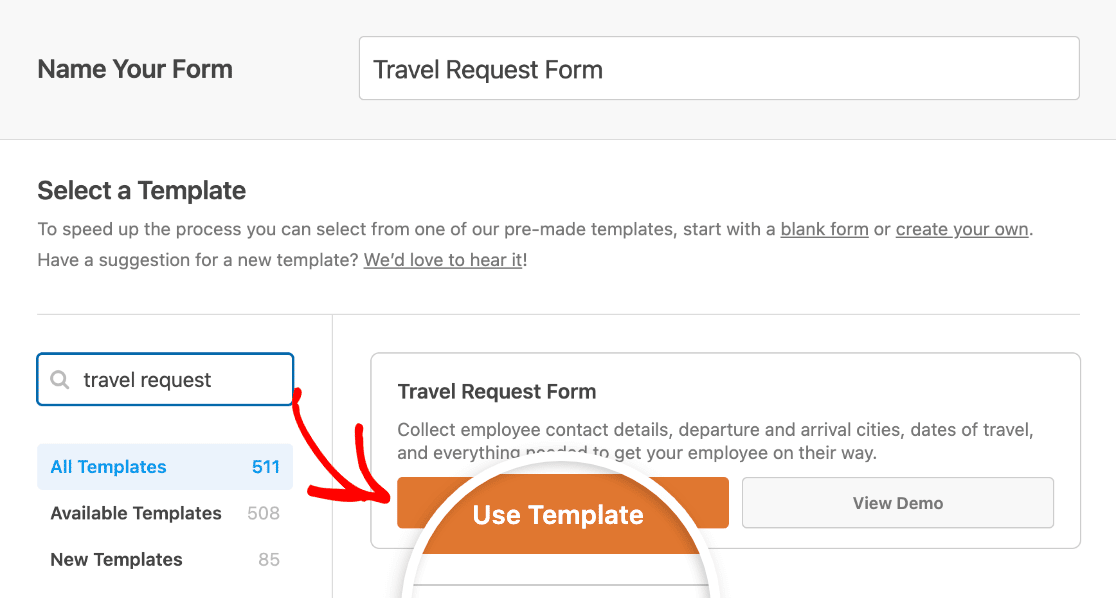
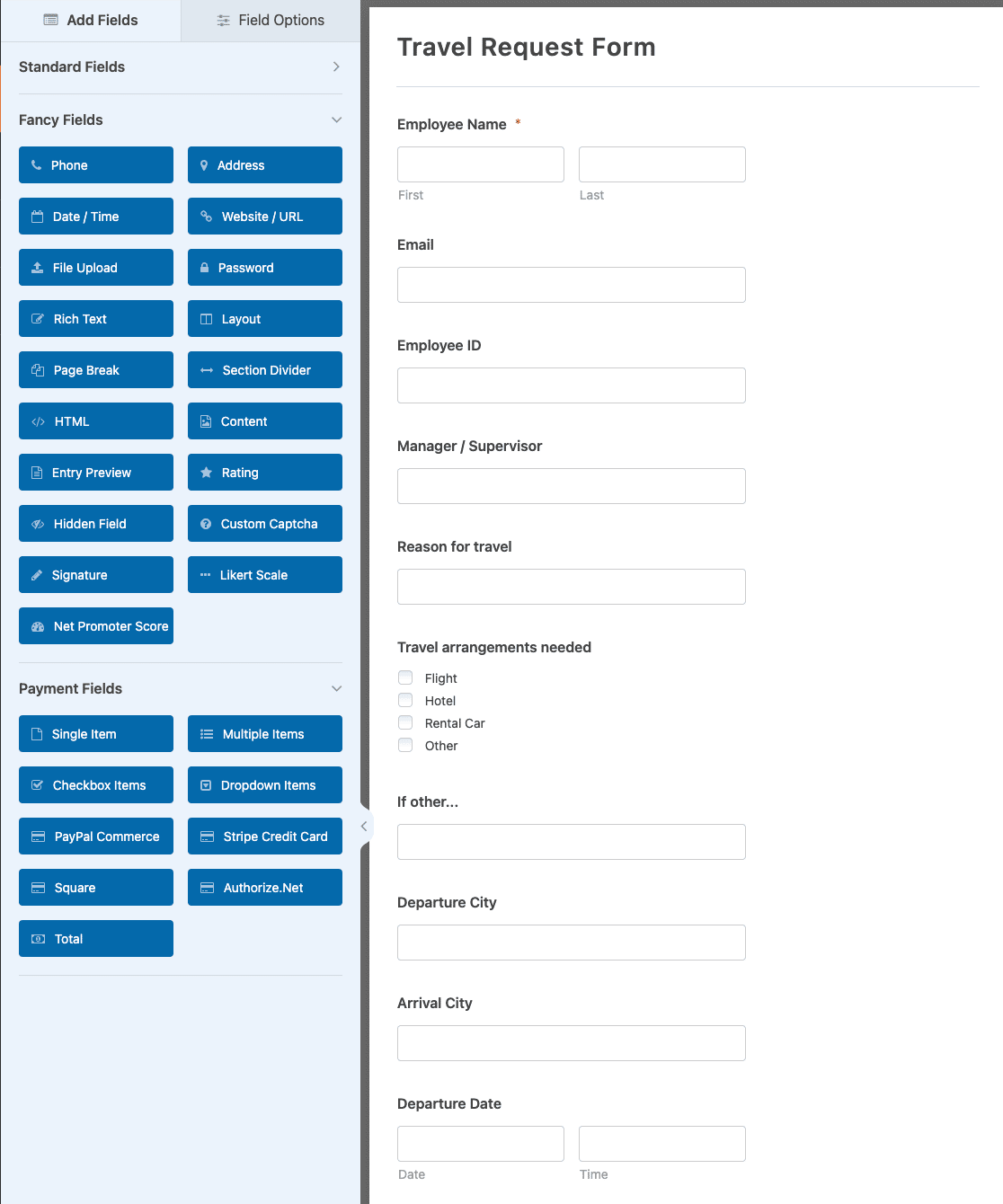
Una vez que se cargue la plantilla predefinida de formulario de solicitud de viaje, la mayor parte del trabajo ya estará hecha. Verás campos para lo siguiente:
- Nombre del empleado
- Correo electrónico
- ID de empleado
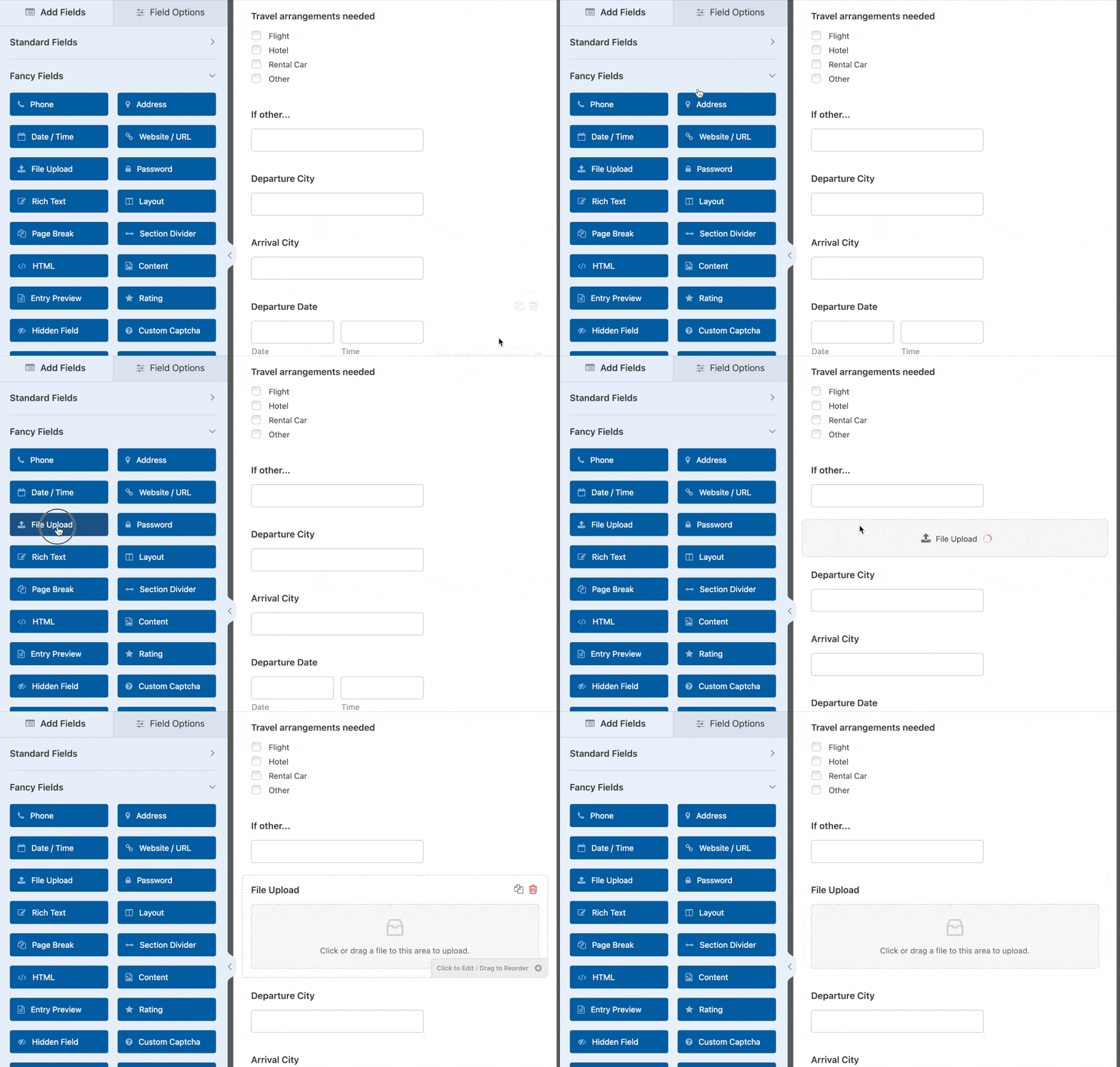
- Simplemente diríjase a la sección Campos avanzados de la izquierda y arrastre el campo Carga de archivos a su formulario de la derecha, así:
- Motivo del viaje
- Arreglos de viaje necesarios (Vuelo, Hotel, Coche de alquiler y Otros)
- Ciudad de salida
- Ciudad de llegada
- Fecha de salida
- Fecha de regreso
- Información adicional
Si no estás seguro de qué campos necesitas realmente, puedes describir tu formulario a WPForms AI en lenguaje natural y dejar que lo cree por ti, luego ajústalo desde ahí.
¿Quieres ver el resultado final primero? Nuestra demostración en vivo del formulario de solicitud de viaje muestra exactamente lo que tus visitantes rellenarán.
Paso 3: Agregar o personalizar campos
La plantilla cubre lo básico, pero cada empresa gestiona los viajes de forma un poco diferente. Así que adelante, añade, elimina o reorganiza campos hasta que el formulario coincida con tu proceso.
Para añadir un campo, arrástralo desde el panel izquierdo a tu formulario de la derecha. Para editar un campo, haz clic en él y cambia su etiqueta, opciones o configuración. También puedes arrastrar cualquier campo hacia arriba o hacia abajo para reordenarlo.
Digamos que quieres que los viajeros adjunten un documento, como una invitación a una conferencia o un recibo. Puedes añadir un campo de Carga de archivos arrastrándolo desde la sección Campos avanzados a tu formulario, así:
Si tu equipo viaja a menudo, el campo más nuevo Cámara también es útil, ya que permite a las personas hacer una foto de un recibo o documento directamente desde su teléfono. Cuando tu formulario tenga el aspecto que deseas, haz clic en Guardar.
Paso 4: Configurar los ajustes de tu formulario
Estos ajustes controlan cómo se ve y se comporta tu formulario. Para empezar, ve a Ajustes » General.
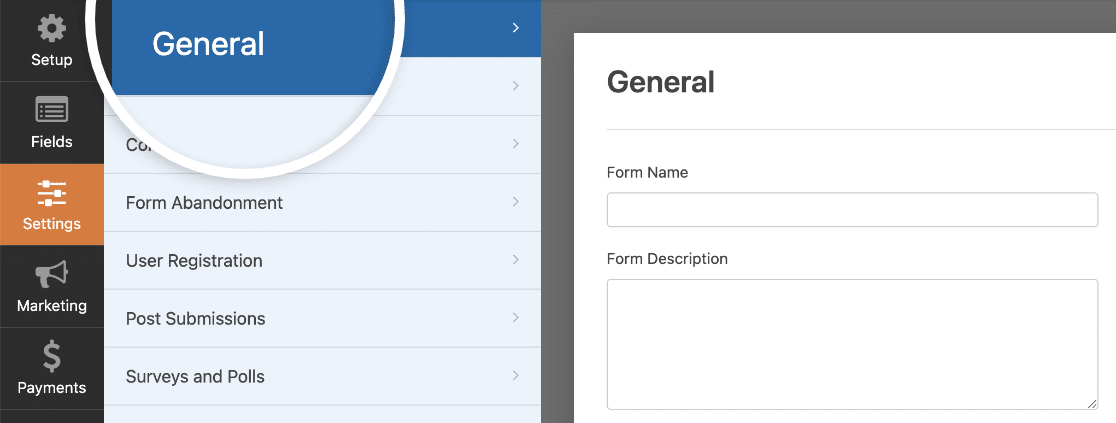
Aquí puede configurar lo siguiente:
- Nombre del formulario: Cambia el nombre de tu formulario aquí si lo deseas.
- Descripción del formulario: Dale una descripción a tu formulario.
- Etiquetas: Organiza tus formularios de WordPress con etiquetas.
- Texto del botón de envío: Personaliza el texto del botón de envío.
- Texto de procesamiento del botón de envío: Cambia el texto que se muestra mientras se está enviando tu formulario.
En la sección Avanzado, también puedes:
- Añadir clases CSS: Da estilo a tu formulario o botón de envío con CSS.
- Habilitar autocompletado por URL: Rellena automáticamente algunos campos de tu formulario usando una URL personalizada.
- Habilitar envío de formularios AJAX: Activa los ajustes AJAX para que el formulario se envíe sin recargar la página.
- Deshabilitar el almacenamiento de información de entradas en WordPress: Puedes dejar de almacenar información de entradas y detalles del usuario, como direcciones IP y agentes de usuario, para ayudar a cumplir con el GDPR. Nuestras instrucciones paso a paso sobre cómo añadir un campo de acuerdo GDPR te guiarán.
Una vez que hayas terminado con los ajustes generales, pasa a los ajustes de Protección contra spam y seguridad.
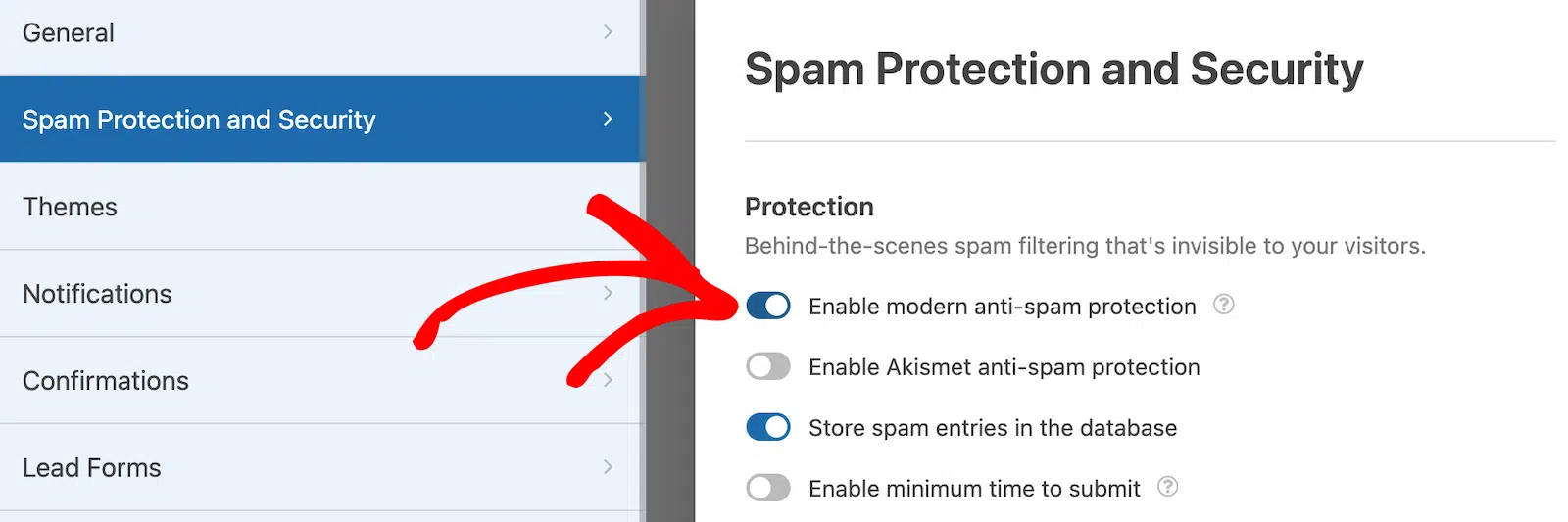
- Habilitar protección moderna contra spam: Detén el spam en formularios de contacto con la protección moderna contra spam de WPForms.
- Habilitar protección contra spam de Akismet: Si usas el plugin Akismet, puedes conectarlo a tu formulario.
- Habilitar filtro de país: Bloquear envíos de ciertos países.
- Habilitar filtro de palabras clave: Evitar entradas que incluyan palabras o frases específicas.
También puedes configurar tu CAPTCHA preferido para mayor protección. Cuando estés satisfecho con estas configuraciones, haz clic en Guardar.
Paso 5: Configurar notificaciones
Las notificaciones son la forma de asegurarte de que una solicitud de viaje llegue a la persona adecuada. Cada vez que alguien envía el formulario, WPForms puede enviar un correo electrónico a quien necesite verlo.
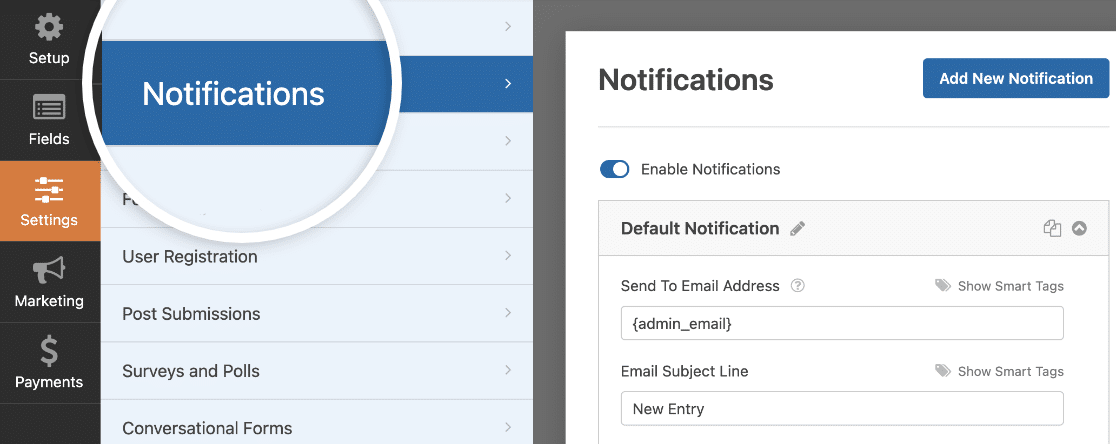
A menos que lo desactives, recibirás una notificación cada vez que alguien envíe el formulario. Eso te cubre, pero el valor real para un formulario de solicitud de viaje es enviar más de una notificación a la vez.
Para un formulario de solicitud de viaje, configuraría algunos correos electrónicos separados para que todos estén al tanto. Envía uno a ti mismo o al administrador de la oficina, uno al gerente del viajero para que pueda aprobar el viaje y uno a RR. HH. o finanzas para que puedan comenzar a planificar el presupuesto.
Si usas etiquetas inteligentes, incluso puedes enviar una confirmación al empleado que completó el formulario, haciéndole saber que su solicitud fue recibida y qué sucederá a continuación.
También puedes agregar los detalles de tu proceso de aprobación y reembolso de viajes directamente en el correo electrónico de notificación, para que nadie tenga que preguntar cómo funciona.
- Para obtener ayuda con los aspectos básicos, puedes consultar nuestra documentación sobre cómo configurar notificaciones de formularios en WordPress.
- Para enviar esos correos electrónicos separados a diferentes personas, sigue nuestro tutorial paso a paso sobre cómo enviar múltiples notificaciones de formularios en WordPress.
- Y si quieres que tus correos electrónicos coincidan con la marca de tu empresa, aquí te explicamos cómo agregar un encabezado personalizado a tu plantilla de correo electrónico.
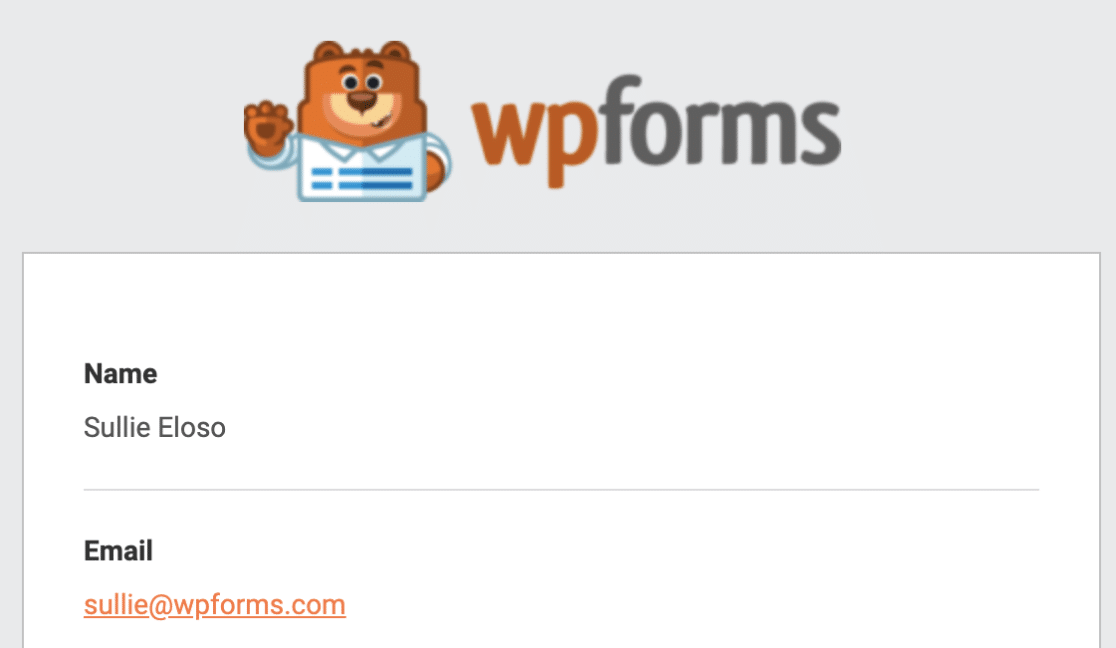
Un encabezado de marca es un pequeño detalle, pero hace que todo el proceso de solicitud se sienta más oficial para tu equipo.
Paso 6: Configurar tus confirmaciones
Ahora configuremos tu confirmación, que es el mensaje que la gente ve justo después de enviar el formulario. Es tu oportunidad de decirles qué sucederá a continuación y establecer expectativas sobre la aprobación.
WPForms te ofrece tres tipos de confirmación:
- Mensaje: Cuando alguien envía el formulario, aparece un mensaje simple informándole que su solicitud fue recibida y está siendo procesada.
- Mostrar página: Esto lleva a la persona a una página específica de tu sitio, como una página de agradecimiento. Para obtener ayuda con eso, consulta nuestro tutorial sobre cómo redirigir a los clientes a una página de agradecimiento.
- Ir a URL (Redirigir): Úsalo cuando quieras enviar a las personas a un sitio web diferente.
Para un formulario de solicitud de viaje, una confirmación de Mensaje funciona bien. Puedes usarla para establecer expectativas, como informar a las personas que se necesitan tres días hábiles para recibir noticias sobre las aprobaciones.
Para configurarlo, haz clic en la pestaña Confirmaciones en el Editor de Formularios, en Configuración. Luego selecciona el tipo de confirmación que deseas.
Para este ejemplo, elijo Mensaje y escribo algo como: "¡Gracias por enviar tu solicitud de viaje! Te informaremos si es aprobada o denegada dentro de tres días hábiles."
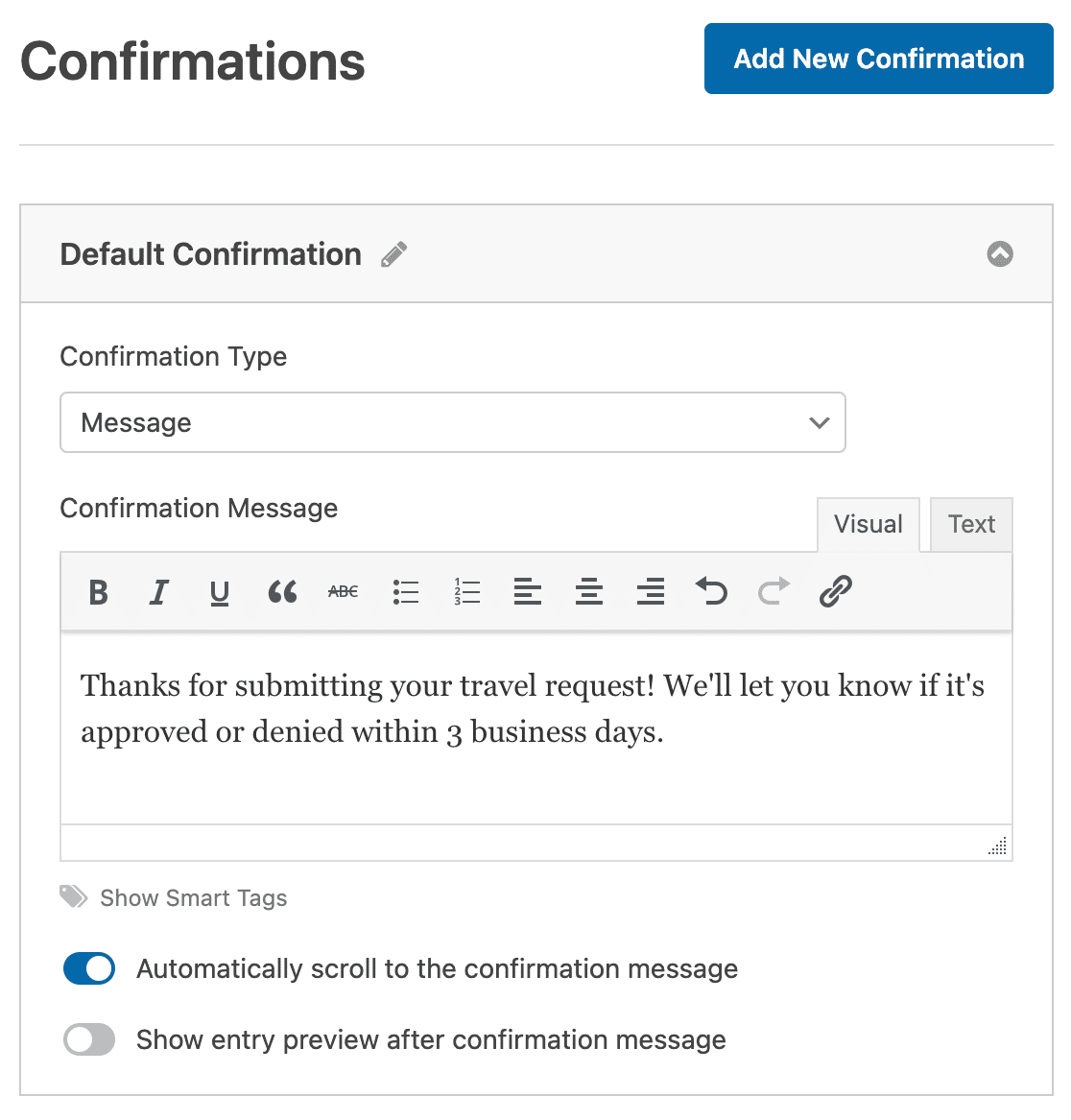
Una vez que hayas personalizado el mensaje a tu gusto, haz clic en Guardar. Si deseas más detalles, aquí tienes nuestra guía completa sobre cómo configurar una confirmación de formulario en WPForms.
Paso 7: Publicar tu formulario de solicitud de viaje
Tu formulario de solicitud de viaje está listo, así que todo lo que queda es ponerlo en tu sitio web. WPForms facilita la publicación con su herramienta de inserción integrada. Comienza haciendo clic en el botón Insertar en la parte superior del constructor de formularios.

Cuando aparezca la ventana Insertar en una página, haz clic en Crear nueva página.

A continuación, WPForms te pedirá que nombres la página. Escribe un título y haz clic en ¡Vamos!

WPForms abrirá una nueva página con tu formulario de solicitud de viaje ya insertado. Haz clic en Publicar (o Actualizar) en la parte superior para que esté en vivo.
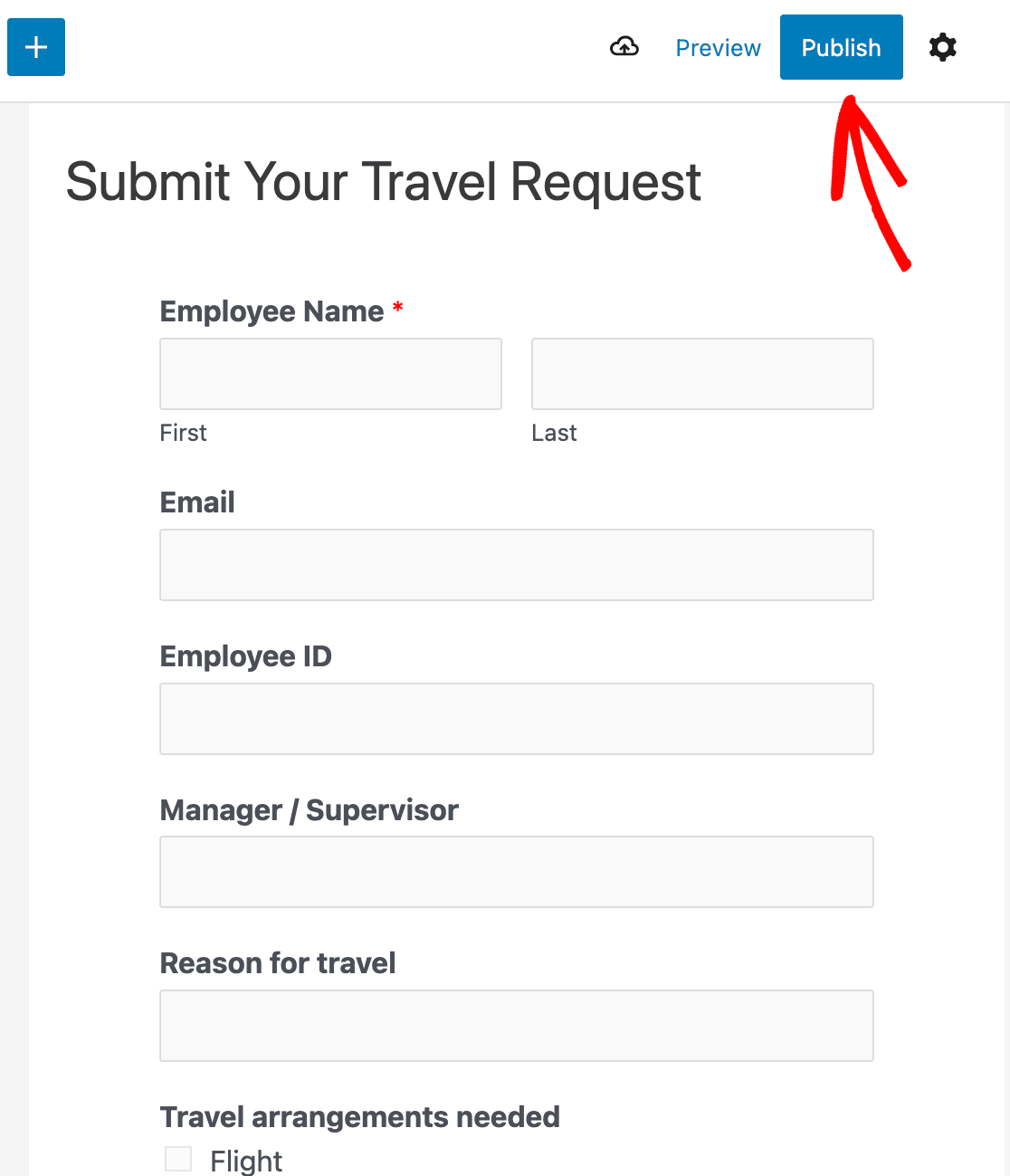
Con eso publicado, tus empleados ahora pueden enviar solicitudes de viaje directamente desde tu sitio web, y cada una llega a la bandeja de entrada correcta automáticamente.
Automatiza tu flujo de trabajo de aprobación de viajes
Un formulario básico es suficiente para recopilar solicitudes, pero el verdadero ahorro de tiempo es lo que sucede después de que alguien envía el formulario. Con algunas funciones Pro, puedes convertir tu formulario de solicitud de viaje en un flujo de aprobación adecuado.
El mayor ahorro de tiempo es enviar cada solicitud a una hoja de cálculo automáticamente. El complemento de Hojas de Cálculo de Google añade cada nueva entrada a una Hoja de Cálculo de Google, para que tú y tu equipo de finanzas mantengáis un registro continuo de cada viaje.
Si tus aprobaciones necesitan una firma formal, puedes recopilar una firma digital directamente en el formulario, para que un gerente pueda aprobar un viaje desde cualquier dispositivo sin imprimir nada.
También puedes revisar las solicitudes sin salir de WordPress. Cada entrada se guarda en WPForms » Entradas, donde puedes buscar, marcar como favorita y marcar las solicitudes como gestionadas.

Añade lógica condicional y el formulario podrá dirigirse a sí mismo, enviando los viajes internacionales a un aprobador y los locales a otro.
Estos extras son opcionales, pero juntos convierten un formulario simple en un sistema en el que todo tu equipo puede confiar.
Preguntas frecuentes sobre formularios de solicitud de viaje
Los formularios de solicitud de viaje son comunes para los equipos de RR. HH. y los propietarios de pequeñas empresas. Aquí tienes respuestas a algunas de las preguntas más frecuentes sobre la creación de un formulario de solicitud de viaje, formulario de requisición de viaje o formulario de autorización de viaje en WordPress.
¿Qué es un formulario de solicitud de viaje?
Un formulario de solicitud de viaje es un formulario en línea que los empleados completan para solicitar la aprobación de un viaje de negocios. Recopila los detalles del viaje, fechas, destino, propósito y costo estimado para que un gerente o equipo de finanzas pueda revisar y aprobar la solicitud antes de que se reserve nada.
¿Qué se debe incluir en un formulario de solicitud de viaje?
Como mínimo, incluye el nombre y departamento del empleado, su gerente o aprobador, el motivo del viaje, las ciudades de salida y destino, las fechas del viaje, los arreglos necesarios como vuelos u hotel, y el costo estimado. Añadir un campo para subir archivos de documentos de apoyo, como una invitación a una conferencia o recibos, es un extra útil.
¿Cómo creo un formulario de solicitud de viaje en línea en WordPress?
Instala WPForms, abre la plantilla del formulario de solicitud de viaje, personaliza los campos para que se ajusten a tu proceso, configura tus notificaciones e incrusta el formulario en una página. Todo lleva solo unos minutos porque la plantilla hace la mayor parte de la configuración por ti.
¿Cuál es la diferencia entre un formulario de solicitud de viaje y un formulario de autorización de viaje?
A menudo se usan para significar lo mismo. Un formulario de solicitud de viaje suele ser la petición inicial del empleado, mientras que un formulario de autorización de viaje es la versión aprobada que confirma que el viaje y su presupuesto tienen luz verde. En la práctica, un solo formulario con un paso de aprobación puede cubrir ambos.
A continuación, crea el resto de los formularios de tu equipo
Una vez que tu formulario de solicitud de viaje esté activo, puedes usar el mismo creador de arrastrar y soltar para otras solicitudes internas, como un formulario de solicitud de tiempo libre para vacaciones y días de enfermedad.
WPForms Pro es la forma más fácil de obtener formularios profesionales en tu sitio de WordPress sin contratar a un desarrollador. Junto con la plantilla gratuita de solicitud de viaje, te ofrece las funciones que hacen que los formularios internos sean realmente útiles:
- Formularios conversacionales que hacen una pregunta a la vez para aumentar las finalizaciones
- Un campo de carga de archivos para que las personas puedan adjuntar documentos y recibos
- La herramienta User Journey que muestra lo que alguien hizo en tu sitio antes de enviar
- La opción de crear un formulario de varias páginas para solicitudes más largas
- Conexiones integradas a los servicios de marketing por correo electrónico más populares
- Soporte prioritario de un equipo amigable y experto
¿Contratando pronto? Echa un vistazo a nuestra guía sobre cómo crear un formulario de solicitud de empleo en WordPress para ampliar tu grupo de candidatos.
Crea tu formulario de solicitud de viaje ahora
¿Listo para crear tu formulario? Empieza hoy mismo con el plugin de creación de formularios de WordPress más fácil. WPForms Pro incluye muchas plantillas gratuitas y ofrece una garantía de devolución de dinero de 14 días.
Si este artículo te ha sido útil, síguenos en Facebook y X (Twitter) para más tutoriales y guías gratuitas de WordPress.





