



Résumé IA
Voulez-vous configurer vos paramètres d'e-mail WordPress ?
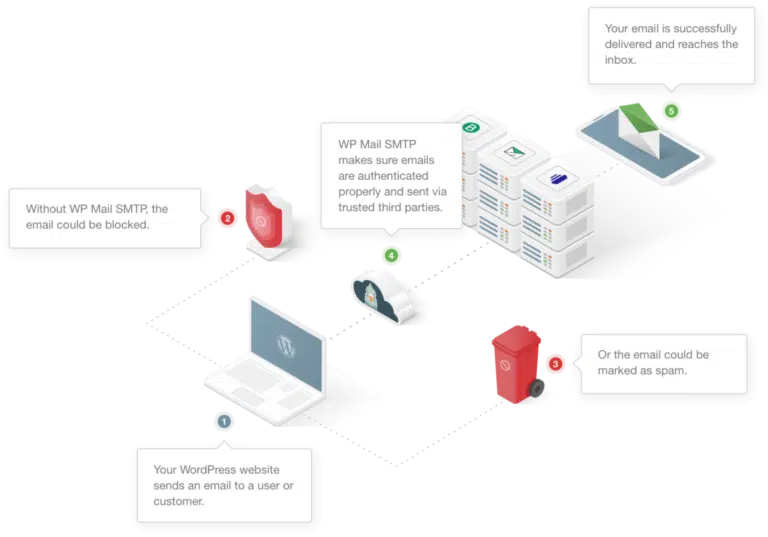
Si vos e-mails WordPress n'atteignent pas les destinataires ou atterrissent dans le spam, c'est parce que WordPress utilise une méthode peu fiable appelée mail() PHP, ce qui entraîne des problèmes de délivrabilité.
Les fournisseurs d'e-mail comme Gmail ne font pas confiance à ces messages non authentifiés, ils les bloquent ou les mettent en spam. La solution est le SMTP (Simple Mail Transfer Protocol).
Dans cet article, je vais vous montrer comment configurer correctement vos paramètres d'e-mail WordPress pour garantir une livraison rapide et fiable à tout moment. L'installation complète prend 15 à 20 minutes, et vous résoudrez définitivement les problèmes de livraison.
La configuration des paramètres d'e-mail dans WordPress est beaucoup plus simple lorsque vous comprenez pourquoi elle échoue en premier lieu.
Alors, avant de toucher au plugin, examinons ce qui ne va pas avec la configuration par défaut. Ensuite, nous le corrigerons définitivement avec une configuration SMTP appropriée.
Pourquoi les e-mails WordPress échouent par défaut
WordPress utilise la fonction PHP mail() comme mécanisme d'envoi d'e-mails intégré. Cela fonctionne en théorie, mais échoue en pratique pour trois raisons.
- Premièrement, les messages qu'il envoie n'ont aucune authentification. Ils n'ont pas de signature SPF, DKIM ou DMARC, qui sont les enregistrements que les fournisseurs d'e-mail modernes vérifient avant d'accepter un message. Sans cela, un e-mail ressemble exactement à un message falsifié par un spammeur.
- Deuxièmement, la plupart des hébergements WordPress partagés utilisent des adresses IP partagées par des centaines d'autres sites. Si l'un de ces sites envoie du spam, la réputation de toute l'IP est affectée. Votre e-mail de réinitialisation de mot de passe honnête est bloqué à cause du comportement de quelqu'un d'autre.
- Troisièmement, la fonction
mail()ne fournit aucun rapport d'erreur ni aucun journal de livraison. Lorsque les e-mails échouent, vous n'avez aucun moyen de savoir qu'ils ont échoué, qui ne les a pas reçus, ou pourquoi. Vous ne le découvrez que lorsqu'un client se plaint de ne jamais avoir reçu la confirmation de sa commande.
La solution consiste à arrêter complètement d'utiliser la fonction PHP mail() et à acheminer tous les e-mails WordPress via un service SMTP authentifié à la place. C'est ce que le reste de ce guide vous explique.
Comment SMTP résout la délivrabilité des e-mails WordPress
SMTP signifie Simple Mail Transfer Protocol. C'est le même standard que votre compte de messagerie habituel utilise, et il exige que vos messages soient authentifiés avant d'être envoyés. Lorsque vous basculez votre site WordPress vers SMTP, trois choses se produisent.
- Chaque e-mail est signé cryptographiquement avec DKIM, ce qui prouve que le message provient de votre domaine.
- L'enregistrement SPF de votre domaine indique aux serveurs de réception que le service SMTP est autorisé à envoyer en votre nom.
- Et votre politique DMARC leur indique quoi faire de tout ce qui échoue à ces vérifications.
Pour que cela se produise sur votre site WordPress, vous avez besoin de deux choses. Premièrement, un service SMTP (parfois appelé service d'e-mail transactionnel ou expéditeur).
Deuxièmement, un plugin comme WP Mail SMTP qui transmet chaque e-mail sortant de WordPress à ce service au lieu de la fonction PHP mail(). Les sections suivantes couvrent les deux, en commençant par l'expéditeur.
Comment configurer vos paramètres d'e-mail WordPress
La configuration des paramètres d'e-mail WordPress est très facile si votre domaine est déjà connecté à un expéditeur. Sinon, suivez le tutoriel étape par étape ci-dessous pour compléter la configuration de votre e-mail WordPress à l'aide de WP Mail SMTP.
Étape 1 : Choisir un fournisseur d'e-mail
Tout d'abord, vous devrez créer un compte auprès d'un fournisseur de messagerie pour gérer vos e-mails. Pensez-y comme à un compte de messagerie dédié uniquement à l'envoi d'e-mails depuis votre site.
SendLayer est notre service d'envoi de courrier électronique le plus recommandé. Voici notre avis détaillé sur SendLayer si vous souhaitez savoir pourquoi nous le recommandons.
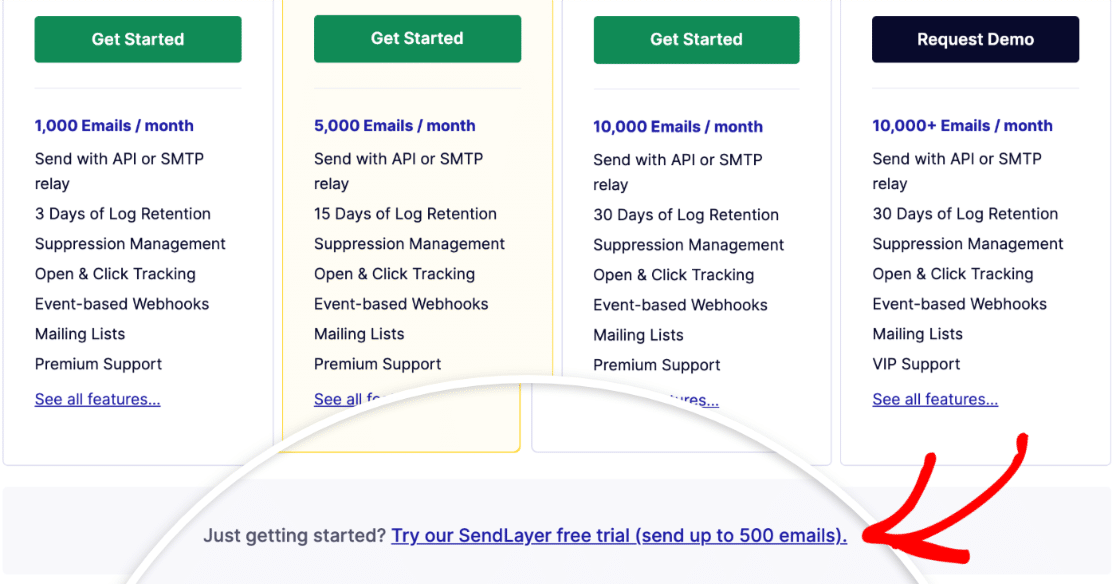
Pour commencer à créer votre compte, visitez la page de tarification de SendLayer et choisissez un plan en fonction de votre volume mensuel d'e-mails.

Si vous débutez ou si vous souhaitez tester SendLayer en premier, cliquez sur le lien Essai gratuit. L'essai gratuit vous permet d'envoyer des e-mails immédiatement sans informations de paiement.
Ensuite, fournissez votre nom, votre e-mail et les informations de votre carte de crédit comme demandé. Une fois l'inscription au compte terminée, cliquez sur Continuer vers le tableau de bord.
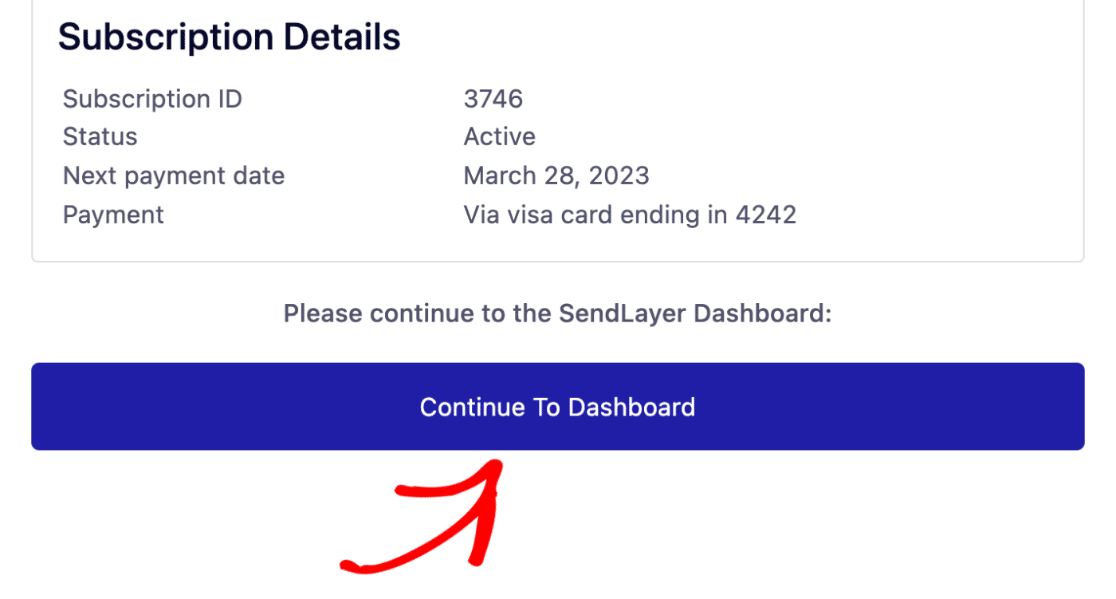
Excellent ! Vous venez de configurer votre compte d'envoi de courrier électronique SendLayer. Ensuite, nous allons ajouter votre domaine à votre compte SendLayer.
Étape 2 : Autoriser votre domaine WordPress
L'autorisation du domaine est importante pour garantir l'envoi fiable d'e-mails depuis votre site WordPress. L'autorisation de votre domaine permet aux serveurs de messagerie de vous reconnaître comme un expéditeur vérifié.
Le processus d'autorisation implique l'ajout d'enregistrements DNS (identifiants techniques) à votre domaine que les serveurs de messagerie vérifient avant d'accepter vos messages.
Une fois ces enregistrements en place, les fournisseurs de messagerie comme Gmail font confiance à vos e-mails et les livrent dans les boîtes de réception au lieu des dossiers de spam.
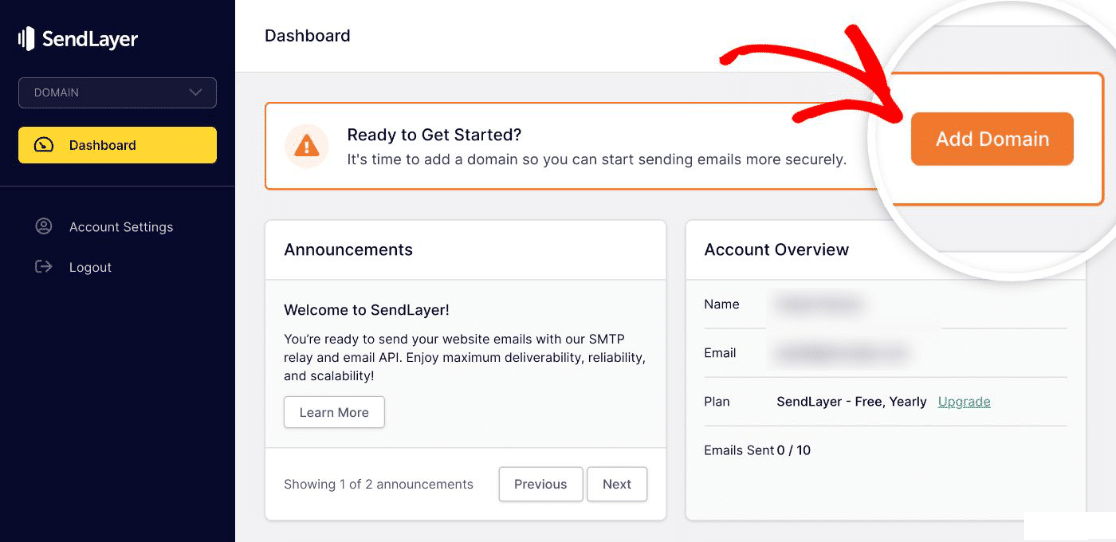
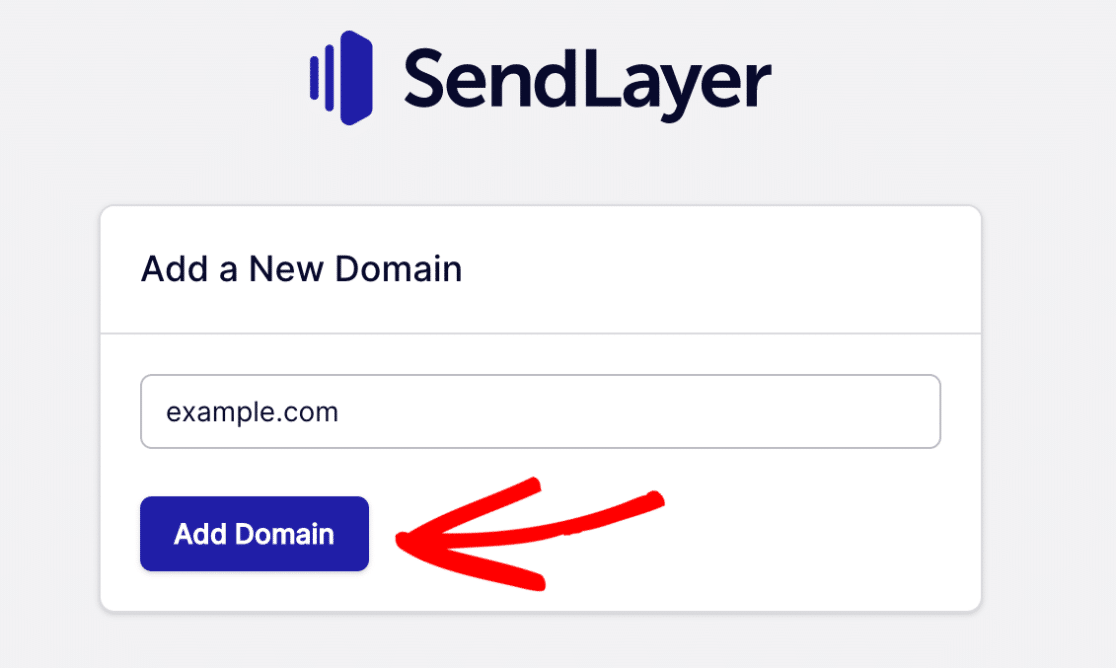
Pour autoriser votre domaine auprès de SendLayer, accédez à votre tableau de bord SendLayer et cliquez sur Ajouter un domaine.
Entrez le nom de domaine de l'adresse e-mail (exemple : votreentreprise.com) que vous souhaitez configurer comme expéditeur. Cliquez ensuite sur Ajouter un domaine.
SendLayer génère automatiquement 5 enregistrements DNS pour votre domaine. Ces enregistrements authentifient vos e-mails et améliorent la délivrabilité.
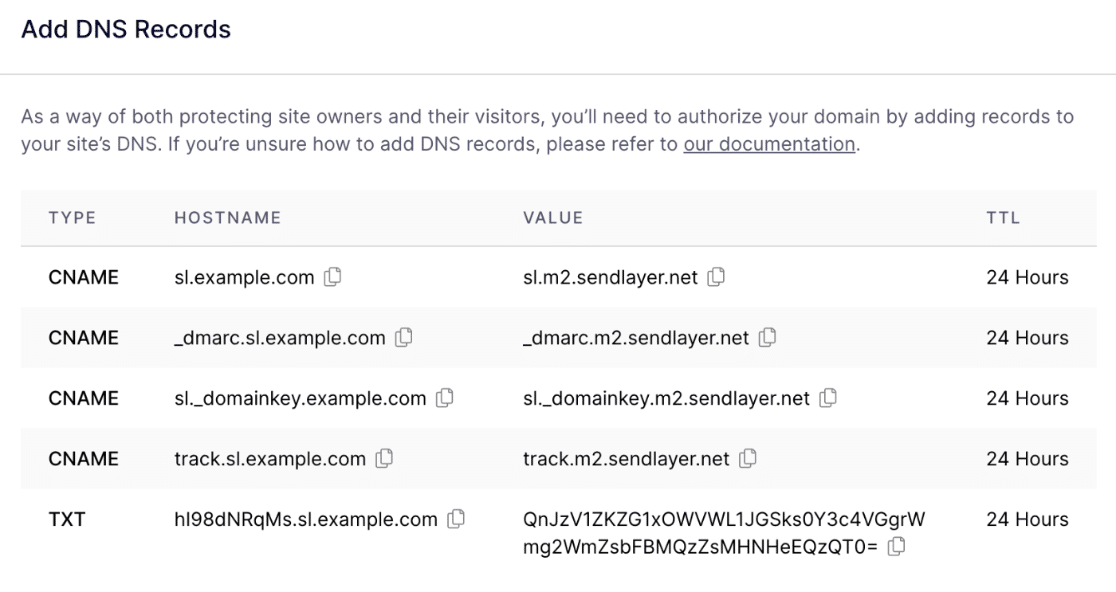
Copiez ces enregistrements et collez-les un par un dans les paramètres DNS de votre site Web. Vous trouverez généralement ces paramètres DNS dans le compte d'hébergement WordPress de votre site.
Une fois que vous avez ajouté les enregistrements DNS requis, cochez la case à côté du texte J'ai ajouté ces enregistrements DNS et je suis prêt à continuer. Ensuite, appuyez sur le bouton Vérifier les enregistrements DNS.
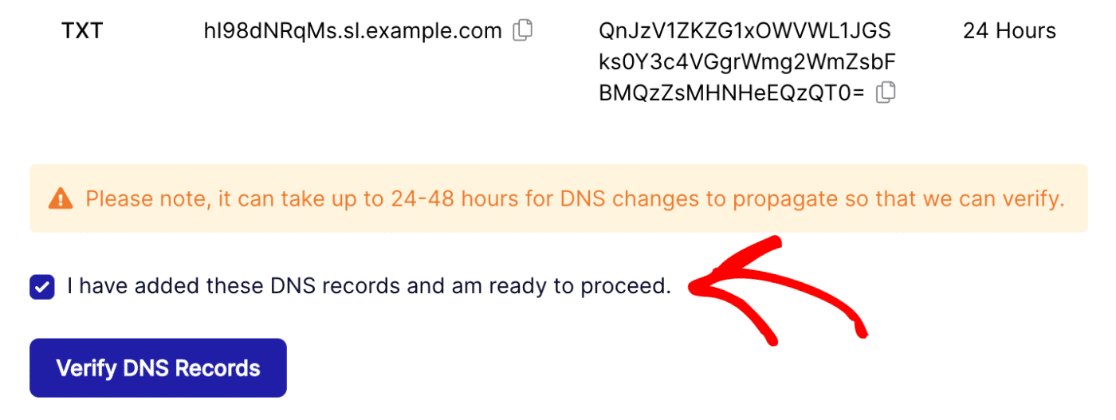
Gardez à l'esprit qu'il peut falloir jusqu'à 48 heures pour que les modifications DNS prennent effet, bien que la plupart se terminent dans les 1 à 2 heures.
Pour vérifier le statut de votre autorisation de domaine, retournez à votre tableau de bord SendLayer et cliquez sur Paramètres dans la navigation verticale à gauche.
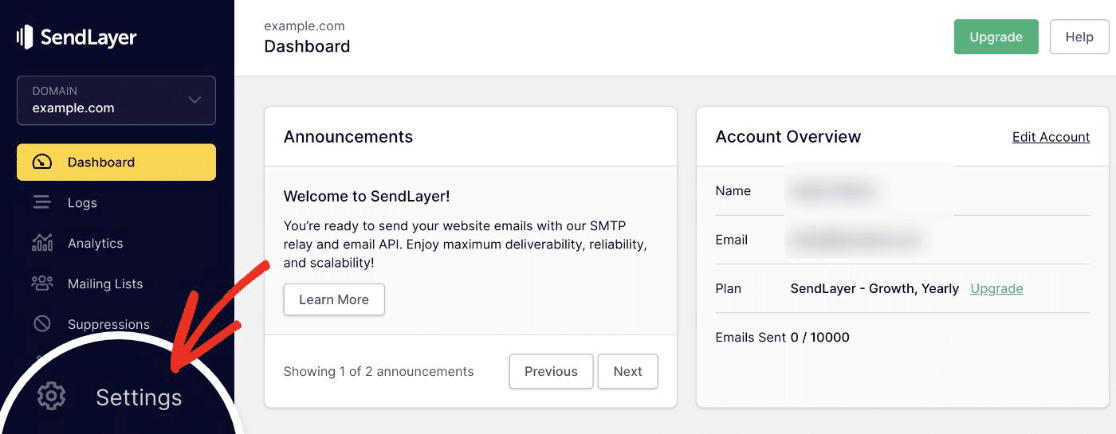
Maintenant, cliquez sur l'onglet Enregistrement et paramètres DNS dans la barre de navigation horizontale en haut de la page.
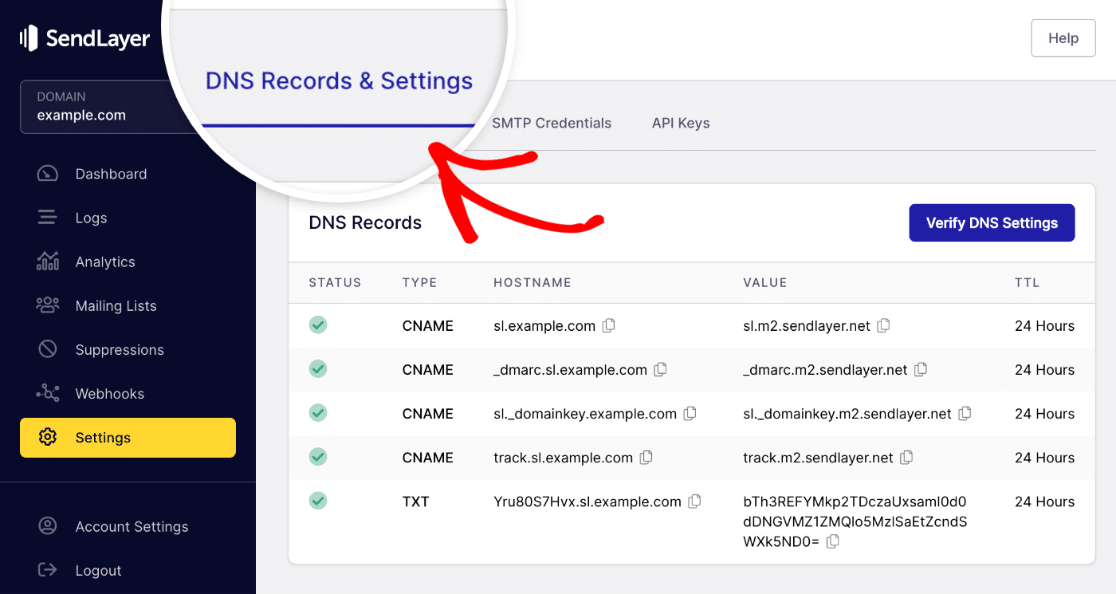
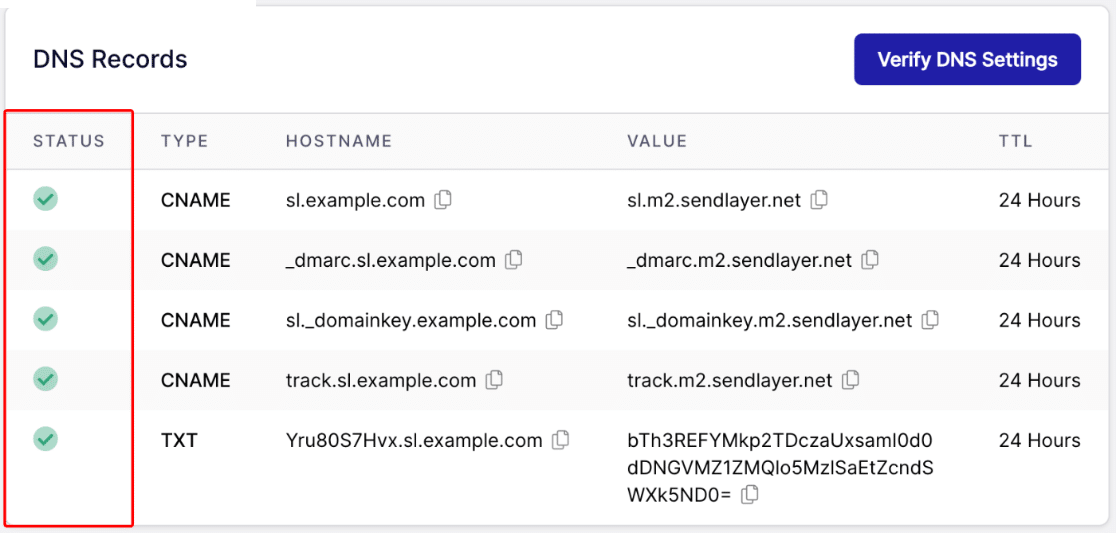
Si les paramètres DNS ont été vérifiés avec succès, vous verrez un symbole vert sous la colonne Statut pour chaque type d'enregistrement DNS.
Si vous avez besoin d'aide pour modifier les paramètres DNS de votre site, consultez ce guide sur l'ajout d'enregistrements DNS pour votre site.
Étape 3 : Connecter votre site WordPress à SMTP
WordPress ne vous permet pas d'utiliser SMTP ou un service de messagerie externe. Nous pouvons résoudre ce problème avec un plugin. Nous allons configurer WP Mail SMTP dans WordPress afin de pouvoir connecter votre site à SendLayer.
Si vous n'avez pas encore de plugin de messagerie, installez et activez le plugin WP Mail SMTP sur votre site. WP Mail SMTP est le plugin le plus fiable pour remplacer la fonction PHP mail() défectueuse de WordPress par une livraison SMTP appropriée.
Une fois WP Mail SMTP installé et activé, cliquez sur WP Mail SMTP » Paramètres depuis votre zone d'administration WordPress.
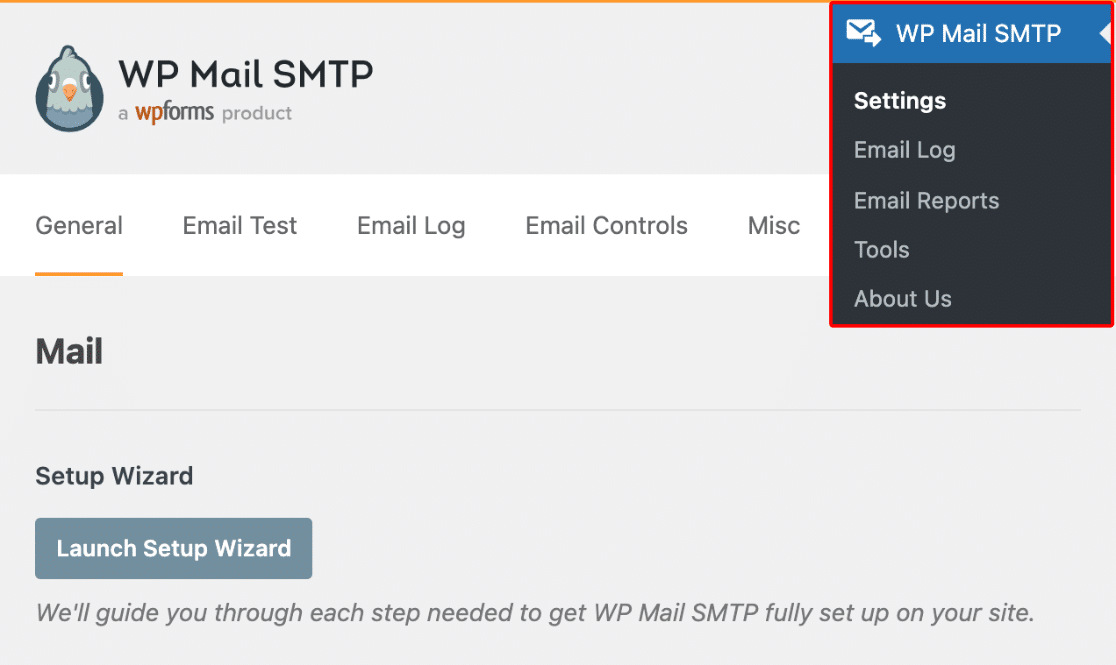
Cette page de paramètres est l'endroit où vous configurerez toutes vos options de messagerie. Les trois étapes suivantes vous guideront à travers chaque section.
Étape 4 : Choisir l'adresse e-mail et le nom d'expéditeur
L'e-mail de l'expéditeur est l'adresse e-mail à partir de laquelle tous les e-mails de votre site Web seront envoyés. Cette adresse e-mail doit utiliser le même domaine que celui que vous venez d'autoriser avec SendLayer.
Si vous avez une adresse e-mail professionnelle, elle ressemblera à [email protected]. Faites défiler la page des paramètres jusqu'à la section messagerie. Ensuite, entrez votre adresse e-mail dans le champ E-mail de l'expéditeur .
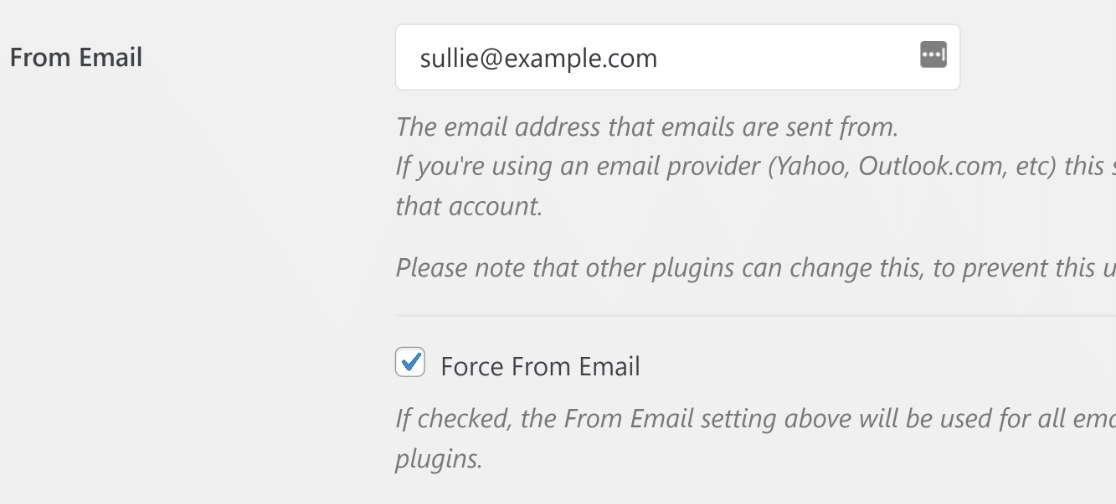
Si vous souhaitez que l'e-mail de l'expéditeur soit le même sur l'ensemble de votre site, vous pouvez cocher la case intitulée Forcer l'e-mail de l'expéditeur, comme indiqué dans la capture d'écran ci-dessus.
Cela vous évitera d'avoir à modifier les paramètres de messagerie sur l'ensemble de votre site (dans tous les e-mails de formulaire, etc.). Nous vous recommandons vivement de cocher cette case.
Pour continuer, le nom de l'expéditeur est défini par défaut sur le nom du site. Mais vous pouvez le changer pour n'importe quel texte de votre choix. Vous pouvez également cocher la case à côté de Forcer le nom de l'expéditeur pour appliquer ce paramètre à tous vos e-mails sur votre site.
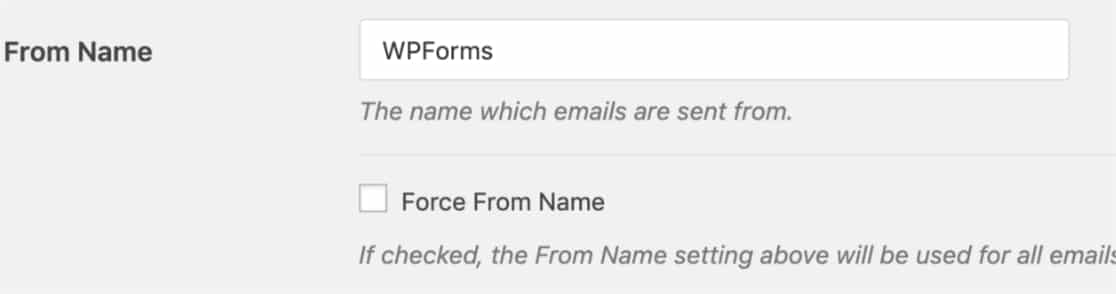
Vos détails d'expéditeur sont maintenant configurés. Ensuite, vous connecterez WP Mail SMTP à votre compte SendLayer.
Étape 5 : Finaliser la configuration de votre e-mail
Vous allez maintenant connecter WP Mail SMTP à SendLayer à l'aide d'une clé API. Cette clé permet au plugin d'envoyer des e-mails via les serveurs de SendLayer. Dans la section Expéditeur, sélectionnez SendLayer.
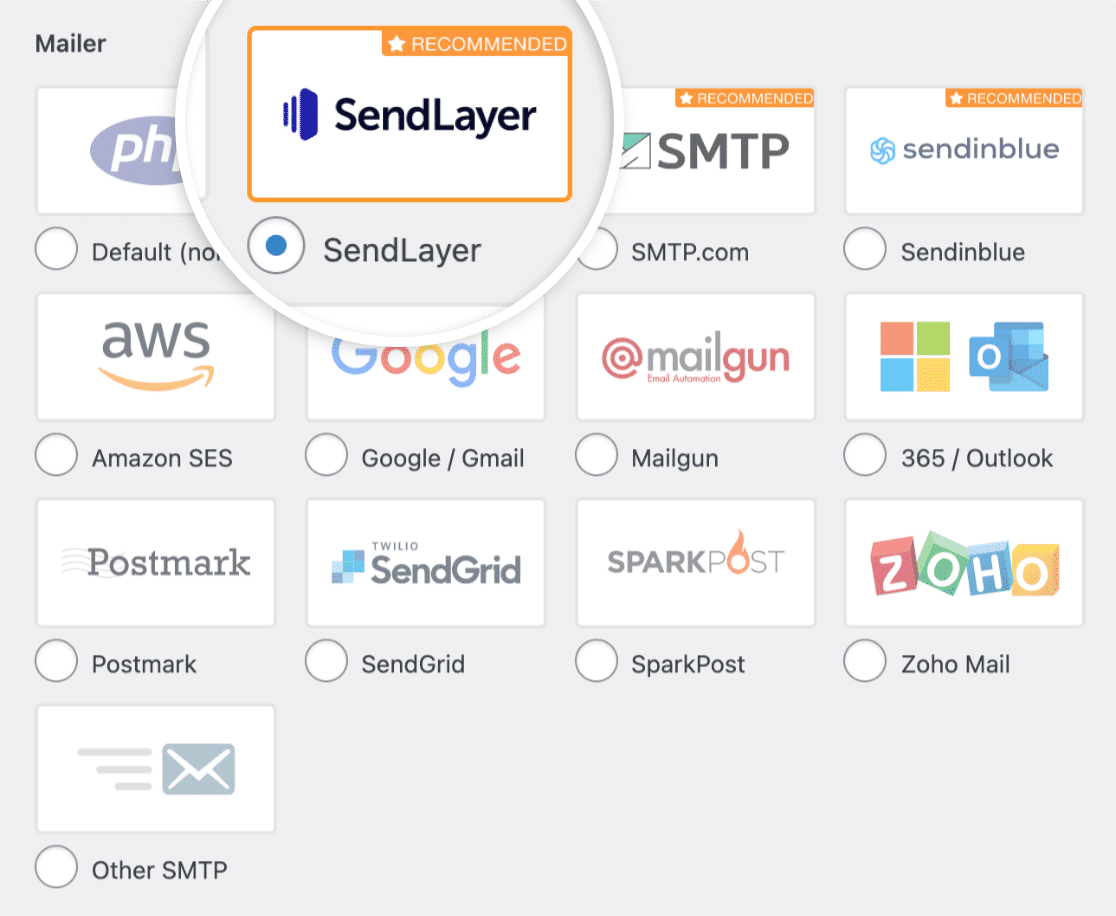
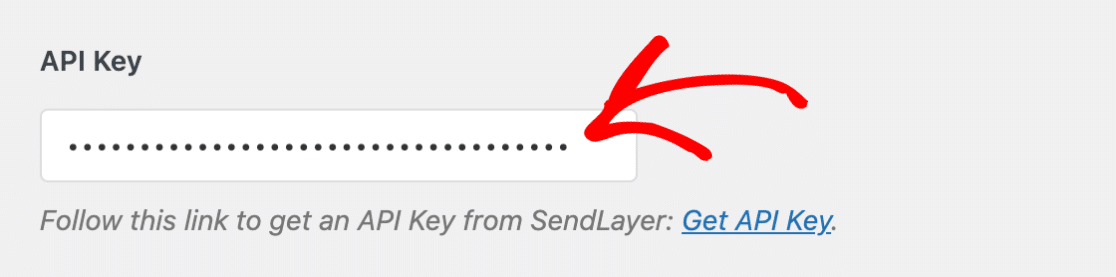
Ensuite, vous devrez remplir la clé API. Pour trouver la clé API de votre compte SendLayer, cliquez sur le lien Obtenir la clé API.
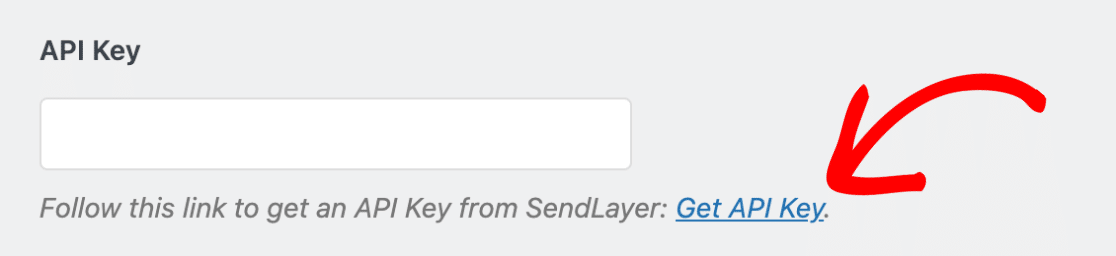
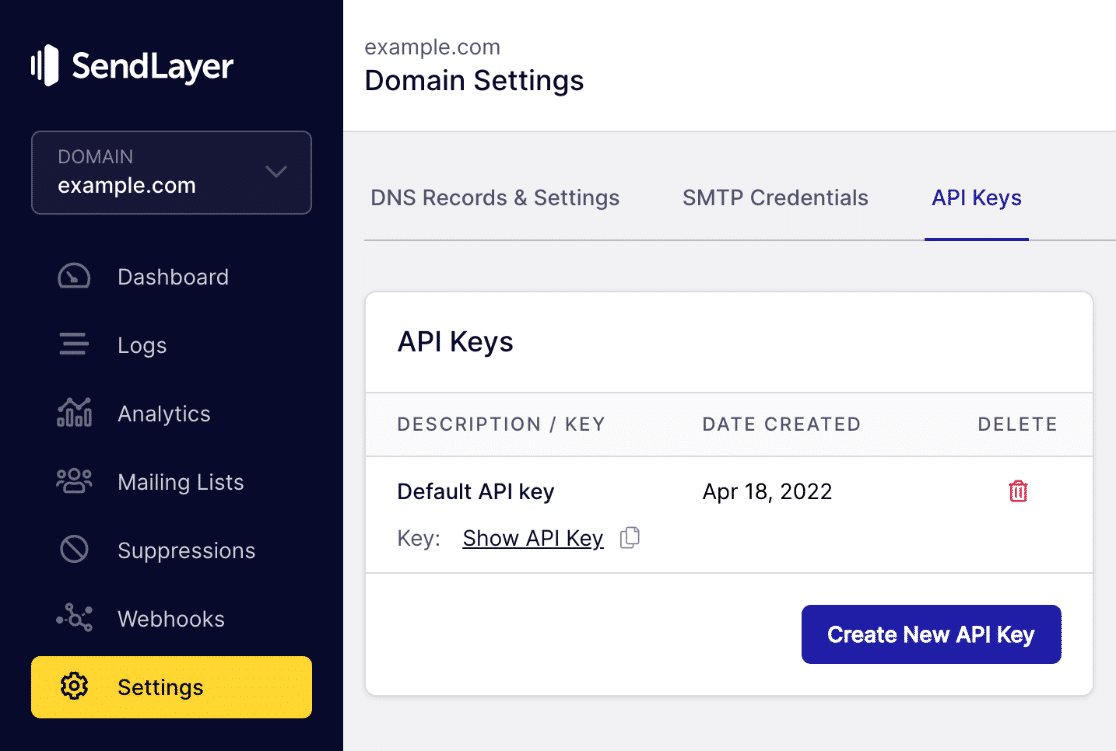
Le lien vous mènera à la page des paramètres de domaine de votre compte. Vous y trouverez votre clé API.
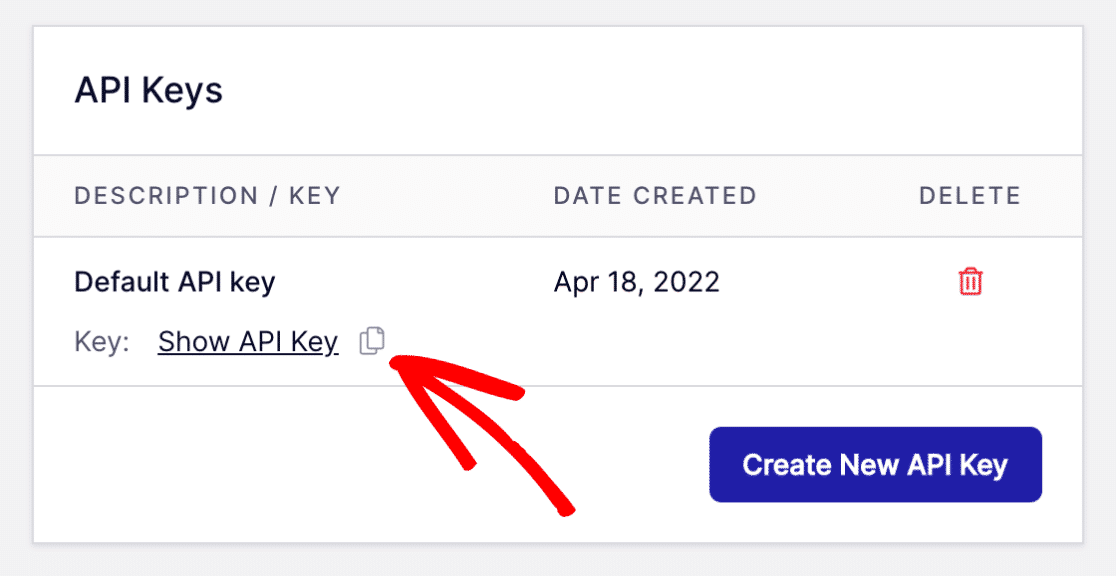
Cliquez sur l'icône de copie à côté de Afficher la clé API pour la copier dans votre presse-papiers.
Retournez à votre page de paramètres WP Mail SMTP et collez votre clé API SendLayer dans le champ approprié.
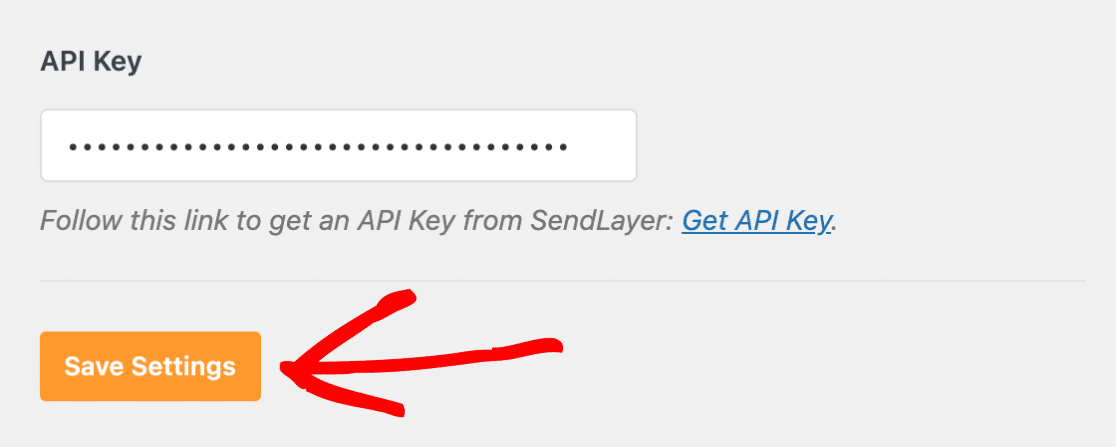
Cliquez sur le bouton Enregistrer les paramètres pour sauvegarder les modifications.
Vous y êtes presque ! Nous devons juste tester maintenant que tout fonctionne bien et sans problème.
Étape 6 : Tester vos e-mails WordPress
Après avoir configuré vos paramètres, vous devez vérifier que WordPress envoie réellement des e-mails et qu'ils parviennent aux boîtes de réception.
Alors, envoyons un e-mail de test pour confirmer que votre connexion SMTP, l'autorisation du domaine et les paramètres de l'expéditeur fonctionnent correctement. Cliquez sur l'onglet Test d'e-mail.
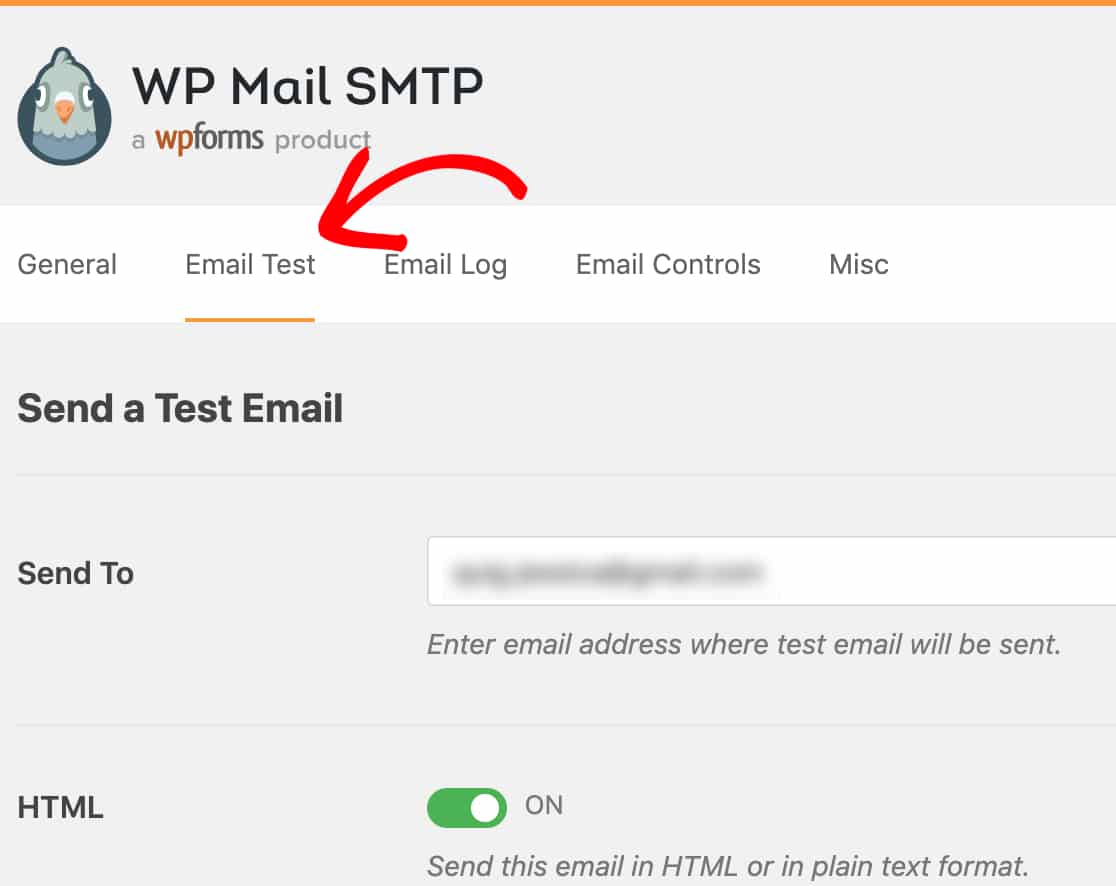
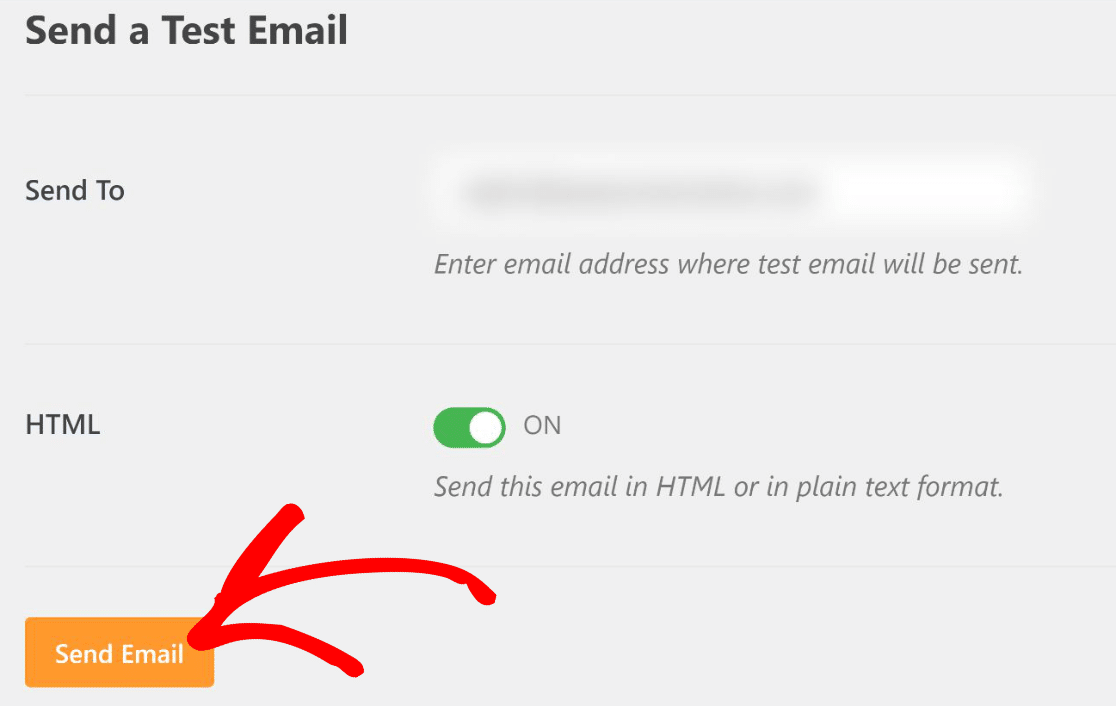
Sur cet onglet, vous pouvez saisir toutes les adresses e-mail auxquelles vous avez accès dans le champ Envoyer à. Ensuite, cliquez sur le bouton Envoyer l'e-mail.
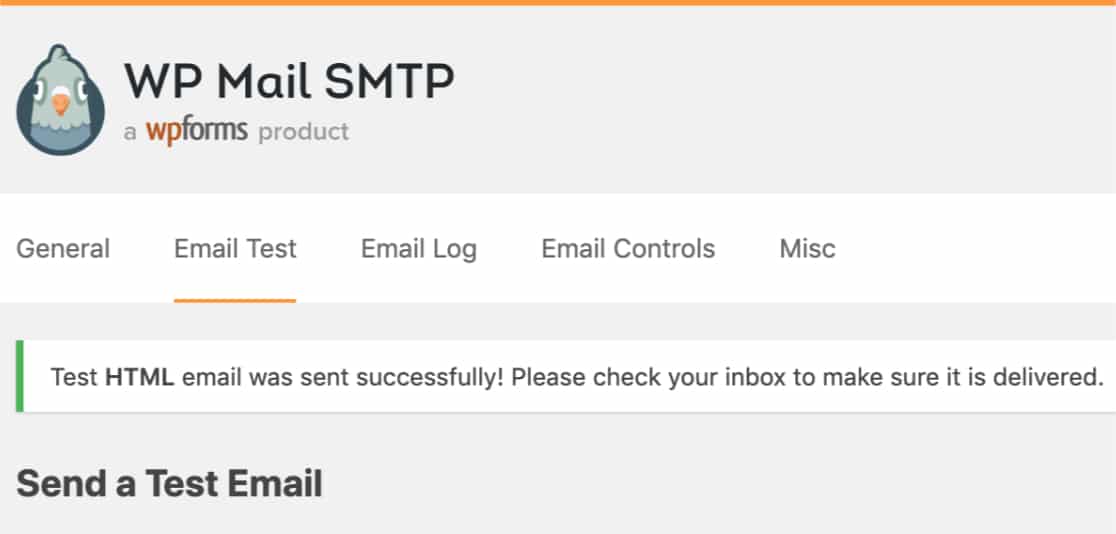
Une fois l'e-mail traité, vous verrez très probablement un message de succès.
Vérifiez la boîte de réception de l'adresse e-mail que vous avez saisie. L'e-mail de test devrait arriver dans 1 à 2 minutes. Vérifiez votre boîte de réception et votre dossier spam.
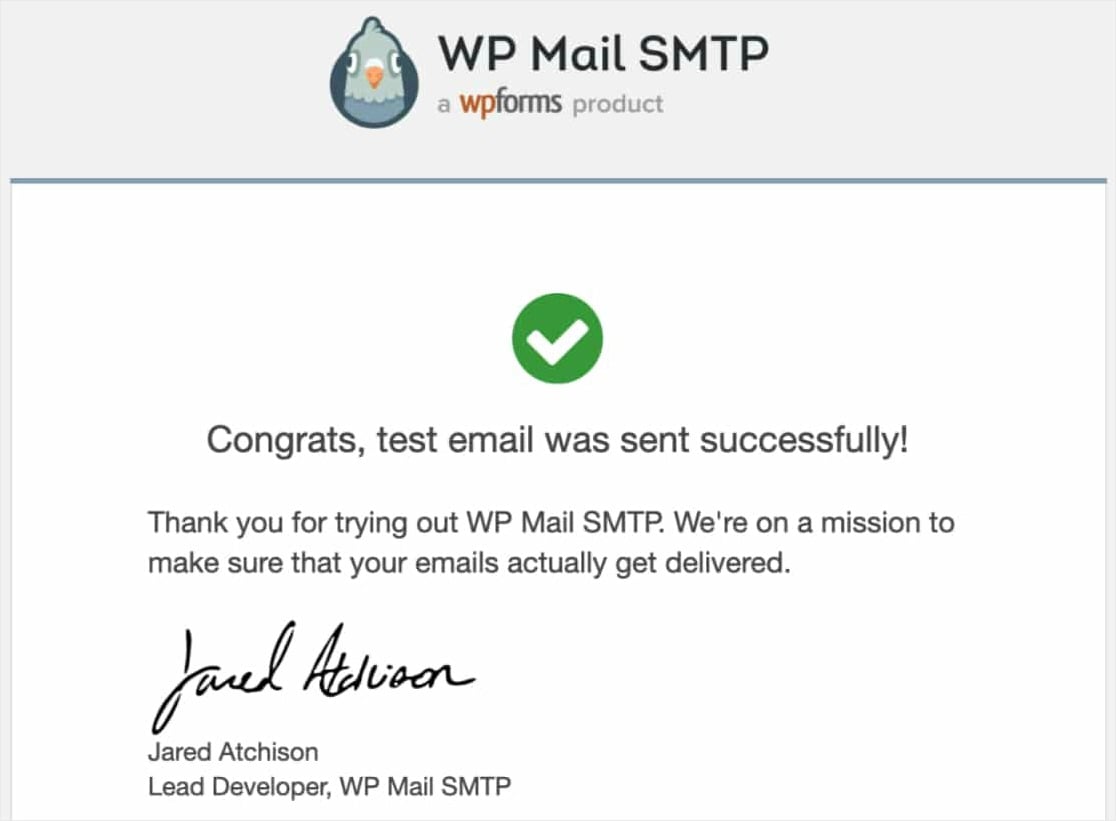
Si l'e-mail est arrivé dans votre boîte de réception (pas dans les spams), vos paramètres d'e-mail WordPress sont correctement configurés. Tous les e-mails WordPress tels que les notifications de formulaire, les réinitialisations de mot de passe, les inscriptions d'utilisateurs seront désormais livrés de manière fiable.
FAQ sur les paramètres d'e-mail WordPress
Voici les réponses aux questions que les propriétaires de sites WordPress posent le plus souvent concernant la configuration des paramètres d'e-mail, le passage à SMTP et le dépannage de la délivrabilité.
Pourquoi ne puis-je pas utiliser les paramètres d'e-mail par défaut dans WordPress ?
Par défaut, WordPress utilise la fonction PHP Mail pour envoyer des e-mails tels que les notifications de formulaire, l'activation d'utilisateur, la réinitialisation de mot de passe, et d'autres.
Malheureusement, WordPress est connu pour ses problèmes de délivrabilité d'e-mails. Souvent, ces problèmes surviennent parce que votre serveur d'hébergement WordPress n'est pas correctement configuré pour utiliser la fonction PHP Mail.
De plus, PHP Mail n’ajoute aucun élément d’authentification à vos messages électroniques. Cela signifie que vos e-mails sont très susceptibles d’être traités comme du spam et de ne jamais atteindre la boîte de réception de votre destinataire.
Les problèmes de délivrabilité des e-mails sont courants pour les utilisateurs de Gmail car Google a des règles très strictes contre le spam.
Comment le SMTP résout-il les e-mails WordPress ?
SMTP signifie Simple Mail Transfer Protocol. C’est l’un des moyens les plus fiables d’envoyer des e-mails sur Internet.
Avec le SMTP, vous bénéficiez de taux de délivrabilité élevés, évitez le dossier spam et vos e-mails parviennent aux destinataires presque instantanément.
Donc, pour résoudre les problèmes d’e-mails sur votre site WordPress, vous devez remplacer PHP Mail par SMTP. La façon la plus simple de le faire est d’utiliser un plugin appelé WP Mail SMTP.
Il est utilisé par tant de sites Web pour une bonne raison : il permet même aux personnes non techniques de configurer leurs paramètres d’e-mail WordPress pour utiliser le SMTP au lieu de la fonction PHP mail() par défaut.
Quels sont les paramètres SMTP de WordPress et où puis-je les trouver ?
WordPress n’a pas de paramètres SMTP intégrés. Vous devez installer le plugin WP Mail SMTP pour ajouter la fonctionnalité SMTP. Une fois installé, allez dans WP Mail SMTP » Paramètres dans votre tableau de bord WordPress.
Ici, vous configurerez votre e-mail d’expéditeur, votre nom d’expéditeur, choisirez votre serveur d’envoi et saisirez vos informations d’identification SMTP (généralement une clé API). Le plugin remplace la fonction PHP mail() par défaut de WordPress par une livraison SMTP appropriée.
Comment configurer les e-mails sur mon site Web WordPress ?
Installez le plugin WP Mail SMTP, inscrivez-vous auprès d’un fournisseur de services d’e-mail comme SendLayer, autorisez votre domaine en ajoutant des enregistrements DNS à votre compte d’hébergement, puis configurez WP Mail SMTP avec la clé API et les détails de l’expéditeur de votre fournisseur.
Quel est le meilleur service d’e-mail pour WordPress ?
SendLayer est notre meilleure recommandation car il est conçu spécifiquement pour les utilisateurs de WordPress, offre d’excellents taux de délivrabilité, inclut des journaux d’envoi détaillés et fournit un support réactif. D’autres options solides incluent SendGrid, Mailgun ou Amazon SES, bien que ceux-ci nécessitent une configuration plus technique.
Évitez d’utiliser des comptes e-mail génériques (comme votre Gmail personnel) pour l’envoi WordPress. Ils ont des limites d’envoi quotidiennes strictes (généralement 500 e-mails) et bloqueront votre compte si vous les dépassez.
Puis-je utiliser mon compte Gmail pour envoyer des e-mails WordPress ?
Techniquement oui, mais ce n’est pas recommandé pour les sites de production. Gmail limite l’envoi à 500 e-mails par jour, et dépasser cette limite entraîne le blocage temporaire de votre compte.
Gmail nécessite également une configuration d’authentification OAuth, plus complexe que les services basés sur API. Utilisez Gmail uniquement pour les tests ou les sites personnels à très faible volume.
Pour les sites Web professionnels, utilisez un service SMTP dédié comme SendLayer, conçu pour les e-mails transactionnels et sans limites d’envoi restrictives.
Comment vérifier si WordPress envoie des e-mails ?
Installez WP Mail SMTP et allez dans Paramètres » Test d’e-mail. Envoyez un e-mail de test à votre adresse e-mail personnelle. S’il arrive dans votre boîte de réception dans les 2 minutes, WordPress envoie correctement.
Si elle n’arrive pas ou atterrit dans le spam, la configuration de votre e-mail doit être corrigée. Vous pouvez également consulter WP Mail SMTP » Journal des e-mails (fonctionnalité Pro) pour voir l’historique de tous les e-mails que WordPress a tenté d’envoyer et leur statut de livraison.
Que sont les enregistrements DNS et pourquoi en ai-je besoin pour les e-mails WordPress ?
Les enregistrements DNS sont des entrées textuelles dans les paramètres de votre domaine qui prouvent que vous possédez votre domaine et autorisent l’envoi d’e-mails.
Les cinq enregistrements DNS fournis par SendLayer incluent SPF (liste les serveurs d’envoi approuvés), DKIM (ajoute une signature cryptée aux e-mails) et DMARC (indique aux fournisseurs comment gérer les échecs d’authentification).
Les fournisseurs d’e-mails vérifient ces enregistrements avant de livrer votre courrier. Sans eux, vos e-mails ressemblent à des contrefaçons et sont bloqués ou envoyés dans le spam, même si votre connexion SMTP fonctionne.
Puis-je envoyer des e-mails WordPress sans SMTP ?
Vous pouvez essayer d’utiliser la fonction PHP mail() par défaut de WordPress, mais elle n’est pas fiable et échoue fréquemment. La plupart des hébergeurs ne configurent pas correctement PHP mail(), et même lorsqu’elle fonctionne techniquement, les e-mails manquent d’authentification et vont dans le spam.
Ensuite, corrigez les problèmes de notification par e-mail pour les plugins de formulaire spécifiques
Si vous utilisez un plugin de formulaire de contact autre que WPForms et que les e-mails ne sont toujours pas envoyés, la même configuration SMTP s’applique, mais vous pourriez avoir besoin d’un réglage spécifique au plugin.
Nous avons des guides sur la résolution des problèmes de notification par e-mail de Formidable Forms et de Ninja Forms qui n’envoie pas d’e-mail, qui vous guident tous deux à travers la même configuration SMTP avec des particularités spécifiques au formulaire.
Si vous envisagez une copie piratée de WP Mail SMTP Pro pour éviter les frais de licence, lisez d’abord notre article sur les raisons pour lesquelles vous ne devriez jamais utiliser de plugins WP Mail SMTP Pro annulés.
Créez votre formulaire WordPress maintenant
Prêt à corriger vos e-mails WordPress une fois pour toutes ? Commencez dès aujourd’hui avec WP Mail SMTP Pro, le plugin SMTP le plus fiable pour WordPress avec des intégrations de passerelles de messagerie intégrées, des journaux d’e-mails détaillés et une garantie de remboursement de 14 jours.
Si ce guide vous a été utile, suivez-nous sur Facebook et Twitter pour plus de tutoriels et de guides WordPress gratuits.





Bien que ce soit une bonne information, cela ressemble aussi à un coup marketing pour SendLayer. Désolé, mais ajouter un autre service pour un abonnement mensuel n’est pas toujours souhaité ou réalisable. Je pensais que cet article offrirait plus d’options différentes que vous pouvez utiliser. Personnellement, je configure le SMTP avec les informations de mon serveur de messagerie avec les modifications appropriées du DNS. L’article aurait été bien meilleur s’il ne s’était pas concentré uniquement sur SendLayer. Juste quelques critiques constructives. WPForms est toujours un EXCELLENT produit !!!
Bonjour Vincent, merci pour vos commentaires et nous nous excusons pour toute confusion !
Je vous recommande de suivre ce guide sur comment configurer le SMTP en utilisant le plugin WP Mail SMTP.
J'espère que cela vous aide !
Lien mort. Je suis d’accord avec le message original. Je ne paierai pas pour un autre service.
Salut Bryan, merci pour vos commentaires et nous nous excusons pour toute confusion !
Je vous recommande de suivre ce guide sur comment configurer le SMTP en utilisant le plugin WP Mail SMTP.
J'espère que cela vous aide !
Y a-t-il un moyen de savoir qui m'envoie des e-mails sur mon site WordPress plutôt que mon propre compte e-mail qui me les envoie ?
Salut Micheal,
Vous pouvez absolument configurer des e-mails de notification de formulaire automatiques, pour vous-même et pour toute autre personne de votre choix (y compris la personne qui a rempli le formulaire).
Nous avons un excellent tutoriel à ce sujet ici. Et si vous préférez, nous avons une vidéo qui explique le processus de configuration ici.