



Résumé IA
Voulez-vous ajouter automatiquement vos clients depuis vos formulaires WordPress à votre logiciel de comptabilité préféré, QuickBooks ?
Avec WPForms, vous pouvez facilement intégrer vos formulaires en ligne à QuickBooks afin de ne pas avoir à ajouter vos clients manuellement, ce qui peut vous faire gagner beaucoup de temps.
Dans cet article, nous vous expliquerons comment intégrer QuickBooks Online à vos formulaires WordPress.
WordPress s'intègre-t-il à QuickBooks ?
Oui, vous pouvez intégrer QuickBooks Online à WordPress pour ajouter automatiquement des clients à votre base de données QuickBooks.
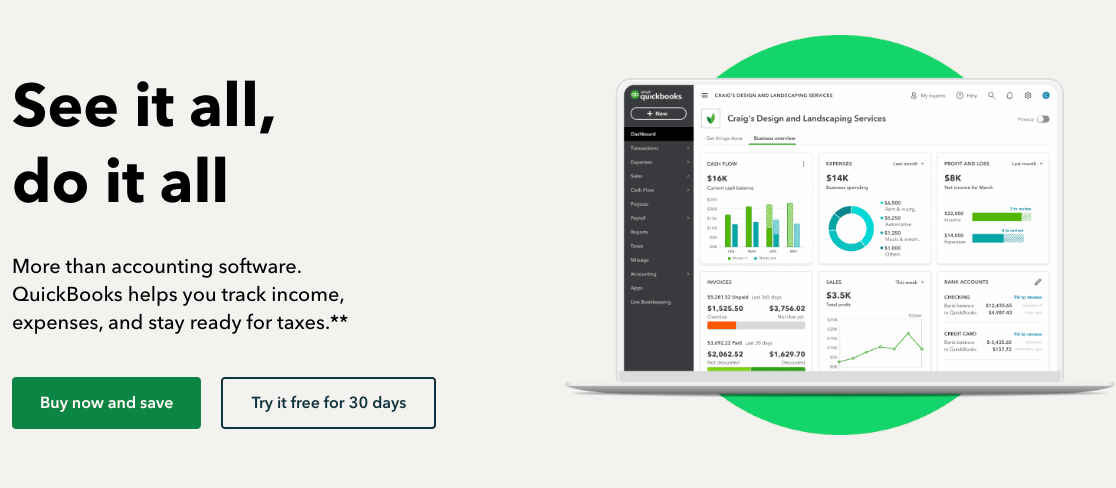
QuickBooks est un logiciel de comptabilité pour petites entreprises qui offre une multitude de fonctionnalités telles que la synchronisation bancaire en ligne, la facturation personnalisée, et plus encore. L'ajout des détails de vos clients à QuickBooks vous permet de créer et d'envoyer facilement des factures personnalisées à vos clients.
Avec QuickBooks, vous pouvez également créer un compte de résultat et un état des flux de trésorerie. Comme il peut effectuer de nombreuses tâches de comptabilité simples automatiquement, il vous fait gagner du temps sur la comptabilité et la paperasse.
Comment intégrer QuickBooks Online à vos formulaires WordPress
Le moyen le plus simple d'ajouter automatiquement des clients à QuickBooks est d'utiliser WPForms et son module complémentaire Zapier. Cela vous permettra de créer un formulaire de commande personnalisé pour votre site WordPress et de le connecter à QuickBooks Online pour envoyer automatiquement les informations client à votre programme de comptabilité.
Étape 1 : Installer et activer WPForms
Pour ajouter vos clients à QuickBooks à partir d'un formulaire WordPress, la première chose à faire est d'installer et d'activer le plugin WPForms.
Voici un guide étape par étape sur comment installer un plugin WordPress si vous avez besoin d'aide supplémentaire.
Afin d'importer des contacts dans QuickBooks depuis votre formulaire, vous devrez également installer et activer le module complémentaire Zapier sur votre site.
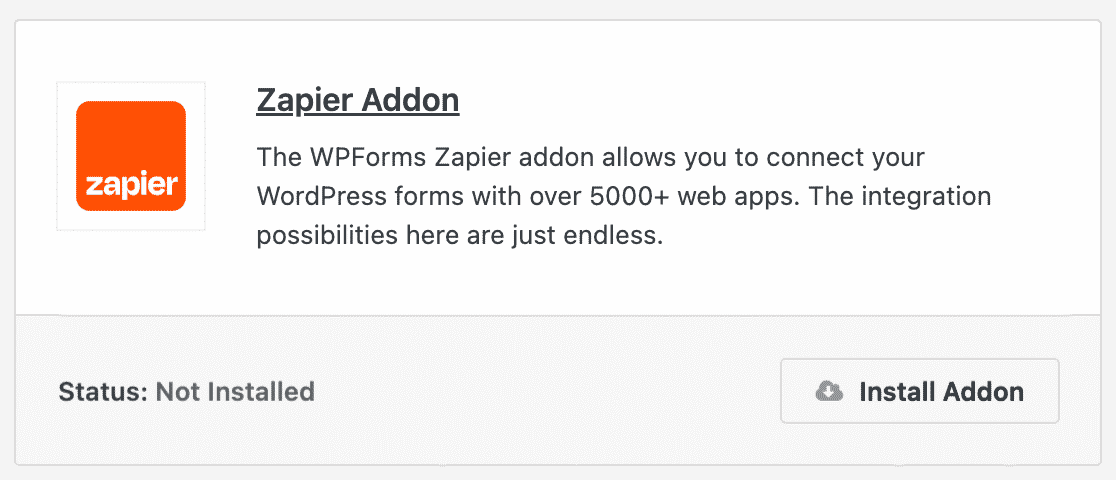
Le module complémentaire Zapier vous permet de connecter vos formulaires WordPress à plus de 7 000 applications web, y compris l'application QuickBooks.
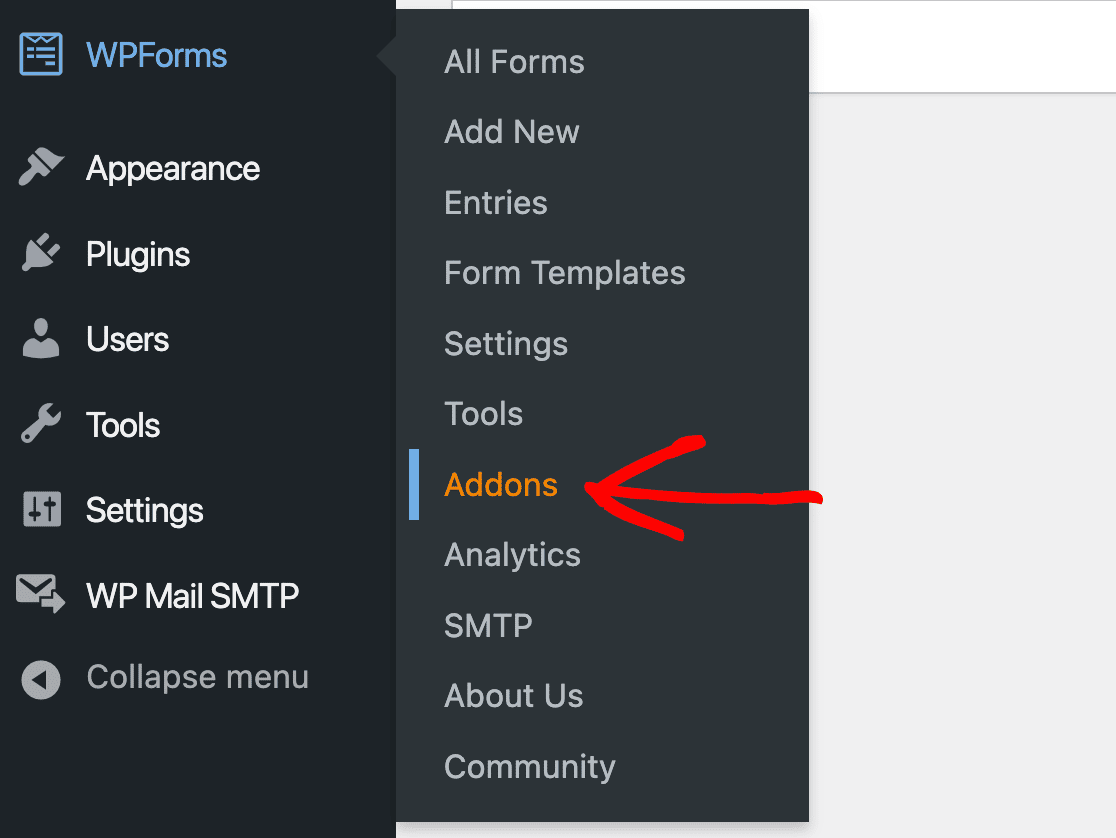
Dans votre espace d'administration WordPress, allez dans WPForms » Modules complémentaires.
Trouvez ensuite le module complémentaire Zapier et cliquez sur Installer le module complémentaire.
Pour plus d'aide à cette étape, vous pouvez consulter notre tutoriel sur comment installer et utiliser le module complémentaire Zapier.
Étape 2 : Créez votre formulaire QuickBooks
Après l'installation, vous devrez créer un formulaire WordPress à connecter à votre compte QuickBooks.
Pour notre exemple, nous allons créer un formulaire de commande simple, mais vous pourriez également connecter votre formulaire de contact, formulaire de demande de devis, formulaire de réservation de rendez-vous, ou tout autre formulaire que vous utilisez sur votre site WordPress.
Dans votre tableau de bord WordPress, allez dans WPForms » Nouveau. Ici, vous pouvez nommer votre formulaire et choisir parmi des centaines de modèles disponibles.
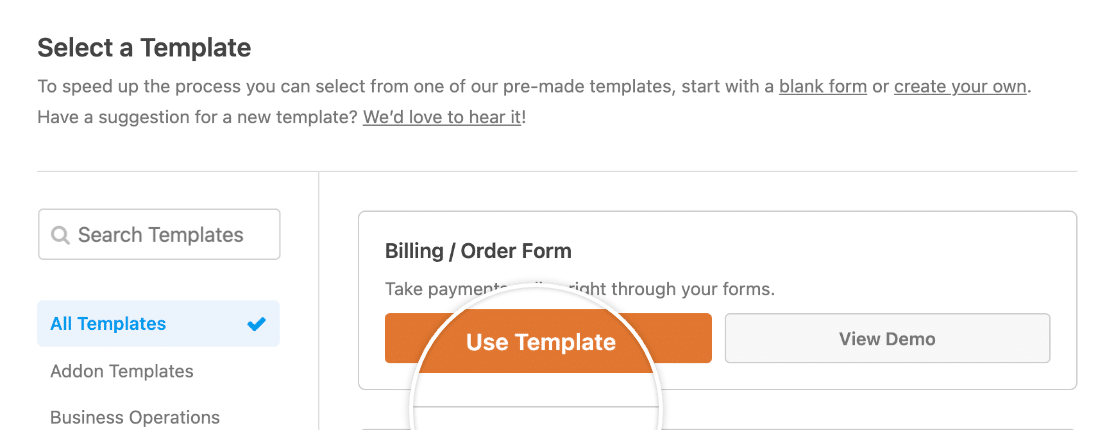
Votre modèle se chargera dans le constructeur de formulaires, puis vous pourrez le personnaliser. Faites glisser et déposez des champs pour les réorganiser, cliquez dessus pour modifier leurs étiquettes, descriptions et espaces réservés, et ajoutez ou supprimez des champs selon vos besoins.
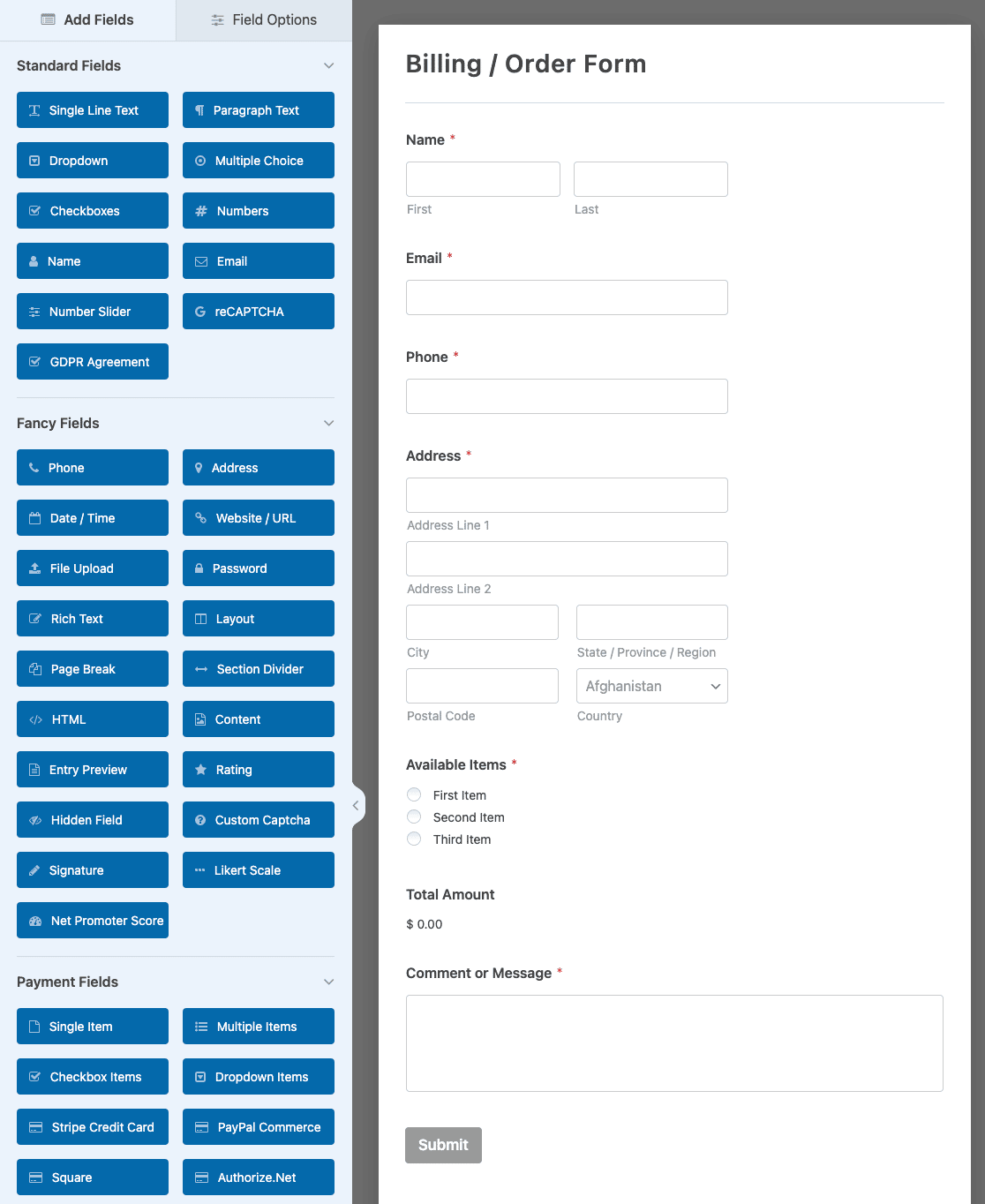
Lorsque vous êtes satisfait de votre formulaire, cliquez sur Enregistrer en haut du constructeur.

Étape 3 : Soumettez une entrée de test
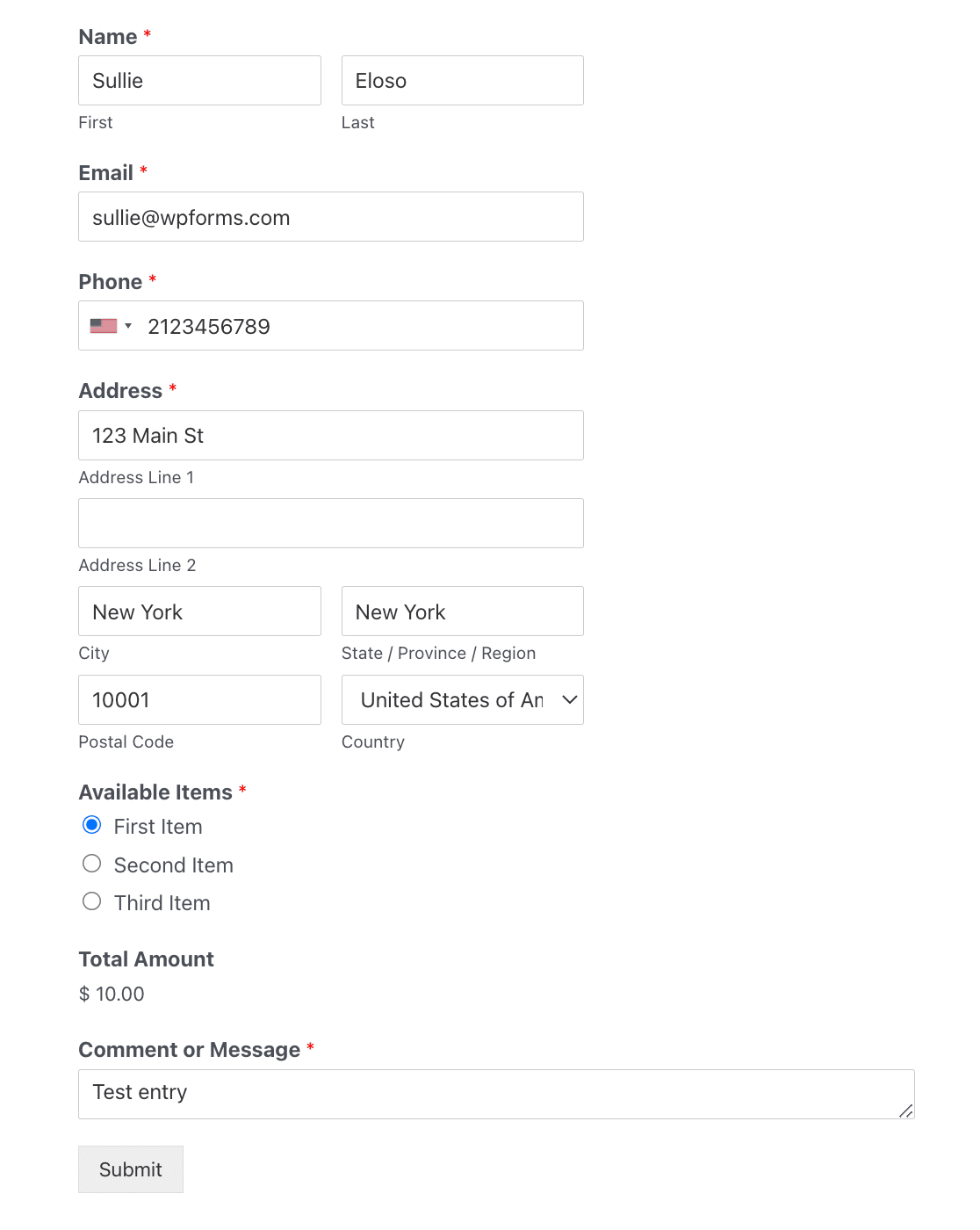
Une fois que vous avez terminé la création de votre formulaire, vous devez y soumettre une entrée de test. Ceci est requis pour finaliser la connexion dans Zapier, alors ne sautez pas cette étape !
Vous pouvez soumettre une entrée de test en cliquant sur le bouton Aperçu dans le constructeur de formulaire.

Remplissez ensuite votre formulaire et soumettez-le.
Étape 4 : Connecter WPForms à Zapier
Voyons maintenant comment connecter les formulaires WordPress à QuickBooks via Zapier.
Connectez-vous à votre compte Zapier et cliquez sur le bouton Créer un Zap.
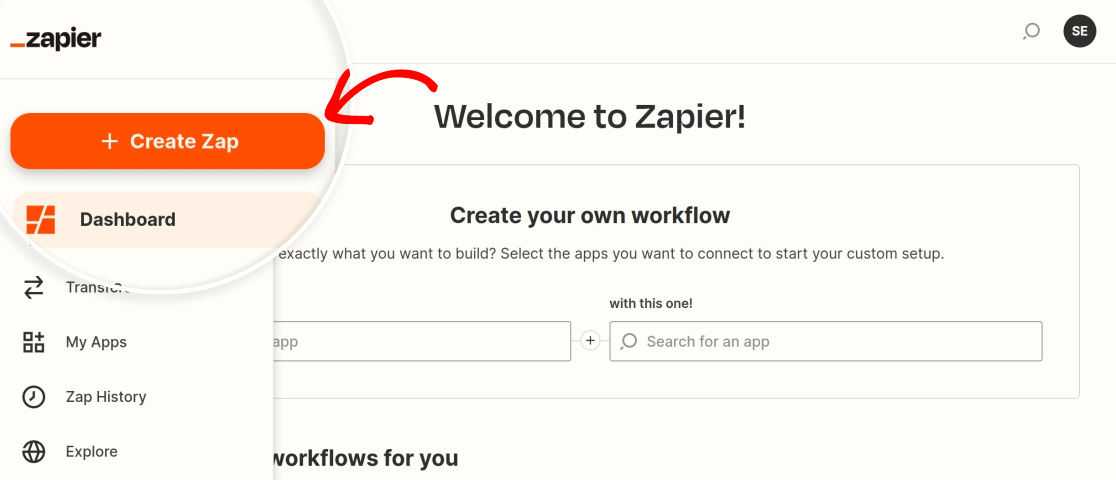
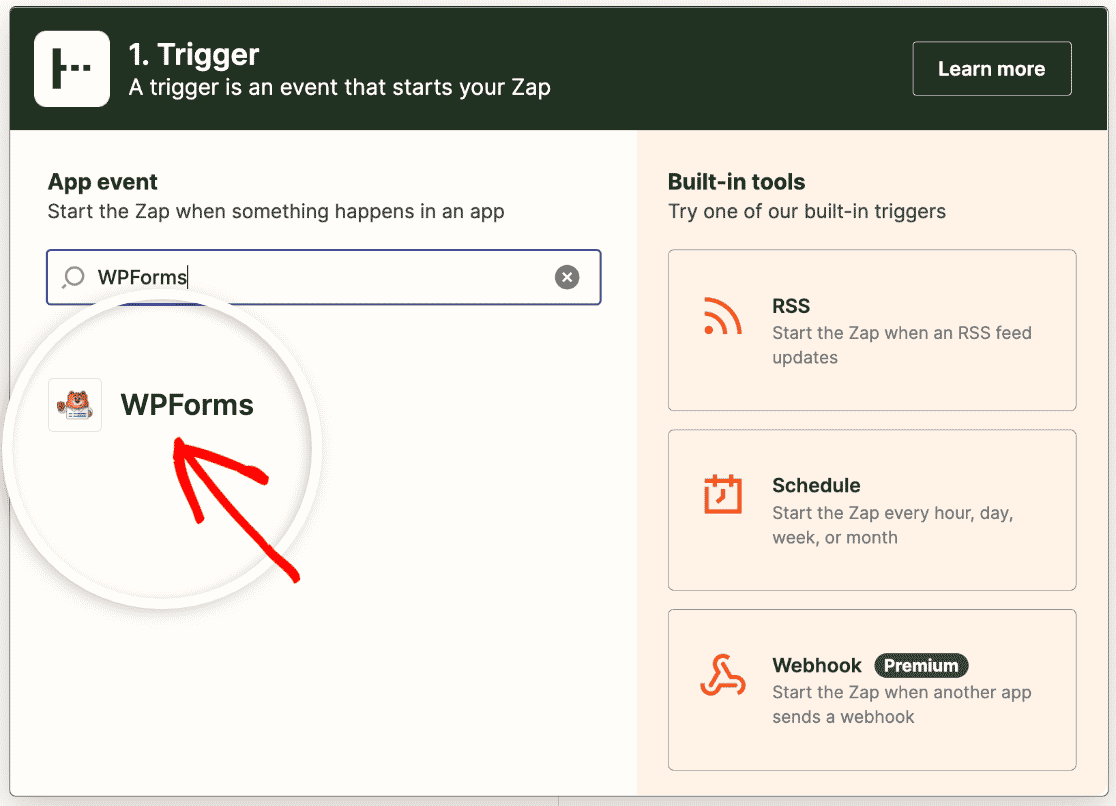
Tout d'abord, choisissez WPForms comme application de déclenchement.
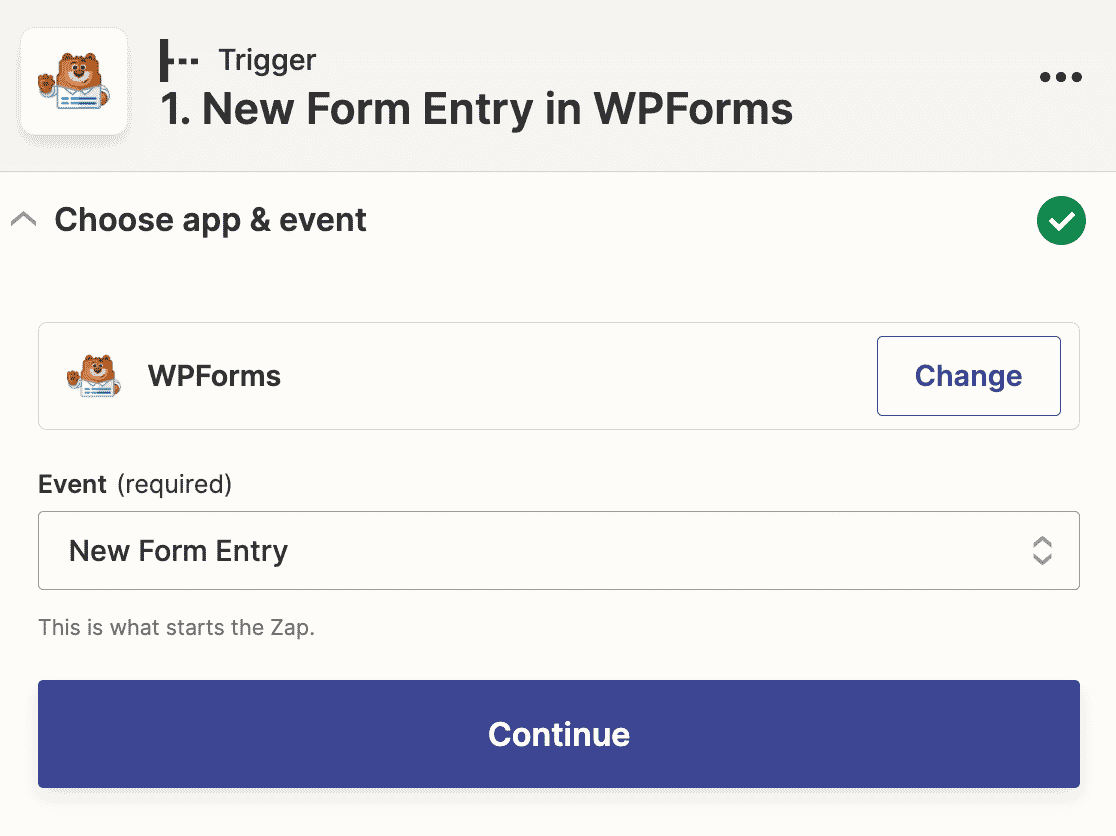
Ensuite, vous devrez sélectionner l'action qui doit avoir lieu pour déclencher votre zap. La seule option pour WPForms est Nouvelle entrée de formulaire, alors sélectionnez-la dans le menu déroulant.
Zapier vous demandera maintenant de vous connecter à votre compte WPForms. Cliquez sur le bouton Se connecter.
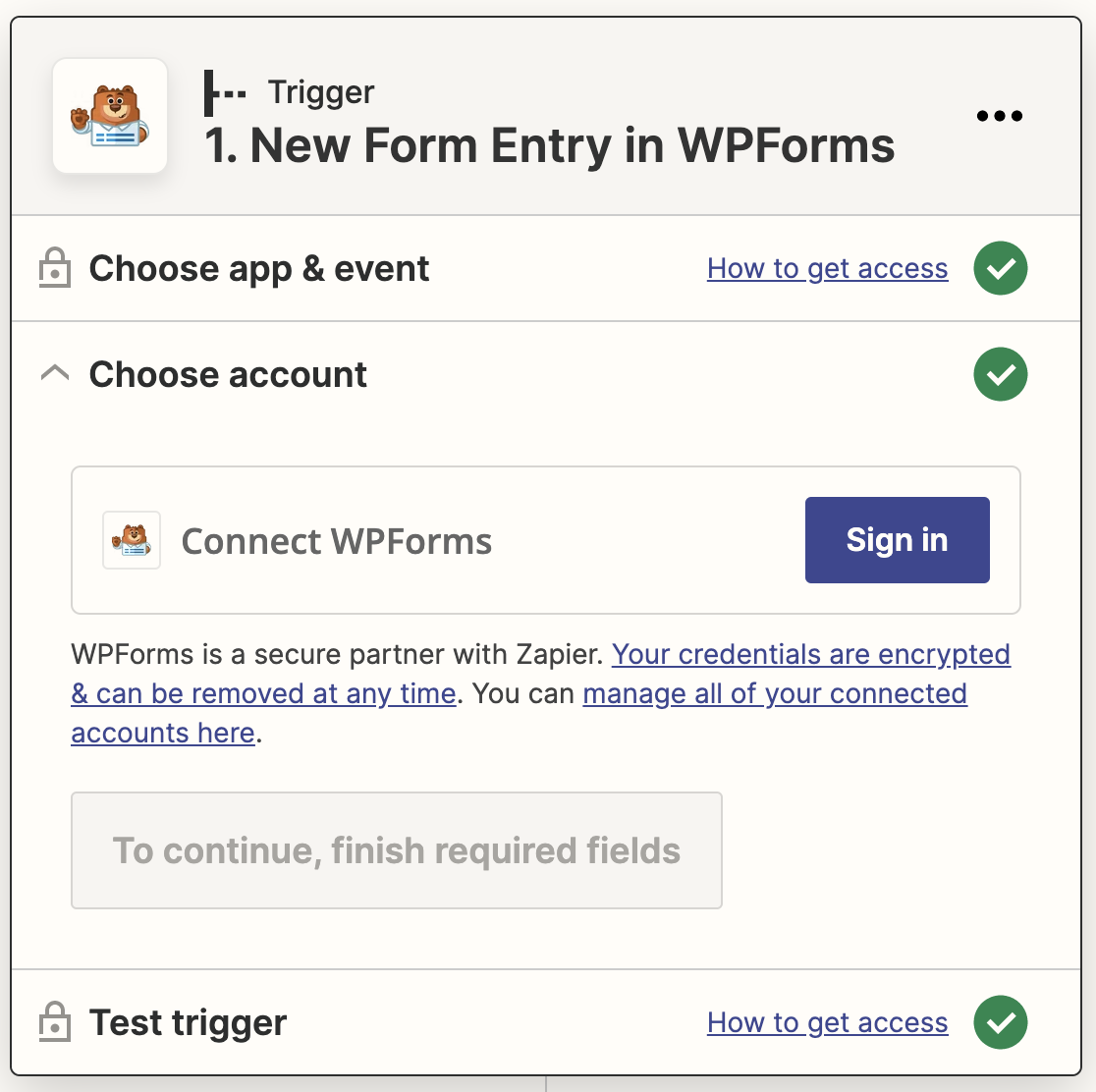
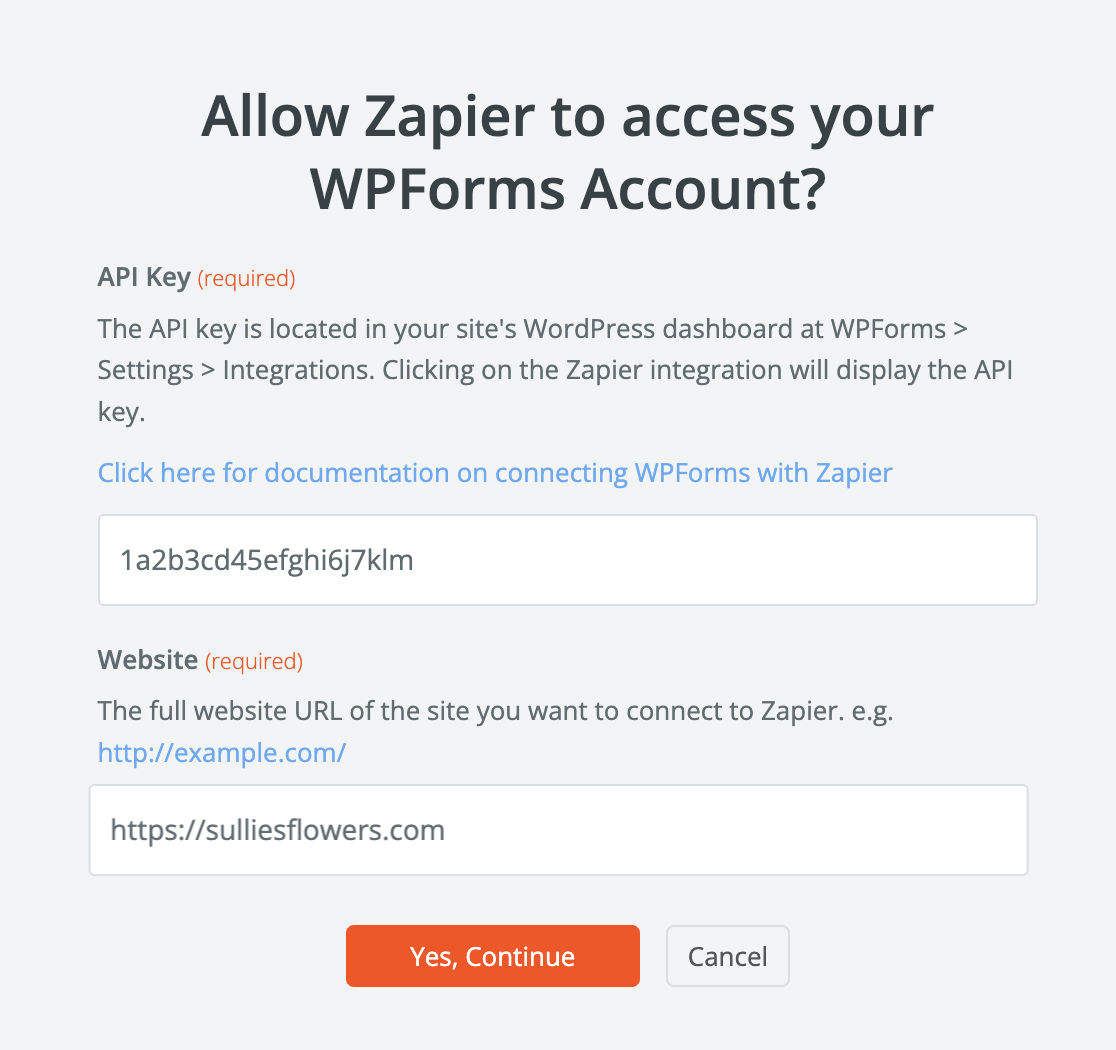
Cela ouvrira une fenêtre contextuelle où vous devrez entrer l'URL de votre site et votre clé API Zapier.
Vous pouvez trouver votre clé API Zapier dans votre tableau de bord WordPress. Allez dans WPForms » Paramètres » Intégrations et trouvez la section Zapier. Développez-la pour copier votre clé.
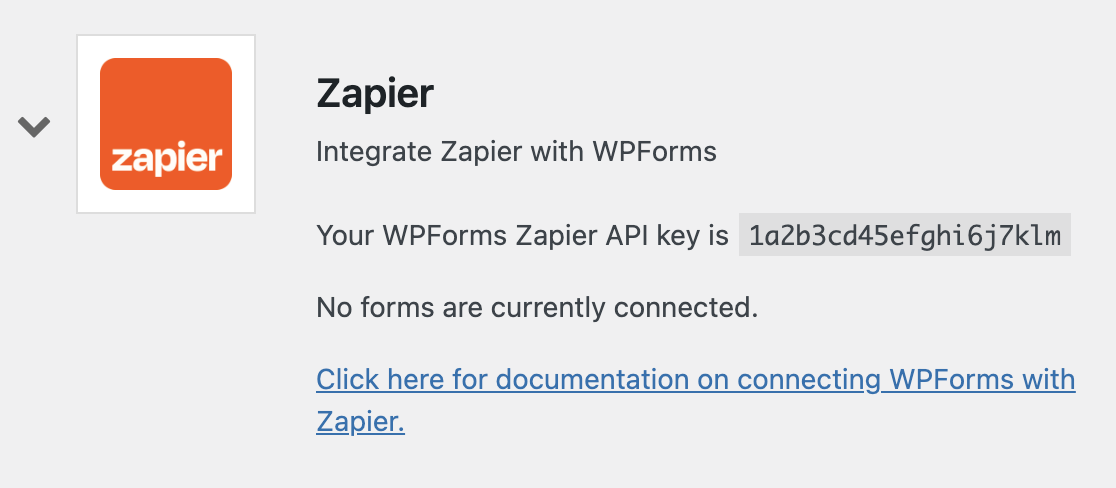
Collez ensuite la clé dans la fenêtre contextuelle et cliquez sur Oui, Continuer pour la fermer et passer à l'étape suivante.
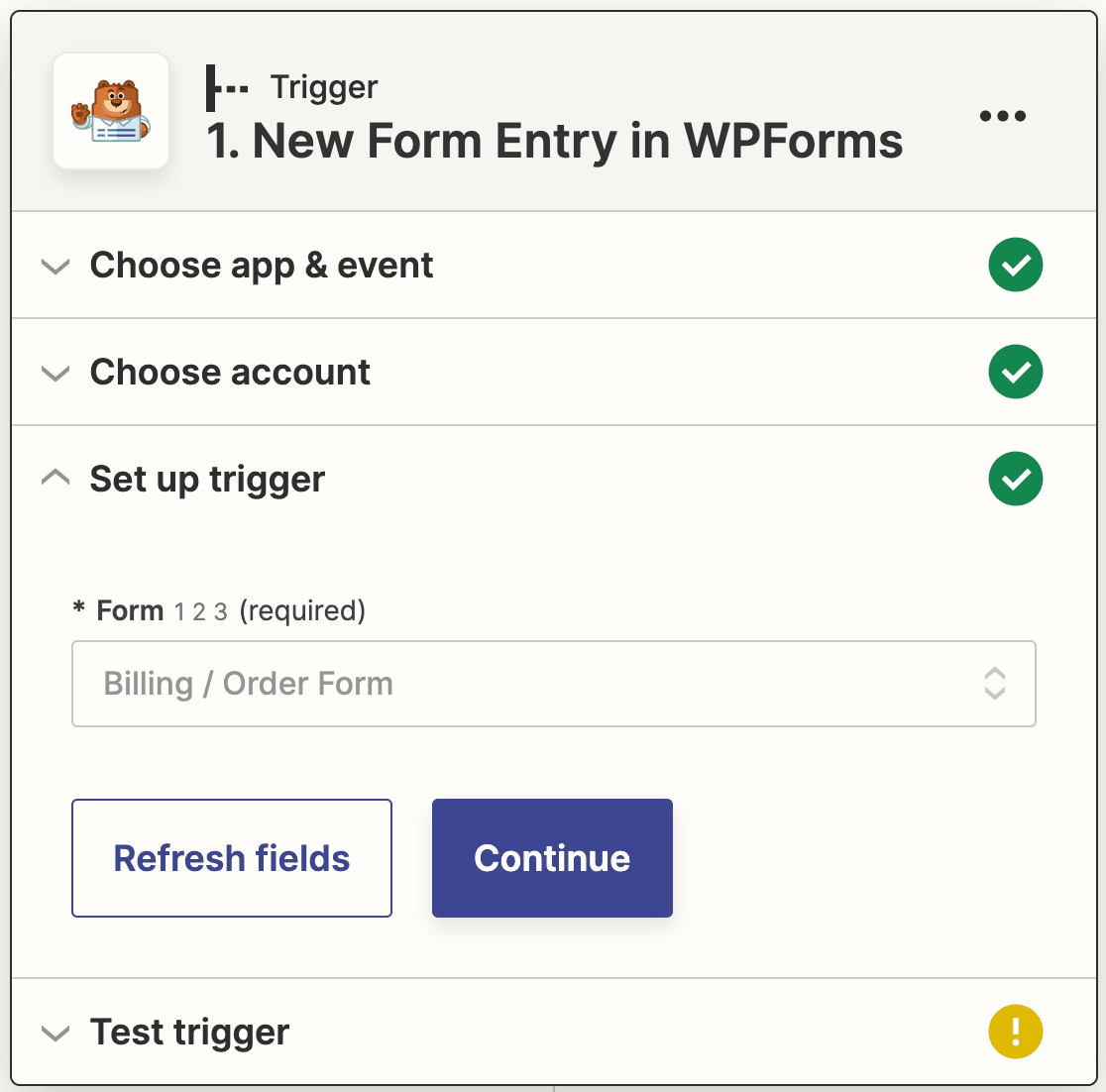
Ensuite, vous devez choisir le formulaire que vous avez créé à l'étape 2 dans le menu déroulant.
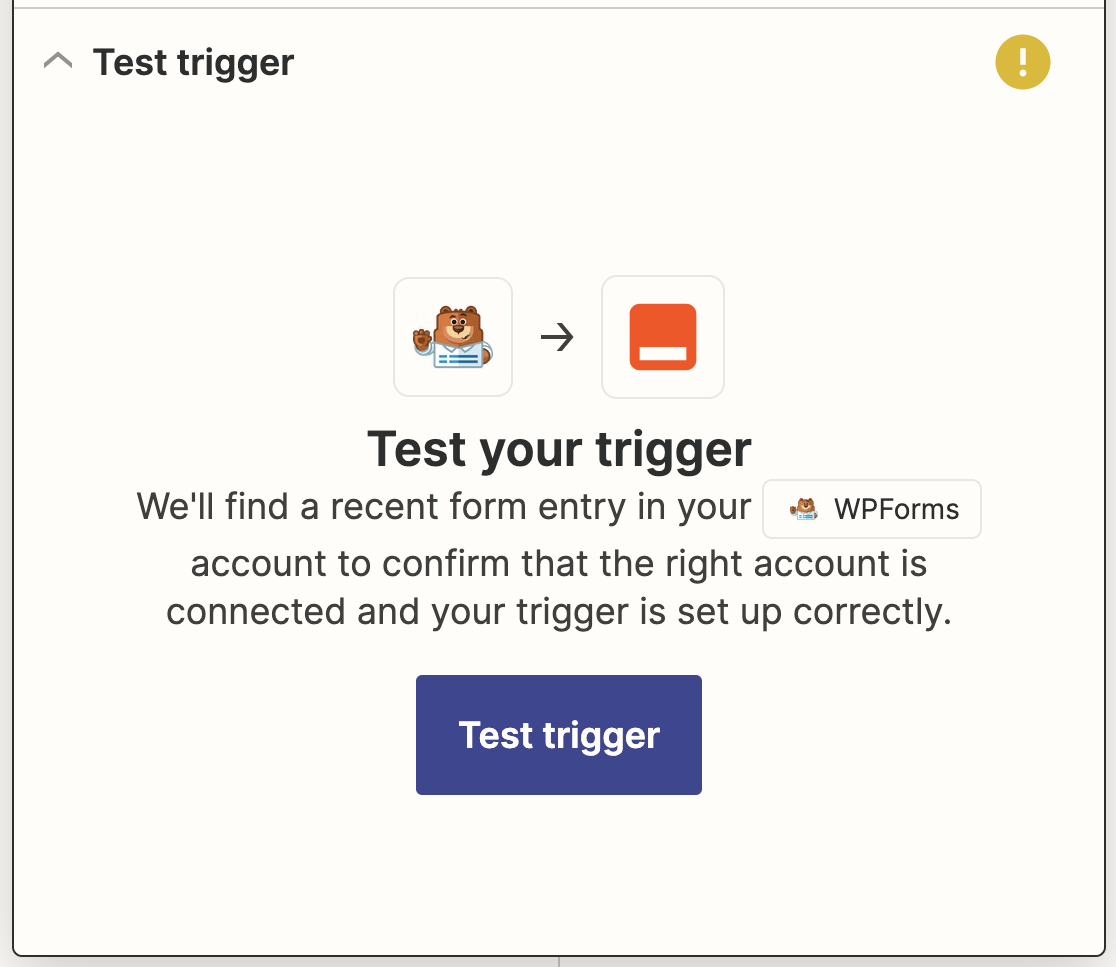
À ce stade, Zapier testera votre connexion pour s'assurer qu'elle fonctionne correctement. Cliquez sur Tester le déclencheur pour commencer.
Si vous avez tout fait correctement jusqu'à présent, vous verrez l'entrée de test que vous avez soumise précédemment, ainsi qu'un message de succès.
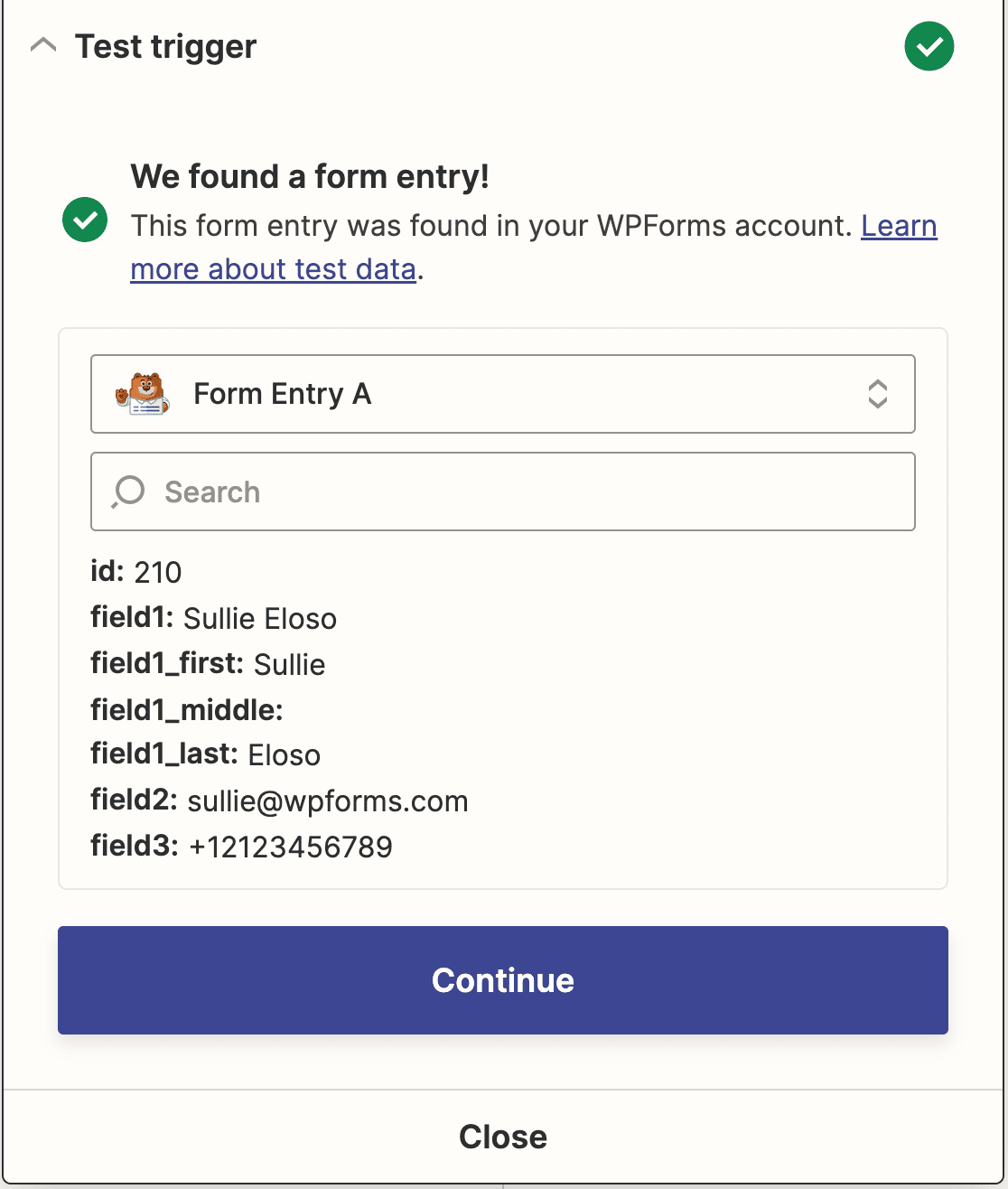
Cliquez sur Continuer pour passer à la connexion de Zapier à QuickBooks.
Étape 5 : Connectez Zapier à QuickBooks
Maintenant que vous avez connecté Zapier au plugin WPForms, il est temps de connecter WPForms à QuickBooks.
La première étape de la synchronisation avec QuickBooks Online consiste à choisir QuickBooks comme application d'action. Entrez QuickBooks dans votre barre de recherche, puis cliquez dessus lorsqu'elle apparaît.
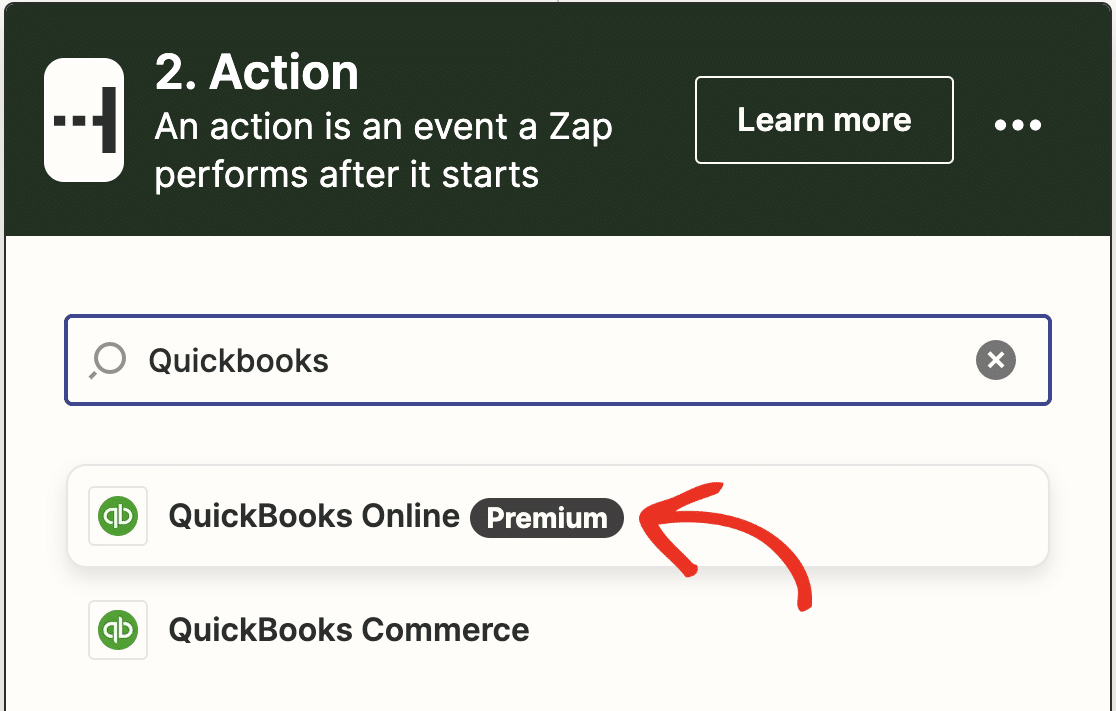
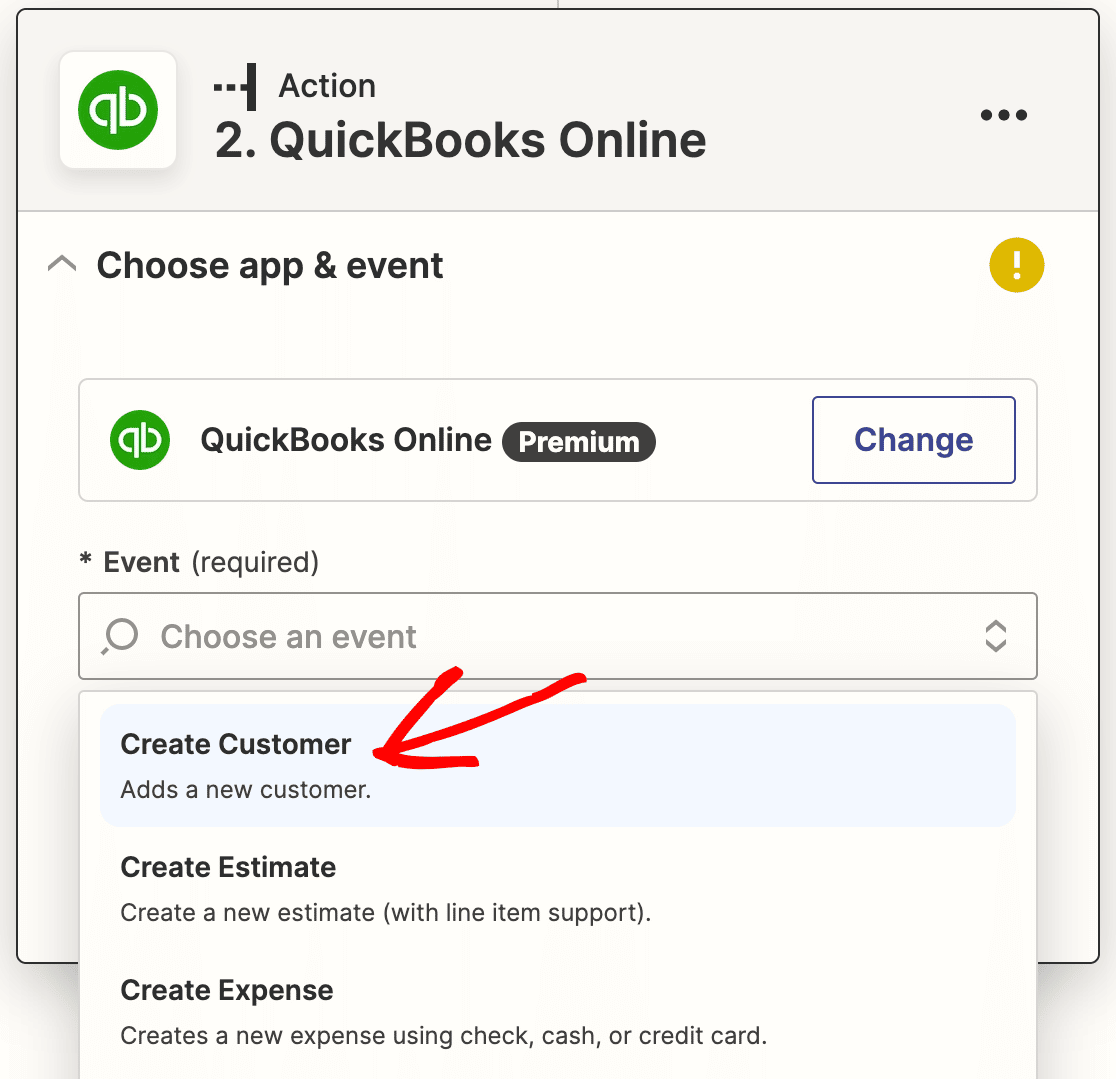
Ensuite, vous serez invité à sélectionner une action QuickBooks. Comme nous cherchons à créer un nouveau client dans QuickBooks à partir de WordPress, choisissez Créer un client et cliquez sur Continuer.
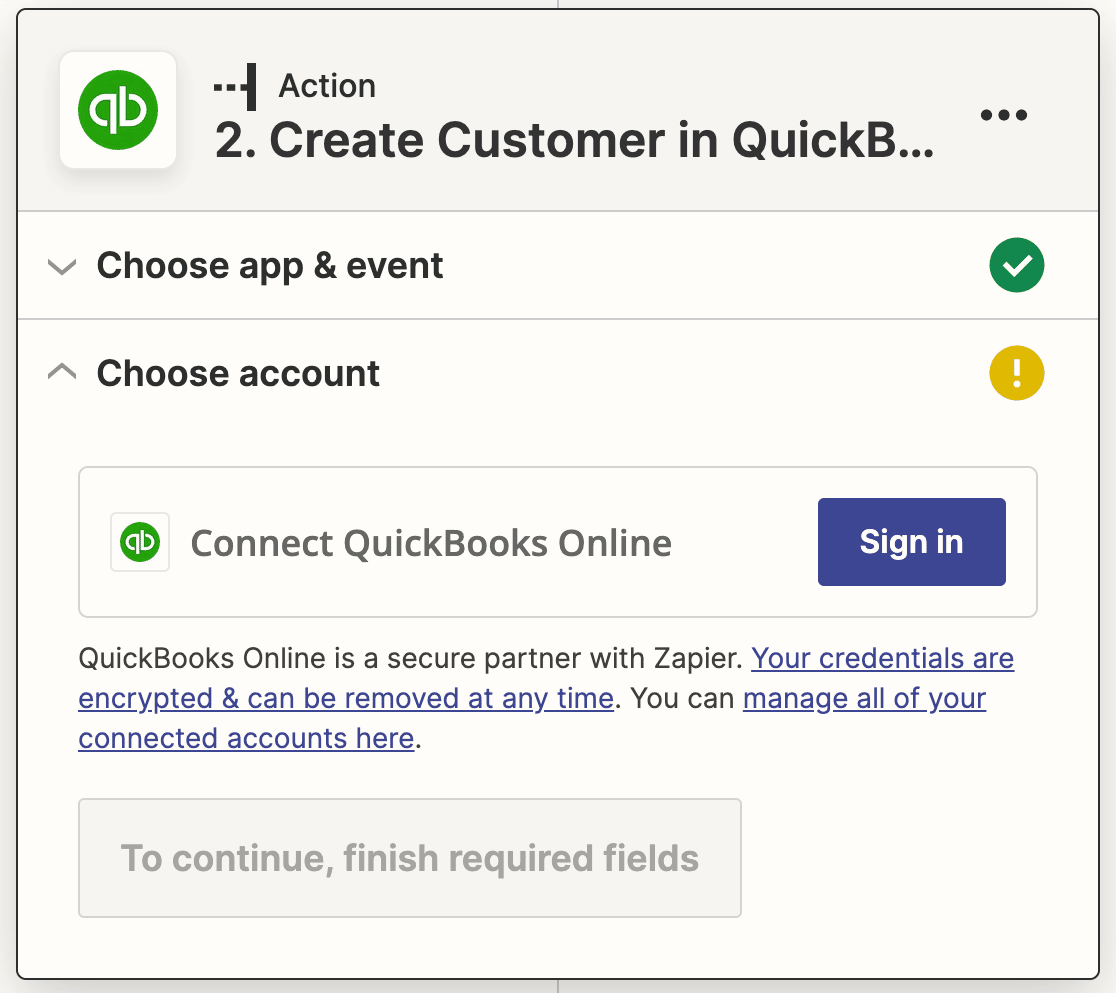
Vous devez maintenant connecter votre compte QuickBooks à Zapier. Cliquez à nouveau sur le bouton Se connecter.
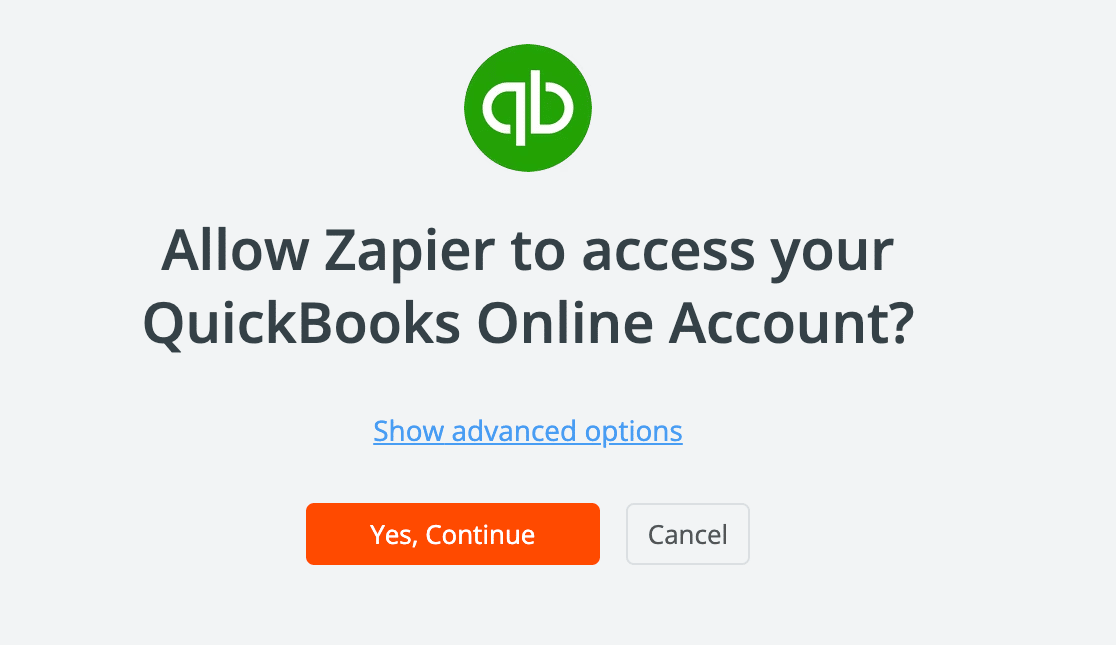
Dans la fenêtre contextuelle, cliquez sur Oui, Continuer pour autoriser Zapier à accéder à votre compte QuickBooks.
Entrez ensuite vos informations de connexion pour vous connecter à votre compte QuickBooks. Après vous être connecté, Zapier vous demandera à nouveau l'autorisation d'accéder à QuickBooks. Cliquez sur Connecter pour continuer.
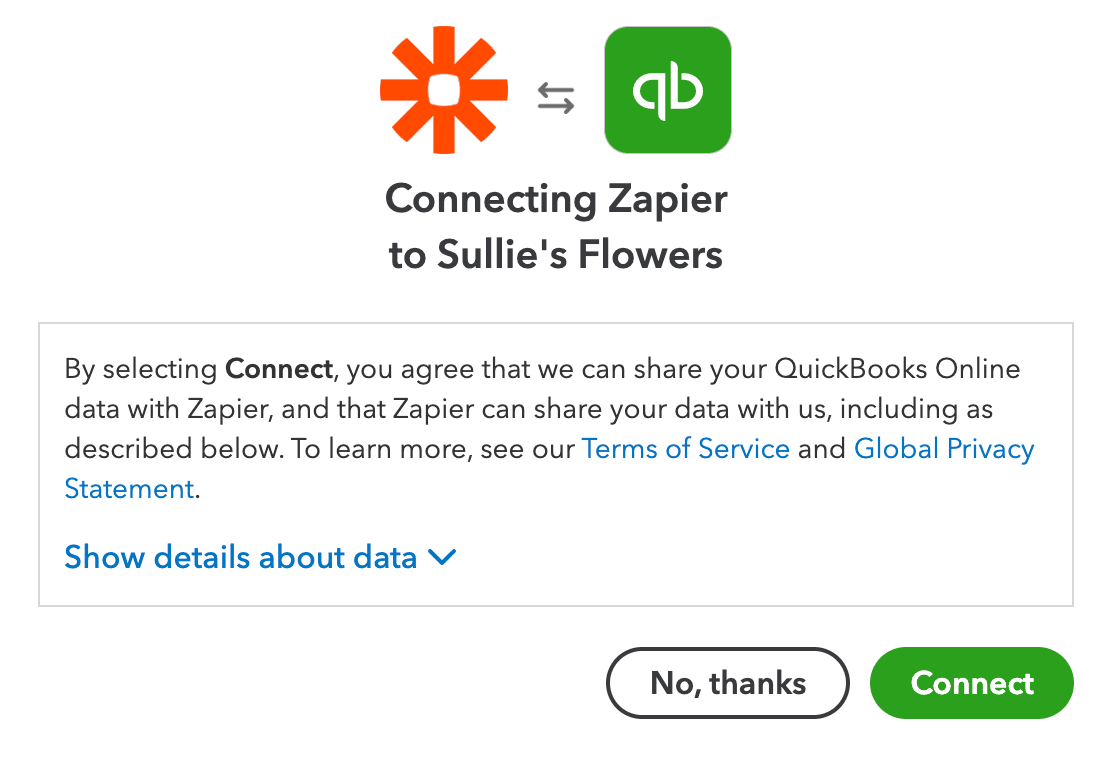
Après la fermeture de la fenêtre contextuelle, cliquez à nouveau sur Continuer.
Ensuite, vous devez créer un modèle pour les nouveaux clients qui seront créés dans QuickBooks chaque fois que quelqu'un soumettra votre formulaire. Pour ce faire, sélectionnez le champ correspondant pour votre formulaire dans chacun des menus déroulants.
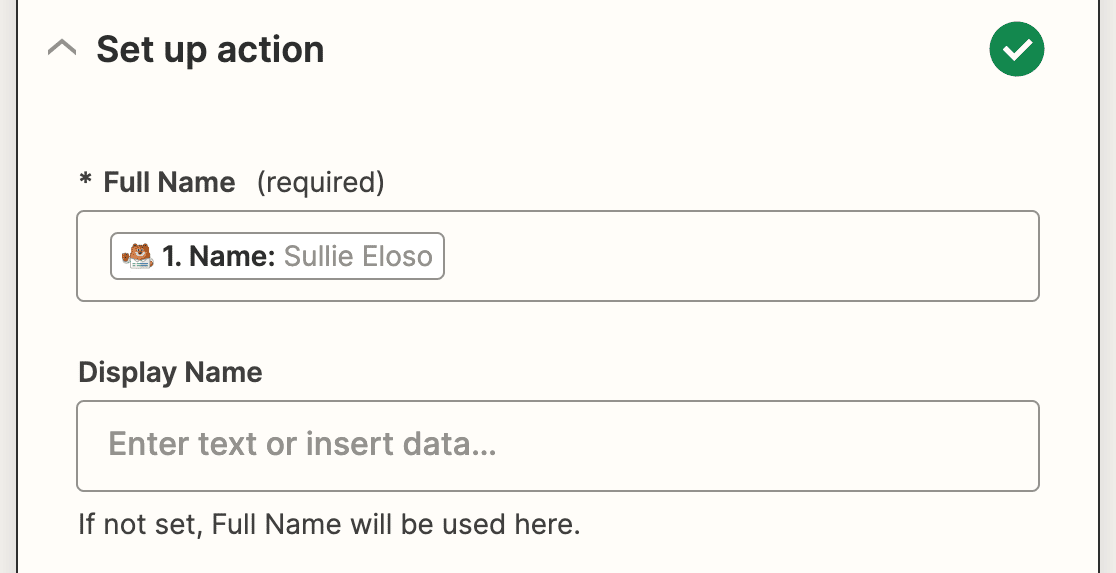
Le seul champ requis est Nom complet, mais vous pouvez ajouter plusieurs autres détails de votre formulaire, y compris les informations de contact et de taxes.
Une fois que vous avez mappé tous les champs de votre formulaire que vous souhaitez envoyer à Quickbooks, cliquez à nouveau sur Continuer. Zapier va maintenant tester votre connexion Quickbooks, tout comme il l'a fait pour WPForms. Cliquez sur Tester l'action pour commencer.
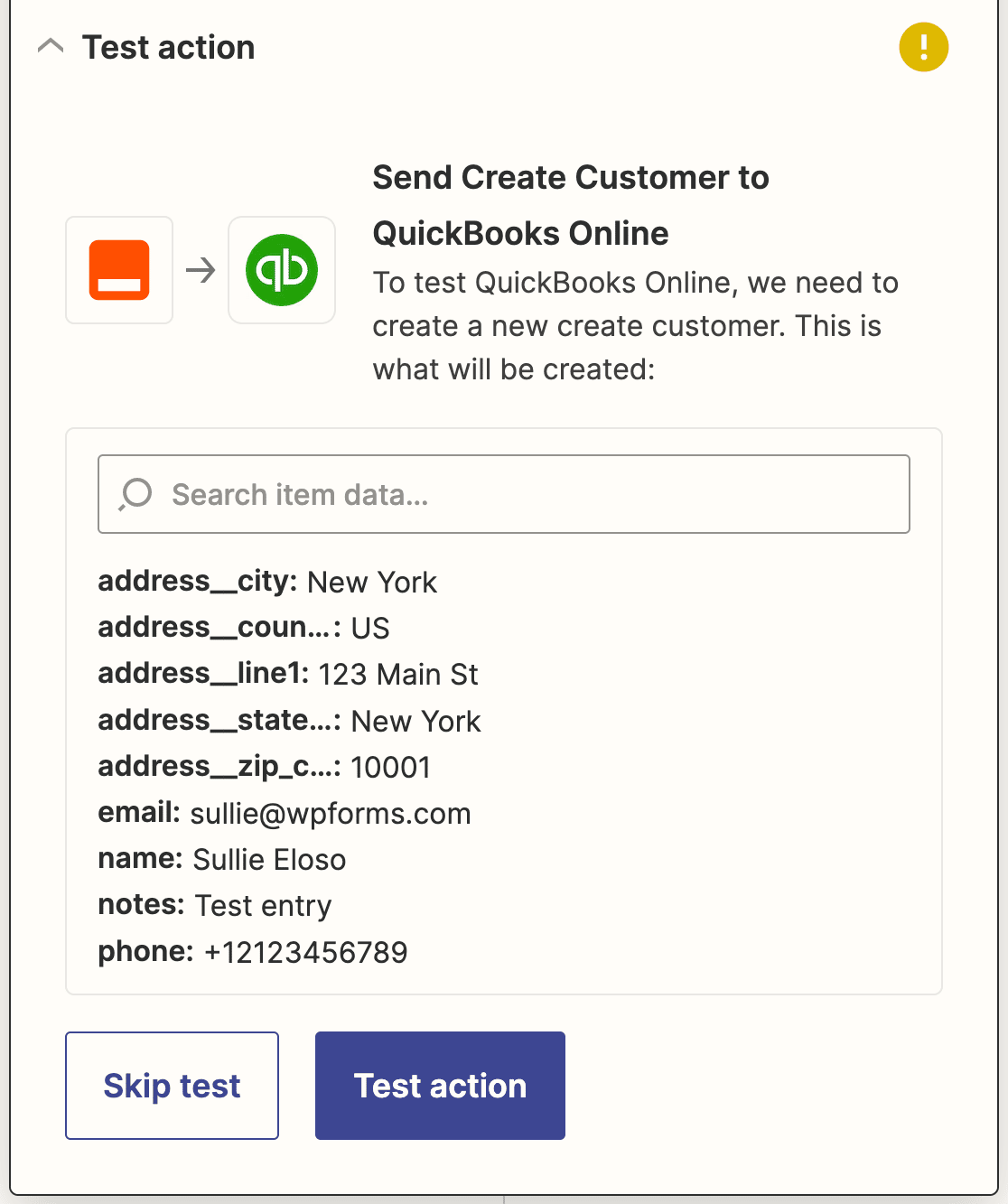
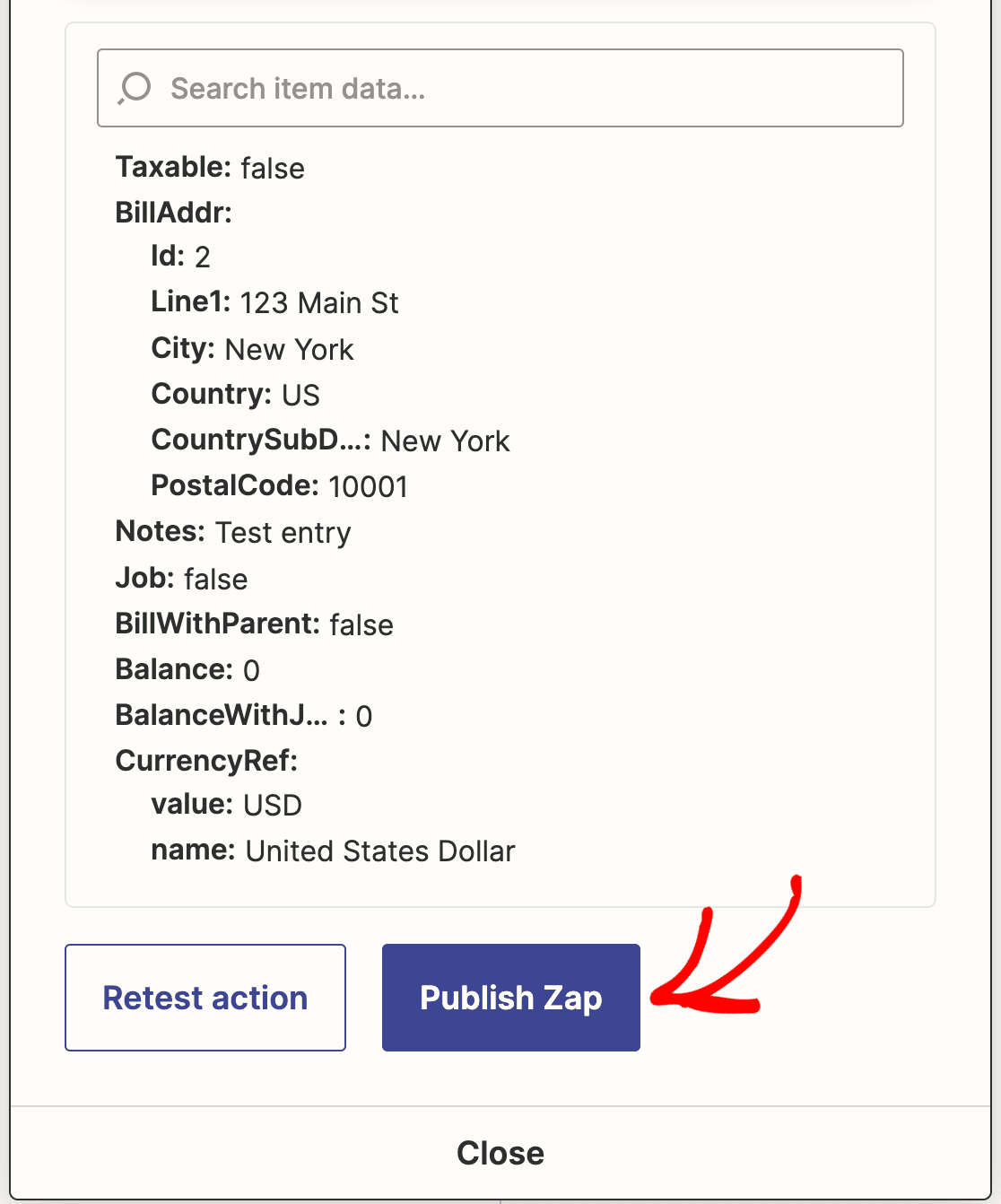
Si vous avez tout fait correctement, vous verrez un message de succès.
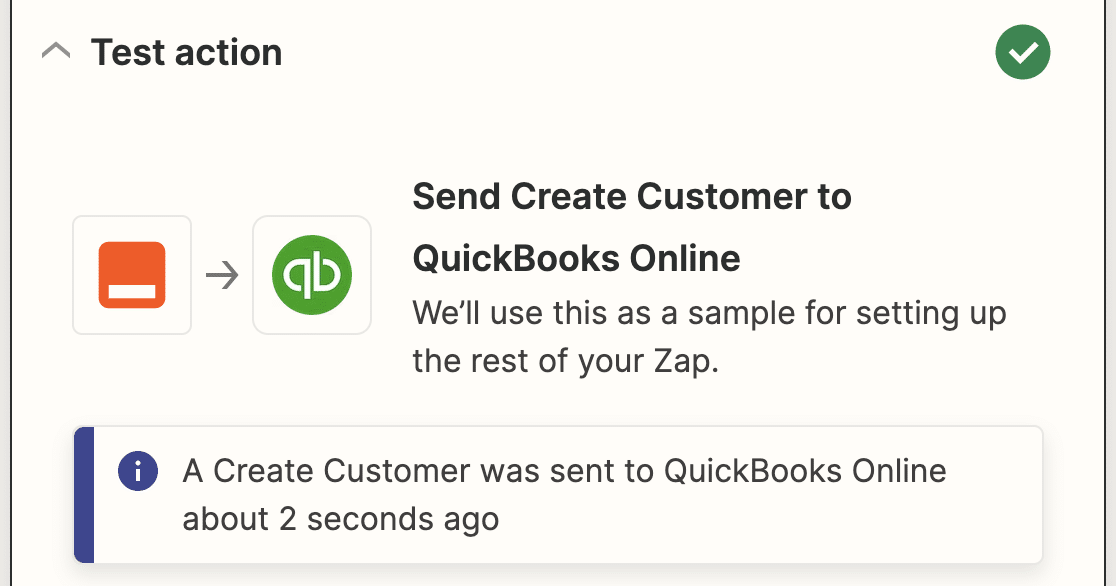
Avant de fermer Zapier, assurez-vous de publier également votre Zap.
Enfin, n'oubliez pas de retourner sur votre site WordPress et d'intégrer votre formulaire dans un article de blog, une page ou un widget. Ainsi, les clients pourront facilement le trouver et le remplir.
Ensuite, développez votre entreprise avec des formulaires de prospects
Et voilà ! Vous savez maintenant comment intégrer vos formulaires WordPress avec QuickBooks Online. Désormais, chaque fois que quelqu'un remplit votre formulaire, il sera ajouté en tant que nouveau client dans votre base de données QuickBooks Online.
Vous souhaitez développer votre entreprise en collectant des prospects avec des formulaires optimisés ? Le module complémentaire WPForms Lead Forms vous aide à créer des formulaires de prospects personnalisés pour collecter des informations auprès de clients potentiels.
Créez votre formulaire WordPress maintenant
Qu'attendez-vous ? Commencez dès aujourd'hui avec le plus puissant plugin de formulaires WordPress.
Si cet article vous a plu, suivez-nous sur Facebook et Twitter pour plus de tutoriels WordPress gratuits.





