








WordPress reCAPTCHA Plugin

Add Google reCAPTCHA to Any WordPress Form

Most spam fixes mean editing code. WPForms puts Google reCAPTCHA on every WordPress form to keep spambots out of your inbox, no coding or paid plan needed.

Everything the WPForms + Google reCAPTCHA Integration Gives You

Google’s spam protection, set up in WPForms with no code.

Checkbox reCAPTCHA v2

The classic “I’m not a robot” box, with an image puzzle when Google needs more proof.

Invisible reCAPTCHA v2

No box on your form. A puzzle appears only when Google isn’t sure about a visitor.

reCAPTCHA v3

No puzzle ever. Google scores each visit, and you decide the cutoff.

Add Your Keys Once

Paste your Site Key and Secret Key in one place, then switch reCAPTCHA on for any form.

Custom Fail Message

Write the message visitors see if they don’t pass the check.

No-Conflict Mode

If your theme or another plugin also loads a CAPTCHA, switch this on to remove the extra copy.

Review Spam Entries

With a paid license, store blocked entries and mark any real one as Not Spam.

Works With Google AMP

Use reCAPTCHA v3 on AMP pages with one extra setting in Google.

Keeps reCAPTCHA When You Switch

Import forms from Contact Form 7 or Ninja Forms and reCAPTCHA comes with them.

Add Google reCAPTCHA to Every Kind of WordPress Form

Contact, signup, quote, and newsletter forms all use the same Google reCAPTCHA keys.

Contact Forms

Stop bots from flooding your inbox. Visitors tick one box before they send, and real messages reach you as normal.

WordPress contact form with Checkbox reCAPTCHA v2

Registration Forms

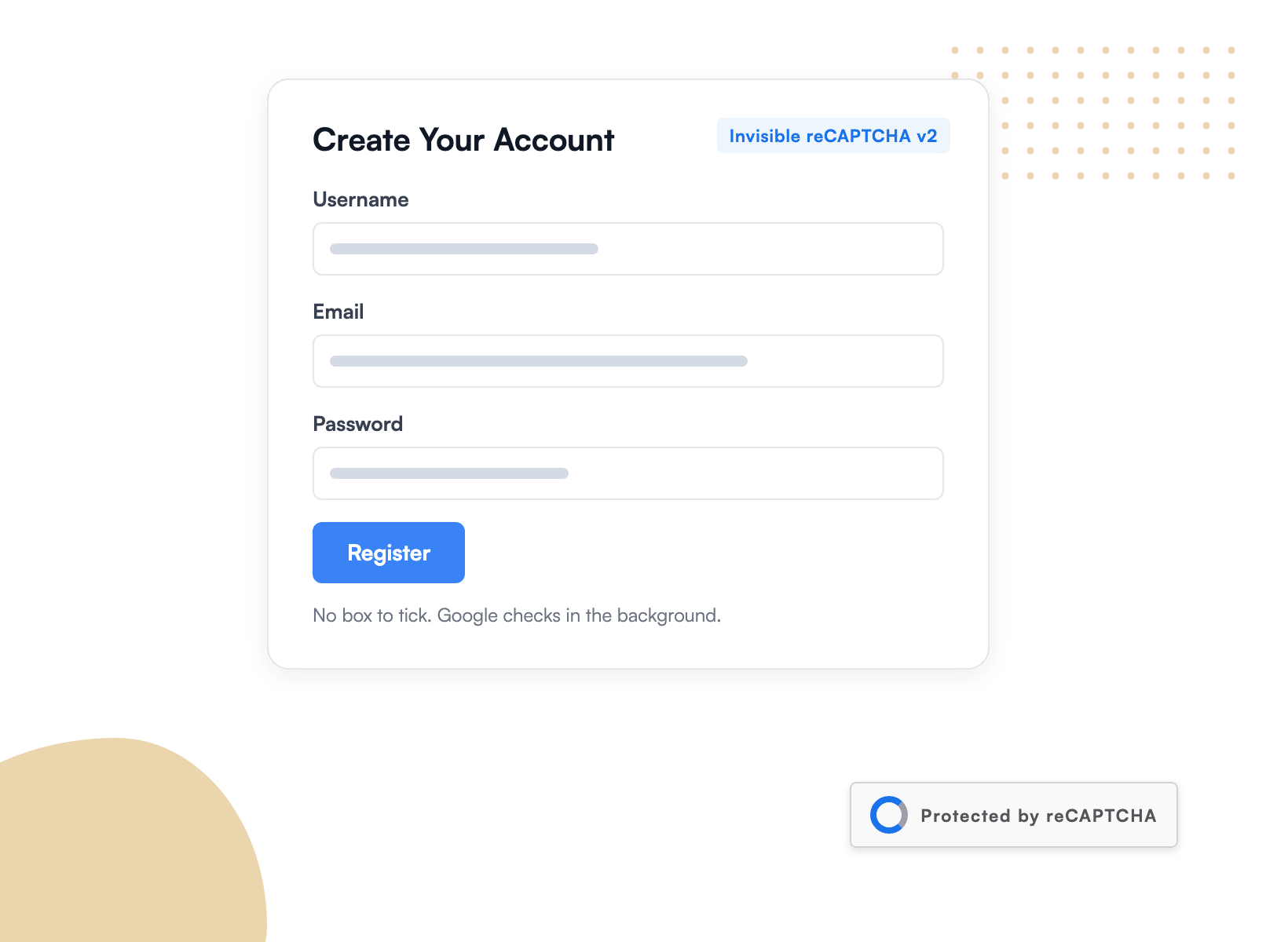
Keep fake accounts out with Invisible reCAPTCHA v2. Real users sign up without an extra step.

WordPress registration form protected by Invisible reCAPTCHA v2

Quote Forms

Let serious buyers ask for a price without solving a puzzle. reCAPTCHA v3 scores each visit in the background.

Request a quote form protected by Google reCAPTCHA v3

Newsletter Signups

Keep fake signups off your email list. One click on the checkbox proves a real person is subscribing.

Newsletter signup form with Checkbox reCAPTCHA v2

Why Use the WPForms + Google reCAPTCHA Integration

Five reasons WPForms is the easiest WordPress reCAPTCHA plugin to set up and live with.

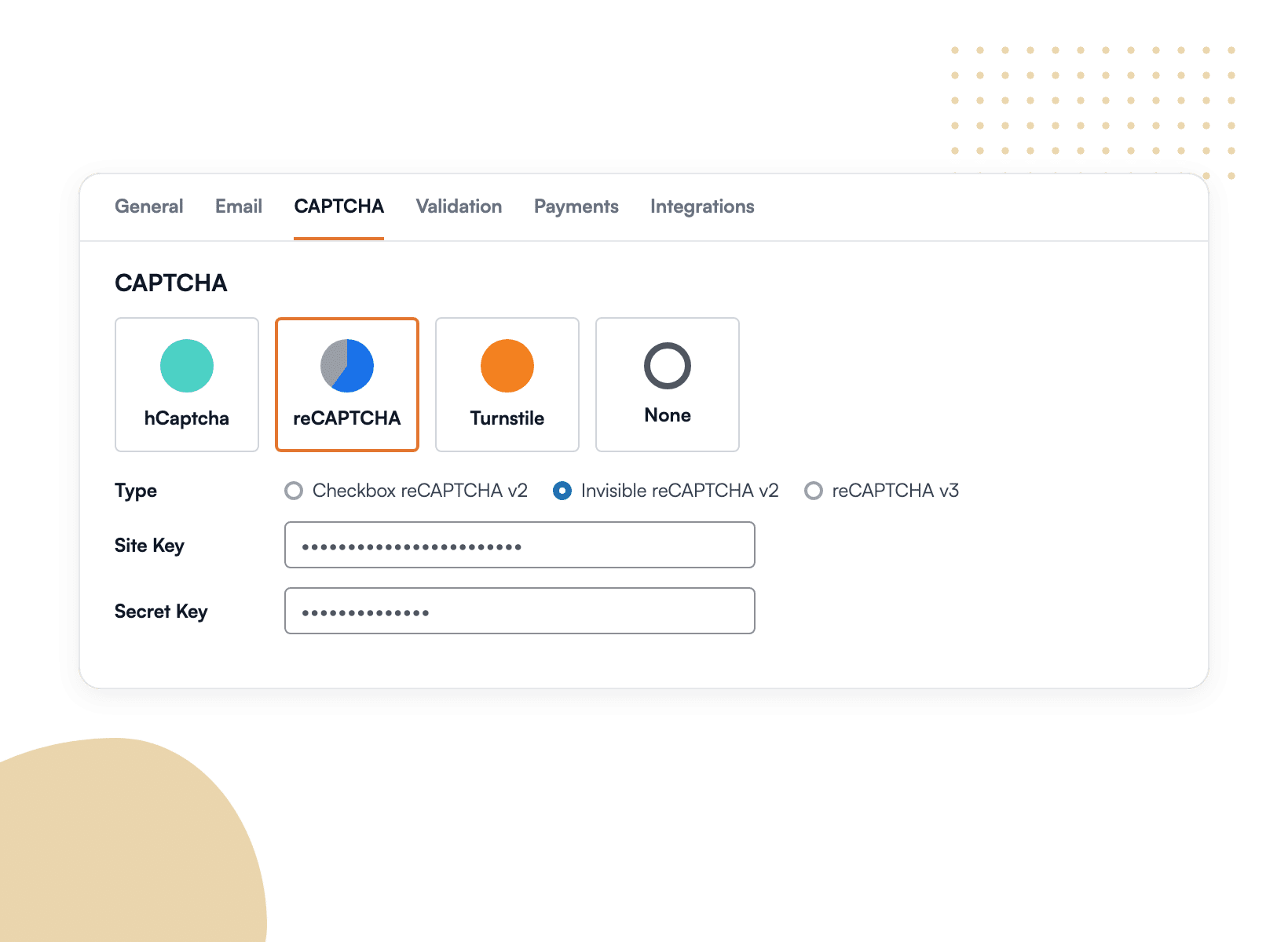
WordPress reCAPTCHA plugin settings in WPForms with Site Key and Secret Key

Set Up Google reCAPTCHA in a Few Clicks

Go to WPForms » Settings » CAPTCHA, click the reCAPTCHA tile, and pick your type. Paste the Site Key and Secret Key from Google’s admin console and save.

That’s the whole setup. It works on every version of WPForms, including the free one.

Turn Google reCAPTCHA On for Any Form

Your keys are saved once, so adding reCAPTCHA to a form is a single switch.

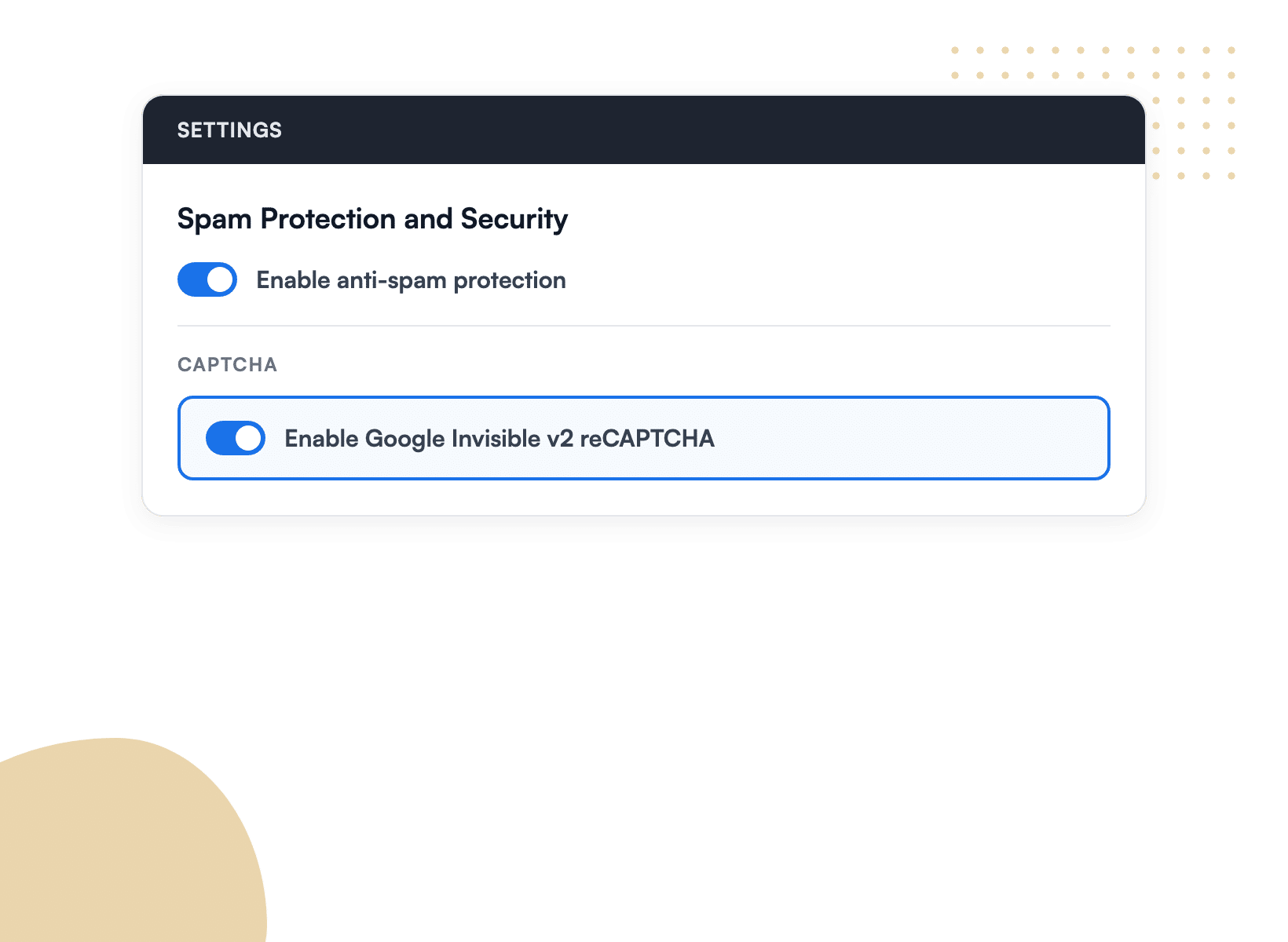
Open the form builder, go to Settings » Spam Protection and Security, and turn on reCAPTCHA. Or drag the reCAPTCHA field into your form. You choose which forms get it.

Google reCAPTCHA switched on in the WPForms form builder
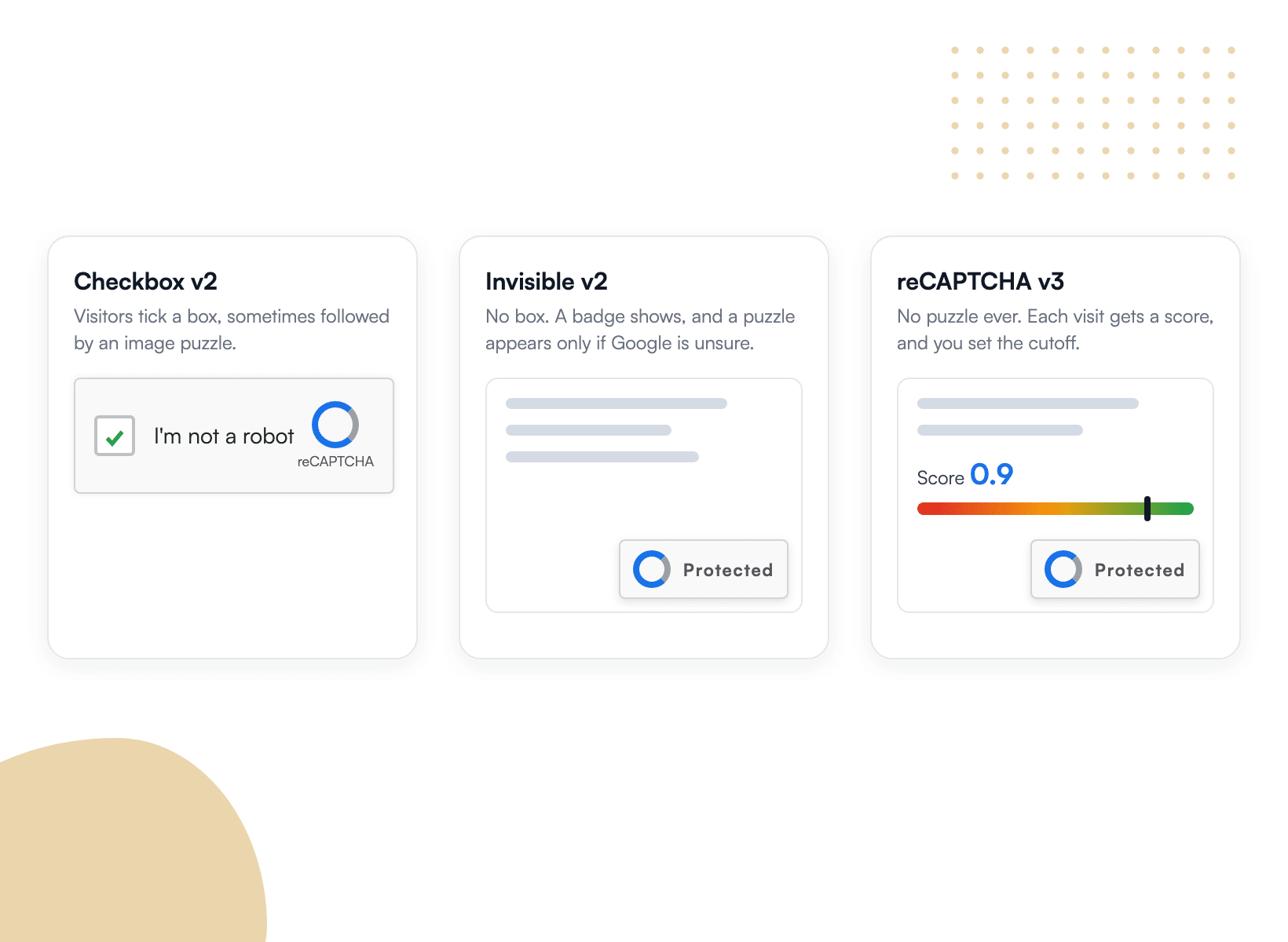
Checkbox v2, Invisible v2, and v3 Google reCAPTCHA compared

Pick the Google reCAPTCHA Type That Fits Your Visitors

Checkbox v2 asks every visitor to tick a box. Invisible v2 hides the box and only shows a puzzle when Google is unsure, which is why our docs recommend it for most sites.

v3 never shows a puzzle, but it blocks low scores with no second chance. Each type needs its own keys, so you can switch later.

Control What Visitors See When Google reCAPTCHA Fails

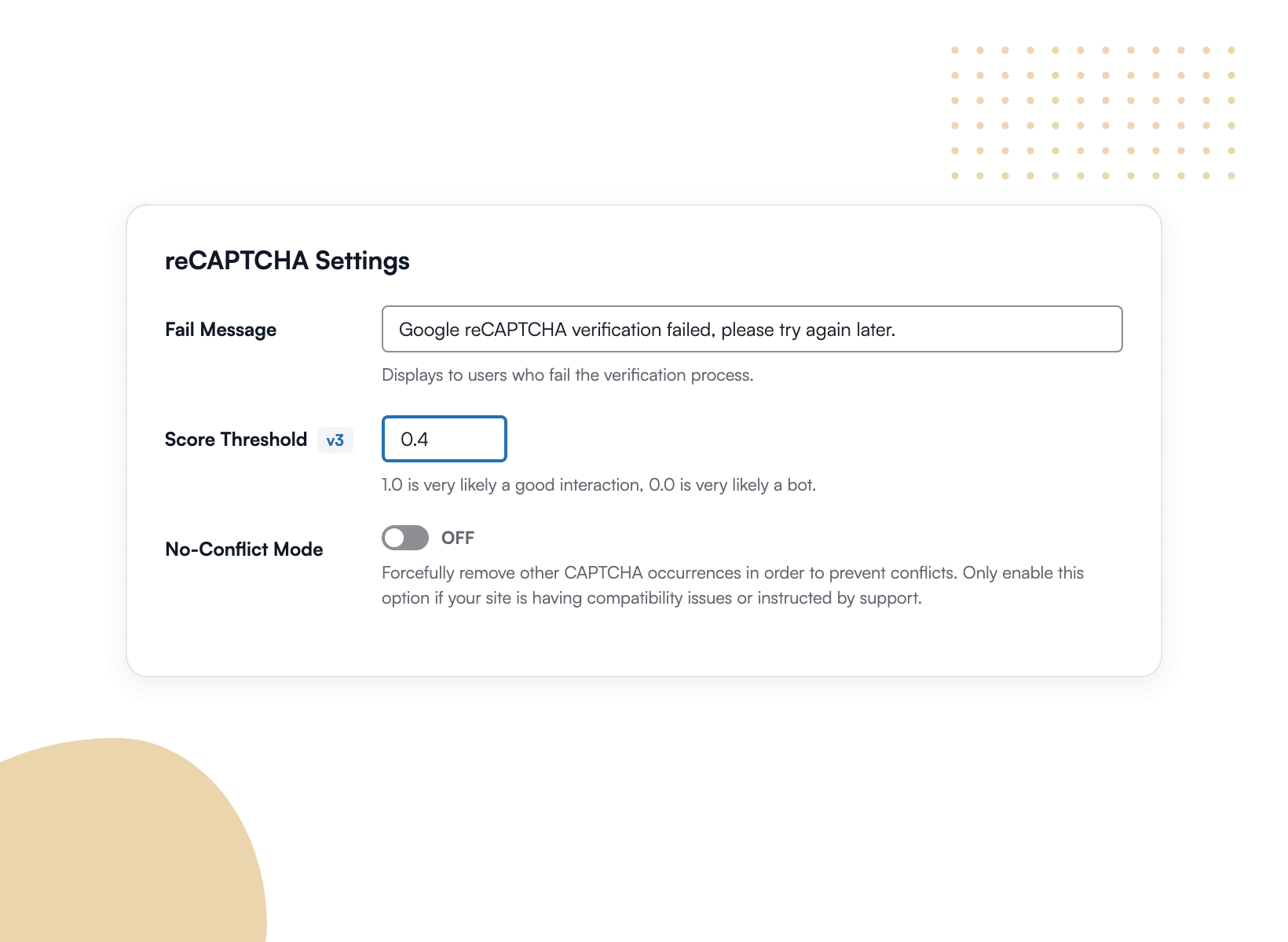
Write your own fail message so a blocked visitor knows what to do. On v3, set the score threshold that decides who gets through.

If your theme or another plugin also loads a CAPTCHA and causes a conflict, No-Conflict Mode removes the other copies. Leave it off unless you need it.

Google reCAPTCHA fail message, score threshold, and No-Conflict Mode settings
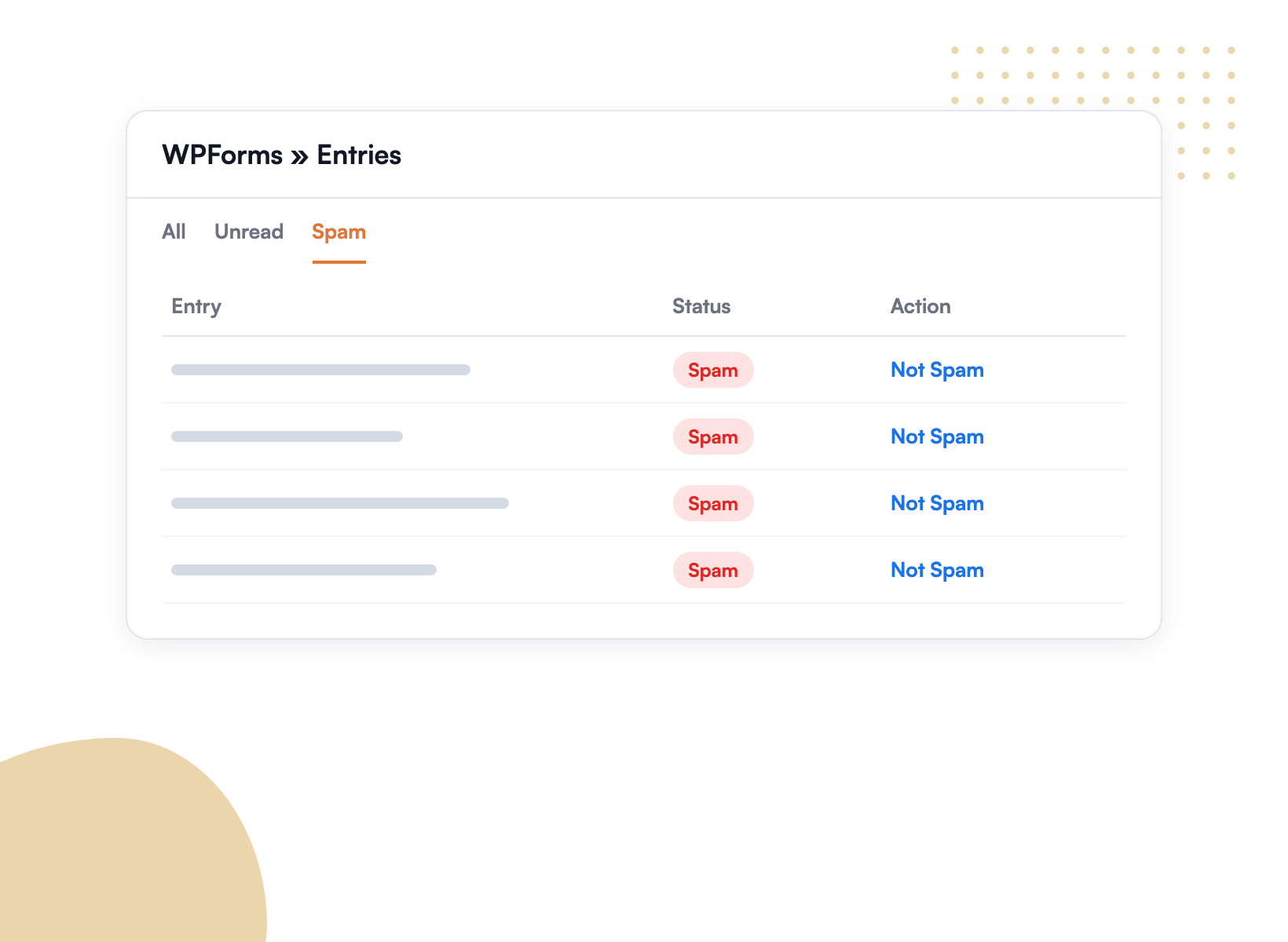
WPForms spam entries screen with Not Spam links

Never Lose a Real Lead to Google reCAPTCHA

No CAPTCHA is perfect. With a paid WPForms license, turn on Store spam entries in the database and every blocked submission is kept on the Entries » Spam screen.

Spot a real customer? Click Not Spam and the entry moves back to your inbox.

Put Google reCAPTCHA on Your Forms Today

Join the 5,000,000 professionals who trust WPForms to collect real leads and keep spambots out.

✓ 14-Day Money-Back Guarantee · ✓ No Coding Required · ✓ Used on 5+ Million Sites

View all

WPForms + Google reCAPTCHA – Frequently Asked Questions and Resources

Here are answers to common questions about the WordPress reCAPTCHA plugin in WPForms.

Does the WPForms reCAPTCHA integration work with WPForms Lite?

Yes. Google reCAPTCHA works with every version of WPForms, including WPForms Lite, the free version. You can add Checkbox reCAPTCHA v2, Invisible reCAPTCHA v2, or reCAPTCHA v3 to any form without upgrading.

Paid licenses add extras around it, like storing blocked entries so you can review them, and the Custom Captcha addon for math or question-and-answer challenges.

hCaptcha and Cloudflare Turnstile are also free in every version if you’d like a different CAPTCHA provider. See WPForms plans and pricing to compare what each plan includes.

How do I add Google reCAPTCHA to a WordPress form?

First, go to WPForms » Settings » CAPTCHA, select reCAPTCHA, and choose your type. Next, open Google’s reCAPTCHA admin console, register your domain for the same type, and copy the Site Key and Secret Key into WPForms. Save your settings.

Then open any form in the builder and turn reCAPTCHA on under Settings » Spam Protection and Security, or add the reCAPTCHA field. Finally, submit a test entry to check it works.

Our step-by-step reCAPTCHA setup guide walks through each screen.

Which Google reCAPTCHA type should I use?

For most sites, our docs recommend Invisible reCAPTCHA v2. Visitors don’t see a box, and Google only shows an image puzzle when it isn’t sure someone is human, so real people still get a second chance.

Checkbox v2 is the classic “I’m not a robot” box and suits forms bots target hard. reCAPTCHA v3 never shows a puzzle, but it blocks low scores outright, so a real person can get stuck. It’s best for advanced users or sites running Google AMP.

Read our reCAPTCHA v2 vs v3 comparison for more detail.

Is Google reCAPTCHA free?

Google reCAPTCHA has a free tier of up to 10,000 assessments a month, shared across your Google Cloud organization. An assessment runs each time reCAPTCHA checks a visitor, so busy sites can use it up faster than expected.

Past the limit, Google asks you to turn on billing, and reCAPTCHA may stop working until the next cycle if you don’t. Most small sites stay inside the free tier.

If you’d rather avoid billing entirely, Cloudflare Turnstile is also built into WPForms. Our post on Google reCAPTCHA changes in 2025 covers current pricing.

Do I need to migrate my reCAPTCHA keys to Google Cloud?

Google is moving all reCAPTCHA keys into Google Cloud projects. That change happens on Google’s side, and it doesn’t remove support for reCAPTCHA v2 or v3 in WPForms. Your forms keep working with migrated keys.

When you create new keys, Google sets up a Cloud project for you automatically, and you don’t need a billing account for basic use.

To move existing keys, follow Google’s migration guide, then confirm your Site Key and Secret Key in WPForms » Settings » CAPTCHA still match. See our reCAPTCHA setup guide for details.

Why does my form say Google reCAPTCHA verification failed?

The most common cause is a key mismatch. Each reCAPTCHA type needs its own Site Key and Secret Key, so keys made for Checkbox v2 won’t work with v3.

Check that the keys in WPForms » Settings » CAPTCHA match the type you chose, and that your domain is registered in Google’s admin console.

Caching or optimization plugins that delay or combine JavaScript can also break reCAPTCHA, so try turning those settings off and clearing your cache. Our guide on fixing reCAPTCHA not working in WordPress covers every common error.

What happens to entries Google reCAPTCHA blocks?

By default, submissions that fail Google reCAPTCHA are blocked and never saved.

With a paid WPForms license, you can turn on Store spam entries in the database for any form. Blocked submissions are then kept on the Entries » Spam screen instead of disappearing.

If you spot a real customer there, click Not Spam and the entry moves back to your regular entries. That way a false positive never costs you a lead. Learn more in our guide to viewing and managing spam entries.

What can I do if I'm still getting spam with Google reCAPTCHA?

First, if you use Checkbox v2, raise the security preference in your Google reCAPTCHA settings so Google challenges more visitors. Then add a second layer in WPForms.

The built-in anti-spam protection and a minimum time to submit work alongside reCAPTCHA in every version, and paid licenses add country and keyword filters.

Some spam comes from real people typing by hand, which no CAPTCHA can stop, so filters and a minimum submit time help catch what reCAPTCHA lets through. See our guide to preventing spam in WPForms for every option.

Can I move my forms to WPForms and keep Google reCAPTCHA?

Yes. When you import forms from Contact Form 7 or Ninja Forms with the WPForms importer, reCAPTCHA comes with them.

If WPForms doesn’t have reCAPTCHA keys yet, the importer picks up the keys from your old plugin and turns reCAPTCHA on for each imported form. You don’t need to set it up again.

Afterward, check WPForms » Settings » CAPTCHA to confirm the type and keys, then submit a test entry. It’s one of the easiest ways to switch form plugins without opening a gap for spam.

🔔 Subscribe to get our latest updates
📧 Subscribe to Emails

Email Subscription

Join our Newsletter

We won’t spam you. We only send an email when we think it will genuinely help you. Unsubscribe at any time!
Improvement New Feature

Meet the New Front-End Form Themes Editor

Hero banner announcing the new Front-End Form Themes Editor; bear mascot on the left and stacked form illustrations on the right.

The Front-End Form Themes Editor lets you restyle your WPForms forms on the pages where they’re embedded, with each adjustment showing up as you make it.

Saving from the form’s preview page sets its default look, while saving anywhere else changes that one placement only.

Open it from the admin bar’s Edit Form Theme item, or from an Edit Theme button inside the builder, the block editor, Elementor, or Divi.

Every form ends up looking at home wherever it appears.

Integration New Feature

Grow Your Drip List Right From Any WPForms Form

Announcement banner:'Announcing Drip for All WPForms Users' with a mascot on the left and a circular logo on the right.

Drip now works inside WPForms itself, so any form can create or update subscribers in your Drip account without a separate addon to manage.

Tags set on a connection travel with each new subscriber, which lets the Drip workflow tied to that tag pick them up straight away.

Link a Drip account in WPForms » Settings » Integrations, then set up a connection from the Marketing panel of the form builder.

Sites that ran the earlier Drip addon keep their accounts, connections, and field mappings exactly as they were.

New Feature Payments

Start Your Stripe Subscriptions With a Trial Period

Left-aligned hero text: “Add a Trial Period to Stripe Subscriptions in WPForms,” with a bear avatar and an ANNOUNCEMENT badge on dark blue background.

A Stripe subscription sold through WPForms can now begin with a trial period: the subscriber signs up today, and their first payment waits until the trial is over.

The card is collected and checked at signup, held by Stripe, and charged automatically on the day the trial ends.

The length is a number of days, weeks, months, or years, chosen in the form builder’s Payments tab for each Stripe subscription you sell.

Each trial shows up in WPForms » Payments with a Trialing status until that first payment lands.

Improvement

Weekly Email Summary

Hero banner announcing the WPForms Weekly Email Summary with a mascot circle on the left and a white analytics card on the right, on a dark blue background.

The weekly summary WPForms emails you now opens with stat tiles for entries, views, and spam, each marked with how it moved against the previous week.

Beneath them, a table gives every form its own line, and when the data earns it the headline changes to call out a best week, a milestone, or a form that has gone quiet.

A single button takes you from the email back into WPForms, so the thing worth checking is one click away.

Integration New Feature Payments

Paystack Addon

Introducing the WPForms Paystack Addon: Accept Payments in Nigeria, Ghana, South Africa, and Kenya

The Paystack addon brings card, bank transfer, and mobile money payments to your forms for buyers in Nigeria, Ghana, South Africa, and Kenya.

Buyers click submit and pay in the Paystack popup in naira, cedis, rand, or Kenyan shillings, with no new field to add to your form.

Bank transfer and mobile money payments are saved as Pending, and WPForms can hold your notification emails until Paystack confirms the payment, then completes the order on its own.

Every Paystack payment shows up in WPForms » Payments, and full refunds can be issued without leaving WordPress.