


AI Summary
Would you like to display a map on your forms to show specific locations or help users select a location? The Map field in WPForms allows you to integrate interactive maps directly into your forms, enhancing user experience and providing precise location data.
In this tutorial, we’ll guide you through the steps to use the Map field in WPForms.
Requirements:
- You will need a Pro license level or higher to access the Geolocation addon
- Ensure that you’ve installed the latest version of WPForms to meet the minimum required version for the Geolocation addon
Before you get started, be sure to install and activate the WPForms plugin on your site and verify your license. Then create a new form or open an existing one for editing.
Setting Up the Geolocation Addon
Before you can use the Map field, install and configure the Geolocation addon. The Map field is part of the Geolocation addon and requires the same setup as other geolocation features.
Once you’ve completed these steps, you can start using the Map field in your forms.
1. Adding a Map Field to Your Form
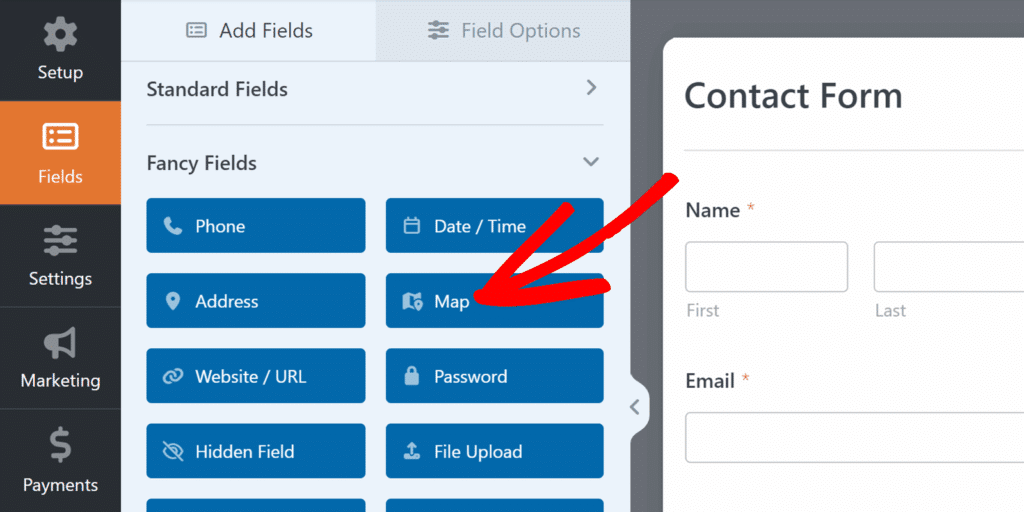
Start by locating the Map field under the Fancy Fields section in the form builder. Click on the Map field or drag and drop it into the form preview area to add it to your form.
2. Configuring Map Locations
After adding the Map field, click on it in the form builder to open the Field Options panel. Then, configure the locations that will appear on your map from the Locations section.
Adding Addresses
Begin by typing an address in the Address field.
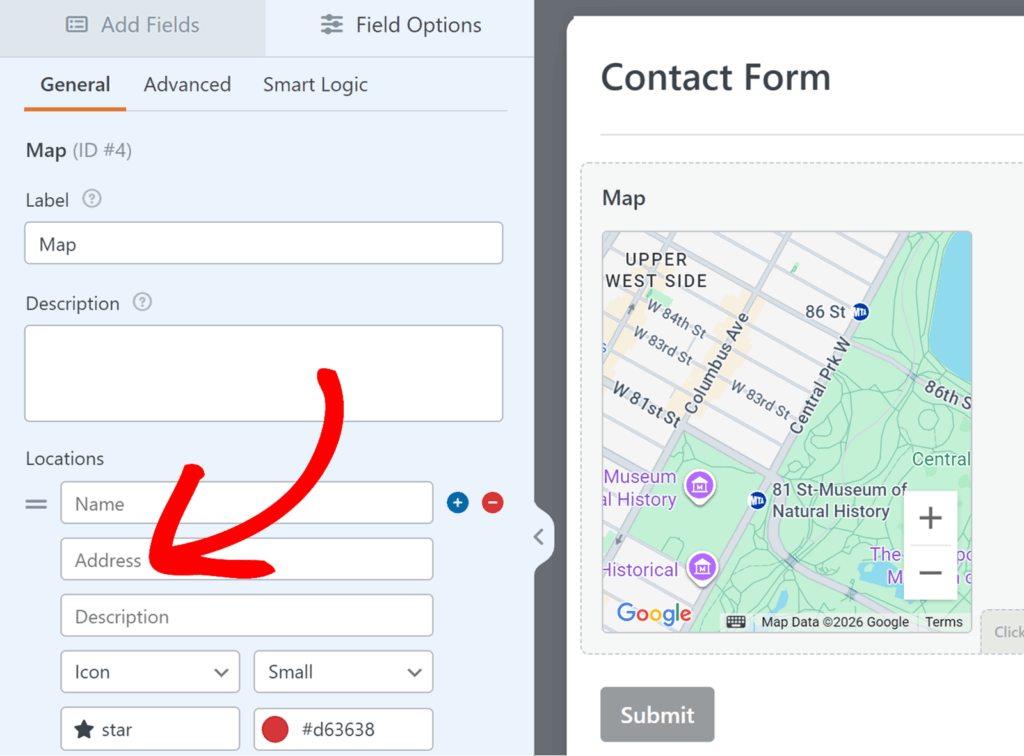
As you type, autocomplete suggestions will appear based on Google Places data. Then, select the desired location from the list of suggestions.
After selecting an address, you can add:
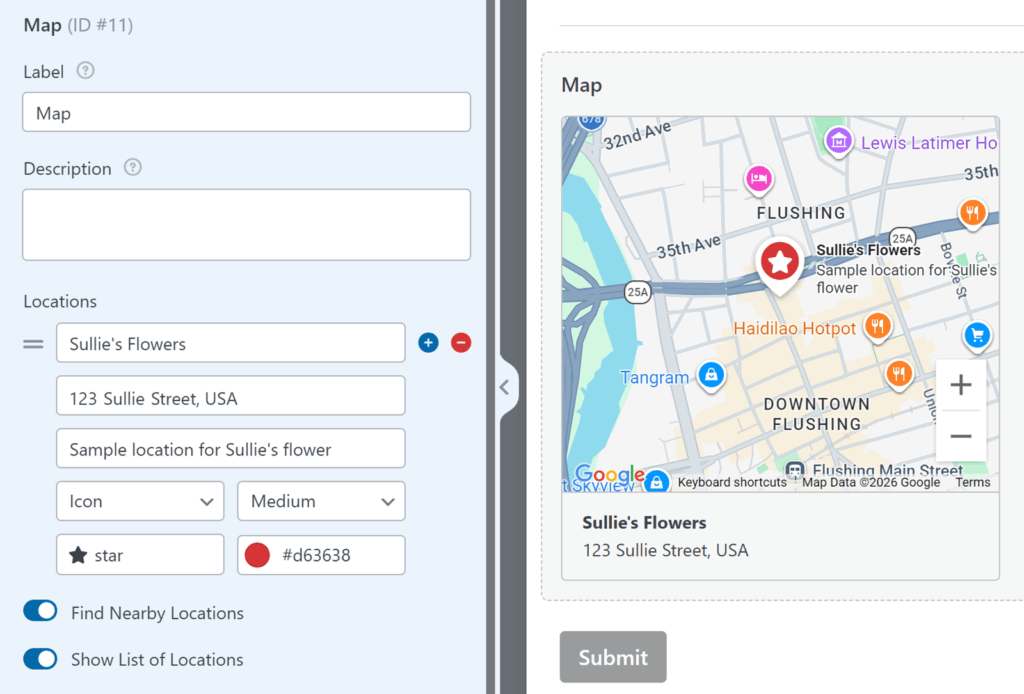
- Name: A custom label for the location, such as “Main Office” or “Downtown Store”.
- Description: Additional information about the location.
Finding Nearby Locations:
Enable the Find Nearby Locations option to filter address autocomplete suggestions based on your current geographic location.
When activated, your browser will request permission to access your location. Once permission is granted, suggestions will prioritize nearby locations, making it easier to find and select addresses in your vicinity.
Displaying Location Information:
Enable the Show List of Locations option to display full address information below the map on the frontend. This allows users to see a list showing the name and address for each location you’ve configured.
3. Customizing Map Markers
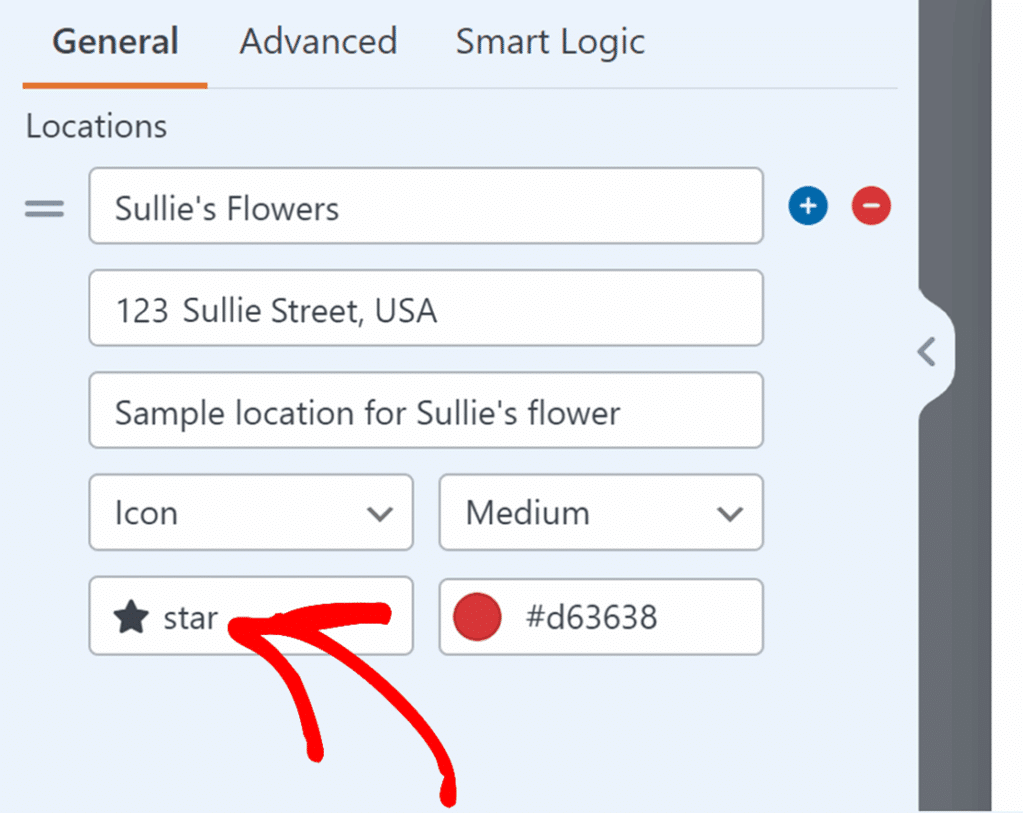
Each location can have a custom icon or image as its marker. In the Locations section, find the Icon dropdown for the location you want to customize.
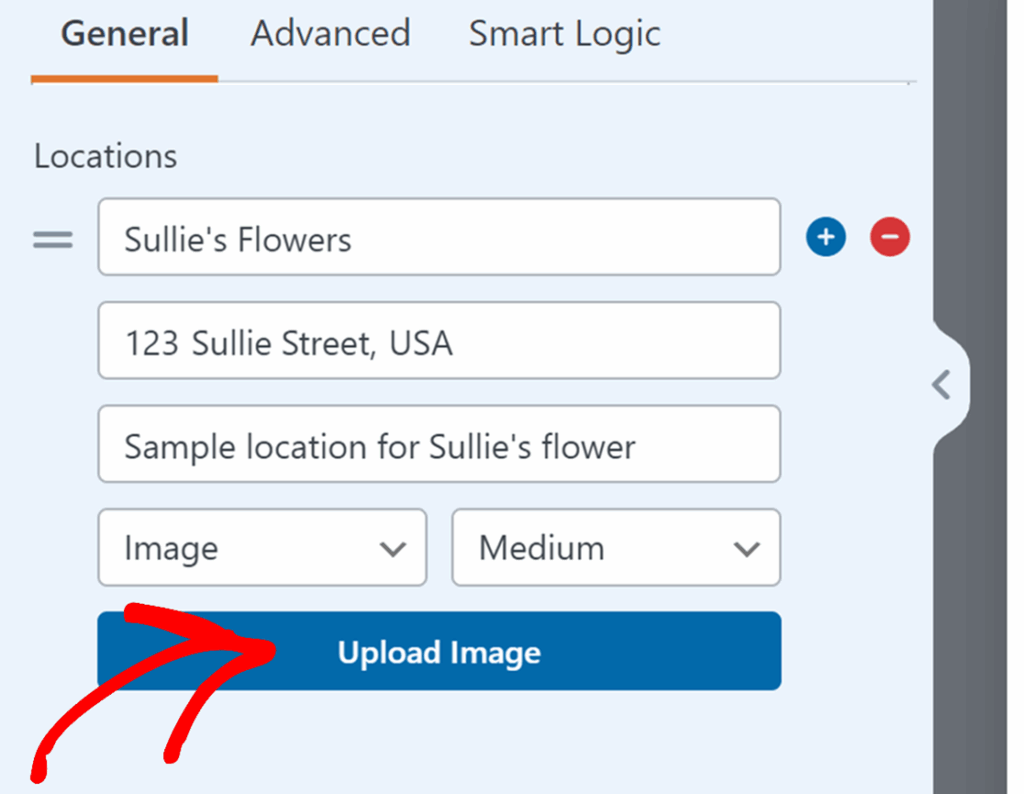
Select Icon to choose from over 2000 Font Awesome icons, or select Image to upload a custom image.
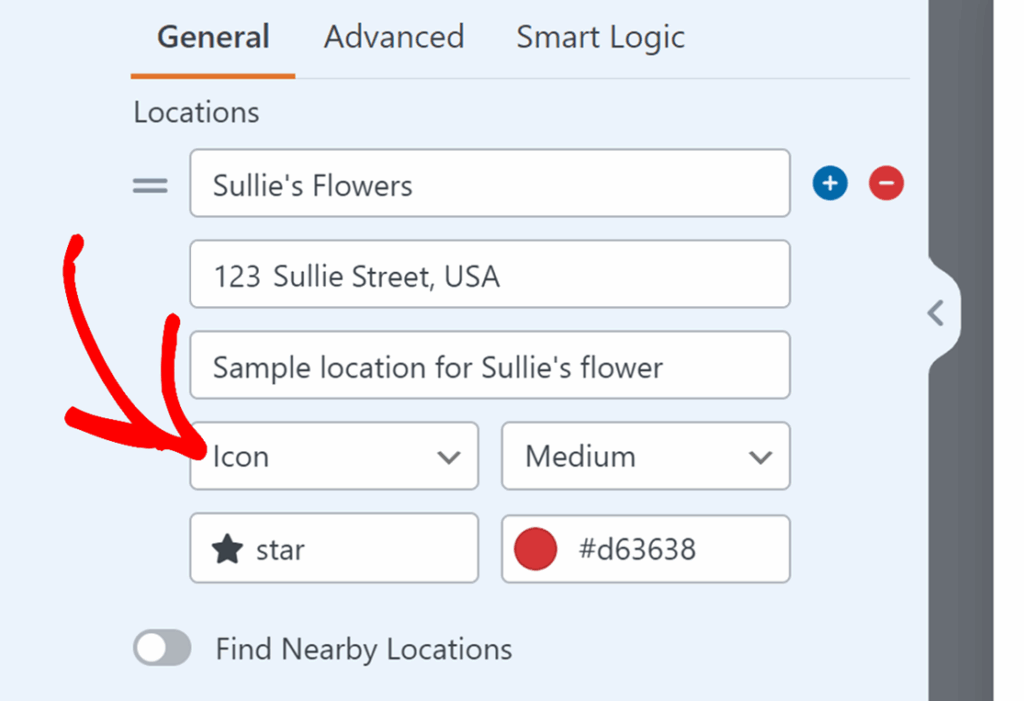
If using icons, click the icon field to open the icon picker. Search for the icon you want and select it.
If using images, click Upload Image to open the media library. Upload a new file or select an existing image from your media library.
Customizing Marker Appearance
To change the marker color, click the color picker next to the icon field. You can either select from preset colors, drag the color picker to choose any color, or paste a hex color value directly.
To make the markers more prominent, use the size dropdown next to the icon field. Available options are: Small, Medium, or Large. Larger markers help your custom locations stand out from other locations on the map.
Setting Zoom Level
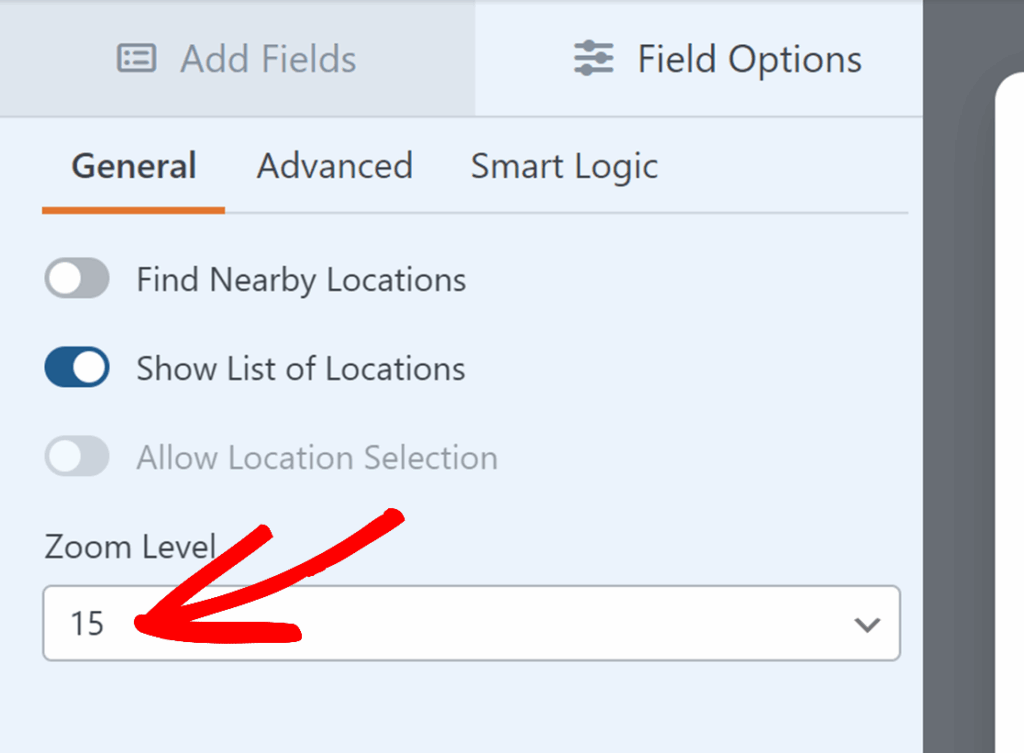
Adjust the Zoom Level field to control how close the map appears when it first loads. The default value is 15, which is the standard zoom level for embedded maps.
When multiple locations are configured, the zoom level automatically adjusts to display all locations, and this setting is disabled.
4. Configuring Advanced Map Settings
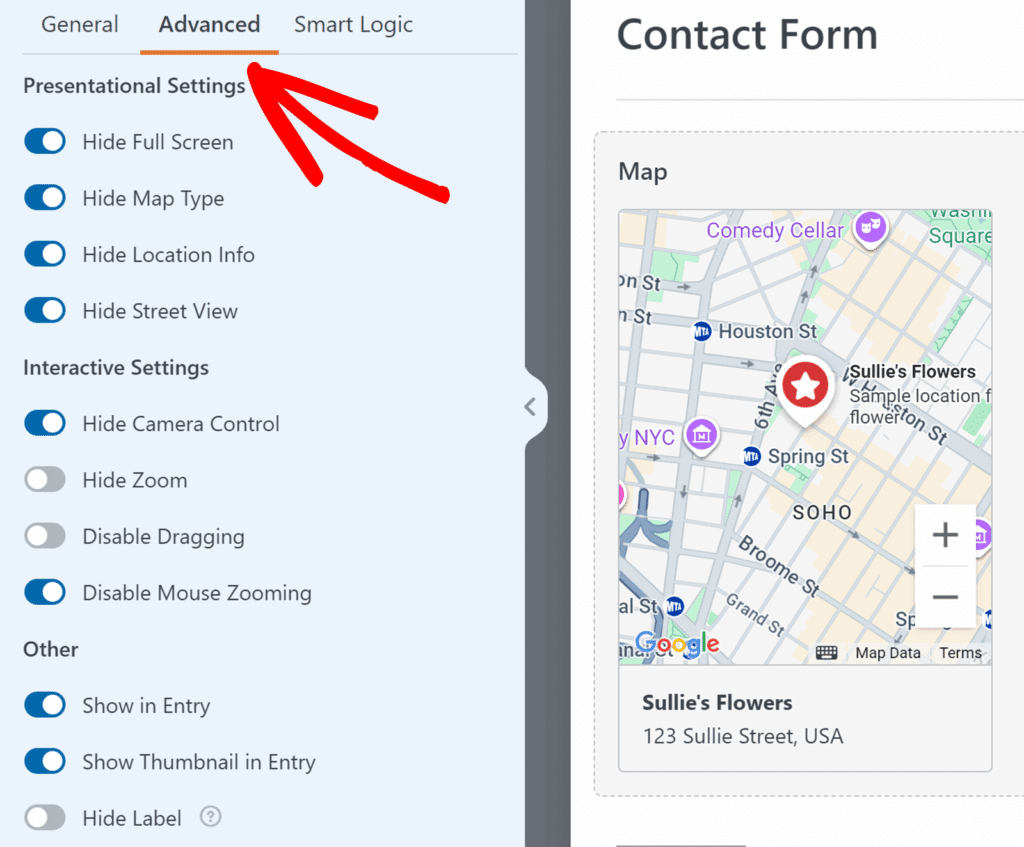
For additional customization, click the Advanced tab in the Field Options panel. Here you can control the map’s appearance, user interactions, and how it displays in form entries.
Presentation Settings
Decide which Google Maps UI elements are visible on your map:
- Hide Full Screen: Hides the full screen button that allows users to view the map in full screen mode.
- Hide Map Type: Hides the map type selector (satellite, terrain, etc.).
- Hide Location Info: Hides location information cards that appear when clicking markers.
- Hide Street View: Hides the Street View control.
Most of these options are hidden by default to provide a cleaner map appearance.
Interactive Settings
Control how users interact with the map:
- Hide Camera Control: Hides the camera control buttons.
- Hide Zoom: Hides the zoom in and zoom out buttons.
- Disable Dragging: Prevents users from dragging the map to pan around.
- Disable Mouse Zooming: Prevents zooming with the mouse scroll wheel.
Note: Only one of Disable Dragging and Disable Mouse Zooming can be active at a time.
Other Settings
Additional options for how the map field behaves:
- Show in Entry: Displays map data in form entries.
- Show Thumbnail in Entry: Shows a thumbnail of the map in form entries.
- Hide Label: Hides the field label on the frontend.
5. Handling Multiple Locations
Use multiple locations when you need to display several points on a single map, such as multiple store locations, pickup points, or branch offices. This feature allows users to see all locations at once and optionally select their preferred location.
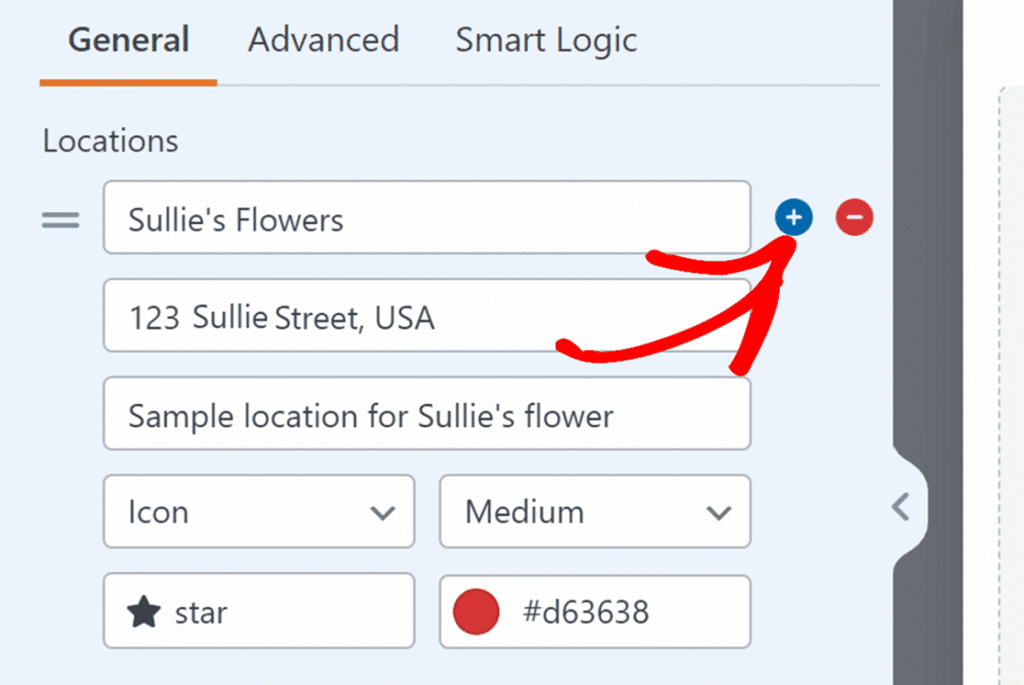
To add multiple locations to your map, click the plus icon (+) in the Locations section of the Field Options panel. Each location can have its own unique marker icon, color, name, and description.
Enabling Location Selection
When you have two or more locations configured, enable the Allow Location Selection option. This feature requires:
- At least two locations added to the map.
- The Show List of Locations option to be enabled.
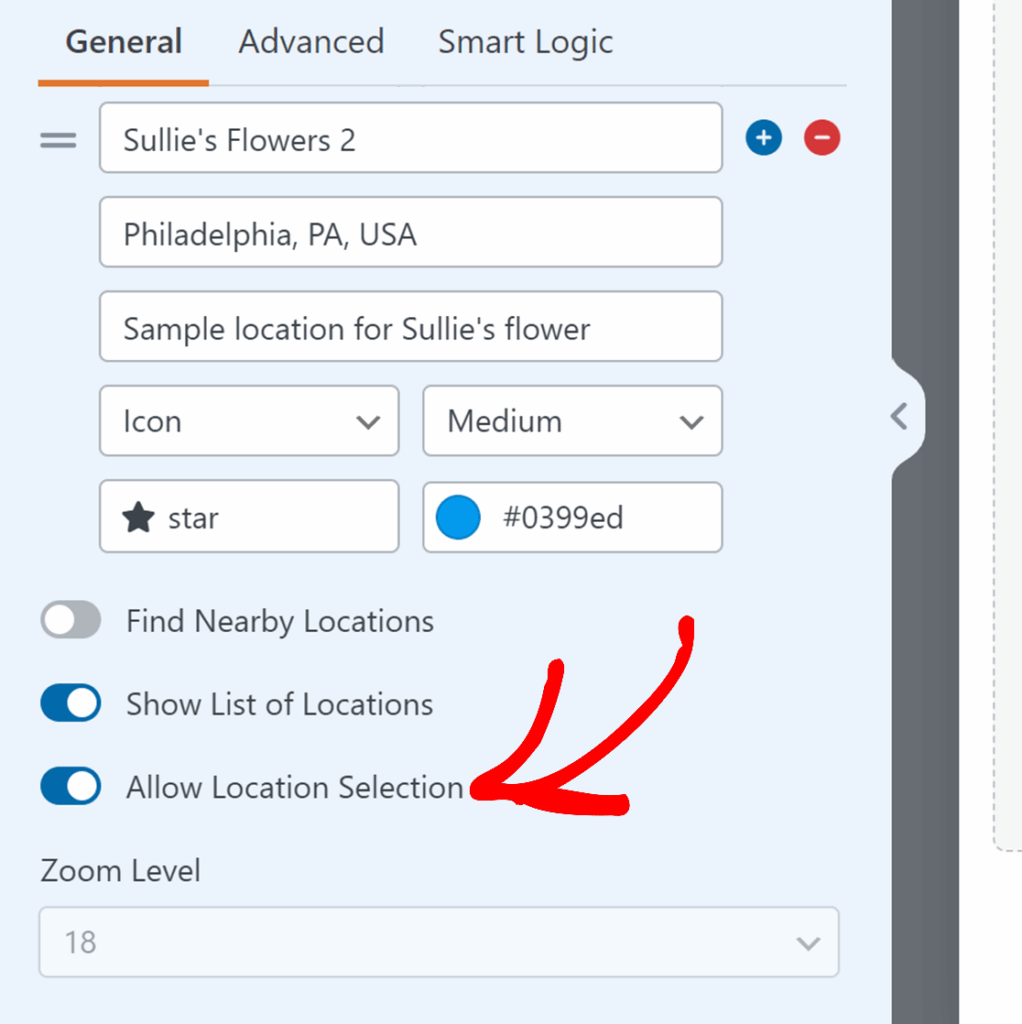
With this option, radio buttons appear below the map, allowing users to select their preferred location.
Note: When multiple locations are present and location selection is enabled, the map’s zoom level automatically adjusts to display all locations, and the manual zoom level setting is disabled.
Frequently Asked Questions
These are answers to some of the most common questions we receive about using the Map field in WPForms.
Can I hide other businesses and points of interest on my map?
Yes. To hide points of interest (POIs) like restaurants and shops so only your custom markers are visible, you’ll need to create a custom map style in Google Cloud Console and then apply it to your Map Field using a code snippet. Since map styling is managed through Google’s cloud-based styling feature, this configuration is done in your Google Cloud Console dashboard.
See our developer documentation on applying custom map styles to the Map Field for step-by-step instructions.
That’s it! You now know how to use the Maps field in WPForms to enhance your forms with interactive maps and precise location data.
Next, would you like to easily enhance the design of your forms with ready-made themes? Be sure to check out our guide to using form themes for all the details on how to apply these themes to your forms.