


KI-Zusammenfassung
Fragen Sie sich, wie Sie die Schaltfläche „Senden“ aus Berechnungsformularen entfernen können, um die Benutzererfahrung zu verbessern?
Für einen Hypotheken-Kostenvoranschlag oder ein Versandangebot möchten die Leute, dass sich die Zahl während der Eingabe aktualisiert, anstatt auf eine Schaltfläche zu klicken und auf das Neuladen der Seite zu warten.
Indem Sie die Schaltfläche „Senden“ aus von WPForms erstellten Berechnungsformularen entfernen, können Sie Ihren Besuchern sofortige Berechnungen anbieten.
In diesem Leitfaden lernen Sie die einfachen Schritte, um Ihre Formulare für nahtlose Echtzeitberechnungen zu ändern, ohne eine Formularübermittlungsaktion zu benötigen.
Erstellen Sie jetzt Ihr Rechner-Formular
Warum die Schaltfläche „Senden“ aus einem Rechner-Formular entfernen?
Die meisten Formulare benötigen eine Schaltfläche „Senden“, da sie Daten irgendwohin senden, z. B. eine Kontaktanfrage oder eine Bestellung. Ein Rechner-Formular funktioniert jedoch anders.
Ihr Besucher sendet Ihnen nichts, er möchte nur eine Antwort, wie z. B. eine monatliche Hypothekenzahlung oder Versandkosten. Wenn das Calculations-Addon die Gesamtsumme live während der Eingabe aktualisiert, hat die Schaltfläche „Senden“ nichts mehr zu tun.
Es kann Besucher sogar verwirren und sie denken lassen, dass sie darauf klicken müssen, um ihr Ergebnis zu sehen. Das Ausblenden lässt das Formular wie einen echten Taschenrechner funktionieren, bei dem die Zahl einfach erscheint und sich von selbst aktualisiert.
Wenn Ihr Formular also dazu dient, eine Live-Zahl anzuzeigen, anstatt eine Einreichung zu sammeln, ist das Entfernen der Schaltfläche „Senden“ normalerweise die richtige Entscheidung.
So entfernen Sie die Schaltfläche „Senden“ aus Berechnungsformularen
Das Entfernen der Schaltfläche "Senden" aus Berechnungsformularen mit WPForms ist unglaublich einfach. Alles, was Sie tun müssen, ist, die folgenden einfachen Schritte zu befolgen:
Die Voraussetzungen
Bevor wir mit den Schritten zum Deaktivieren der Schaltfläche "Senden" fortfahren, stellen wir sicher, dass wir einige wichtige Schritte abgeschlossen haben.
Wenn Sie diese Schritte bereits abgeschlossen haben, springen Sie gerne zum Abschnitt Entfernen der Schaltfläche "Senden".
1. Eine WPForms Pro-Lizenz besitzen
WPForms ist ein seriöser Formularersteller und Rechner-Plugin, das es Benutzern ermöglicht, eine breite Palette von Formularen zu erstellen, einschließlich eines Datumsdifferenzrechners.
Es ist wichtig, dass Sie die neueste Version von WPForms installiert haben, zusammen mit Zugriff auf die Pro-Lizenz.
Die Pro-Version bietet Ihnen Zugriff auf Premium-Integrationen, Addons und viele wertvolle Funktionen wie bedingte Logik, Formularübermittlungsberichte usw.
2. Das Calculations Addon verwenden
Um benutzerdefinierte Rechner in WordPress zu erstellen, wissen Sie wahrscheinlich bereits, dass Sie das WPForms Calculations Addon installiert haben müssen.
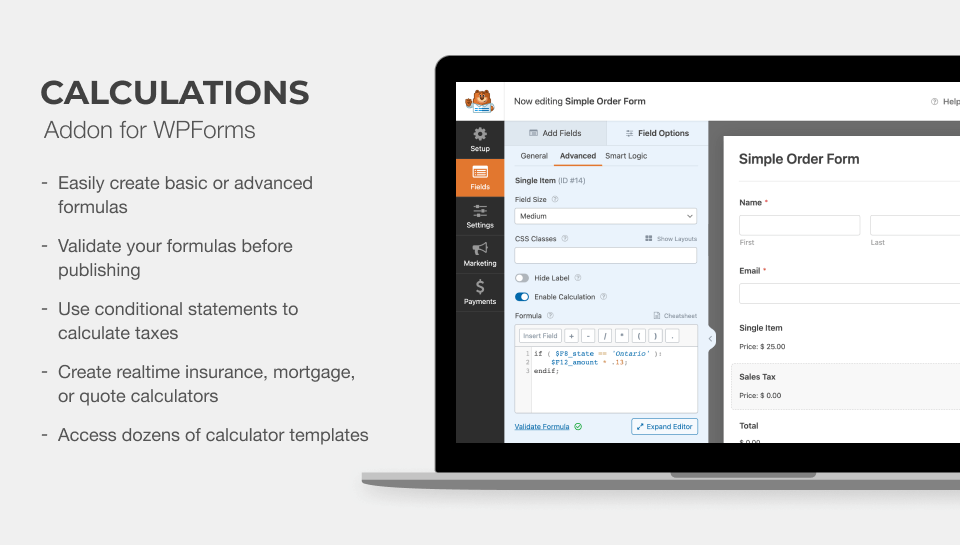
Sie können dieses Addon verwenden, um logische Operatoren und Wenn-Dann-Anweisungen einzufügen, um personalisierte Angebote zu erstellen oder intelligente Rechner zu erstellen.
Es ermöglicht Ihnen sogar, integrierte mathematische Funktionen zu nutzen, um Zahlen zu runden, Zeitbereiche zu berechnen, Durchschnittswerte zu ermitteln und mehr.
3. Eine Rechner-Formularvorlage auswählen
Schließlich benötigen Sie ein fertiges Formular. Wenn Sie eines erstellen müssen, bietet WPForms über 2.100 vordefinierte Vorlagen, die die Formularerstellung zum Kinderspiel machen.
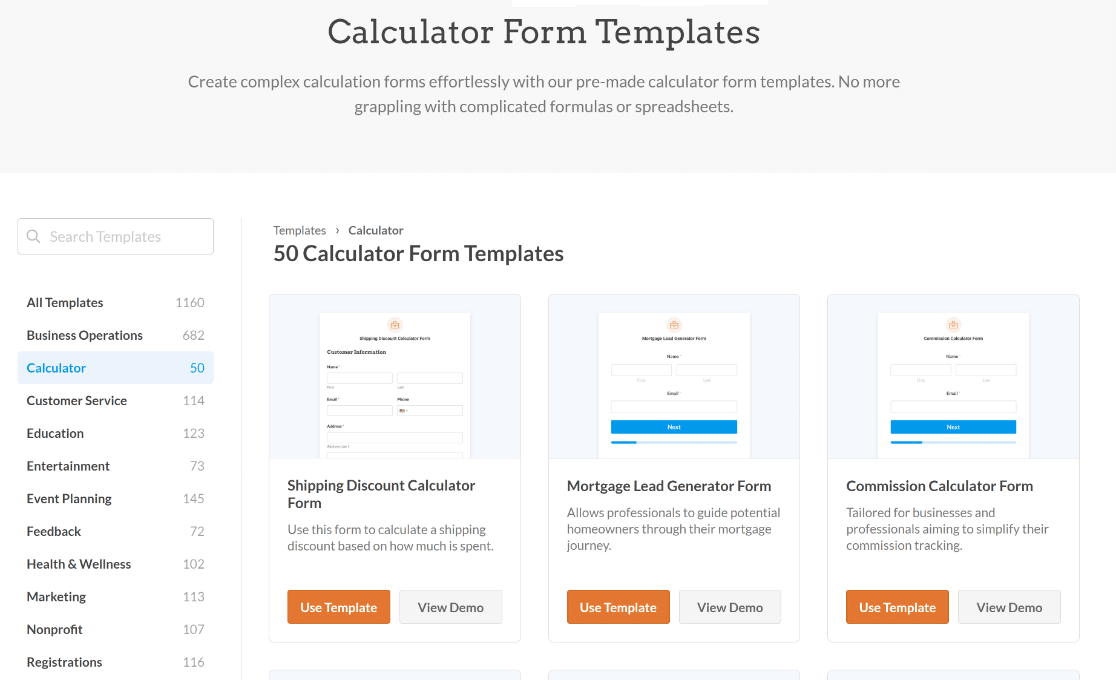
Dazu gehören professionell gestaltete Rechner-Formularvorlagen, die an eine Vielzahl von Anwendungsfällen und Branchen angepasst werden können, wie zum Beispiel:
- Hypothekenrechner-Formularvorlage – perfekt für Immobilienagenturen, da sie potenziellen Käufern ermöglicht, Hypotheken und ihre monatlichen Zahlungen mühelos zu berechnen.
- Versandkostenrechner-Formularvorlage – hilft E-Commerce-Websites, Zeit und Mühe zu sparen, indem sie einen einfachen Versandrechner für Kunden bereitstellt.
- BMI-Rechner-Formularvorlage – ideal für Websites, die sich mit körperlicher Fitness oder Gesundheit befassen und Benutzern bei der Bewertung ihres aktuellen Gesundheitszustands helfen.
- ROI-Rechner-Formularvorlage – unterstützt Unternehmen und Vermarkter bei der effizienten Bewertung der Rentabilität ihrer Kampagnen oder Projekte.
Das Beste daran: Sie können das Calculations Addon verwenden, um benutzerdefinierte Rechner ohne HTML, JavaScript oder komplexe Programmierkenntnisse zu erstellen.
Holen Sie sich WPForms Pro, um Ihren Rechner zu erstellen
Entfernen der Schaltfläche "Senden"
Sobald diese Voraussetzungen erfüllt sind, können Sie Ihr Formular anpassen, um die Sende-Schaltfläche für eine bessere Benutzererfahrung zu entfernen.
1. Gehen Sie zur WPForms Snippet-Bibliothek
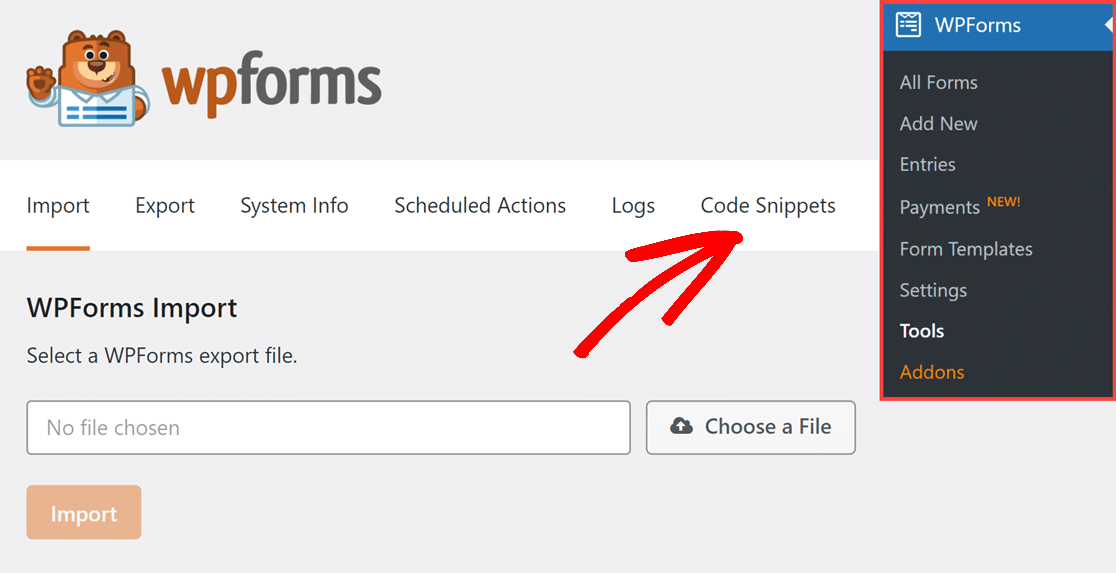
Gehen Sie in Ihrem WordPress-Dashboard einfach zu WPForms » Tools. Navigieren Sie dann zur Registerkarte Code-Snippets.
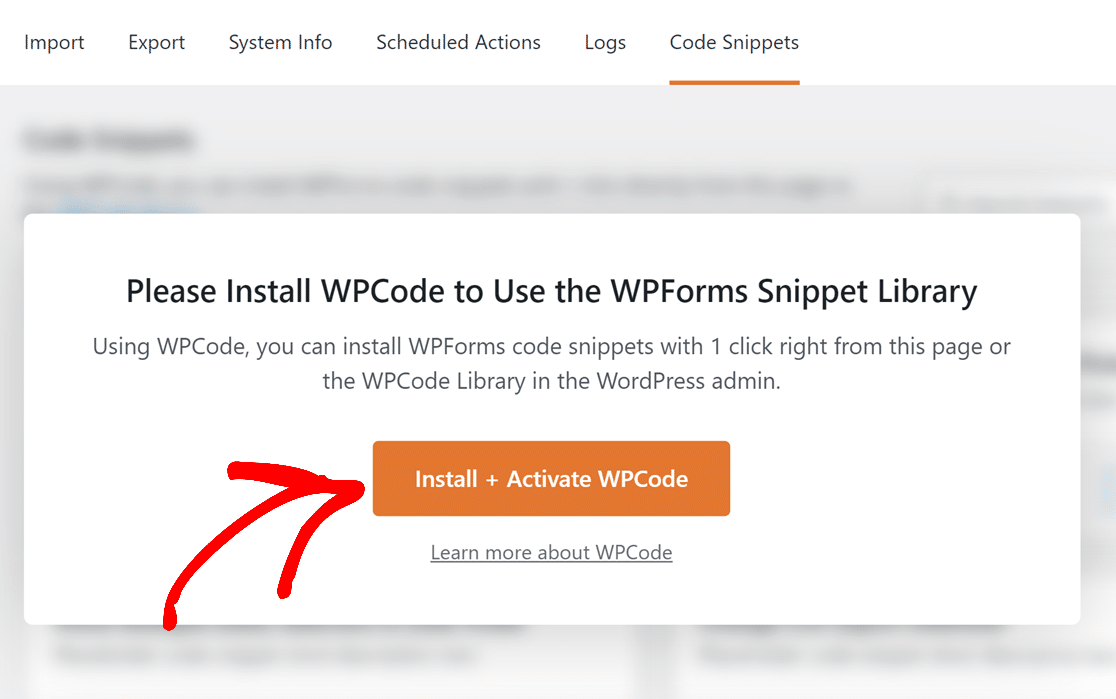
Dies zeigt eine Popup-Meldung an, die besagt: „Bitte installieren Sie WPCode, um die WPForms-Snippet-Bibliothek zu verwenden.“
2. WPCode installieren + aktivieren
Alles, was Sie jetzt tun müssen, ist, auf die Schaltfläche WPCode installieren + aktivieren zu klicken. Das Plugin wird nun einige Sekunden zur Installation benötigen.
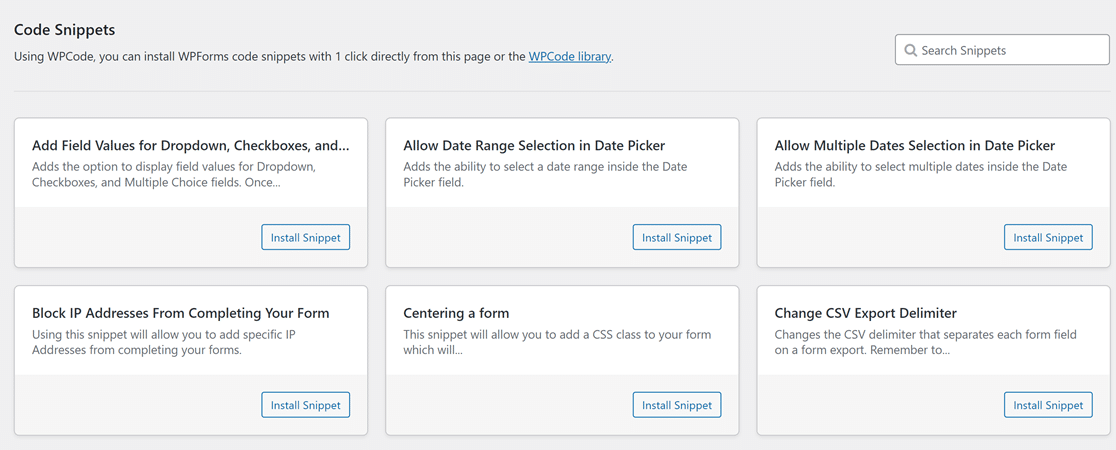
Sobald das WPCode-Plugin installiert ist, können Sie auf die vollständige Liste der WPForms-Snippets zugreifen.
3. Das Snippet "Schaltfläche "Senden" ausblenden" verwenden
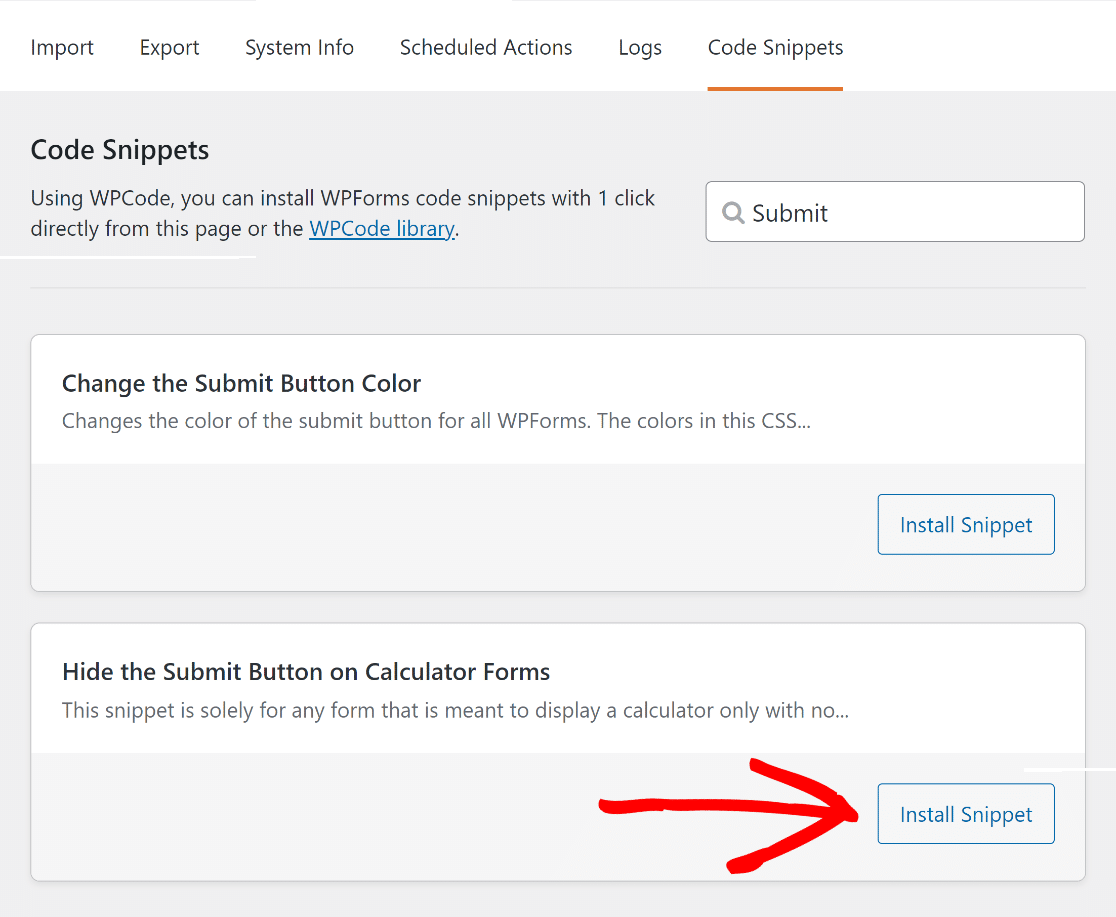
Suchen Sie nun nach dem Snippet zum Ausblenden der Sende-Schaltfläche, indem Sie seinen Namen in das Feld Snippets durchsuchen eingeben. Klicken Sie dann auf die Schaltfläche Snippet installieren.
Hier ist der Code-Snippet, den wir importieren werden:
Dies leitet Sie zur Vorschauseite des WPCode-Snippets weiter, wo Sie sehen können, wie der Code automatisch integriert wird.
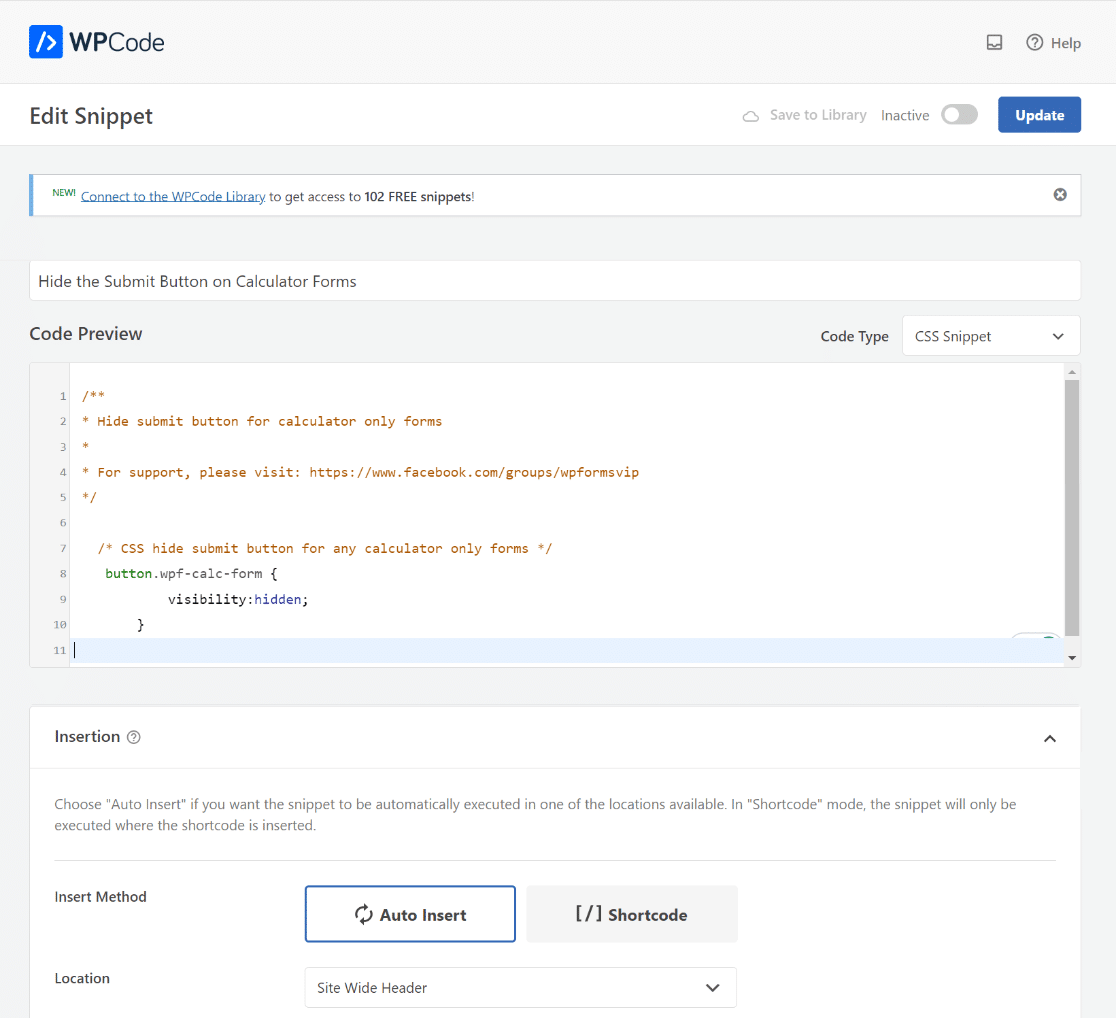
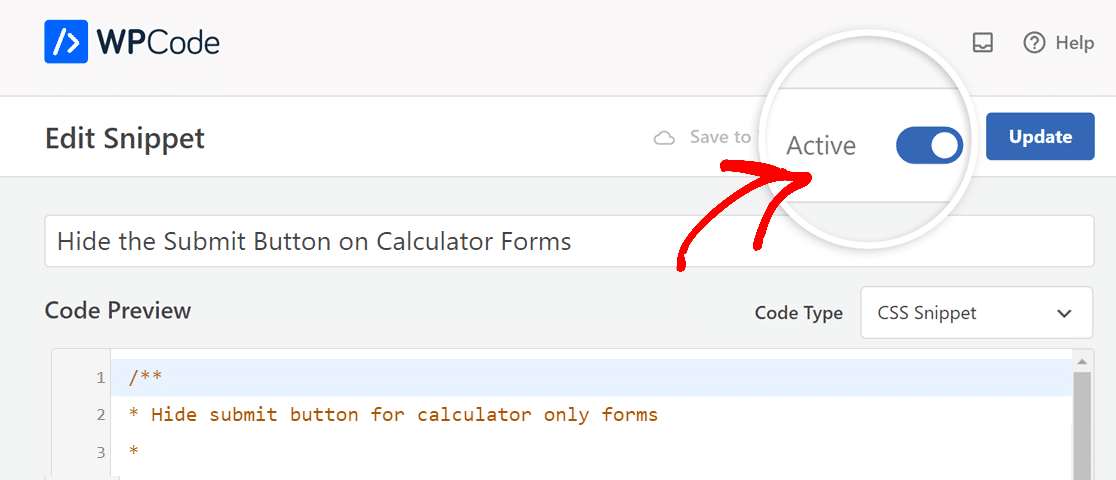
Jetzt müssen Sie nur noch den Snippet-Code aktivieren. Bewegen Sie dazu den Schalter von Inaktiv auf Aktiv.
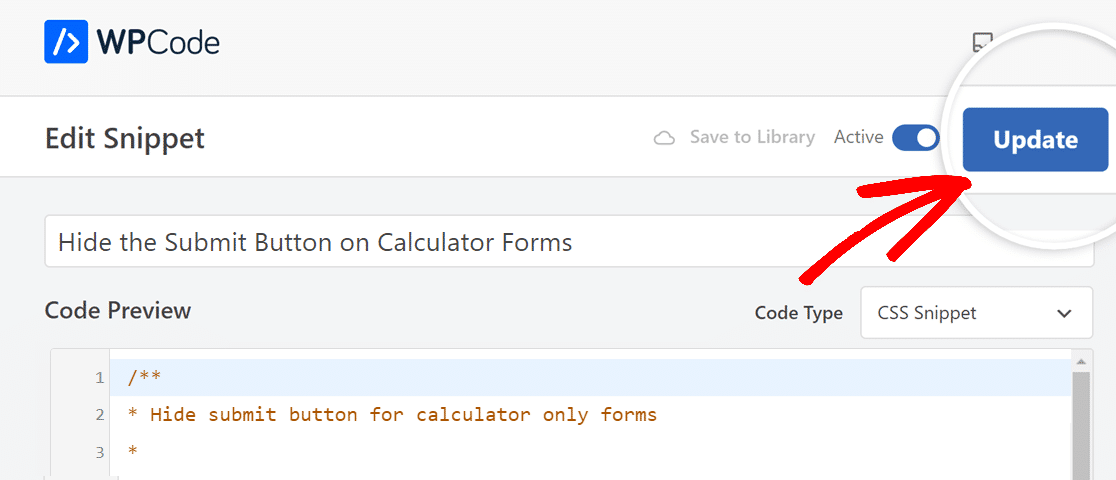
Der nächste Schritt zur Aktivierung des Code-Snippets für die gesamte Website ist das Klicken auf die Schaltfläche Aktualisieren, direkt neben der Option Aktiv.
Wenn Sie diesem Ansatz folgen, müssen Sie das Snippet nur einmal über die WPForms-Snippet-Bibliothek hinzufügen.
Dann muss für jedes Formular, auf dem der Benutzer dieses Snippet verwenden möchte, der Name der CSS-Klasse der Sende-Schaltfläche im Builder hinzugefügt werden.
4. CSS-Klasse für die Schaltfläche "Senden" hinzufügen
Jetzt müssen Sie nur noch die CSS-Klasse im Formular-Builder des Rechners hinzufügen, von dem Sie die Sende-Schaltfläche entfernen möchten.
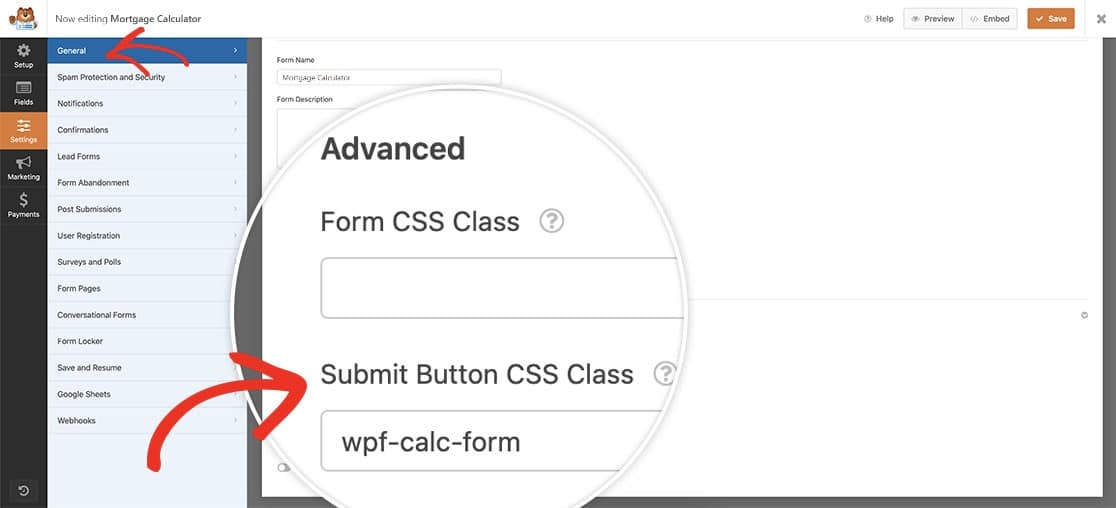
Öffnen Sie dazu Ihr Rechner-Formular und navigieren Sie zur Registerkarte Allgemein, scrollen Sie dann nach unten zur Registerkarte Erweitert.
Fügen Sie anschließend die wpf-calc-form CSS in die CSS-Klasse der Sende-Schaltfläche ein, um das Code-Snippet zu aktivieren.
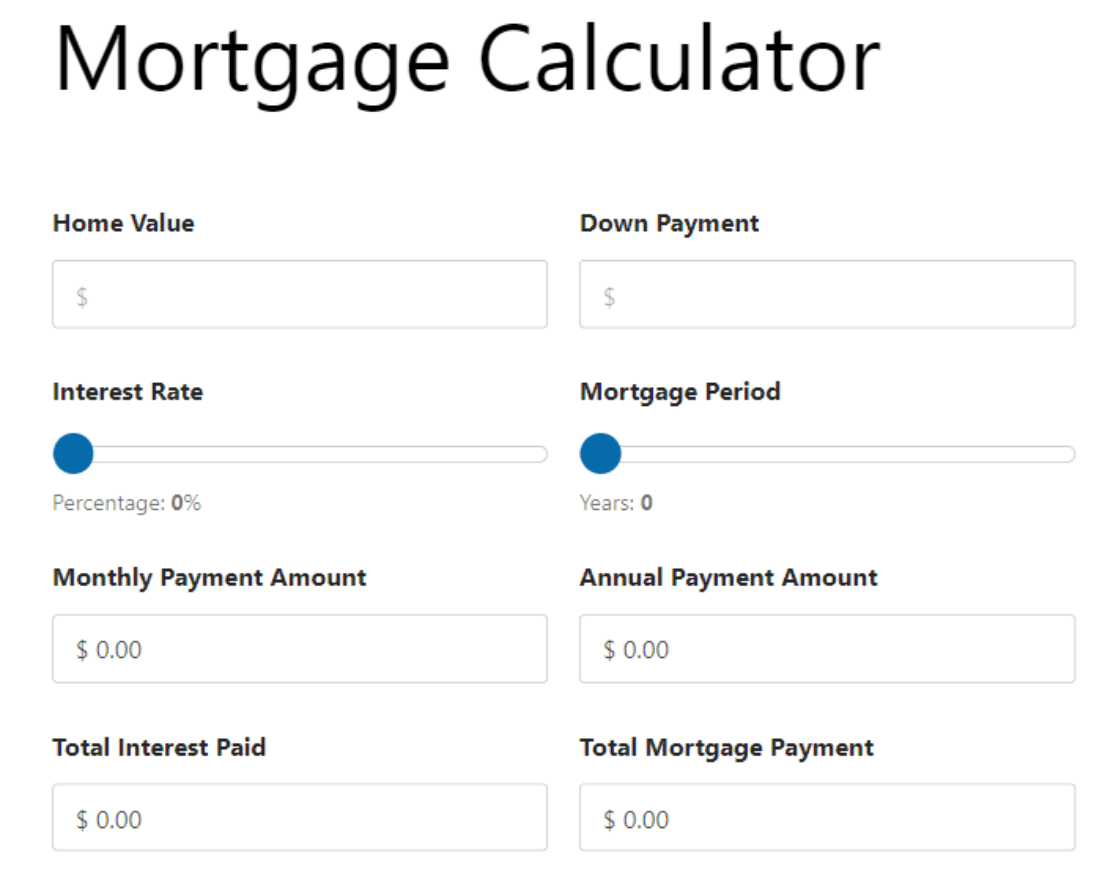
Sie können Ihr Formular jetzt in der Vorschau anzeigen, um zu sehen, dass die Sende-Schaltfläche Ihres Rechners erfolgreich entfernt wurde!
So stoppen Sie die Eingabetaste, um das Formular abzusenden
Selbst ohne eine sichtbare Schaltfläche „Senden“ kann ein Formular gesendet werden, wenn jemand die Enter-Taste in einem Textfeld drückt. Bei einem Rechner, der ein Live-Ergebnis anzeigen soll, ist das nicht das gewünschte Verhalten.
Die Lösung ist ein zweiter Code-Schnipsel, der verhindert, dass die Enter-Taste eine Übermittlung auslöst. Der genaue Code befindet sich in unserer Entwicklerdokumentation. Sie können also der Anleitung folgen, wie Sie verhindern, dass die Enter-Taste das Formular sendet, und ihn auf die gleiche Weise hinzufügen, wie Sie den ersten hinzugefügt haben.
Mit beiden aktiven Code-Schnipseln zeigt Ihr Rechner sofort seine Gesamtsumme an und bleibt an Ort und Stelle, ohne Schaltfläche und ohne versehentliche Übermittlungen.
Häufig gestellte Fragen zu Rechner-Formularen
Rechner-Formulare kommen bei unseren Lesern häufig vor. Hier sind Antworten auf einige der häufigsten Fragen zum Entfernen der Schaltfläche „Senden“ und zur Arbeit mit Rechner-Formularen in WordPress.
Wie schalte ich die Schaltfläche "Senden" in einem Formular aus?
Um die Schaltfläche „Senden“ in WPForms Pro zu deaktivieren, blenden Sie sie mit benutzerdefiniertem CSS aus. Gehen Sie zu WPForms » Tools, öffnen Sie den Tab Code Snippets, um zur WPForms Snippet-Bibliothek zu gelangen, und installieren Sie den Snippet zum Ausblenden der Schaltfläche „Senden“. Fügen Sie dann die Klasse wpf-calc-form zum Feld Submit Button CSS Class Ihres Formulars hinzu.
Kann ein Formular keine Schaltfläche "Senden" haben?
Ja. Ein Formular kann ohne Schaltfläche „Senden“ funktionieren, was bei Rechnern, die sofort ein Ergebnis anzeigen, oder bei Formularen, die automatisch gesendet werden, üblich ist. In WPForms Pro blenden Sie die Schaltfläche mit etwas CSS aus, das über die integrierte WPCode-Integration hinzugefügt wird, sodass nichts Zusätzliches erforderlich ist.
Verhindert das Ausblenden der Schaltfläche „Senden“ das Absenden des Formulars?
Nein, das Ausblenden der Schaltfläche allein verhindert keine Übermittlungen. Das Formular kann immer noch gesendet werden, wenn ein Besucher die Enter-Taste drückt, während er sich in einem Textfeld befindet. Um dies zu verhindern, fügen Sie einen zweiten Code-Schnipsel hinzu, der verhindert, dass die Enter-Taste sendet, und verwenden Sie dazu den oben verlinkten Entwicklerleitfaden.
Kann ich die Schaltfläche „Senden“ nur aus einem Rechner-Formular entfernen?
Ja. Der Snippet wird nur auf Formularen wirksam, bei denen Sie die Klasse wpf-calc-form zum Feld CSS-Klasse für die Schaltfläche zum Senden hinzugefügt haben. Lassen Sie dieses Feld bei Ihren anderen Formularen leer, und ihre Schaltflächen zum Senden bleiben genau so, wie sie sind.
Als Nächstes: Erfahren Sie, wie Sie einen benutzerdefinierten Online-Rechner erstellen
Ein Rechner ist eine der besten Möglichkeiten, Besucher auf Ihrer Website zu halten, da er ihnen einen Grund gibt, zu bleiben und eine Antwort auf eine echte Frage zu erhalten.
Wenn Sie einen von Grund auf neu erstellen möchten, sehen Sie sich unseren Leitfaden an, wie Sie einen benutzerdefinierten Rechner in WordPress erstellen, und richten Sie ihn für die Bedürfnisse Ihrer Website ein.
Erstellen Sie jetzt Ihr Rechner-Formular
Bereit, Ihr Formular zu erstellen? Beginnen Sie noch heute mit dem einfachsten WordPress-Formularersteller-Plugin. WPForms Pro enthält viele kostenlose Vorlagen und bietet eine 14-tägige Geld-zurück-Garantie.
Wenn dieser Artikel Ihnen geholfen hat, folgen Sie uns bitte auf Facebook und X (Twitter) für weitere kostenlose WordPress-Tutorials und Anleitungen.





Dieser CSS-Code verhindert nicht, dass das Formular gesendet wird, wenn die Eingabetaste in einem der Textfelder eines Berechnungsformulars verwendet wird.
Hallo Dean,
Sie haben Recht – dieser CSS-Schnipsel blendet nur die Schaltfläche „Senden“ aus, verhindert aber nicht, dass das Formular gesendet wird, wenn die Eingabetaste in einem Textfeld gedrückt wird.
Wenn Sie auch die Eingabetaste deaktivieren möchten, empfehlen wir die Verwendung des Code-Schnipsels in unserer Entwicklerdokumentation hier: Verhindern, dass die Eingabetaste das Formular sendet.
Ich hoffe, das hilft!