


Resumo de IA
Com um formulário de inscrição para acampamento, você inscreverá mais campistas, coletará pagamentos imediatamente e eliminará a espera por inscrições que chegam pelo correio.
Neste guia, compartilharei minha experiência na criação de um formulário de inscrição para acampamento para o seu site WordPress da maneira mais fácil possível.
Crie Seu Formulário de Inscrição para Acampamento Agora ⛺
Como Criar um Formulário de Inscrição para Acampamento
Aqui está nosso tutorial fácil passo a passo que mostra como criar seu próprio formulário de inscrição para acampamento online.
Neste Artigo
- Passo 1: Instale o Plugin WPForms
- Passo 2: Comece com o Modelo de Formulário de Inscrição para Acampamento
- Passo 3: Configure as Definições do Seu Formulário de Inscrição para Acampamento
- Passo 4: Configure as Notificações e Confirmações do Seu Formulário
- Passo 5: Adicione Seu Formulário de Inscrição para Acampamento ao Seu Site WordPress
- Perguntas Frequentes sobre Formulários de Inscrição para Acampamento
Passo 1: Instale o Plugin WPForms
WPForms é a maneira mais fácil de criar um formulário de inscrição para acampamento online. Você pode começar imediatamente com o WPForms Pro, que desbloqueará modelos de formulário de inscrição para acampamento prontos para você, juntamente com muitos outros recursos avançados.

Vá em frente e instale seu plugin WPForms recém-adquirido. Se precisar de ajuda, confira nosso guia sobre como instalar o WPForms. Terminou a instalação? Ótimo trabalho! Vamos começar a criar o formulário.
Obtenha o Plugin WPForms Agora!
Passo 2: Comece com o Modelo de Formulário de Inscrição para Acampamento
Após a instalação, vá para WPForms » Adicionar Novo no menu de administração do WordPress.
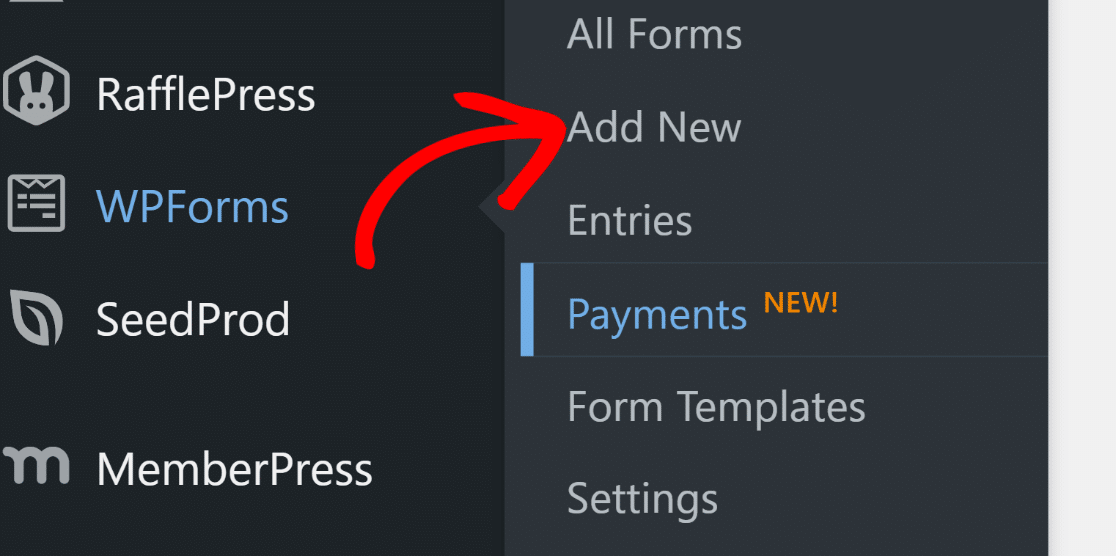
Assim que clicar, você verá o construtor de formulários do WPForms aberto. Vamos começar adicionando um nome para o seu formulário e selecionando um modelo.
O WPForms abriga mais de 2.100 modelos de formulário. Mas para este caso, o Formulário de Inscrição para Acampamento de Verão é exatamente o que você precisa, então vamos selecionar esse.

Na verdade, existem alguns outros modelos semelhantes que você pode experimentar:
- Formulário de Inscrição para Acampamento
- Formulário de Inscrição para Acampamento de Escoteiros
- Formulário de Inscrição para Acampamento de Adultos
- Formulário de Inscrição para Acampamento de Dança
Lembre-se de que você pode personalizar completamente qualquer um dos modelos para incluir os campos que precisar.
Depois de selecionar seu modelo, ele será carregado em alguns momentos. Sinta-se à vontade para adicionar novos campos ao seu formulário ou alterar campos existentes, se desejar, usando os controles fáceis de arrastar e soltar.
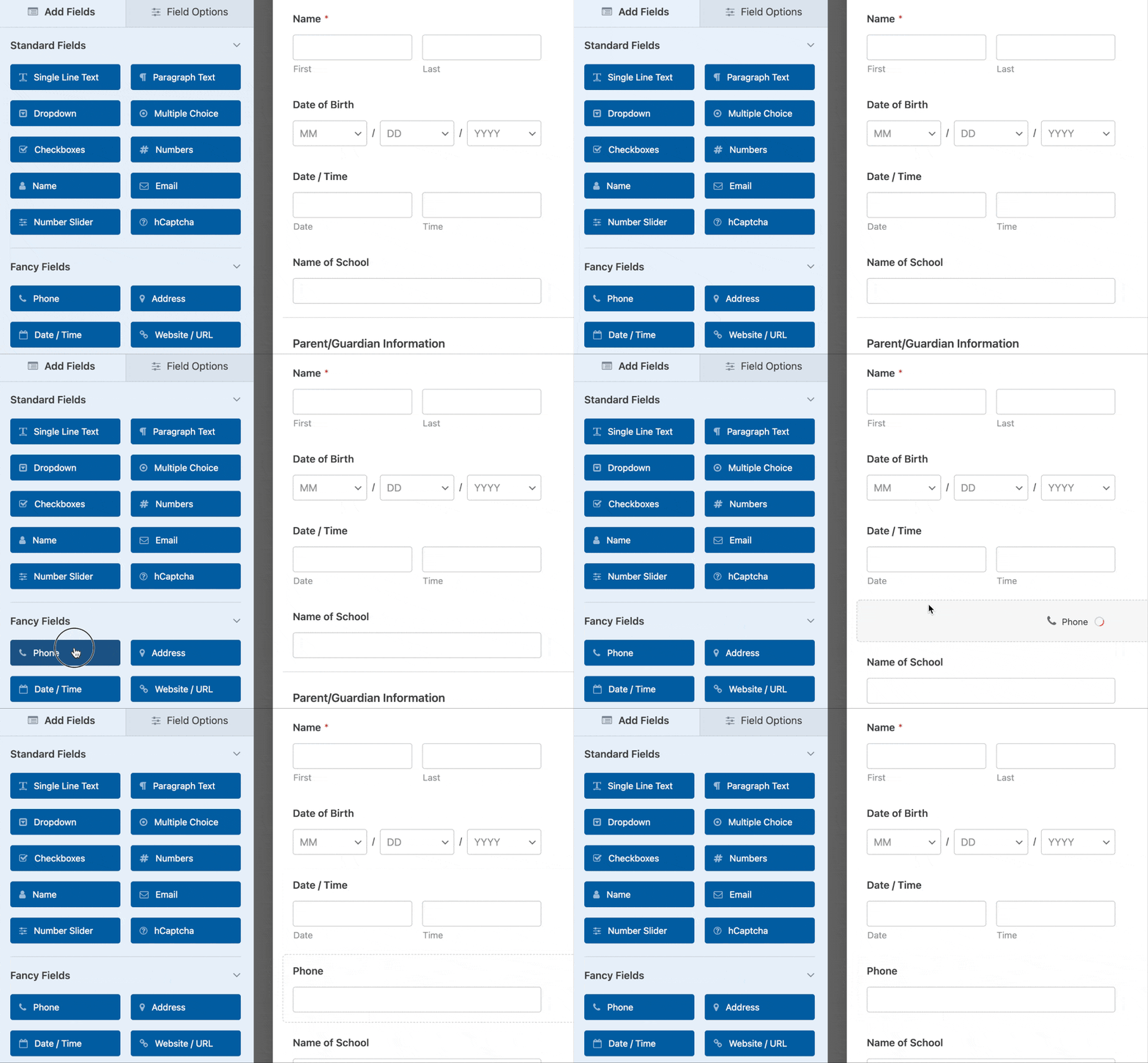
Você configurou seu formulário do jeito que gosta? É uma boa ideia salvar seu formulário com frequência após fazer alterações. Basta pressionar o botão Salvar no topo.
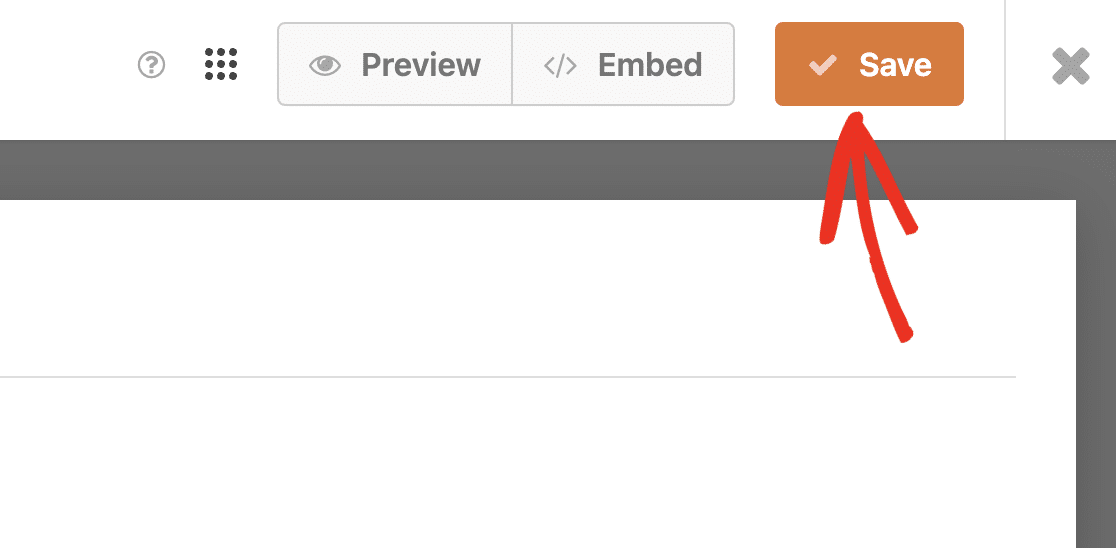
Perfeito. Vamos passar para algumas configurações gerais para o seu formulário de inscrição para acampamento.
Passo 3: Configure as Definições do Seu Formulário de Inscrição para Acampamento
Agora, vamos configurar algumas definições. Para começar, vá para Configurações » Geral.
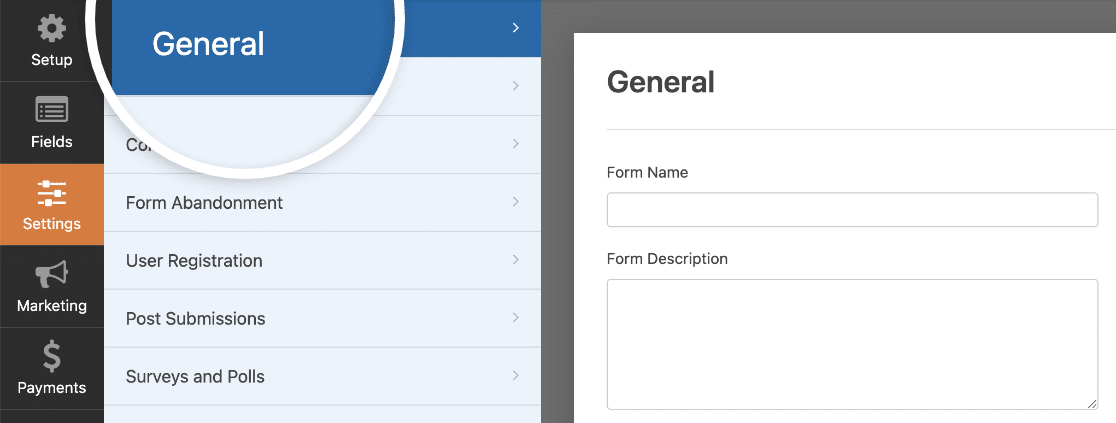
Aqui você pode configurar o seguinte:
- Nome do Formulário — Altere o nome do seu formulário aqui, se desejar.
- Descrição do Formulário — Dê uma descrição ao seu formulário.
- Tags — Organize seus formulários do WordPress com tags de formulário.
- Texto do Botão Enviar — Personalize o texto do botão de envio.
- Texto de Processamento do Botão de Envio — Altere o texto que aparece enquanto seu formulário de inscrição está sendo enviado.
Mais abaixo na página, também há configurações avançadas, incluindo:
- Classes CSS — Adicione CSS personalizado ao seu formulário ou botão de envio.
- Habilitar Preenchimento por URL — Preencha alguns campos automaticamente com base em uma URL personalizada.
- Ativar envios de formulário AJAX — Ative as configurações AJAX sem recarregar a página.
- Desativar o armazenamento de informações de entrada no WordPress — Você pode desativar o armazenamento de informações de entrada e detalhes do usuário, como endereços IP e agentes de usuário, para cumprir os requisitos do GDPR. Além disso, confira nossas instruções passo a passo sobre como adicionar um campo de acordo com o GDPR ao seu formulário de contato simples.
Em seguida, desça para as configurações de Proteção contra Spam e Segurança .
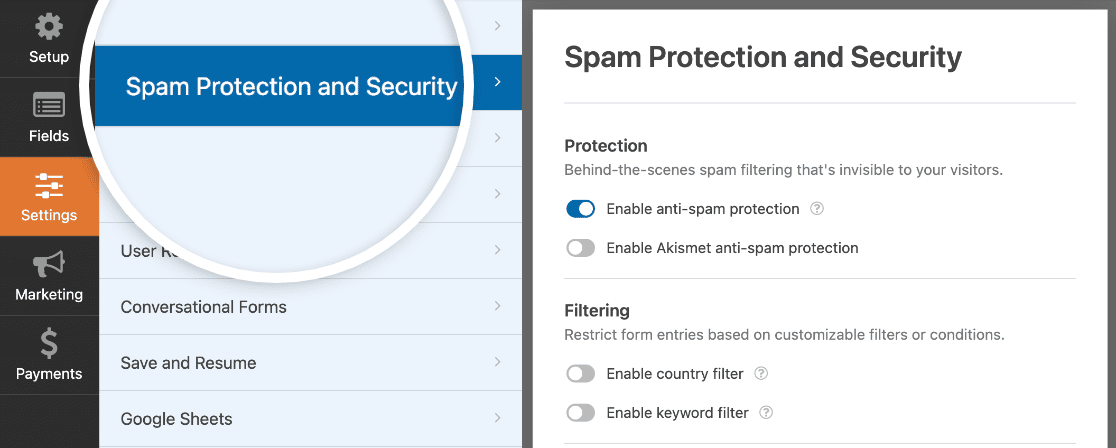
Aqui você pode:
- Ativar proteção contra spam — Interrompa o spam em formulários de contato com o token anti-spam do WPForms. O recurso anti-spam é ativado automaticamente em todos os novos formulários que você cria.
- Ativar proteção anti-spam do Akismet — Conecte seu formulário ao plugin Akismet para evitar entradas suspeitas.
- Habilitar filtro de país — Bloqueie envios de determinados países.
- Ativar filtro de palavras-chave — Impede entradas que incluem certas palavras ou frases.
Você está progredindo muito!
💡 Tente isto: Quer coletar taxas de inscrição online? Você pode aceitar pagamentos com Stripe integrando-o ao seu formulário de inscrição para acampamento. Para melhores resultados com inscrições, você pode até oferecer um desconto para os primeiros inscritos com um código de cupom conectado ao seu formulário e ver seus números de inscrição aumentarem.
Quando terminar, clique em Salvar.
Passo 4: Configure as Notificações e Confirmações do Seu Formulário
O formulário de inscrição para o acampamento enviará automaticamente uma notificação sempre que uma nova entrada for enviada. Esta é uma ótima maneira de se manter atualizado à medida que novas inscrições chegam.
Para acessar as notificações e fazer quaisquer alterações, basta ir para Configurações » Notificações.
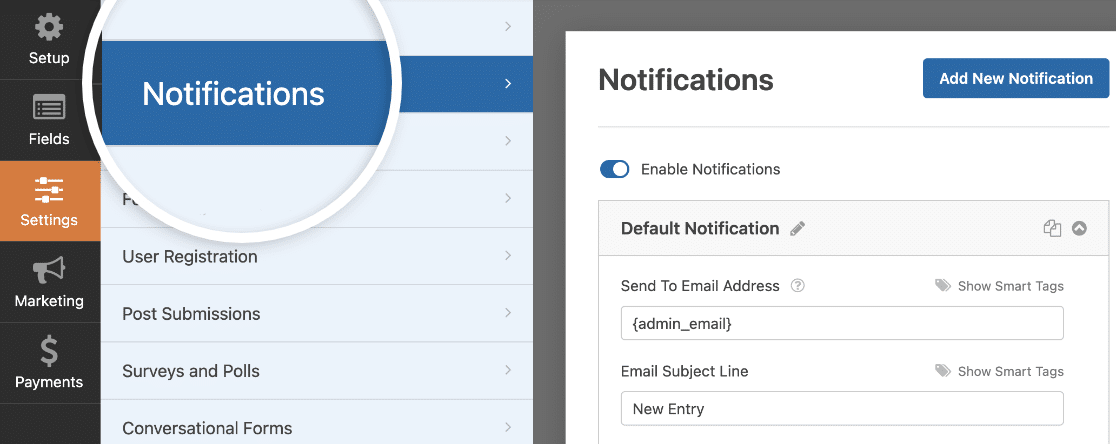
Você pode editar o destinatário da notificação (pode ser apenas um usuário ou vários endereços de e-mail separados por vírgulas), a linha de assunto da notificação e a mensagem.
Além disso, você também tem a flexibilidade de criar notificações separadas para serem enviadas a diferentes pessoas ao mesmo tempo.
Por exemplo, é uma boa prática enviar uma notificação para a pessoa que acabou de se registrar, informando que a inscrição foi recebida com sucesso.
Portanto, por exemplo, você pode enviar uma notificação para:
- Você mesmo
- A pessoa que se registrou
- Seu coordenador de acampamento
- E outros
Em seguida, também aconselho você a dar uma olhada nas confirmações do seu formulário. Uma mensagem de confirmação é o que aqueles que se registram para o seu acampamento verão na página imediatamente após concluírem a inscrição.
Para acessar as configurações de confirmação, clique em Configurações » Confirmações no construtor de formulários. Em seguida, personalize sua mensagem de confirmação. Quando terminar, certifique-se de clicar em Salvar.
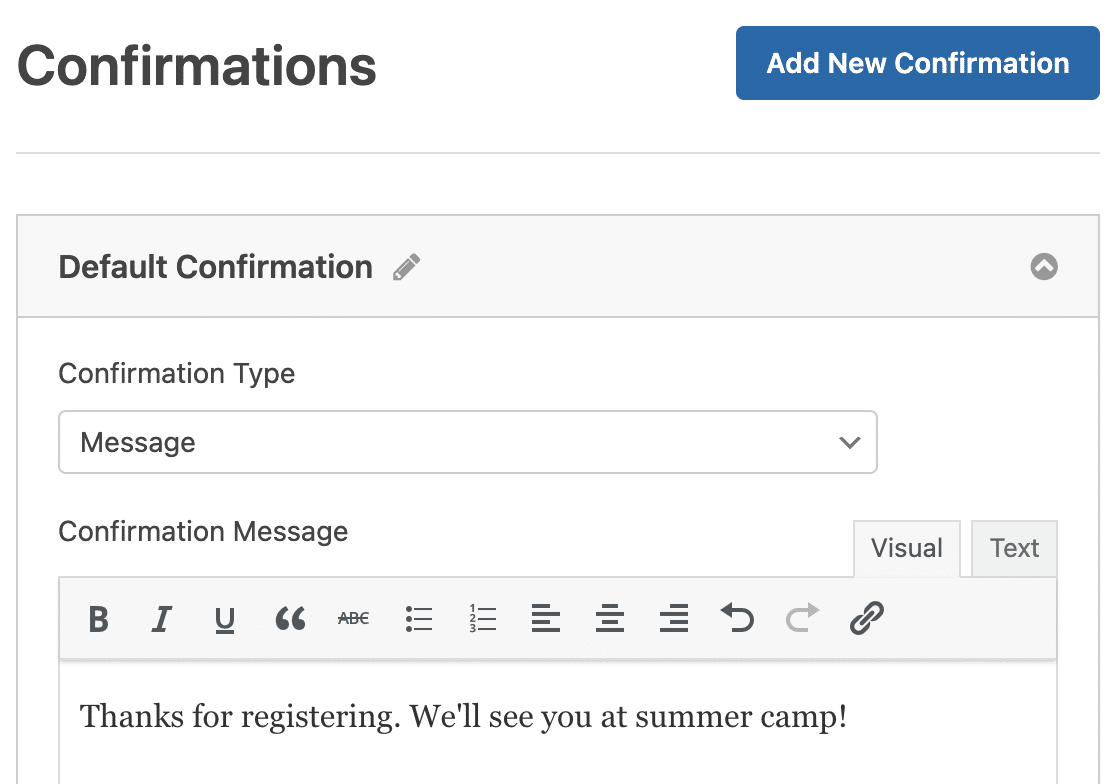
Para obter ajuda com outros tipos de confirmação, consulte nossa documentação sobre configuração de confirmações de formulário.
Agora, aqui está o último passo.
Passo 5: Adicione Seu Formulário de Inscrição para Acampamento ao Seu Site WordPress
Agora que você terminou de criar seu formulário de inscrição para o acampamento, você só precisa adicioná-lo ao seu site WordPress. Não se preocupe. Esta é a parte mais fácil.
O WPForms permite que você coloque seus formulários em posts de blog, páginas e widgets de barra lateral.
Para começar, clique no botão Incorporar na parte superior do construtor de formulários.

Depois disso, selecione se deseja incorporar o formulário em uma página existente ou em uma nova. Selecionarei a última opção, ou seja, Criar Nova Página aqui, mas os passos são semelhantes para qualquer uma delas.
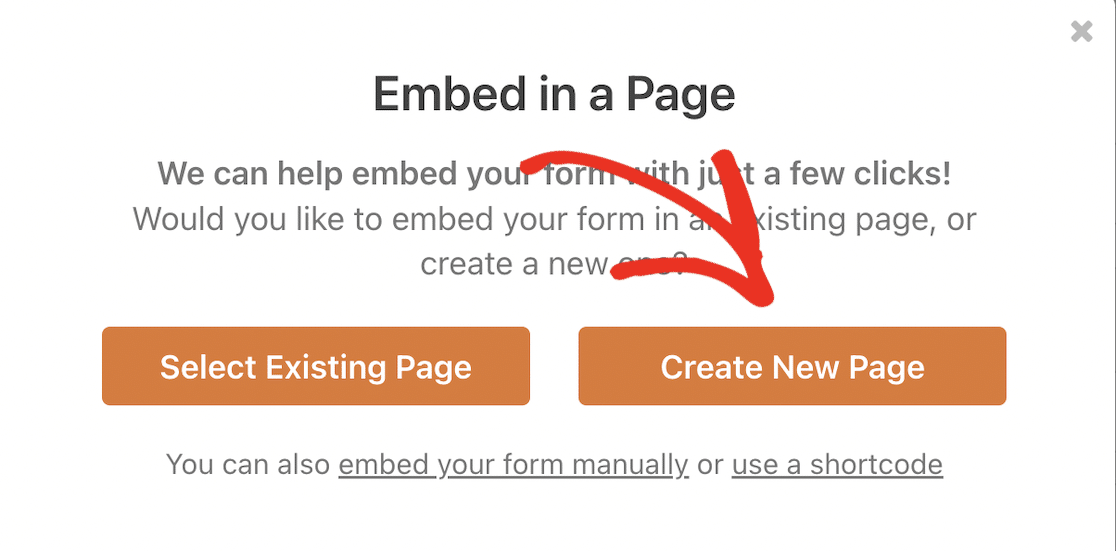
Quando você fizer isso, será solicitado que insira um nome para a página onde deseja incorporar seu formulário. Insira um nome e pressione Vamos Lá.

Depois disso, o editor de blocos do WordPress será aberto. Aqui, você deverá ver o formulário que acabou de criar.
A parte legal é que, se você quiser adicionar alguns estilos interessantes a este formulário para torná-lo mais atraente visualmente, você pode fazer isso aqui.
Clique na área ao redor do formulário para abrir opções para o bloco WPForms no painel direito. Role para baixo para encontrar a seção Temas e selecione um. Você verá as alterações ocorrerem instantaneamente enquanto você navega pelos diferentes temas.
Para o acampamento de verão, escolhi o tema Range, que acho que se adequa bem à ocasião. Mas você pode escolher qualquer tema pronto.
Na verdade, você pode até personalizar os estilos usando controles fáceis para ajustar cores, imagens de fundo, estilos de contêiner, rótulos de campos, botões e muito mais.

Clique no botão Publicar para lançar seu formulário de inscrição quando estiver pronto.
Aqui está meu formulário de inscrição para o acampamento de verão em sua forma final (trocadilho não intencional):

E você também pode visualizar facilmente as entradas do seu formulário de inscrição. Basta conferir nosso guia completo sobre entradas de formulário. O WPForms facilita a visualização, pesquisa, filtragem, impressão e exclusão de formulários de inscrição, e torna o planejamento muito mais fácil.
Crie Seu Formulário de Inscrição para Acampamento Agora ⛺
Perguntas Frequentes sobre Formulários de Inscrição para Acampamento
Aqui estão algumas perguntas que já nos fizeram antes, de pessoas interessadas na ideia de inscrições de verão, mas que não estão muito familiarizadas com formulários online:
Por que usar um formulário de inscrição de acampamento no WordPress?
Os campistas veem o acampamento como um momento para desacelerar, eliminar o estresse e clarear a mente. Mas se você é um administrador de acampamento, este é o período mais agitado e estressante do ano.
Além disso, os campistas não querem preencher formulários longos em papel e depois enviar um cheque pelo correio. E os administradores de acampamento também não gostam de lidar com toda essa papelada. É frustrante perder horas separando correspondências, tentando decifrar a caligrafia das pessoas e lidando com cheques em papel.
O que torna um bom design para um formulário de acampamento?
Um formulário de inscrição de acampamento bem projetado deve servir a 2 propósitos: produzir uma ótima experiência do usuário e fornecer aos administradores do acampamento melhores informações.
Portanto, seu formulário de inscrição de acampamento deve levar aos campistas menos de alguns minutos para preencher, ao mesmo tempo em que fornece o que você precisa para inscrevê-los.
E todos sabemos que as pessoas nem sempre estão usando um computador desktop. Todos os formulários criados com o WPForms são compatíveis com dispositivos móveis, portanto, seus formulários ficarão ótimos e funcionarão perfeitamente em todos os dispositivos, sem exigir nenhuma configuração extra de sua parte.
Posso integrar meu formulário de inscrição com outros serviços (por exemplo, marketing por e-mail, gateways de pagamento)?
Sim, o WPForms suporta integrações com serviços de marketing por e-mail como Mailchimp, Drip e outros, e gateways de pagamento como PayPal, Stripe, Authorize.net e Square.
É possível permitir que os usuários salvem seu progresso e concluam o formulário mais tarde?
Sim. alguns plugins como o WPForms permitem que você adicione a funcionalidade Salvar e Continuar aos seus formulários. Dessa forma, as pessoas podem salvar seu progresso a qualquer momento e retornar para concluir o formulário mais tarde com um link especial.
Posso adicionar lógica condicional ao meu formulário de inscrição?
Sim, você pode usar a lógica condicional com o WPForms para mostrar ou ocultar qualquer campo com base nas respostas do usuário. É um recurso útil que permite criar formulários mais dinâmicos, interativos e concisos, que são mais fáceis de preencher.
Em seguida, crie um popup para o site do seu acampamento
Você conseguiu! Agora você sabe exatamente como criar um formulário de inscrição para acampamento no WordPress. Você também vai querer ler nosso post sobre os melhores plugins de popup para WordPress.
Manter as coisas o mais simples possível em seu formulário é uma maneira poderosa de fazer com que mais pessoas se inscrevam no seu acampamento este ano.
Crie Seu Formulário WordPress Agora
Então, o que você está esperando? Comece hoje mesmo com o plugin de formulários WordPress mais poderoso. O WPForms Pro inclui um formulário gratuito de inscrição para acampamento online para WordPress e oferece uma garantia de devolução do dinheiro em 14 dias.
E se você gostou deste post, siga-nos no Facebook e Twitter para mais tutoriais gratuitos de WordPress.


