


AI Summary
Would you like to accept PayPal and credit card payments through your WordPress forms? PayPal Commerce makes it easy to collect secure payments directly from your site.
In this tutorial, we’ll show you how to connect and use PayPal Commerce with WPForms Lite to accept one-time or recurring payments through your forms.
Requirements:
- You’ll need WPForms version 1.10.0 or higher to access PayPal Commerce payments with WPForms Lite
- A PayPal Business account
Installing WPForms Lite
Before getting started, install and activate the WPForms Lite plugin on your WordPress site. You can install WPForms Lite from the WordPress plugins directory. If you need help installing plugins in WordPress, check out WPBeginner’s guide to installing a WordPress plugin.
Connecting Your PayPal Commerce Account
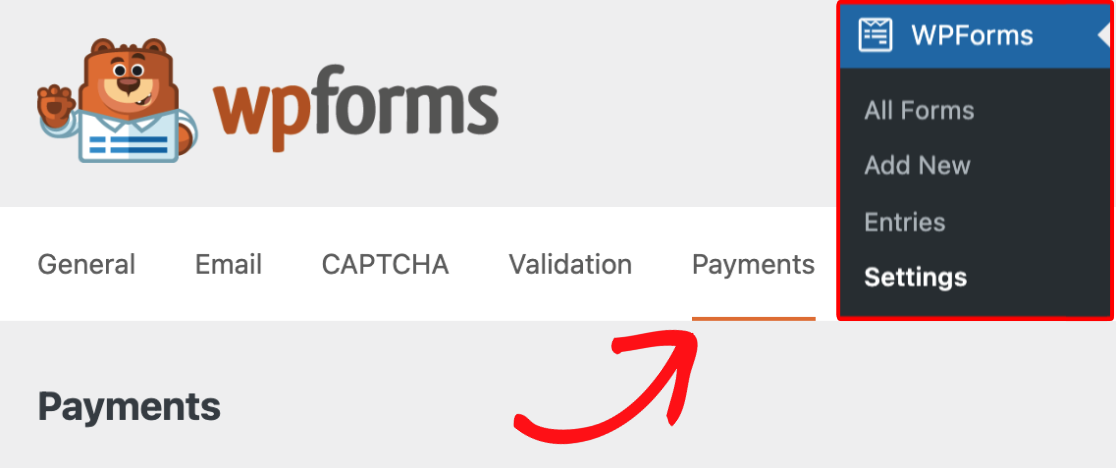
If needed, choose the currency your site uses before connecting your account.
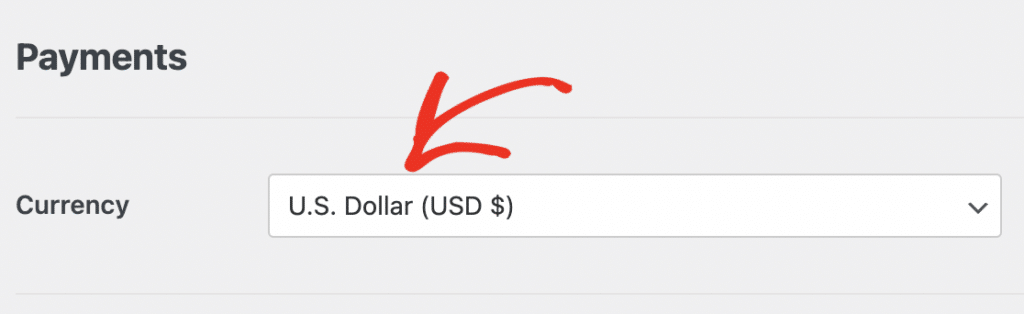
Next, scroll to the PayPal Commerce section and click Connect with PayPal Commerce.
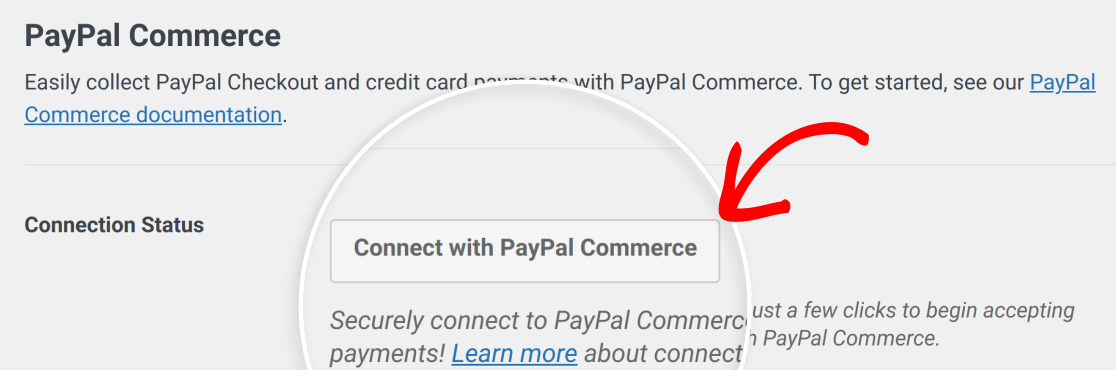
Note: A PayPal Business account is required to connect your site to PayPal Commerce.
A PayPal window will open so you can log in to your PayPal Business account and authorize the connection.
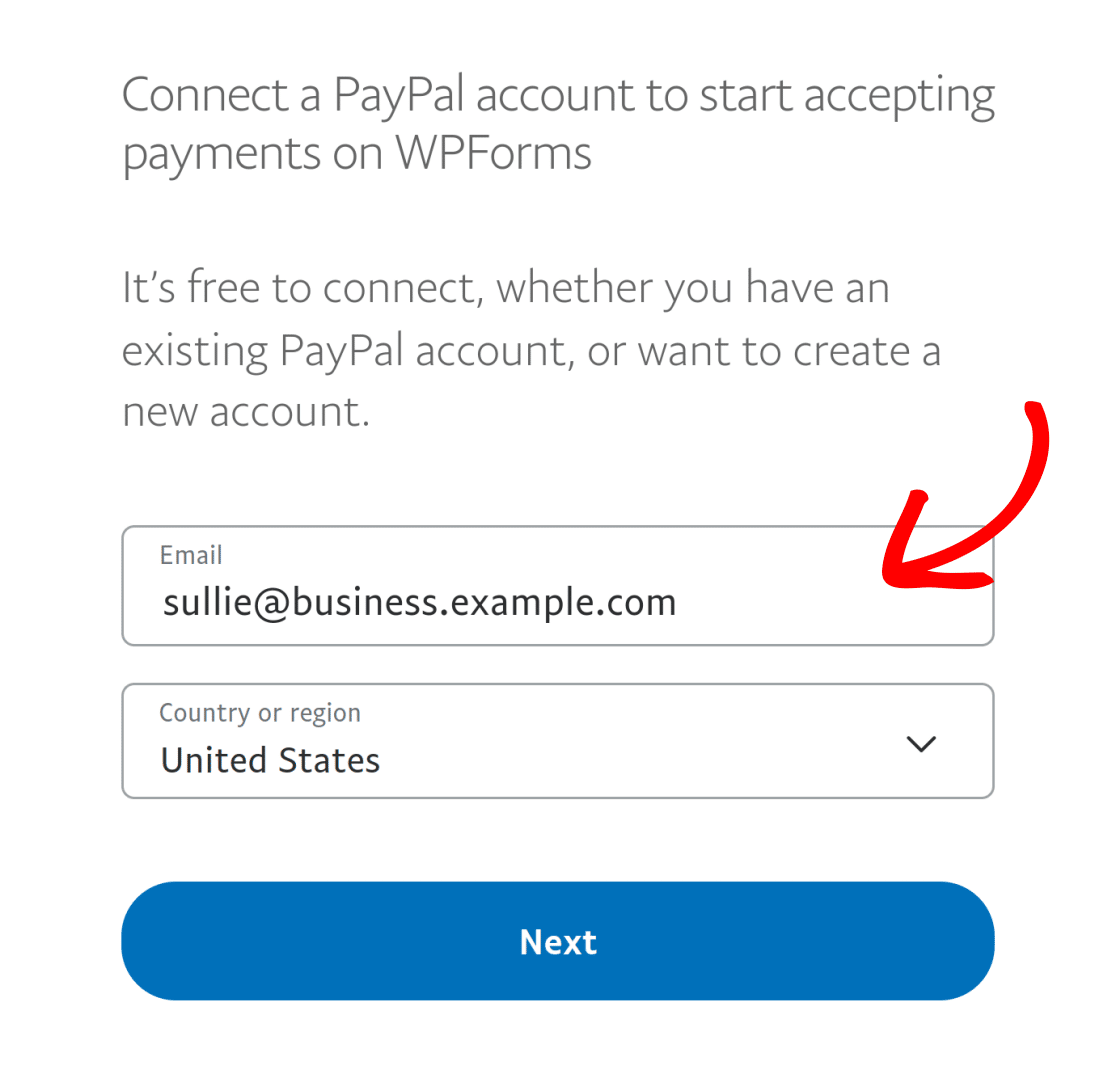
After completing the setup steps, you’ll be returned to your site’s admin area. A green checkmark will appear next to Connection Status when the connection is successful.
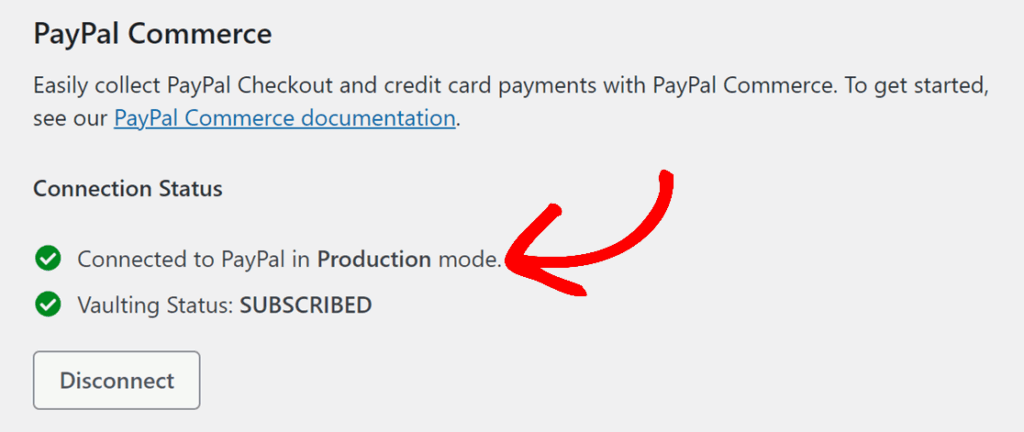
Note: If you’d like to test payment transactions on your site, you’ll need to enable Test Mode. For more information, see our comprehensive guide to testing payments with PayPal Commerce.
Setting Up PayPal Commerce Webhooks
Webhooks allow WPForms to receive real-time updates from PayPal Commerce when a payment or subscription status changes. With webhooks enabled, WPForms can keep your payment records in sync when payments are completed, refunded, canceled, or updated.
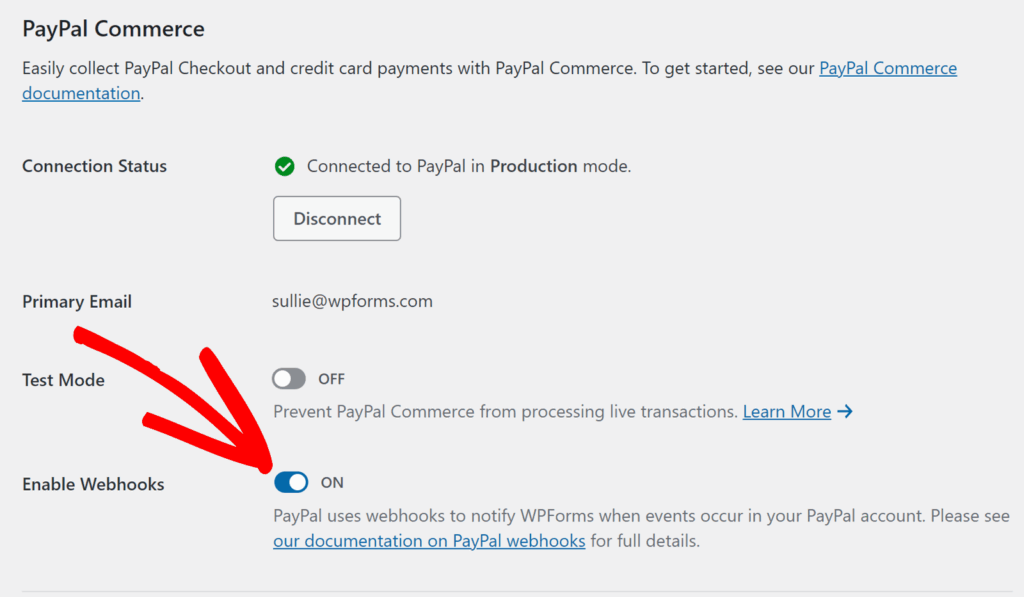
Webhooks are automatically configured for WPForms version 1.10.0 or higher when you connect your PayPal Commerce account. However, if they aren’t configured automatically for your site, you can manually set them up by following our guide on setting up PayPal Commerce webhooks.
Enabling PayPal Commerce Payments in the Form Builder
After connecting your site to PayPal Commerce, create a new form or edit an existing one to open the form builder. For PayPal Commerce to work properly, be sure your form includes the following:
- A payment items field such as Single Item, Multiple Items, Checkbox Items, or Dropdown Items
- A PayPal Commerce field
You can also add fields such as Name, Email, Address, and Total depending on the type of payment form you’re building.
After adding your fields, go to Payments » PayPal Commerce to open the payment settings for the form.
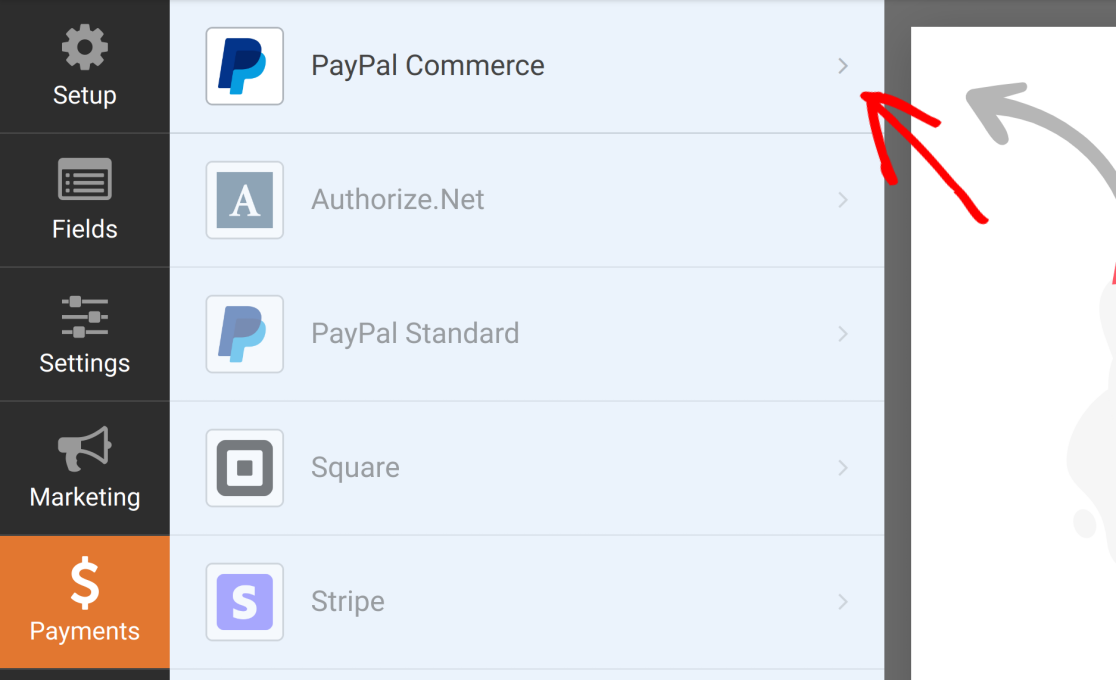
Enabling One-Time Payments
To accept one-time payments, toggle the Enable one-time payments option to the on position.
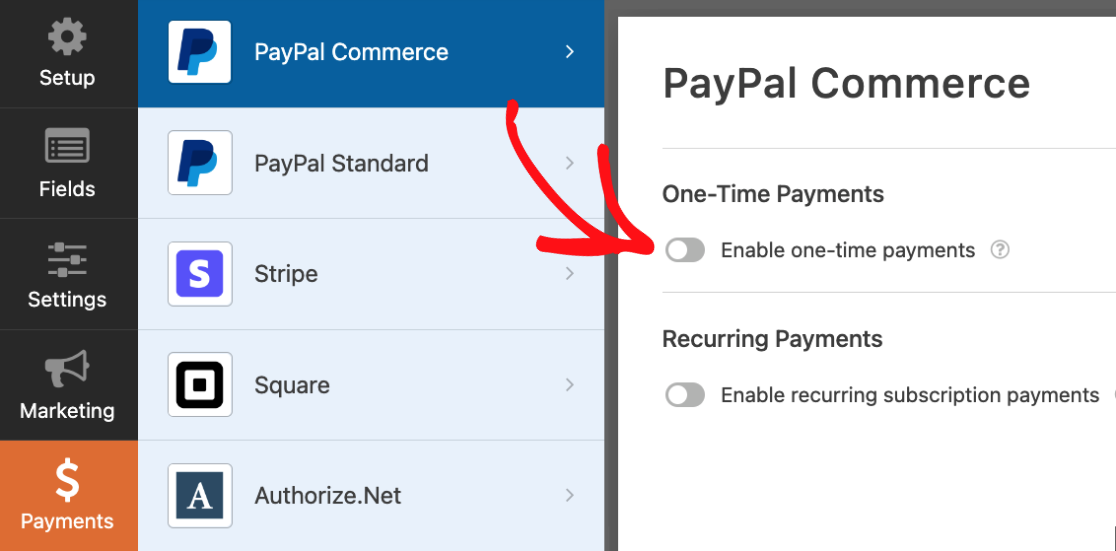
In WPForms Lite, the Payment Description field is available for one-time payments. Enter a short description that helps identify the payment.

Enabling Recurring Payments
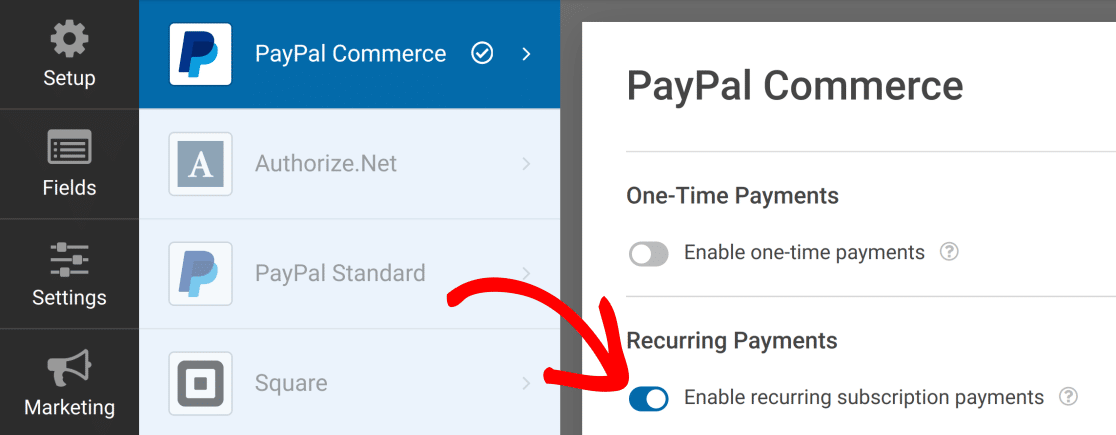
If you’d like to charge users on a recurring basis, toggle the Enable recurring subscription payments option to the on position.
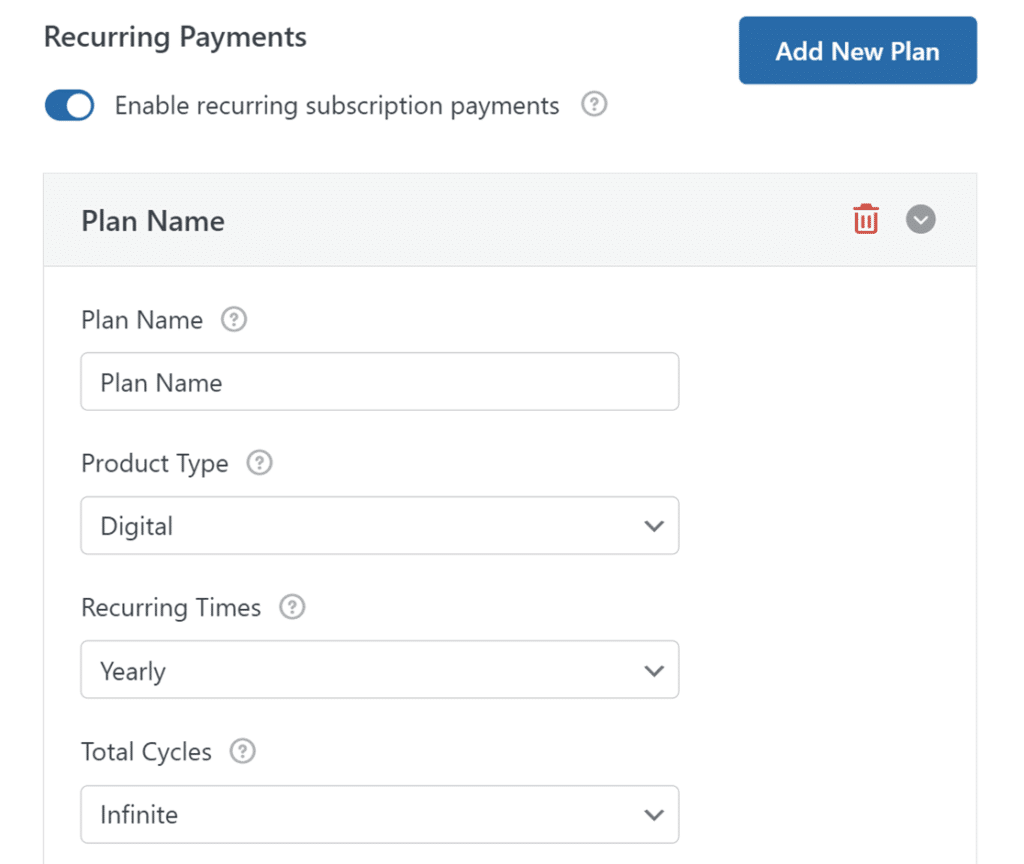
For the recurring plan, configure the available settings such as Plan Name, Product Type, Recurring Times, and Total Cycles.
WPForms Lite also includes the Try to bill the customer again if the payment fails on the 1st attempt option for recurring payments but the Shipping Address, Shipping Name, and Enable Conditional Logic options for recurring payments are disabled in WPForms Lite and available with Pro.
Testing PayPal Commerce Payments
Before launching your payment form, submit a test payment to confirm everything is working as expected. For a full walkthrough, see our guide to testing payments with the PayPal Commerce addon.
Frequently Asked Questions
Below are some of the most common questions about using PayPal Commerce with WPForms Lite.
What do I get if I upgrade to the PayPal Commerce Pro addon?
WPForms Lite lets you accept PayPal Commerce payments without installing the PayPal Commerce Pro addon. However, upgrading gives you access to more advanced payment features and removes the additional 3% WPForms fee on one-time payments.
With WPForms Lite, you can:
- Accept one-time payments
- Accept subscriptions with a single recurring plan
- Use available PayPal Commerce payment methods
- Enable webhooks
With the PayPal Commerce Pro addon, you can also:
- Remove the additional 3% WPForms fee on PayPal Commerce payments
- Use conditional logic with PayPal Commerce payments
- Choose between one-time and recurring payments in the same form
- Add multiple recurring plans to a form
- Configure advanced payment notification workflows
- View and manage payments from the WordPress admin area
- Handle refunds and cancellations with more flexibility
Will I be charged for using PayPal Commerce in WPForms Lite?
Yes. WPForms Lite applies an additional 3% fee to PayPal Commerce transactions, including one-time and recurring payments, and PayPal’s standard processing fees still apply. To remove the additional WPForms fee, upgrade to the WPForms Pro license or higher.
Can I enable both one-time and recurring payments in the same form?
No. WPForms Lite does not include conditional logic for PayPal Commerce payments, so a single form can process one-time payments or recurring payments, but not both. To use both options in the same form, you’ll need the WPForms Pro license or higher.
Why are some PayPal Commerce settings disabled in WPForms Lite?
Settings such as Billing Address, Shipping Address, Shipping Name, Shipping Email, and Enable Conditional Logic are available with paid licenses only. Upgrade to the WPForms Pro license or higher to unlock those options.
That’s it! You can now connect PayPal Commerce to WPForms Lite and accept payments through your forms. Would you like to learn more about building payment forms in WPForms? Be sure to check out our guide on creating a payment form in WPForms.