


KI-Zusammenfassung
Das Ändern Ihrer WordPress-Admin-E-Mailadresse klingt nach einer Zwei-Sekunden-Aufgabe, und meistens ist es das auch. Sie gehen zu Ihren Einstellungen, geben die neue Adresse ein und speichern.
Es gibt jedoch einen Haken, der die Leute stolpern lässt, und das ist der Bestätigungsschritt. WordPress sendet einen Bestätigungslink an die neue Adresse, bevor die Änderung vorgenommen wird.
Das bedeutet, wenn Ihre Website keine E-Mails zuverlässig versendet, kommt dieser Link nie an und die Änderung schlägt leise fehl. Das ist mir auch beim ersten Mal passiert.
Ich werde Sie also durch alles führen, beginnend mit dem schnellen Ändern der Adresse über Ihr Dashboard, dann wie Sie sicherstellen, dass die Bestätigung tatsächlich in Ihrem Posteingang landet, und schließlich, was zu tun ist, wenn Sie ausgesperrt sind und diese E-Mail überhaupt nicht empfangen können.
So ändern Sie die WordPress-Admin-E-Mail-Adresse
Diese Anleitung behandelt die drei Situationen, in denen Sie sich höchstwahrscheinlich befinden: eine normale Änderung über Ihr Dashboard, eine Änderung, die aufgrund der E-Mail-Zustellung nicht gespeichert werden kann, oder eine erzwungene Änderung, wenn Sie ausgesperrt sind und die Bestätigung nicht empfangen können.
Die zwei Arten von WordPress-Admin-E-Mailadressen
Bevor Sie etwas ändern, ist es hilfreich zu wissen, welche E-Mail Sie tatsächlich meinen, da WordPress zwei verschiedene speichert und diese unterschiedliche Aufgaben erfüllen.
- Admin-E-Mailadresse: WordPress verwendet diese E-Mail für wichtige Benachrichtigungen wie Update-Fehler, neue Benutzerregistrierungen und Kommentar-Moderation. Sie ändern sie unter Einstellungen » Allgemein.
- Benutzerkonto-E-Mail: Dies ist die Adresse, die mit einem bestimmten Login verknüpft ist, einschließlich Ihres eigenen. WordPress verwendet sie für Passwort-Resets und persönliche Benachrichtigungen. Sie ändern sie im Profil dieses Benutzers unter Benutzer.
Wenn Sie aktualisieren möchten, wohin die Admin-Benachrichtigungen Ihrer Website gehen, ist das die erste. Wenn Sie die E-Mail für Ihren eigenen Login ändern, ist das die zweite. Die meisten Leute machen am Ende beides, also werde ich jede durchgehen.
Methode 1: Die Admin-E-Mailadresse in den Einstellungen ändern
Dieser Weg funktioniert für die überwiegende Mehrheit der Fälle und dauert nur etwa dreißig Sekunden.
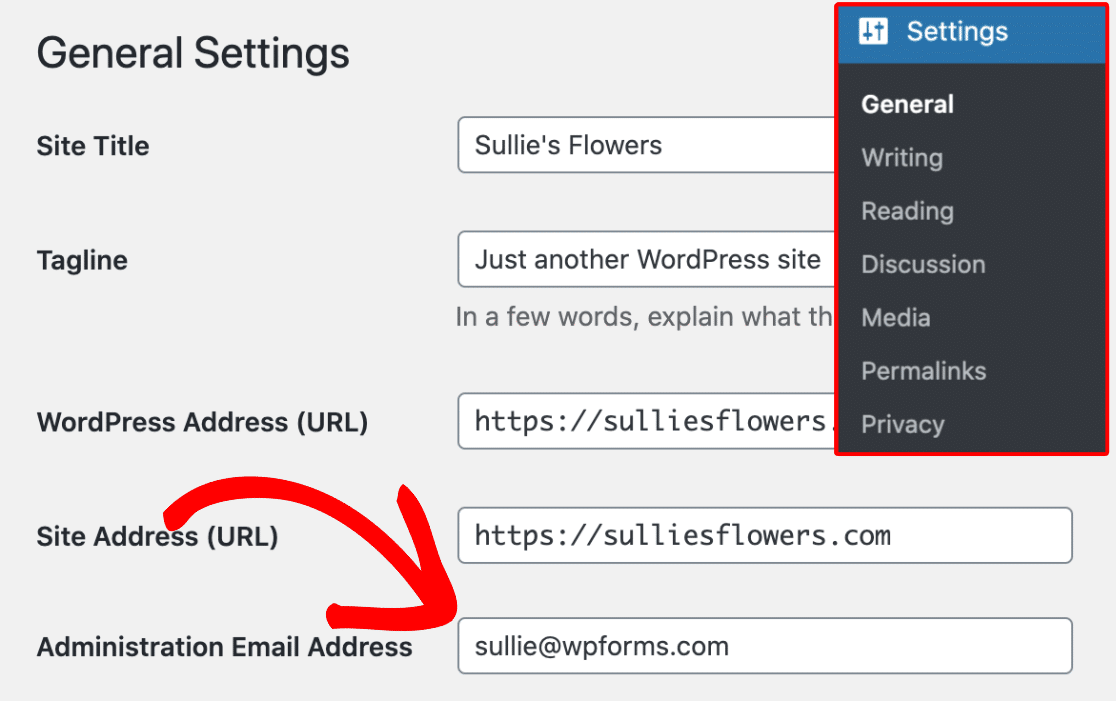
- Gehen Sie von Ihrem WordPress-Dashboard zu Einstellungen » Allgemein.
- Finden Sie das Feld Admin-E-Mailadresse oben.
- Löschen Sie die alte Adresse und geben Sie Ihre neue ein.
- Scrollen Sie nach unten und klicken Sie auf Änderungen speichern.
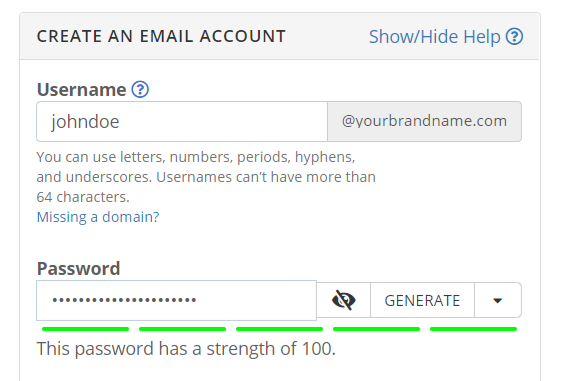
Ein kurzer Hinweis, was Sie dort eintragen sollten. Ich würde eine markengeschützte Adresse Ihrer eigenen Domain verwenden, wie [email protected], anstatt einer kostenlosen Gmail- oder Yahoo-Adresse.
Es sieht professioneller aus und ist einfacher beizubehalten, wenn Sie den Hoster wechseln. Wenn Sie noch keine haben, erfahren Sie hier, wie Sie eine kostenlose geschäftliche E-Mail-Adresse einrichten.
Was die Leute überrascht, ist, dass WordPress die Adresse nicht sofort ändert. Es sendet zuerst einen Bestätigungslink an die neue E-Mail-Adresse und zeigt eine Benachrichtigung über den ausstehenden Vorgang an, bis Sie auf diesen Link klicken.

Öffnen Sie den neuen Posteingang, klicken Sie auf den Link und die Änderung ist abgeschlossen. Wenn diese E-Mail nie ankommt, machen Sie sich keine Sorgen, Sie stecken nicht fest. Springen Sie zur untenstehenden Lösung für die E-Mail-Zustellung und kehren Sie dann zurück, um diesen Schritt abzuschließen.
Methode 2: Ändern der E-Mail-Adresse eines Benutzers
Die E-Mail-Adresse der Website-Administration und Ihre persönliche Benutzer-E-Mail-Adresse sind getrennt, sodass die Änderung der einen die andere nicht berührt. Um ein Benutzerkonto zu aktualisieren, gehen Sie zu Benutzer » Alle Benutzer und klicken Sie auf Bearbeiten unter der Person, die Sie ändern möchten.

Dies öffnet das Profil dieses Benutzers. Scrollen Sie nach unten zum Feld E-Mail und geben Sie die neue Adresse ein.

Klicken Sie unten auf Profil aktualisieren, um Ihre Änderungen zu speichern.
Wenn Sie Ihr eigenes Konto bearbeiten, während Sie angemeldet sind, sendet WordPress eine Bestätigungs-E-Mail an die neue Adresse, und Sie müssen auf den Link darin klicken, um die Änderung abzuschließen.
Das ist derselbe Bestätigungsschritt wie zuvor, was uns zu dem Problem führt, das viele Leute aufhält.
Sie erhalten die Bestätigungs-E-Mail nicht? Beheben Sie zuerst die WordPress-E-Mail-Zustellung
Das ist der eigentliche Grund, warum Leute bei einer scheinbar einfachen Aufgabe stecken bleiben. Sie können die Änderung nicht wirklich abschließen, wenn die Bestätigungs-E-Mail Sie nicht erreicht, und eine große Anzahl von WordPress-Websites hat grundsätzlich Probleme beim Senden von E-Mails.
Die Ursache ist technisch, aber es lohnt sich, sie zu verstehen, denn standardmäßig sendet WordPress E-Mails über die PHP-Funktion mail(), die die meisten Hosting-Server nicht richtig eingerichtet haben.
Ohne ordnungsgemäße Authentifizierung behandeln Anbieter wie Gmail und Outlook diese Nachrichten als verdächtig, sodass sie im Spam landen oder ganz verworfen werden. Deshalb sendet Ihre WordPress-Website keine E-Mails, wie Sie es erwarten würden.
Die Lösung besteht darin, Ihre E-Mails über einen ordnungsgemäß authentifizierten Dienst mithilfe von WP Mail SMTP, dem beliebtesten Plugin für die E-Mail-Zustellbarkeit für WordPress, zu leiten.
Es konfiguriert die Art und Weise, wie WordPress E-Mails sendet, neu, sodass Ihre Nachrichten, einschließlich der Admin-Bestätigung, tatsächlich im Posteingang ankommen, und die kostenlose Version ist alles, was Sie hier brauchen.
Während Sie die Dinge einrichten, ist es ein guter Zeitpunkt, Ihre WordPress-E-Mail-Einstellungen richtig zu konfigurieren, damit alles, was Ihre Website sendet, durchkommt.
WP Mail SMTP installieren (Es ist kostenlos)
Schnappen Sie sich das Plugin. Der einfachste Weg ist, unter Plugins » Neues Plugin hinzufügen in Ihrem Dashboard nach WP Mail SMTP zu suchen.
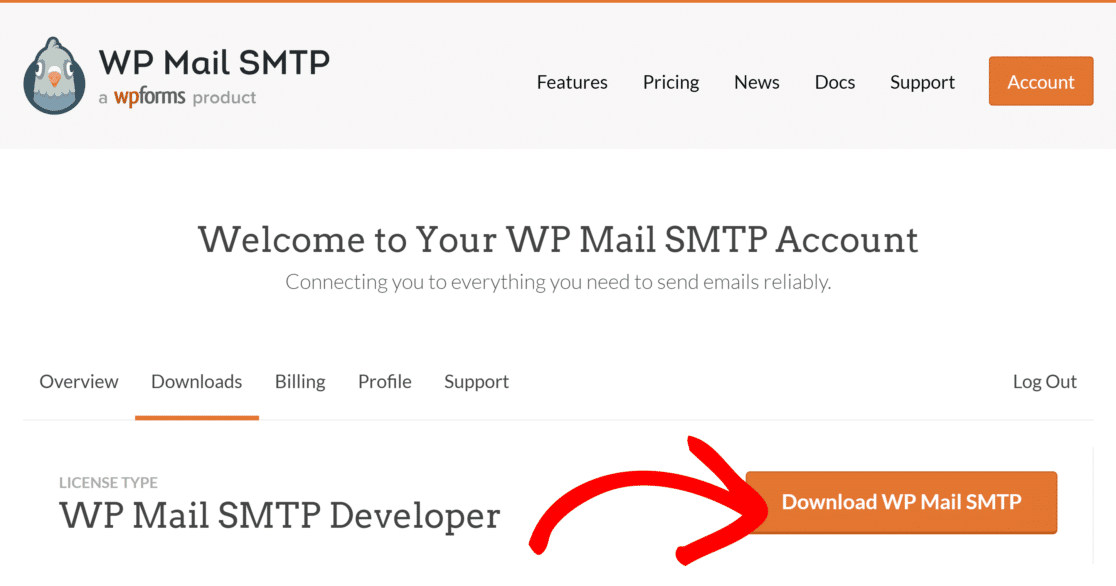
Wenn Sie eine Lizenz erworben haben, können Sie das Plugin auch vom Tab Downloads in Ihrem WP Mail SMTP-Konto herunterladen und manuell hochladen, was die unten gezeigten Screenshots zeigen.
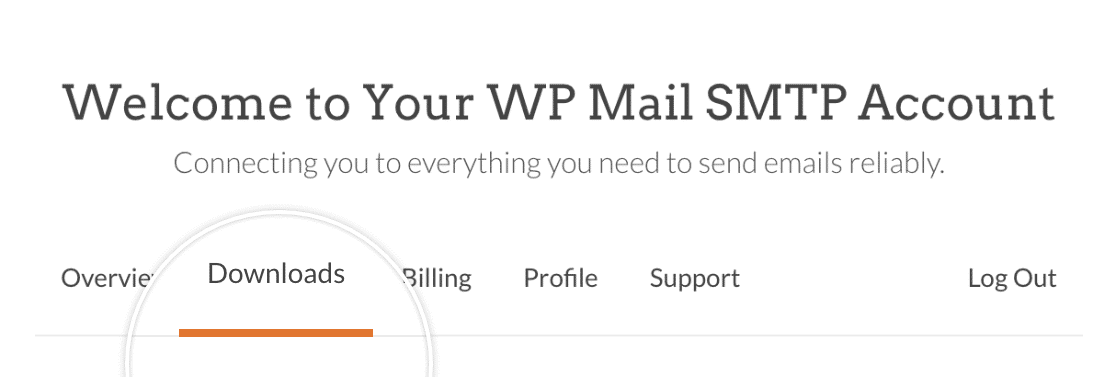
Klicken Sie auf die Schaltfläche WP Mail SMTP herunterladen, um die ZIP-Datei auf Ihrem Computer zu speichern.
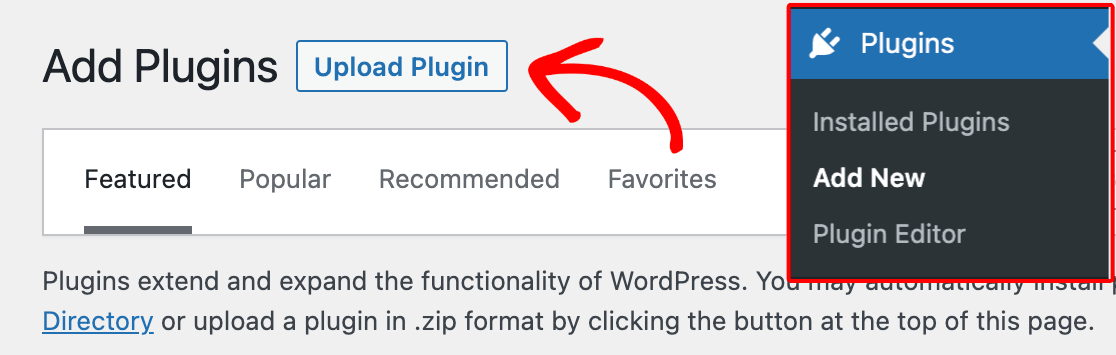
Gehen Sie zurück zu Ihrem Dashboard, navigieren Sie zu Plugins » Neues Plugin hinzufügen und klicken Sie auf die Schaltfläche Plugin hochladen.
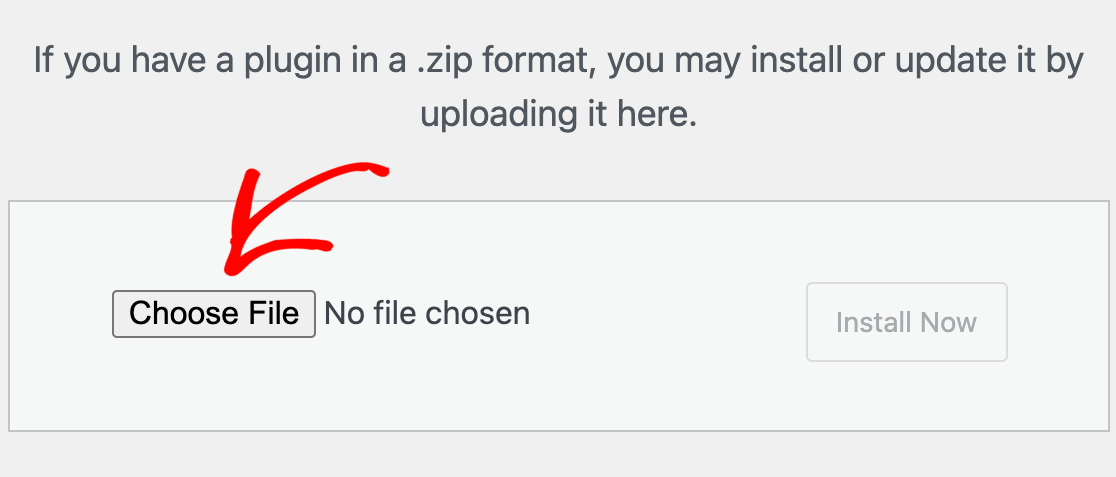
Klicken Sie auf Datei auswählen und wählen Sie die WP Mail SMTP ZIP-Datei aus, die Sie gerade heruntergeladen haben.
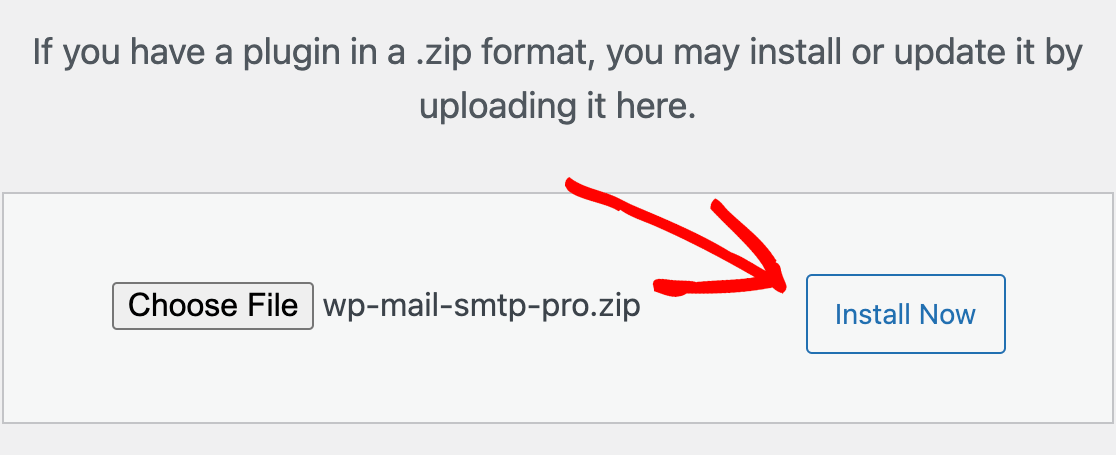
Sobald die Datei hochgeladen ist, klicken Sie auf Jetzt installieren.
Wenn die Installation abgeschlossen ist, klicken Sie auf Plugin aktivieren.
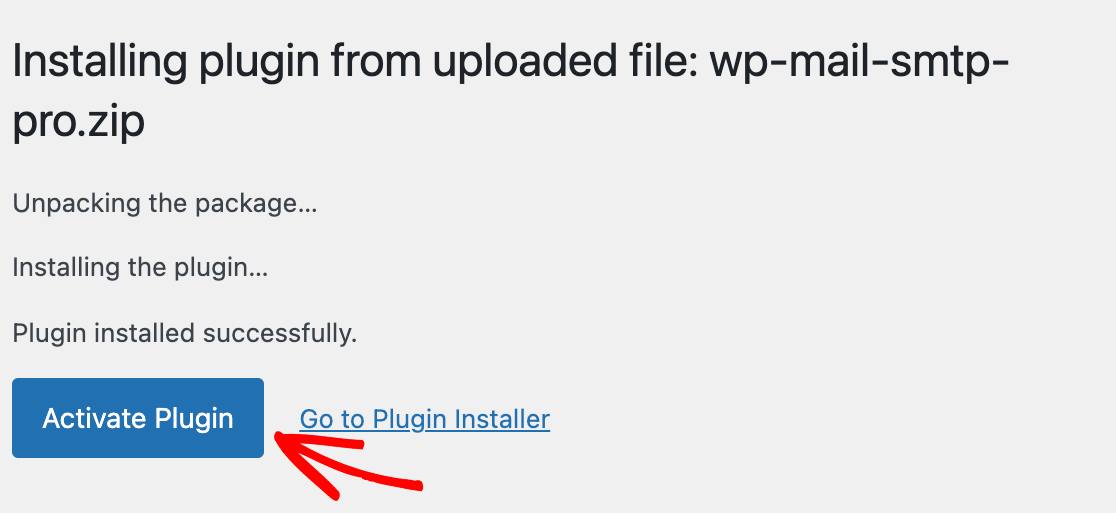
Das Plugin ist nun installiert und bereit zur Einrichtung.
WP Mail SMTP mit SendLayer verbinden
Nun müssen Sie Ihre Website mit einem Mailer verbinden, dem Dienst, der die eigentliche E-Mail-Zustellung übernimmt. WP Mail SMTP funktioniert mit allen wichtigen Anbietern, und Sie können die besten SMTP-Dienstanbieter vergleichen, falls Sie eine Präferenz haben.
Für diese Anleitung verwende ich SendLayer, da WP Mail SMTP diesen als Erstes empfiehlt und die kostenlose Testversion einige hundert E-Mails abdeckt, was für die Bestätigung einer Adresse ausreichend ist.
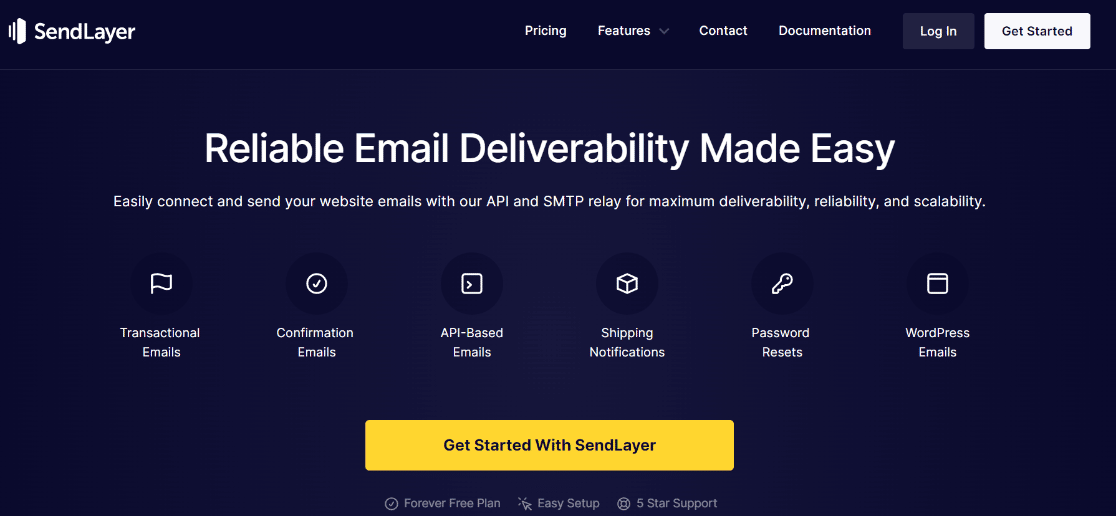
Wenn Sie noch kein Konto haben, folgen Sie der kurzen Anleitung von SendLayer zum Erstellen eines neuen Kontos. Sobald Sie eingeloggt sind, melden Sie sich im SendLayer-Dashboard an und autorisieren Sie Ihre Domain, damit Ihre E-Mails als echt verifiziert werden.
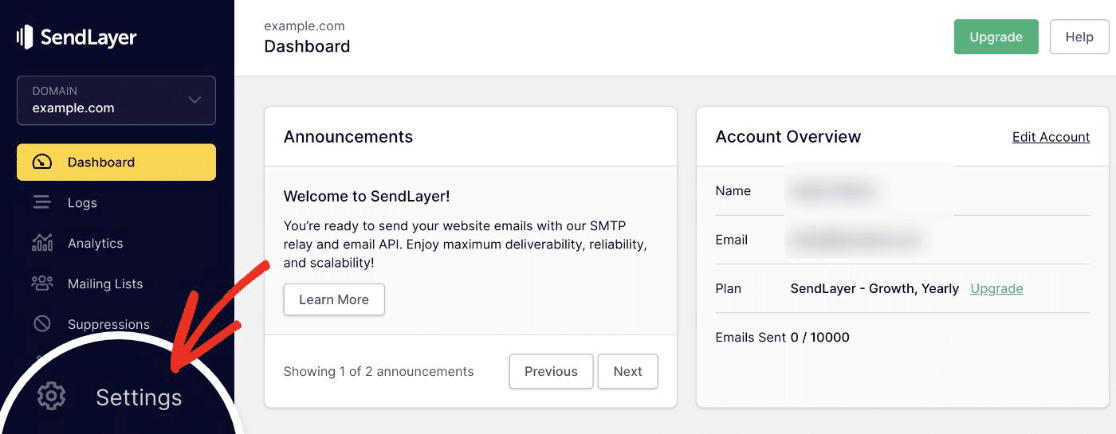
Nachdem Ihre Domain autorisiert wurde, kehren Sie zu Ihrem WordPress-Dashboard zurück. WP Mail SMTP öffnet automatisch den Einrichtungsassistenten, in dem Sie SendLayer als Mailer auswählen und fortfahren.
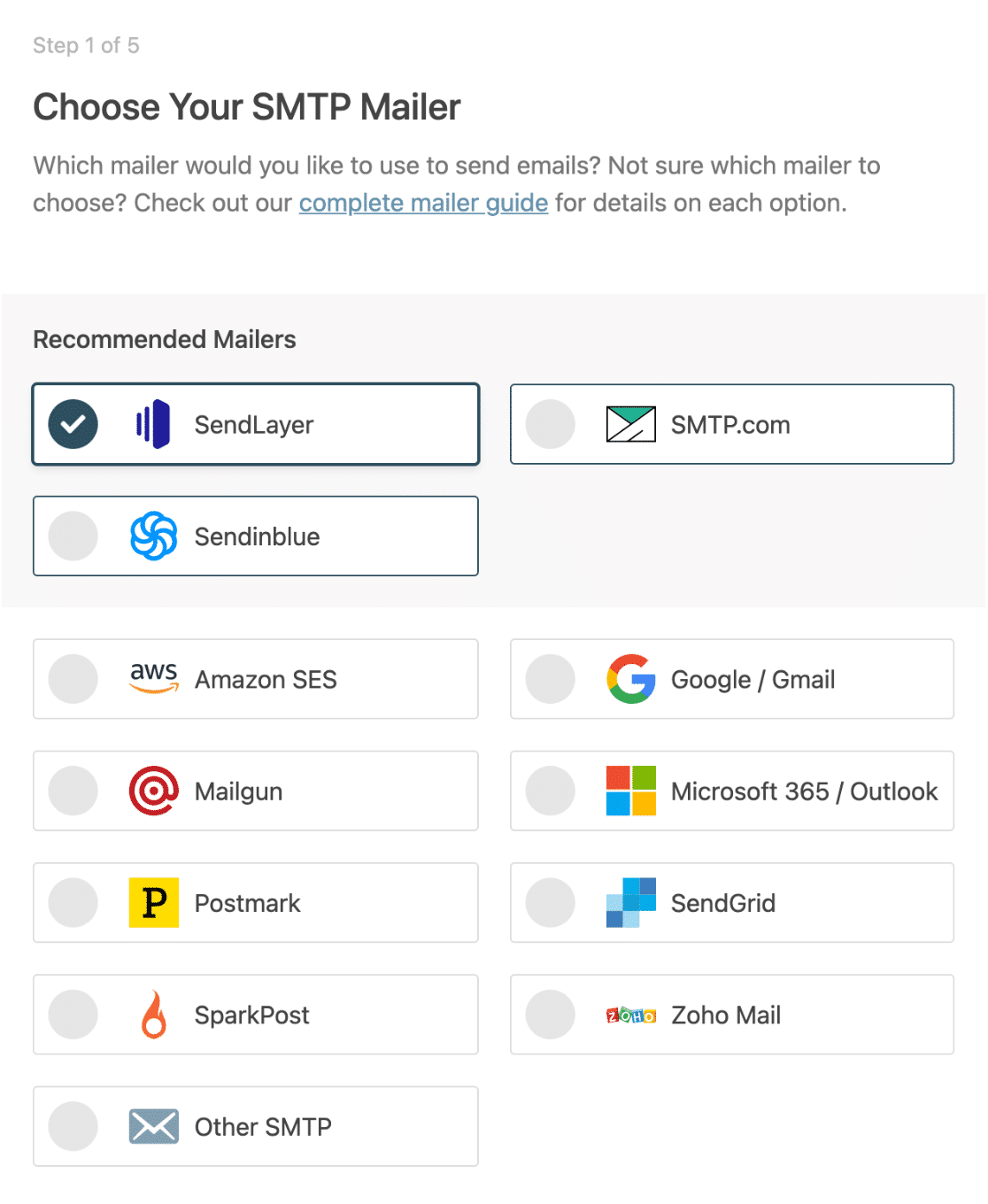
WP Mail SMTP bietet auch eine neuere Option namens SendLayer Quick Connect, die die beiden in etwa zwei Minuten ohne DNS-Einrichtung verbindet. Die hier beschriebenen Standard-Schritte funktionieren jedoch auf jeder Website. Als Nächstes fragt der Assistent nach einigen Details:
- API-Schlüssel: Kopieren Sie diesen aus Ihrem SendLayer-Dashboard.
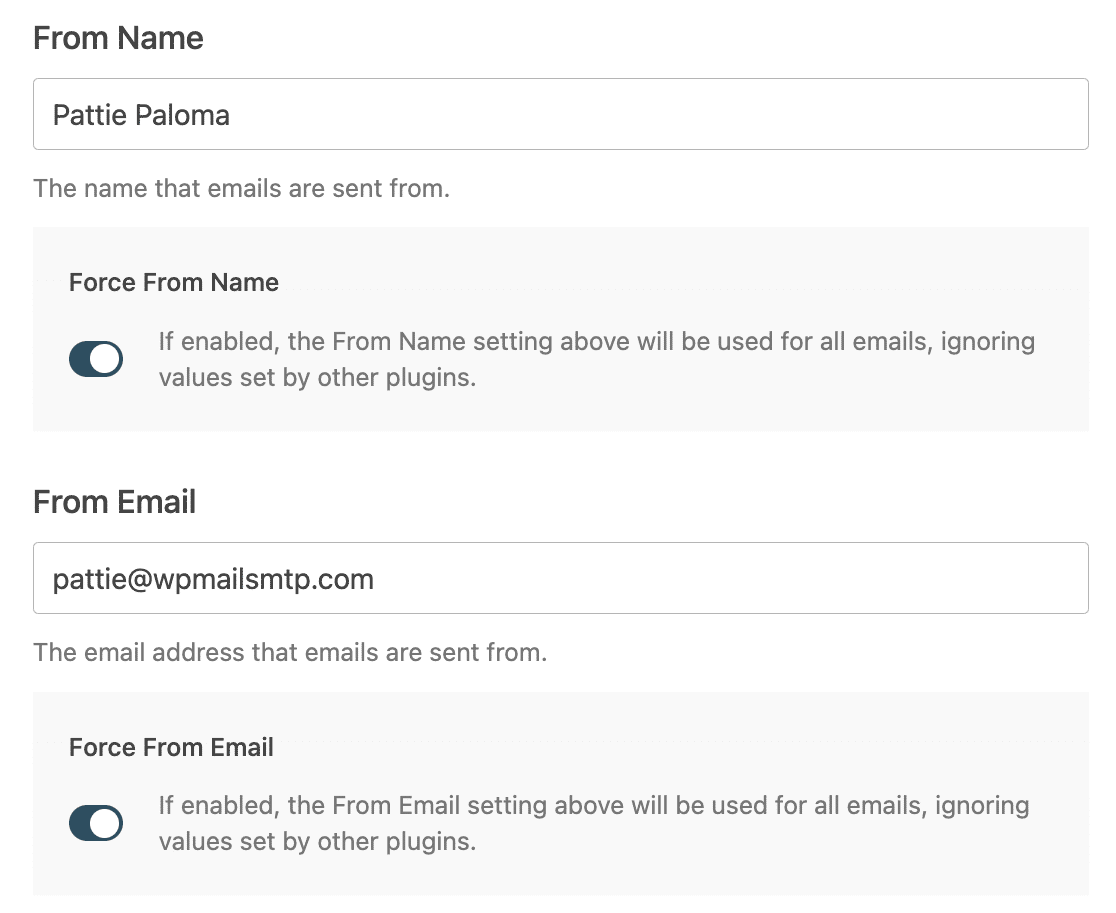
- Absendername: Der Name, von dem Ihre E-Mails gesendet werden sollen.
- Absender-E-Mail: Die Adresse, von der Ihre Website sendet, was Ihre neue Admin-E-Mail-Adresse ist.
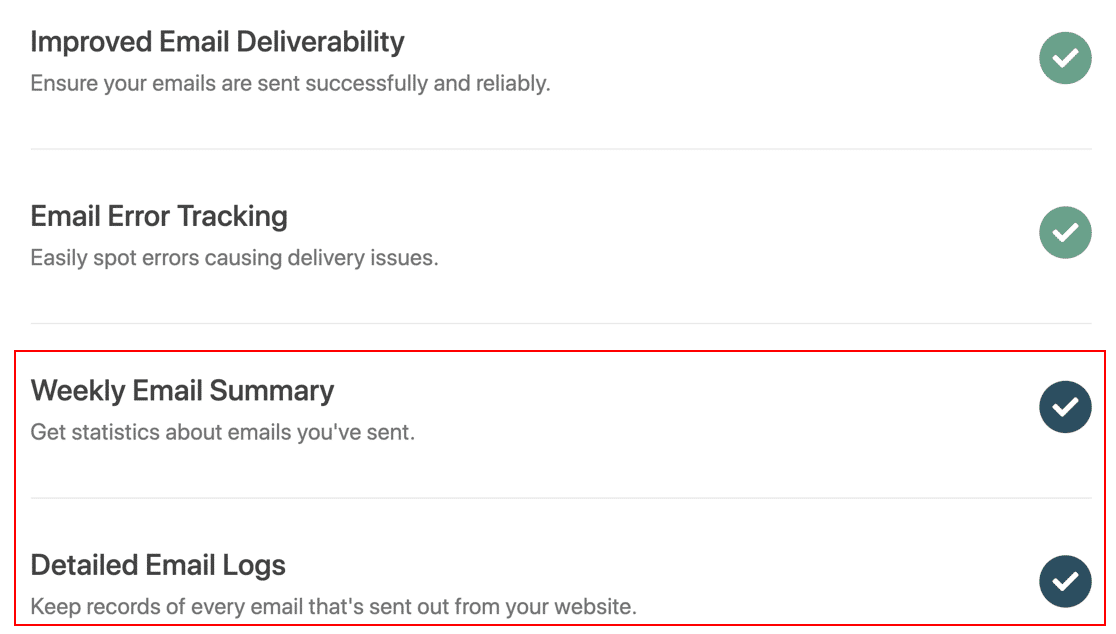
Gegen Ende des Assistenten können Sie die wöchentliche E-Mail-Zusammenfassung und die E-Mail-Protokollierung aktivieren, damit Sie eine Aufzeichnung darüber haben, was Ihre Website sendet.
Ich würde diese aktivieren, da sie es einfach machen, ein Protokoll jeder E-Mail zu führen, die Ihre Website sendet, und Zustellungsprobleme frühzeitig zu erkennen.
Gehen Sie nun zurück zu Einstellungen » Allgemein (oder Ihrem Benutzerprofil) und fordern Sie die E-Mail-Änderung erneut an. Diesmal wird die Bestätigung in Ihrem Posteingang ankommen, Sie klicken auf den Link und die neue Admin-E-Mail ist aktiv.
Methode 3: Admin-E-Mail ohne Bestätigung ändern (mit phpMyAdmin)
Wenn Sie überhaupt nicht mehr in Ihr Dashboard gelangen, können Sie die Admin-E-Mail direkt in der Datenbank Ihrer Website ändern. Dies überspringt den Bestätigungsschritt vollständig, sodass es die Ausweichlösung ist, wenn nichts anderes funktioniert.
Sichern Sie zuerst Ihre Datenbank, da Sie sie von Hand bearbeiten. Hier ist der Vorgang:
- Melden Sie sich in Ihrem Hosting-Kontrollfeld an und öffnen Sie phpMyAdmin. Viele Hoster ermöglichen auch den Zugriff auf die Datenbank über ihr eigenes Dashboard.
- Wählen Sie Ihre WordPress-Datenbank aus und öffnen Sie die Tabelle wp_options. Ihr Tabellenpräfix kann sich von
wp_unterscheiden, suchen Sie also nach dem passenden Namen. - Finden Sie die Zeile, in der option_name admin_email lautet.
- Klicken Sie auf Bearbeiten, ersetzen Sie den Wert in option_value durch Ihre neue Adresse und speichern Sie.
Dies aktualisiert die E-Mail-Adresse der Website-Administration sofort, ohne Bestätigungsschritt.
Um die Anmelde-E-Mail eines bestimmten Benutzers auf diese Weise zu ändern, öffnen Sie stattdessen die Tabelle wp_users, suchen Sie den Benutzer und bearbeiten Sie das Feld user_email. Sobald Sie wieder drin sind, würde ich WP Mail SMTP immer noch mit den obigen Schritten einrichten, damit Ihre zukünftigen E-Mails tatsächlich gesendet werden.
FAQs zum Ändern der WordPress Admin-E-Mail
Hier sind die Fragen, die ich am häufigsten sehe, wenn Leute ihre WordPress Admin-E-Mail-Adresse ändern.
Warum ändert sich meine WordPress Admin-E-Mail nicht?
In fast allen Fällen ist die Änderung ausstehend und erfordert eine Bestätigung. WordPress sendet einen Verifizierungslink an die neue Adresse und wechselt erst, wenn Sie darauf klicken.
Wenn diese E-Mail nicht ankommt, hat Ihre Website ein Problem mit der E-Mail-Zustellung. Richten Sie daher WP Mail SMTP wie oben beschrieben ein und fordern Sie die Änderung erneut an.
Was ist der Unterschied zwischen der Administrations-E-Mail und der E-Mail eines Benutzers?
Die Administrations-E-Mail unter Einstellungen » Allgemein ist die standortweite Kontaktadresse für Admin-Benachrichtigungen wie Updates und neue Registrierungen.
Die E-Mail eines Benutzers befindet sich in seinem Profil unter Benutzer und dient für Passwort-Resets und persönliche Benachrichtigungen. Sie sind getrennt, daher ändert die Änderung der einen nicht die andere.
Wie ändere ich die Admin-E-Mail, wenn ich ausgesperrt bin?
Verwenden Sie die Datenbankmethode in phpMyAdmin. Öffnen Sie die Tabelle wp_options, finden Sie die Zeile admin_email und bearbeiten Sie deren Wert. Dies umgeht die Bestätigungs-E-Mail, was sie nützlich macht, wenn Sie sich nicht anmelden oder keine E-Mails empfangen können.
Wo wird die WordPress Admin-E-Mail gespeichert?
Ihre Website-Administrations-E-Mail wird in der Tabelle wp_options unter dem Optionsnamen admin_email gespeichert. Individuelle Benutzer-E-Mails werden in der Tabelle wp_users im Feld user_email gespeichert.
Als Nächstes: Verhindern Sie unbefugte Passwort-Zurücksetzungen
Wenn Sie ständig E-Mails zur Passwortwiederherstellung erhalten, könnte jemand versuchen, in Ihre Website einzubrechen. Verhindern Sie diese störenden Benachrichtigungen und erfahren Sie wie Sie Spambots daran hindern, unbefugte Anfragen zur Passwortzurücksetzung zu senden.
Sobald Ihre WordPress-E-Mails zuverlässig im Posteingang ankommen, werden auch die Benachrichtigungen von Ihren Kontakt- und Anmeldeformularen durchgestellt, was bedeutet, dass Sie tatsächlich die Leads sehen, die Ihnen die Leute senden.
Erstellen Sie jetzt Ihr WordPress-Formular
Bereit, Ihr Formular zu erstellen? Beginnen Sie noch heute mit dem einfachsten WordPress-Formularersteller-Plugin. WPForms Pro enthält viele kostenlose Vorlagen und bietet eine 14-tägige Geld-zurück-Garantie.
Wenn dieser Artikel Ihnen geholfen hat, folgen Sie uns bitte auf Facebook und X (Twitter) für weitere kostenlose WordPress-Tutorials und Anleitungen.





