


Resumo de IA
Criar um formulário de pagamento para o seu site WordPress pode parecer um desafio, especialmente quando envolve o manuseio de informações sensíveis como detalhes de cartão de crédito.
Tenho muita experiência na criação de formulários de pagamento e descobri que Authorize.Net é uma das opções mais confiáveis disponíveis.
Neste guia, mostrarei os passos exatos para criar um formulário de pagamento Authorize.Net no seu site WordPress de forma rápida e fácil. Vamos lá!
Crie Seu Formulário Authorize.Net Agora! :)
Como Criar um Formulário de Pagamento Authorize.Net no WordPress
Criar um formulário de pagamento no WordPress parece um trabalho árduo. Mas com o WPForms é fácil e rápido. O addon Authorize.Net faz todo o trabalho para você. Siga os passos abaixo para começar.
- Etapa 1: Instale e Ative o Plugin WPForms
- Passo 2: Obtenha o Addon Authorize.Net do WPForms
- Passo 3: Personalize Suas Configurações do Authorize.Net
- Passo 4: Crie Seu Formulário de Pagamento Authorize.Net
- Passo 5: Personalize as Configurações do Seu Formulário de Pagamento
- Passo 6: Publique Seu Formulário de Pagamento Authorize.Net
Etapa 1: Instale e Ative o Plugin WPForms
WPForms é o melhor plugin construtor de formulários para WordPress que permite criar formulários de contato, formulários de pagamento, formulários de pedido, formulários de cálculo, e a lista continua.
Para usar o WPForms com Authorize.net, você precisará de acesso à licença Elite do WPForms. Isso lhe dará acesso ao addon relevante e a uma tonelada de recursos incríveis.

Portanto, sem mais delongas, instale e ative o plugin WPForms. Se precisar de ajuda com este passo, consulte este guia para iniciantes sobre como instalar um plugin WordPress.
Atualize para o WPForms Elite Agora! 🙂
Passo 2: Obtenha o Addon Authorize.Net do WPForms
Agora que você tem o WPForms ativado, também desejará instalar e ativar o addon Authorize.Net. No painel do WordPress, clique em WPForms à esquerda. Clique em Addons.
Encontre o addon Authorize.Net e clique no botão Instalar. Se o addon mostrar um status desativado, prossiga e mova o controle deslizante para a posição Ativado e, em seguida, clique em Configurações.

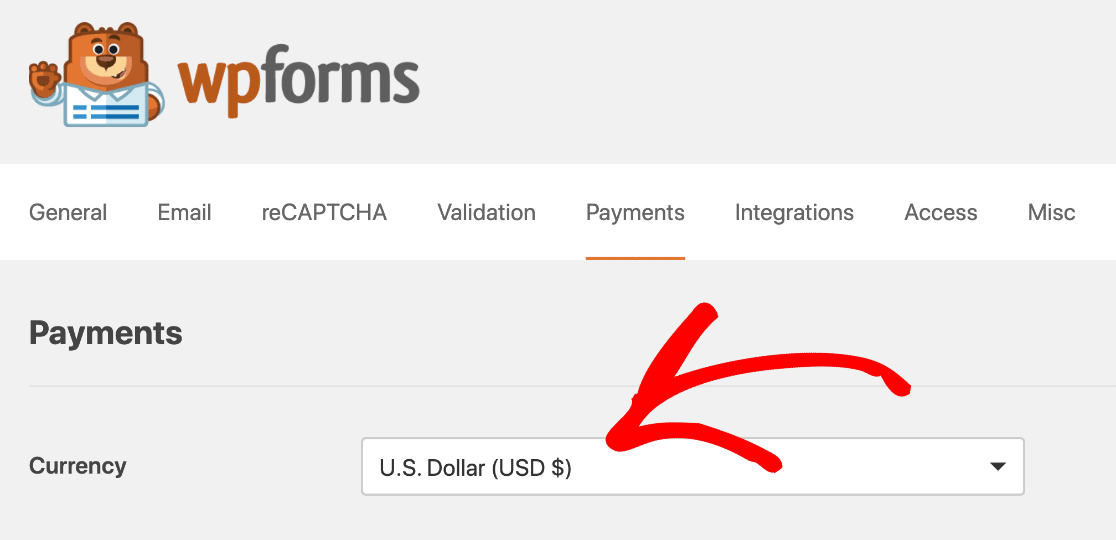
Isso o redirecionará para a aba Pagamentos, onde você pode verificar rapidamente se as configurações de pagamento estão configuradas da maneira que você deseja. Por exemplo, selecione a moeda que deseja usar no menu suspenso Moeda aqui.
Tudo pronto! Agora é hora de conectar o WPForms ao Authorize.Net, para que você possa criar facilmente seu formulário de pagamento e começar a aceitar pedidos imediatamente.
Passo 3: Personalize Suas Configurações do Authorize.Net
Você pode optar por configurar seu formulário de pagamento Authorize.Net com uma conexão de teste, se desejar. Mas neste exemplo, configuraremos uma conexão em Tempo Real (Live).
Se você não quiser que as pessoas usem o formulário ainda, recomendamos configurá-lo no modo Teste. Em uma nova aba, vamos fazer login na sua conta Authorize.Net.

Assim que fizer login, certifique-se de estar no modo Ao Vivo (Live). Você pode clicar no interruptor no Authorize.net para alterar a configuração, se precisar.

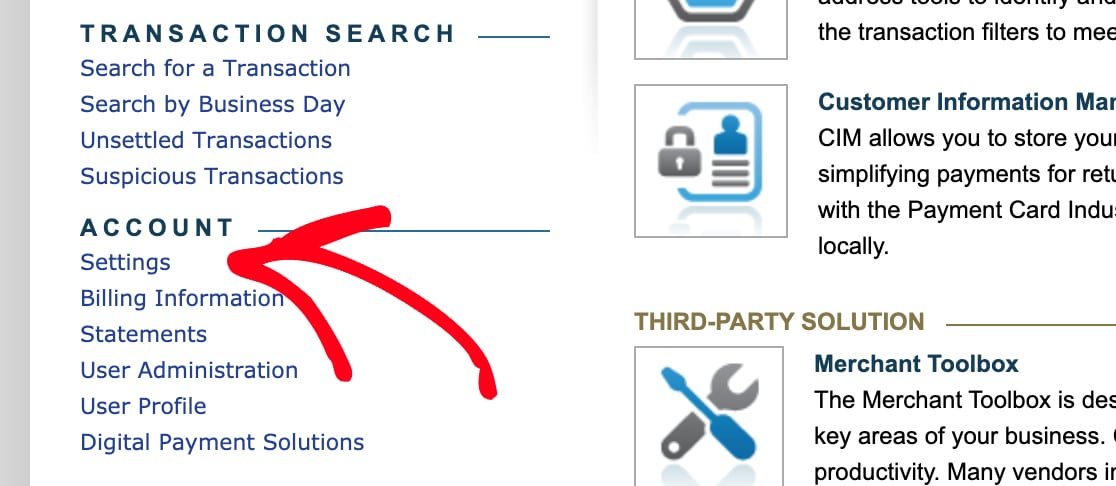
Agora é hora de pegar sua chave de API. Veja onde encontrá-la. Procure na barra lateral por Conta. Em seguida, clique em Configurações.
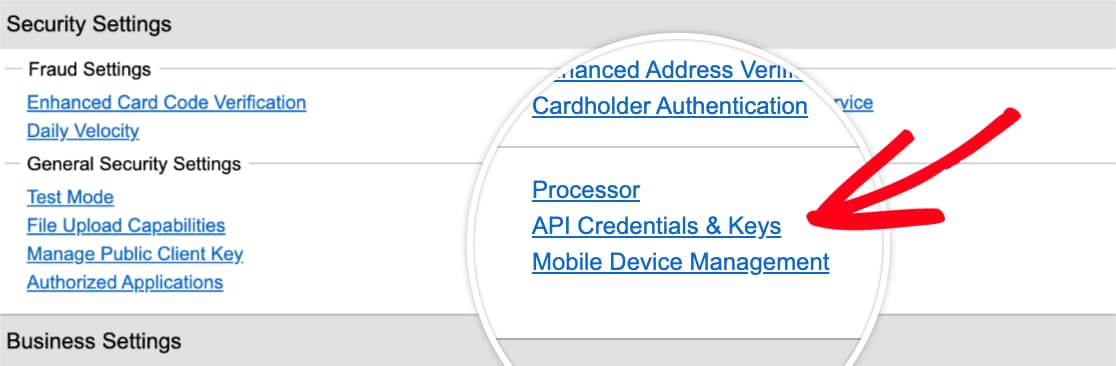
Em Configurações Gerais de Segurança, clique em Credenciais e Chaves de API. Em seguida, copie a chave de API desta tela e volte para sua aba do WPForms.
Verifique se você ainda está na aba Pagamento. Role um pouco para baixo para ver a seção Authorize.Net. Cole a chave na caixa ID de Login da API.
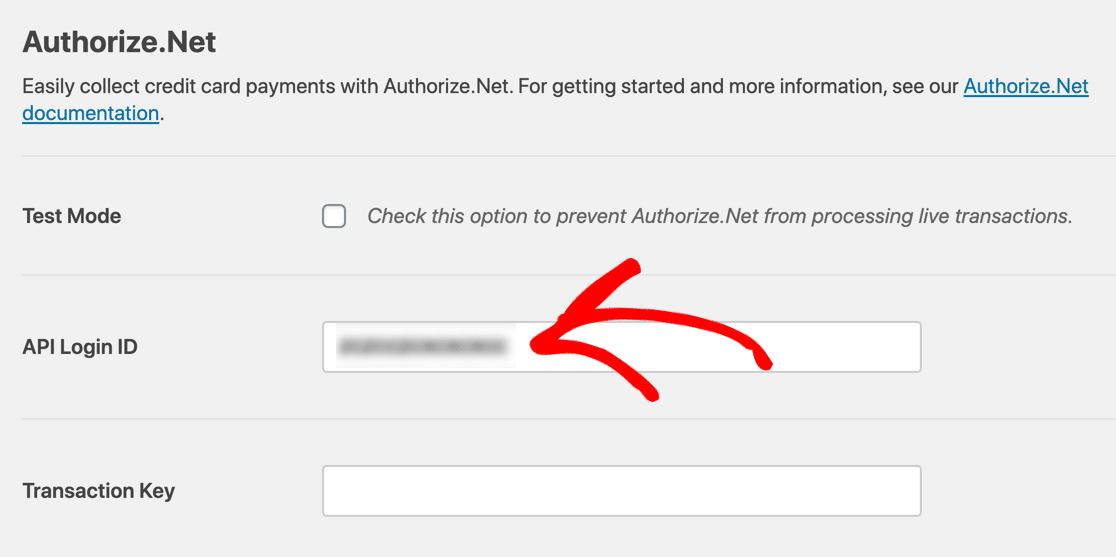
Agora volte para sua conta Authorize.Net. Você ainda deve estar na página Credenciais e Chaves de API. Clique em Obter e, em seguida, em Nova Chave de Transação. Em seguida, clique em Enviar.
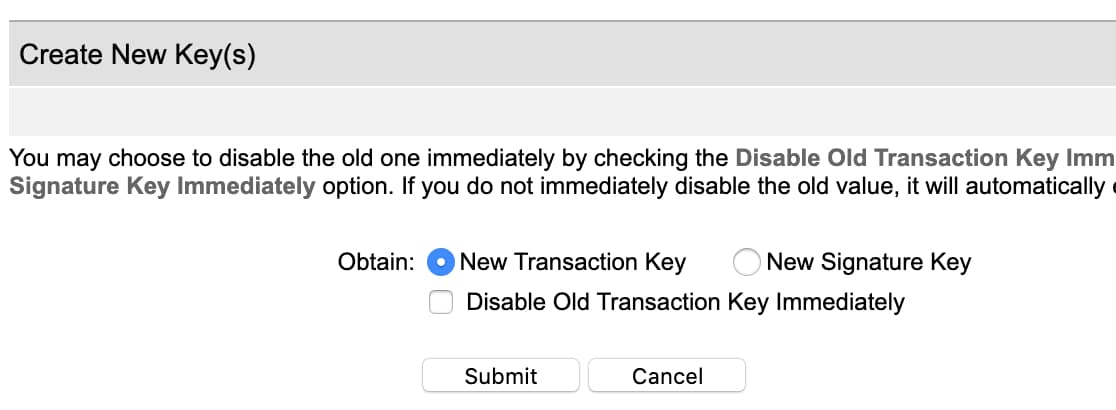
O Authorize.Net enviará um PIN para seu endereço de e-mail. Verifique seu e-mail, cole o PIN e clique em Verificar PIN. Ótimo! Agora você tem uma chave de transação funcional.
Copie essa chave agora, volte para o WPForms e cole-a no campo Chave de Transação. Assim que as chaves forem verificadas, suas contas WPForms e Authorize.net deverão estar conectadas.
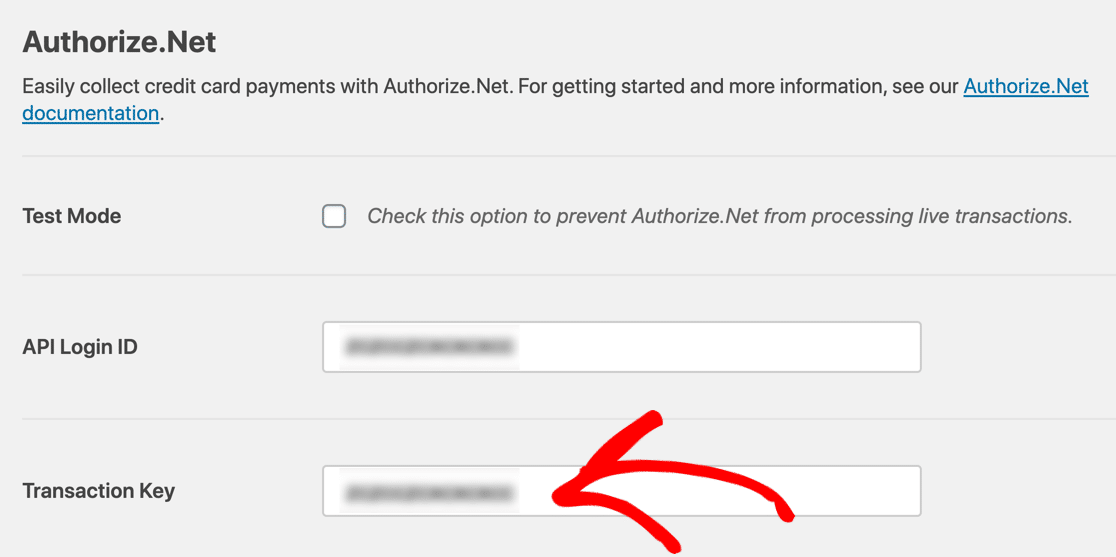
A parte complicada acabou, apenas certifique-se de clicar em Salvar Configurações para garantir que você não perca nenhuma alteração. Agora, precisamos criar seu formulário de pagamento Authorize.net.
Passo 4: Crie Seu Formulário de Pagamento Authorize.Net
Se você já tem um formulário que deseja usar, abra esse formulário no construtor do WPForms agora. Se você ainda não tem um formulário, sem problemas. Você pode criar um formulário de pedido simples ou usar um modelo.
O WPForms vem com mais de 2.100 modelos de formulários do WordPress. Para escolher um, clique em WPForms » Adicionar Novo. Em seguida, role para baixo até a seção Modelos Adicionais.
Se você pesquisar por 'formulário de pedido' aqui, verá 5 modelos para escolher. Usaremos o Modelo de Formulário de Pedido de Camiseta como exemplo.
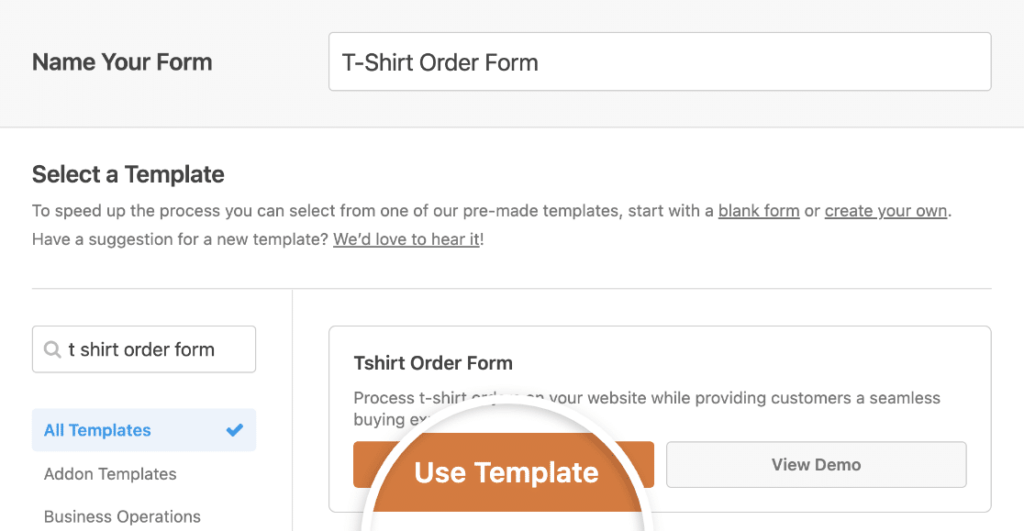
Clique no modelo e o WPForms abrirá o construtor de formulários. Você pode personalizar o formulário arrastando novos campos do painel esquerdo para o painel direito.
Por exemplo, vamos adicionar o campo Authorize.Net. Arraste-o do painel esquerdo para o seu formulário. Você pode colocá-lo onde quiser:

Agora você pode clicar em cada campo no construtor de formulários e personalizá-lo. Se não tiver certeza de como fazer isso, confira este guia sobre como criar seu primeiro formulário no WPForms.
Você pode tornar seu formulário de pagamento ainda mais dinâmico exibindo ou ocultando campos de pagamento com base em datas específicas – perfeito para preços sazonais, descontos para os primeiros compradores ou ofertas por tempo limitado.
Você está procurando um plugin de doação WordPress Authorize.Net? Você só precisará ajustar os campos um pouco. Confira este guia sobre como criar um formulário de doação para organizações sem fins lucrativos no WordPress.
Passo 5: Personalize as Configurações do Seu Formulário de Pagamento
Permaneça no construtor do WPForms para esta parte do tutorial. Você precisará olhar para os ícones no lado esquerdo e clicar em Pagamentos. Em seguida, clique em Authorize.Net.

Vamos ativar os pagamentos com cartão de crédito para este formulário usando as configurações no lado direito. Veja o que você precisa fazer:
- Marque a caixa de seleção Ativar pagamentos Authorize.Net para ativar o processamento de pagamentos para o formulário.
- Na caixa Descrição do Pagamento, digite as palavras que aparecerão na fatura do cartão de crédito do seu cliente. Provavelmente, você vai querer digitar o nome da sua loja aqui.
- No menu suspenso Recibo de Pagamento Authorize.Net, você pode selecionar E-mail para que o Authorize.Net envie um recibo por e-mail. Se você não selecionar nada aqui, o cliente não receberá um recibo.
- No menu suspenso Nome do Cliente, selecione Nome para que o nome do cliente seja associado ao pagamento.
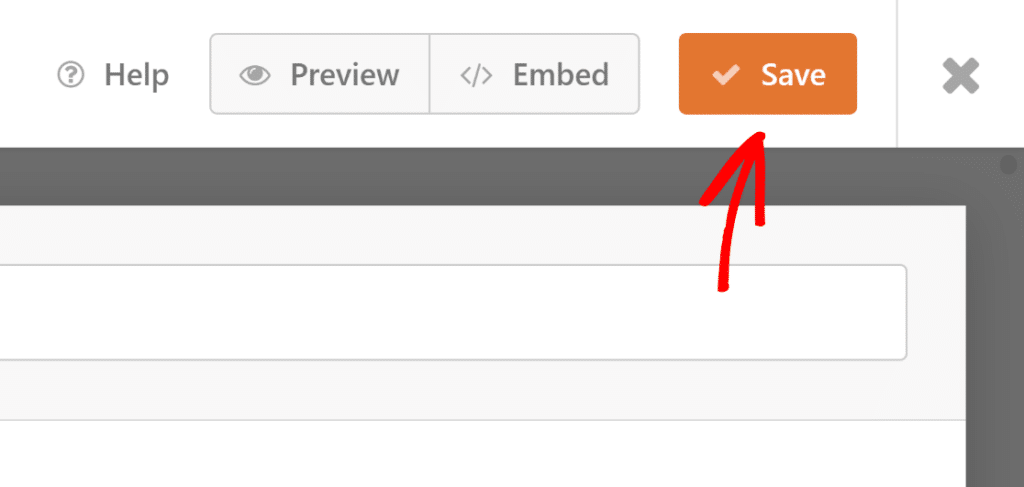
E é isso! Seu formulário Authorize.Net WordPress está pronto para ir ao ar. Clique no botão Salvar para garantir que todo o seu progresso esteja seguro.
Passo 6: Publique Seu Formulário de Pagamento Authorize.Net
Agora, tudo o que precisamos fazer é publicá-lo. E esta é a parte realmente fácil. Você pode publicar seu formulário em qualquer lugar do WordPress sem usar nenhum código.
Se você quiser colocar seu formulário em uma página, o WPForms criará automaticamente a página para você. Vá em frente e clique no botão Incorporar na parte superior do construtor de formulários.

O WPForms perguntará se você deseja adicionar seu formulário a uma página existente ou criar uma nova. Vamos clicar em Criar Nova Página.

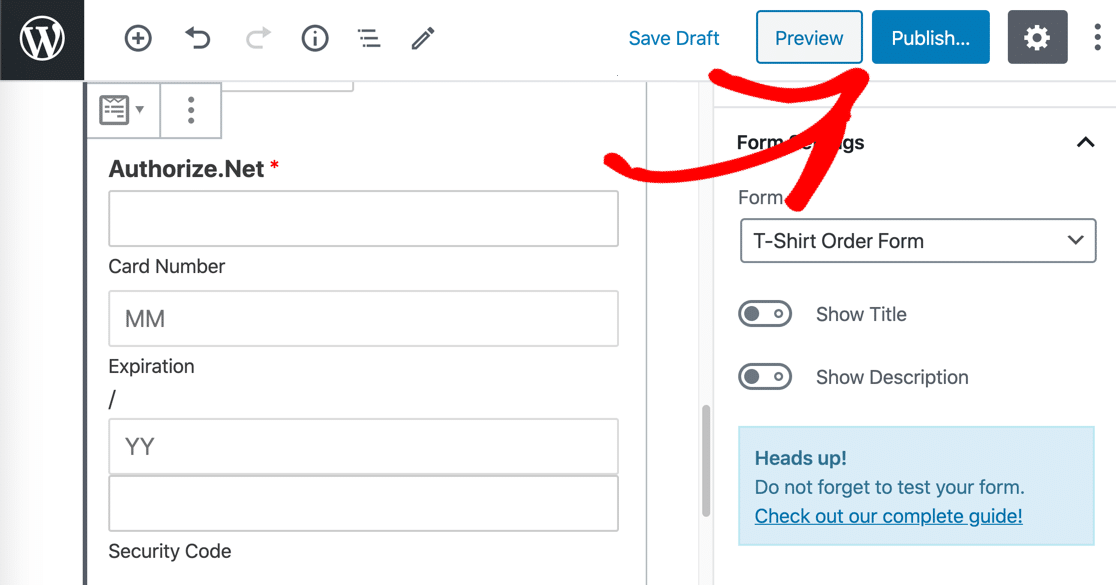
Digite um nome para sua página e clique no botão Vamos Lá. Agora o WPForms criará uma página e incorporará seu formulário nela. Tudo o que você precisa fazer é clicar em Publicar para tornar o formulário ativo em seu site.
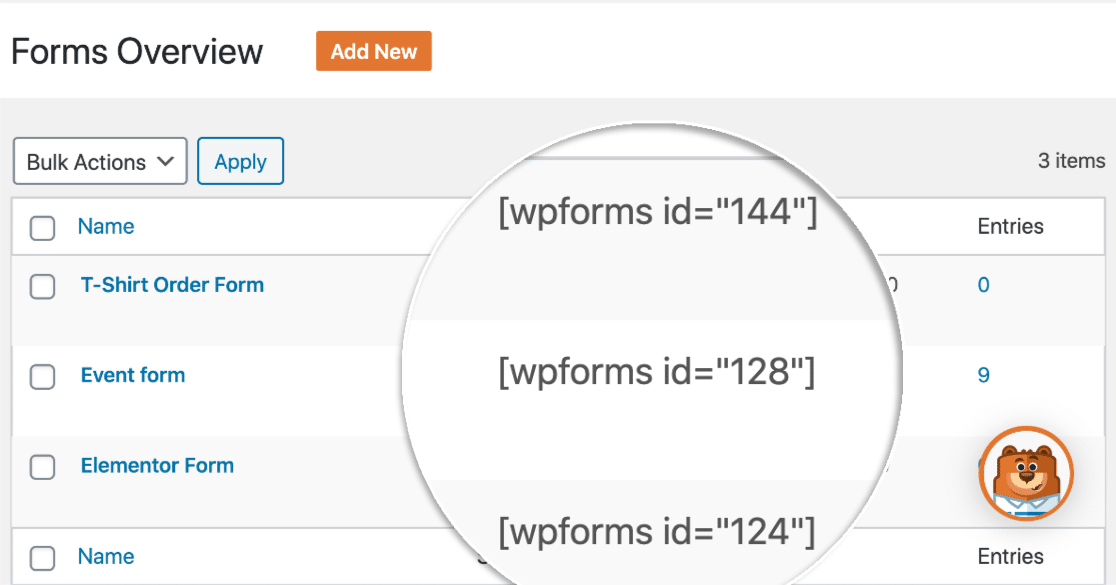
Se você quiser incorporar seu formulário usando um shortcode, clique em WForms » Todos os Formulários e você verá o shortcode ali na lista.
E é isso! Agora você pode começar a receber pedidos usando seu novo formulário de pagamento Authorize.Net.
Se você é uma organização sem fins lucrativos, pode querer tornar suas doações opcionais. Sem problemas! Veja como adicionar um pagamento opcional aos seus formulários WordPress.
FAQs — Como Criar um Formulário de Pagamento Authorize.net no WordPress
Criar um formulário de pagamento Authorize.Net é um tópico popular entre nossos leitores. Aqui estão as respostas para algumas perguntas comuns sobre isso:
Como configurar o Authorize.net no WordPress?
Para configurar o Authorize.Net no WordPress, você precisará de um plugin como o WPForms. Primeiro, instale e ative o addon Authorize.Net no WPForms.
Em seguida, conecte sua conta Authorize.Net inserindo seu ID de Login da API e Chave de Transação nas configurações do WPForms. Finalmente, crie um formulário de pagamento e ative o Authorize.Net como o processador de pagamentos.
Você pode aceitar pagamentos através do WordPress?
Como crio um formulário de pagamento no WordPress?
Para criar um formulário de pagamento no WordPress, use um plugin como o WPForms.
Após instalar o plugin, selecione um modelo de formulário de pagamento, personalize os campos e ative um gateway de pagamento como Authorize.Net ou Stripe.
Concluído, você pode incorporar o formulário em seu site e começar a aceitar pagamentos.
Em seguida, vamos melhorar as conversões do seu formulário de pedidos
Você sabia que a taxa média de abandono de formulários é de 68%? Se muitas pessoas abandonarem seu formulário no meio do preenchimento, você perderá muitos pedidos.
Dê uma olhada em algumas maneiras simples de reduzir o abandono de formulários e aumentar suas conversões. Você também pode conferir estas reclamações comuns sobre formulários de pagamento para garantir que o seu esteja otimizado.
Crie seu formulário WordPress agora
Pronto para criar seu formulário? Comece hoje mesmo com o plugin de criação de formulários WordPress mais fácil. WPForms Pro inclui muitos modelos gratuitos e oferece uma garantia de devolução do dinheiro em 14 dias.
Se este artigo ajudou você, por favor, siga-nos no Facebook e Twitter para mais tutoriais e guias gratuitos do WordPress.


Mais alguém está tendo problemas aqui? Segui estas instruções corretamente – várias vezes e ainda estou recebendo uma mensagem de erro. Também falei com o Authorize.net e eles não conseguiram ajudar.
Olá Hallie – Sinto muito pelo problema! Vejo que você já abriu um ticket. Nossa equipe de suporte está analisando este problema e retornará em breve.
Obrigado pela sua paciência!
E se os campos "nome" e "email" não estiverem disponíveis no menu suspenso? Como eu corrijo isso?
Olá Sharon – Sinto muito, mas não tenho certeza se entendi sua pergunta – mas ficaremos felizes em ajudar! Você poderia entrar em contato com nosso suporte com mais alguns detalhes sobre o que você gostaria de fazer? Caso contrário, oferecemos suporte complementar limitado no fórum de suporte do WPForms Lite no WordPress.org.
Obrigado! 🙂
Obrigado 🙂
Podemos ter o campo de preço personalizado para isso?
Por exemplo, o usuário pode digitar o preço e o Authorize cobrará o valor dito que o usuário digitou.
Olá Pill!
Você pode permitir que seus usuários definam o valor que pagarão utilizando um campo de Item Único e definindo o Tipo de Item como Definido pelo Usuário.
Mais detalhes sobre isso podem ser encontrados aqui.
Espero que isso ajude a esclarecer 🙂 Se você tiver mais alguma dúvida sobre isso, por favor entre em contato conosco se tiver uma assinatura ativa. Se não tiver, não hesite em nos fazer algumas perguntas em nossos fóruns de suporte.