


Résumé IA
Votre formulaire est en ligne et recueille des soumissions, mais il a maintenant besoin d'une modification, peut-être un nouveau champ ou un ajustement de qui voit quoi. La modification fait simplement partie de l'utilité de vos formulaires à mesure que vos besoins évoluent.
Avec WPForms AI, vous pouvez gérer ces modifications de formulaire en un rien de temps. Vous pouvez ajouter des champs, les réorganiser, configurer la logique conditionnelle, personnaliser les notifications, et plus encore, le tout à partir d'une seule invite.
Dans ce guide, je vais vous montrer comment modifier un formulaire WordPress existant avec l'IA en utilisant Smart Edit et partager une autre méthode géniale qui vous permettra de modifier vos formulaires WordPress directement via Claude, ChatGPT ou Cursor !
Commencez à modifier vos formulaires avec l'IA 🙂
Comment modifier un formulaire WordPress avec l'IA
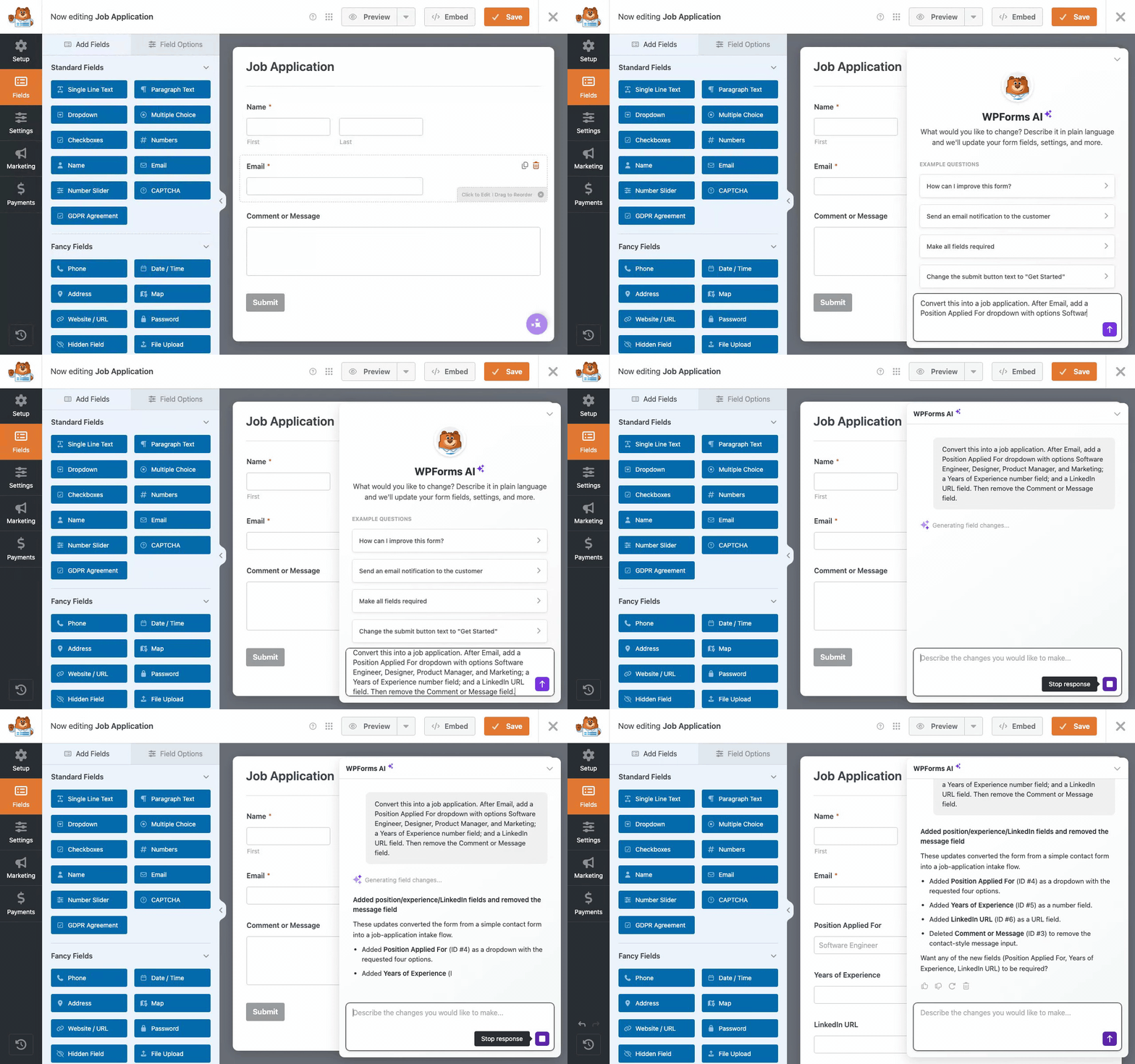
Pour modifier un formulaire WordPress avec l'IA, ouvrez le formulaire dans WPForms, cliquez sur Smart Edit et décrivez la modification que vous souhaitez en langage clair.
La modification apparaît immédiatement dans votre constructeur, et vous pouvez continuer à l'affiner avec des invites de suivi. Pour des instructions étape par étape, continuez à lire :
- Étape 1 : Installer le plugin WPForms
- Étape 2 : Ouvrez votre formulaire et lancez Smart Edit
- Étape 3 : Modifiez les champs en décrivant la modification
- Étape 4 : Ajoutez ou mettez à jour la logique conditionnelle avec une invite
- Étape 5 : Mettez à jour les notifications et la confirmation de votre formulaire
- Étape 6 : Annulez toute modification en un clic
- Modifiez vos formulaires depuis Claude, ChatGPT ou Cursor
Étape 1 : Installer le plugin WPForms
Avant de pouvoir modifier quoi que ce soit avec l'IA, vous avez besoin de WPForms sur votre site. Si vous l'avez déjà installé, passez à l'étape suivante.
WPForms est le constructeur de formulaires le plus convivial pour les débutants pour WordPress, avec plus de 5 millions de personnes l'utilisant pour tout, des formulaires de contact aux inscriptions d'événements.
Ses outils d'IA, regroupés sous le nom de WPForms AI, se trouvent directement dans le constructeur que vous connaissez déjà, il n'y a donc aucun outil séparé à configurer ni nouvel écran à apprendre.
Smart Edit est gratuit dans WPForms Lite, mais je recommande de passer à la version Pro, car elle débloque la bibliothèque complète de plus de 40 modules complémentaires en cours de route : Sondages et enquêtes, Abandon de formulaire, et bien plus encore.

Pour commencer, installez WPForms sur votre site Web. Si vous avez besoin d'aide, suivez ces instructions sur comment ajouter un plugin à WordPress.
Commencez avec WPForms dès aujourd'hui 🙂
Étape 2 : Ouvrez votre formulaire et lancez Smart Edit
Smart Edit se trouve dans le constructeur de formulaires, la première étape consiste donc à ouvrir le formulaire que vous souhaitez modifier.
Dans votre tableau de bord WordPress, allez dans WPForms » Tous les formulaires. Ensuite, trouvez le formulaire que vous souhaitez modifier et cliquez sur son nom pour l'ouvrir dans le constructeur.

Une fois le constructeur chargé, recherchez le bouton Smart Edit dans le coin inférieur droit et cliquez dessus.

Lorsque le panneau de discussion glisse sur la droite, vous pouvez taper vos modifications en langage clair, de la même manière que vous enverriez un message à un collègue qui connaît déjà votre formulaire.

Vous n’avez pas besoin de formulations spéciales ici, les requêtes simples fonctionnent donc mieux, comme lui demander d’ajouter un champ, de renommer une étiquette ou de modifier un paramètre. Smart Edit pose une question de suivi rapide chaque fois que quelque chose n’est pas clair.
Étape 3 : Modifiez les champs en décrivant la modification
La plupart des modifications concernent les champs eux-mêmes, que vous en ajoutiez un, en supprimiez un ou modifiiez ce qu’il demande. Avec Smart Edit, vous décrivez la modification dans le chat, et elle apparaît dans le constructeur sans aucun repositionnement manuel.
Supposons que vous souhaitiez que les participants vous indiquent comment ils vont participer. Dans le panneau de discussion, tapez « Ajouter un menu déroulant appelé Comment allez-vous participer avec les choix En personne et En ligne, et le rendre obligatoire », puis appuyez sur Entrée.

Le nouveau champ s’insère juste après l’e-mail, et Smart Edit publie un résumé de ce qu’il a modifié exactement. Comme il n’agit que sur ce que vous avez demandé, le reste de votre formulaire reste exactement comme il était.
Vous pouvez renommer les étiquettes tout aussi facilement. Par exemple, je lui ai donné une invite pour « Renommer le champ Commentaires en Besoins alimentaires » afin que l’étiquette corresponde à ce que je demande réellement.

La réorganisation fonctionne de la même manière et je peux simplement taper une autre invite comme, « Déplacer le champ Comment allez-vous participer au-dessus de Besoins alimentaires » et les champs se réorganisent eux-mêmes.
Étape 4 : Ajoutez ou mettez à jour la logique conditionnelle avec une invite
La logique conditionnelle affiche ou masque les champs en fonction de ce que quelqu’un sélectionne, et la construire manuellement signifie ouvrir chaque champ et écrire des règles, mais Smart Edit gère tout à partir d’une seule phrase.
Sur le formulaire d’inscription, les participants en ligne n’ont pas besoin de répondre à la question sur l’alimentation. Dans le panneau de discussion, je peux simplement taper « Afficher le champ Besoins alimentaires uniquement lorsque Comment allez-vous participer est défini sur En personne. »

En une seconde ou deux, la règle est écrite et appliquée au champ sans que vous n’ouvriez un seul panneau de paramètres, et Smart Edit explique exactement ce qu’il a configuré.
Vous pouvez confirmer la règle vous-même en ouvrant le champ Besoins alimentaires et en regardant sous l’onglet Logique intelligente. Elle se lit comme celle que vous construiriez manuellement.

Si vous préférez créer des règles de logique conditionnelle sans IA, voici comment les configurer manuellement.
Étape 5 : Mettre à jour les notifications et la confirmation de votre formulaire
Au-delà des champs, Smart Edit met également à jour les messages envoyés après que quelqu’un a soumis le formulaire. Cela couvre les notifications par e-mail et la confirmation que les gens voient à l’écran.
Actuellement, votre formulaire d’inscription envoie sa notification à l’administrateur du site. Tapez « Envoyer une notification à [email protected] chaque fois que quelqu’un s’inscrit » pour en ajouter une pour votre équipe.

Smart Edit crée la notification avec un destinataire et une ligne d’objet déjà remplis, puis vous indique ce qu’il a configuré. Si la formulation n’est pas tout à fait correcte, envoyez une autre invite pour l’ajuster.
Ensuite, mettez à jour ce que les utilisateurs voient après leur inscription. Tapez une invite simple comme « Modifiez le message de confirmation pour les remercier et les informer que leur billet est en route. »

Vous pouvez également modifier le texte du bouton de soumission dans la foulée, avec une invite comme « Renommez le bouton de soumission en Réserver ma place ».
Étape 6 : Annulez toute modification en un clic
Chaque modification apportée par Smart Edit est enregistrée sous forme d'instantané unique, de sorte qu'un seul clic annule tout, peu importe le nombre de champs ou de règles qu'il a touchés.
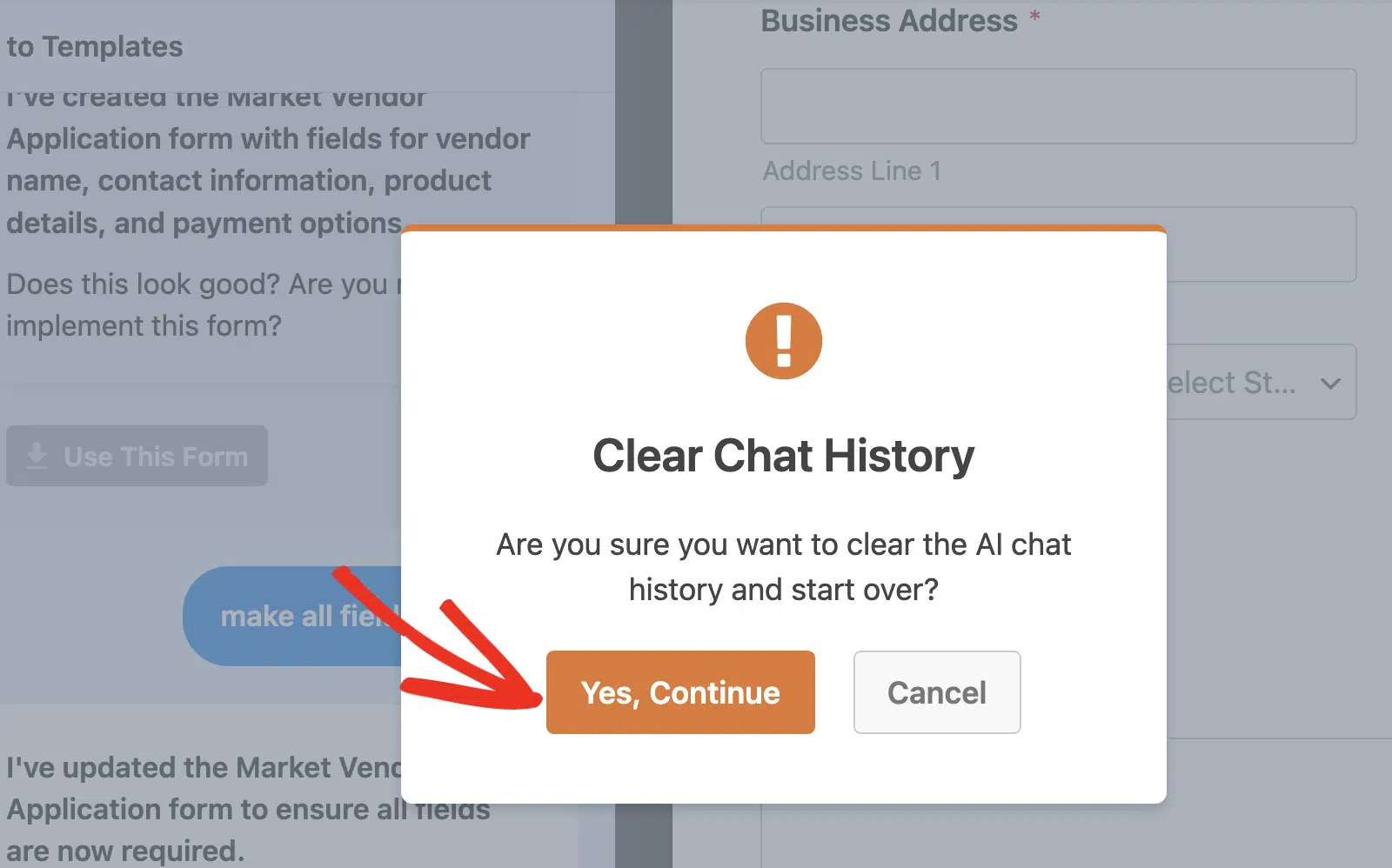
Si une modification n'est pas celle que vous souhaitiez, cliquez sur l'option Annuler dans ce message dans le chat. Cliquer sur cette icône ouvrira une fenêtre contextuelle de confirmation.
Une fois que vous aurez cliqué sur le bouton Oui, continuer , tout l'historique du chat sera effacé, vous permettant de commencer un nouveau chat avec l'IA de WPForms.
Smart Edit peut également examiner votre travail comme un copilote, vous pouvez donc lui demander quelque chose comme « Passez en revue ce formulaire et suggérez des améliorations », et il lit vos champs et paramètres, puis propose des recommandations spécifiques.
C'est un moyen facile de repérer un champ obligatoire manquant ou une étiquette confuse avant de publier. Lorsque tout semble correct, enregistrez votre formulaire. Ensuite, testez-le pour vous assurer qu'il se comporte comme vous le souhaitez.
Votre formulaire d'inscription a maintenant une nouvelle liste déroulante, une logique conditionnelle qui masque la question sur les préférences alimentaires aux invités en ligne, et une notification supplémentaire.
Modifiez votre prochain formulaire avec l'IA 🙂
Modifiez vos formulaires depuis Claude, ChatGPT ou Cursor
WPForms permet également à des assistants comme Claude, ChatGPT et Cursor de lire tous les formulaires de votre site WordPress, de créer un nouveau formulaire à partir de zéro, ou de modifier/changer vos formulaires.
Pour l'activer, allez dans WPForms » Outils et ouvrez l'onglet AI MCP. Ensuite, cliquez sur Installer & Activer WPVibe, le serveur MCP gratuit de l'équipe derrière WPForms.

Une fois WPVibe actif, connectez votre assistant en y collant l'URL de votre serveur et en suivant la configuration rapide pour Claude, ChatGPT ou Cursor.
Lorsque vous ajoutez le connecteur, WPVibe vous demande de vous connecter avec votre adresse e-mail. Vérifiez votre boîte de réception pour un message de WPVibe et cliquez sur le bouton Se connecter à l'intérieur.

De retour dans l'onglet AI MCP, activez le bouton Activer l'accès en écriture MCP. Il est désactivé par défaut, donc votre assistant ne peut apporter des modifications qu'une fois que vous l'autorisez, et seul un administrateur peut l'activer.

Depuis votre assistant, vous pouvez créer des formulaires, ajouter et modifier des champs, et mettre à jour le titre, la description et le texte du bouton de soumission d'un formulaire.
Après qu'il ait effectué une modification, ouvrez le formulaire dans WPForms » Tous les formulaires pour examiner le résultat dans le constructeur de formulaires, tout comme n'importe quel formulaire que vous avez créé manuellement.

FAQ sur la modification des formulaires WordPress avec l'IA
La modification des formulaires WordPress avec l'IA est encore nouvelle, donc quelques questions courantes se posent concernant Smart Edit, la logique conditionnelle et la connexion d'un assistant IA.
Puis-je modifier un formulaire existant avec l'IA, ou seulement en créer de nouveaux ?
Oui, vous pouvez modifier n’importe quel formulaire que vous avez déjà créé, pas seulement ceux générés par l’IA. Ouvrez un formulaire datant de plusieurs années, lancez Smart Edit et commencez à le modifier en tapant.
La modification des formulaires avec l’IA est-elle gratuite ?
Oui, Smart Edit est inclus dans WPForms Lite sans frais supplémentaires, et la modification des formulaires à partir d’un assistant IA connecté est également gratuite sur Lite.
L’IA peut-elle ajouter une logique conditionnelle à mon formulaire ?
Vous pouvez décrire la règle en langage clair, par exemple afficher un champ uniquement lorsqu’un autre a une certaine valeur, et Smart Edit la créera et l’appliquera pour vous.
Puis-je annuler une modification apportée par l’IA ?
Oui, chaque modification de Smart Edit est enregistrée sous forme d’instantané, de sorte qu’un seul clic annule tout ce qu’il a touché. Vous pouvez expérimenter librement et annuler tout ce que vous n’aimez pas.
Claude ou ChatGPT peuvent-ils modifier directement mes formulaires WordPress ?
Ils le peuvent, une fois que vous les connectez via un serveur MCP comme WPVibe et que vous activez l’accès en écriture. Votre assistant pourra alors ajouter des champs, modifier ceux qui existent déjà et mettre à jour les paramètres de base du formulaire depuis votre fenêtre de chat.
Est-il sûr de laisser un assistant IA modifier mes formulaires ?
L’accès en écriture est désactivé par défaut, et seul un administrateur peut l’activer. Même lorsqu’il est activé, les assistants ne peuvent pas supprimer de formulaires ni toucher aux notifications, confirmations ou paramètres de paiement, et chaque modification est soumise à votre examen dans le constructeur.
Quels champs de formulaire l’IA peut-elle modifier ?
Smart Edit et les assistants connectés fonctionnent avec les champs courants tels que le texte sur une seule ligne, le texte de paragraphe, l’e-mail, les nombres, les listes déroulantes, les choix multiples, les cases à cocher et le nom.
Ensuite, générez un tout nouveau formulaire avec l’IA
La modification est un aspect du travail avec l’IA dans WPForms, et le démarrage à partir de zéro en est un autre. WPForms AI peut générer un tout nouveau formulaire avec l’IA à partir d’une seule invite en quelques secondes, vous donnant un point de départ que vous pouvez ensuite affiner avec Smart Edit.
Si vous hésitez encore, notre comparatif des meilleurs générateurs de formulaires IA pour WordPress compare les meilleurs outils et leur utilité.
Commencez à créer et modifier des formulaires avec l’IA 🙂
Prêt à créer votre formulaire ? Commencez dès aujourd'hui avec le plugin de création de formulaires WordPress le plus simple. WPForms Pro inclut de nombreux modèles gratuits et offre une garantie de remboursement de 14 jours.
Si cet article vous a aidé, suivez-nous sur Facebook et X (Twitter) pour plus de tutoriels et de guides WordPress gratuits.





