

Resumo de IA
Procura uma análise detalhada do All in One SEO? Pensa em mudar de plugin de SEO e pergunta-se: vale a pena o AIOSEO?
O AIOSEO trata da otimização on-page, schema, mapas do site, redirecionamentos e SEO local a partir de um único painel do WordPress.
Se procura o plugin de SEO perfeito para WordPress para que o seu site apareça nos resultados de pesquisa, não procure mais. Vou mostrar-lhe todas as funcionalidades para o ajudar a decidir se o AIOSEO é a escolha certa para o seu site WordPress.
- Análise do All in One SEO: Vale a pena o AIOSEO?
- Começar com o All in One SEO
- Funcionalidades do All in One SEO
- 1. Auditoria do Site e Lista de Verificação de SEO
- 2. Aparência da Pesquisa
- 3. Redes Sociais
- 4. Mapas do Site e IndexNow
- 5. Redirecionamentos e Links Quebrados
- 6. SEO Local
- 7. Assistente de Links
- 8. Otimização On-Page
- 9. Estatísticas de Pesquisa e Monitorização da Classificação de Palavras-Chave
- 10. O Pacote de IA e as Ferramentas de IA do AIOSEO
- 11. Revisões de SEO e Alertas de SEO
- Veredito: Vale a pena o All in One SEO?
O All in One SEO é gratuito?
Sim, o All in One SEO tem uma versão gratuita no WordPress.org e cobre consideravelmente mais terreno do que há alguns anos.
Para um site de hobby ou um pequeno blog, a versão gratuita realmente fará o trabalho. Sem pagar nada, obtém:
- Análise on-page TruSEO: Pontuação de conteúdo em tempo real com palavras-chave de foco ilimitadas.
- Marcação de schema inteligente: Marcação de rich snippet que costumava estar nos níveis pagos.
- Mapas do site XML inteligentes: Gerados automaticamente e enviados para os motores de busca.
- Integração com o Google Search Console: Conecte a sua propriedade e verifique o seu site.
- Editor Robots.txt e URLs canónicas: Controlo de rastreamento sem tocar num ficheiro.
- Breadcrumbs, tags Open Graph e um Analisador de Títulos: O básico, tratado.
O que não obtém gratuitamente é a camada de automação, pelo que redirecionamentos, o Link Assistant, SEO Local, SEO de Autor, SEO para WooCommerce e as ferramentas de IA ficam todos por detrás de uma licença.
Existem 4 níveis pagos em vez dos 2 que esta análise costumava listar, e os preços são os seguintes:
| Nível | Preço introdutório | Renova a | Sites | Créditos de IA |
|---|---|---|---|---|
| Básico | 49,50 €/ano | 99,00 €/ano | 1 | 10,000 |
| Mais | 99,50€/ano | 199,00 €/ano | 3 | 25,000 |
| Pro | 199,50 €/ano | 399,00 €/ano | 10 | 50,000 |
| Elite | $299.50/ano | 599,00 €/ano | 100 | 200,000 |
Os créditos de IA são novos e são o que os geradores de IA gastam quando os utiliza. O Basic obtém 10.000 deles, o que é suficiente para experimentar sem se comprometer.
O SEO Local e o SEO de Imagem desbloqueiam agora no nível Plus em vez de Pro, o que é importante se gerir um negócio de localização única e não precisar de dez licenças de site, porque o Plus custa metade do Pro.
O Pacote de IA está incluído em todos os planos pagos a partir do Basic para cima, o que me surpreendeu. A maioria dos plugins coloca a sua funcionalidade mais recente no nível superior e deixa-a lá.
Agora que a parte da licença está resolvida, vamos à análise em si.
Análise do All in One SEO: Vale a pena o AIOSEO?
O All in One SEO é o melhor plugin de SEO para WordPress e, de longe, o mais estabelecido. O AIOSEO está no WordPress.org desde março de 2007, o que o torna o plugin de SEO original do WordPress. Atualmente, tem mais de 2 milhões de instalações ativas com uma classificação de 4,7 estrelas em mais de 5.200 avaliações.
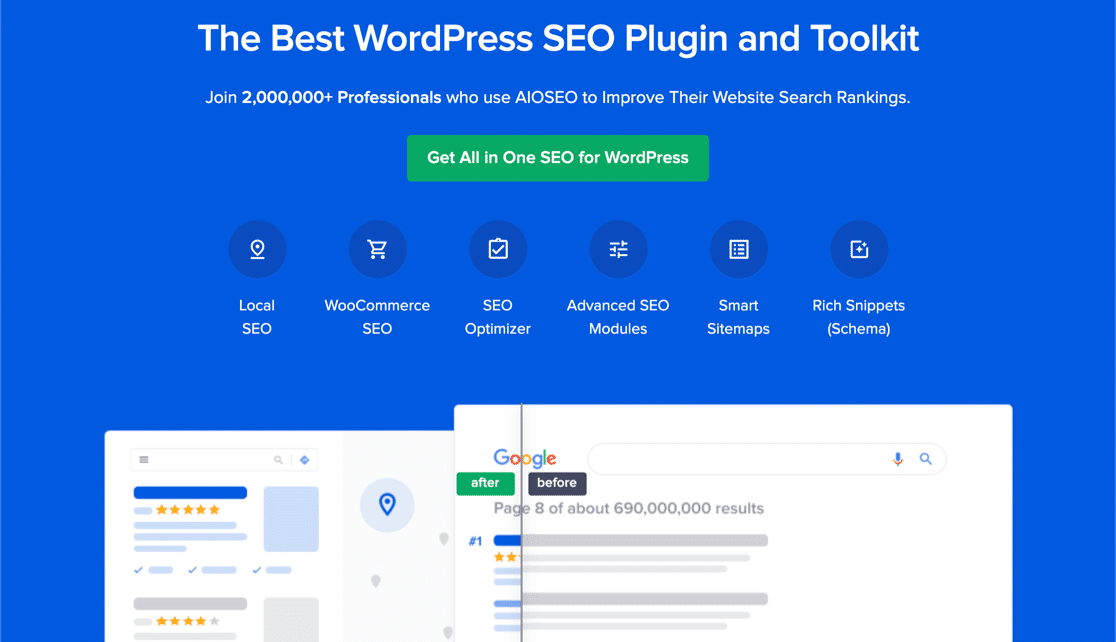
O número da versão conta a história mais útil, pois o AIOSEO está agora na versão 5.0 e os lançamentos até 2026 foram incomumente movimentados. Adicionaram um conjunto de IA, um painel do Google Search Console e uma reconstrução completa do motor de análise de conteúdo.
Se experimentou o plugin há alguns anos e desistiu, está a trabalhar com um modelo mental que já não corresponde ao produto. Deixe-me instalá-lo e configurá-lo primeiro.
Começar com o All in One SEO
O All in One SEO instala-se da mesma forma que sempre o fez. Descarregue o plugin da sua página de conta, ative-o e o Assistente de Configuração abre-se automaticamente.
O assistente guia-o pelas definições gerais do seu site em cerca de dez minutos, perguntando que tipo de site tem e que funcionalidades quer ativar.
O que há de novo desde a última vez que vi isto é o SEO Checklist, que foi lançado em fevereiro de 2026.
O assistente coloca as suas bases no lugar e depois para, e a lista de verificação continua a partir daí com uma lista priorizada do que fazer a seguir. As tarefas são classificadas por impacto e têm uma estimativa de tempo. Cada uma liga diretamente ao ecrã onde a completa.
Encontrará a lista de verificação em AIOSEO » Definições Gerais, e também aparece como um widget nos painéis do AIOSEO e do WordPress. Trabalhar nela levou-me muito menos tempo do que adivinhar o que abordar primeiro.
Migrar de outro plugin de SEO
Pensa em mudar de outro plugin de SEO? O AIOSEO torna a migração bastante indolor e, se detetar outro plugin de SEO durante o Assistente de Configuração, oferece-se para copiar as definições básicas para si.
A importação é opcional, por isso marque a caixa aqui para a ativar:
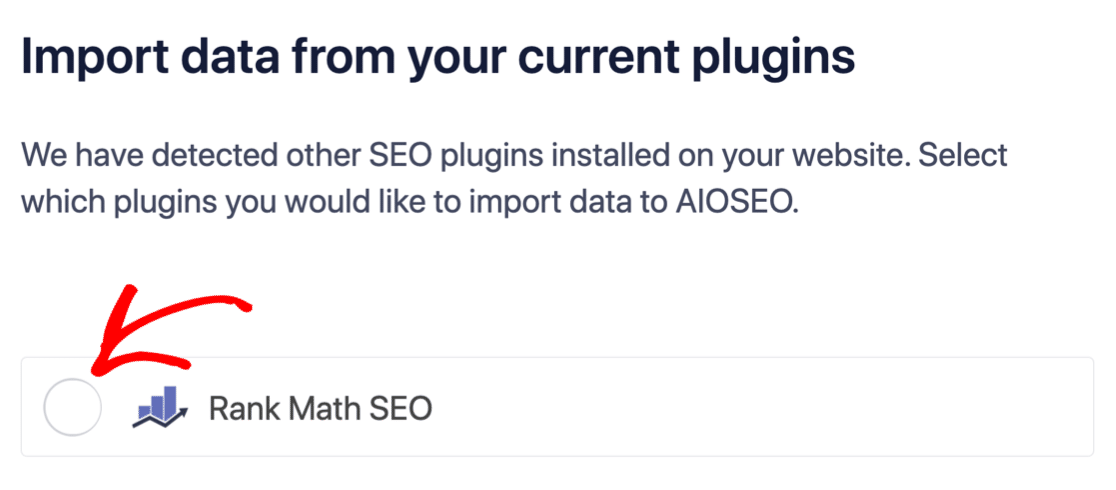
Cada plugin de SEO lida com as coisas à sua maneira, pelo que a importação não copiará *tudo* o que tinha. Tudo bem, porque o AIOSEO lhe dá visibilidade suficiente sobre a sua configuração para verificar o que realmente foi transferido.
No final do assistente, o AIOSEO lembra-o de desativar o seu antigo plugin de SEO. Executar dois ao mesmo tempo causa conflitos, por isso isto é importante. Clicar no botão Corrigir Agora desativa o outro plugin por si.
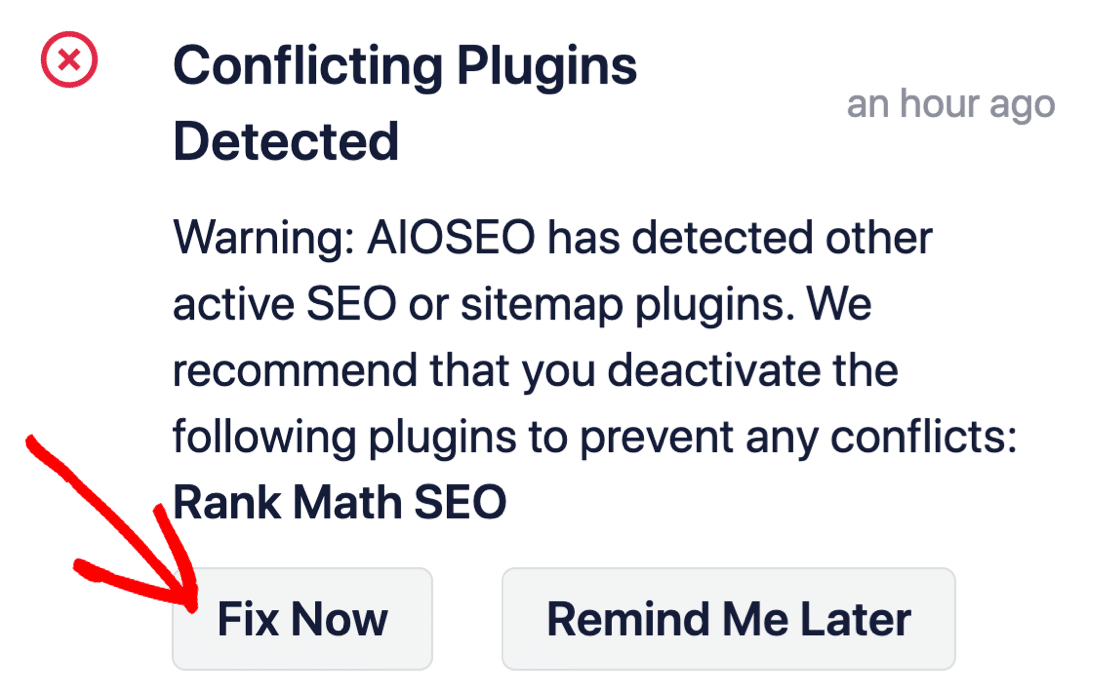
Os dados do seu antigo plugin permanecem onde estão, pelo que nada é perdido. Desativar cedo apenas o poupa de perseguir um conflito mais tarde.
Funcionalidades do All in One SEO
O All in One SEO abrange muita coisa, e a maior parte é configurada uma vez e depois deixada em paz. Agrupei as 11 funcionalidades que considero mais importantes abaixo, começando pelas que irá utilizar durante a configuração e terminando com as ferramentas mais recentes.
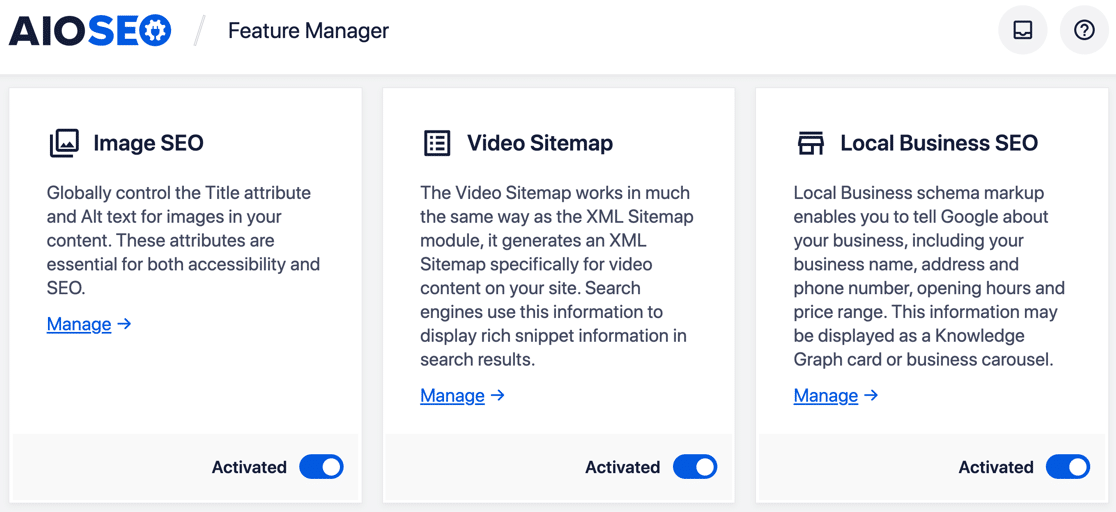
Publicações e páginas individuais também recebem os seus próprios controlos de SEO, e volto a eles no final da análise. Com uma licença Pro, também pode ativar e desativar add-ons sempre que quiser no Gestor de Funcionalidades.
1. Auditoria do Site e Lista de Verificação de SEO
A secção Análise do Site verifica a saúde SEO de todo o seu website e atribui-lhe uma pontuação automaticamente assim que a análise termina. O objetivo é ter uma visão geral da sua posição, em vez de analisar página a página.
Procure obter entre 60 e 80 pontos na Análise do Site para ter uma hipótese razoável de se classificar bem.
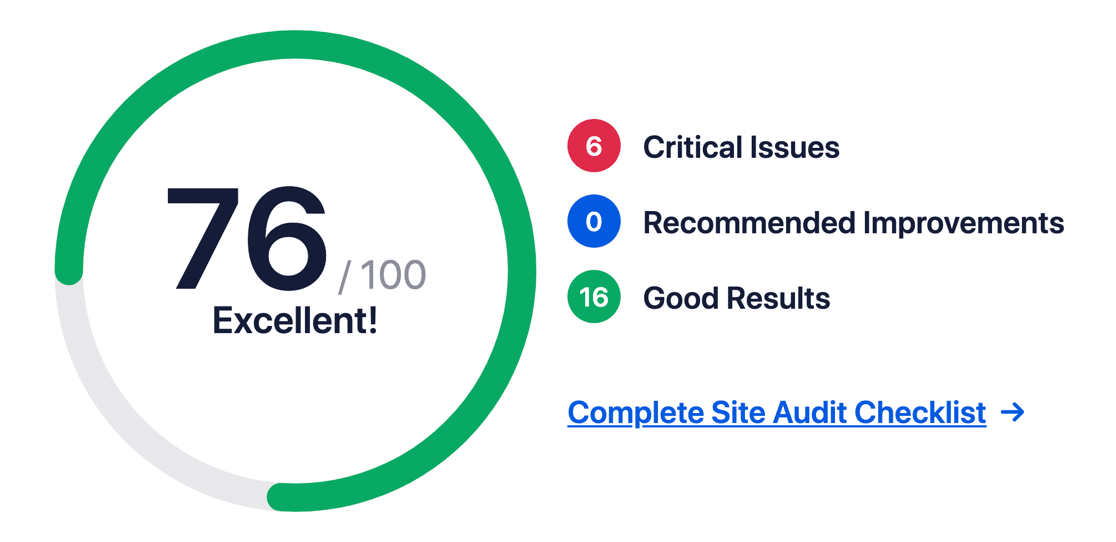
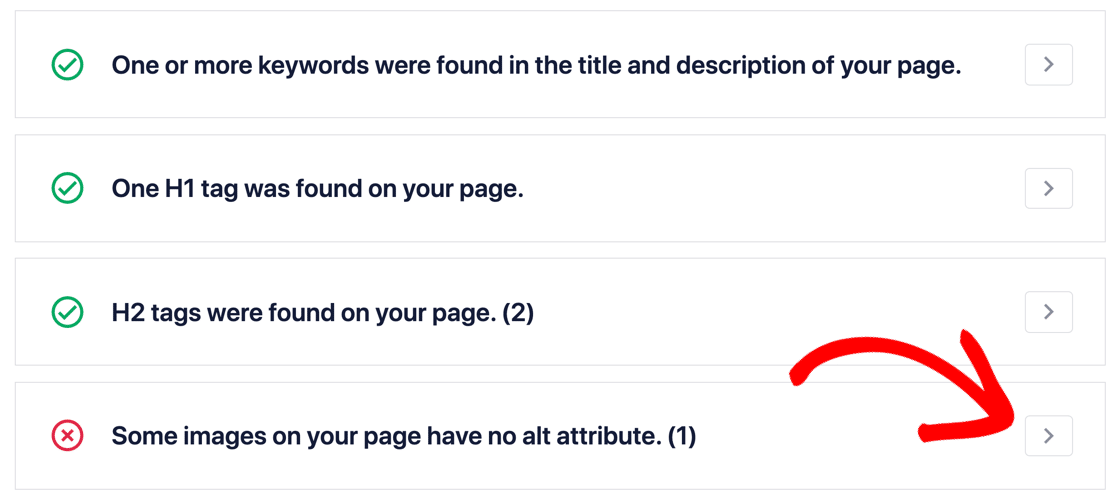
Por baixo da pontuação, encontra-se um detalhamento de tudo o que o plugin verificou. Preste atenção primeiro aos Problemas Críticos, pois são esses os problemas que já podem estar a custar-lhe classificações. Clicar na seta à direita expande uma secção para que possa ler os detalhes.
Também pode executar a Análise do Site num site concorrente e comparar a sua pontuação com a sua, o que é um bom pormenor.
O Checklist SEO que mencionei durante a configuração funciona em conjunto com isto, pois a análise diz-lhe o que está errado e o checklist diz-lhe o que fazer a respeito em ordem de prioridade.
2. Aparência da Pesquisa
As definições de Aparência de Pesquisa são aquelas em que eu gastaria tempo se tivesse apenas uma hora. O ecrã principal pré-visualiza como a informação do seu site aparece nos resultados de pesquisa.
A sua informação do Gráfico de Conhecimento também se encontra aqui, que é essencialmente os metadados sobre o seu negócio que o Google lê e por vezes exibe diretamente nos resultados. O All in One SEO permite-lhe definir:
- O seu nome, ou o nome do seu website
- Número de telefone
- Logótipo
- Horário de funcionamento
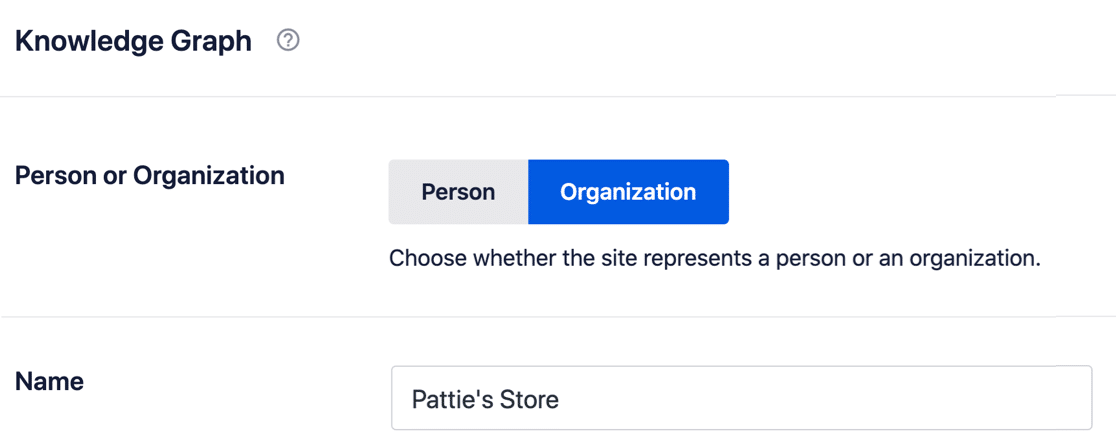
Na separador Tipos de Conteúdo, cria os modelos de meta que os seus posts e páginas herdam. Estes não são modelos simples, no entanto. O AIOSEO chama às variáveis Etiquetas Inteligentes, e elas preenchem os seus títulos e descrições automaticamente.
A etiqueta do ano é a que as pessoas notam mais, e pode inserir o ano atual no título de uma publicação de blogue sem o digitar em lado nenhum. O Dia de Ano Novo já não significa editar uma centena de publicações.
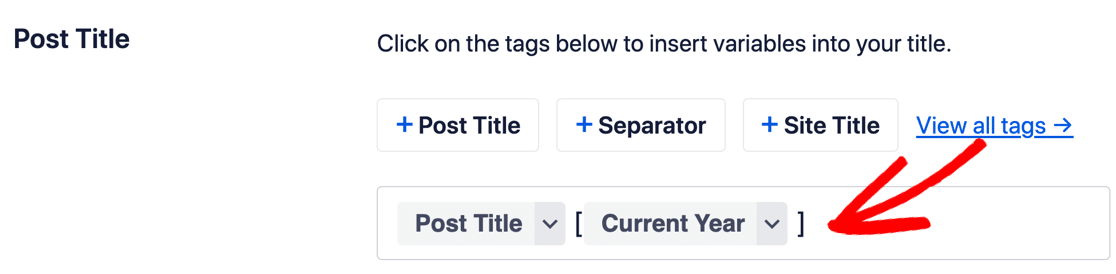
Existem duas formas de lidar com isso, e eu gosto de ter ambas. Exibir o ano em que a publicação foi criada, ou exibir sempre o ano *atual*.
Qual delas pretende depende do conteúdo, pois uma notícia deve provavelmente manter o seu ano original, enquanto um guia evergreen soa melhor com o ano atual.
Para uma análise mais detalhada dos próprios campos, existe um guia completo para adicionar palavras-chave e meta descrições no WordPress.
Modelos e schema separados aplicam-se por tipo de post e taxonomia, incluindo:
- SEO de Imagem: Atribui automaticamente palavras-chave, texto alternativo e legendas às suas imagens, e lida com redirecionamentos de anexos.
- SEO de Autor: Controla como as suas páginas de arquivo de autor aparecem na pesquisa.
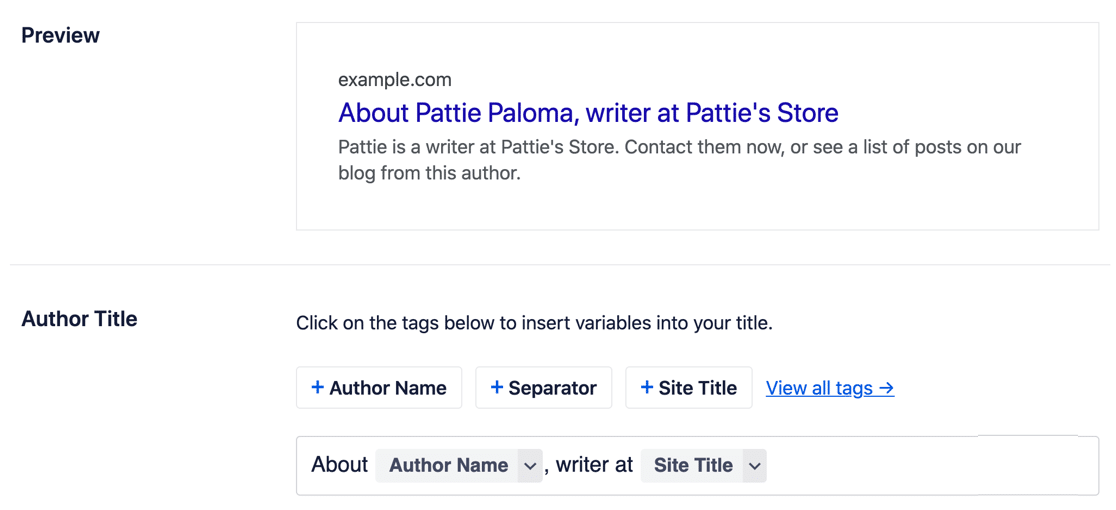
O SEO de Autor cresceu e tornou-se um addon adequado desde que esta análise foi publicada pela primeira vez, e visa diretamente o E-E-A-T. Em vez de apenas arrumar as páginas de arquivo, constrói perfis de autor com credenciais e áreas de especialização.
Estes são marcados como schema, para que o Google possa ligar uma parte do conteúdo a uma pessoa com um histórico comprovado. Para qualquer site que publique conselhos numa área onde a autoria importa, esse é um sinal real e não cosmético.
3. Redes Sociais
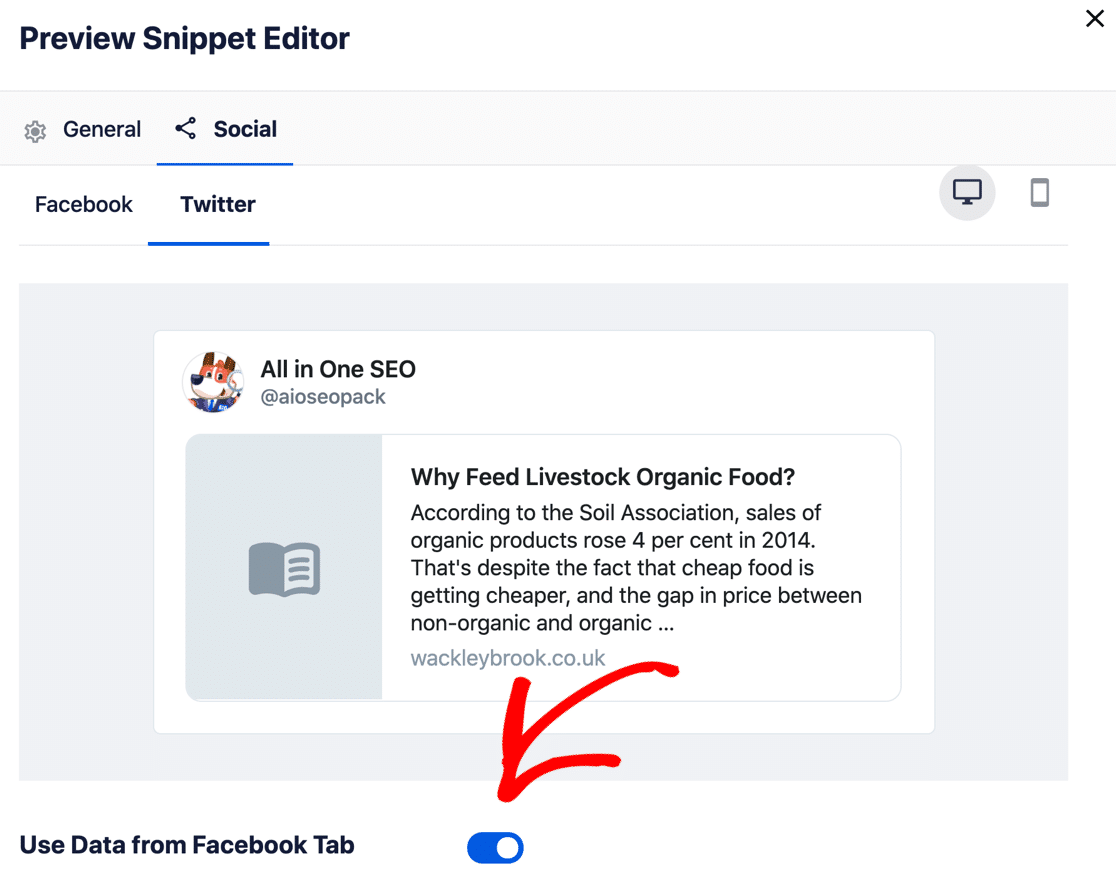
A página de definições das Redes Sociais controla como as suas publicações aparecem nas plataformas sociais que utiliza. Defina um tipo de publicação e imagem padrão por rede, ou duplique as definições em todas elas para que os seus canais se mantenham consistentes.
4. Mapas do Site e IndexNow
Os Mapas do Site indicam aos motores de busca onde se encontra o seu conteúdo para que seja fácil de descobrir, e continuam a ser uma das partes menos glamorosas, mas mais úteis, de qualquer configuração de SEO. O All in One SEO cria 4 tipos diferentes:
- Geral
- Vídeo
- Notícias Google
- RSS
Não precisa dos quatro, mas o mapa do site Geral é o que deve ativar, pois controla quais os tipos de publicação que o Google encontra em primeiro lugar.
Neste exemplo, quero que o Google indexe publicações e páginas. Não quero que ele rastreie as minhas newsletters MailPoet, por isso desmarquei essa caixa.
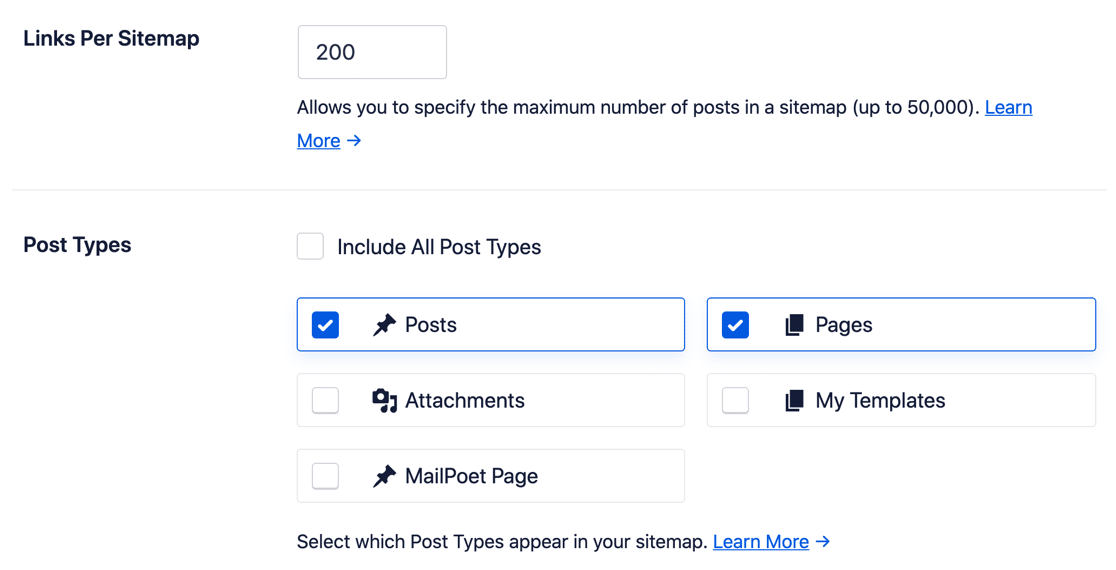
URLs específicos podem ser adicionados manualmente ao seu mapa do site, o que lhe permite:
- Controlar a prioridade de cada URL
- Definir uma frequência de atualização
- Definir manualmente a data de Última Modificação
As definições avançadas vão mais longe. Pode excluir publicações ou palavras-chave específicas, definir uma prioridade e frequência por tipo de publicação, e depois incluir ou excluir imagens do ficheiro.
Existe um guia aprofundado sobre como criar mapas do site WordPress que cobre a mecânica. Se publica conteúdo atempado, leia sobre como submeter o seu site ao Google Notícias juntamente com o mapa do site de notícias.
O IndexNow é o novo complemento para tudo isto e, em vez de esperar que um rastreador volte, o AIOSEO notifica os motores de busca suportados, incluindo Bing e Yandex, no momento em que publica ou atualiza algo.
O Google continua a fazer o que o Google faz. Para os motores que suportam o protocolo, a diferença na velocidade de indexação é notável.
5. Redirecionamentos e Links Quebrados
As redireções são mais importantes do que a maioria das pessoas imagina, porque se remover uma publicação ou a republicar com um URL diferente sem uma redireção ativa, perde as classificações que essa página tinha.
Gosto de começar com o registo de 404 para ver o que as pessoas estão realmente a aceder e, em seguida, redirecionar qualquer coisa que valha a pena guardar para uma página ativa. O All in One SEO gere isto a partir do seu ecrã de Redireções, onde um 301 ou 307 é adicionado manualmente e o 404 desaparece.
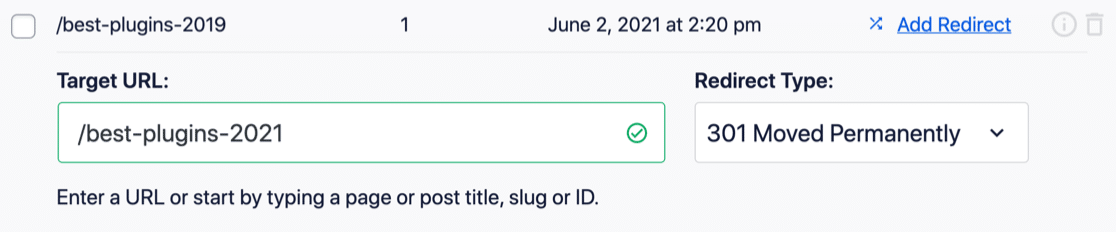
As redireções automáticas são a parte que eu não gostaria de dispensar. Elimine uma publicação de blogue e o AIOSEO pergunta para onde deve apontar o URL antigo. Recebe o aviso enquanto está a eliminar, não três meses depois, quando alguém se queixa.
O Verificador de Links Quebrados está agora ao lado do Gestor de Redirecionamentos e cobre a outra metade do problema.
Em vez de rastrear os URLs para os quais as pessoas chegam, ele verifica os links que saem do seu próprio conteúdo e sinaliza os que morreram. Ambos são funcionalidades Pro e, entre eles, são a razão pela qual eu não executaria um site com muito conteúdo na versão gratuita.
6. SEO Local
O SEO Local é um dos principais add-ons do All in One SEO e é uma vantagem genuína para qualquer negócio que sirva uma área geográfica definida.
O add-on gere locais únicos e múltiplos, pelo que um negócio com seis filiais pode ter cada uma a sua própria página, horário e marcação.
Uma correção que vale a pena fazer aqui, porque esta análise esteve errada durante anos. O SEO Local desbloqueia-se no nível Plus, não no Pro, portanto, se a pesquisa local é o que procurava e só precisa de um ou três sites, não precisa de gastar dinheiro no Pro.
Como o AIOSEO recolhe estes dados em formato Knowledge Graph, o Google encontra-os facilmente. Pode definir:
- Morada do negócio
- Informações de contacto
- Número de identificação fiscal ou IVA
- Métodos de pagamento
- Intervalo de preços
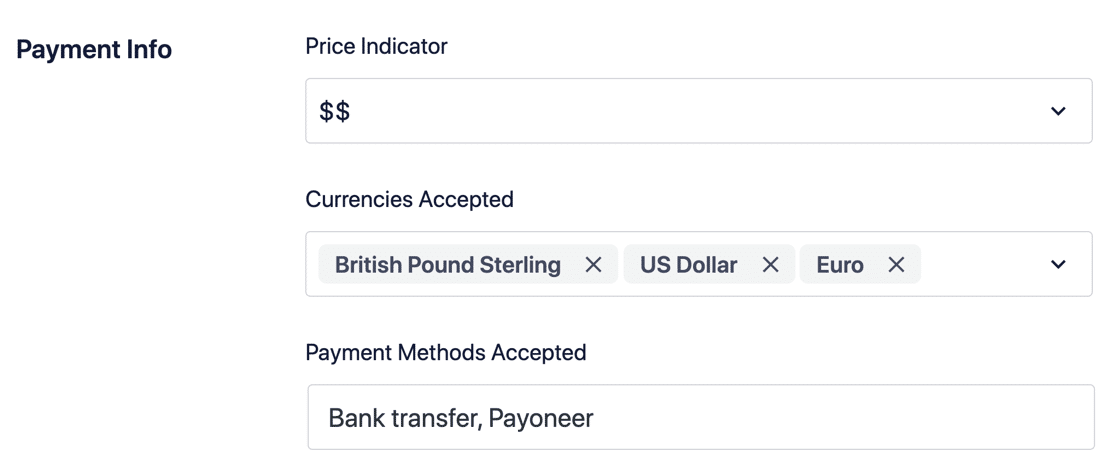
O Google constrói por vezes 'cartões' de resultados exatamente a partir desta informação, pelo que preenchê-la corretamente dá-lhe voz na forma como o seu negócio é apresentado.
7. Assistente de Links
O Link Assistant mostra-lhe os links internos e externos que apontam para cada post no seu site, num relance.
A ligação interna é uma das coisas mais fiáveis que pode melhorar num site estabelecido, e fazê-la manualmente em algumas centenas de posts é um trabalho miserável.
As sugestões aparecem enquanto edita, pelo que o AIOSEO apresenta posts relacionados aos quais pode ligar sem o fazer procurar por eles.
Também reporta posts órfãos, que são páginas para as quais nada no seu site liga, e essas são geralmente as que têm um desempenho silenciosamente fraco.
8. Otimização On-Page
Uma vez configuradas as suas definições, o All in One SEO faz a maior parte do trabalho diário por si. É por isso que passei tanto tempo nos ecrãs de definições acima.
A peça restante é o que acontece enquanto escreve, e há uma ferramenta que usará constantemente.
Como Usar o TruSEO
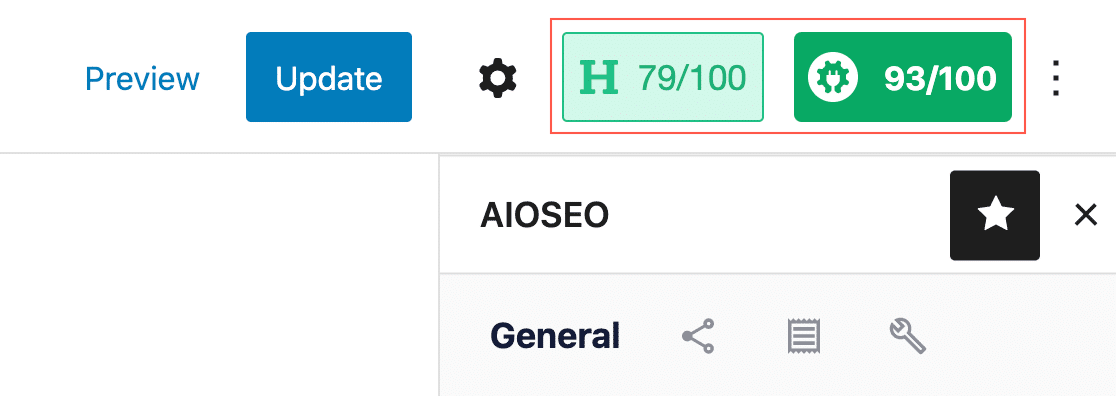
O TruSEO analisa o seu conteúdo enquanto o compõe e pontua-o de 0 a 100. Ter um consultor de SEO a olhar por cima do seu ombro tem aproximadamente o mesmo efeito. Se otimizou a mais ou a menos um post, diz-lhe qual e como corrigi-lo.
Abra qualquer post ou página para ver as sugestões. O painel encontra-se num separador Otimização redesenhado e pontua o seu conteúdo em:
- Relevância da palavra-chave
- SEO Básico
- Otimização do Título
- Legibilidade
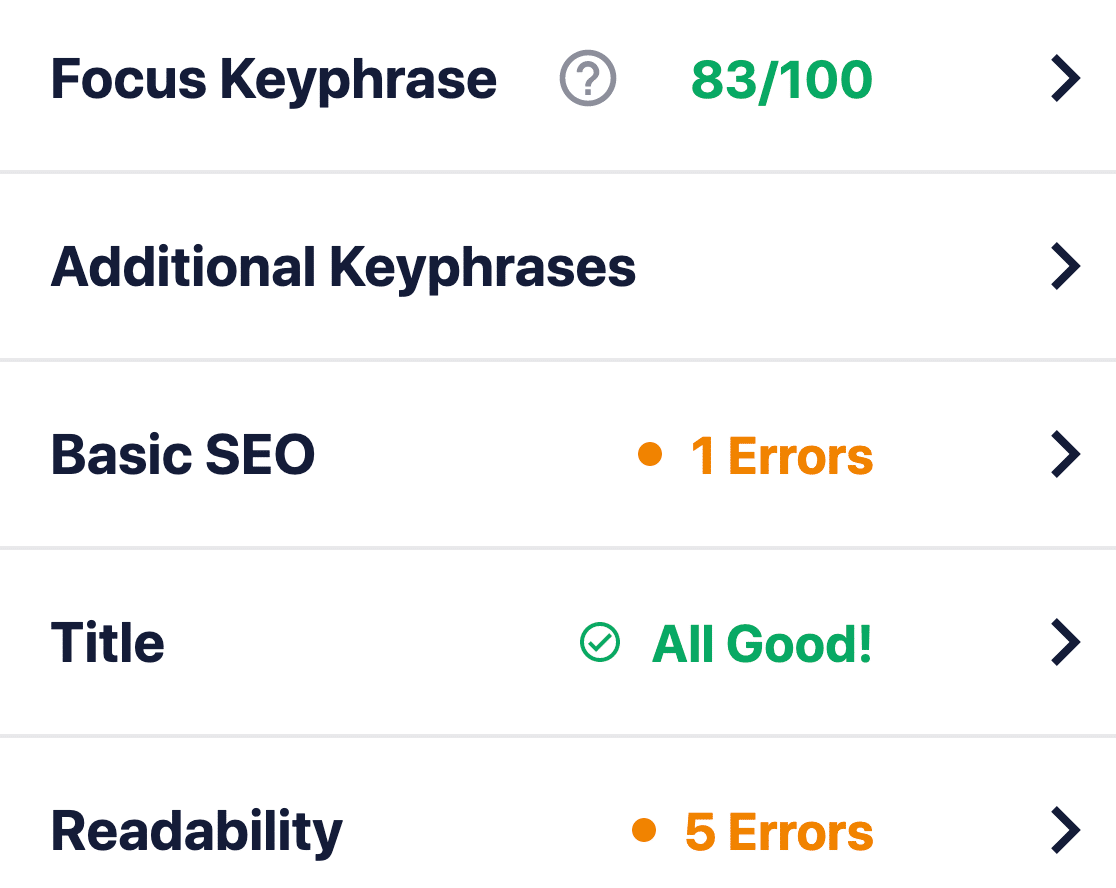
O TruSEO é mais sofisticado do que o Yoast, e leva em consideração consideravelmente mais fatores quando constrói uma pontuação. Expandir a caixa SEO Básico mostra as sugestões específicas por detrás dela.
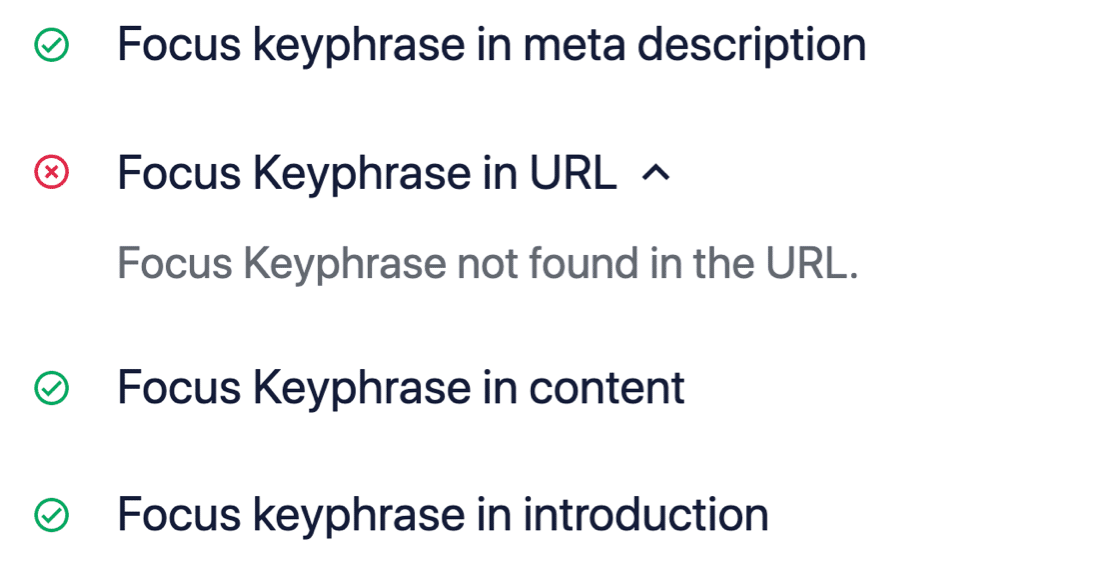
Três adições na reconstrução 5.0 valem a pena conhecer:
- Mais de 10 novos idiomas de análise: Defina o idioma por post, ou deixe o AIOSEO detetá-lo.
- Verificador Ortográfico: Deteta erros de digitação com correções de um clique, e pode adicionar os termos da sua marca a um dicionário personalizado para que pare de os sinalizar.
- Otimizar com IA: Um botão aplica todas as sugestões pendentes do TruSEO de uma vez, reescrevendo o seu título SEO, meta descrição, manchete e texto do corpo numa única passagem.
O botão Otimizar com IA é aquele sobre o qual tenho sentimentos mistos, e volto a isso abaixo.
O layout também funciona bem com o MonsterInsights, pelo que se já o utiliza, os seus dados do AIOSEO aparecem no mesmo local.
Vale a pena notar que o Headline Analyzer se mudou para dentro da própria pontuação TruSEO em vez de ficar ao lado dela. A sua pontuação de manchete e a pontuação de conteúdo vivem agora juntas no separador Otimização.
Se quer que as suas meta descrições trabalhem mais, dê também uma vista de olhos ao SEOBoost. O SEOBoost fornece sugestões baseadas em IA para alinhar palavras-chave e meta descrições, e integra-se diretamente com o Assistente de Escrita do AIOSEO.
9. Estatísticas de Pesquisa e Monitorização da Classificação de Palavras-Chave
O Search Statistics importa os seus dados do Google Search Console para o painel do WordPress, e é a funcionalidade que eu mais teria querido em 2021.
Cliques, impressões, posição média, CTR e as suas palavras-chave em tendência aparecem ao lado do conteúdo a que pertencem. Deixa de alternar entre dois separadores para perceber se uma publicação está a ter algum impacto.
Em vez de um gráfico para todo o site, vê para que consultas uma publicação específica se classifica e onde se situa, mesmo por cima do editor que usaria para a corrigir.
Esse painel por publicação é onde o Search Statistics justifica o seu valor. O Post Index Status encontra-se na mesma área e diz-lhe se o Google indexou realmente uma página, o que poupa uma ida ao Search Console sempre que publica.
O Keyword Rank Tracker vai mais longe e mantém o histórico de posições para cada palavra-chave que acompanha, agrupado por publicação ou por grupo de palavras-chave.
O acompanhamento é uma funcionalidade Elite, pelo que é a única coisa aqui que requer o nível superior. Agências que gerem sites de clientes são claramente o público-alvo e, se gere um site, o Search Statistics por si só cobre a maior parte do que precisa.
10. O AI Suite e as Ferramentas de IA do AIOSEO
O AI Suite acompanha onde a sua marca aparece em cinco motores de IA, e nada disto existia na última vez que esta análise foi escrita.
O AIOSEO monitoriza agora ChatGPT, Claude, Gemini, DeepSeek e Perplexity, e reporta o que cada um diz sobre si.
Introduza uma palavra-chave e obtém todas as marcas que esses motores recomendaram para ela, classificadas por posição. Obtém também o texto completo que cada motor gerou e as fontes que citou, o que lhe diz quais as páginas que estão a alimentar a resposta.
Para quem observa o tráfego a mover-se dos resultados de pesquisa para as respostas de IA, essa é uma nova e genuína forma de visibilidade, e é por isso que o plugin se renomeou como um plugin de SEO de IA no WordPress.org.
O AI Suite está incluído em todos os planos pagos a partir do Basic, e durante a beta os relatórios de palavras-chave têm sido gratuitos para todos, incluindo utilizadores do nível gratuito.
O resto das ferramentas de IA encontra-se na mesma área:
- Gerador de Conteúdo de IA: Produz metadados, blocos de FAQ, pontos-chave e publicações sociais.
- Gerador de Imagens de IA: Cria imagens a partir de prompts de texto e coloca-as na sua biblioteca de multimédia.
- Geração de schema de IA: Constrói marcação schema a partir do seu conteúdo em vez de o fazer preencher um formulário.
- Gerador de LLMs.txt: Publica um ficheiro
llms.txtpara que controle como os sistemas de IA leem o seu site. - Servidor MCP e API de Habilidades: Conecta agentes de IA como Claude e Cursor diretamente aos dados de SEO do seu site para que possam lê-los e atualizá-los.
Esta última é a mais interessante para mim e a menos provável de ser relevante para a maioria dos leitores. Expor os seus dados de SEO a um agente de IA é poderoso se trabalhar dessa forma e irrelevante se não o fizer. Para uma visão mais ampla da categoria, aqui estão as ferramentas de SEO de IA que valem a pena usar no WordPress.
11. Revisões de SEO e Alertas de SEO
O SEO Revisions regista todas as alterações de conteúdo e liga-as ao que aconteceu depois na pesquisa. Editar uma publicação que estava a classificar bem e depois vê-la a cair é um problema familiar. Até agora, a resposta honesta era geralmente um encolher de ombros.
O Revisions dá-lhe uma linha temporal onde pode comparar versões e reverter para uma anterior.
As próprias atualizações de algoritmo do Google são marcadas na mesma linha temporal, que é o detalhe que a torna útil em vez de meramente arrumada, porque separa "Eu estraguei isto" de "o algoritmo mudou". Obtém 15 revisões no Plus, 30 no Pro e ilimitadas no Elite.
Os SEO Alerts chegaram em junho de 2026 e cobrem os problemas que de outra forma encontraria tarde demais, enviando por e-mail problemas críticos para si ou publicando-os no Slack, para que uma etiqueta noindex deixada numa página após uma remodelação surja num dia em vez de um trimestre.
O preço é a outra ressalva honesta, porque todos os quatro níveis renovam pelo dobro da taxa introdutória, pelo que a licença Pro que compra por $199.50 é um item de linha de $399 no próximo ano. Vale a pena orçamentar em vez de descobrir.
Veredito: Vale a pena o All in One SEO?
O All in One SEO vale a pena para a maioria dos proprietários de sites WordPress, e a versão gratuita é suficiente para um blog de hobby. Muitos plugins de SEO lidam com a otimização básica de páginas, analisando palavras-chave ou fazendo recomendações para melhorar a legibilidade, e o AIOSEO faz muito mais do que isso.
SEO Local, SEO para eCommerce, tipos de schema, metadados sociais, robots.txt, sitemaps e otimização on-page são todos geridos num só lugar. Esse é o argumento real para um plugin tudo-em-um em vez de quatro especializados. A interface permaneceu limpa após a remodelação de 5.0, e encontrar a configuração que eu queria raramente foi uma caça.
É assim que eu escolheria um nível:
- Mantenha-se gratuito se tiver um blog pessoal ou um site de brochura e precisar principalmente de títulos, descrições, sitemaps e schema feitos corretamente.
- Compre o Basic por $49.50/ano para um único site de negócios que necessite de SEO para WooCommerce e das ferramentas de IA.
- Compre o Plus por $99.50/ano se precisar de SEO Local ou SEO de Imagem, que é o nível que a maioria das empresas de localização única realmente deseja.
- Compre o Pro por $199.50/ano quando tiver conteúdo suficiente para que redirecionamentos, o Link Assistant e a verificação de links quebrados deixem de ser opcionais.
- Compre o Elite por $299.50/ano se gerir sites de clientes e precisar de acompanhamento de classificação de palavras-chave e 100 licenças.
Invista um pouco de tempo a configurá-lo corretamente e o seu site permanece otimizado sempre que publica algo novo, que é onde o valor realmente se acumula. Enquanto escreve, o TruSEO dá-lhe feedback instantâneo com sugestões acionáveis e uma pontuação em tempo real, e isso por si só melhorará o conteúdo da maioria das pessoas.
Pronto para experimentar? Pode descarregar o All in One SEO sem risco e obter uma garantia de devolução do dinheiro de 14 dias.

Crie o Seu Formulário WordPress Agora
FAQs sobre o All in One SEO (AIOSEO)
All in One SEO é um plugin popular para WordPress que muitos proprietários de sites utilizam, e as questões sobre AIOSEO abaixo surgem com mais frequência, pelo que estas são as minhas respostas.
O All in One SEO Pack é o mesmo que o AIOSEO?
Sim, All in One SEO Pack e AIOSEO são o mesmo plugin. O nome foi encurtado para All in One SEO, ou AIOSEO, após uma grande reescrita, e o slug original sobrevive no URL do WordPress.org e no nome da pasta do plugin.
Se estiver à procura do nome antigo, encontrará o plugin atual. Tudo o que foi escrito sobre All in One SEO Pack antes de cerca de 2020 descreve um produto que já não se assemelha ao que é lançado hoje.
Quanto custa o All in One SEO?
All in One SEO custa 49,50 $ por ano para o Basic, 99,50 $ para o Plus, 199,50 $ para o Pro e 299,50 $ para o Elite, com preços introdutórios. Esses níveis cobrem 1, 3, 10 e 100 sites, respetivamente.
Cada nível renova-se pelo dobro da taxa introdutória, pelo que o Basic sobe para 99 $ e o Elite para 599 $. Existe também uma versão gratuita no WordPress.org sem limite de tempo, e todas as licenças pagas vêm com uma garantia de devolução do dinheiro em 14 dias.
O All in One SEO torna o WordPress mais lento?
Geralmente, o All in One SEO não abranda o WordPress de forma notável. Como qualquer plugin, adiciona alguma carga, e com mais de 2 milhões de instalações ativas, o trabalho de desempenho teve muita pressão do mundo real por trás dele.
O impacto que vê depende da sua hospedagem e configuração tanto quanto do próprio plugin. O único ponto em que eu definiria expectativas é a Auditoria do Site num site grande, onde uma análise completa é genuinamente exigente e melhor agendada do que executada sob demanda.
Quais são os benefícios do All in One SEO?
O principal benefício do All in One SEO é lidar com todas as partes do SEO do WordPress a partir de um único plugin, em vez de quatro. Estes são os detalhes que surgem com mais frequência:
- Interface amigável: Fácil de navegar, o que o torna adequado para iniciantes.
- Funcionalidades de SEO: Essenciais como meta tags, sitemaps, schema e integração com redes sociais.
- Personalização: Adapte as configurações de SEO para publicações ou páginas individuais.
- Dados da Search Console no WordPress: Métricas de desempenho ficam ao lado do conteúdo que descrevem.
- Compatibilidade: Funciona bem com a maioria dos temas e plugins do WordPress.
- Suporte: Acesso a suporte útil e recursos em todos os planos pagos.
Vale a pena o All in One SEO Pro?
O All in One SEO Pro vale a pena quando o seu site tem conteúdo suficiente para que a gestão manual de links e redirecionamentos deixe de ser realista. É no Pro que o Gestor de Redirecionamentos, o Assistente de Links, o Verificador de Links Quebrados, o SEO do Autor e o rastreamento de 404 são desbloqueados.
Para um blog básico ou um pequeno site institucional, a versão gratuita ou o Basic servirão bem. Note que palavras-chave de foco ilimitadas estão incluídas em todos os níveis, incluindo o gratuito, pelo que não é um motivo para atualizar, embora por vezes seja listado como um.
O Yoast SEO é melhor que o AIOSEO?
Não, eu escolheria o AIOSEO em vez do Yoast SEO para a maioria dos sites WordPress. O TruSEO pondera mais fatores do que a análise de conteúdo do Yoast, e o assistente de configuração explica-se melhor a não especialistas. As Estatísticas de Pesquisa não têm um equivalente real no Yoast.
O Yoast é um plugin capaz com um longo historial e, se a sua equipa já o conhece bem, mudar apenas por mudar não vale a pena a disrupção. Para quem está a começar do zero, o AIOSEO oferece mais num só lugar.
O Rank Math é melhor que o AIOSEO?
Não, embora o Rank Math esteja mais próximo do Yoast em termos de valor. O Rank Math inclui mais funcionalidades no seu nível gratuito e o seu licenciamento ilimitado de sites é mais simples, pelo que, em termos de funcionalidades puras por euro, ganha.
O AIOSEO ganha nos aspetos que decidem se um plugin é realmente utilizado corretamente, que são a integração e o quanto explica à medida que avança. Se estiver a comparar corretamente os concorrentes, pondere os níveis gratuitos em relação a quanta orientação pretende realmente.
Em seguida, Transforme o Tráfego de Pesquisa em Leads
O tráfego é apenas metade do trabalho e, uma vez que o AIOSEO consiga classificar as suas páginas, o que acontece a seguir depende de os visitantes terem uma forma fácil de o contactar.
Um formulário bem colocado é geralmente a diferença entre uma visita e um contacto. Pode criar um formulário com o WPForms e começar a recolher dados em menos de 5 minutos.
WPForms Analytics regista as visualizações e as taxas de conversão de cada formulário, que é o mesmo ciclo de feedback que as Estatísticas de Pesquisa lhe dão para o seu conteúdo. Vale a pena observar assim que o tráfego começar a chegar.
Comece a Capturar Leads do Seu Tráfego de SEO
Pronto para construir o seu formulário? Comece hoje com o plugin construtor de formulários WordPress mais fácil. O WPForms Pro inclui muitos modelos gratuitos e oferece uma garantia de devolução do dinheiro em 14 dias.
Se este artigo o ajudou, siga-nos no Facebook e no X (Twitter) para mais tutoriais e guias gratuitos sobre WordPress.