


AI要約
フォームの日付ピッカーに年齢制限を追加しますか? このガイドでは、年齢を検証する方法と、日付が要件を満たさない場合にカスタムメッセージを表示する方法を説明します。ここでは、12歳から18歳までの子供のみを受け入れる子供向けバレエクラス登録フォームを使用してこれを実演します。
フォームの設定
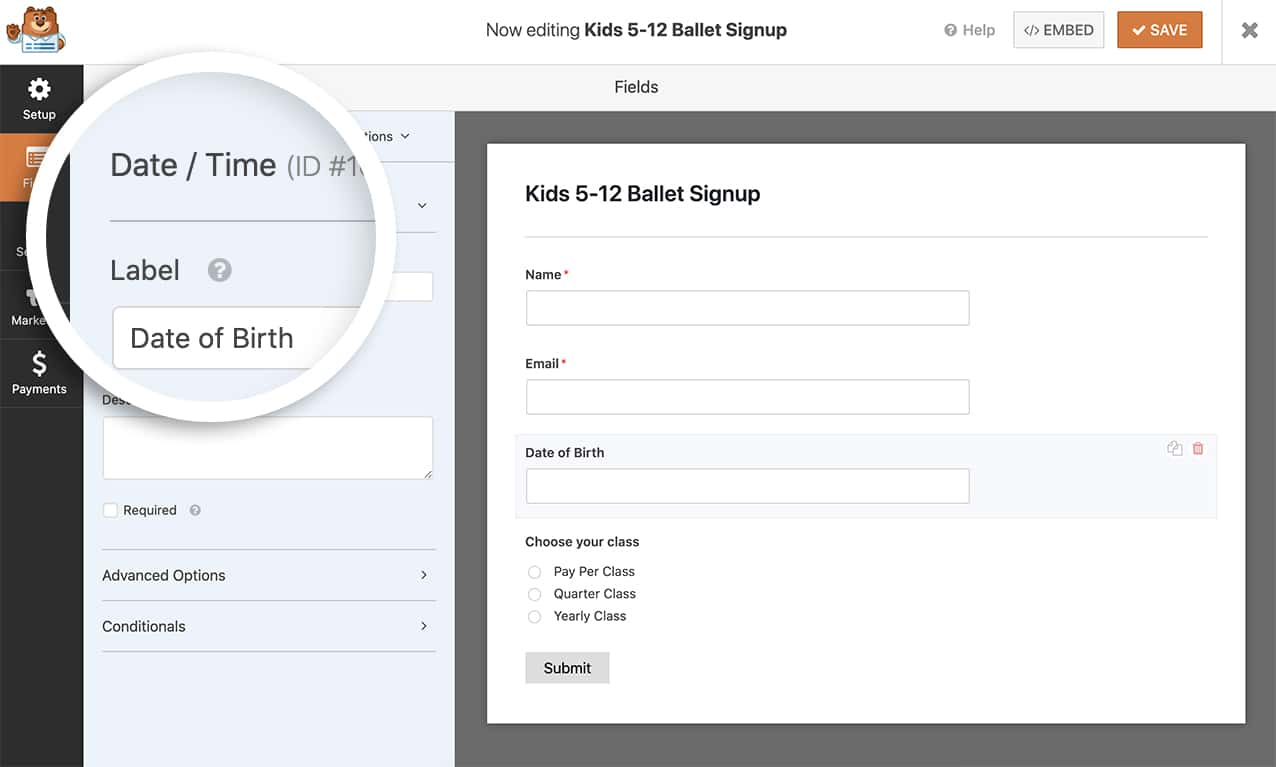
最初のステップでは、新しいフォームを作成し、フォームに 日付 / 時刻 フォームフィールドを追加するだけです。
年齢制限の検証を追加する
年齢を検証してフォームフィールドの下にエラーメッセージを表示するには、このコードをサイトに追加してください。カスタムコードの追加方法がわからない場合は、コードスニペットの追加方法に関するガイドを参照してください。
/**
 * Display an error message on submission of the form if the date doesn't fall within the guidelines.
 *
 * @link  https://wpforms.com/developers/how-to-provide-an-age-restriction-on-the-datepicker-form-field/ *
 */

function wpf_dev_process( $fields, $entry, $form_data ) {

    // Optional, you can limit to specific forms. Below, we restrict output to
    // form #1000.
    if ( absint( $form_data[ 'id' ] ) !== 1000 ) {
        return $fields;
    }

    if ( isset( $fields[25][ 'value' ] ) && !empty( $fields[25][ 'value' ] ) ) {
        $timestamp = strtotime( $fields[25][ 'value' ] );
        if ($timestamp === false) {
            // Invalid date format
            wpforms()->process->errors[ $form_data[ 'id' ] ][ '25' ] = esc_html__( 'Invalid date format', 'plugin-domain' );
        } else {
            $birth_year = date('Y', $timestamp);
            $current_year = date('Y');
            $age = $current_year - $birth_year;

            if ($age < 12 || $age > 18) {
                // Show an error message at the top of the form and under the specific field
                wpforms()->process->errors[ $form_data[ 'id' ] ][ '25' ] = esc_html__( 'Minimum age requirement is 12 and maximum age requirement is 18', 'plugin-domain' );
            }
        }
    } else {
        // Date field is empty
        wpforms()->process->errors[ $form_data[ 'id' ] ][ '25' ] = esc_html__( 'Date field is required', 'plugin-domain' );
    }

    return $fields;
}
add_action( 'wpforms_process', 'wpf_dev_process', 10, 3 );
フォームID(1000)とフィールドID(25)を自分のフォームに合わせて更新してください。これらのIDを見つけるのに役立つ情報が必要な場合は、フォームとフィールドIDを見つける方法に関するガイドを確認してください。
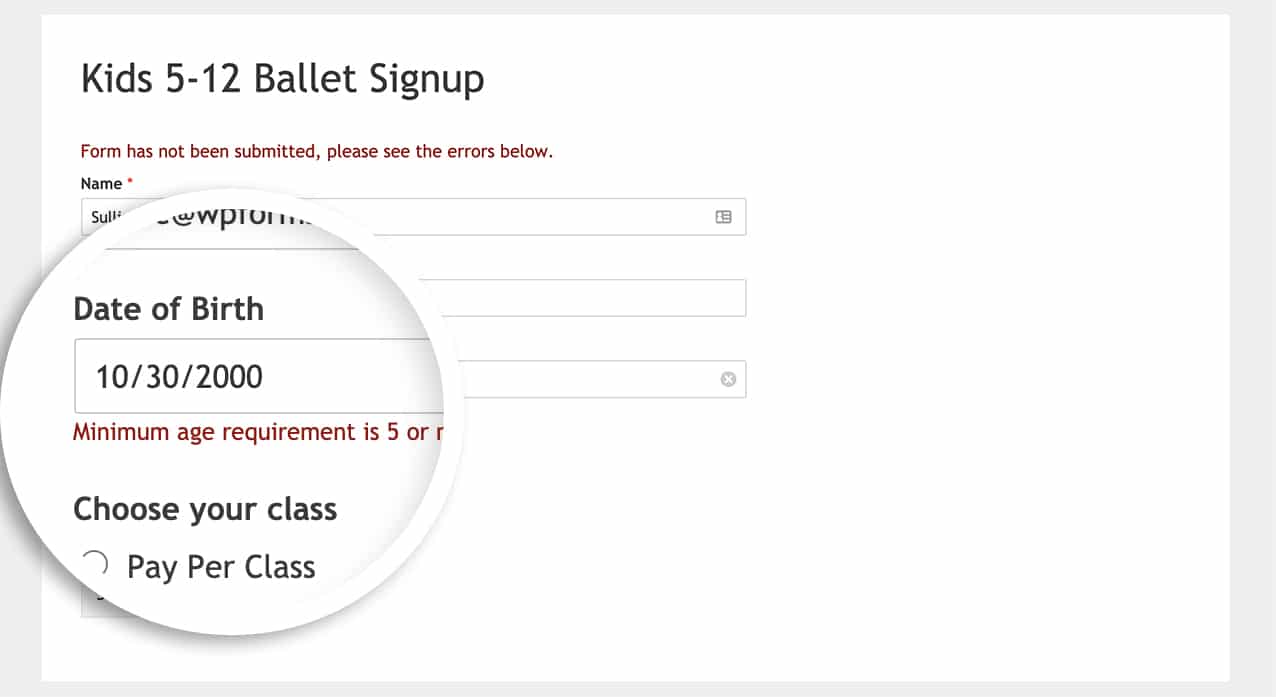
このコードスニペットを使用すると、日付が年齢制限に失敗した場合、送信ボタンがクリックされたときにフィールドの下にメッセージが表示されます。
リピーターフィールドでの年齢制限の使用
日付フィールドがリピーターフィールド内にある場合は、この修正バージョンを使用してください。
/**
 * Age restriction validation for Repeater fields
 */
function wpf_dev_process( $fields, $entry, $form_data ) {
    if ( absint( $form_data[ 'id' ] ) !== 1000 ) {
        return $fields;
    }

    foreach ( $fields as $field_id => $field ) {
        if ( preg_match( '/^25(_\d+)?$/', $field_id ) ) {
            if ( isset( $field[ 'value' ] ) && !empty( $field[ 'value' ] ) ) {
                $timestamp = strtotime( $field[ 'value' ] );
                if ( $timestamp === false ) {
                    wpforms()->process->errors[ $form_data[ 'id' ] ][ $field_id ] = esc_html__( 'Invalid date format', 'plugin-domain' );
                } else {
                    $birth_year = date('Y', $timestamp);
                    $current_year = date('Y');
                    $age = $current_year - $birth_year;
                    if ( $age < 12 || $age > 18 ) {
                        wpforms()->process->errors[ $form_data[ 'id' ] ][ $field_id ] = esc_html__( 'Minimum age requirement is 12 and maximum age requirement is 18', 'plugin-domain' );
                    }
                }
            }
        }
    }
    return $fields;
}
add_action( 'wpforms_process', 'wpf_dev_process', 10, 3 );
正確な日付の比較を使用する
ユーザーが正確に18歳以上であることを確認するなど、より正確な年齢検証のためには:
/**
 * Check if the user is 18 years or older using exact date comparison
 */
function wpf_dev_compare_dates( $fields, $entry, $form_data ) {
    if ( absint( $form_data[ 'id' ] ) !== 1000 ) {
        return $fields;
    }

    $age = 18;
    $date_1 = $fields[25][ 'unix' ];

    if( is_string( $date_1 ) ) {
        $date_1 = strtotime( $date_1 );
    }

    if( time() - $date_1 < $age * 31536000 )
        wpforms()->process->errors[ $form_data[ 'id' ] ][ 'header' ] = esc_html__( 'Apologies, you need to be 18 or older to submit this form.', 'plugin-domain' );
}
add_action( 'wpforms_process', 'wpf_dev_compare_dates', 10, 3 );
これで完了です!日付ピッカーフィールドのフォームに年齢制限を正常に実装しました。次に、日付ピッカーフィールドを他の方法でカスタマイズしますか?詳細については、日付時刻フィールドオプションのカスタマイズ方法に関するチュートリアルを確認してください。


