











WordPress SendGrid Marketing Plugin

Turn Form Submissions Into SendGrid Contacts

The SendGrid Addon adds every WPForms submission to SendGrid as a contact automatically, with native list management, custom field mapping, and conditional logic support.

Everything You Need to Connect Forms With SendGrid

Connect any WordPress form to SendGrid and watch contacts land in your lists the moment they hit Submit. Join over 6,000,000 businesses who rely on WPForms to power their workflows. Get started with WPForms today!

Auto-Add Contacts

Every submission creates or updates a SendGrid contact for you, automatically.

Map Any Field

Match email, name, phone, address, and your SendGrid custom fields in a few clicks.

Pick Your Lists

Search and choose any SendGrid list right inside the form builder.

Conditional Routing

Send each contact to the right list based on how the form was filled out.

Remove or Delete

A form can drop someone from a list or delete a contact entirely when you need it to.

Clean Custom Fields

Text, number, and date values arrive matched to their SendGrid field type.

One-Click Resend

If a sync ever fails, fix it with a Resend to SendGrid button on the entry.

Native, No Bridge

A direct connection inside WPForms. No third-party middleware to pay for or maintain.

Clear Entry Logs

Every handoff is noted on the entry, so you always know what reached SendGrid.

Built for How You Actually Work

Whatever you collect leads for, WPForms drops each contact into SendGrid the moment the form is submitted.

Newsletter Signups

Add a newsletter signup form to your site and every subscriber lands in your SendGrid welcome list automatically. The welcome sequence you already built in SendGrid takes it from there, with no Saturday spreadsheet to fill in.

Two-panel graphic showing a sign-up form on the left with email field and orange rounded CTA, linked to a 'Newsletter' card on the right with a green checkmark and text.

Quote & Lead Routing

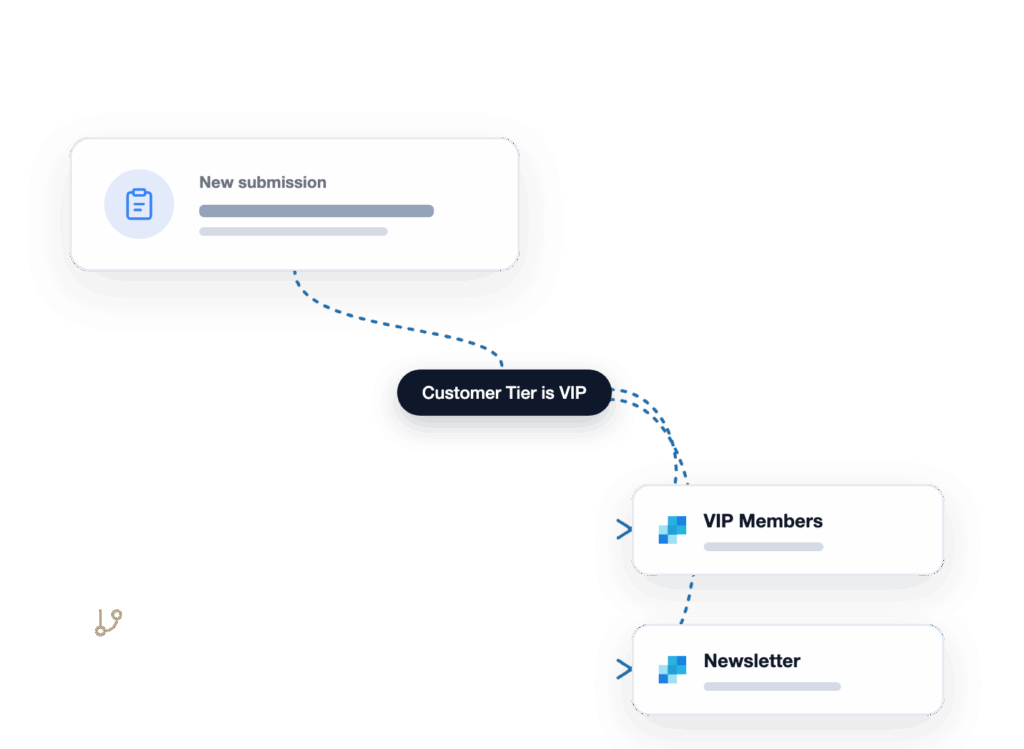
Run a quote request form and route contacts into your sales list, while a second connection adds anyone who opts in to your newsletter list. Conditional logic decides the destination for you, so segmentation starts at the form.

Workflow with three cards: New submission → Customer Tier is VIP → VIP Members; connected by a dotted blue line toward the lower card area.

Agency Client Sites

Connect a client’s form to the client’s own SendGrid account, map the fields, and hand it over. The native connection retries and logs on its own, so there is no bridge plugin to babysit across the sites you manage.

Dialog showing SendGrid integration with WPForms; user Sullie Eloso is Connected (green check).

Online Stores

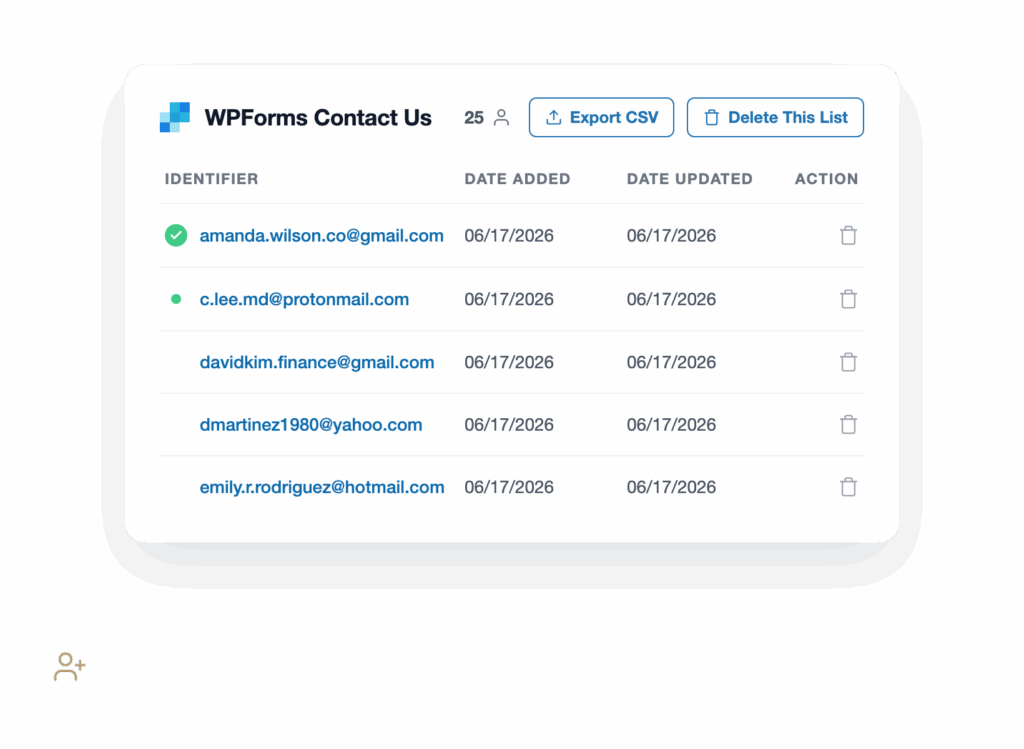
Collect customer details through an order or inquiry form and push them straight into SendGrid, ready for receipts, offers, and follow-ups. Your campaign list stays current without a manual export after every sale.

WPForms Contacts: list of emails with added/updated dates and delete icons, plus Export CSV button at top.

Get the Full Power of WPForms + SendGrid Marketing

Everything you would normally wire together with a bridge tool, WPForms builds in. So the leads you capture are always where your campaigns can reach them.

Comparison illustration showing 'The Old Way' (Manual CSV export) moving to 'The New Way' (Added to SendGrid automatically) with a right-side SendGrid setup form and a prominent 'Save Time' button.

Skip the Saturday Spreadsheet

The moment someone submits your form, WPForms hands their details to SendGrid and adds them to the right list. There is no CSV to export and no Monday catch-up waiting for you. By the time you check in, the contact is already in SendGrid and part of the campaign you built for them.

Land Every Contact in the Right List

Choose which SendGrid lists a submission should join, straight from the form builder. Search your lists, pick as many as you need, and remove any with a single click. Your segments stay clean because sorting happens at the source, not in a cleanup session later.

Illustration of a New Submission card beside a SendGrid Connection form with a contact list dropdown and listed options on a blue background.
SendGrid Connection card with a toggle for conditional logic and group-based rules.

Route Leads Automatically With Conditional Logic

Send someone to your newsletter list when they check the opt-in box, or to your sales list when they request a quote. Each SendGrid connection follows the rules you set, so the right people get the right campaign every time.

Your Data Arrives Clean

Text, number, and date fields are matched to their SendGrid field type before they are sent. If one value ever does not fit, that single field steps aside and the rest of the contact still lands. A small change in SendGrid never costs you the whole lead.

UI mockup of a form builder titled 'Custom Fields' with a table mapping field names to form values and action icons (plus/minus). Left card shows 'Date' field type matched to date.
User profile card for Amanda Wilson showing a Synced status and a SendGrid action button on a white rounded panel with purple background.

A Connection That Recovers on Its Own

A bridge tool fires your data off and hopes it arrives. WPForms watches the handoff through until it is done. If something needs your attention, you get a note right on the entry, a one-click Resend to SendGrid button, and repeated failures grouped into a single notice so your inbox stays calm.

Native, So There Is No Bridge to Maintain

The connection lives inside WPForms, the same form builder that already powers more than 6,000,000 websites. You add SendGrid to any form in a few clicks, with no third-party tool in the middle and no spreadsheet to keep up with. It is just your forms feeding the SendGrid account you already use.

Network illustration showing interconnected app icons around a central white card with a bear, plus a 'Connected' badge.
View all

Frequently Asked Questions and Resources

Have questions about the WPForms SendGrid Addon? We’ve got answers.

How does the WPForms SendGrid Addon work?

The WPForms SendGrid Addon connects any form to your SendGrid account. You add a SendGrid connection to a form, map your fields, choose your lists, and save. From then on, every submission creates or updates that person as a contact in SendGrid and adds them to the lists you picked, automatically. There is no third-party tool in the middle and no CSV export to run.

Does the SendGrid Addon send my WordPress emails through SendGrid?

No. The WPForms SendGrid Addon adds your form contacts to SendGrid’s Marketing Campaigns lists. It does not route your WordPress emails through SendGrid’s SMTP service. If you want to send your WordPress and form notification emails through SendGrid for better deliverability, that is a job for WP Mail SMTP, and the two work happily side by side.

Which WPForms plan includes the SendGrid Addon?

The SendGrid Addon is available on WPForms Plus, Pro, and Elite plans. Plus starts at $99.50/year and unlocks the full set of email marketing integrations, including SendGrid. Every plan includes unlimited forms, unlimited submissions, and unlimited users. You can compare options on the WPForms pricing page.

Do I need a SendGrid account to use the addon?

Yes. The SendGrid Addon connects to your own SendGrid account, so you will need one with Marketing Campaigns access, and SendGrid’s plans are paid. Once you create an API key with Marketing permissions in SendGrid, you paste it into WPForms under Settings » Integrations » SendGrid and you are connected.

Can I add contacts to more than one SendGrid list?

Yes. You choose your SendGrid lists right inside the form builder, with search to find them fast and one-click removal to tidy up. Pick a single list or several, and add separate connections to the same form when different answers should send people to different lists.

Can I route contacts to different lists with conditional logic?

Yes. Each SendGrid connection supports Conditional Logic, so you can send someone to your newsletter list when they opt in, or to your sales list when they request a quote. Your segmentation starts at the form instead of in a cleanup session later. Learn more about conditional logic in WPForms.

What happens if a contact fails to sync to SendGrid?

The SendGrid Addon is built to recover on its own. If a list or custom field changed in SendGrid after you built your form, the addon sets that one piece aside and still saves the rest of the contact. If something genuinely needs you, WPForms shows a Resend to SendGrid button on the entry, writes a note in the entry log, and groups repeated failures into a single admin notice so your inbox is not flooded.

Can I map my SendGrid custom fields?

Yes. The SendGrid Addon maps your form fields to SendGrid contact details, including email, name, phone, address, and any custom fields you have created in SendGrid. Text, number, and date values are matched to their SendGrid field type before they are sent, so your data arrives clean.

Do I need a developer to set up the SendGrid integration?

No. Connecting WPForms to SendGrid is a no-code, four-step process: create a SendGrid API key, add your account under WPForms Settings, drop SendGrid onto any form, then map your fields and save. Most people have their first form syncing to SendGrid in minutes, no coding required.

Connect Your Forms to SendGrid. It’s That Simple.

Join the 6,000,000 professionals who use WPForms to capture leads and grow the email campaigns they already run on SendGrid.

✓ 14-Day Money-Back Guarantee · ✓ Setup in Under 5 Minutes · ✓ No Coding Required · ✓ Used on 6,000,000 Sites

🔔 Subscribe to get our latest updates
📧 Subscribe to Emails

Email Subscription

Join our Newsletter

We won’t spam you. We only send an email when we think it will genuinely help you. Unsubscribe at any time!

No announcements available at the moment.