


Resumen de IA
ChatGPT ya puede escribir tus correos electrónicos, planificar tus proyectos y ayudarte a depurar tu código. Entonces, ¿por qué no dejar que también cree tus formularios de WordPress?
Con la conexión adecuada, puedes pedirle a ChatGPT que cree un formulario de contacto, agregue campos, edite etiquetas y actualice la configuración de tu formulario, y verlo todo suceder dentro de WPForms.
En esta guía, te explicaré exactamente cómo crear formularios de WordPress con ChatGPT. Se tarda unos minutos en configurarlo y, una vez hecho, crear un formulario es tan simple como describir el que necesitas.
¡Crea formularios con ChatGPT en WPForms! :)
Cómo crear formularios de WordPress con ChatGPT
Para que ChatGPT funcione con tu sitio, lo conectas a través de un servidor MCP de WordPress, y el lugar más fácil para empezar es WPVibe, un servidor gratuito para empezar de SeedProd, parte del mismo equipo detrás de WPForms.
Configuré esto en mi propio sitio, y ChatGPT generó un formulario de pedido completo en WPForms a partir de una sola indicación, con los campos colocados tal como los había descrito.
- Paso 1: Instala el plugin WPForms Pro
- Paso 2: Instalar WPVibe Desde la Página de MCP de IA
- Paso 3: Añadir la aplicación WPVibe en ChatGPT
- Paso 4: Conectar Tu Sitio y Confirmar el Enlace
- Paso 5: Activar el Acceso de Escritura en WPForms
- Paso 6: Pide a ChatGPT que cree tu formulario
- Paso 7: Revisar y Publicar Tu Formulario
Paso 1: Instala el plugin WPForms Pro
ChatGPT crea tus formularios dentro de WPForms, por lo que el plugin debe estar en tu sitio antes que nada. Si ya está ahí, puedes saltar al siguiente paso.
WPForms es el creador de formularios más fácil de usar para principiantes para WordPress, utilizado por más de 5 millones de sitios. Ya te ofrece muchas formas de crear un formulario, desde su creador de arrastrar y soltar hasta sus propias herramientas de IA.
Conectar ChatGPT añade una más y es gratis en WPForms Lite, que cubre ocho tipos de campos, pero recomiendo usar WPForms Pro ya que desbloquea todos los tipos de campos, más de 40 complementos, ¡incluyendo pagos, encuestas y mucho más!

Para empezar, instala WPForms Pro en tu sitio. Si necesitas ayuda, sigue estas instrucciones sobre cómo añadir un plugin a WordPress.
Paso 2: Instalar WPVibe Desde la Página de MCP de IA
Antes de que ChatGPT pueda ver tu sitio, tu sitio necesita una forma de exponer sus formularios. Esa tarea pertenece a WPVibe, un plugin gratuito de SeedProd, parte del mismo equipo detrás de WPForms.
Abre tu panel de WordPress y ve a WPForms » Herramientas, luego haz clic en la pestaña IA MCP. Todo lo relacionado con los asistentes de IA se encuentra en esta página, incluido el botón que necesitas ahora y el interruptor de acceso que necesitarás más tarde.

Pulsa Instalar y activar WPVibe, y WPForms descarga el plugin, lo activa, recarga la página y añade una entrada de Vibe AI en tu menú de administrador para que puedas saber que funcionó.

Paso 3: Añadir la aplicación WPVibe en ChatGPT
ChatGPT difiere de otros asistentes aquí, porque WPVibe es una aplicación nativa que añades desde el directorio de aplicaciones en lugar de pegar una URL de conexión. Eso mantiene la configuración rápida, ya que ChatGPT ya sabe cómo trabajar con las aplicaciones listadas allí.
En ChatGPT, abre Aplicaciones en la barra lateral y busca WPVibe. El directorio de aplicaciones es donde ChatGPT se conecta a las herramientas externas que utilizas, como Canva o Booking.com.

Abre la aplicación WPVibe y haz clic en el botón Conectar en la esquina superior. La página de la aplicación enumera su capacidad como Escritura, ya que puede crear y modificar contenido en tu sitio, aunque aquí solo la necesitas para formularios.

Aparece una ventana titulada Añadir WPVibe a ChatGPT con una breve nota recordándote que tú controlas a qué puede acceder la aplicación, así que haz clic en Iniciar sesión con WPVibe para continuar.

Introduce tu correo electrónico en la página de inicio de sesión de WPVibe, y te enviará un enlace mágico. Abre el correo de WPVibe y haz clic en Iniciar sesión para finalizar, y ten en cuenta que el enlace caduca a los 15 minutos.

El enlace mágico te inicia sesión sin contraseña, por lo que nunca compartes tus credenciales de WordPress con ChatGPT durante la configuración.
Paso 4: Conectar Tu Sitio y Confirmar el Enlace
La aplicación está conectada, pero ChatGPT todavía necesita saber con qué sitio trabajar, así que lo apuntas al tuyo con una sola indicación.
En un nuevo chat, escribe “Conecta mi sitio en tucsitio.com” usando tu dirección real. ChatGPT conecta tu sitio y muestra detalles como tu versión de WordPress, el tema activo y que el sitio admite la API de Habilidades.

Notarás un pequeño chip de WPVibe en el cuadro de mensaje una vez que la aplicación esté activa en el chat, para que puedas saber cuándo ChatGPT está trabajando con tu sitio.
Para asegurarte de que puede ver tus formularios, pregunta “¿Qué formularios tengo?” ChatGPT lee tu sitio y enumera todos los formularios que contiene, lo que confirma que la conexión funciona de principio a fin.

Si ChatGPT no puede encontrar tu sitio o tus formularios, comprueba que WPVibe esté activo en tu sitio de WordPress y vuelve a ejecutar la indicación de conexión.
Paso 5: Activar el Acceso de Escritura en WPForms
ChatGPT puede leer tus formularios en esta etapa, pero para crearlos se necesita un permiso más. El acceso de escritura es el interruptor que lo permite, y WPForms mantiene ese interruptor desactivado por defecto.
Separar la lectura de la escritura es deliberado, para que un asistente pueda examinar tu sitio mucho antes de poder cambiar nada en él.
Vuelve a WPForms » Herramientas » AI MCP, donde el interruptor Habilitar acceso de escritura MCP está en la posición desactivada. Mientras esté desactivado, las herramientas de creación de formularios permanecen ocultas para ChatGPT.

Activa el interruptor y aparece un indicador de Guardado para confirmarlo. ChatGPT puede empezar a crear y editar formularios para ti de inmediato, sin necesidad de volver a conectar o actualizar.
Paso 6: Pide a ChatGPT que cree tu formulario
Con la conexión activa y el acceso de escritura activado, puedes pedirle a ChatGPT un formulario en lenguaje natural y lo crea en WPForms.
En tu chat, escribe una indicación como “Crea un formulario de pedido de entrega de flores con nombre, correo electrónico, teléfono, fecha de entrega, un menú desplegable para elegir el ramo y una dirección de entrega”, y envíala.

ChatGPT pide permiso antes de usar WPVibe, por lo que siempre ves lo que está a punto de hacer. Aprueba la solicitud y empieza a crear el formulario.
Un momento después, ChatGPT confirma que el formulario está creado y te dice qué campos añadió, incluido el campo de teléfono y la fecha de entrega.

Abre WPForms » Todos los formularios y tu nuevo formulario de pedido estará ahí, listo para abrir. Es un formulario normal de WPForms, igual que uno que construirías a mano, por lo que todo en el constructor funciona en él.
Si prefieres no salir de WordPress, también puedes crear uno dentro del constructor de WPForms con el mismo tipo de indicación y editar tu formulario existente usando Edición Inteligente.
Paso 7: Revisar y Publicar Tu Formulario
ChatGPT te entrega un formulario terminado, y el último paso es asegurarte de que coincida con lo que imaginaste antes de que se publique. Una revisión rápida en el constructor también te permite agregar las pocas cosas que ChatGPT deja para ti.
Haz clic en tu formulario de pedido en WPForms » Todos los formularios para abrirlo en el constructor. Comprueba que los campos, las etiquetas y el orden coincidan con lo que pediste, y ajusta cualquier cosa a mano o con otro prompt de ChatGPT si algo no está bien.

ChatGPT crea campos y configuraciones básicas, pero deja tus notificaciones y confirmaciones a propósito.
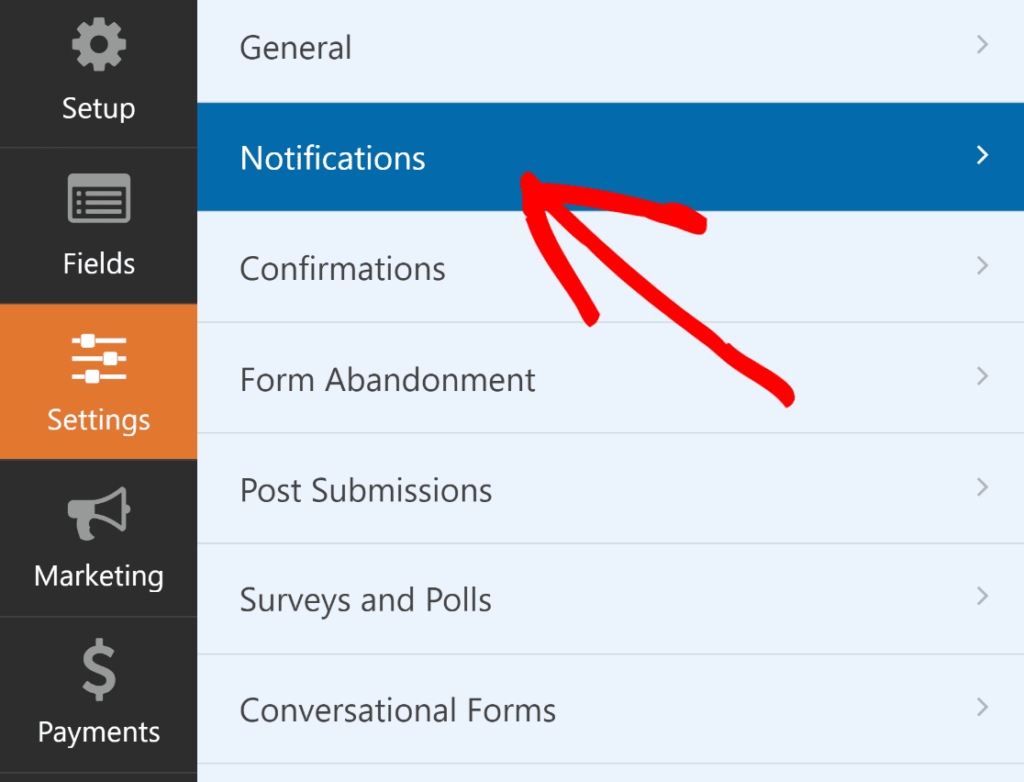
Abre la pestaña Configuración y configura las notificaciones por correo electrónico para que cada pedido llegue a la bandeja de entrada correcta. Luego escribe el mensaje de confirmación que ven los clientes después de realizar un pedido.
Para cambios más profundos dentro del constructor, como reescribir campos o agregar lógica condicional, Edición Inteligente los maneja desde un panel de chat justo ahí.
Envía también un pedido de prueba, para que puedas ver exactamente lo que llega a tu bandeja de entrada antes que los clientes reales. Cuando todo esté correcto, agrega el formulario a una página con el bloque WPForms y estilízalo.
Para agilizar la personalización de tu formulario, puedes seleccionar un tema predefinido en la sección Tema del formulario . En este ejemplo, estoy usando el tema Jungle (que es uno de mis favoritos).
Cuando estés satisfecho con cómo se ve todo, haz clic en el botón Publicar en la parte superior derecha del editor. Tu formulario de pedido ya está en vivo en tu sitio, creado a partir de un solo prompt de ChatGPT y listo para recibir pedidos.

¡Crea formularios con ChatGPT en WPForms! :)
Preguntas frecuentes sobre la creación de formularios de WordPress con ChatGPT
Surgen algunas preguntas con frecuencia cuando las personas conectan ChatGPT a WordPress por primera vez y crean formularios mediante chat.
¿Necesito saber programar?
No, toda la configuración es de apuntar y hacer clic y chatear sin código ni claves API involucradas. Agregas la aplicación WPVibe en ChatGPT, inicias sesión y describes el formulario que deseas.
¿Necesito un plan de pago de ChatGPT?
Necesitas un plan de ChatGPT que incluya aplicaciones, el cual está disponible en ChatGPT Plus y superior, y la aplicación WPVibe en sí es gratuita para agregar.
ilde{iquest}Qu ilde{e} otros asistentes de IA pueden crear mis formularios?
Claude y Cursor también funcionan, ya que WPVibe admite cualquier asistente que utilice el Protocolo de Contexto del Modelo. Los pasos de conexión difieren ligeramente para cada asistente, pero el resultado es el mismo.
¿Es seguro dar acceso de escritura a ChatGPT?
Sí, el acceso de escritura está desactivado hasta que lo actives, solo un administrador puede habilitarlo y puedes desactivarlo en cualquier momento. ChatGPT también pide permiso antes de cada cambio, y todo lo que hace aparece en el constructor para que lo revises.
¿Qué no puede hacer ChatGPT con mis formularios?
ChatGPT crea formularios, añade y edita campos, y actualiza el título, la descripción y el botón de envío de un formulario. No eliminará formularios ni cambiará notificaciones, confirmaciones, lógica condicional ni configuraciones de pago, por lo que esas opciones permanecen en tus manos en el constructor.
¿Qué campos puede añadir ChatGPT?
ChatGPT funciona con campos comunes como nombre, correo electrónico, teléfono, fecha y hora, carga de archivos, listas desplegables, opción múltiple, casillas de verificación, números y texto de párrafo. Eso cubre la mayoría de lo que necesita un formulario de pedido o un formulario de registro.
¿Puede ChatGPT trabajar también con las entradas de mis formularios?
Sí, una vez conectado, ChatGPT puede buscar y examinar tus entradas y recuperar una única presentación, para que puedas hacer preguntas rápidas sobre tus pedidos. E
l acceso a las entradas permanece de solo lectura, y para analizar o resumir envíos, también puedes enviar notificaciones generadas por IA con ChatGPT.
A continuación, Explora más herramientas de ChatGPT para WordPress
Que ChatGPT cree tus formularios es una de las varias formas en que ambos trabajan juntos. Nuestro resumen de los mejores plugins de ChatGPT para WordPress cubre más herramientas que integran la IA en tu sitio, desde contenido hasta soporte.
Dado que acabas de crear un formulario de pedido, también te puede interesar nuestra guía para crear un formulario de pedido sencillo en WordPress, que repasa las opciones que puedes ajustar manualmente.
¡Crea formularios con ChatGPT en WPForms! :)
¿Listo para crear tu formulario? Empieza hoy mismo con el plugin de creación de formularios de WordPress más fácil. WPForms Pro incluye muchas plantillas gratuitas y ofrece una garantía de devolución de dinero de 14 días.
Si este artículo te ha sido útil, síguenos en Facebook y X (Twitter) para más tutoriales y guías gratuitas de WordPress.





